


Desktop gadgets began to appear in iOS 14, which also made many iOS users pay more attention to creating their own unique style of pages. However, in addition to arranging various desktop gadgets and applications, the Dock field below the home screen currently does not provide a hidden option. But in fact, it can be easily hidden with some tricks! Recently, a company specializing in making special wallpapers for iPhone @heyeased Sharing two kinds of tablecloths, dark and light, can achieve the effect of hiding the Dock column.
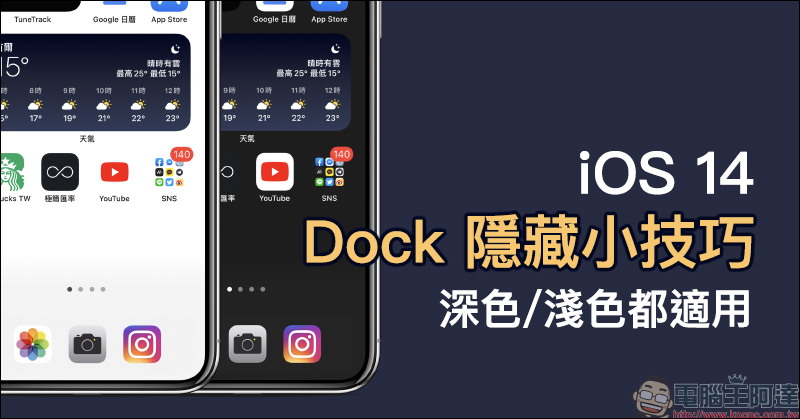
Tips for hiding the bottom Dock in iOS 14: Perfectly hide the Dock bar at the bottom of the home screen, suitable for both dark and light appearances!
The Dock bar at the bottom of the iOS home screen always displays a dark or light color block according to the user’s appearance display settings. If you want to make applications, desktop gadgets, and the Dock bar look more consistent, you can actually hide the Dock bar at the bottom of your iPhone by changing to an appropriate wallpaper and performing a few setting steps!
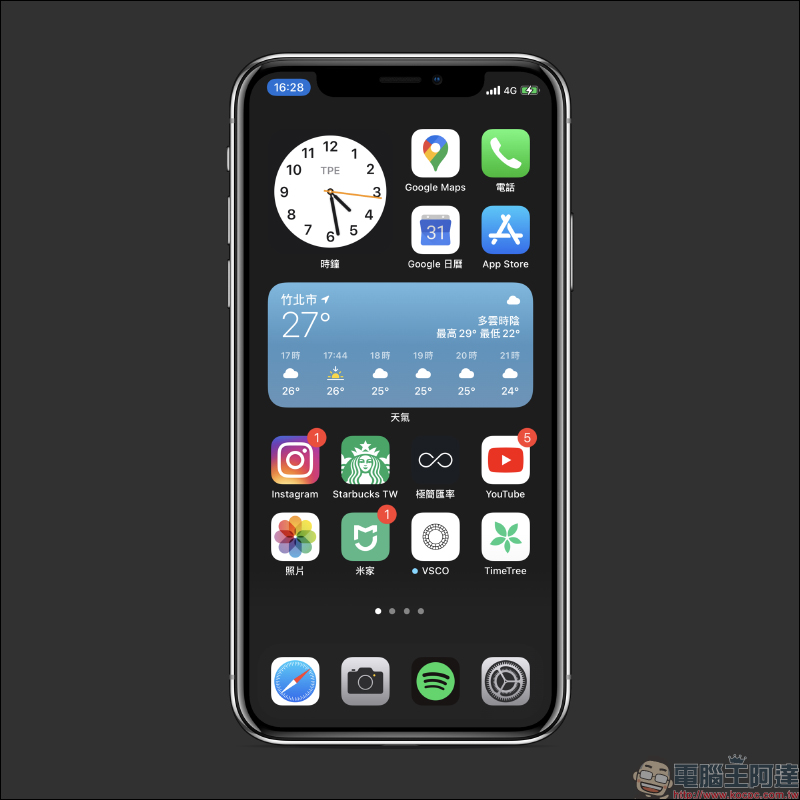
@heyeased, a company from Japan that specializes in making special tablecloths for the iPhone, has recently released a set of tablecloths that hide the Dock. For users with different appearance settings, they have released white tablecloths with a light appearance and dark gray tablecloths with a dark appearance:
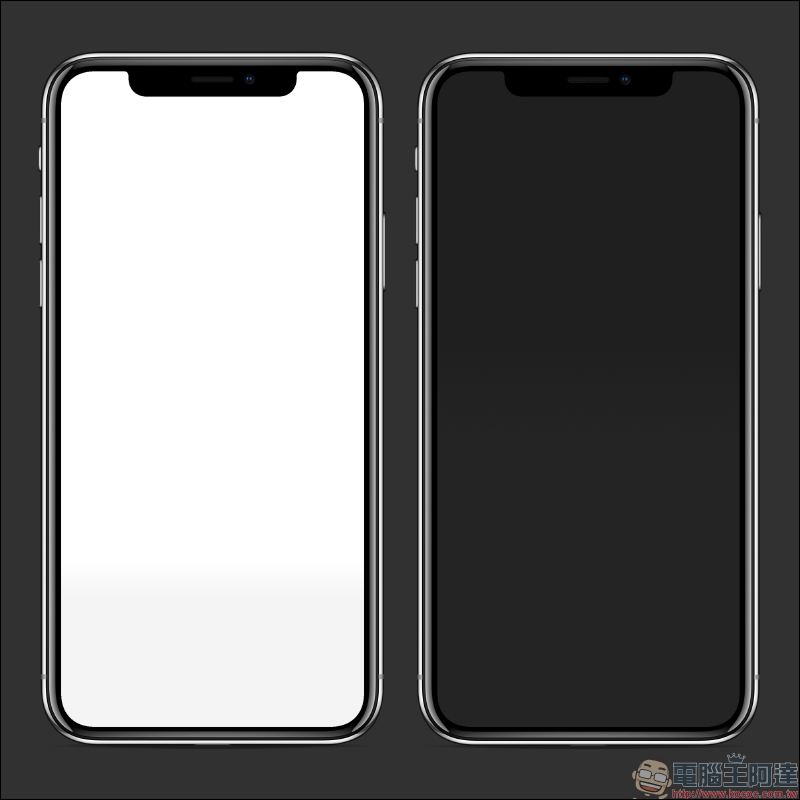
Dock hidden wallpaper download:
Applicable to light color appearance (click me to download)|Applicable for dark appearance (click me to download)
First, iOS 14 users should open “Settings” and set the corresponding appearance depth in “Screen Display and Brightness”. Since the appearance settings need to be matched to achieve the best Dock column hiding effect, it is recommended to turn off the “Automatic” adjustment option of the appearance settings.
Then, after downloading the wallpaper image above, select “Choose a new background image” on the “Background Image” page:
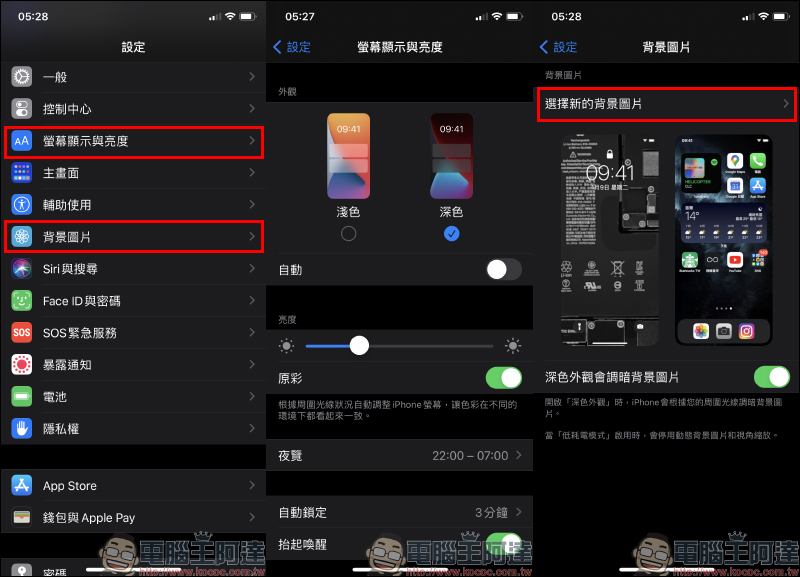
After selecting this wallpaper, change “View Zoom” to “Off” in the wallpaper settings, and then select “Set Home Screen”:
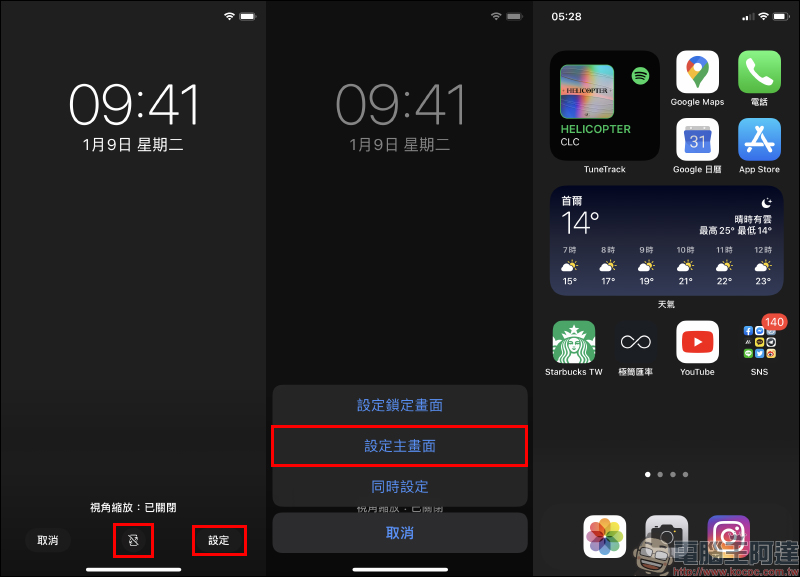
The reason why the Dock column can be hidden depends on the “Desktop” and “Appearance” settings. If you are used to using dark mode, you must turn on dark mode with a dark wallpaper. If you use “dark mode with white tablecloth”, the tablecloth background and Dock column will appear in different light gray colors. On the contrary, “light mode with dark tablecloth” will make the tablecloth background and Dock column appear different dark grays.
Dock hidden wallpaper download:
Applicable to light color appearance (click me to download)|Applicable for dark appearance (click me to download)
Source:@heyeased
Further reading:
Weather Line is a free desktop gadget iOS App, with light and dark simple theme styles, displaying weather forecasts for various places.

TuneTrack iOS App allows Spotify users to set the desktop gadget to display and play music
Source: KOCPC Chinese