


Presumably since the update to iOS 14, many iOS users have begun to explore some useful Widgets desktop gadgets. In addition to the commonly used weather and calendar built-in iOS, many people also want to create a more personalized style through the layout design of Widgets.
Today I will share with you a Color Widgets App that I personally recommend. Not only does it have a simple, clear and easy-to-read interface, it can display date, time and battery information, it also has a variety of built-in color layouts and provides users with diverse customization functions. It can also set pictures from the photo album as the background. The most important thing is that it is completely free!
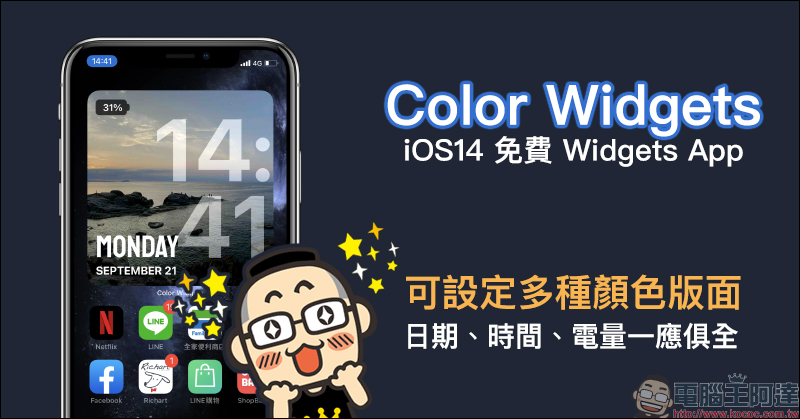
Color Widgets iOS14 Free Widgets App, which can display date, time, battery and customize photo album as background
After users updated their iPhones to the latest iOS 14 operating system, many people began to spend more time planning the page layout of their phones, trying to make their layouts as unique as possible and easier to use.
Date, time, and battery are the three things that need to be checked the most in daily use of mobile phones. When designing page layout, everyone will try their best to list related widgets among them. Recently, I discovered a free Widgets App “Color Widgets” in the App Store that can meet the above needs. The key point is that it is both beautiful and easy to use.
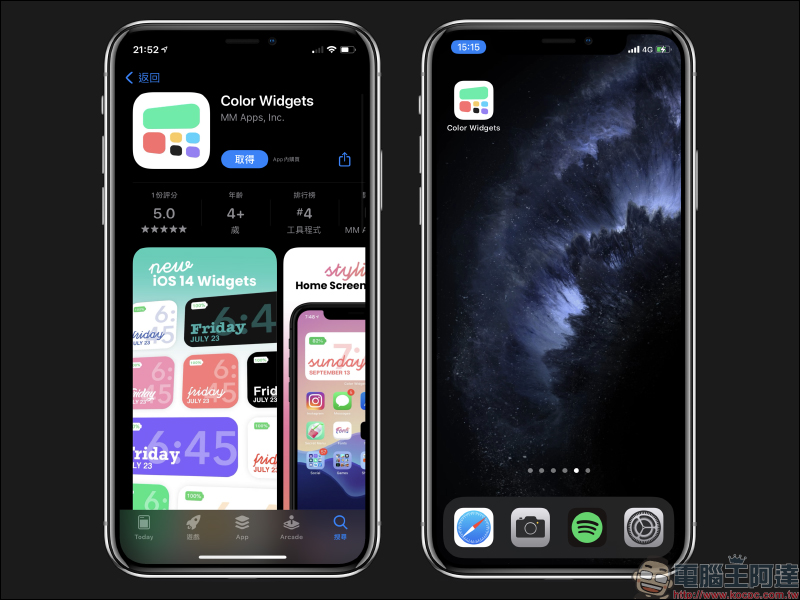
Color Widgets App :App Store (click me to download)
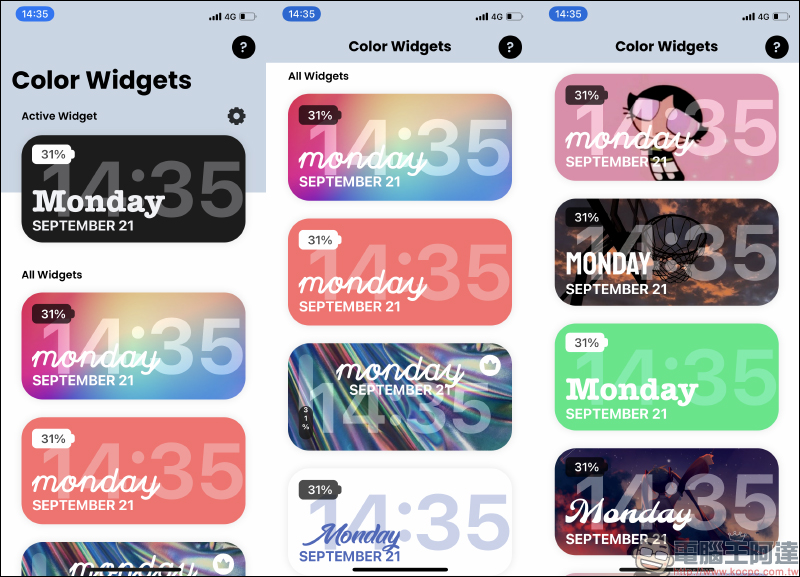
After downloading the “Color Widgets” App from the App Store, you need to open the App before using it for the first time. When you open the app, you can see a variety of color layouts to choose from. You can easily find your favorite theme according to your preferences.
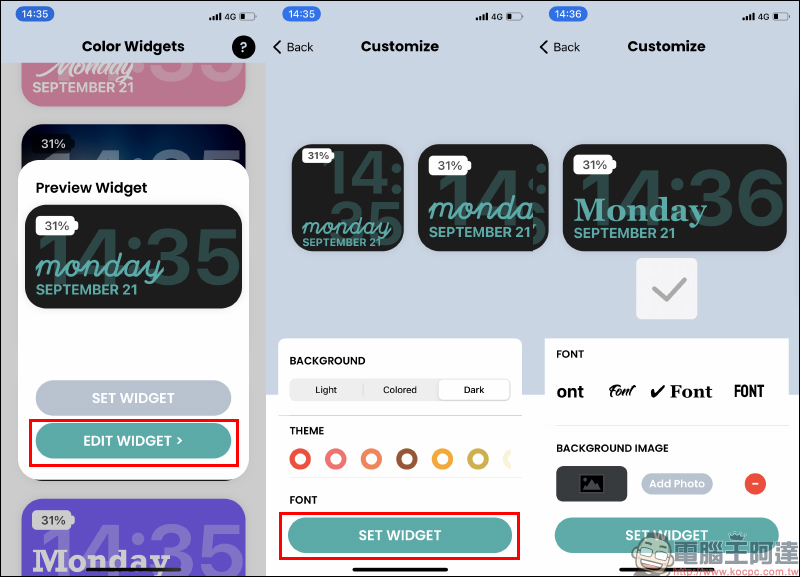
If you select the Widget you want to use, first click on the Widget and a preview window will pop up. At this time, if you do not need to make any custom adjustments, you can directly press “SET WIDGET” to apply. However, the author recommends that you still select “EDIT WIDGET” to enter the customization page, because here you can choose custom settings such as background color, theme text color, etc. After confirming that the preview display effect is satisfactory, press “SET WIDGET” to apply.
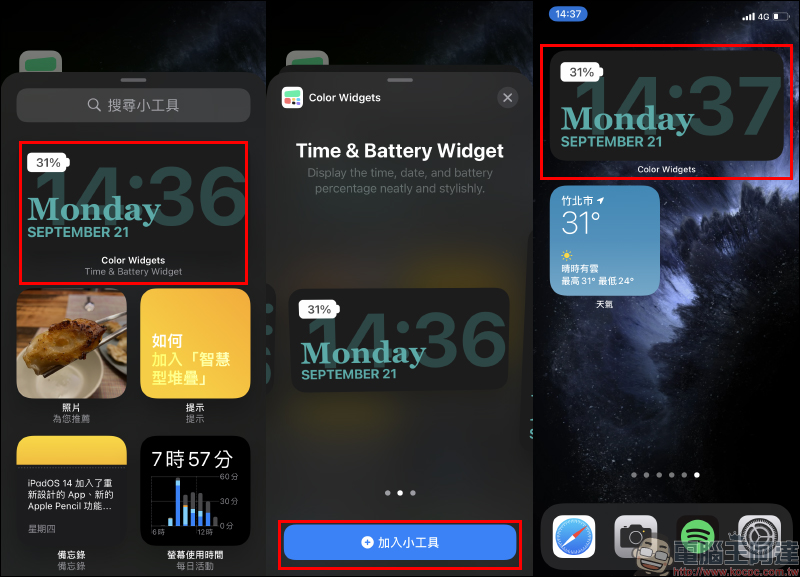
After applying the settings, you can follow the usual method of adding widgets by long pressing on the home screen and clicking the “+” in the upper left corner to select the widget you want to add. Then you will see the Color Widgets option in the widget options. Color Widgets currently provides three display size options: square, rectangular and full square. You can choose the appropriate Widget display size according to your layout planning.
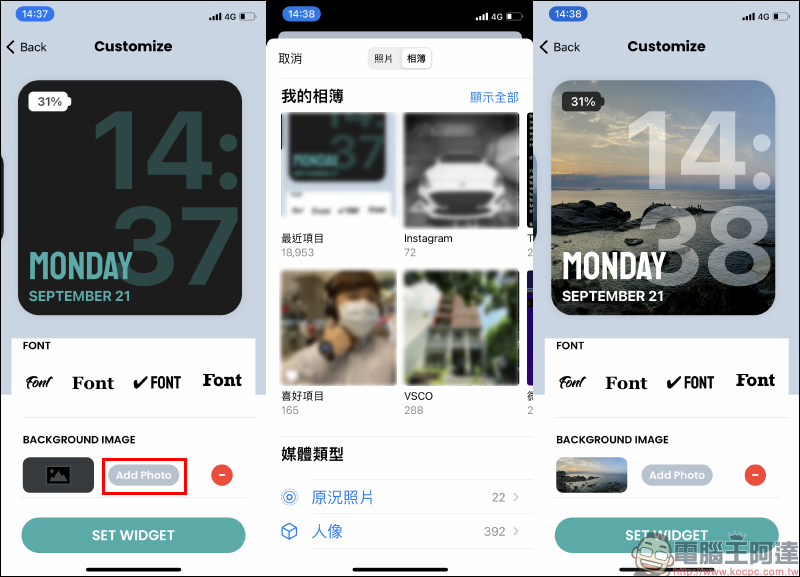
In addition to the various colors and font layouts built into the Color Widgets App, users can also set pictures in their own albums as the background of the widget. Just click “Add Photo” in the Background Image at the bottom of the layout settings page, and then select the picture in the album you want to set as the background to apply. Remember to press the “SET WIDGET” button after the settings are completed to officially apply the update!
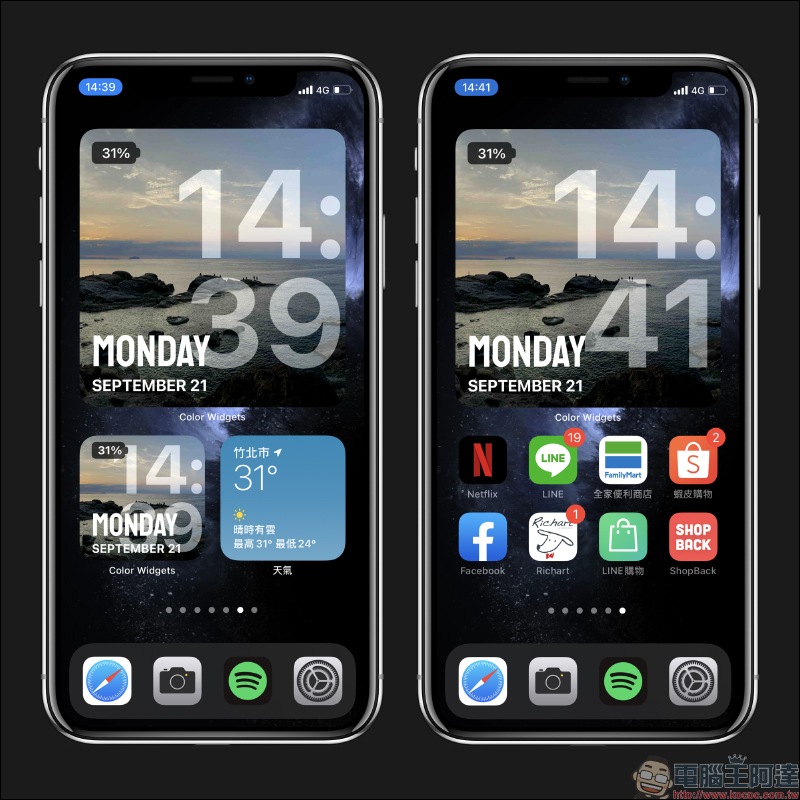
The following is for your reference the actual rendering effects of the two display layouts of the Widget:
Color Widgets App :App Store (click me to download)
Further reading:
iOS 14 picture-in-picture video playback tutorial on YouTube, applicable to Facebook and other apps that do not support picture-in-picture video playback


Source: KOCPC Chinese