


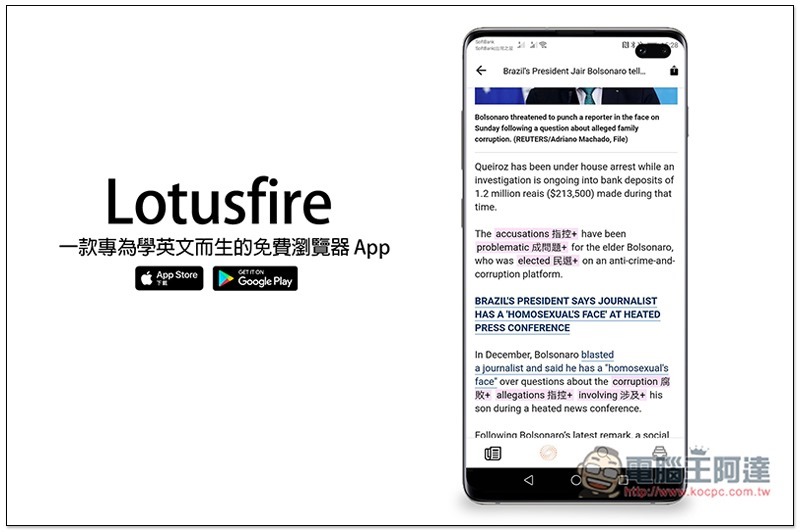
Although iOS and Android browsers now have built-in dictionary functions, you can quickly look up the meaning of a word when reading foreign news. However, when looking up, a separate window will be opened, which is not directly displayed on the page. It is quite troublesome to switch back and forth, and sometimes you even accidentally forget it after a few seconds. If you also encounter this problem, then Lotusfire, a free browser app specially designed for learning English, is quite good. When you click on an English word you don’t understand, a Chinese explanation will be displayed immediately next to it. It also has a built-in word collection function that will automatically collect words we may not understand to facilitate subsequent review. It is available in iOS and Android versions.
Lotusfire App Introduction
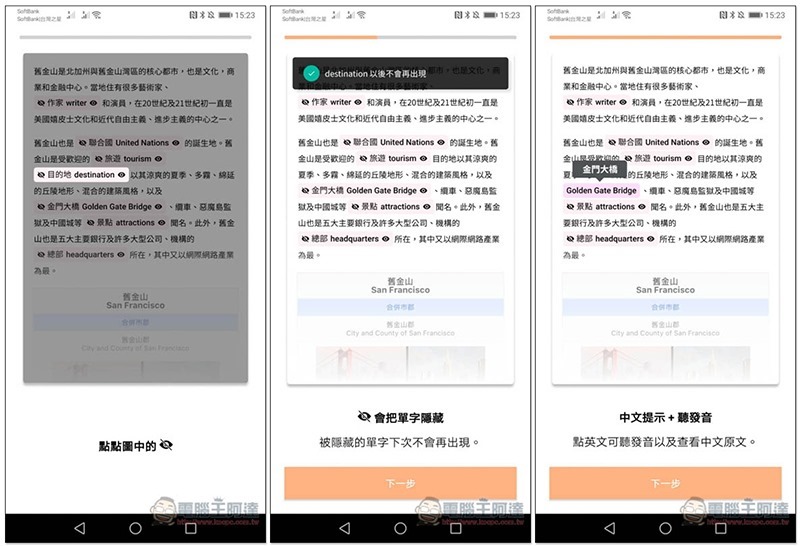
There will be an operation tutorial when you open it for the first time, which is quite simple. Basically, when you click on a word, a Chinese explanation will appear next to it, and when you click on the word again, it will be pronounced. But I don’t know why, I didn’t see the eyes displayed in the teaching screen when I used it:
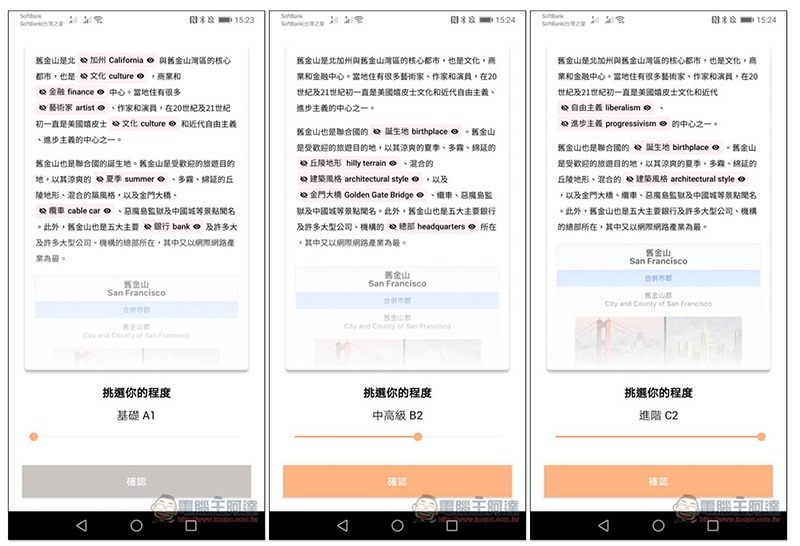
Select your current English level, and you can refer to the word explanations displayed in the article above to see which one is most suitable for you (that is, you do not understand most of the displayed words):
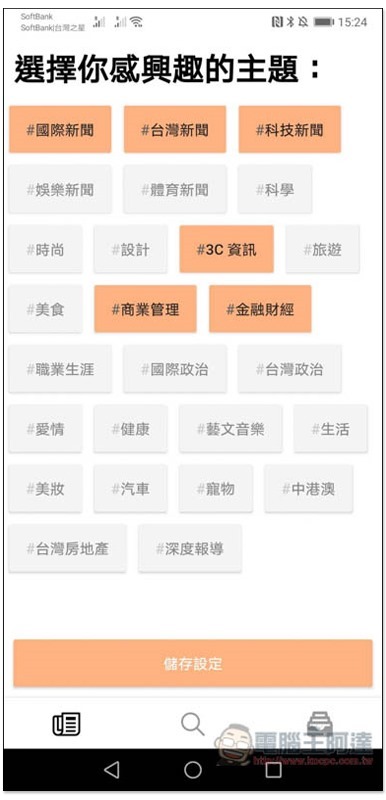
The home page (daily bilingual) will automatically compile daily articles from well-known news and magazine websites. Select the topics you are interested in, at least three:
After entering the main screen, you will see the titles and content of some domestic and foreign articles, with English words and Chinese explanations. This is the AI recommendation function of this app, which automatically selects words that match your English level:

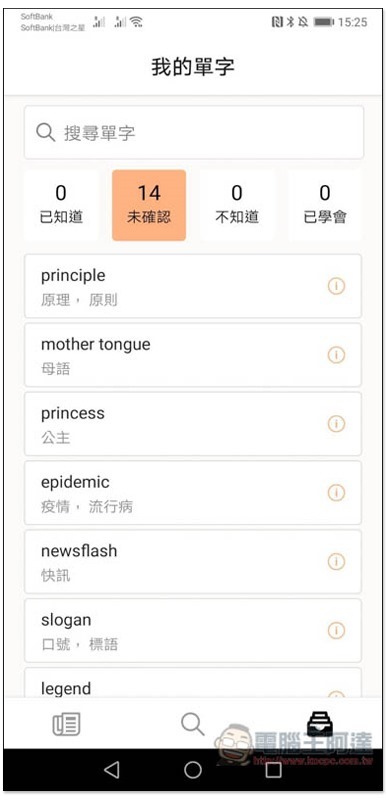
These words will also be automatically compiled to the “My Words” page:
When watching foreign news, if there is a word you don’t understand, you need to click on it and the Chinese explanation will be displayed on the right. If + is displayed, it means there are other Chinese explanations:

As shown in the picture below, click + to switch to other Chinese explanations until you find the one that you think is more in line with the meaning of this article. In addition, click on the English word again to listen to the pronunciation:

The Chinese explanation of the clicked words will be retained and will not disappear. This is quite good. You don’t have to worry about suddenly forgetting the explanation of a certain word, and you can quickly understand the meaning of the entire paragraph:

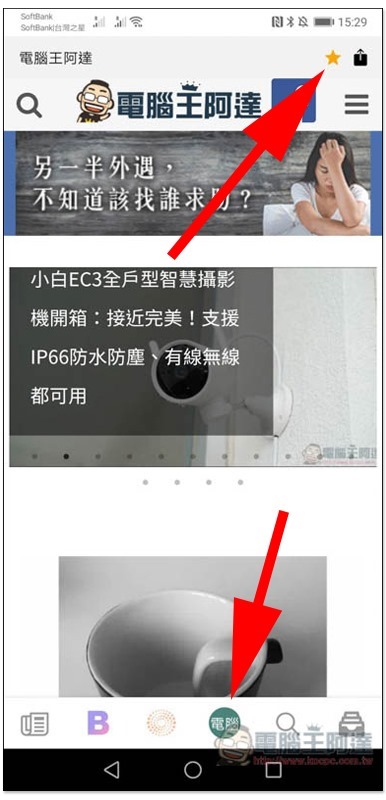
In addition to the automatically compiled domestic and foreign articles, click the “magnifying glass” icon at the bottom to open the browser function. Several commonly used websites have been preset. Click the star icon in the upper right corner to add this website to the bottom toolbar:
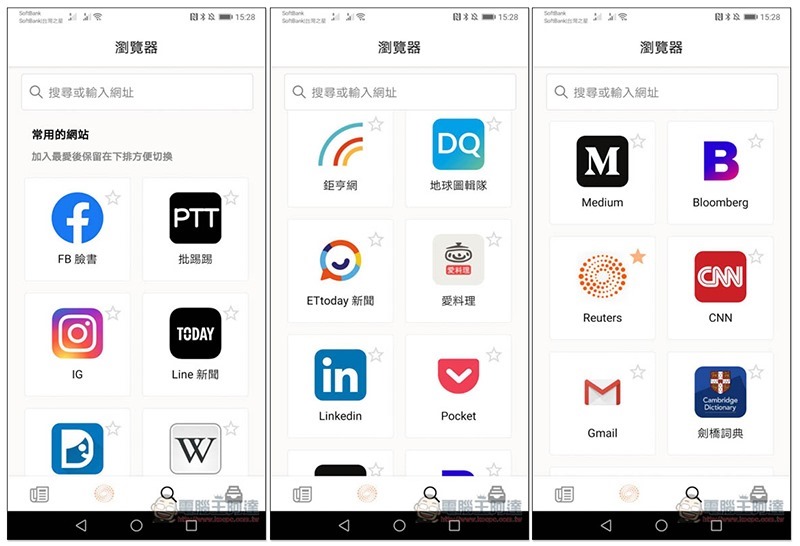
As shown below, it is somewhat similar to adding a bookmark. In the future, you only need to click on this website icon to quickly enter and read the latest information:

It also supports the function of entering the URL. After entering the website, you will see the star icon in the upper right corner:
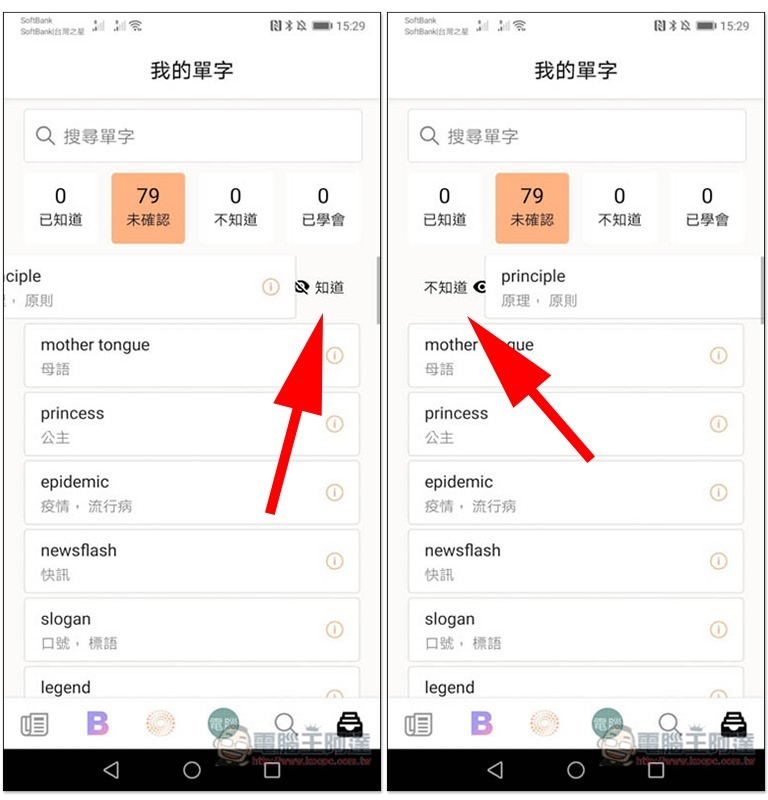
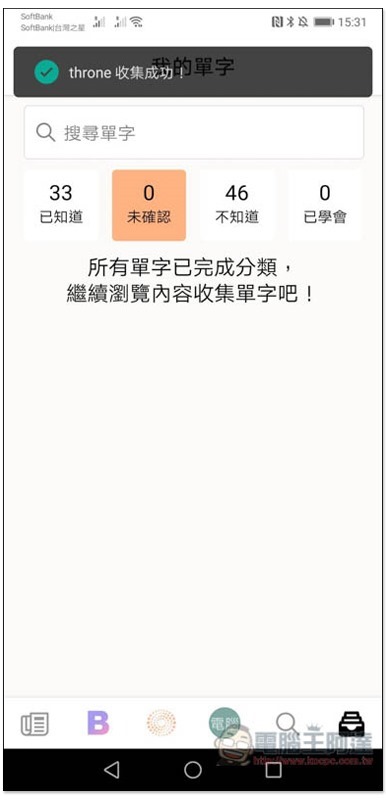
When you have free time on my vocabulary page, remember to sort it out manually and classify the words you know or don’t know (swipe left, swipe right), so that it will be easier to review in the future:
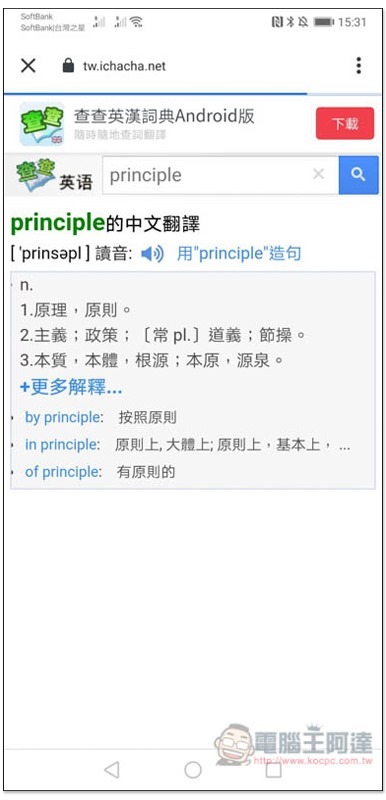
Click the i next to a word to display the Chinese translation of the Chacha English-Chinese Dictionary web version:
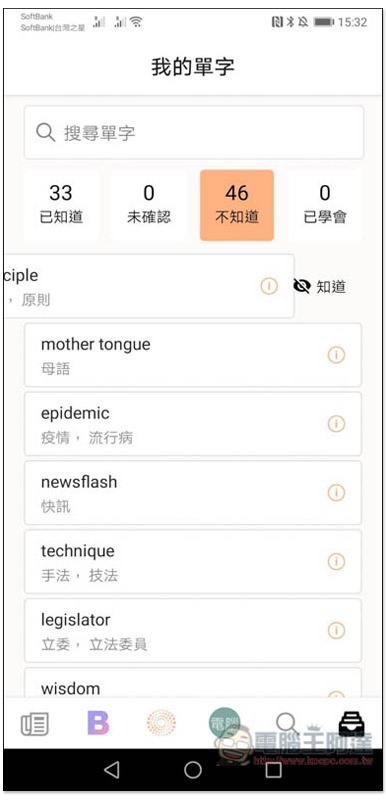
If you have memorized the unknown word, you can also reclassify it to “Known”:
Although this app is currently very useful, I personally feel that it is a pity that when reading foreign articles, if there are words that you do not understand or are not familiar with, you cannot manually add them to the word library at present. I hope this function will be added in the future. There is also a simple word practice mode, which will be more perfect.
Supplementary information
- App name: Lotusfire
- Nature: Free
- Download page:App Store、Google Play
Source: KOCPC Chinese