


Although the iPhone itself also has a screenshot post-production function, I personally feel that there are too few tools available, and the preset arrows are also very thin. Therefore, when I need to annotate content, I mostly use the Photoshop software on my computer. Recently, I discovered this super powerful iMark free screenshot app. It not only has many annotation tools, but also supports screenshots of web pages and maps, as well as the frame function of iPhone, iPad and other devices. Basically, it can be said that for any screenshot needs on iOS, this app is enough.
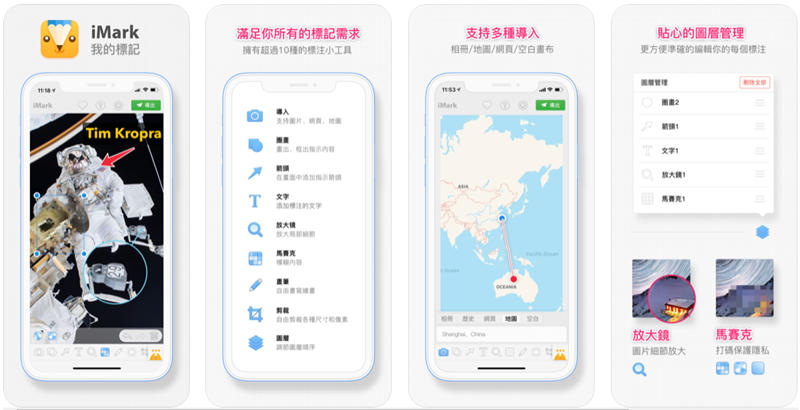
Introduction to iMark App
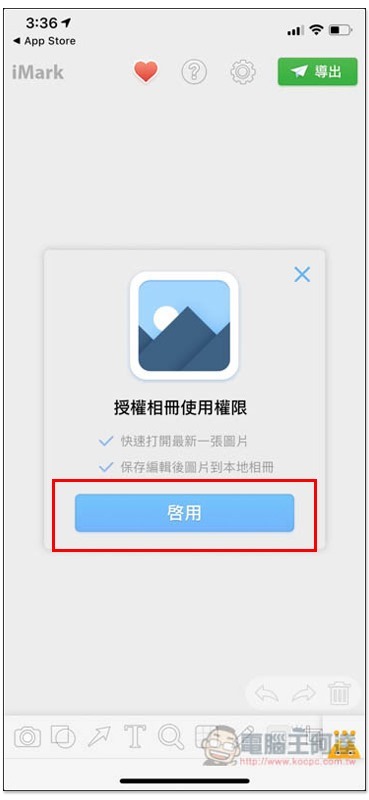
After opening the iMark App, first authorize the permission to use the photo, and click “Enable” in the middle:
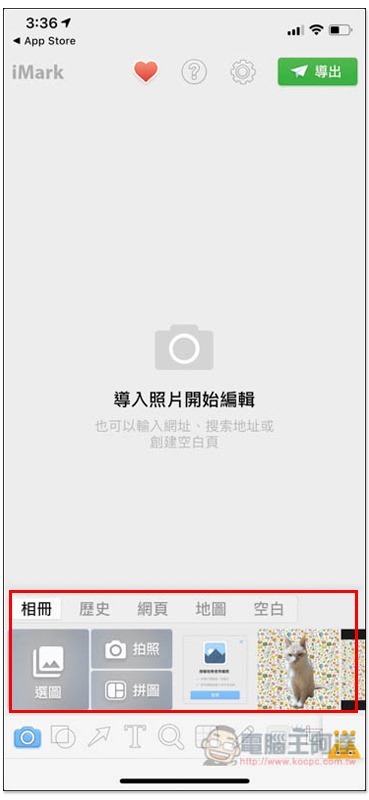
The iPhone photos will be displayed below, and there are also web and map functions that allow you to screenshot web pages or maps directly in the app and annotate them. The history will record the content you edited:
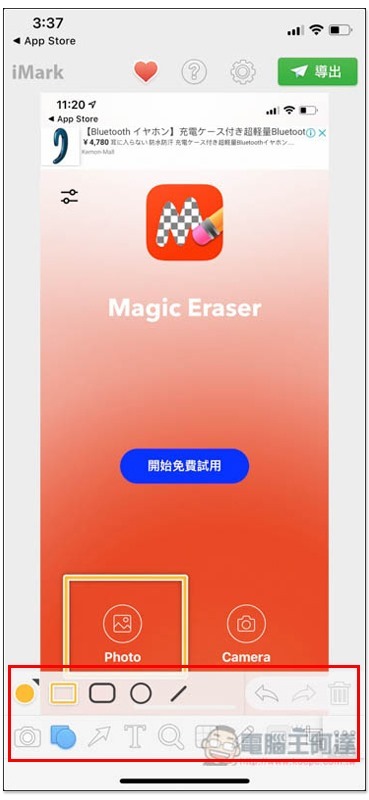
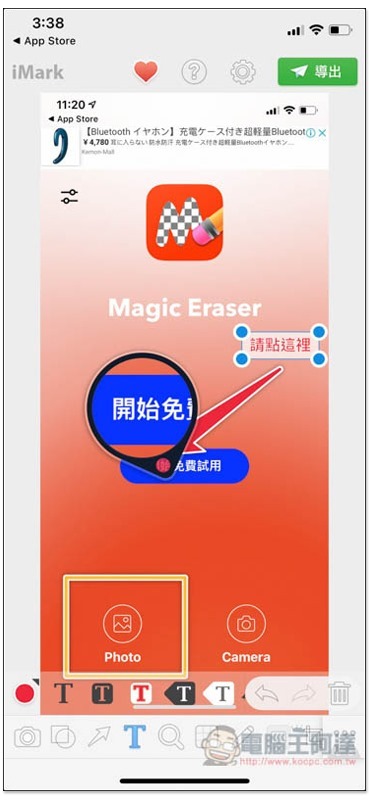
I’ll take this screenshot as an example. The annotation tools are located below, including circles and squares, arrows, lines, text, magnifying glass, brushes, etc.:
I think the magnifying glass is very useful. Others can see the key points immediately. If the text or content is too small, you can also use this function to enlarge it:
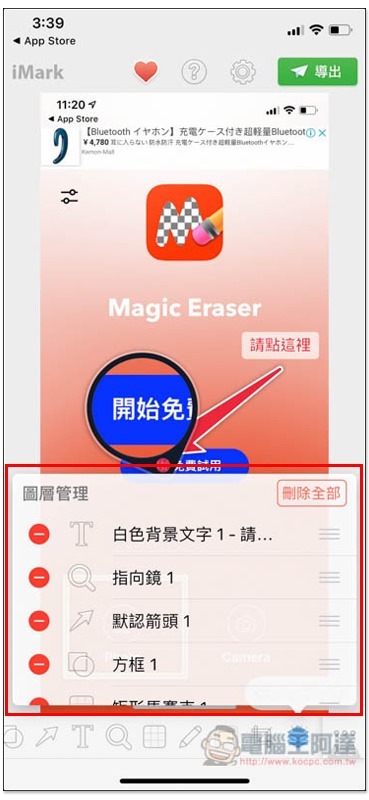
In the last frame, you can view the layer to adjust the upper and lower position of each label:
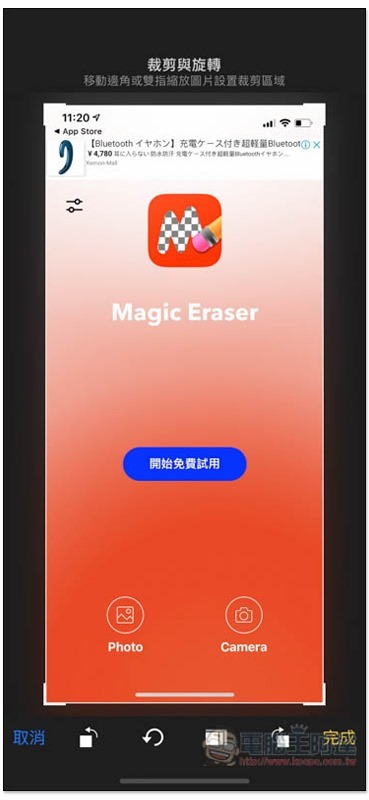
Cropping and rotation functions are also provided:
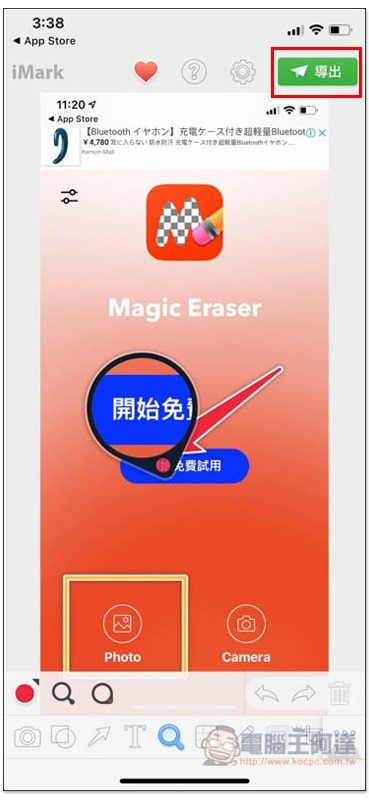
After everything is completed, click “Export” on the upper right and it will be saved to the iPhone photo:
There will also be a prompt saying “The picture has been saved to the album” above. If you want to apply the screenshot to the screen of your iPhone or other device, click “Border Watermark”:
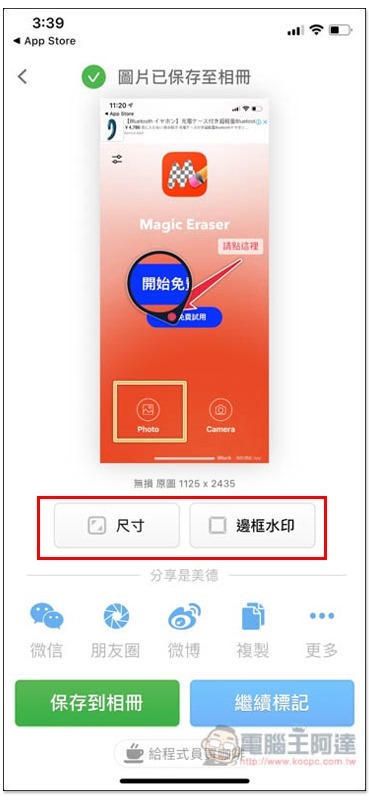
You can select the device you want by selecting the frame style, such as: iPhone with Touch ID, iPhone with Face ID, iPad, or Apple Watch. The border and background colors can be modified. For the proportion part, it is recommended to use “Adaptive” first. If you feel weird after applying it, try “Fixed”:
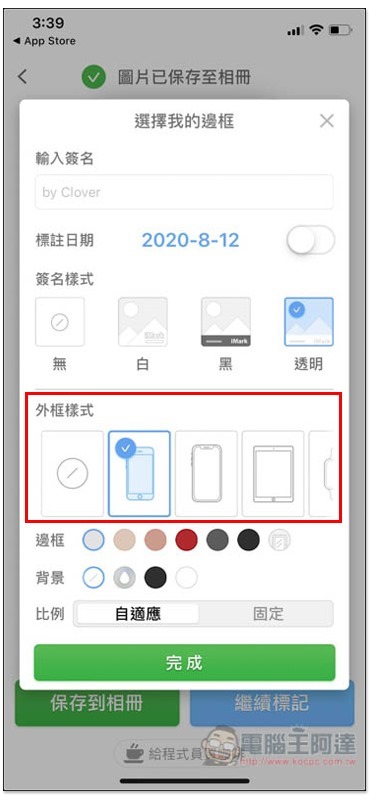
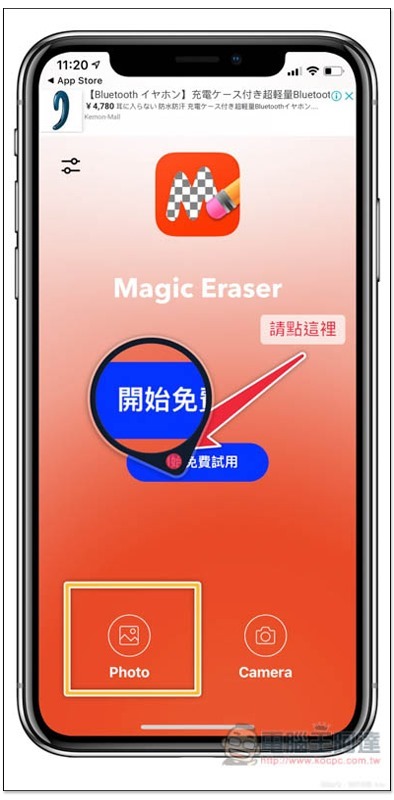
After adding the iPhone frame, the screenshot looks more refined. Click the lower left corner to save it to the photo:

The picture below is the final picture after I exported it:
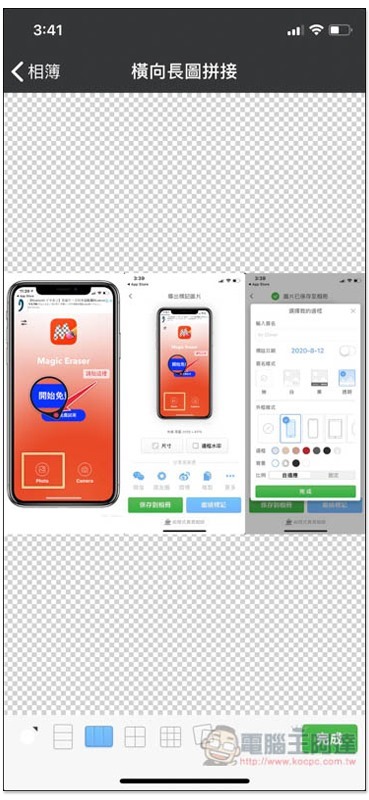
This app also provides a puzzle function. People who want to put multiple pictures and screenshots together can easily do so with this app:
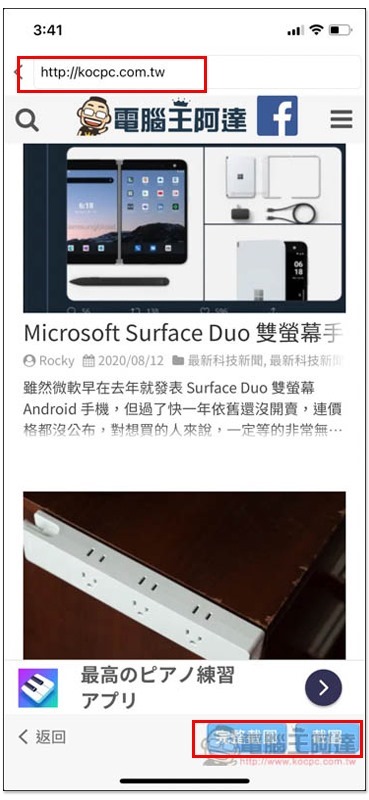
The method of using web page screenshot annotation is also very simple. Enter the URL you want to screenshot, and then click “Full Screenshot” or “Screenshot” in the lower right corner. The former will capture the entire web page:
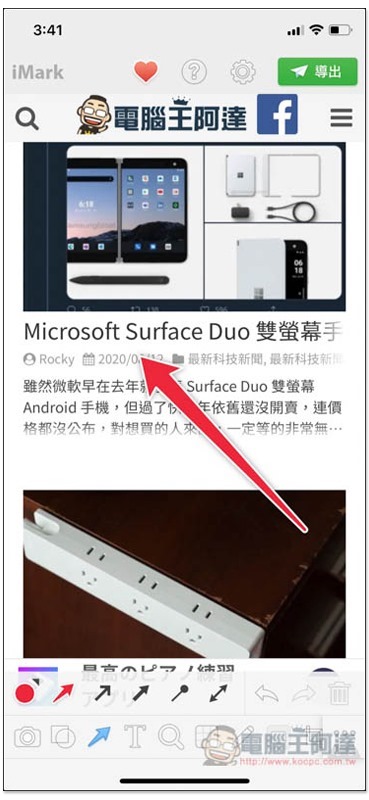
Then you will enter the post-production screen:
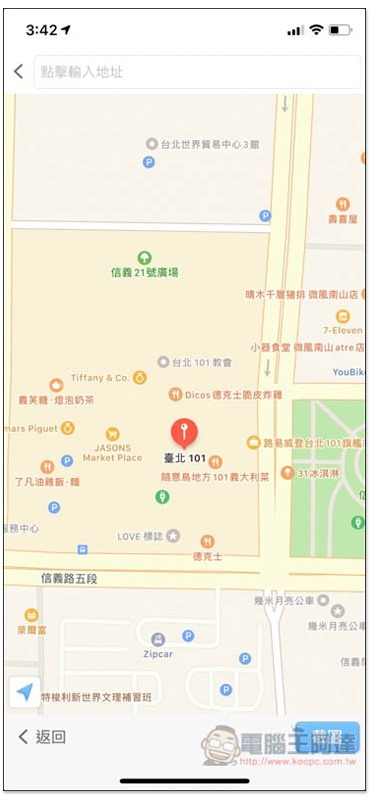
The same goes for Google Maps. Enter the address you want to query. After confirming the screen, click on the lower right corner to take a screenshot:
You will enter the post-production screen:
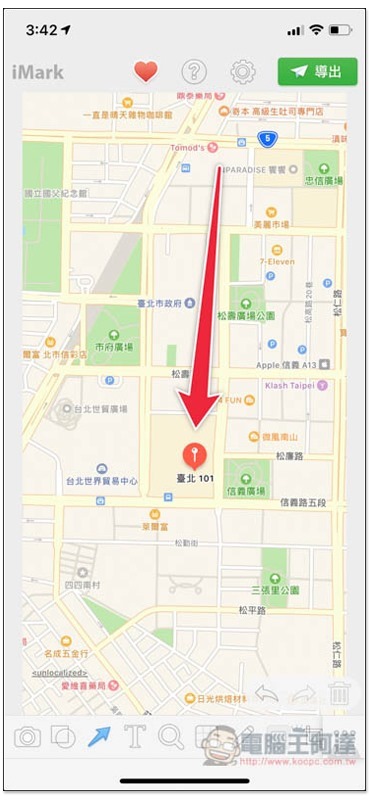
I think the map screenshot function is very useful. After adding annotations (or even adding text), you can easily tell others where to wait or how to get there from the station. It is clearer than sharing a map.
Supplementary information
- App name: iMark · My Mark – Image Annotation
- Nature: Free, in-app purchase
- Supported operating system: iOS
- Download page:App Store
Source: KOCPC Chinese