


The most anticipated feature in iOS 14 is that you can finally add Widgets to the desktop (although this has been available on Android for a long time), which is much easier to use. When you want to view any information in the future (such as weather information, clock, etc.), you don’t have to slide to the leftmost Widget screen every time. In addition, this time the gadget also adds a new option of “smart stacking”, which integrates multiple practical gadgets and switches them by sliding up and down, saving more desktop space. If you still don’t know how to operate it, this article will take you through screenshots to quickly understand the steps to add iOS 14 gadgets.
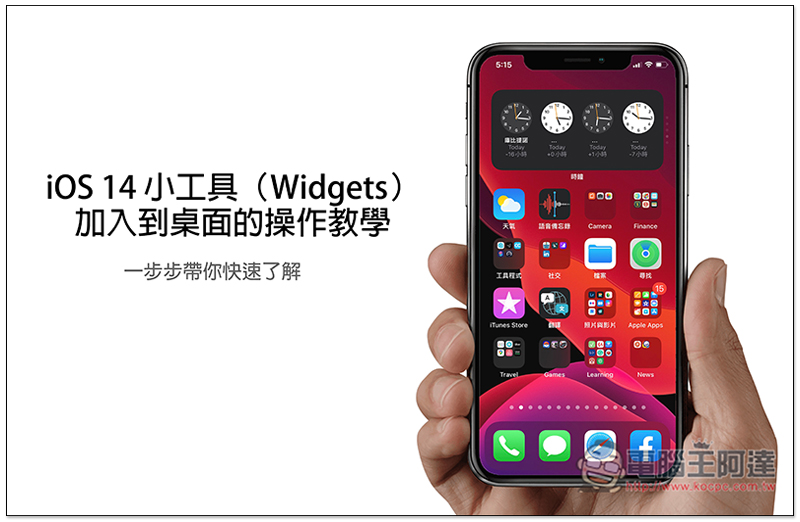
iOS 14 widgets (Widgets) are added to the desktop operation tutorial
The newly added desktop gadget function in iOS 14 can be used as long as your iPhone can be upgraded to this version. I don’t know if my iPhone can be upgraded.You can refer to this article we compiled。
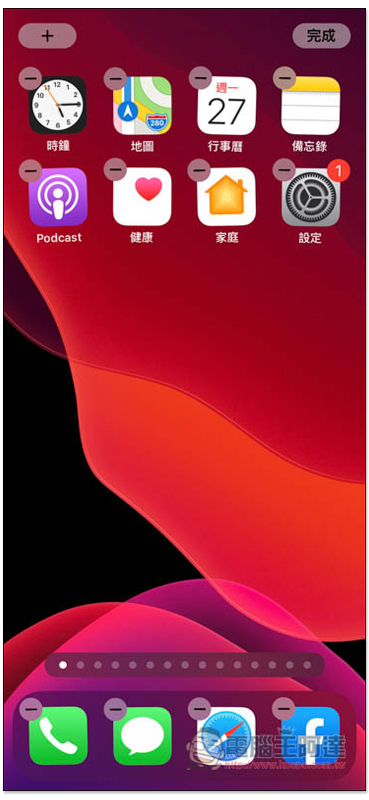
After upgrading to iOS 14, long press any blank space on the desktop, you will enter the jumping screen, and then you will see a + function in the upper left corner:
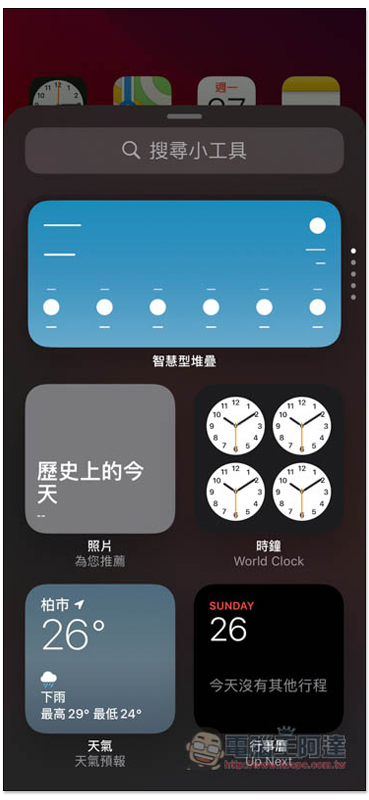
After clicking, you will enter the gadget screen, which will display several commonly used built-in gadgets, such as: photos, clocks, weather, calendars, etc., and smart stacking integrates multiple gadgets. You can notice that there are five small dots on the right, and you can swipe up and down with your finger to switch. There will be a screenshot demonstration below:
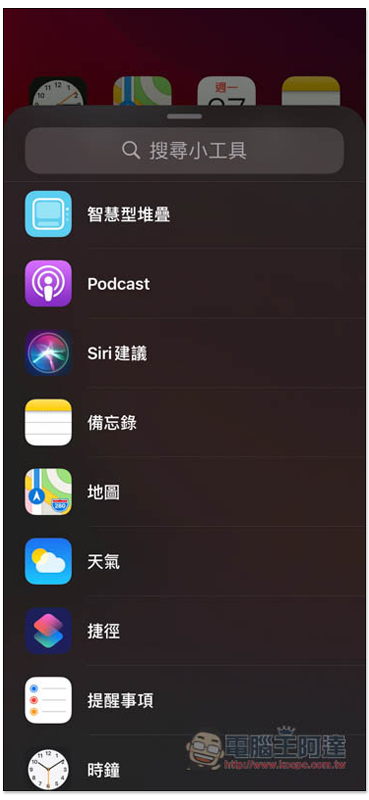
Swipe down to view more available gadgets, such as maps, podcasts, notes, and also supports Siri suggestions:
After clicking on the gadget you want to add, you will have three sizes to choose from. The difference lies in the amount of information provided. For example, for the weather forecast in the picture below, the largest one also includes the weather forecast for the next few days. The larger the size, the more desktop space will be taken up:
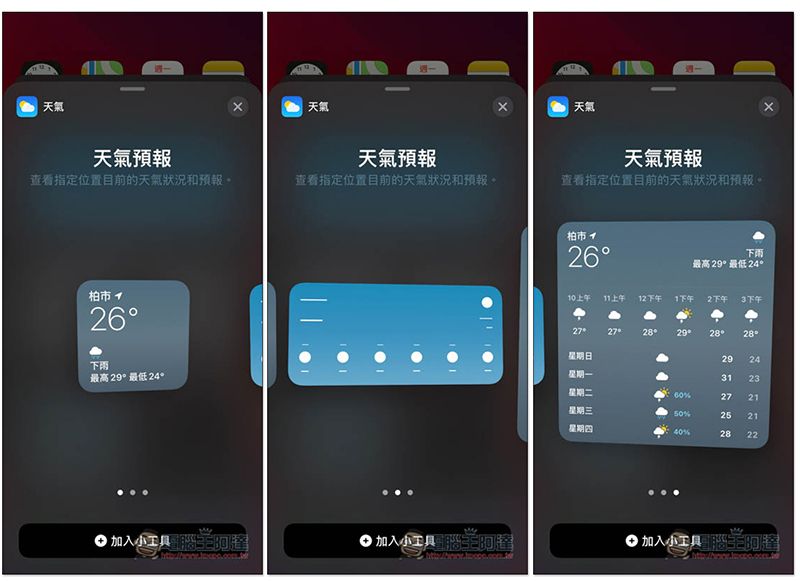
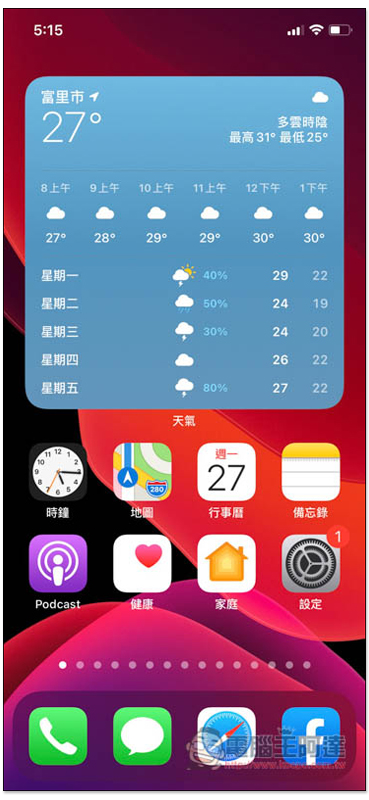
After deciding on the size and clicking “Add Gadget”, it will appear on the desktop:
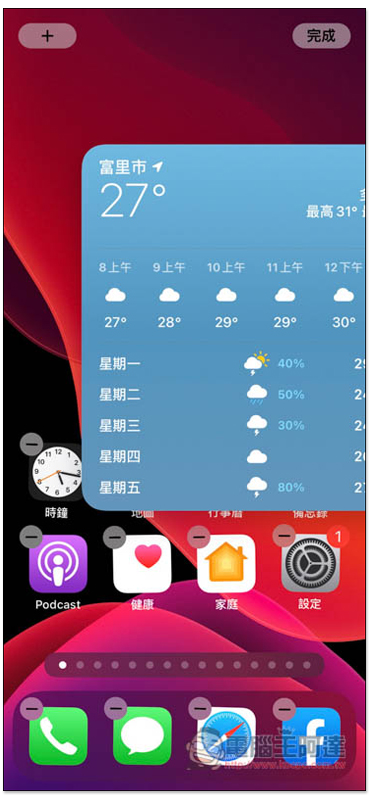
Just like App, you can press and drag to other page desktops or locations:
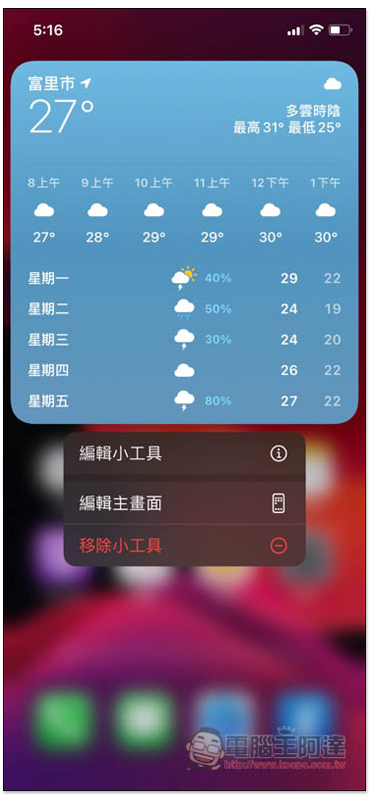
Long press also has the option to edit widgets:
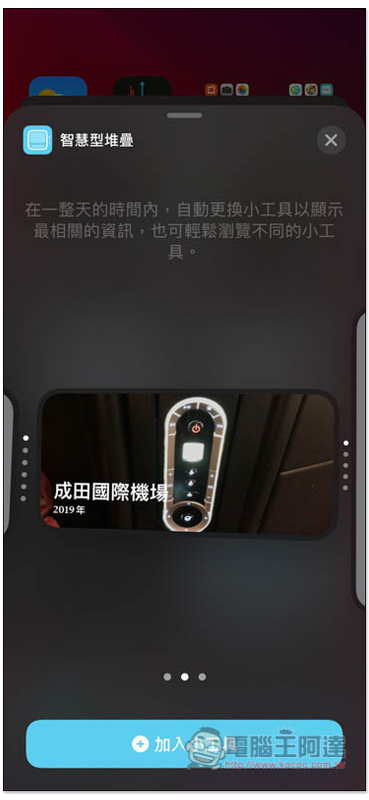
Smart stacking also comes in three sizes:
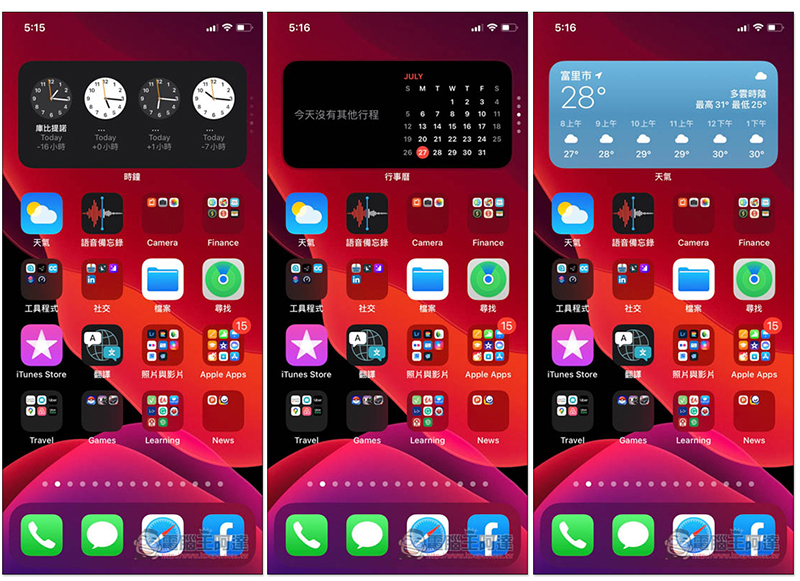
After adding it to the desktop, sliding up or down will switch the displayed gadgets, such as the clock, calendar and weather as shown below:
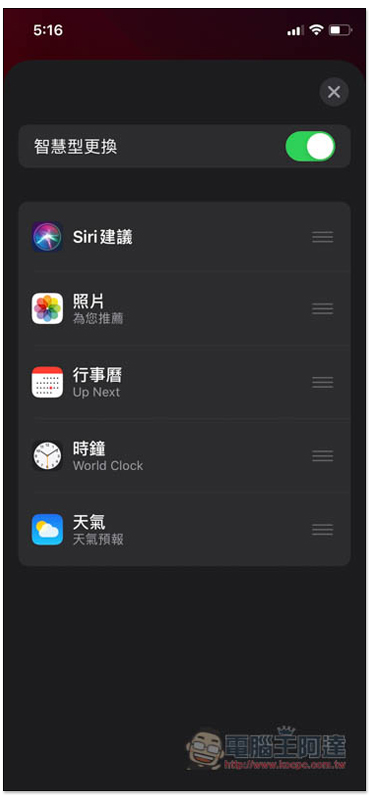
It’s a pity that currently this smart stack cannot add or delete other gadgets, but can only change the display order:
The above are the operation steps of the gadget. The pictures I took are all of the current Beta test version. If there are any changes when the official version is launched in the future, I will update this article.
Source: KOCPC Chinese