


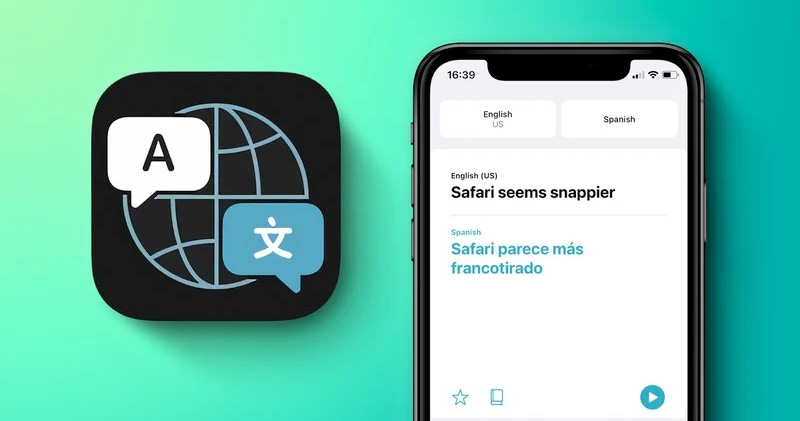
Although iOS 14 has not yet launched the official version, many people are already having fun in the test version. Foreign forums MacRumors In iOS 14, it was discovered that Apple has added a new built-in translation application. As the name suggests, this application can provide translation and conversion between languages. It can also help everyone learn new languages and communicate more conveniently with people of other languages.
※Picture source:MacRumors
Apple adds a built-in translation app to iOS 14, with two-way conversion in 11 languages
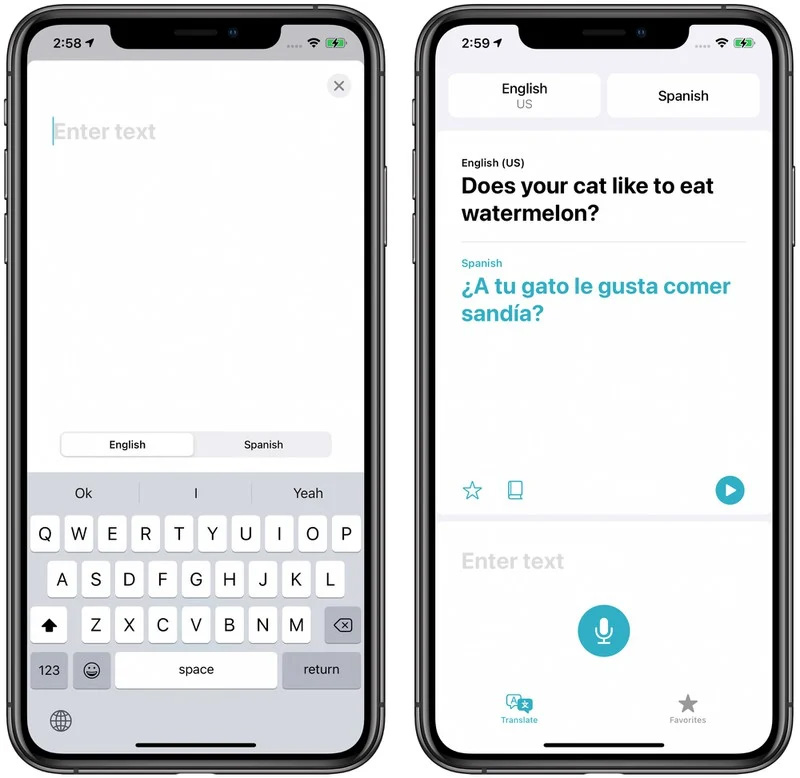
The translation app that Apple added to iOS 14 has a fairly simple and easy-to-use interface that allows you to select the language you want to translate from the top. You can also choose to enter or paste the text you want to translate with the keyboard, or click on the microphone option and type in spoken language. The translated content is displayed in large fonts, the original input text is displayed in black, and the translation result is displayed in blue. You can click play on the iPhone to read the translated content, allowing you to hear the correct pronunciation or communicate with people of different languages. The translation app can translate between 11 languages including Arabic, Chinese, English (American and British), French, German, Italian, Japanese, Letters, Portuguese, Russian and Spanish.
※Picture source:MacRumors
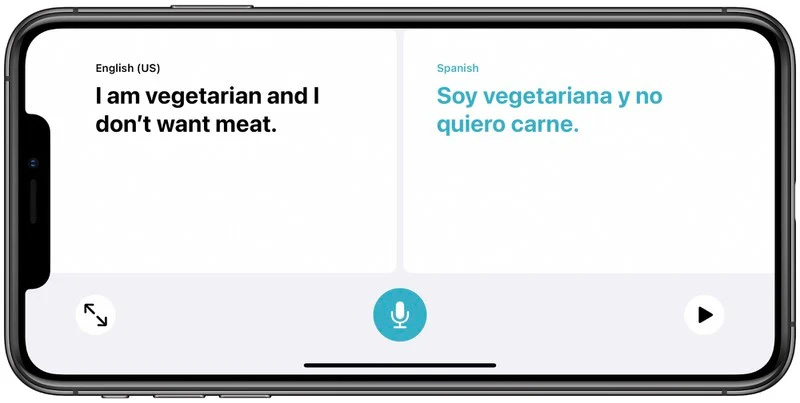
When using the voice translation function, you can tap the microphone in the translation app and speak a short sentence clearly and loudly to translate it into the selected target language. The app can support voice input conversion using simple short sentences or longer sentences. In addition, the translation app also has a conversation mode, which allows you to have a back-and-forth conversation with a person speaking another language. It can be enabled by turning your phone into landscape mode. In conversation mode, iPhone will start listening to both languages (yours and the other person) and translate correctly between the two languages. When you are talking, just make sure both parties hold down the microphone button while speaking.
※Picture source:MacRumors
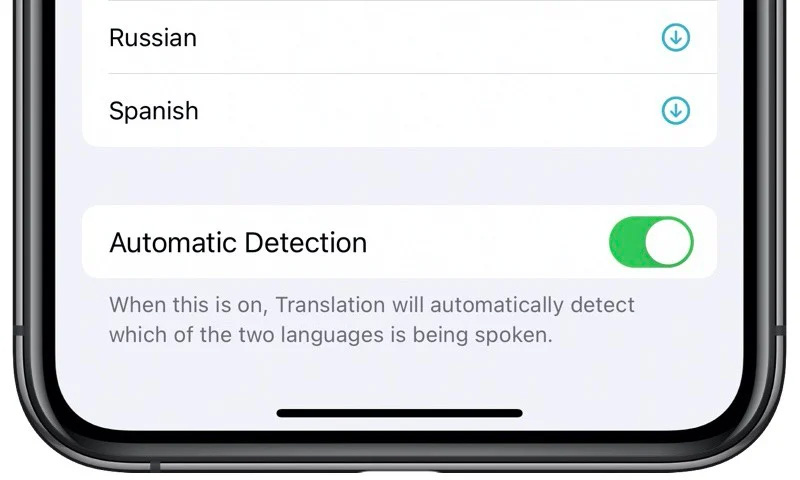
If you want to use conversation mode with automatic speech detection, you can scroll down in the language selection at the top to make sure that automatic detection is turned on. If automatic detection is not effective, you can disable it by turning off the two microphones at the bottom of the app (which are displayed when automatic detection is turned off).
※Picture source:MacRumors
There is also an attention mode. When the iPhone is in landscape conversation mode, if you click the two outward arrow icons, the translated sentences will be displayed in a larger text size in the attention mode to make it easier for the other party to read. This mode is suitable for displaying translated content to a slightly distant audience (such as vendors, store service staff, etc.), and this mode is best suited for translating short sentences and sentences rather than entire paragraphs of text.
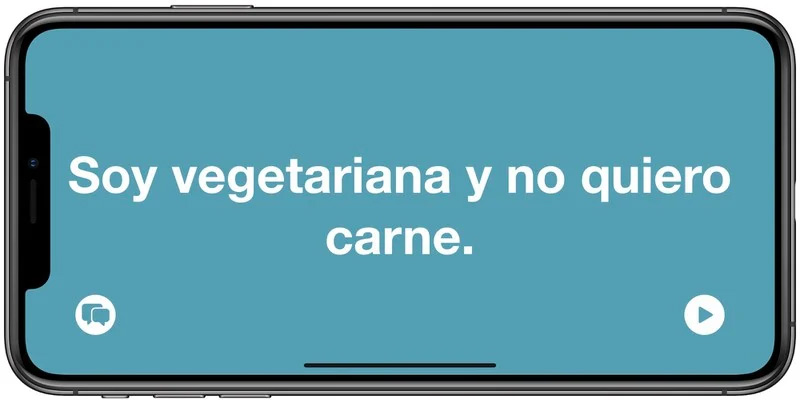
※Picture source:MacRumors
In default mode, the translation function needs to be used when connected to the Internet, but you can also download a language pack to ensure that language translation is performed on the local machine. When using an offline language pack to translate, Apple will not be able to access the content to be translated, improving the privacy of the conversation.
◎Data source:MacRumors
Source: KOCPC Chinese