


Although according to common sense, this application should be rarely used. After all, you can just use your computer to play music. Why use your mobile phone? But this is quite practical for me. My computer is a little far away from where I exercise and sleep. Sometimes when I want to change songs or even play other content, I have to go to the computer to operate it, which is really troublesome. After upgrading to the latest 2004 version of Windows 10, the A2DP function is finally back, which means that you can once again turn your computer into a Bluetooth speaker. If you have upgraded to 2004 like me and have this need, I will teach you how to implement it.
How to turn your computer into a Bluetooth speaker?
Step 1 – Pair your phone with your computer
In addition to mobile phones, you can also use tablets or other Bluetooth-enabled devices. I used mobile phones as an example. The operation process of pairing settings is similar.
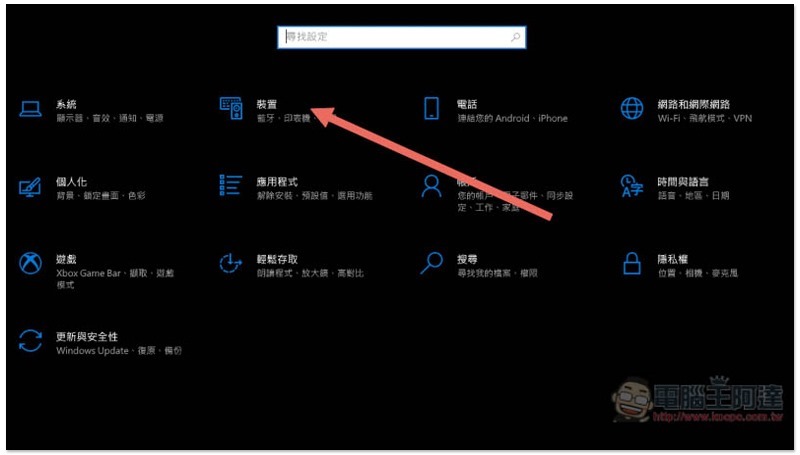
First, open the Settings function of Windows 10 and enter the “Device” option:
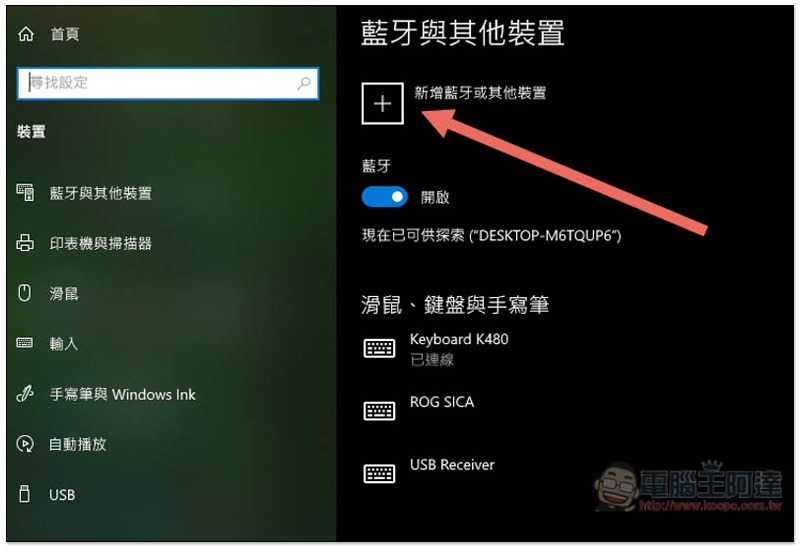
Click “Add Bluetooth or other device” at the top of the main page:
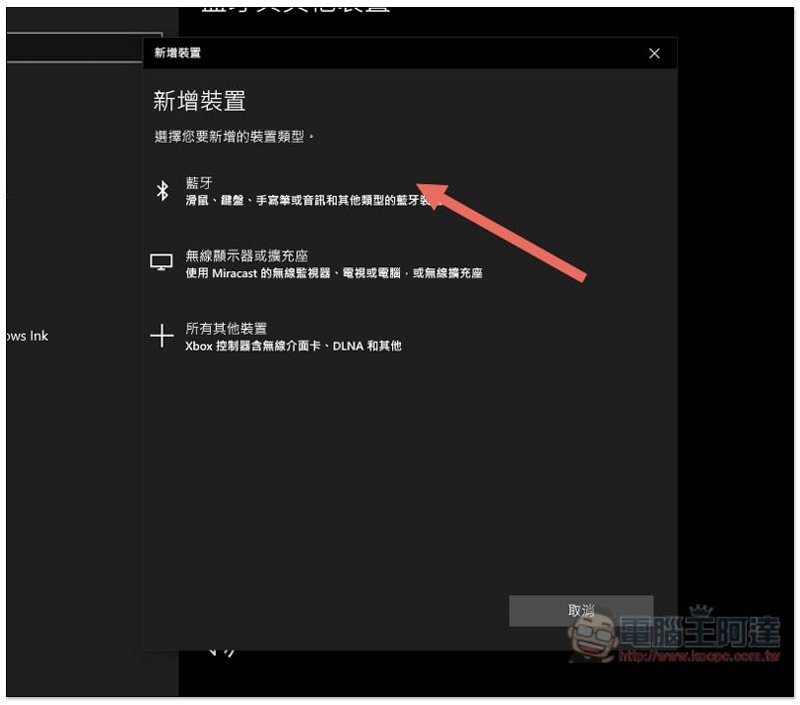
Click on the first “Bluetooth”:
At this time, please open the Bluetooth pairing screen on your phone. I am using an iPhone, and you will see the iPhone (or whatever you named it) on the list:
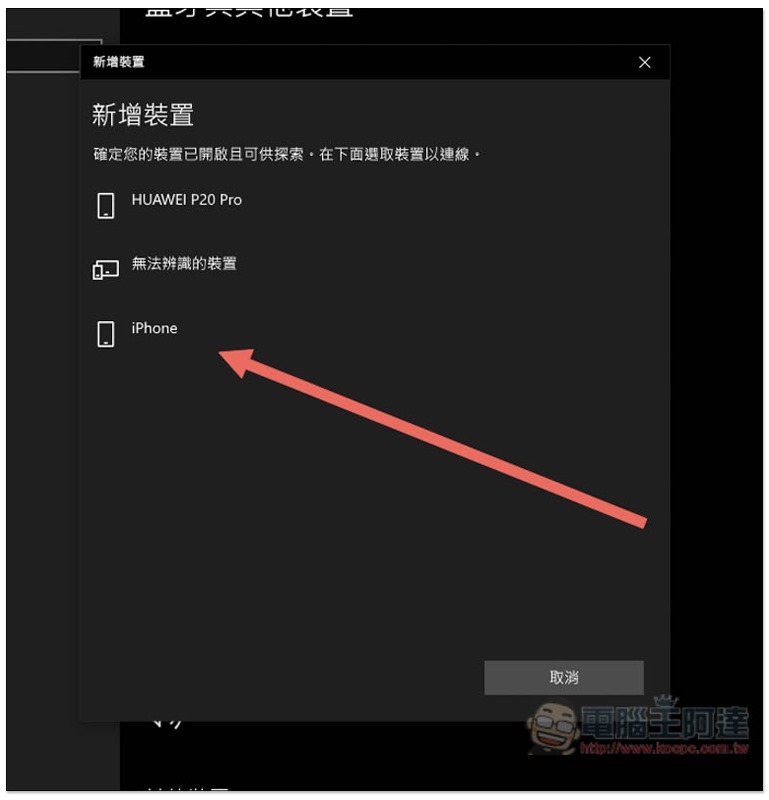
A number will be displayed below. Please check whether your mobile phone displays the same number (different means you are connected to someone else or another mobile phone). If so, click “Connect” below:
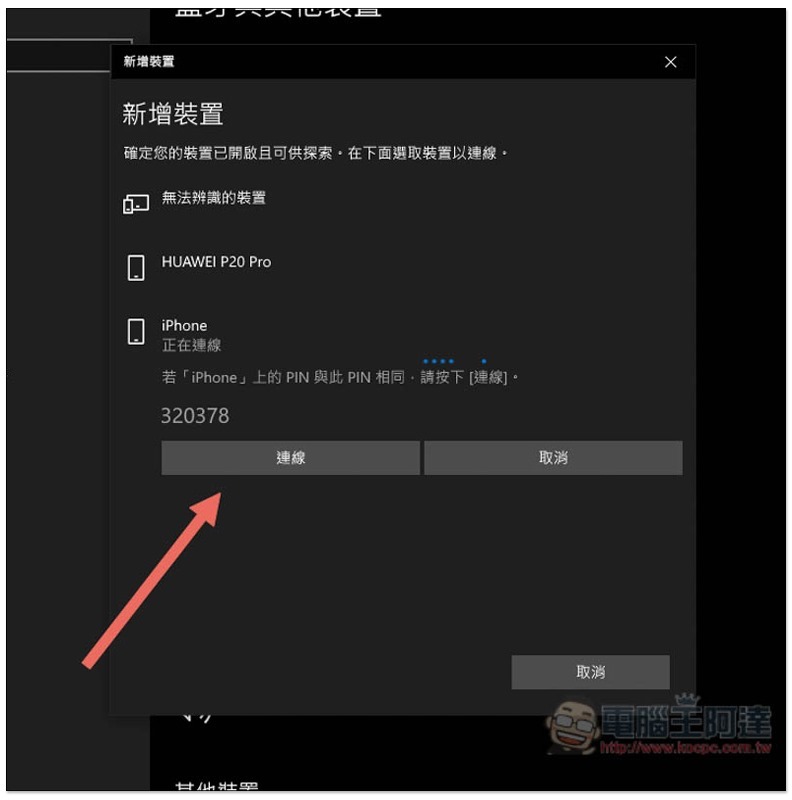
As shown below, my iPhone displays the same numbers:
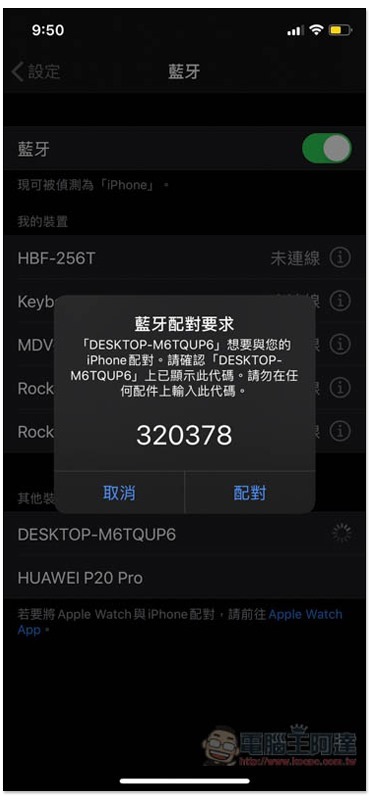
After pairing is completed, the computer also needs to install a set of free Bluetooth Audio Receiver tools to implement the A2DP function.
Step 2 – Install Bluetooth Audio Receiver on your computer
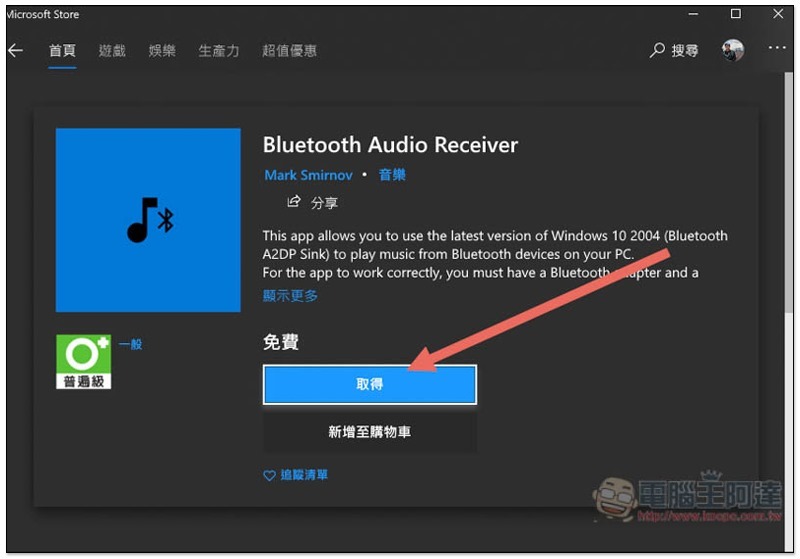
This set of Bluetooth Audio Receiver is available on the Microsoft Store.After entering the installation pageClick “Get” and open it after installation is complete:
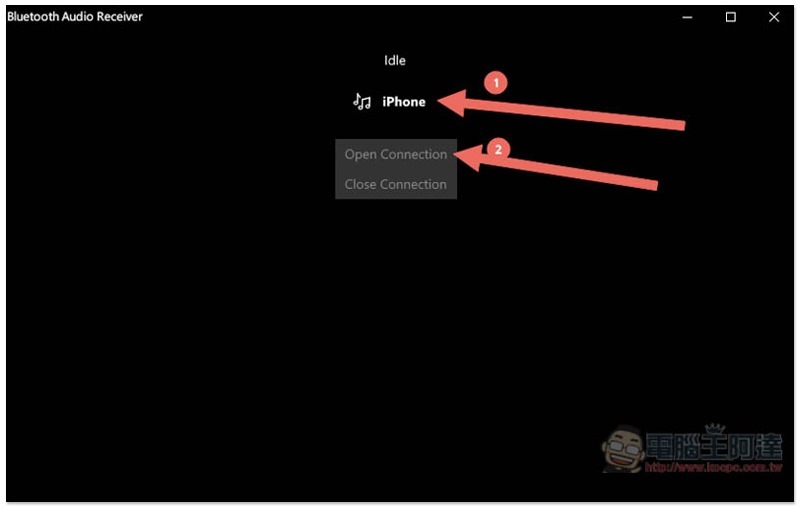
The tool screen looks like this, very simple. The name of your paired phone will be displayed at the top, please click it, and then click Open Connection:
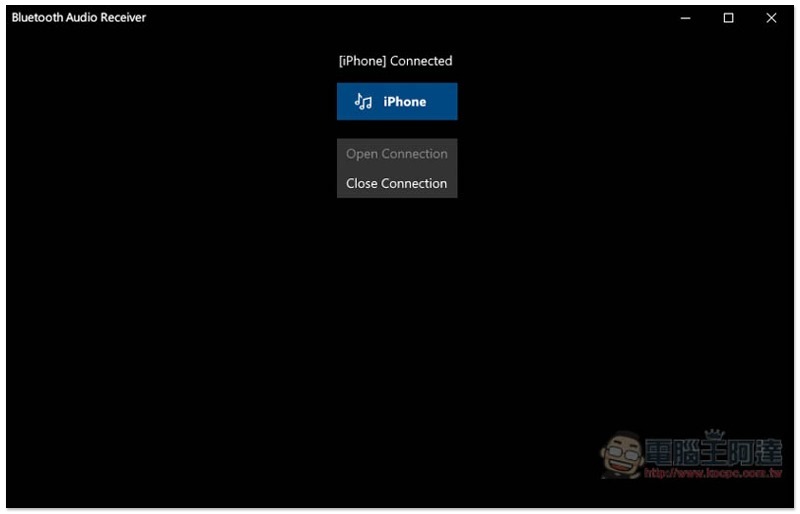
When the music icon appears, it means that the formal connection is completed and you can start playing music (or what you want to listen to):
Step 3 – Find what you want to listen to on your phone and play it
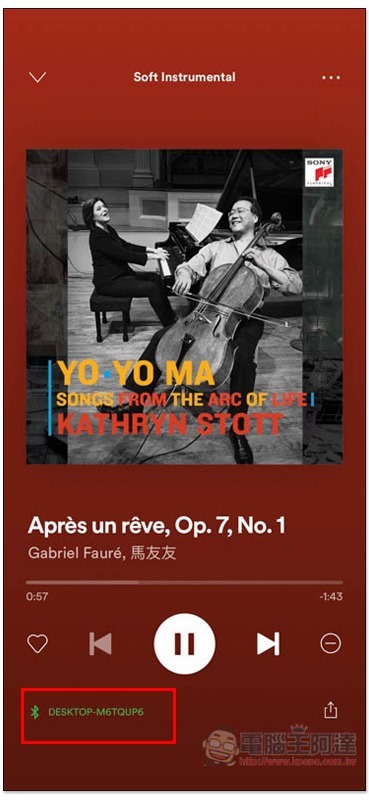
I took Spotify as an example, and sure enough the playback device became my computer:
in conclusion
Finally, I would like to remind you that all the sounds played by your mobile phone, such as any notifications, music, game sounds, and even call content, will be emitted by the computer speakers. Remember, it is not just music. So remember to disconnect it when not in use.
Source: KOCPC Chinese