


Although Windows also has a built-in screenshot function (clipping tool), those who have used it should know that it is not very easy to use. If you happen to be looking for an alternative software, then the LightShot recommended in this article is quite good. It is small in size, completely free, and has complete functions. After capturing, you can directly perform post-production, mark key points and other actions. If necessary, you can even directly upload it to the cloud and share it with others. There is also a Mac version.
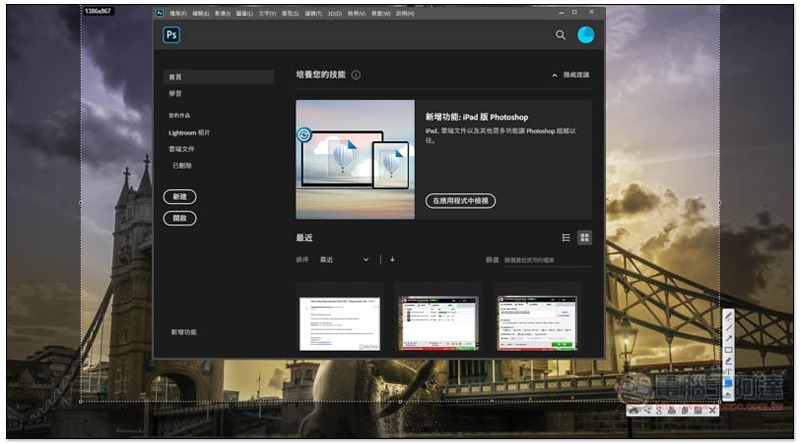
Introduction to LightShot free screenshot software
Click me to go to LightShot official website, download the system version you want to install, both Windows and Mac are available.
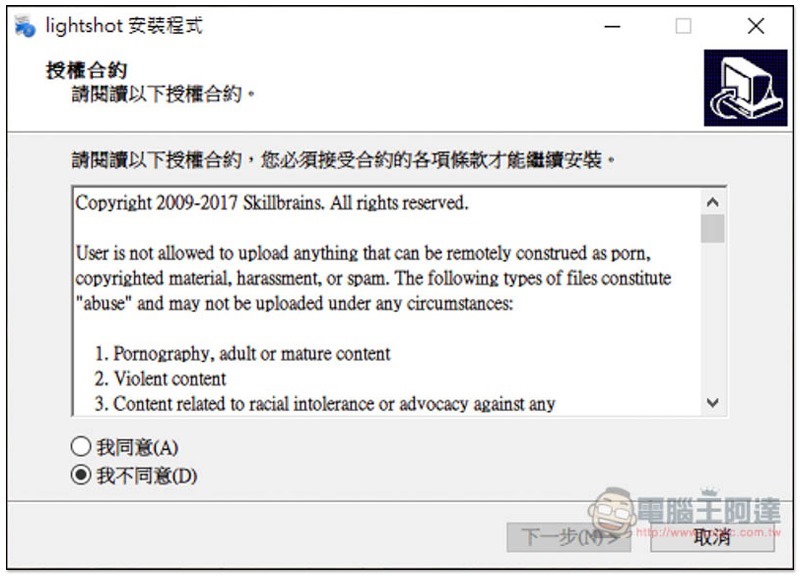
This set supports Traditional Chinese interface. Just click Next during the installation process:
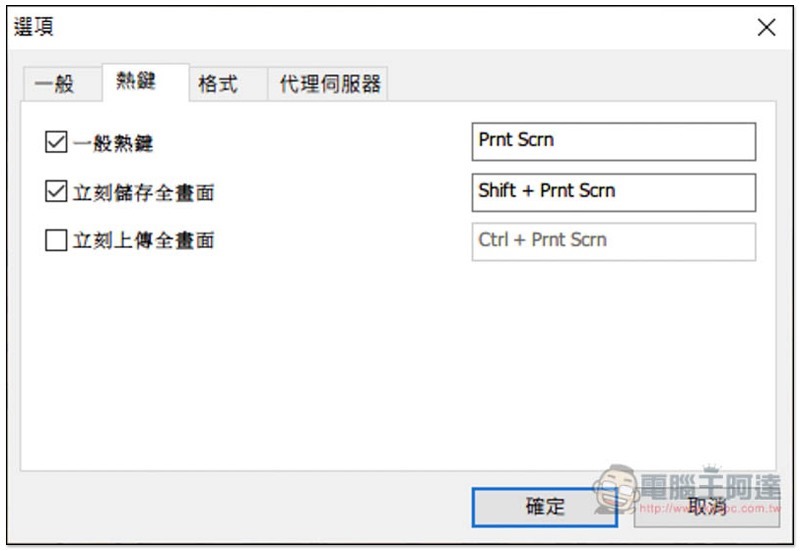
After installation, you can go to the options to view the preset hotkeys. There are only three. The general hotkey Prit Scrn is to select the captured screen, and there are also immediate storage of the full screen and immediate upload of the full screen. The third preset is not checked, and those who need it can check it manually:
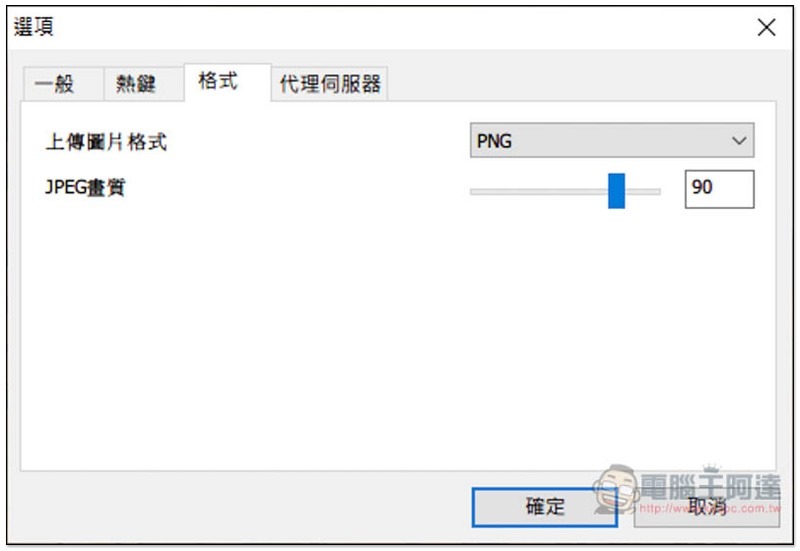
There are two types of formats: JPG and PNG. You can adjust the JPEG quality you want:
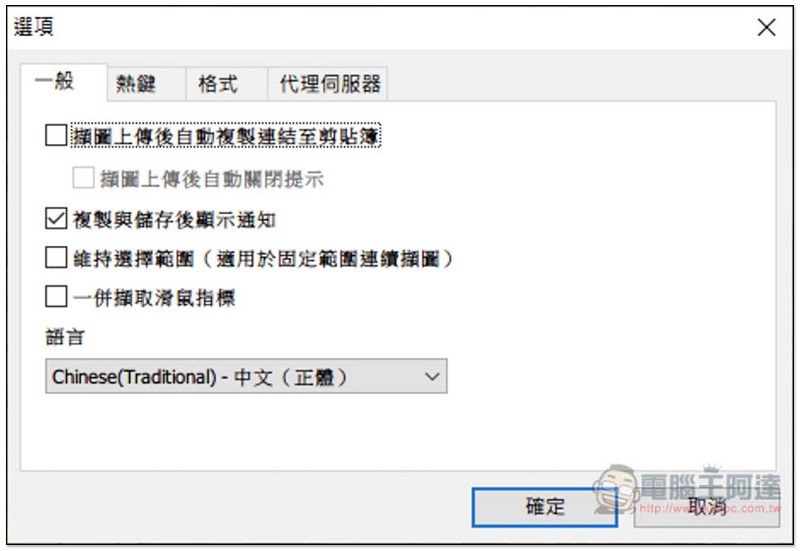
There are also several good functions in the general menu, such as “capturing mouse pointers together” and “automatically copying the link to the clipboard after uploading the screenshot to the cloud”:
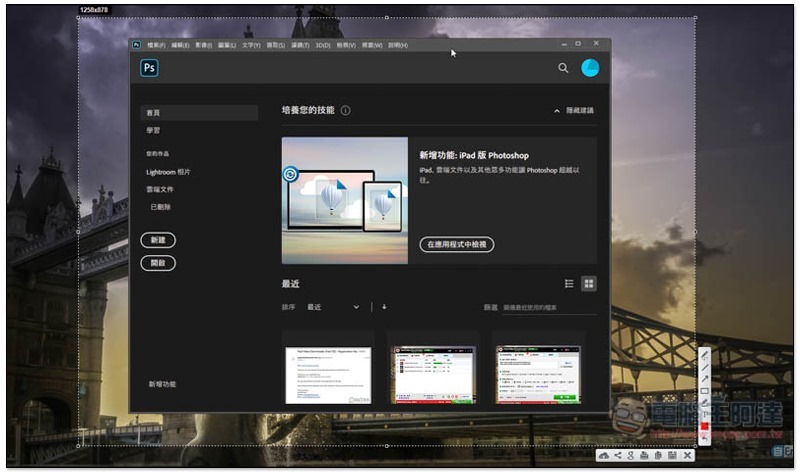
This set will be permanent in the menu in the lower right corner. When you need to take a screenshot, press the designated hotkey. I will use the general hotkey as an example. After selecting the screen to be screenshot, you will enter the post-production screen. The function is located in the lower right corner. The upper left corner will also prompt the resolution of the screenshot:
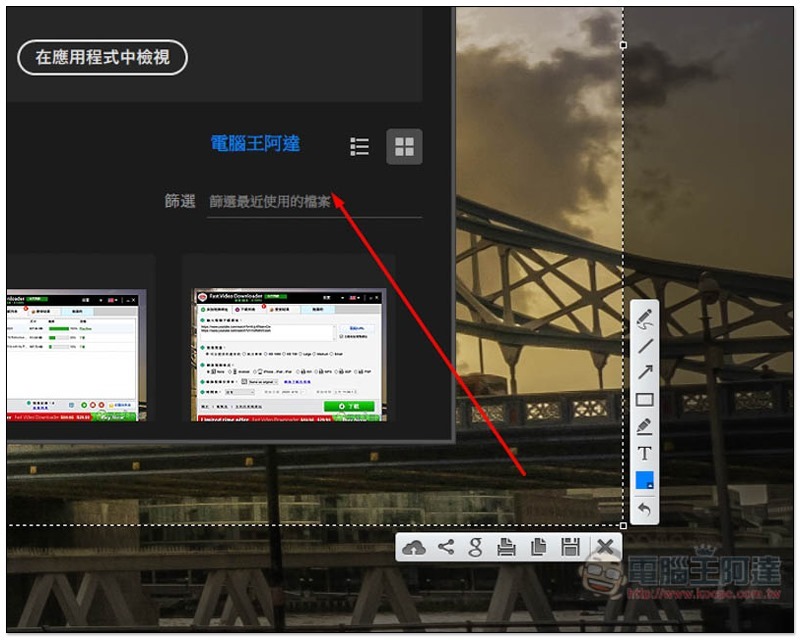
Many practical tools have been built in, such as: lines, arrows, squares, text input, pencils, etc., to facilitate us to mark the key points of screenshots or add auxiliary explanations:
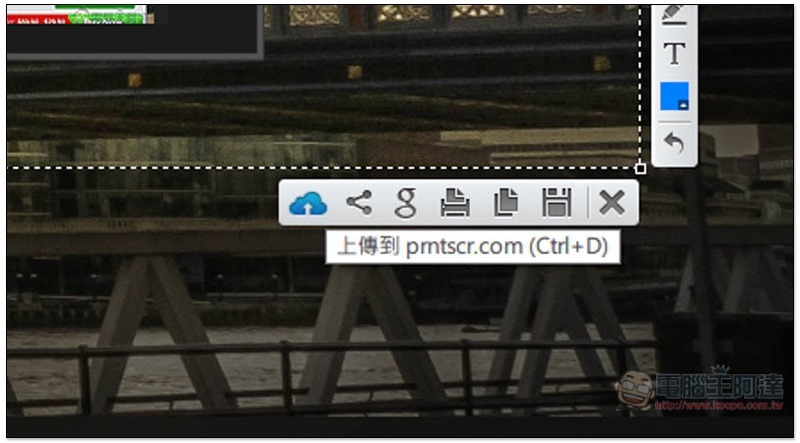
If you want to upload to the cloud and share it with others to download and view, please click the cloud icon on the far left, and it will be uploaded to the cloud space of this company. No need to apply for an account. Because it is not your own cloud, it is recommended not to upload some private and important screenshots:
After the upload is completed, an exclusive link will appear in the lower right corner:
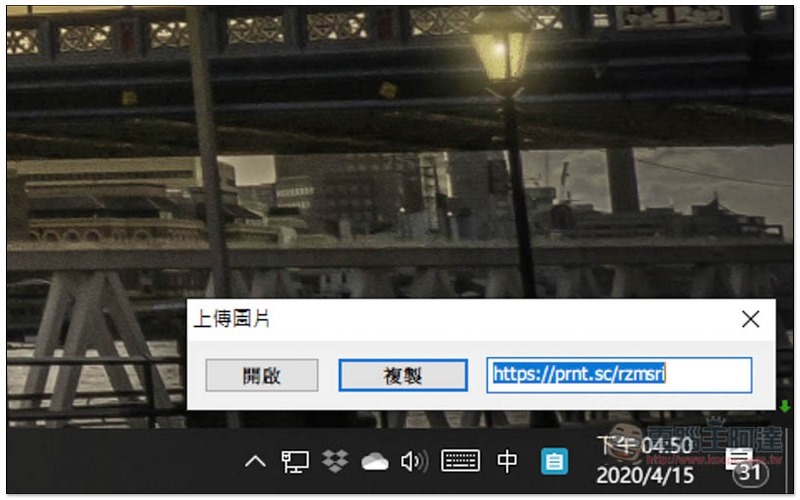
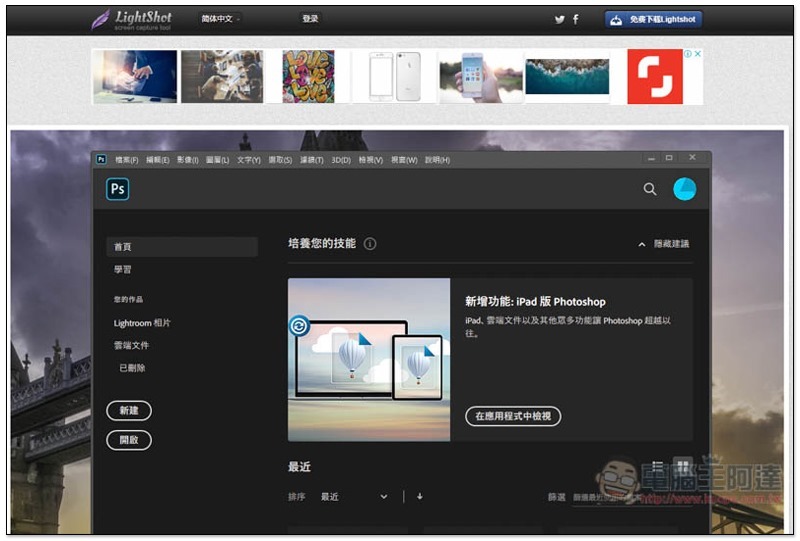
As long as others post this URL, they can see the screenshot you uploaded:
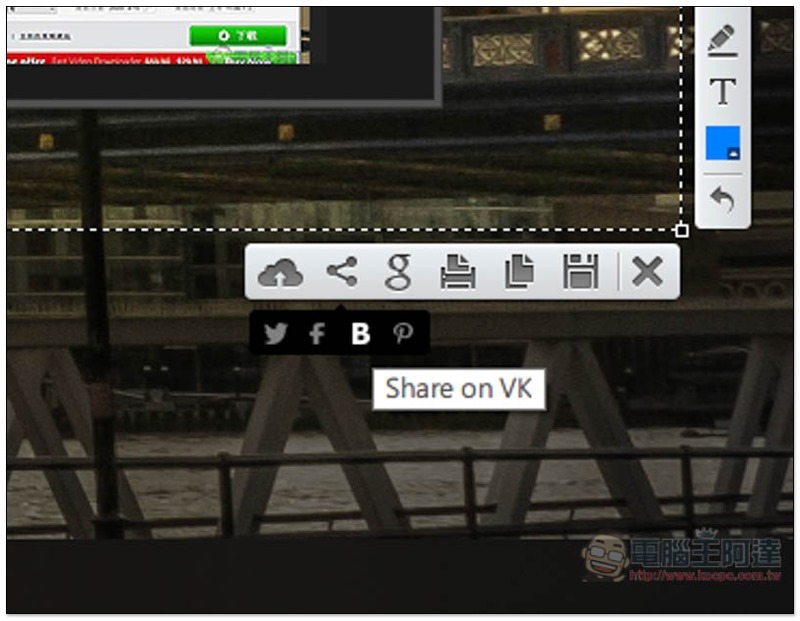
You can also quickly share to social platforms:
Although this set does not specify modes such as window screenshots and active window screenshots, as far as I am concerned, most of them decide the capture range by themselves, so I rarely use the above two modes, so there is no difference.
Supplementary information
LightShot official website and download page:Click here to go
Source: KOCPC Chinese