


While using a computer, you might encounter sudden slowdowns at some point. In the past, the usual approach was to press Ctrl+Shift+Esc to open Task Manager and try to figure out which program is consuming a lot of resources. However, sometimes you just can’t pinpoint it, and this method can be challenging for computer novices too. The good news is that, according to foreign media reports, Windows 11 Copilot is finally going to support diagnosing computer problems!
Microsoft is currently rolling out a new “PC Insights” feature in the US, which allows Copilot to directly read your computer’s current hardware and system status. This way, you no longer have to spend time searching for it yourself — you can get the relevant diagnostic reports right away, which is pretty handy.
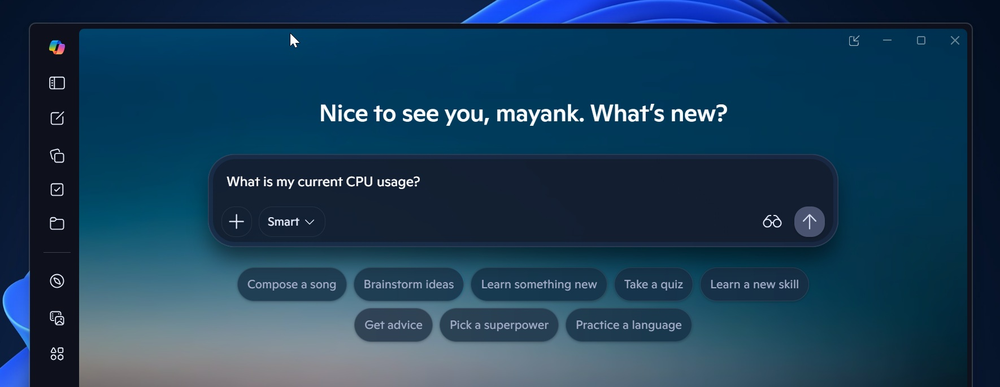
Image Source:Windows Latest
Windows 11 Copilot’s new feature can identify causes of PC slowdown, but it also uses nearly 1GB of memory when idle
The report indicates that PC Insights is an experimental optional feature in Copilot for Windows, and what sets it apart from regular chatbots is that, after obtaining user consent, it can access device status through Windows system interfaces to retrieve the information needed to answer questions, then translate the otherwise hard-to-understand technical data into plain language.
For example, if you wanted to check your graphics card model in the past, you might have had to open the Performance tab in Task Manager yourself or go to Device Manager and expand the Display adapters category to look it up. Now you can just ask Copilot “Which graphics card am I using?” and it will answer directly based on this computer’s information.
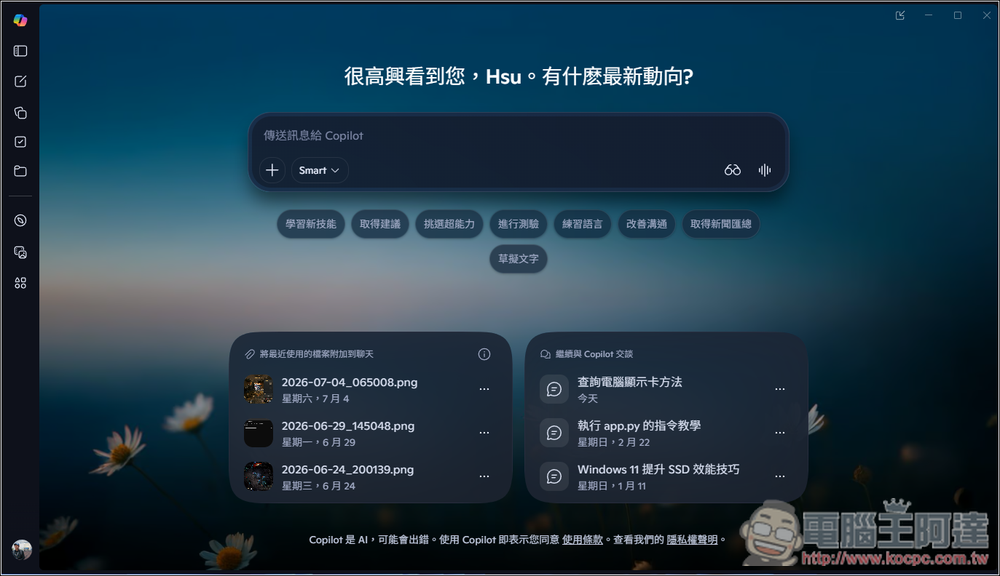
More importantly, it doesn’t just read the numbers to you—it can also reason based on context. For instance, if Copilot finds your computer has 87GB of free space, you could follow up by asking, “Can I install GTA V with this?” It would search online for the game’s storage requirements, then tell you that 87GB isn’t enough and you’re short by about 13GB, suggesting you clear out some unnecessary files first. Previously, you’d have to look this up and do all the work yourself, but now you can get the answer through a simple conversation.
PC Insights currently allows you to check CPU, memory, and GPU usage, total disk capacity and available space, Wi-Fi and Bluetooth status, network adapters, USB devices, printers, webcams, battery health, whether your antivirus software is running, and BIOS and other system information. It can also calculate how much space is used by your Downloads or Documents folders.
Windows Latest also shares some commands you can ask in Copilot:
| Feature Classification | You can ask Copilot like this |
|---|---|
| Basic System Information | Which graphics card am I currently using? What are the full specifications of my computer? What is my BIOS version? |
| Performance and Resource Monitoring | What is my current CPU usage? Is my antivirus software running properly now? |
| Storage and Files | How big is my “Downloads” folder? Do I have enough space to install a 100GB game? |
| External Device Status | What USB devices are currently plugged into my computer? Did the system successfully recognize my external hard drive? |
| Network and Hardware Health | How is my laptop battery health? Is my printer currently online? Can the computer detect my webcam? |
Although AI tools like ChatGPT and Gemini can also help diagnose computer problems, you need to feed them information yourself, such as through what we previously shared called “Complete approach and prompt wordsThis is also the biggest difference from Copilot:
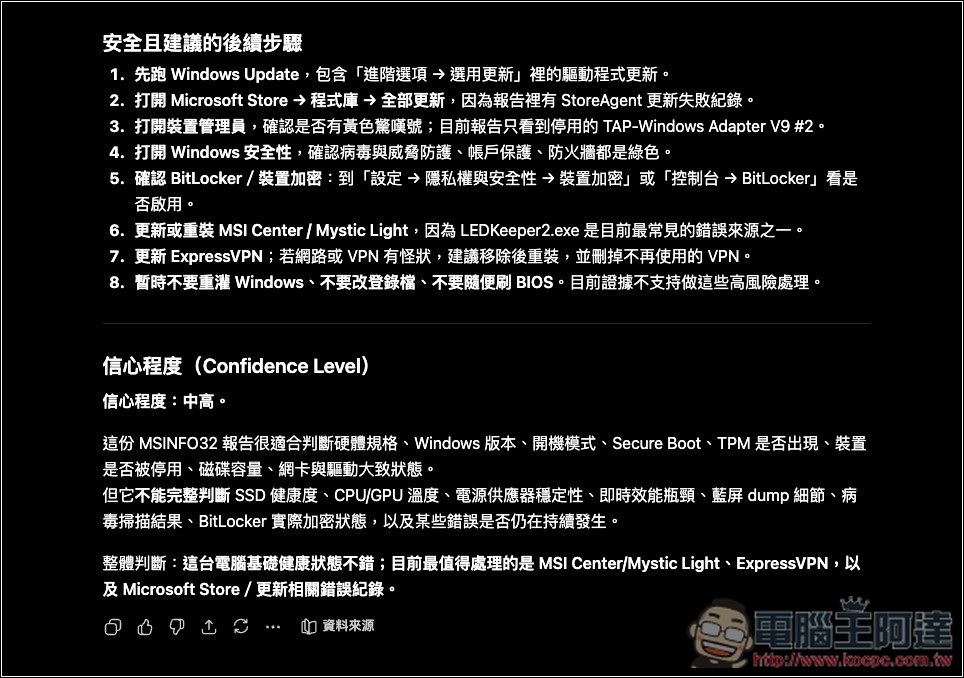
After authorization, PC Insights can directly answer based on device data reported by Windows, so users don’t need to know where to find the numbers, and it also reduces situations where general recommendations are given due to insufficient data.
Of course, as Copilot gains access to more system data, people who prioritize security and privacy might worry: Will Microsoft use AI to snoop through your computer?
According to Microsoft’s official documentation, when you ask questions about your computer or files, Copilot first determines what information it needs, then requests permission. It only reads the relevant data needed to answer your question after you grant consent—it does not continuously monitor your entire PC in the background. A session lasts until you restart your computer or fully close the Copilot app. Even if you select “Always allow,” you can go back into Copilot’s privacy settings later to revert to prompting each time or revoke permissions.
PC Insights currently only has read-only capabilities. It can tell you what’s happening and provide guidance on how to handle it, but it cannot modify system settings, perform repair steps, or directly close programs that are consuming resources for you.
While the new PC Insights feature looks promising, foreign media Windows Latest observed that after enabling Copilot on a PC with 32GB of RAM, even without any further interaction, approximately 800MB of memory was consumed, peaking close to 1GB. This means that in an idle state, Copilot alone could consume up to 1GB of memory.
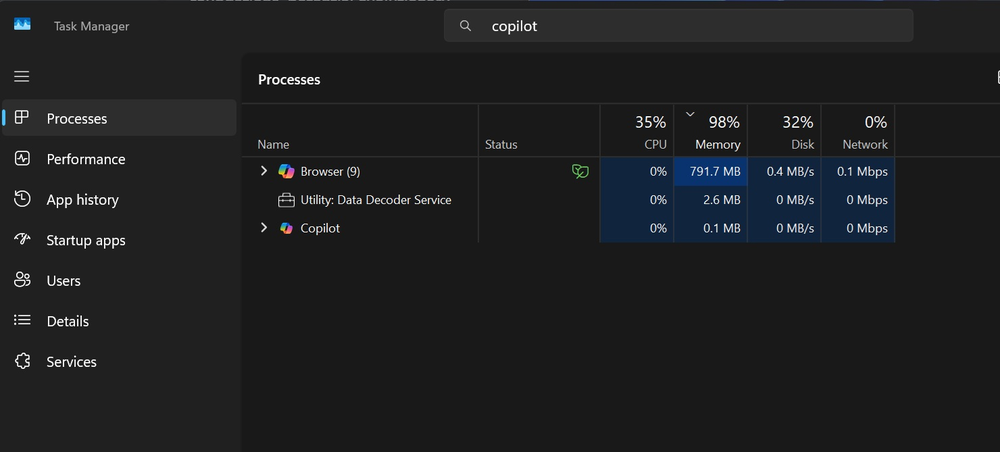
Image source:Windows Latest
Note that this doesn’t mean every Windows 11 computer will occupy the same amount of storage.
However, for a tool that runs in the background for extended periods, this number is still a bit high—especially for entry-level computers with 8GB of RAM, where Copilot alone could consume one-eighth of that capacity.
PC Insights is only being rolled out gradually in the US, and there’s no clear timeline for when Taiwan will have access. Microsoft also reminds users that this feature is still being continuously adjusted and may not always provide complete or entirely accurate information.
Source: KOCPC Chinese