


Although we’ve written OpenClaw Although there are installation tutorials and how-to videos available, some computer beginners may still find them a bit difficult. Here’s some good news!Ollama They just launched a “one-command OpenClaw installation” feature that requires zero complicated setup. Even better, you can not only use local models but also directly connect to free cloud models by logging into your Ollama account—and the quota they give is incredibly generous. When I tested it with basic settings, I barely used 5% of the quota before it reset weekly. This is really awesome.
Ollama Introduction
For those who don’t know what Ollama is, here’s a quick introduction.
Ollama is a free AI tool that allows users to run and manage large language models (LLMs) locally, enabling users to quickly deploy and use various AI models on their own computers without relying on cloud services. Through a simple command-line interface, users can download, start, and switch between different models such as Qwen, Llama, Gemma, and GPT, and interact with AI directly in the terminal or within applications.
In addition to local models, Ollama also offers cloud model integration, allowing users with limited hardware resources to use high-performance AI models.
A few days ago, Ollama announced on their official website that they have integrated OpenClaw, the currently hottest “Openclaw” model. Not only have they streamlined the installation process, but if you choose to use the cloud model, it will automatically install a web search plugin, giving OpenClaw immediate web search capabilities.
Now I’ll walk you through the installation step by step. Both Mac and Linux systems are supported, and I’ll use the Mac version as an example. (Windows users can install OpenClaw via WSL)
Learn how to install OpenClaw with one command via Ollama and connect it to free cloud models
First, you need to confirm that your Mac has both of the following tools:
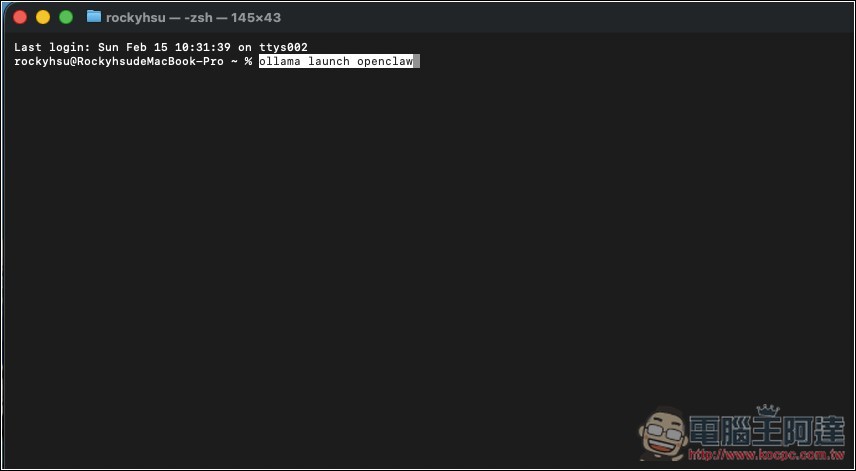
After both of the above are installed, open the terminal and enterollama launch openclaw , you can also use this command to enable Openclaw in the future:
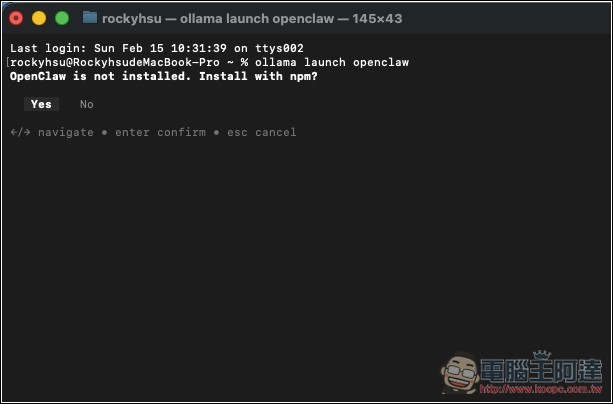
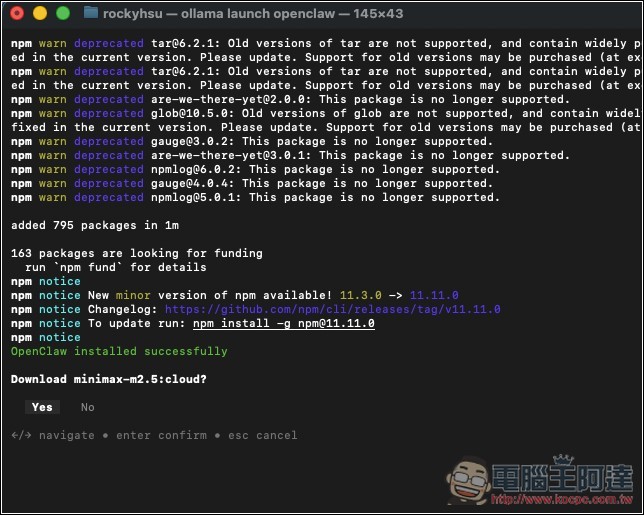
It will automatically detect if OpenClaw is installed on your Mac, and if not, it will install it automatically. Select Yes:
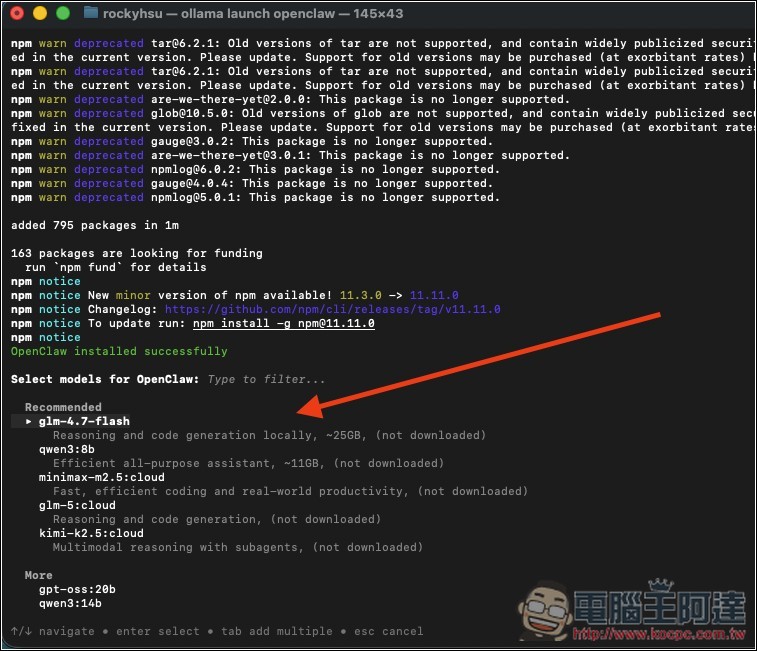
After installation, you will be prompted to select the model to use. Currently supported:
- Cloud models: kimi-k2.5:cloud, minimax-m2.5:cloud, glm-5:cloud
- Local models (recommended 25GB VRAM or more): glm-4.7-flash, qwen3-coder
I’m using this one: minimax-m2.5:cloud
After selecting, it will ask you to confirm the download. Press Yes:
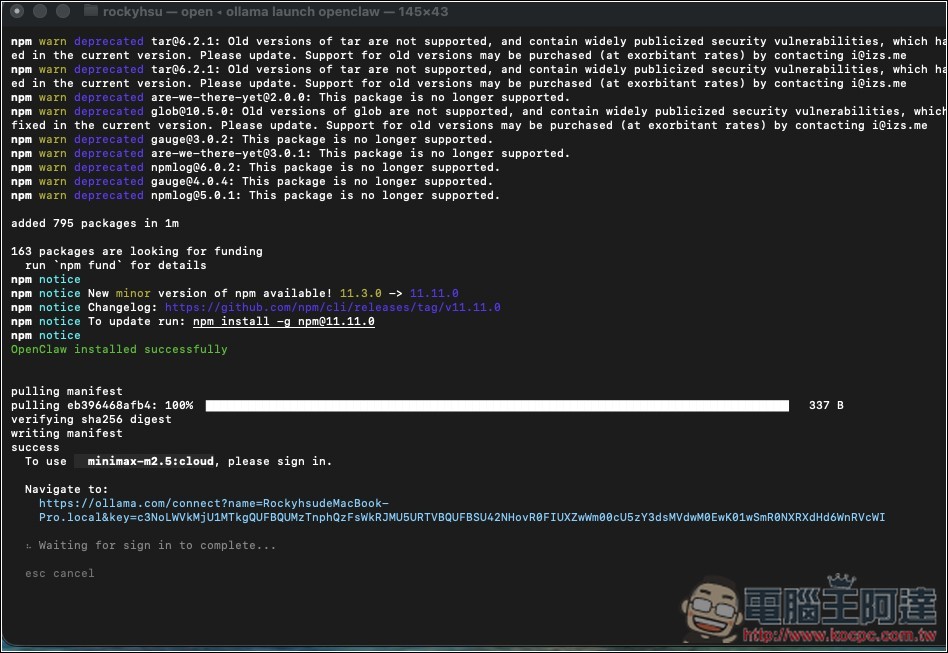
After the download is complete, the browser will automatically open the login page. If it doesn’t, you can also copy the URL shown in the terminal and paste it into your browser:
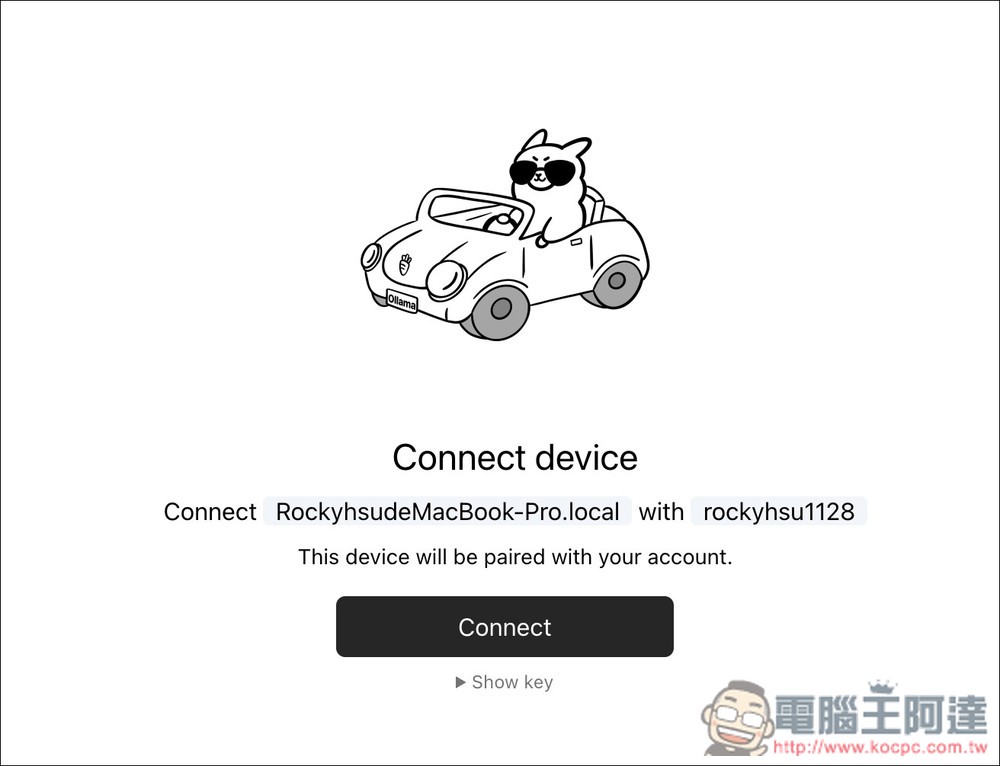
Log into your Ollama account, or if you don’t have one, sign up for free:

Verify Connection:
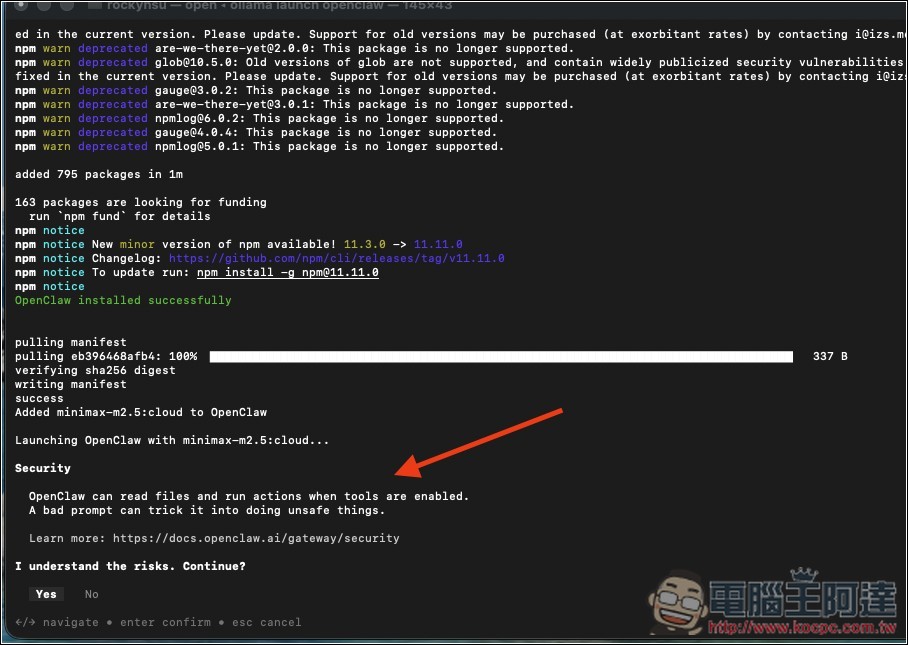
Once the model is set up, some safety instructions will appear. Click Yes:
It will then load the OpenClaw interface. Wait for it to finish running:
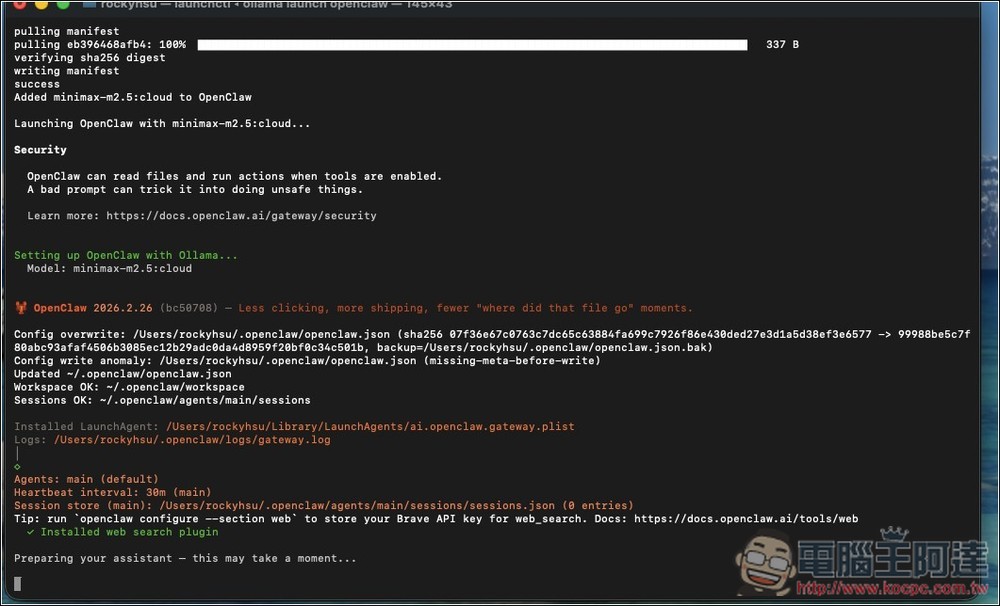
That’s it! You can chat in the terminal, or copy the ‘Open the Web UI’ URL above the terminal to open the web interface:
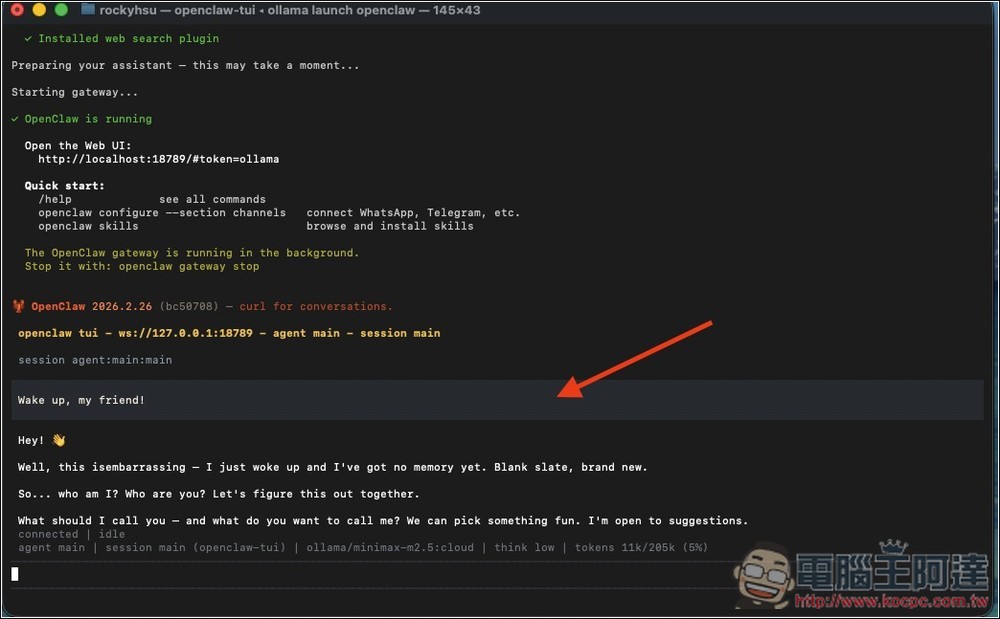
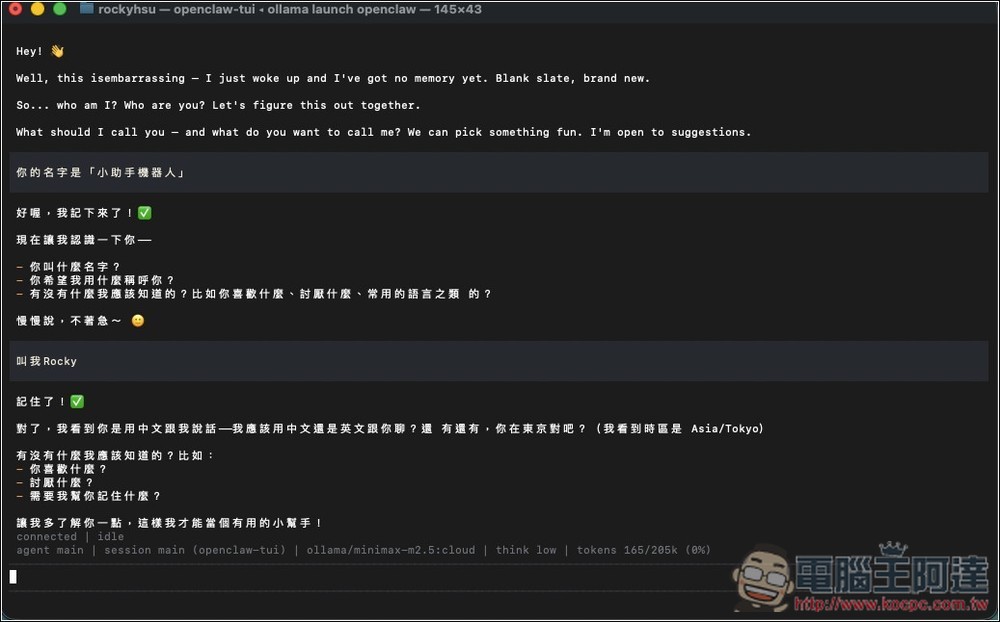
Even the free model has incredibly fast response times:
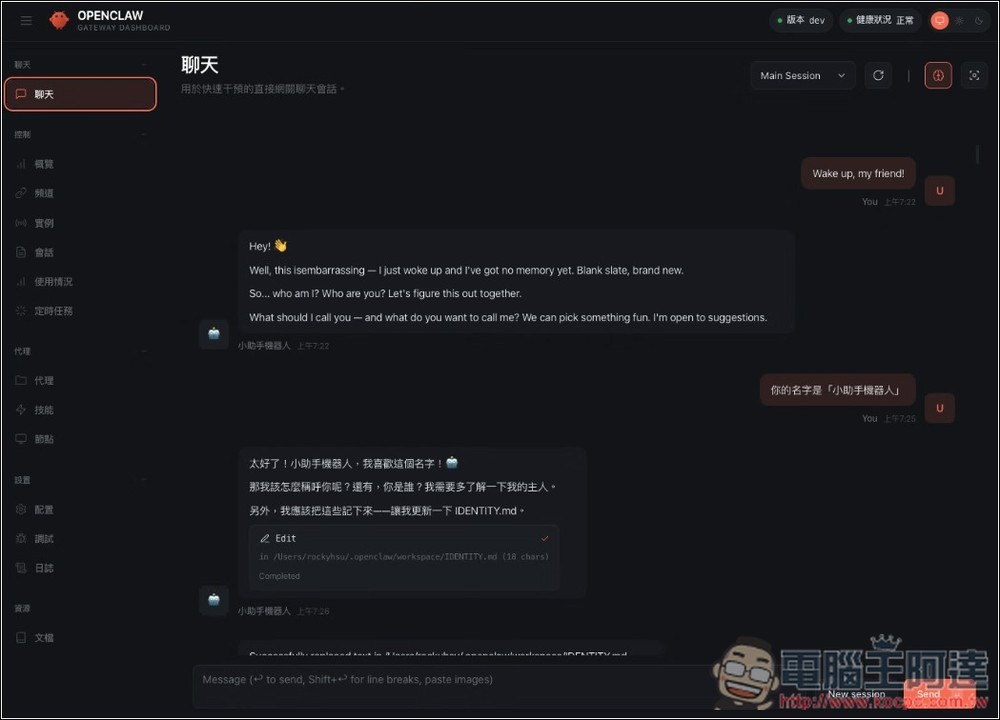
Web Interface:
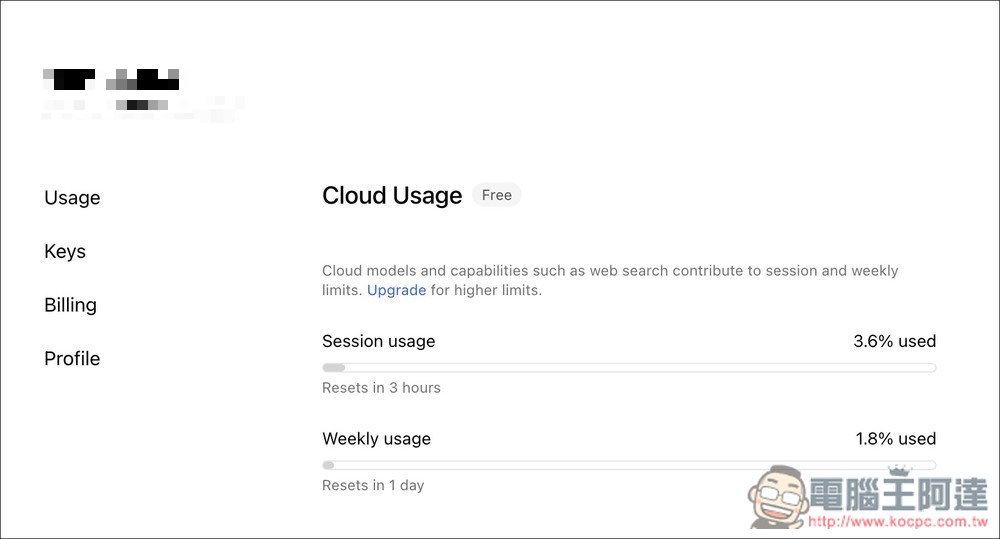
You can check the usage of free models in the Ollama backend (Usage). The image below shows my usage after setting up OpenClaw + connected to Telegram. Weekly usage is only 1.8%, which shows the quota they provide is really generous, and it updates weekly. What’s worth noting is Session usage, which calculates short-term quota. If you suddenly use a large amount in a short time and reach 100%, you’ll need to wait a few hours for it to reset. Generally speaking, if you use it normally, it’s hard to reach the limit:
Source: KOCPC Chinese