


Artificial intelligence is rapidly spreading across various fields, from content writing and creative brainstorming to directing, film production, and research analysis—AI seems capable of doing almost anything. Today, its capabilities have grown powerful enough to independently complete an entire film without the assistance of professional camera crews. At the same time, AI has made creation easier than ever, opening up a world of endless possibilities. Simply input a prompt and you can generate an image; you can even upload a photo and let AI automatically add motion effects to it. I recently discovered an amazing feature—AI can actually simulate shots that look like they were captured by a drone.
After all, drones aren’t something everyone can have. Sometimes you find yourself standing in breathtaking scenery, only to miss the chance to capture those beautiful moments—it’s truly a shame.
How to create aerial shots using the free Google Flow?
What is Google Flow?
Among the many video generation tools, Google Flow, launched by Google in May 2025, has gained particular attention. This AI filmmaking tool, developed by Google Labs, allows users to freely create movie or short video scenes with virtually no restrictions. Flow combines Google’s powerful AI technologies, including Veo, Imagen, and Gemini, enabling precise control over camera movement, motion effects, and shooting angles through these models.
While some features are advanced tools, even the free version already offers quite robust capabilities, such as generating realistic simulated drone footage, allowing creators to easily produce high-quality visuals without professional equipment.
How to create images similar to aerial shots?
- go to Google Flow website
- If this is your first time using it, please sign in with your Google account. Note that one Google account can receive 150 free video creation credits.
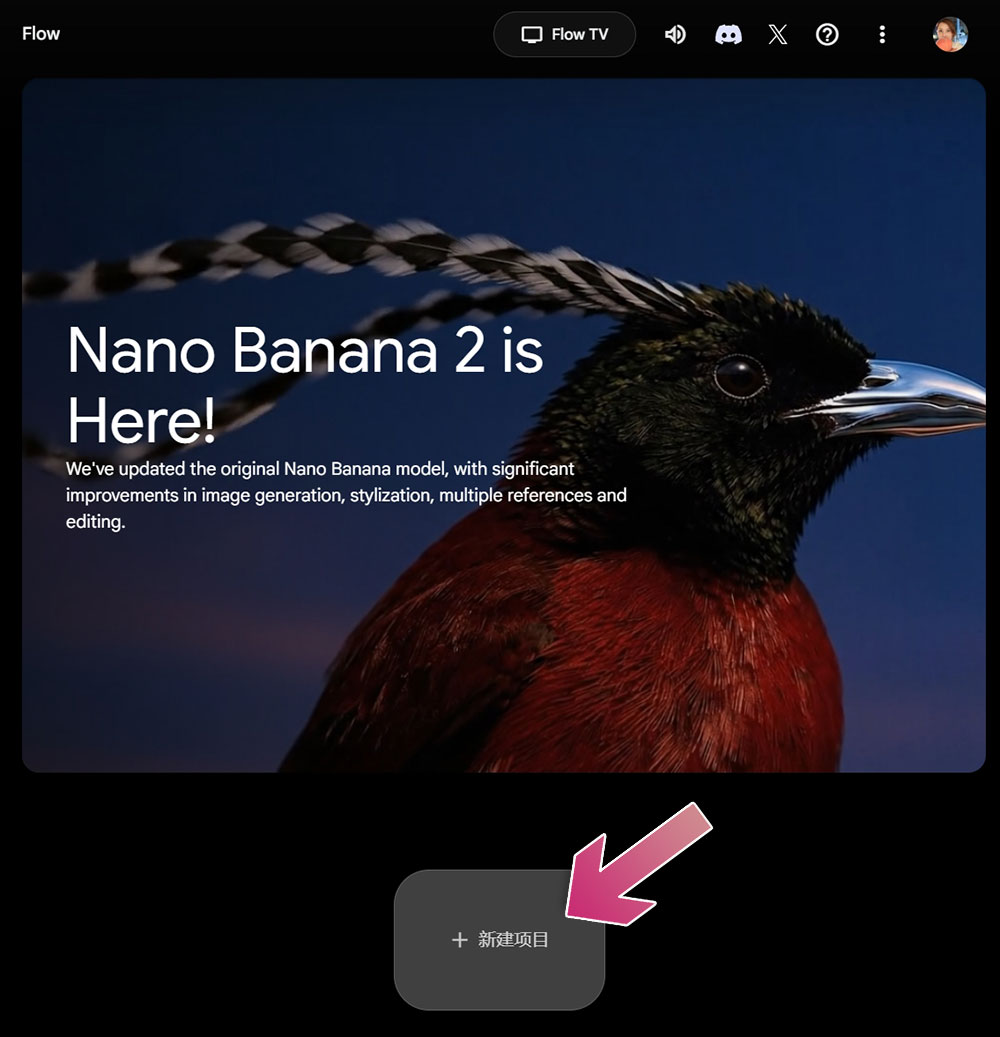
- Click “New Project”.
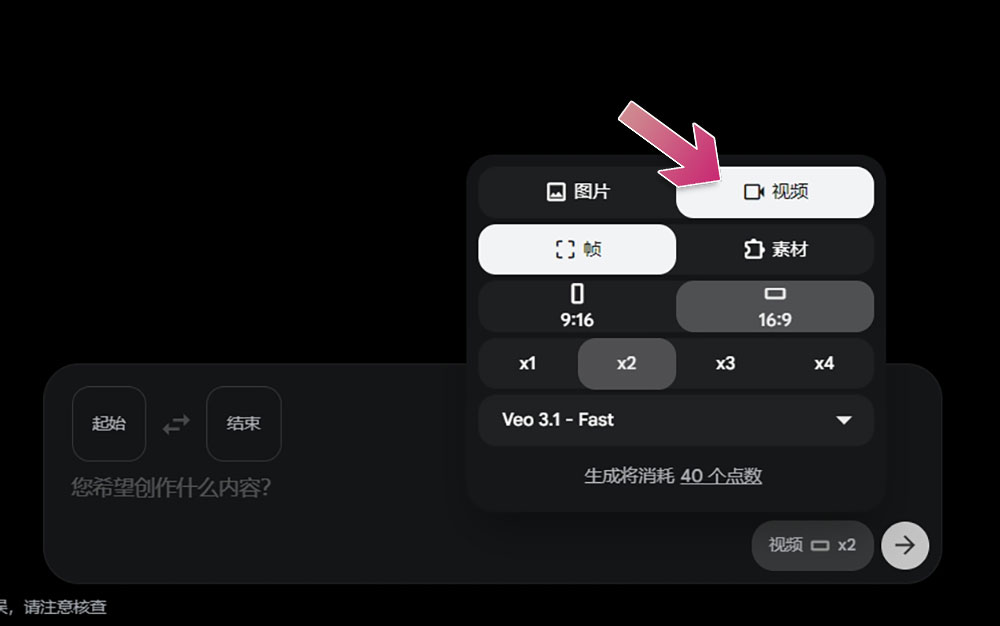
- Click the bottom right corner of the prompt box and change the type from image to video.
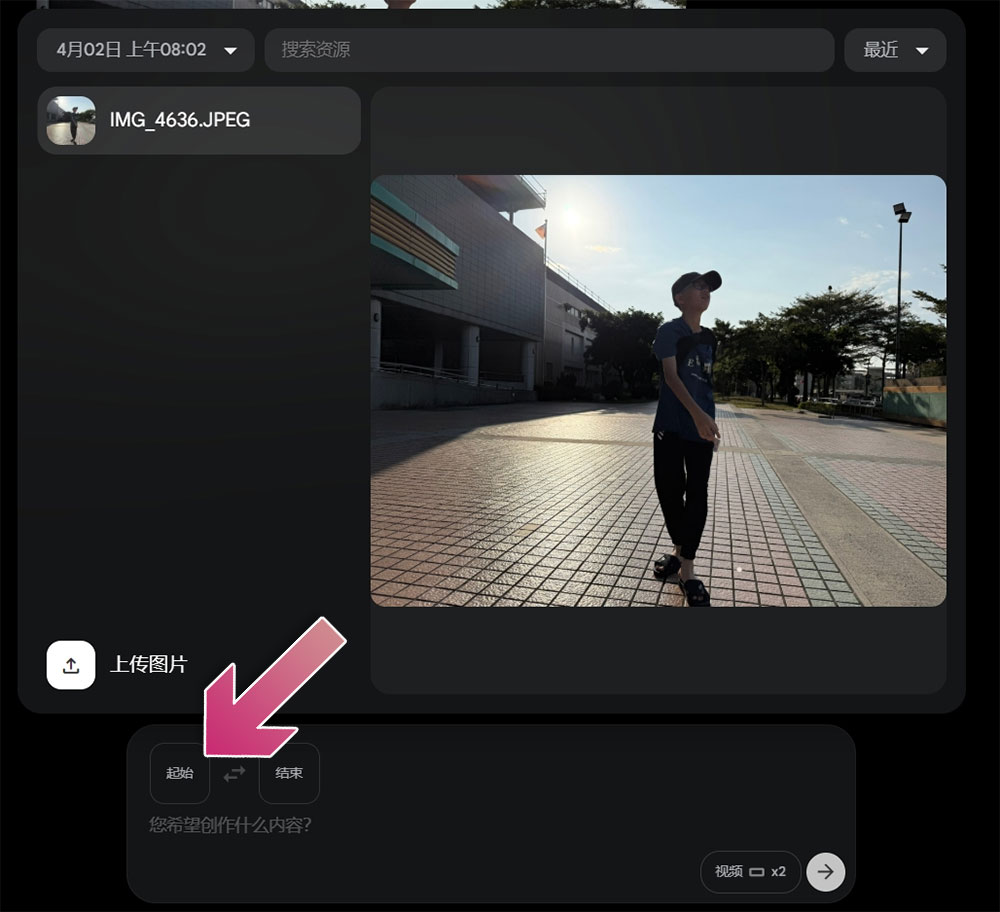
- Click ‘Start’ and upload the photo you want to create. Once uploaded, remember to click on the photo material to fill the start frame – that’s how you confirm the selection.
- Next, enter the command. The command I used is: “Cinematic drone shot, slowly pulling back, a figure walking toward the drone with arms open.” After submitting, wait for the generation to complete. It may take a few minutes, depending on server load.
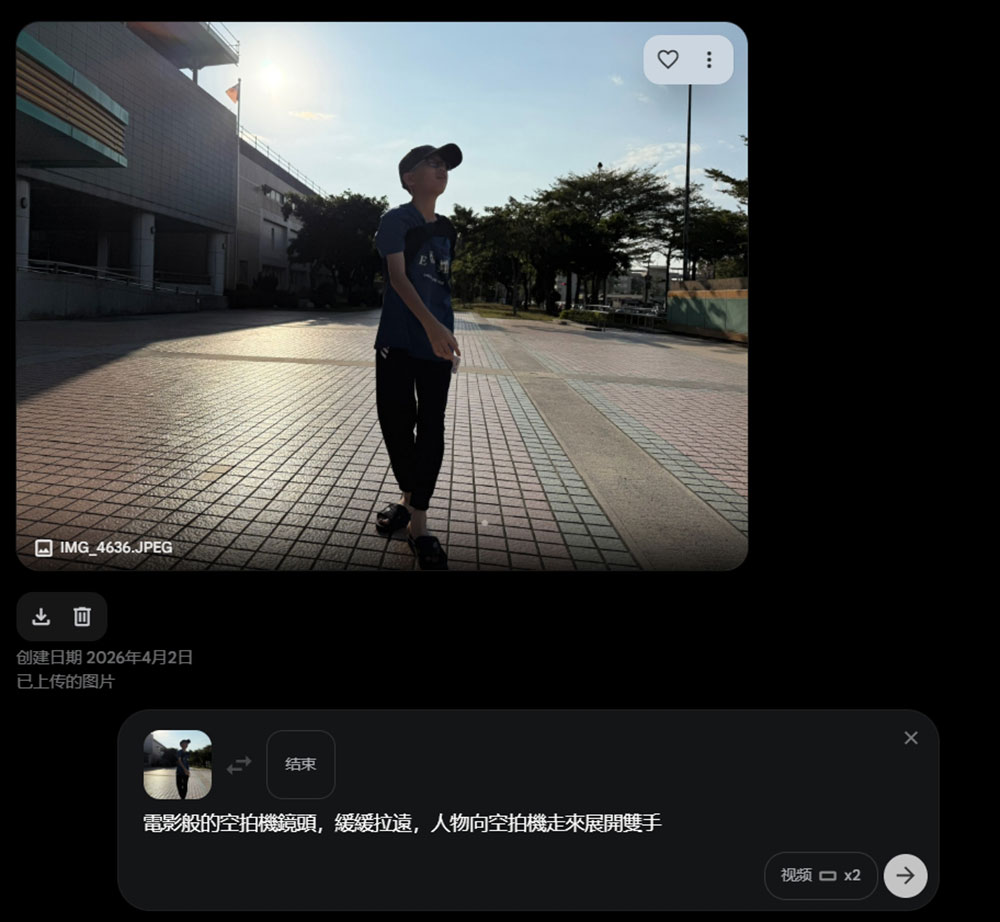
- The generated video looks like the one below. The results are quite good, and at this point you can right-click to download the video.
- You can also click on the generated video to make further edits, using commands at any time to achieve the effect you want.
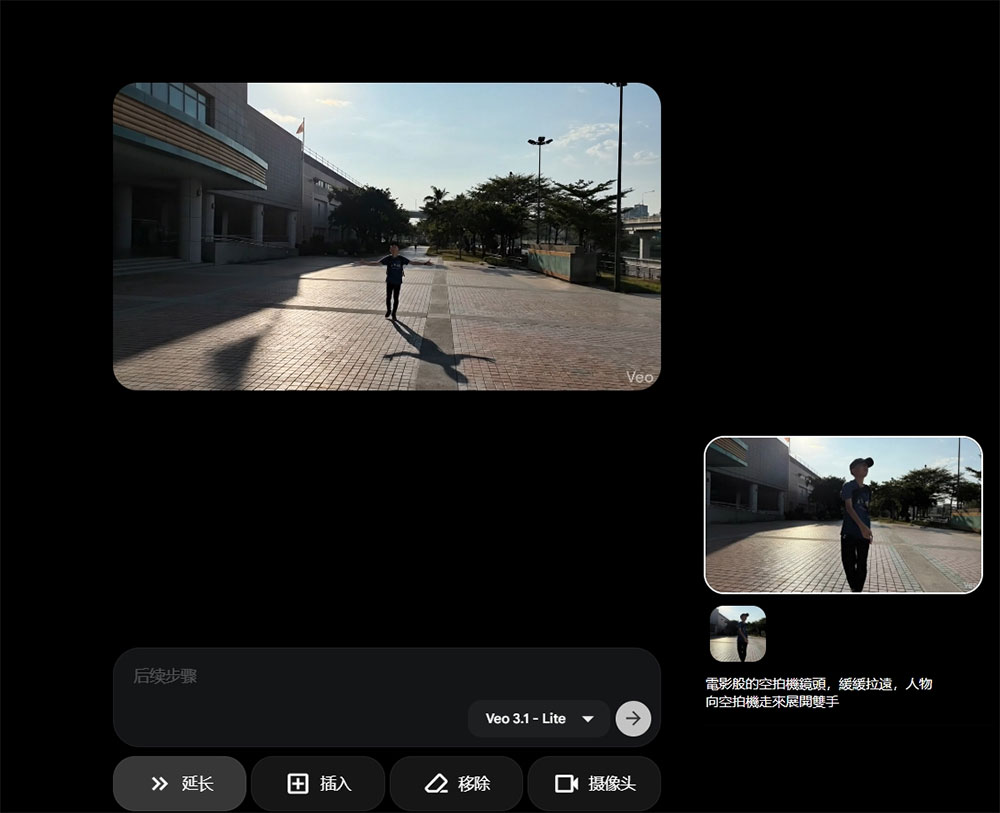
All set! You can now share this eye-catching aerial footage across major social platforms and easily become the center of attention. Just a heads up: there’s a small “Veo” logo in the bottom right corner. If you prefer a cleaner look, simply crop it out, and you’ll have a seamless aerial video generated from a still photo.
Source: KOCPC Chinese