


Google’s recent open-sourcing of the Gemma 4 large language model has taken the tech world by storm. The model comes in sizes ranging from 2B all the way up to 31B, with even the 2B variant capable of running smoothly on iPhones or Android devices. But have you ever wondered whether the Raspberry Pi 5—a device with only 8 GB of RAM that isn’t exactly mainstream and has modest hardware—could actually run Gemma 4 locally? A foreign software developer named Nick decided to find out. Not only did he manage to get it running successfully, but he also connected it to the local network, allowing other computers to directly call upon the AI on the Raspberry Pi for coding tasks.
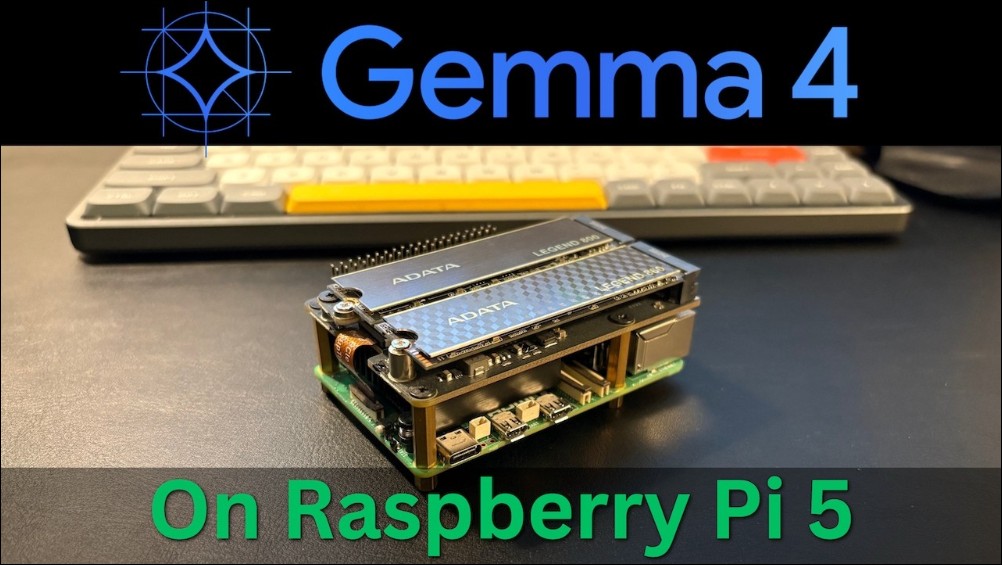
Overseas developers successfully run the Gemma 4 large model locally on a Raspberry Pi
Nick has previously tested the Gemma 4 model on both laptops and desktops, and this time he wants to squeeze Gemma 4 into a Raspberry Pi 5 to run. He candidly admits he’s not sure if it’ll work, since even the smallest model version might exceed the Raspberry Pi’s capabilities, “but it’s worth trying.” Here’s a quick hardware comparison between the Raspberry Pi 5 and current computers—the main bottleneck is limited RAM and low compute power, with the 8GB version costing around NT$6,000.
| Specification Items | Raspberry Pi 5 | on par with traditional PC-class |
| Processor (CPU) | Quad-core Cortex-A76 (2.4GHz) | Intel Celeron N5105 or Core i3-4130 |
| Memory (RAM) | 4GB / 8GB LPDDR4X | Current entry-level specs for compact office PCs |
| Display Core (GPU) | VideoCore VII | Intel HD Graphics 4000 (Ivy Bridge) |
| Storage method | MicroSD / NVMe SSD (expansion required) | Early office laptop (SATA SSD speed) |
| Scalability | USB 3.0, PCIe 2.0, dual 4K HDMI | NUC Configuration |
His Raspberry Pi 5 normally runs on the home network, operated remotely via SSH without even a graphical interface installed—it’s just a lean machine running Ubuntu Server. He opens the terminal app for the audience to view the hardware specs: a quad-core processor, 8 GB of RAM, with most of the memory currently free since nothing resource-intensive is running.
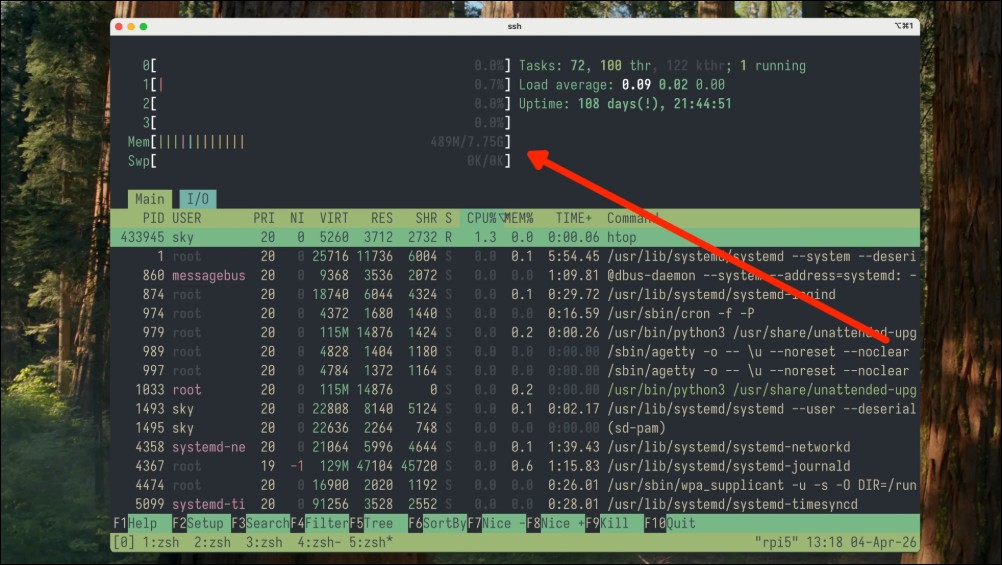
Nick also mentioned tmux, a terminal multiplexer that keeps your sessions running even after you disconnect from SSH — really handy for remote work.
Install LM Studio CLI
The first step was to install LM Studio. However, since the Raspberry Pi doesn’t have a graphical interface, Nick chose to install the CLI version, also known as the headless version. The LM Studio team provided a dedicated installation script that takes care of everything with one click, and once installed, the daemon can be started directly. After installation, Nick quickly went through the available commands: model management commands, local server management commands, and some other utilities. Overall, the commands were quite intuitive to use.
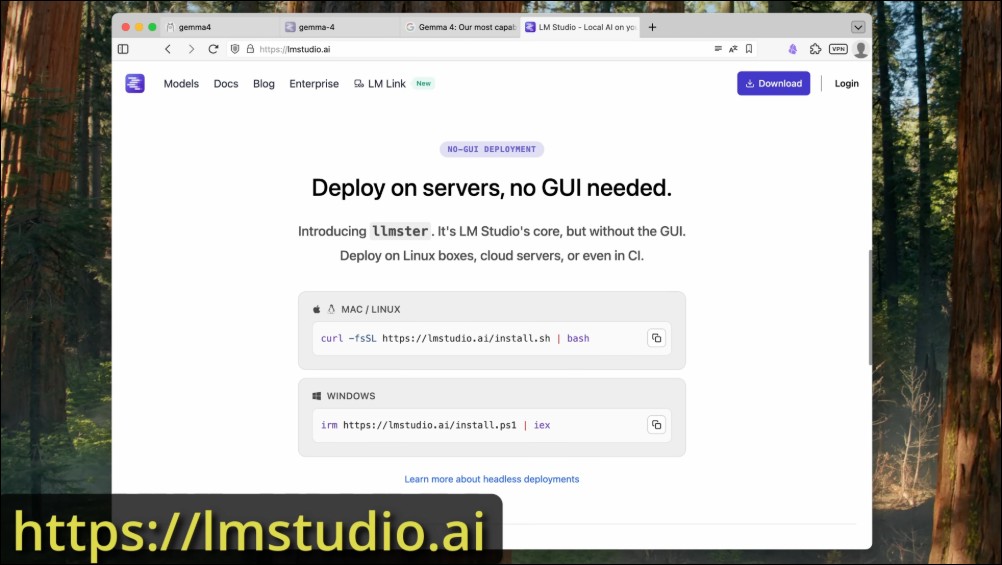
Set SSD storage path
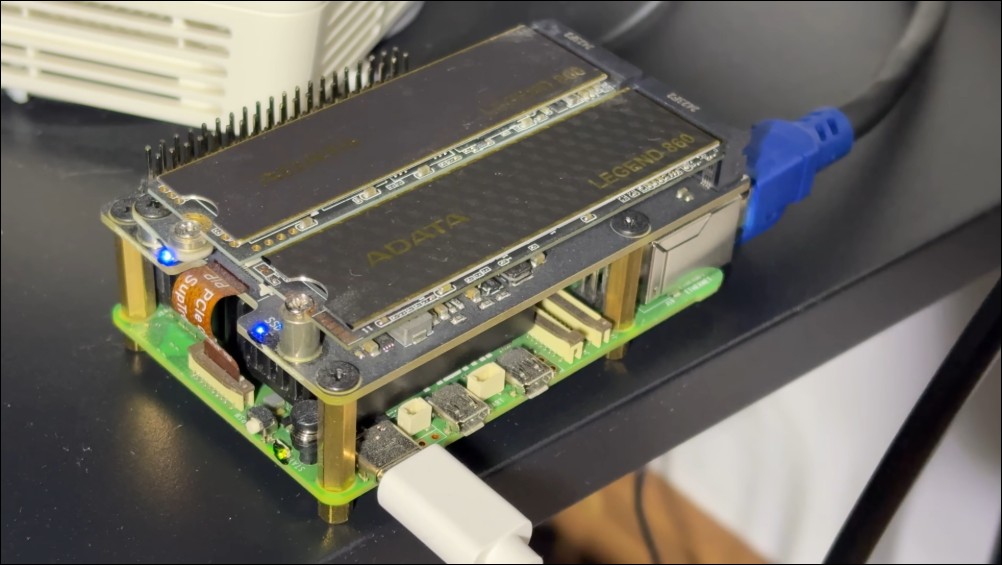
Before formally downloading the model, Nick made an important preliminary setup: changing the model’s storage location. His Raspberry Pi 5 has an external SSD connected, and he wants the model stored on the SSD rather than taking up space on the SD card. He specifically mentioned that the Raspberry Pi 5 introduced a more convenient way to connect external storage devices like SSDs, and he has been using this method for over a year with excellent results. This small detail is critical for actual deployment, as placing large model files on an SD card would cause problems with both read/write speeds and lifespan.
Download Settings for Gemma 4 E2B Model
After setting up the storage path, Nick started downloading E2B, the smallest model in the Gemma 4 family, with a file size of approximately 4.5 GBWhile waiting for the download, he compiled the three main highlights of this model family based on Google’s official announcement:
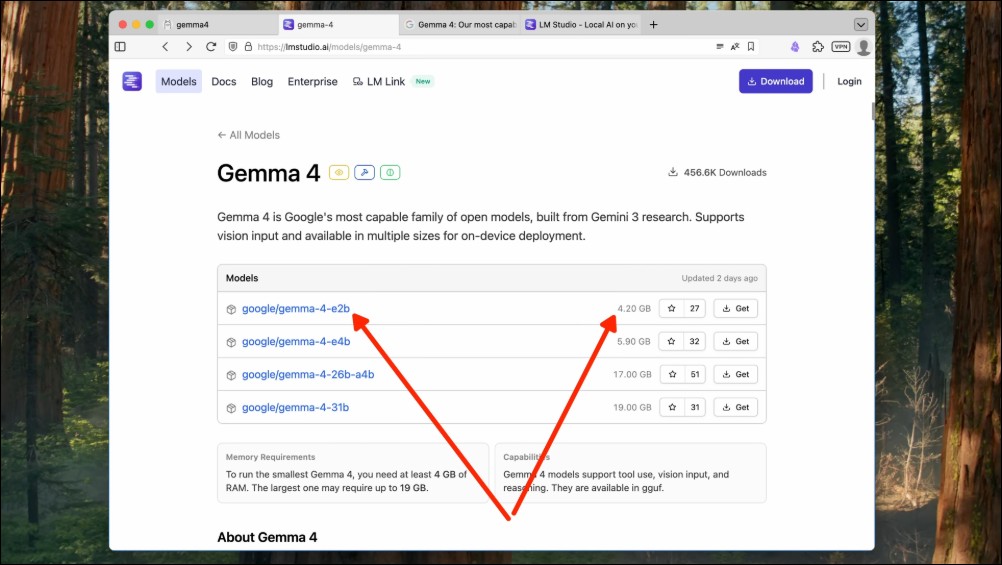
First, built for Agent workflows. The entire Gemma 4 family was designed from the ground up for agent-based workflows, with native support for function calling and direct interaction with external tools.
Second, multimodal capability. These models can process images and video, while the smaller models—including E2B, which Nick is installing—also have native audio support and can directly understand voice input.
Third, an extremely large context window. Support 128,000 tokens With a context length of 128K, supporting virtually all languages.
Additionally, Nick emphasized a piece of information that is extremely important for developers: Gemma 4 uses Apache 2.0 LicenseCompletely open source and allows commercial use, “That means you can do almost anything you want with these models”
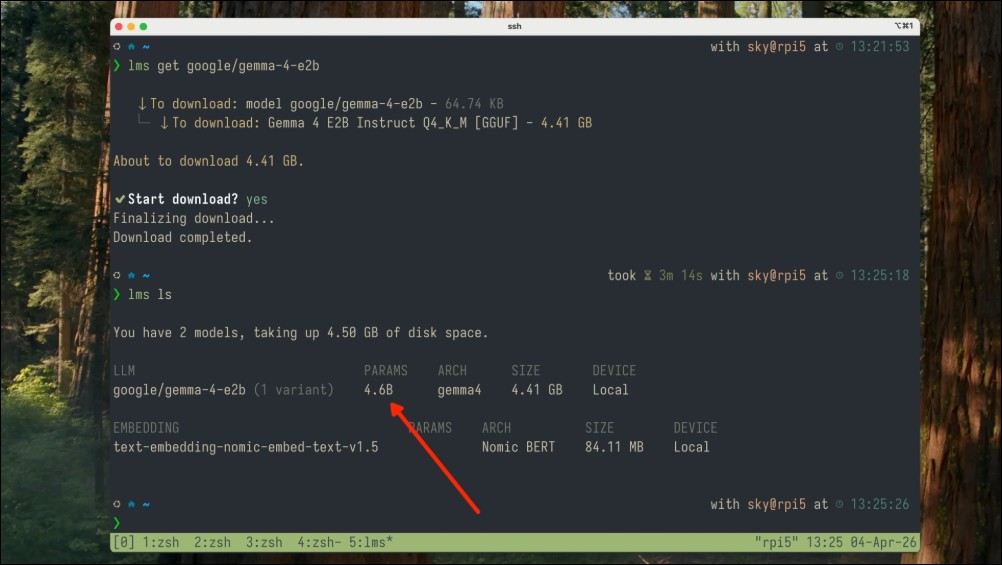
After the model download is complete, confirm approximately 4 billion parameters(4 billion parameters) should be sufficient for simple and small tasks.
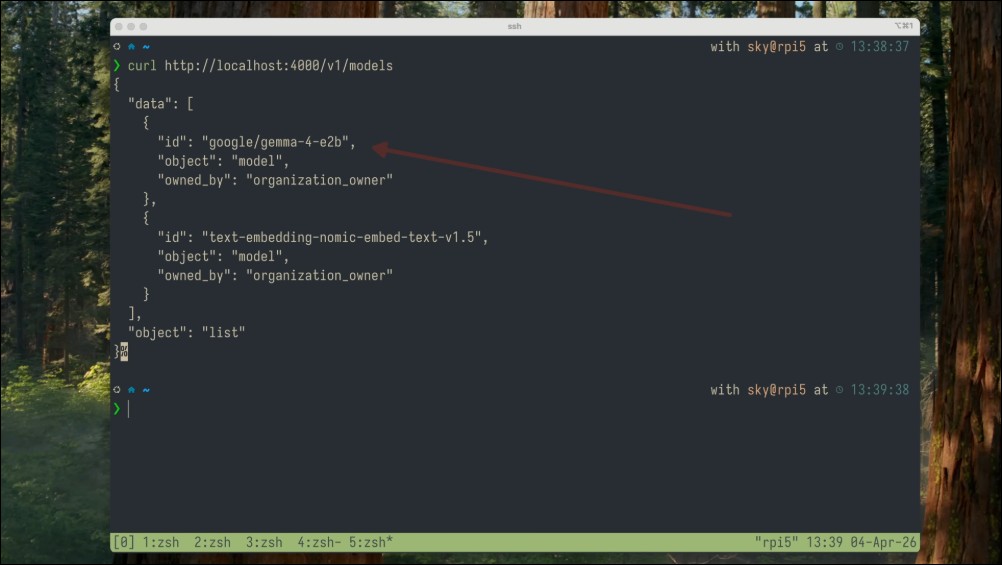
The model loaded successfully. Nick observed the system changes again and could clearly see the model had been loaded into RAM. The next critical step was to start the API server, allowing external systems to interact with the model through HTTP requests. After starting the server, Nick carefully performed a verification: sending a simple HTTP request to retrieve a list of available LLM models. In the returned list, he successfully saw the recently downloaded Gemma 4 model, confirming everything was working properly.
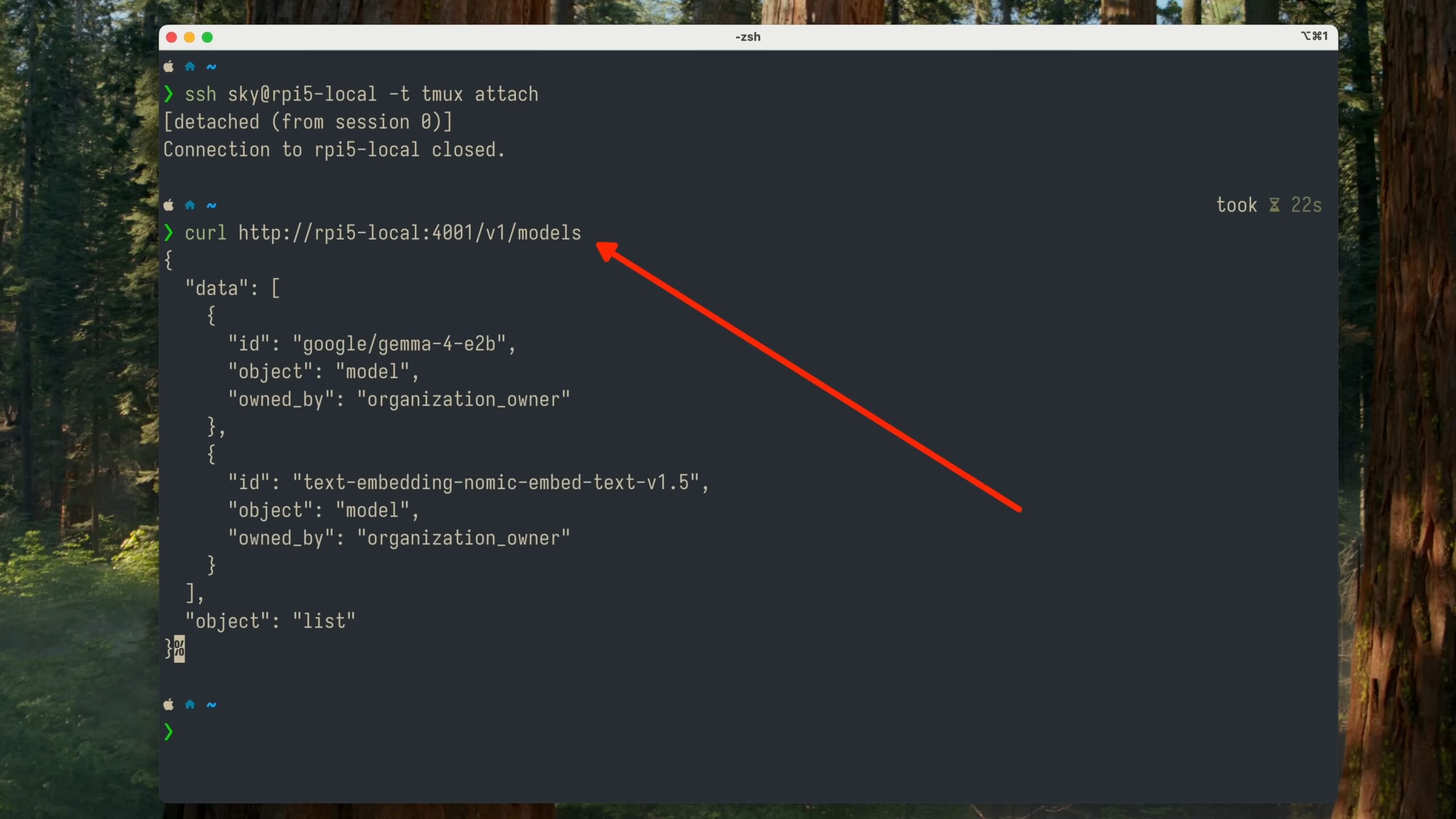
Until now, the server started by LM Studio was only accessible on the Raspberry Pi locally. Nick wanted to use this model from other computers on the local network, so he tried using --host 0.0.0.0 Restart the server with the parameter to have it listen on all network interfaces. But he hit a wall. The LM Studio CLI server command doesn’t support the host parameter, only port. He chose the fastest and simplest solution: using socat Tool. socat can forward network streams within the system. Nick forwards internal port 4000 (LM Studio server) to external interface port 4001, effectively creating a bridge between the internal and external ports. This way, any requests from the local network sent to Raspberry Pi port 4001 will be automatically forwarded to the internal LM Studio server.
To verify, Nick disconnected the SSH connection, went back to the macOS terminal on his MacBook, and sent the same HTTP request from his laptop to the Raspberry Pi’s IP address. It worked—he received a response from the LM Studio server on the Raspberry Pi, with Gemma 4 visible in the list.
Connecting models in the Zed editor
Since the local server launched by LM Studio fully emulates the OpenAI API, any application that supports custom OpenAI endpoints or base URLs can directly use your local models. This includes chat interfaces (such as Chatbox AI, Open Web UI) as well as various editors and IDEs (like VS Code, Cursor, Zed Editor). Nick chose to use Zed Editor for the demo. After setup is complete, you can see the entry corresponding to Raspberry Pi on the LLM provider settings page. Nick selected the Gemma 4 model on the Raspberry Pi at the bottom of the chat window, then sent a simple prompt to test the connection. The model started thinking, then successfully replied.
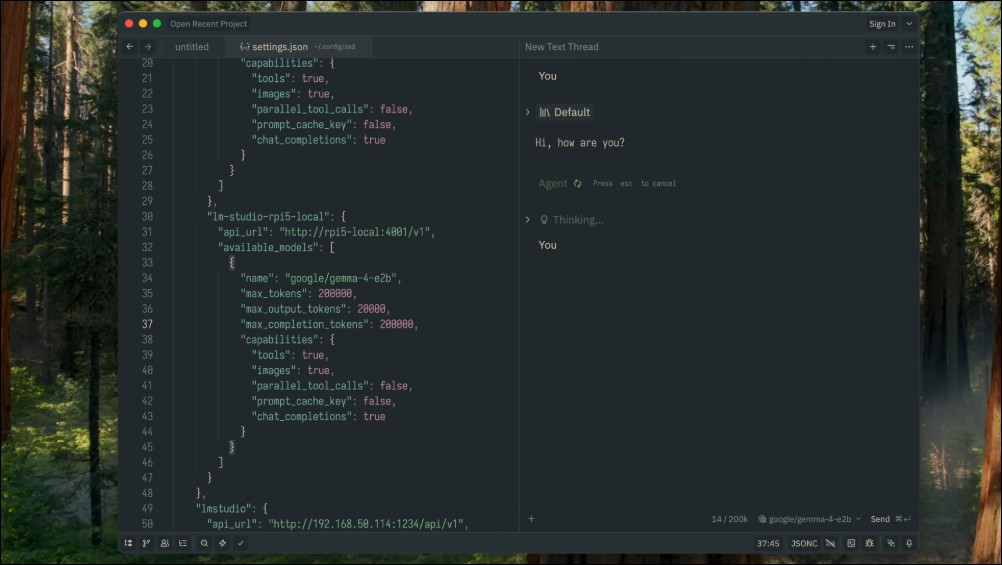
At this point, Nick summarized the progress so far: First, Gemma 4 runs successfully on Raspberry Pi (even the minimal version); and second, it can be interacted with from another computer on the local network.
Python Programming Performance Testing
Chatting is just the basics — it’s time to push the model to its limits. Nick first connects back to the Raspberry Pi through the terminal, starts system resource monitoring, and then gives the model one of his standard test tasks:“`python
class Person:
def __init__(self, name, age):
self.name = name
self.age = age
def __repr__(self):
return f”Person(‘{self.name}’, {self.age})”
# Example 1: Sort by a single attribute using a lambda
people = [Person(“Charlie”, 30), Person(“Alice”, 25), Person(“Bob”, 30)]
sorted_people = sorted(people, key=lambda p: p.age)
# Example 2: Sort by multiple attributes (age, then name)
sorted_people = sorted(people, key=lambda p: (p.age, p.name))
# Example 3: Sort using operator.attrgetter
from operator import attrgetter
sorted_people = sorted(people, key=attrgetter(“age”, “name”))
# Example 4: Sort in descending order
sorted_people = sorted(people, key=attrgetter(“age”), reverse=True)
# Example 5: Sort objects in-place
people.sort(key=attrgetter(“age”))
print(people)
“`
**Output:**
“`
[Person(‘Alice’, 25), Person(‘Bob’, 30), Person(‘Charlie’, 30)]
“`
**Key methods:**
– `sorted(list, key=…)` — returns a new sorted list, original unchanged
– `list.sort(key=…)` — sorts in-place, modifies the original list
– `key` parameter specifies what to sort by
– `reverse=True` reverses the sort orderAfter the model started thinking, htop showed that the Raspberry Pi was fully loaded,All CPU cores are fully utilizedAfter the model finished its reasoning and began generating its response, Nick played back a segment at real-time speed so the audience could experience the actual generation rate.
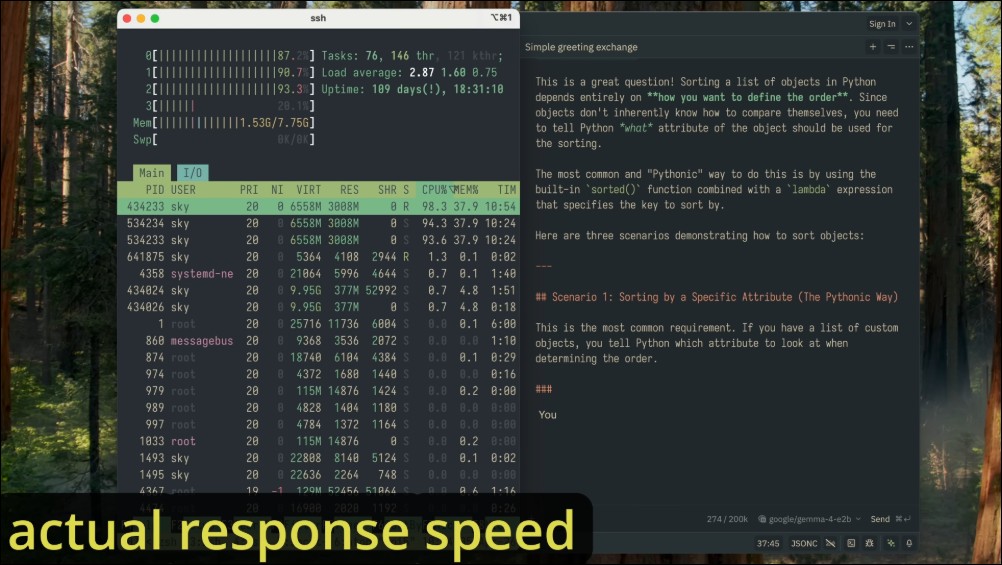
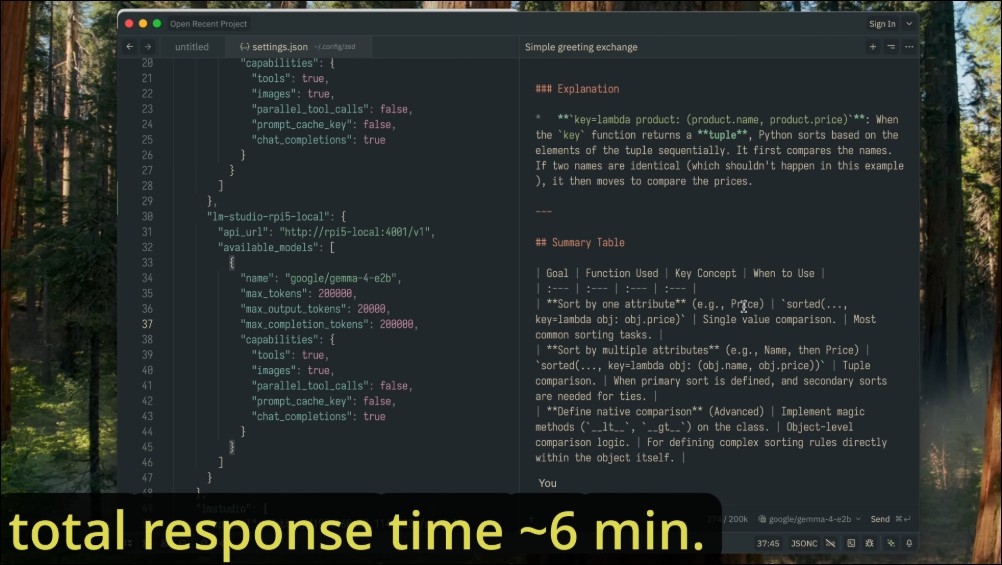
His comment was: “For simple interactions or scripts that don’t require real-time responses, this speed is acceptable.” The final result was surprising: the model not only wrote a sorting function but also providedTwo different implementation approachesand explained their respective applicable scenarios. Nick used “very impressive” to describe it. However, including the reasoning phase and beyond,Total duration approximately 6 minutesNick thinks that if we turn off reasoning mode, the time could be reduced further.
Creative Task Test (Web App Ideas)
For completeness of testing, Nick assigned another non-programming task:Please have the model come up with three Web App ideas。
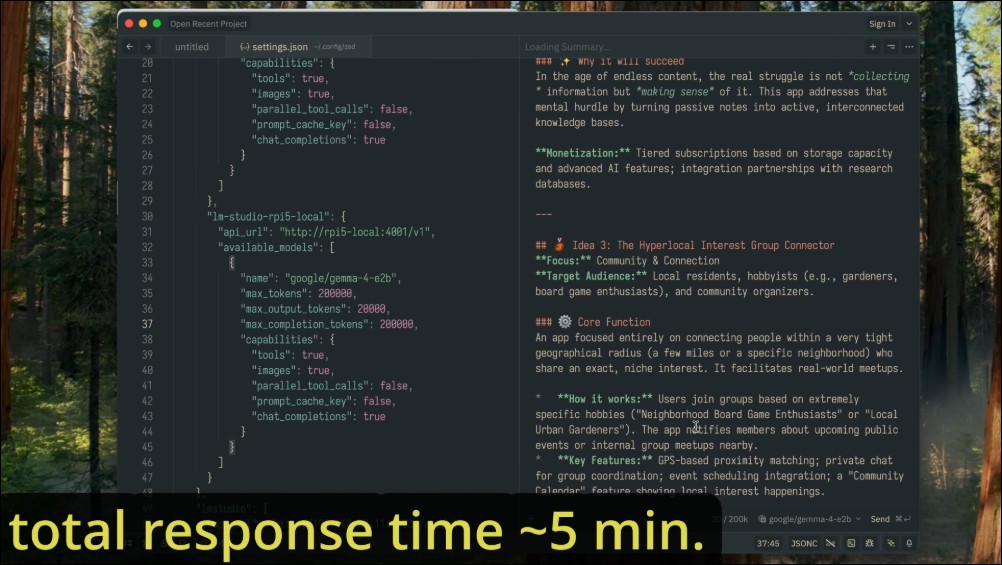
After an accelerated thinking phase, the model began generating content. Nick demonstrated the generation process at actual speed, and he believed the speed was similar to the previous task, just at the comfortable boundary of human real-time reading. For non-interactive use cases, this speed is acceptable. This time Gemma took about 5 minutesGenerate a complete response, producing extensive text with detailed descriptions for each point.
If you’re interested, you can check out his full tutorial video—it’s quite easy to follow. If you’re also into Raspberry Pi 5, you can give it a try:
Final Conclusion and Evaluation
Nick gave his final evaluation: he thinks that running the Gemma 4 E2B small model on the Raspberry Pi 5 isFully feasibleAnd the results are usable, or at least this setup makes sense for specific scripts or automation tasks. However, there’s a certain technical barrier for ordinary people to go through all this trouble. A machine with these specs can smoothly run Openclaw when using cloud models, but being able to run E2B is quite impressive. However, I need to pour some cold water on this for everyone—if you’re planning to use E2B to run Openclaw, it might drive you crazy or get you into trouble. You’ll need at least 21B parameters for tool-calling capabilities to work properly, so there’s no point wasting time trying.
Source: KOCPC Chinese