


past Gemini not like ChatGPT There is “Projectfunction, which can organize related chat logs and uploaded files into the same project folder for easy follow-up questions and management. Therefore, this is very inconvenient for users, as they can only search conversations using keywords. Although desktop version users can use the extension we previously introduced Gemini Voyager it can be implemented, but it’s ultimately not an officially built-in solution, so its stability and integration are limited.
Finally, this isn’t a problem anymore!Google Earlier today on the official blog, Google announced the official launch of Gemini’s “Notebook” feature, which lets you create project spaces within Gemini to centrally manage conversations, files, web pages, and other data. Even more conveniently, it supports two-way sync with NotebookLM, directly enabling data flow between the two platforms.
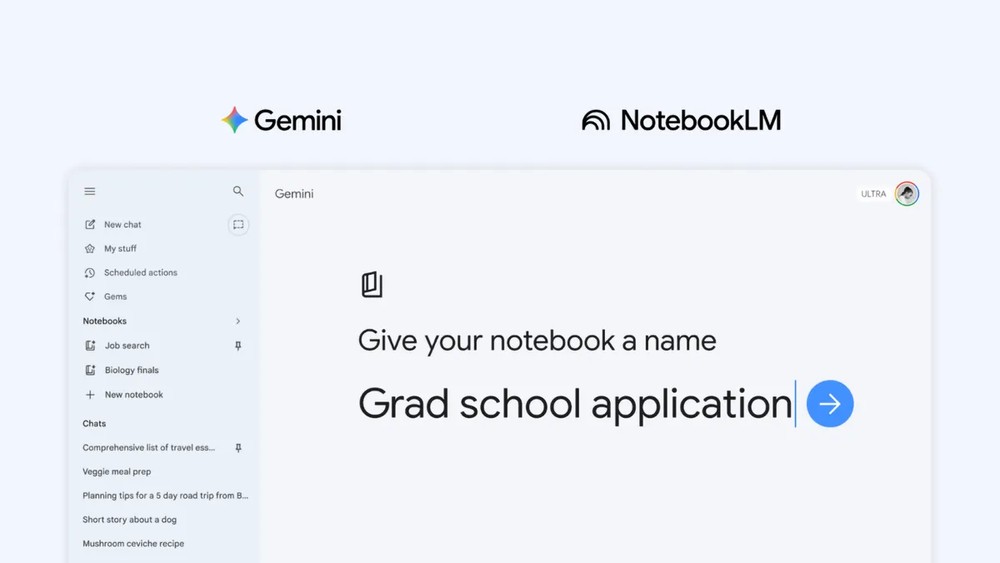
Gemini finally gets project management! Introducing the brand new ‘Notebook’ feature with two-way sync to NotebookLM
Notebook is essentially a project space within Gemini. Think of it as a folder where you can store specific conversations, files, and other data, accessible from the sidebar panel in Gemini. Click into it to create a new Notebook, then start adding various types of source data, including file uploads, Google Drive documents, webpage links, and directly copied and pasted text content.
Past conversations can also be added to the notebook—simply right-click in the chat and you’ll find the “Add to notebook” option. When chatting with Gemini in the notebook, it will respond based on the source material you’ve added, while also leveraging its own tools and web search capabilities to provide more comprehensive answers.
Additionally, each notebook has two advanced settings. One is “Use notebook memory,” which, when enabled, makes Gemini remember the conversation context within that notebook. The other is “Custom Instructions,” where you can set the tone and manner in which Gemini responds within this notebook, such as “reply in Traditional Chinese” or “keep answers concise.”
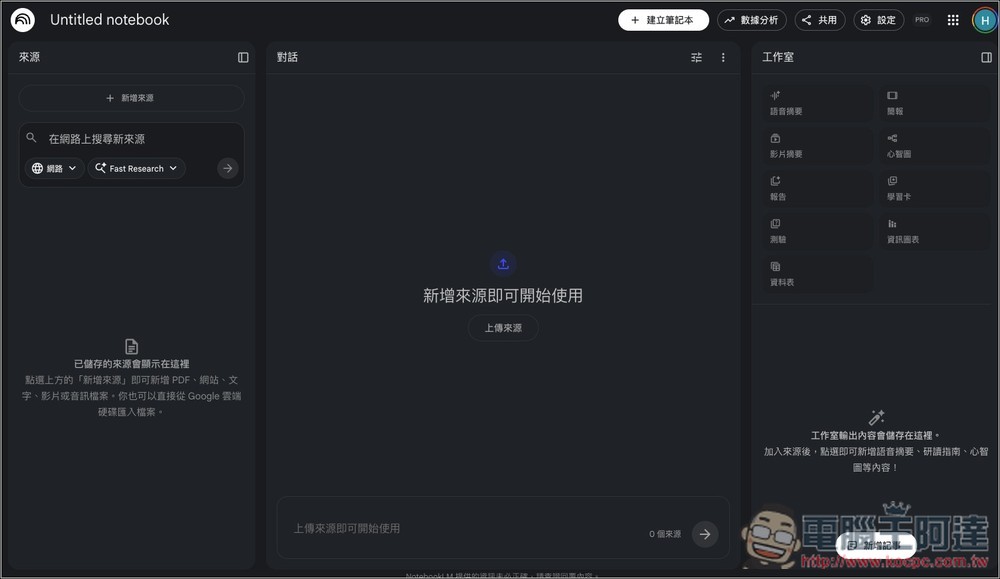
The newly launched Notebook also integrates deeply with NotebookLM—notebooks created in Gemini will automatically appear in NotebookLM, and vice versa. Any source materials you add on either side will sync to the other in real time.
So you can start by chatting with the AI in Gemini, add relevant data and chat history to your notebook, then switch over to NotebookLM to use features like cinematic video summaries or infographics—all without moving any files. When you’re done, head back to Gemini, and everything you created in NotebookLM will sync back, letting you continue your follow-up discussions right there in Gemini.
Google also shared a usage example on its official blog: you can first add your class notes to a notebook, then head to NotebookLM to generate a video summary for easy review, and finally return to Gemini and ask it to help you outline a paper. Throughout the entire process, your data stays in the same notebook, eliminating the need to transfer files back and forth between the two platforms.
However, please note that the Notebook feature is rolling out starting this week, using a phased rollout approach rather than being released all at once. If you don’t see it yet, you’ll need to wait a few more days.
The initial rollout is targeting paid subscribers of Google AI Ultra, Pro, and Plus, and is currently only available on the web version. Over the next few weeks, Google will gradually expand to mobile versions and open it up to users in more European countries. As for free tier users, Google has confirmed it will be available later, but hasn’t provided a specific timeline yet.
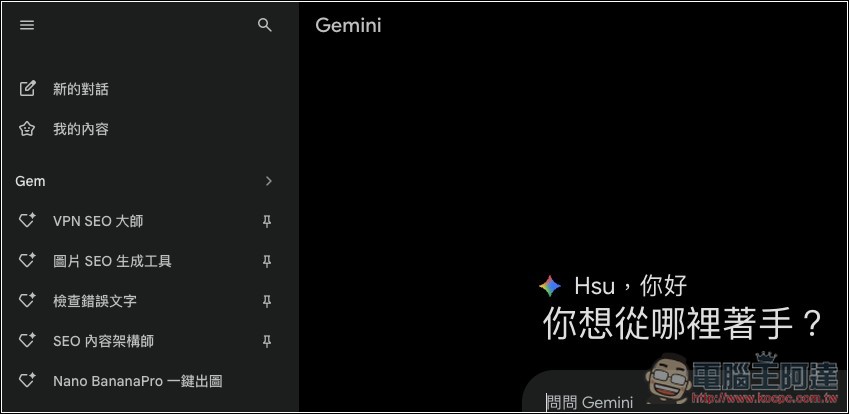
Mine hasn’t shown up yet:
Source: KOCPC Chinese