


For those who have been following AI automation tools for a long time, OpenClaw (nicknamed “Openclaw”) may have been a favorite of yours. However, issues like Openclaw’s tendency to “forget” things, frequent serious bugs after updates, and crashes during complex tasks have deterred many users. Today, Ada brings you the perfect alternative to Openclaw:Hermes AgentIt not only painlessly inherits all the Openclaw’s functions, but also possesses true “self-learning” and “long-term memory” capabilities.

Why choose Hermes Agent?
Hermes Agent is developed by a well-known US AI research institution Nous Research has been developed and currently garnered enormous attention on GitHub. Compared to existing tools, it offers the following five major advantages:
- Long-term memoryHermes won’t forget earlier agreements due to long conversations—it has persistent memory storage.
- Self-learningIt can continuously optimize its own processing logic through task feedback and Skill management.
- Visualize ProgressWhen performing multi-step tasks, display a clear progress bar so users can track the execution status.
- Highly stableThe core logic is maintained by a professional team, reducing the likelihood of crashes or infinite loops during automated execution.
- Cross-platform supportPerfectly supports Windows (WSL2), macOS, and Linux.
Phase 1: Preparation (Getting a Free API Key)
Before installing Hermes, we need a powerful “brain.” If your budget allows, you can use Google AI Studio to apply for a paid API key. If you’re on a budget, you can also use the tutorials we’ve provided before—there are options for Gemma 4 as well as NVIDIA’s free solution.
Gemini API 提供每日免費 3,000 次呼叫的 Gemma 4 26B、31B 模型,免填信用卡、可串 OpenClaw
NVIDIA API 讓你完全免費呼叫 Minimax M2.7、DeepSeek V4 模型,也能用在 OpenClaw 與 Hermes
Phase 2: Hermes Agent Installation Guide
1. macOS / Linux systems
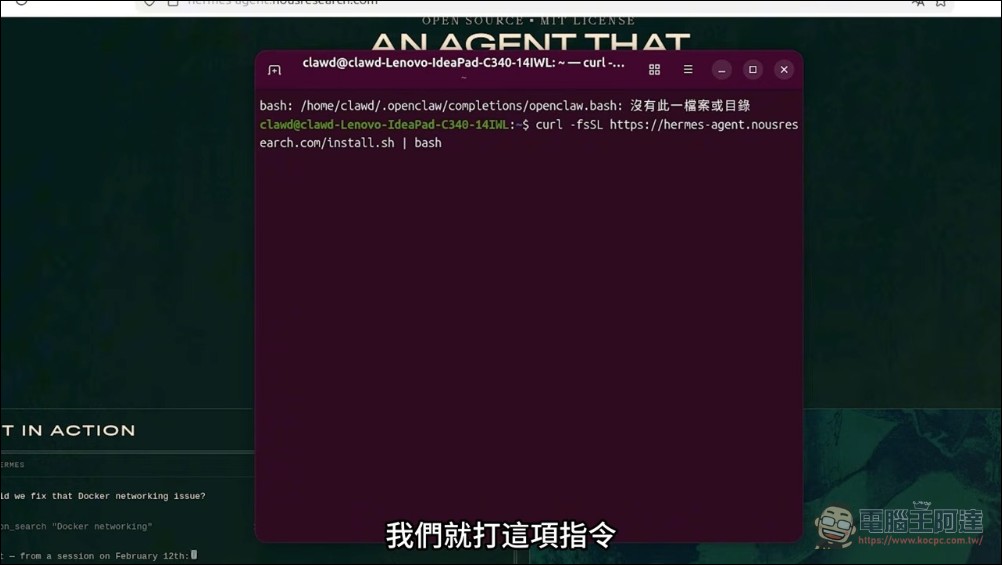
Users on macOS or Linux, open your terminal and enter the official one-click installation command:
curl -fsSL https://hermes-agent.nousresearch.com/install.sh | bashNote: If a freshly installed Linux has commands that don’t respond, please install the dependencies first:sudo apt update && sudo apt install -y curl git。
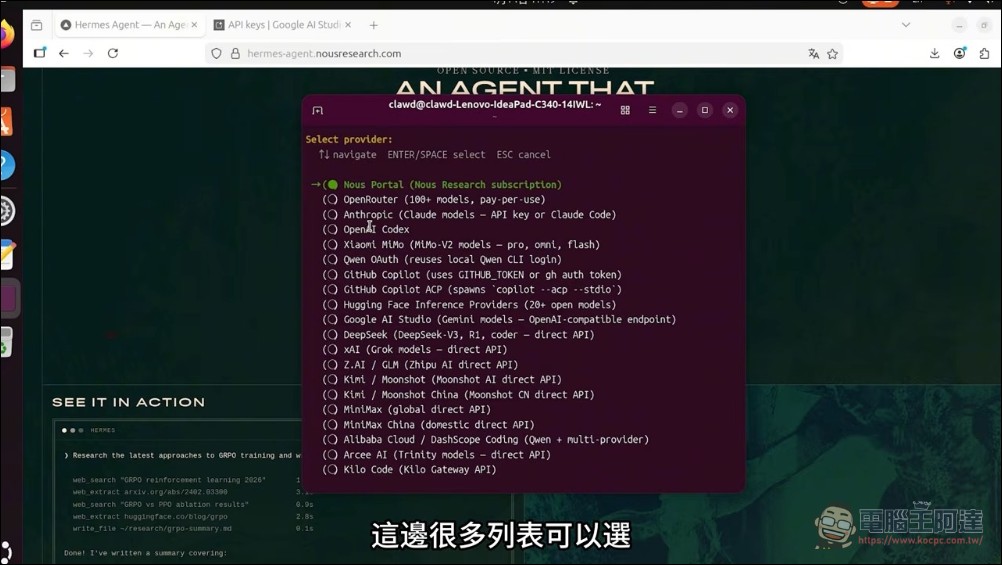
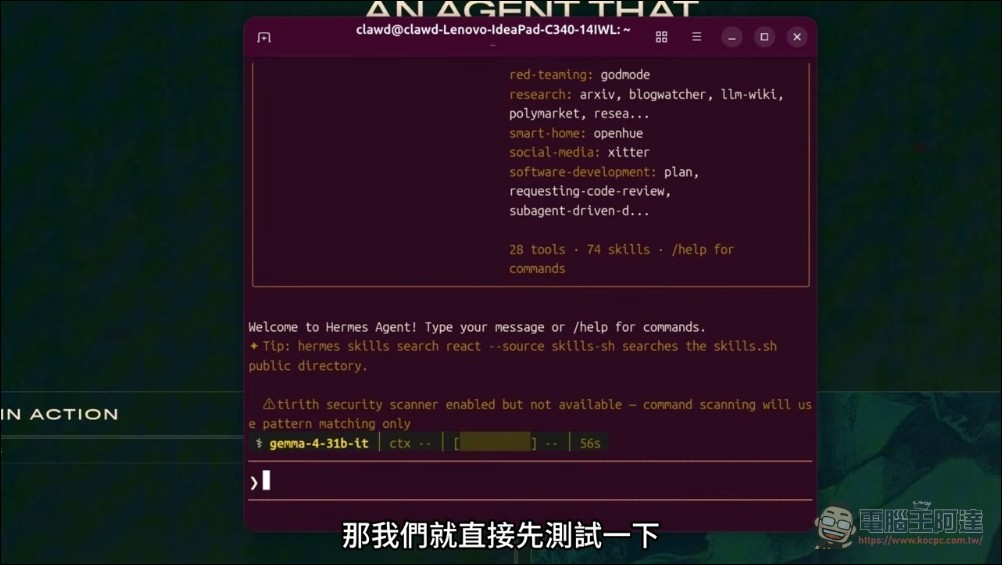
After installation, set up the model directly. In the model list, select the provider you want to use, such as Google, MiniMax, or Kimi. Here, Google is selected:
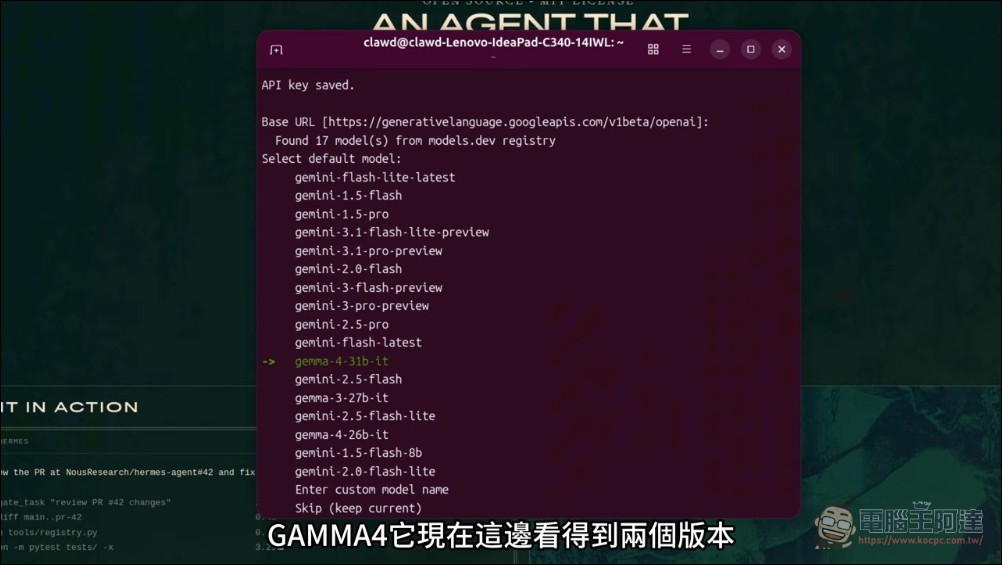
If you’re using Google’s free API key, choose Gemma 31b:
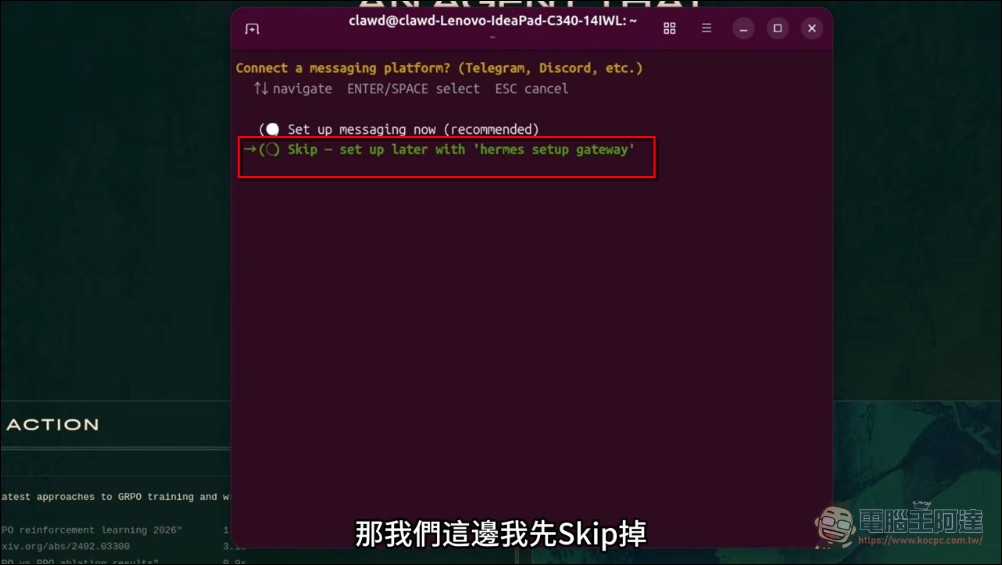
Next, you’ll set up Messenger (using a messaging app to communicate with Hermes). It’s recommended to SKIP this for now, as there’s a setup guide later:
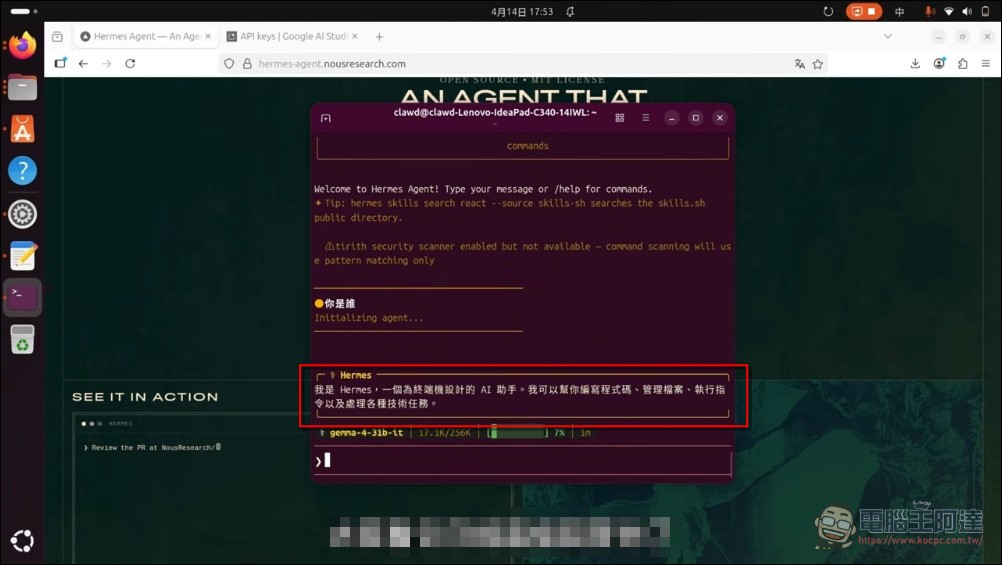
Finally, the setup is complete. You can now try communicating with Hermes directly in the input field below the CLI. If you get a response, the setup was successful:
2. Windows System
Windows users have two options. One is to install a Linux environment using a virtual machine. The advantage is that the environment is isolated, so you don’t have to worry about affecting your main system. For the installation steps, refer to this article. Once installed, everything works the same as the Linux installation described above:
Another option is to use the WSL2 service built into Windows, which needs to be installed and enabled first. WSL2 (Windows Subsystem for Linux):
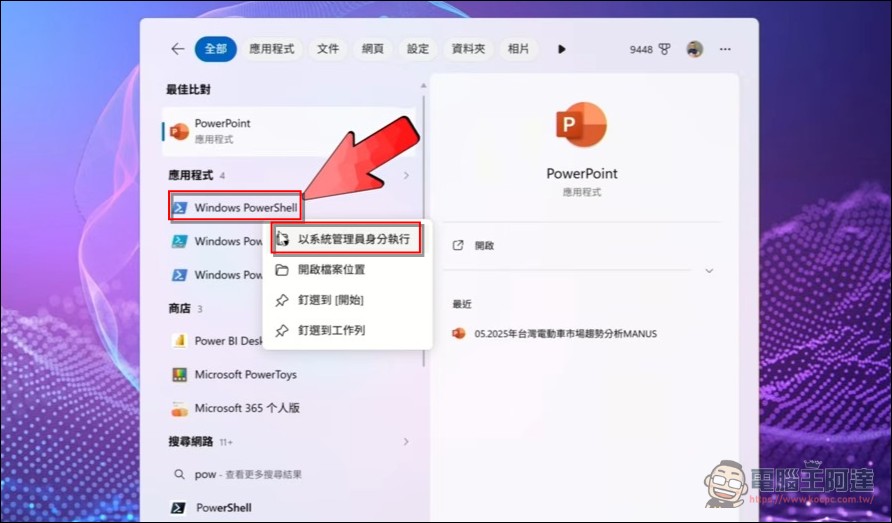
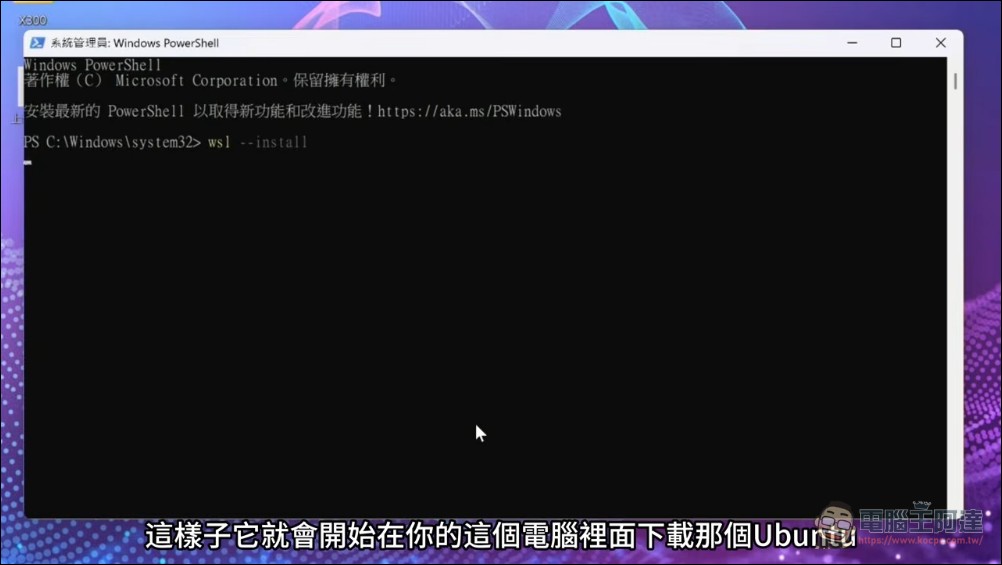
- Open PowerShell as an administrator, then enter:
wsl --install。 - After the installation is complete and you restart, you can use the Linux installation commands mentioned above in the Ubuntu terminal, and the remaining steps will be the same.
Openclaw Transfer
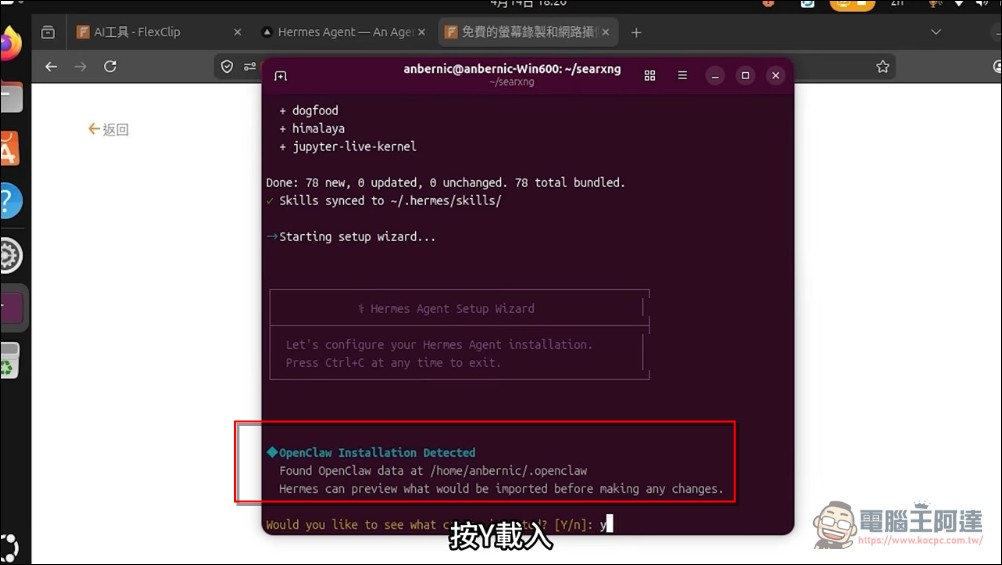
If Openclaw is already installed on your machine, the installer will automatically detect it and ask if you want to import. Press Y first:
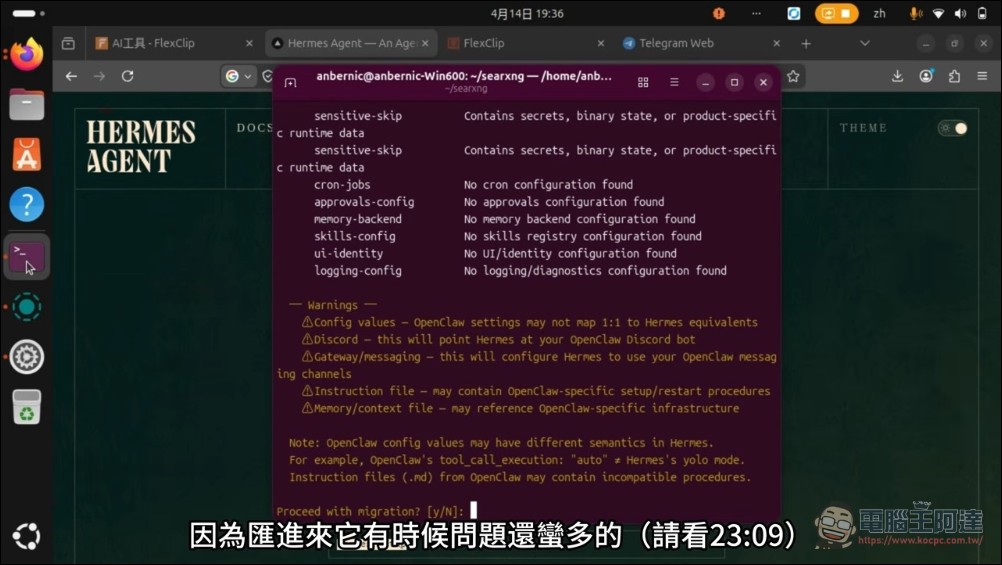
The second one will ask if you want to migrate. It’s recommended not to import memory here (it’s better to have Hermes read OpenClaw’s memory and Skills afterward to avoid confusion). The model settings afterward are the same as above, and skip Messenger as well. That’s it for the installation.
Phase 3: Telegram Bot Integration Tutorial
This is the key to making Hermes truly practical. Once configured, you can give commands to the Hermes Agent anytime via your phone. As for why I recommend setting it up last, it’s because if you’re doing a memory transfer, the direct import method will cause the Gateway used by OpenClaw to be occupied by Hermes, leaving your Openclaw unable to connect. If you set them up separately, OpenClaw and Hermes can coexist. You can have them work together or repair each other—I personally recommend doing it this way.
Step 1: Open the terminal
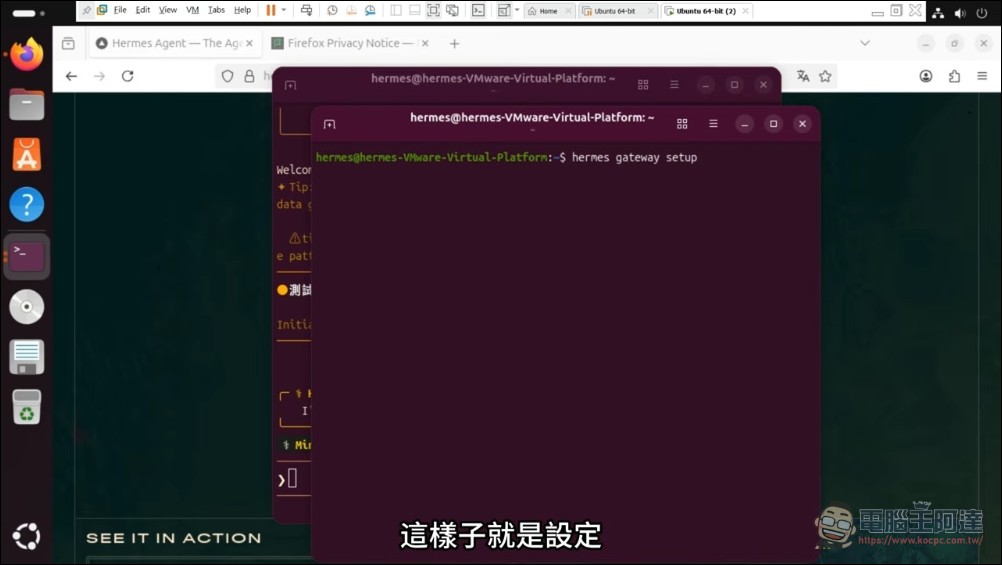
- Input: hermes gateway setup
- Select Telegram settings, ready to go find BotFather for a new bot token key.
Step 2: Create Bot
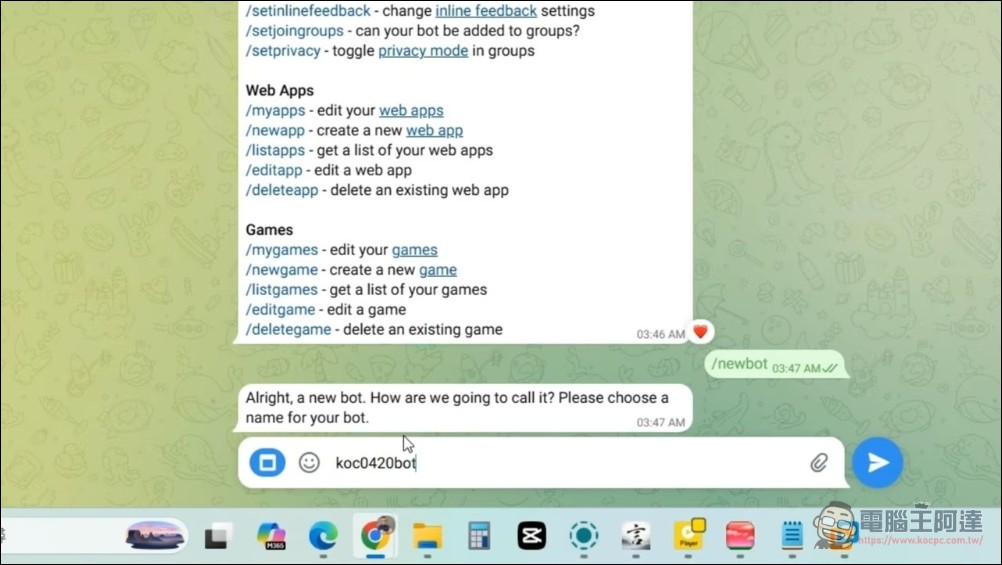
- Search on Telegram
@BotFather。 - Input
/newbotName according to the prompt (any name, must end with bot) and obtain HTTP API Token (Format: 8XXXXXXX:XXXXX)。
Step 3: Get Your Personal ID
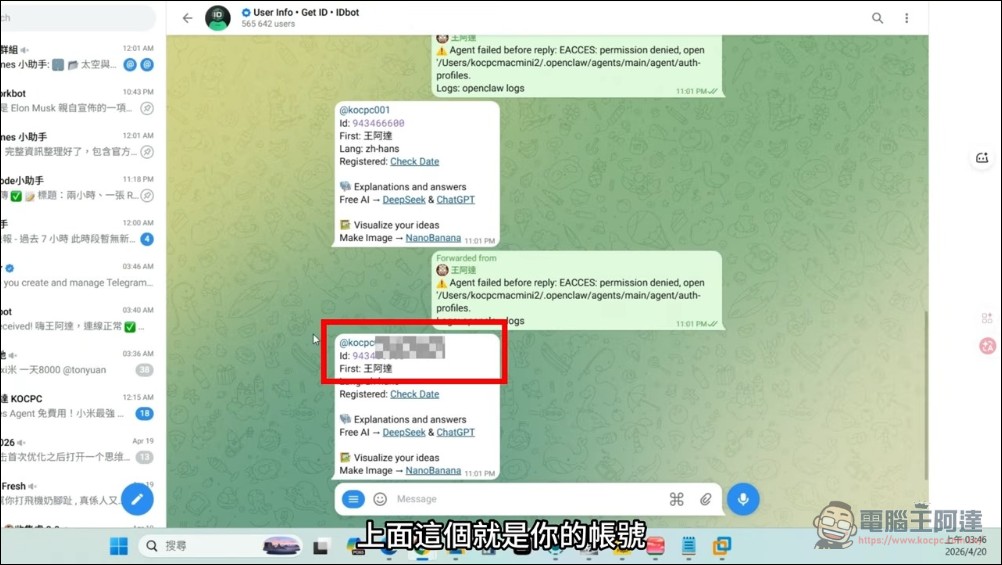
- Search on Telegram
@userinfobot。 - Send any message, write down your User ID (@username or ID number)。
Step 3: Configure in Hermes
Return to the computer terminal and run the setup wizard:
hermes gateway setupEnter what you just obtained following the on-screen prompts Bot Token and User ID。
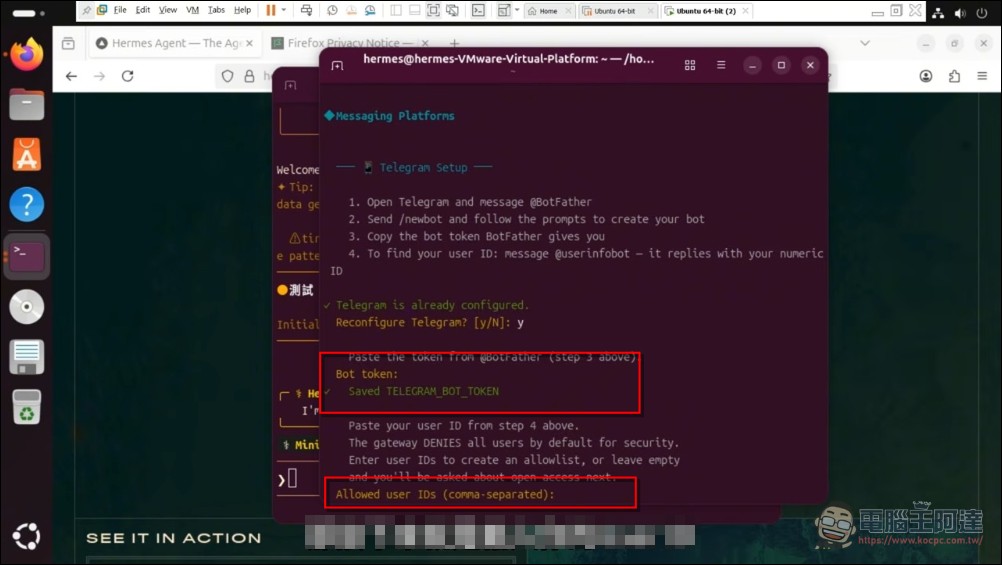
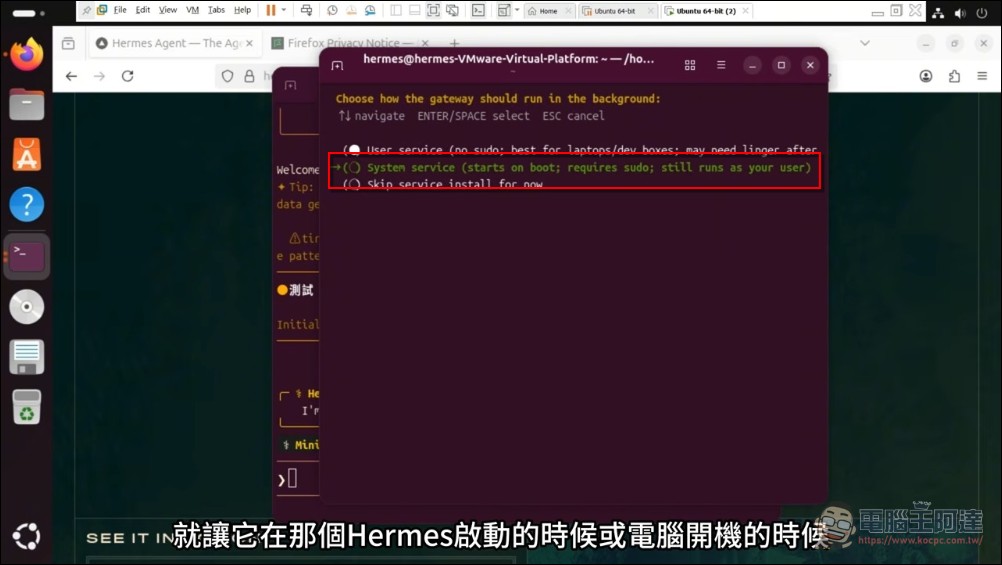
Next, for the Gateway startup method, select the second option so it will automatically start the system on reboot (otherwise you won’t be able to connect to Hermes after rebooting):
After completing the setup, start the Gateway, and continue entering in the terminal screen:
hermes gateway &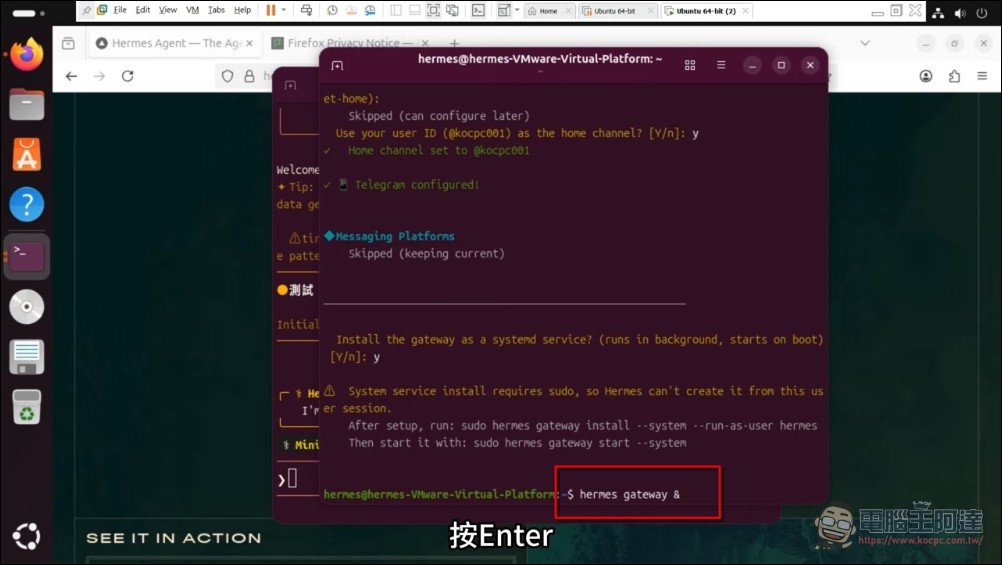
Next, go back to the Botfather interface, click on the chat link, and after clicking START to enter, copy the pairing code command:
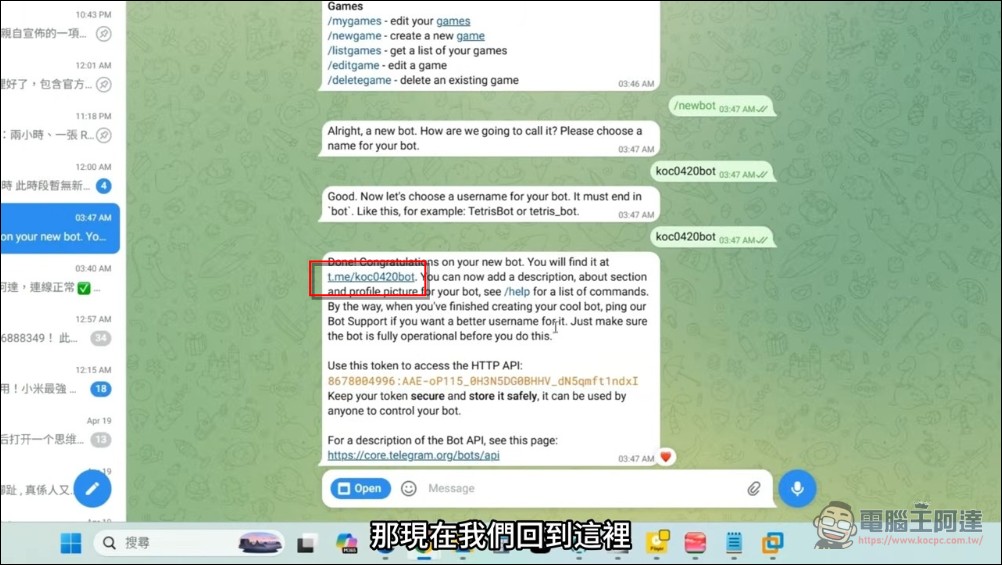
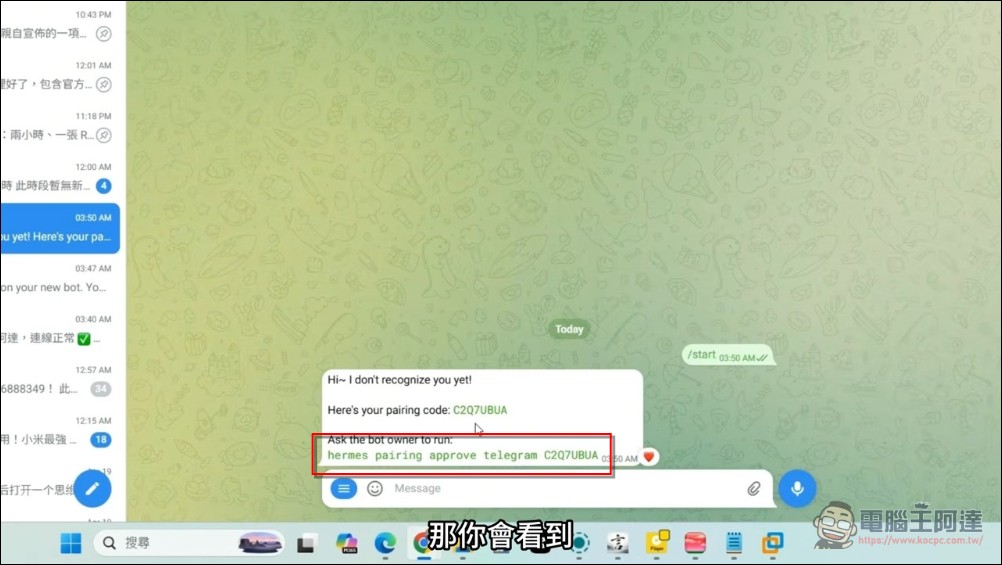
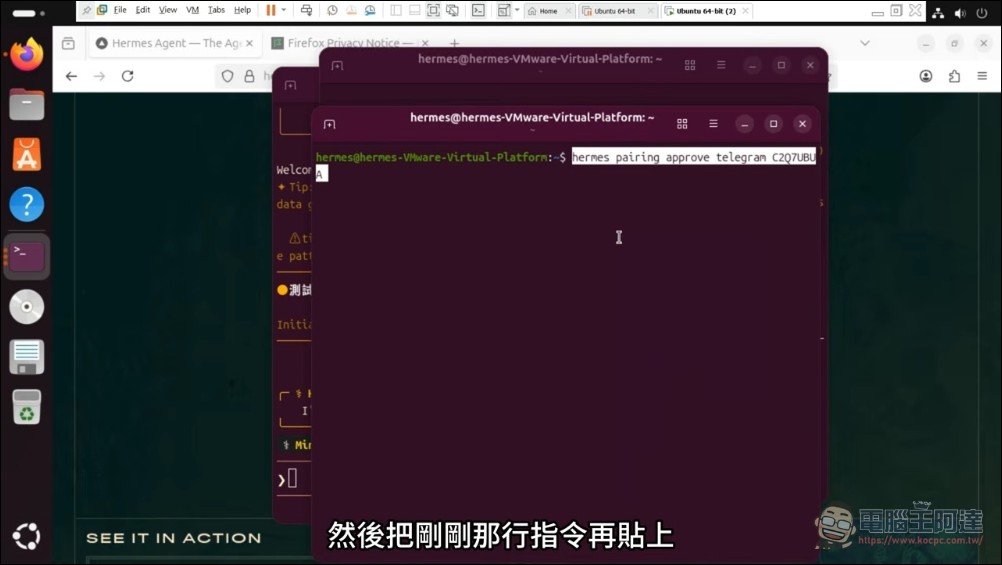
Then open another terminal, paste the command and send it, and the pairing is complete:
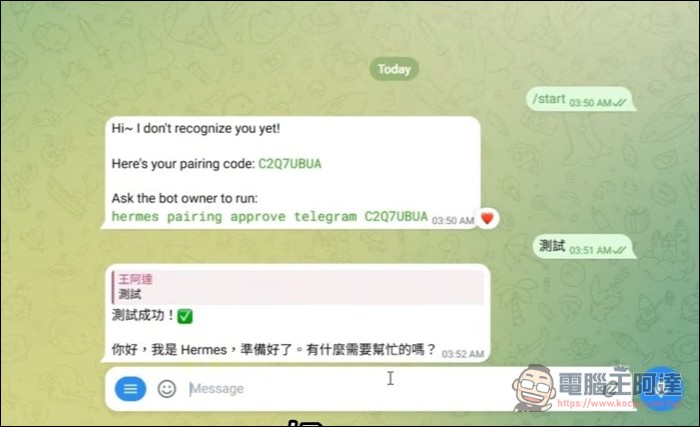
Finally, go to Telegram and just ask it anything – it should respond. This way you’ll complete the connection:
⚠️ Notes: Later, when you want to restart the Gateway in the CLI interface, please make sure it uses Restart Instructions, do not use Stop again Startso that it won’t shut itself down and be unable to restart!
Your Hermes setup is complete at this point. If it’s not clear, you can also watch Ada’s video tutorial directly.
Source: KOCPC Chinese