


There have been quite a few SSD write issues lately. Not long ago, AMD and NVIDIA graphics card drivers were caught one after another writing heavily to SSDs when idle, and now even Chrome extensions have run into problems.
Some users discovered that even though their computer was barely being used, Chrome accumulated over 300GB of write activity in 3 days. After investigating, the most likely culprit turned out to be the official Adobe Acrobat extension that many people have installed. Fortunately, the fix this time isn’t difficult. If you have it installed too, it only takes a few minutes to check whether your computer has the same issue.
Image source:Wccftech
Can Chrome extensions also secretly wear out SSDs? Adobe Acrobat extension caught writing over 300GB in 3 days.
This news comes from Reddit’s r/pcmasterrace subreddit. A user, u/xenius_ykk, posted about how they caught the problem, with the title: “An idle Chrome extension wrote about 300GB to my SSD in 3 days. This is how I caught it, and you can do the same.”
His computer runs Windows 11 and is mostly idle. Recently, he noticed that Chrome has been generating a large amount of write I/O in the background. He then used PowerShell to check the write statistics for the Chrome processes and found that in just 3 days, it had accumulated more than 300GB, while Chrome’s total local cache is only about 3.5GB, so the numbers are clearly very different.
After further investigation, he suspected it was Adobe Acrobat’s official Chrome extension. But what was stranger was that even after closing all Chrome windows, the background activity didn’t seem to stop and kept writing throughout the night.
PSA: An idle Chrome extension wrote ~300 GB to my SSD in 3 days – here's how I caught it, so you can too
byu/xenius_ykk inpcmasterrace
Upon further investigation, he found an Adobe-related Service Worker that kept repeatedly filling and replacing about 1GB of cache data—writing it, replacing it, and then rewriting it again. A Service Worker is a background program that a website or extension registers in the browser; even if you close the webpage, it can still handle tasks such as caching, push notifications, and offline data synchronization in the background.
After identifying the suspicious target, he did the following:
- Remove the Adobe Acrobat extension
- Unregister the related Service Worker
- Clear the data for that website.
- Restart Chrome
After handling it, I tested again: Chrome’s idle write volume per 5 minutes dropped from about 730MB to about 135MB, a reduction of over 81%.
In fact, this isn’t the first time similar problems have been reported with Adobe Acrobat. In May this year, an enterprise IT staff member posted on Adobe’s official community forum asking for help, saying that the hard drives on many company computers had been completely filled up.
He found that in the Chrome extension folder, log files of about 4 MB were constantly being generated, and the folder name was exactly the ID of the Adobe Acrobat extension. These computers are all Windows 11 Enterprise 24H2, managed centrally through AD Group Policy. After the files are deleted, they grow back, and the only way he found to stop it was to remove the extension:
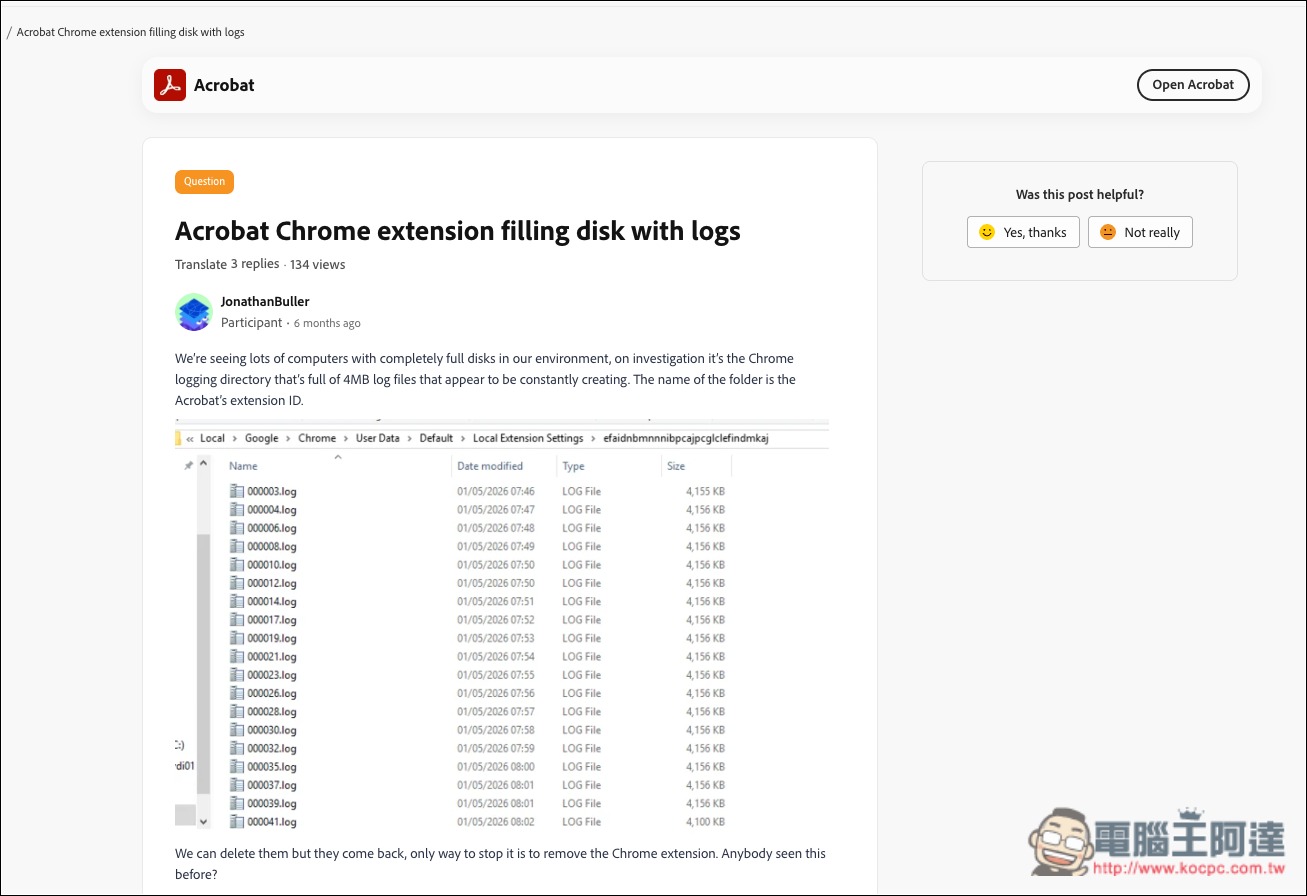
The next day, an Adobe employee responded and asked him to provide the operating system, Chrome, and extension versions, along with the .log and .ldb files in the folder, to help with the investigation. However, no official fix statement has been seen in the thread so far.
If you’re worried that your computer may have a similar issue, you can check it using the following three methods:
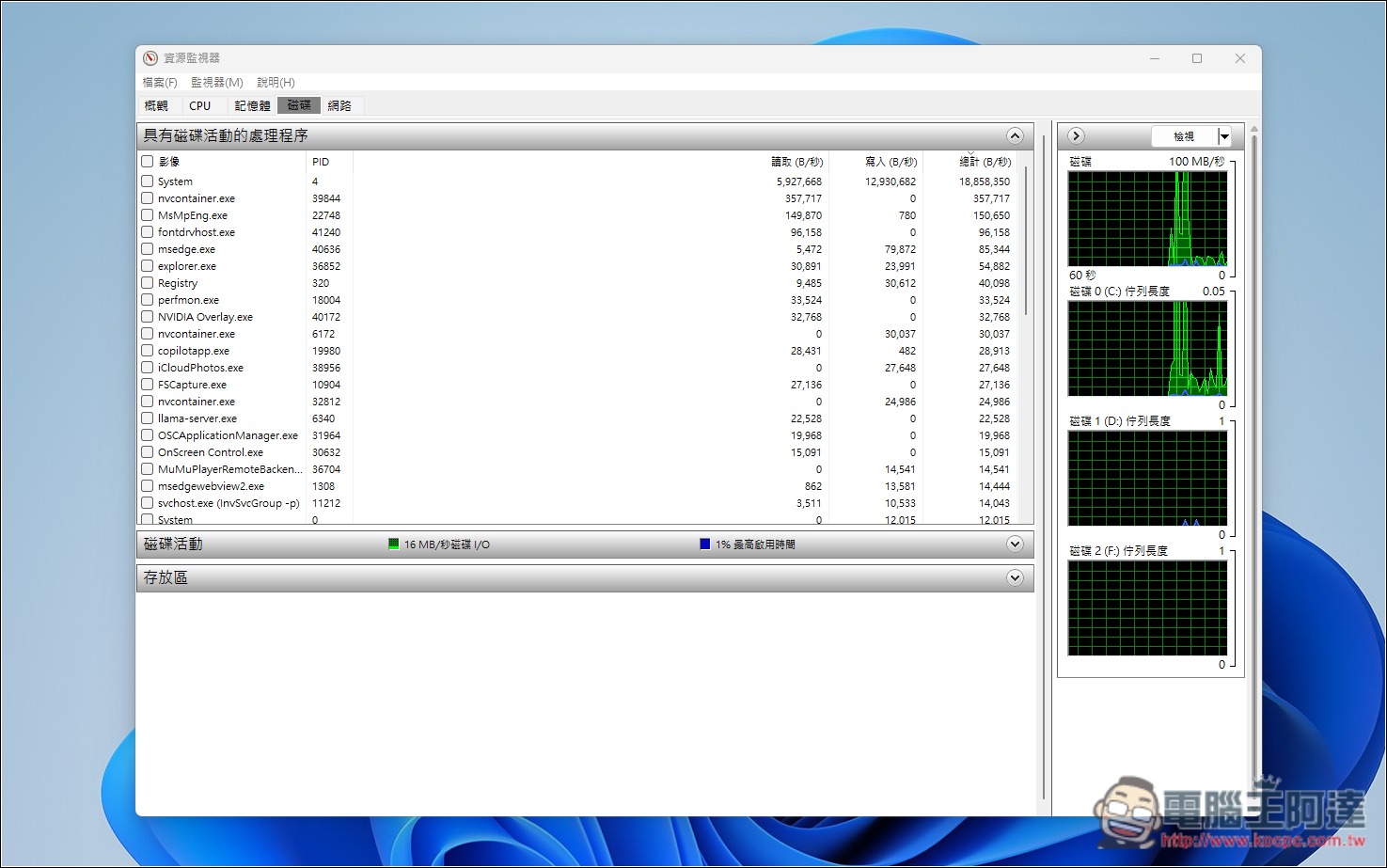
Method 1: Using Windows Resource Monitor
- Open the Windows Start menu.
- Search for resmon and open Resource Monitor.
- Switch to the “Disk” tab.
- Expand “Processes with Disk Activity” and click the “Write (bytes/sec)” column so the program with the highest write amount is at the top.
- Observe which programs are continuously generating a large volume of write activity.
When observing, it is recommended to leave the computer idle for a few minutes. When you are not using it, if a program’s write rate stays at several MB per second, it is worth paying extra attention.
Method 2: Check Chrome extensions
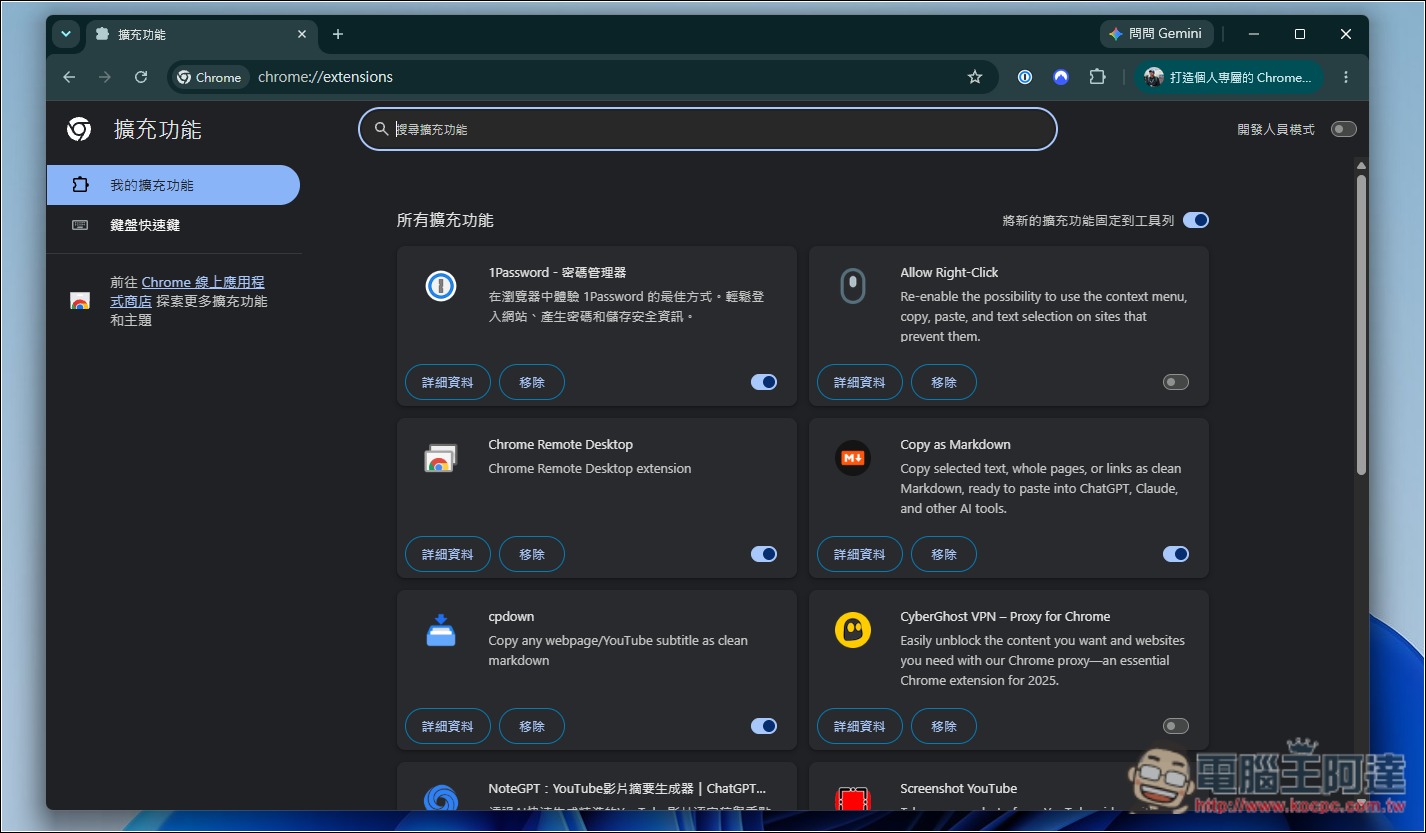
- Enter chrome://extensions/ in the Chrome address bar.
- Check the installed extensions.
- Temporarily disable extensions you rarely use or that seem suspicious.
- Monitor whether background disk activity has improved.
The Adobe Acrobat extension starts with “Adobe Acrobat” in the list, and its ID is efaidnbmnnnibpcajpcglclefindmkaj. If you don’t usually use it, you can just click “Remove,” which is more thorough than disabling it.
Also, more advanced users can enter chrome://serviceworker-internals/ in the address bar to see which Service Workers are currently registered. If they see a suspicious entry, they can click “Unregister” to unregister it, which is the same approach used by the Reddit user mentioned above.
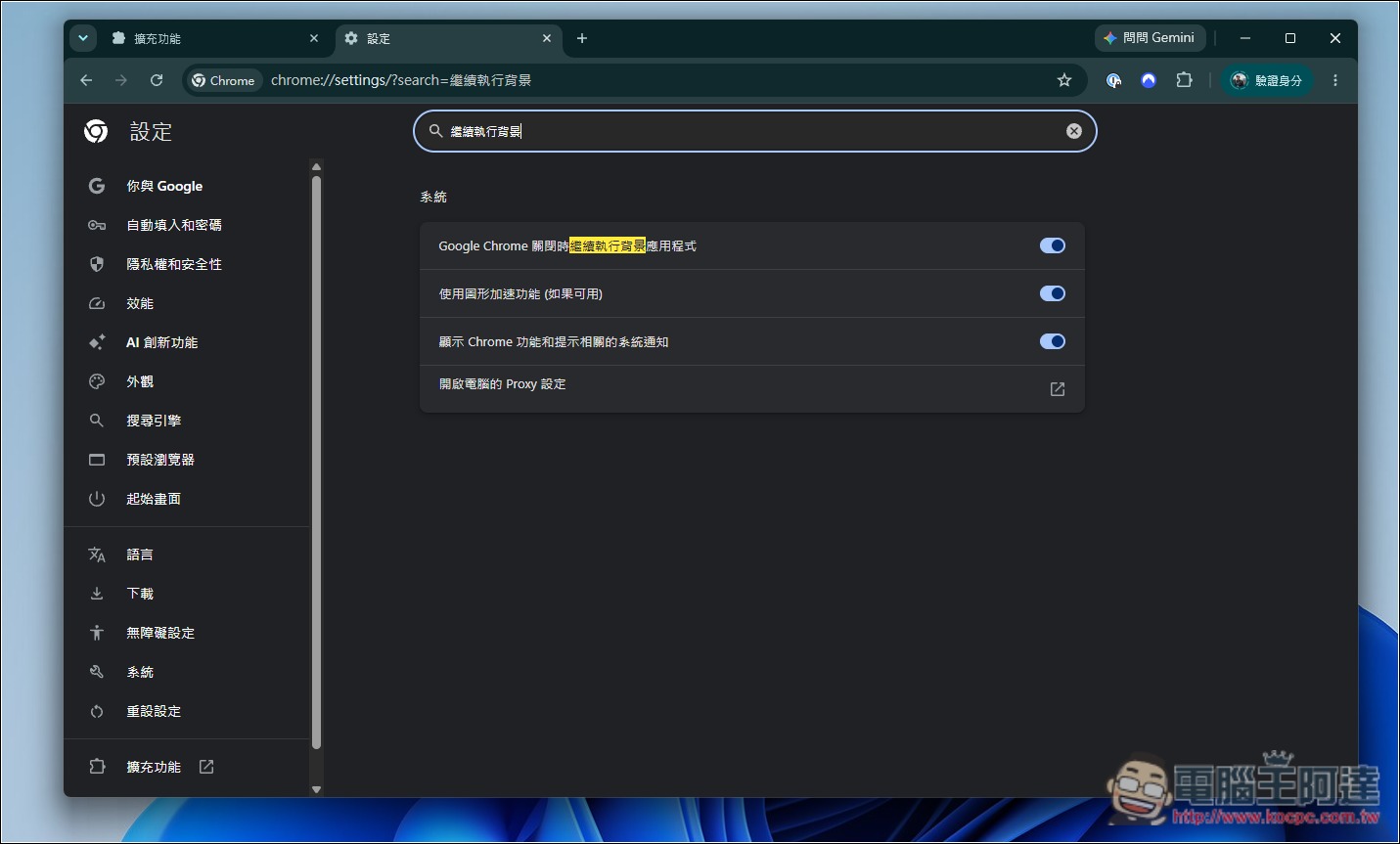
Method 3: Disable Chrome background apps
- Open Chrome settings.
- Enter “System.”
- Find “Continue running background apps when Google Chrome is closed.”
- Turn off this feature.
You can also go directly to this page by entering chrome://settings/system in the address bar. Once this is turned off, extensions will no longer continue running in the background when the Chrome window is closed; however, some features that require background operation, such as notifications from certain extensions, will also stop coming through.
Source: KOCPC Chinese