


Since the RTX 4090, there has been no end to reports of 16-pin power connectors melting, and even after switching to the new 12V-2×6 standard, RTX 5090 users continue to report melted connectors. What’s worse, with the launch of DLSS 5, power consumption has risen again, and several more incidents have been reported. For a graphics card that now costs tens of thousands, anyone would be worried.
Although the official side has yet to come up with a good solution, a developer has created a free open-source tool called RTX Lens. In addition to monitoring the current on each pin of the graphics card’s power connector in real time, it can also push notifications to your phone when an anomaly is detected, and even automatically shut down your computer. Those with an RTX 5090 or RTX 5080 may want to check it out.
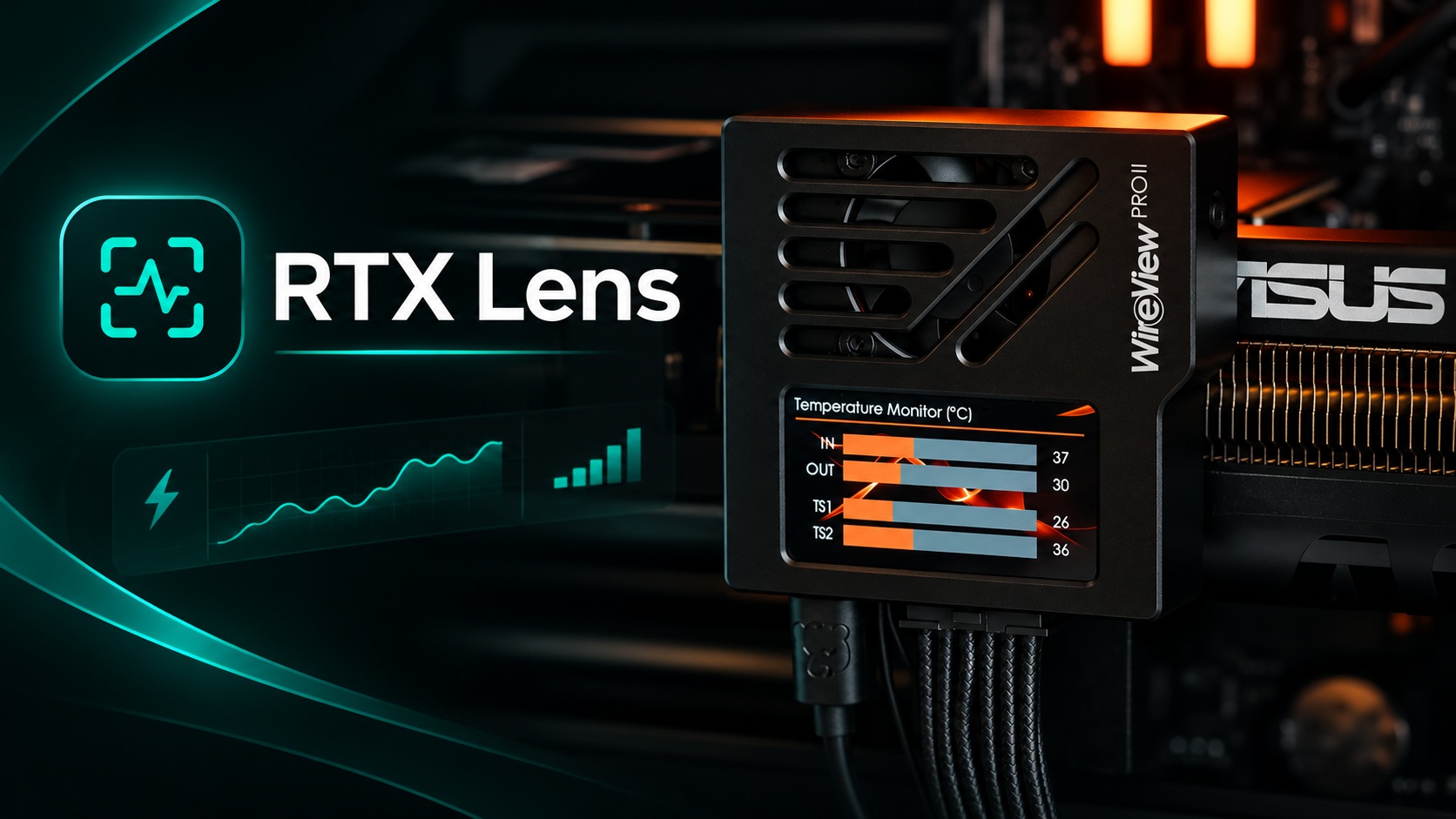
Image source:Wccftech
RTX Lens is a free open-source graphics card power monitoring tool; it notifies your phone when the RTX 5090 connector is abnormal and can even shut down automatically.
RTX Lens is an open-source project published on GitHub by developer Codeh4ck. He decided to build this tool because he has two RTX 5090s and was worried the power connectors would melt.
It is mainly used via a Windows desktop program paired with Android and iOS mobile apps. The desktop program reads data from the graphics card, power connectors, and power supply, including the current of each pin, power draw, and temperature. Once a value exceeds the threshold you set, it will display a warning, push a notification to your phone, and if necessary, automatically shut down the computer.
The entire set of tools is divided into three parts:
- Windows background service: collects data and carries out the protection actions you configure, and keeps running even when the main window is closed.
- Desktop app: for viewing dashboards, adjusting alert settings, and recording data during gameplay.
- Mobile app and Corsair Xeneon Edge widget: see real-time data and alerts without having to stare at your computer.
Visit the RTX Lens official website
Typical GPU monitoring software can only show how many watts the entire graphics card is consuming and cannot identify which pin is overloaded. RTX Lens’s main selling point is that it breaks down the current for each pin. However, this requires an ASUS ROG Astral graphics card, a Thermal Grizzly WireView Pro II, or a specific MSI power supply to read.
After opening RTX Lens, you’ll see pin current, power draw, temperature, and graphics card information integrated into a single dashboard and presented in charts. Two of these values are particularly worth noting:
- Current Spread: The difference in amperes between the two pins with the highest and lowest current; the larger the spread, the more uneven the distribution.
- Headroom: How much additional current each pin can still handle before reaching the displayed limit.
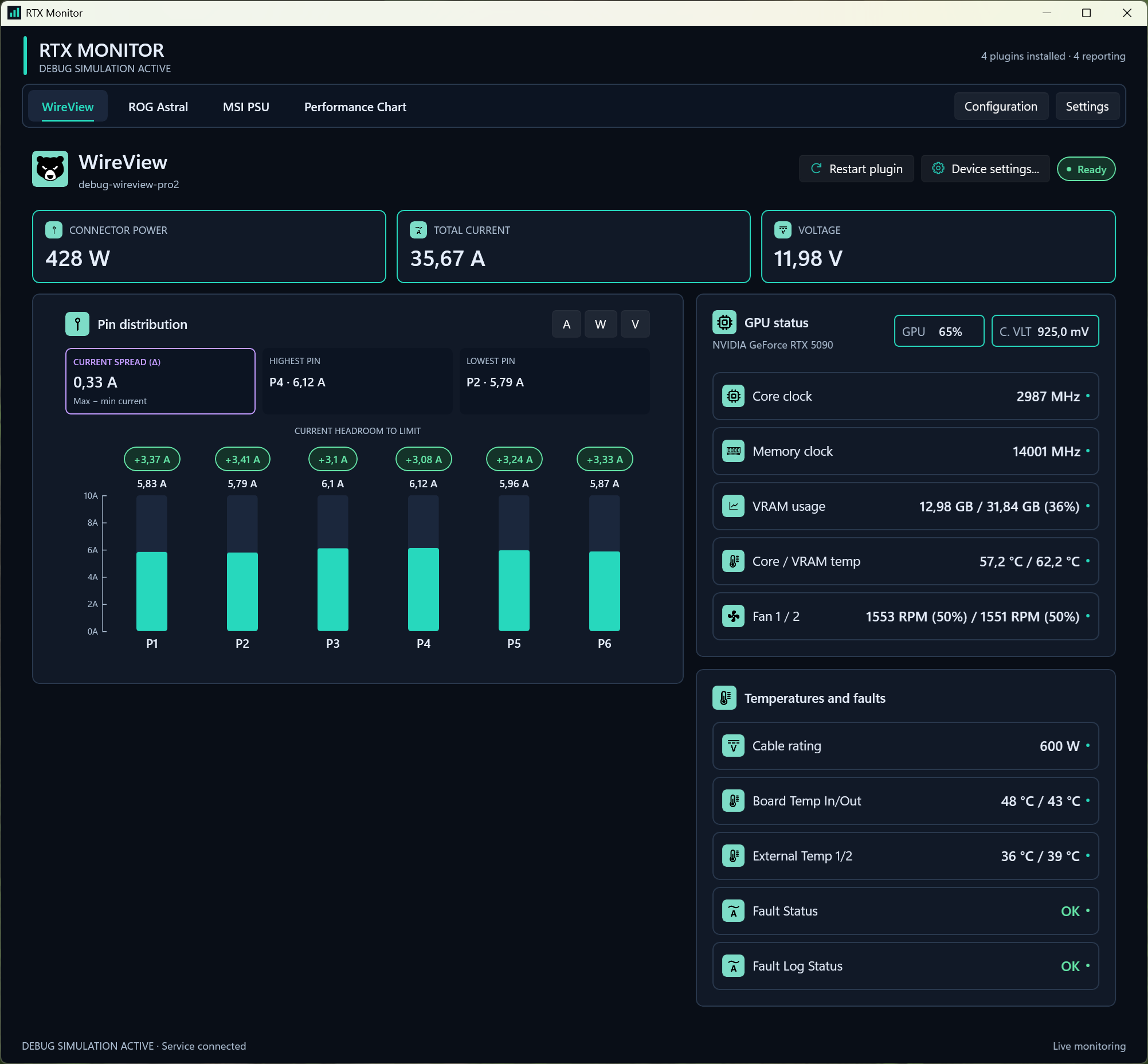
If you have two types of monitoring devices at the same time, you can also compare data from the GPU side and the power supply side on the same chart, and configure it to switch to the other as a backup if one sensor fails.
The most useful thing about RTX Lens is that it notifies your phone when there’s a power supply anomaly and can even shut down automatically.
There are two ways reminders appear on the computer: pop-up windows and sound. After installation, the warning notification program starts automatically when you log in to Windows. Even if you close the main dashboard, notifications will still pop up and alert sounds will still play. More importantly, by default the alert sound loops for as long as the warning remains active, so you don’t miss it. If it’s too noisy, you can turn off “Loop sound while a warning is active” in “Configuration → Warnings → Notifications” so it only sounds once per notification.
It doesn’t matter if you’re not at your computer—RTX Lens also offers Android and iOS mobile apps, so you can remotely view real-time data, current warnings, past warning records, and event details. The Android version added push notifications in v1.1.2; once notification permissions are enabled, you can receive warnings even on the lock screen. You can also pair multiple phones at the same time, so even if one of them can’t receive warnings, they will be sent to the other phones.
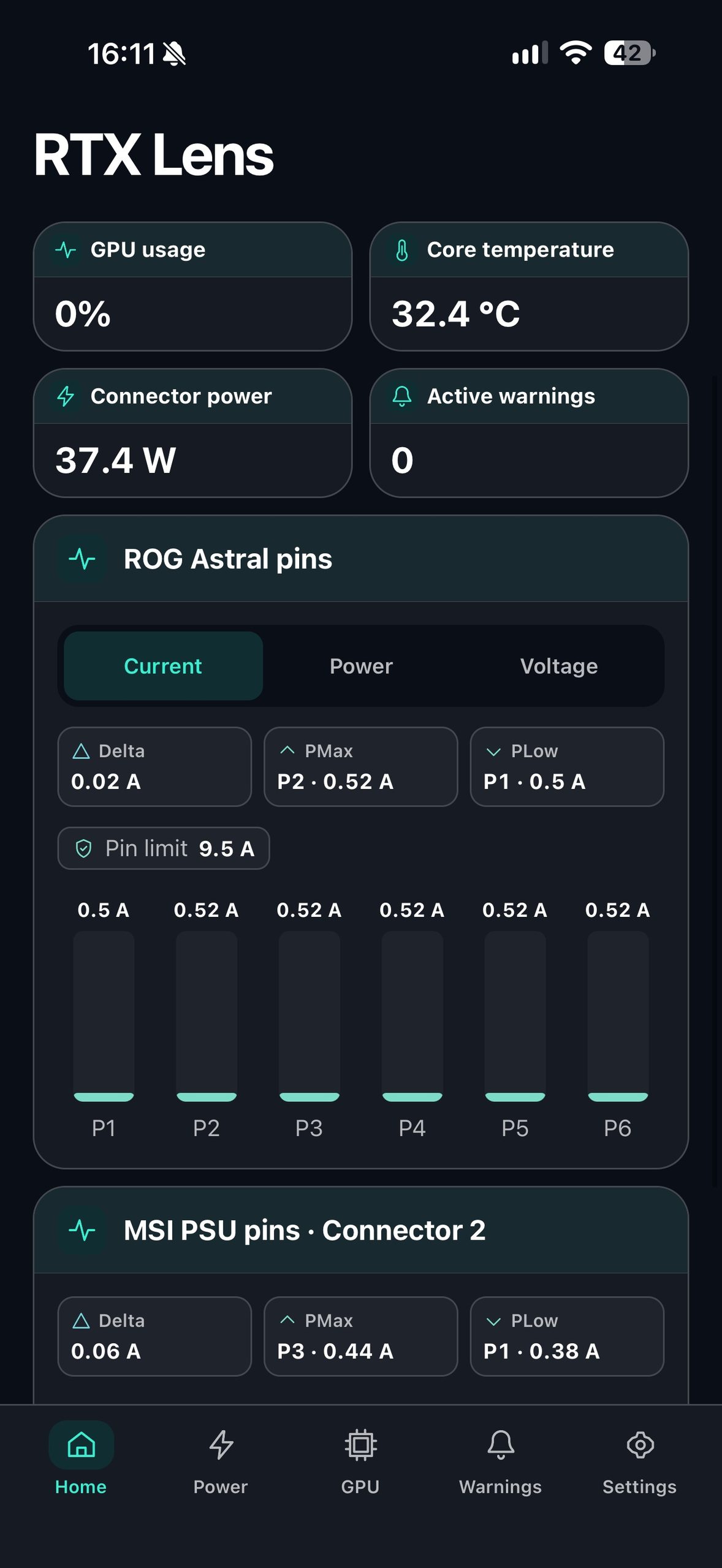
However, on iOS it is currently installed via sideloading, and warnings are only displayed when the app is open and remains connected; there is no way to push notifications to the lock screen. In other words, for iPhone users who want to receive alerts at any time, this is currently difficult to achieve.
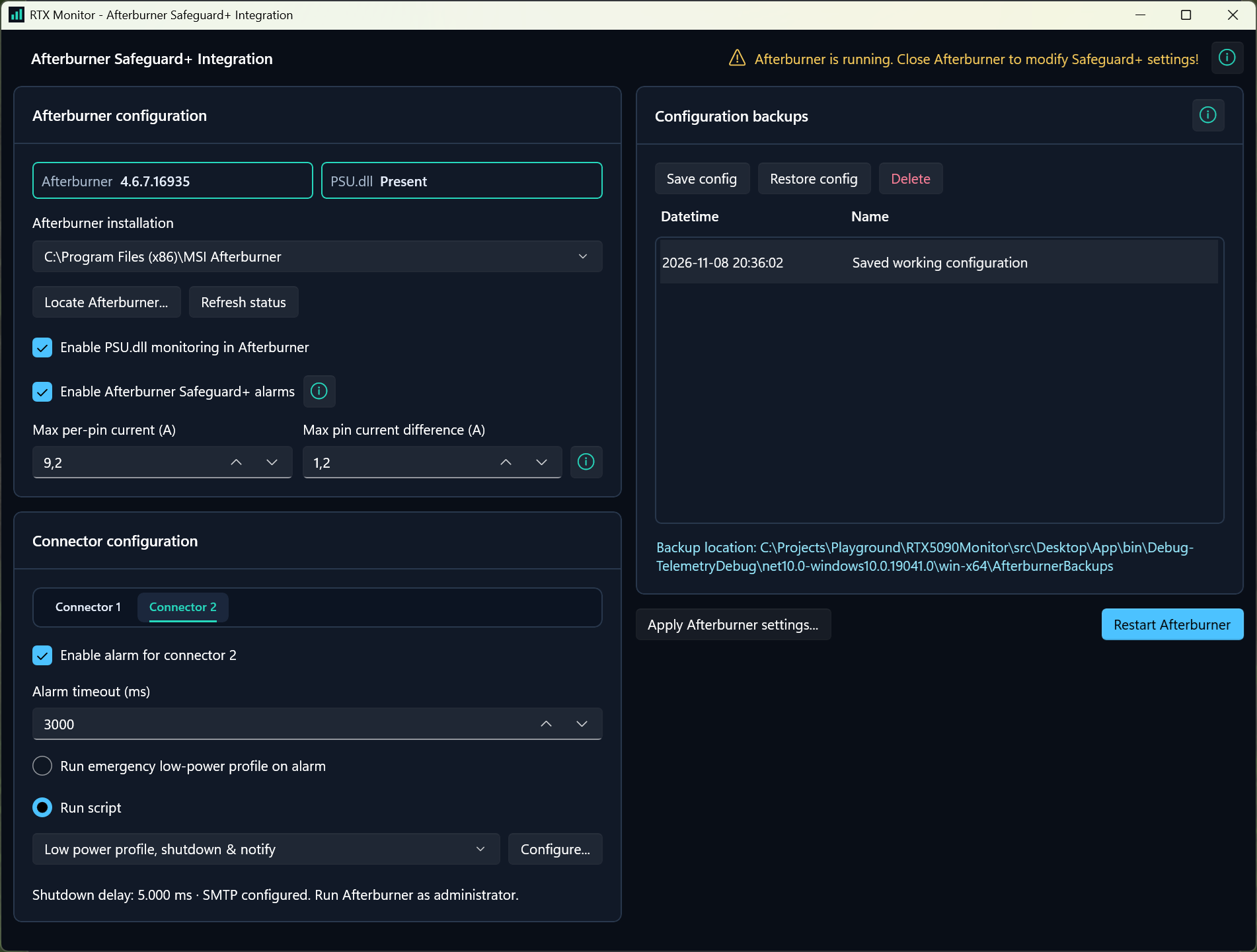
As for the auto-shutdown part, according to the documentation, it works by allowing the computer to be automatically shut down after a warning persists for a period of time. However, the official FAQ notes that the feature of triggering auto-shutdown based on ASUS ROG Astral or WireView data is “planned to be added in a future version,” so currently the only confirmed workable option is the Safeguard+ feature when used with an MSI power supply:
However, note that installing RTX Lens does not currently mean that all RTX 5090 and RTX 5080 cards can show the current for each pin. Standard NVIDIA GeForce RTX desktop graphics cards can still only show basic information such as clock speed, temperature, utilization, and fan speed; per-pin current requires additional hardware to provide the data.
The currently supported hardware and the data that can be viewed are as follows:
| Compatible hardware | Data source | Supports monitoring functions. |
|---|---|---|
| NVIDIA GeForce RTX desktop graphics cards | Graphics card driver data | Clock speed, core voltage, GPU and VRAM usage, temperature, fan speed, and other basic information. |
| ASUS ROG Astral RTX 5080、RTX 5090 | GPU-side power connector | Current distribution across the pins of the power connector |
| Thermal Grizzly WireView Pro II | An external monitor connected to the graphics card connector | Current, voltage, and power for each pin, as well as connector voltage, cable specifications, temperature, and device faults. |
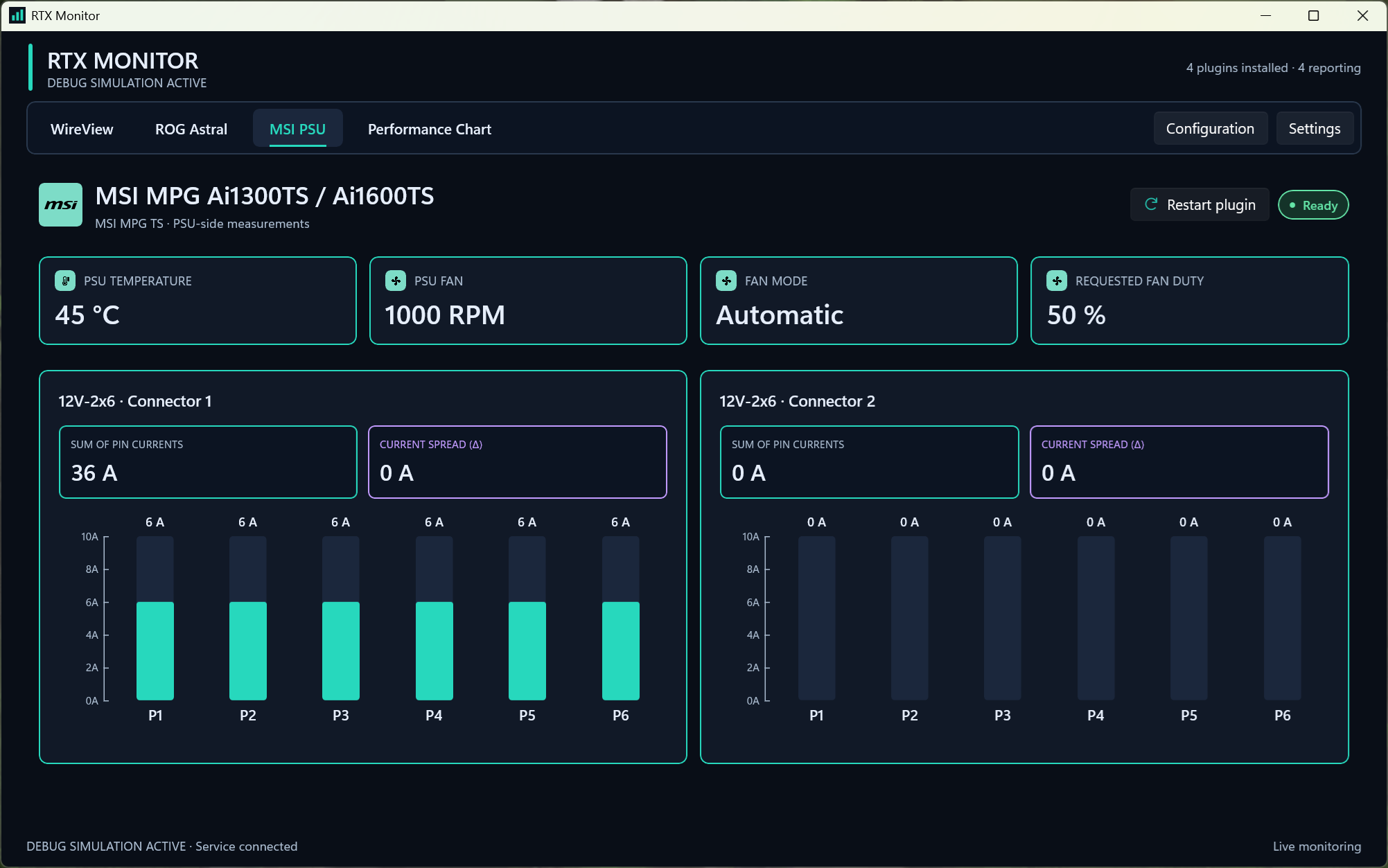
| MSI MPG Ai1300TS、Ai1600TS | Power supply end connector | Pin currents for both connectors, power supply temperature, and fan status; the fan curve can be configured with up to 6 points. |
In other words, if your RTX 5090 isn’t a ROG Astral, you’ll need to separately purchase a WireView Pro II or switch to a supported MSI power supply to monitor the pin current.
The dashboard when paired with an MSI power supply is as follows, showing the pin currents of the two connectors, power supply temperature, and fan status:
Source: KOCPC Chinese