


“One cable handles charging, data transfer, and display output”—this is the beautiful promise USB-C makes to every desktop minimalist. But in practice, the technology often traps people in a maze of specifications: you plug in a monitor and get no picture, an external drive slows to a crawl, or your laptop loses charge while charging. To truly enjoy the convenience of “one cable for everything,” you first need to see through the compatibility and bandwidth tug-of-war behind it.
Before using a USB-C external monitor, you need to understand the truth about bandwidth and power delivery.
Many people assume that as long as connectors look the same, their functions are completely identical, but the USB-C world is actually full of “same shape, different fate” traps. Not all USB-C ports or cables support video transmission. The most typical example is Apple’s original 240W USB-C charging cable: although it has top-tier power delivery specifications, it lacks high-speed data channels internally and cannot be used for video output at all.
To turn USB-C into a video transmission cable, the key is USB-C Alternate Mode (Alt Mode). This technology reallocates the high-speed lanes within the cable so they can transmit DisplayPort or HDMI signals instead. To successfully get the screen to light up, the “iron triangle” of conditions must be met at the same time:
- Signal source: The computer’s USB-C port must explicitly support Alt Mode (such as Thunderbolt or a port labeled DP Alt Mode).
- Cable: Must be a “full-featured” cable with high-speed data transfer specifications, not a charging-only cable.
- Monitor: Has a USB-C port that supports video input (or via a suitable adapter).
In addition, the maximum specifications of these three stages will directly determine the highest resolution and refresh rate you can ultimately achieve.
Even if you buy a full set of high-spec equipment, the physical bandwidth limitation still exists. A standard high-speed USB-C cable has four high-speed data lanes (High-Speed Lanes) inside, and when you connect a monitor and external peripherals simultaneously through a single cable, video signals and USB data enter a “battle for bandwidth”:
- Image Quality Priority Mode: If all four lanes are allocated to video, you can achieve the ultimate resolution and high refresh rate, but the trade-off is that the USB hub on the monitor will instantly degrade to USB 2.0 snail’s pace, relying only on independent pins.
- Balanced transfer mode: If you want to retain ultra-fast USB file transfers (for example, editing video from an external SSD), the system must allocate two lanes to data, which means display bandwidth is directly halved, forcing you to compromise by lowering the screen resolution or refresh rate.
For general office users, this bandwidth allocation is almost unnoticeable; but if you are used to treating the monitor as the data transfer hub of your desktop, you will clearly feel the tug-of-war between the two. Fortunately, most high-end USB-C monitors include a “USB Priority” or “High Resolution Priority” toggle in the OSD menu, allowing users to manually adjust it according to their current needs.
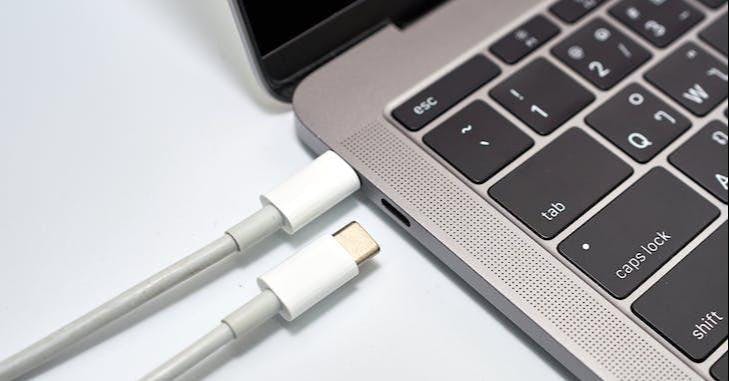
The final obstacle is power. Many people like to charge their laptops directly through a monitor, but “being able to output a display” does not mean “being able to feed a laptop.” Before buying or connecting, make sure the monitor supports USB Power Delivery (USB PD) and that its maximum output wattage (W) meets the laptop’s power requirements. If the monitor’s power output is insufficient, at best you’ll get a “slow charging” warning and the battery will drain as you use it; at worst it will trigger the laptop’s protection mechanisms, causing the processor to throttle and system performance to drop sharply. Only by checking the wattage, choosing the right cable, and understanding bandwidth allocation can your USB-C desktop truly be both tidy and efficient.
Source: KOCPC Chinese