


Recently, Grok Bot has become increasingly popular in Taiwan. Everyone can create dedicated Bots for different tasks, almost like raising many AI employees, and it has even become the main AI some users rely on. If you’re a heavy user and happen to have an iPhone, this article will teach you a small trick that lets you do the same as with Siri: say “Hey Grok” by voice to instantly activate Grok Bot voice conversation, with no manual operation—and you can even specify which Bot you want to talk to.

How do I set up my iPhone so that saying “Hey Grok” immediately starts a voice conversation with Grok Bot?
Setting it up is simple—just use “Shortcuts” and “Voice Shortcuts.” But first, remember to update the Grok Bot App to the latest version, then follow the steps below.
Also, a quick heads-up: after the Voice Shortcut is enabled, the microphone indicator light on the iPhone’s Dynamic Island will stay on (yellow). It won’t go away unless you turn off the Voice Shortcut. Compared with leaving it off, turning it on may use slightly more battery.
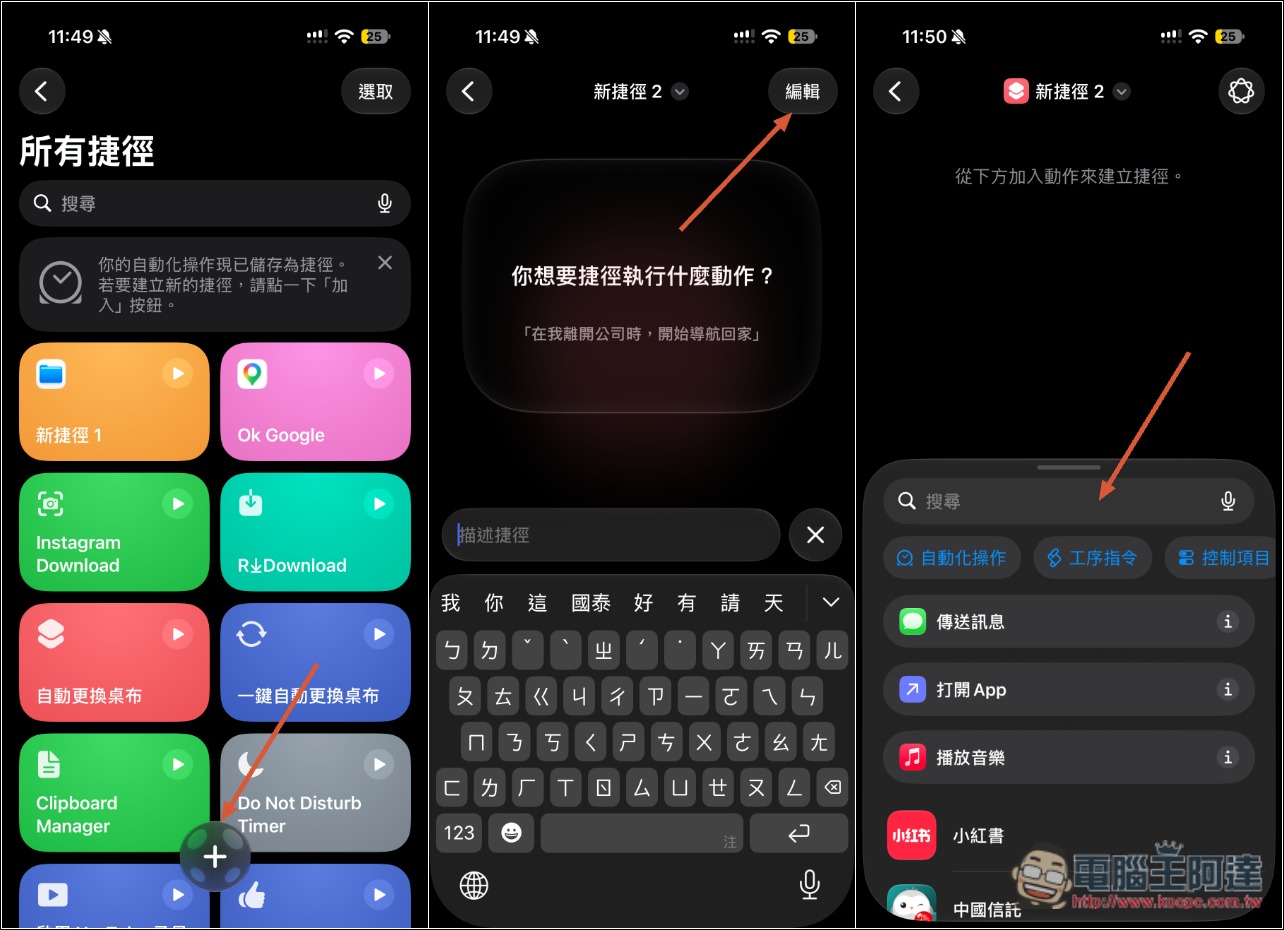
Open the Shortcuts app, then tap the + at the bottom to add a shortcut. Next, tap “Edit” in the upper-right corner and turn on search:
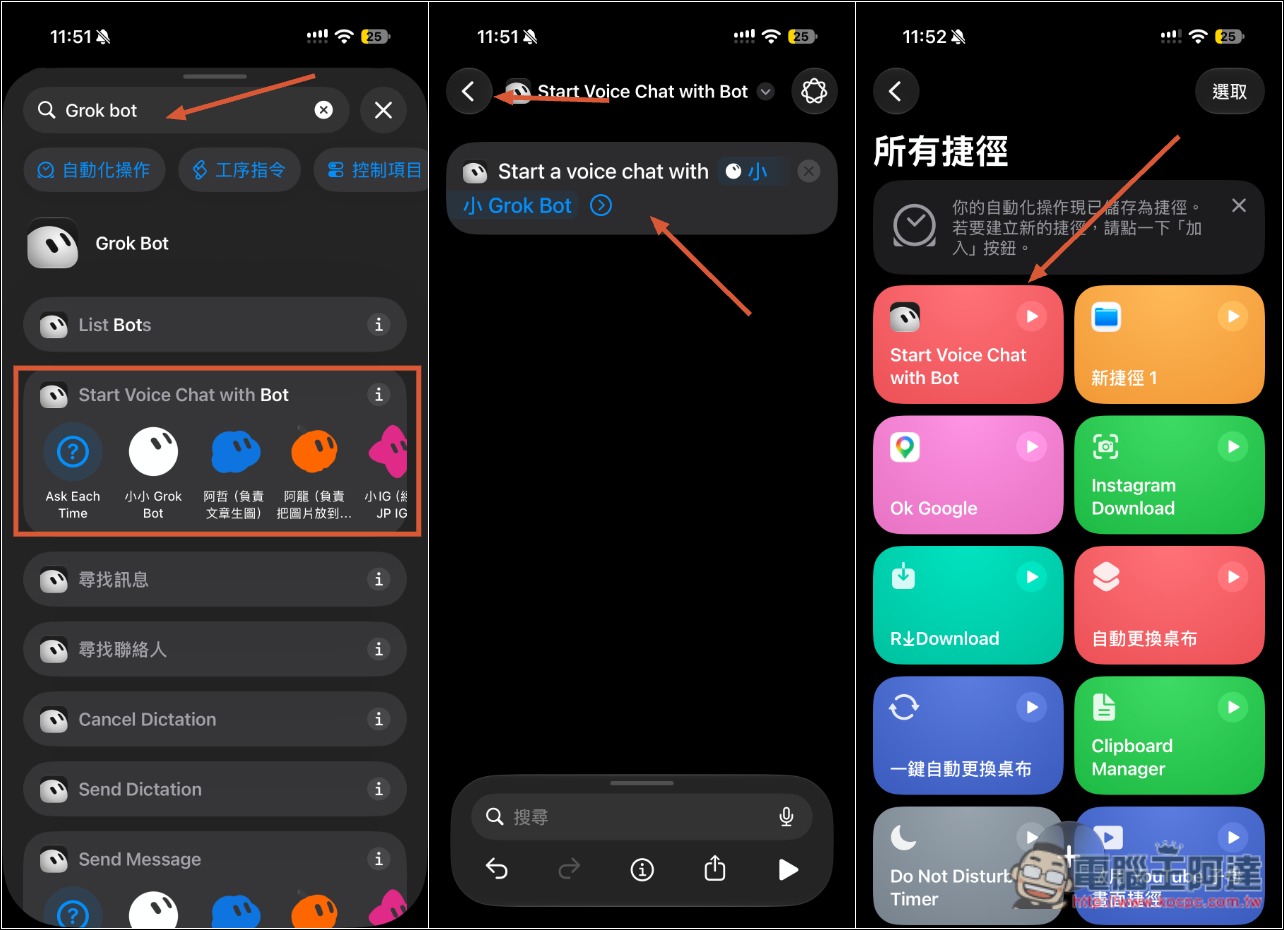
After entering Grok Bot, you’ll see the “Start Voice Chat with Bot” option. Choose the Bot you want to have a voice conversation with, or select “Ask Each Time” to be asked each time. Once setup is complete, return to the Shortcuts home page, and you’ll see the “Start Voice Chat with Bot” shortcut:
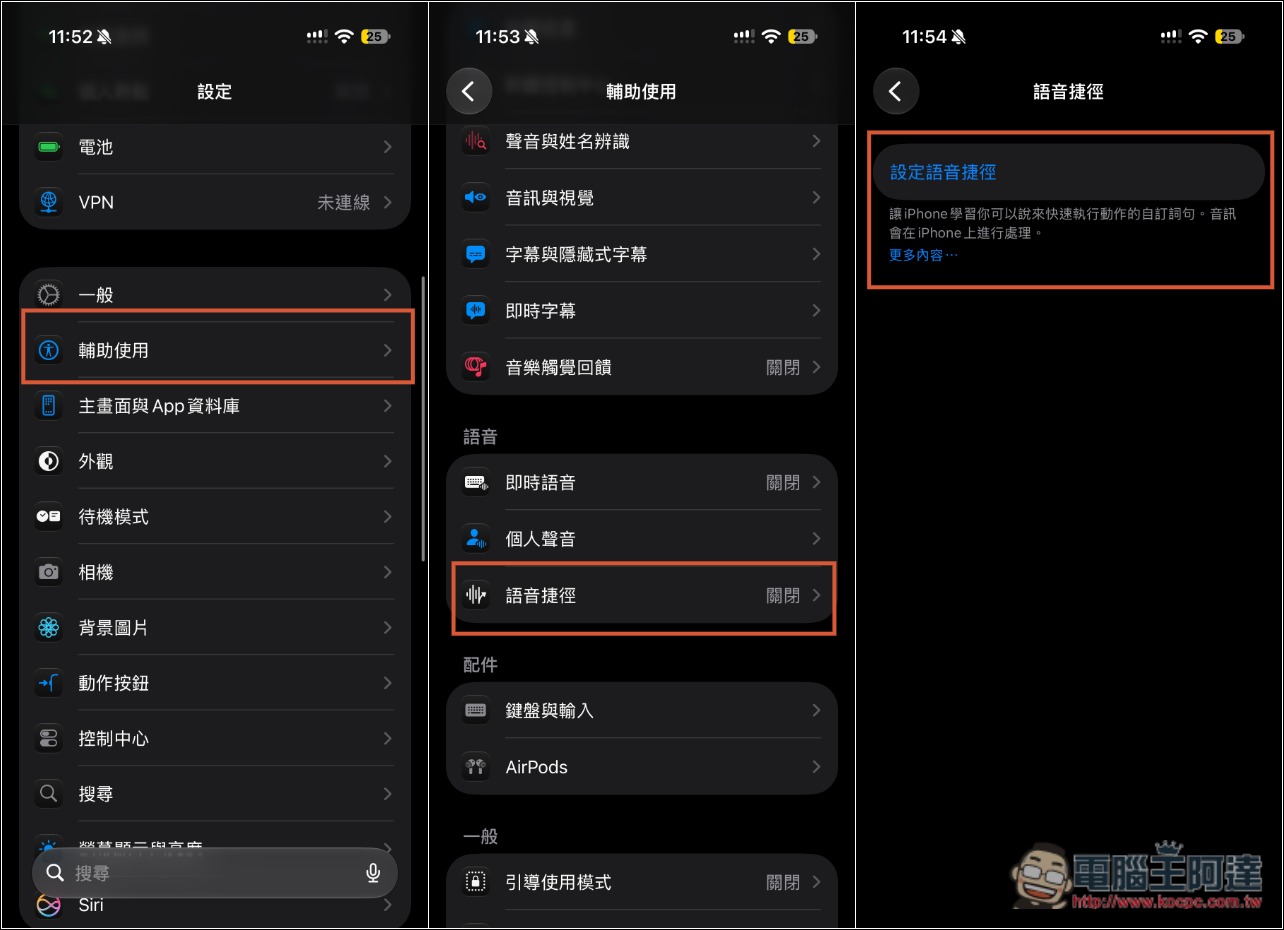
Next, open Settings, go to Accessibility -> Voice Shortcuts, and then you can start “setting up voice shortcuts”:
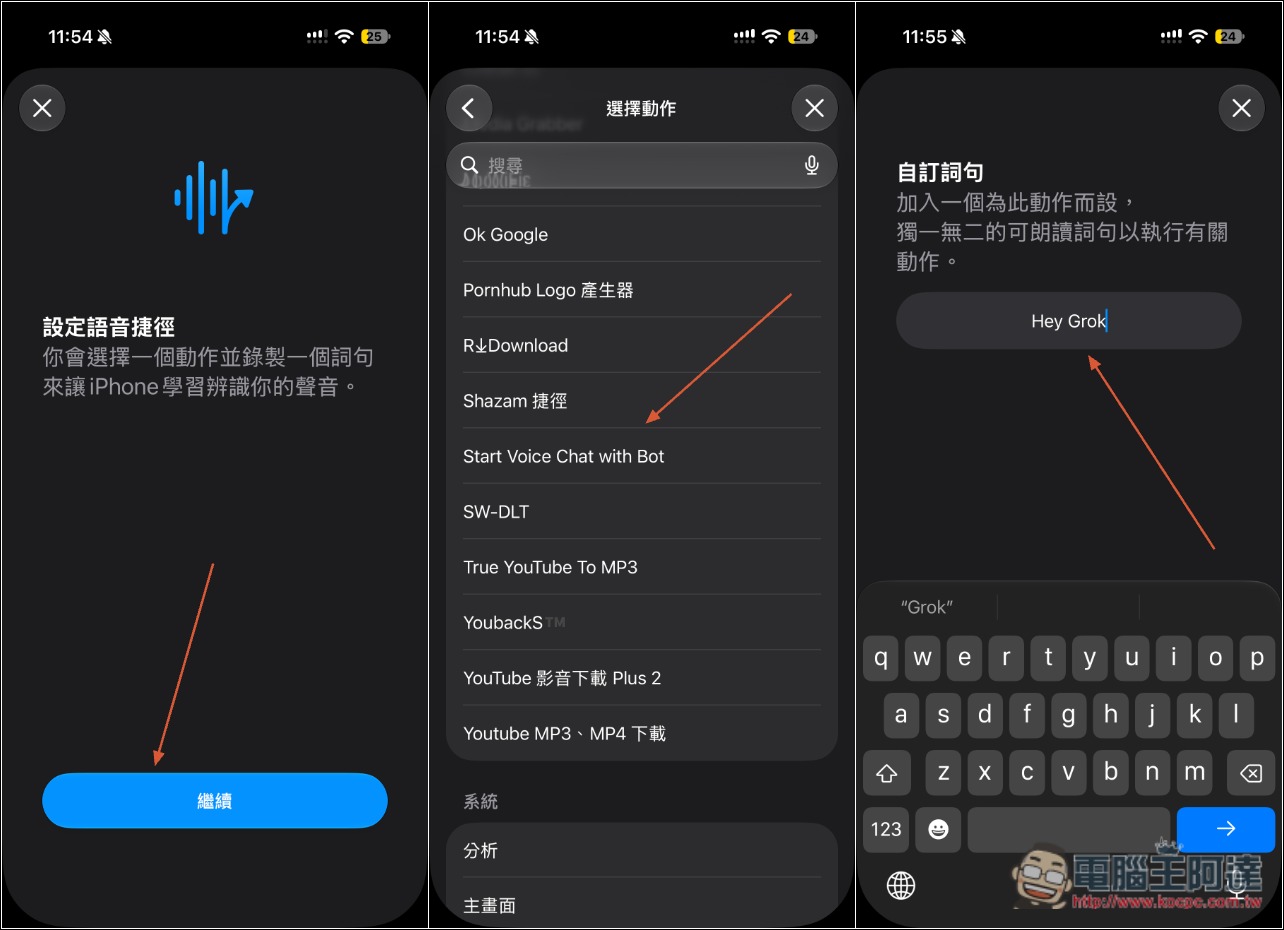
Select Continue, then find the newly created “Start Voice Chat with Bot” in the list and enter your voice command, such as: Hey Grok. Of course, you can also change it to whatever you’re used to; you don’t have to use Hey Grok:
It will ask you to say this voice command to your iPhone 3 times so iPhone can learn to recognize the phrase. Once you’re done, that’s it; the voice shortcut will also show the command you just added. You can set up multiple voice shortcuts, which means you can also set a dedicated voice activation command for each different Bot:
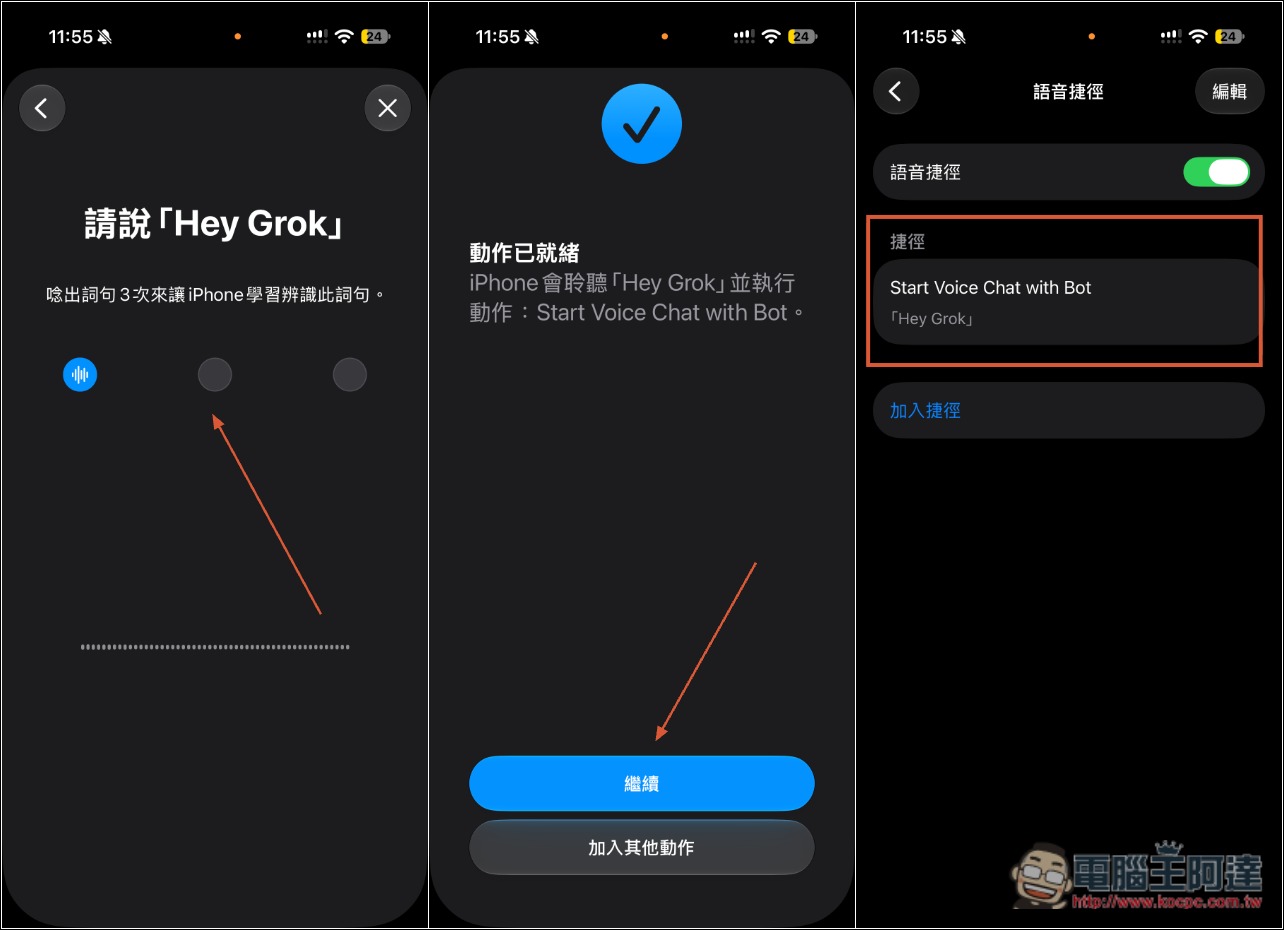
When you say “Hey Grok” to your iPhone (or the voice command you’ve set), you’ll see a Grok Bot voice conversation prompt appear at the top, and then you can chat with Grok Bot:
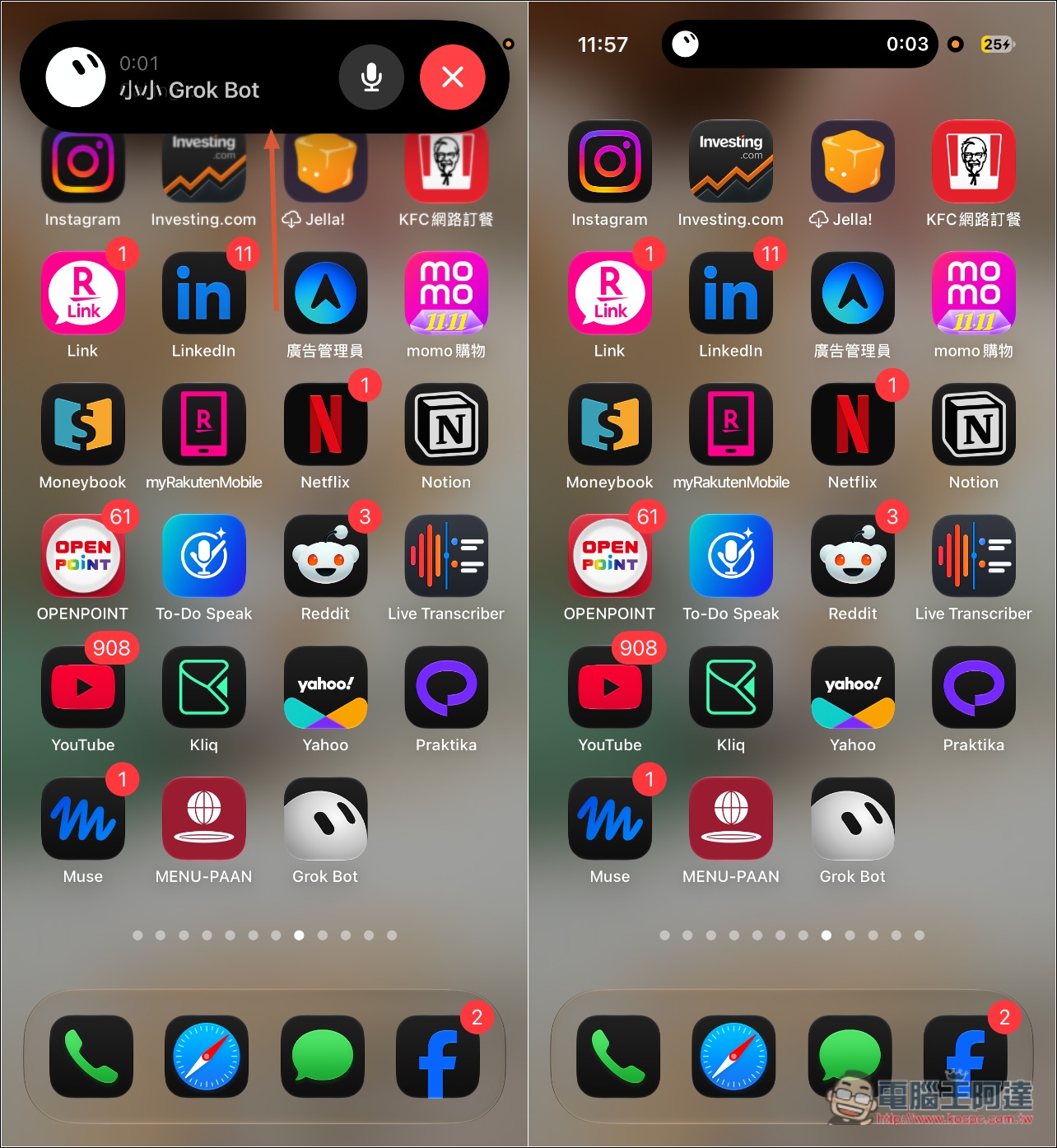
This method isn’t actually limited to Grok Bot—as long as the voice feature of the AI tool you use also supports shortcut settings, you can wake it up with a voice command, just like Hey Siri.
Source: KOCPC Chinese