


Since Gemini began supporting the generation of PDF, Word, Excel, Google Slides, and other file formats in April this year, many people now use Gemini to create the files they need for schoolwork and work. Although it is convenient, it often isn’t right the first time, and they still need to use other tools afterward to edit the content—but now they finally don’t have to! Google announced earlier that users can preview and edit generated files directly within Gemini’s chat interface, and can even highlight a specific paragraph or chart and ask the AI to revise that part directly.
More importantly, this feature is available to all Gemini users, regardless of paid subscription plan.
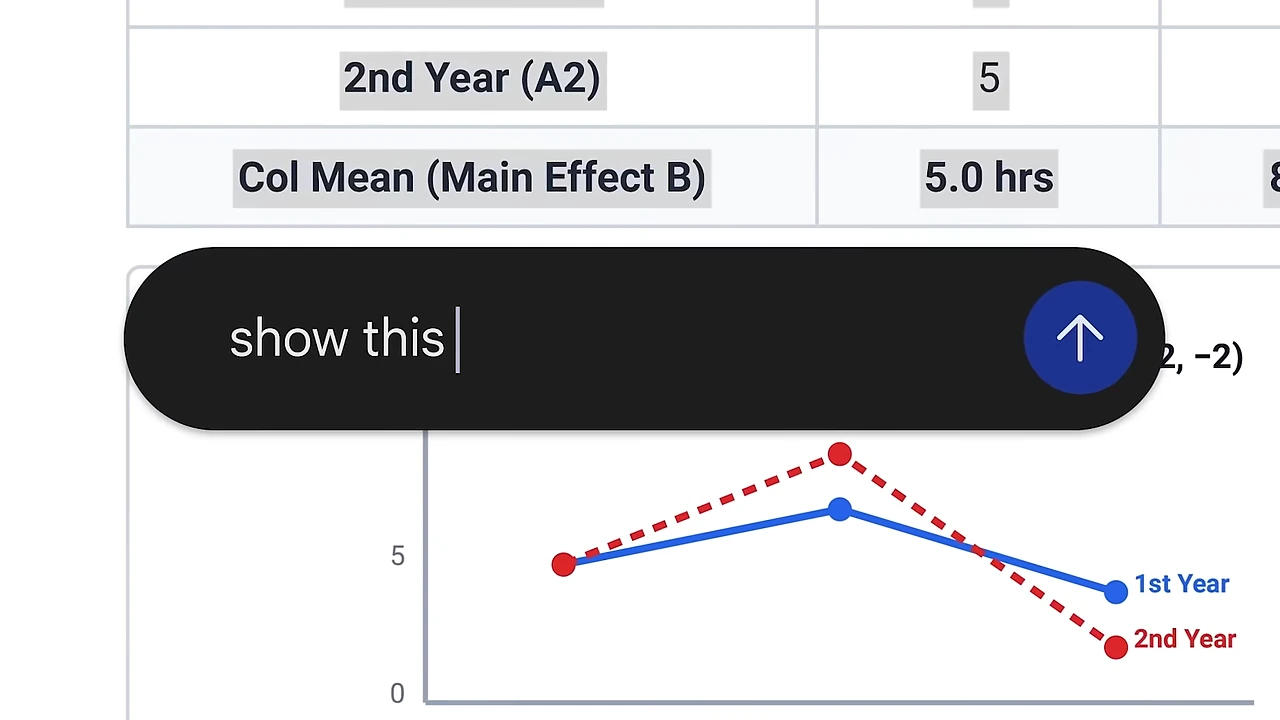
Gemini can now edit files directly! PDFs, presentations, and spreadsheets can be edited in chat after they are generated, and free users can use it too.
Google recently announced via its official blog that the Gemini App has added file preview and editing features. After users ask Gemini to generate a file in chat, they can preview the result directly in the conversation and modify it in three ways: “expand to full screen and type directly to edit,” “highlight text to ask questions about the content,” or “directly ask Gemini to polish and adjust it for you.” Supported formats include PDF, Google Docs, Google Sheets, Slides, Markdown, TXT, and code. PDF works on both the web and mobile versions, while the other formats are currently supported only on the web version.
All edits are made directly on the original file, so the entire document isn’t regenerated. The highlight-to-ask design is pretty nice: when there’s a piece of data in a report generated by Gemini that you don’t quite understand, you can just highlight it and ask, “Where did this number come from?” without copying and pasting it into the chat box separately. After asking, you can decide whether to ask it to rewrite that part.
Google also provides a demonstration video showing what the whole process looks like in action, using a case that is the situation students encounter most often: turning handwritten notes taken in class into a PDF study guide they can use for review:
It’s also very simple to use in practice. Taking PDF as an example, I first ask Gemini to generate a PDF file:
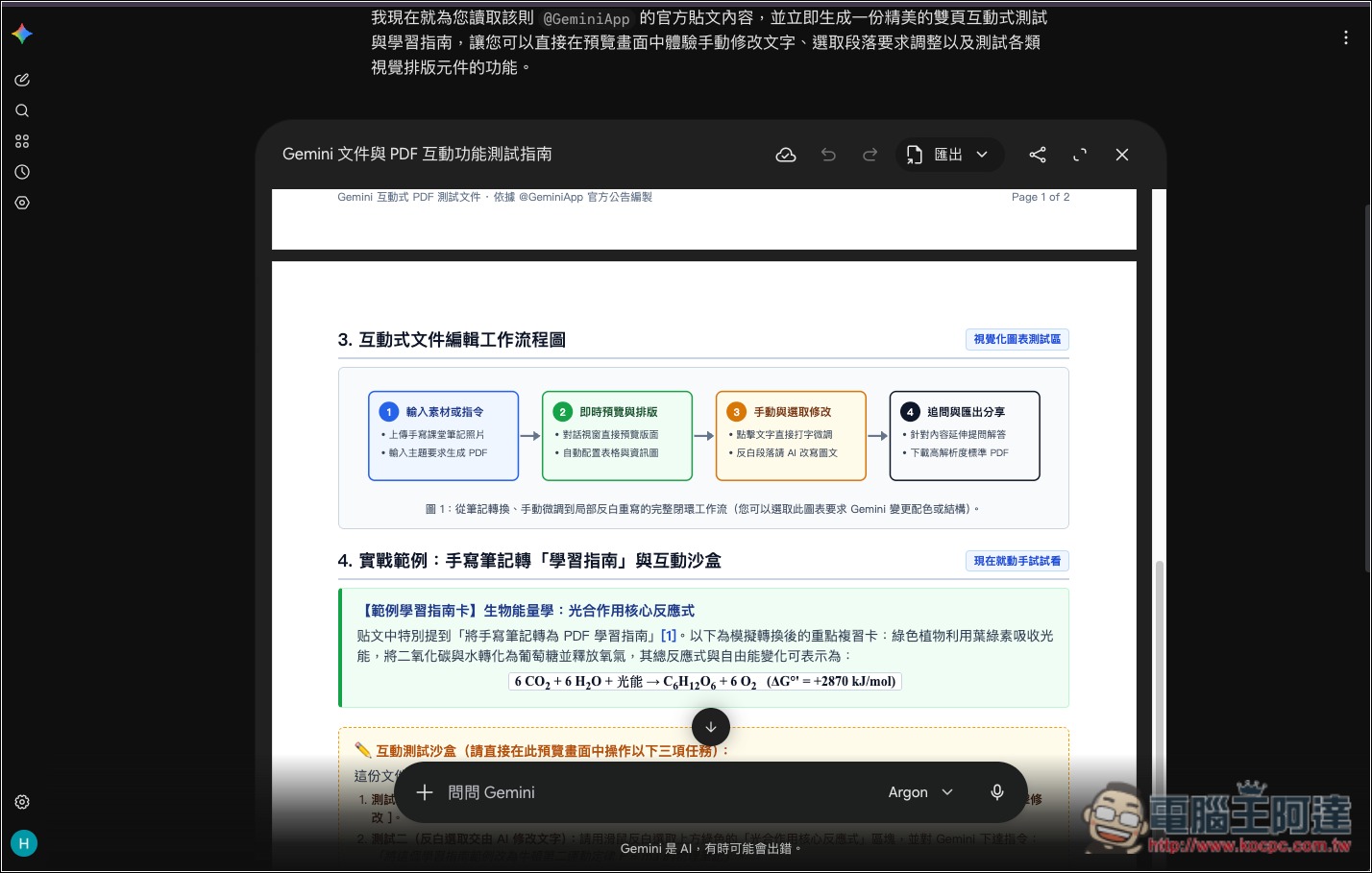
Next, I thought one passage was too long and not very easy to read, so I selected the entire passage and then asked in the input box, “Please help me turn this passage into a list”:
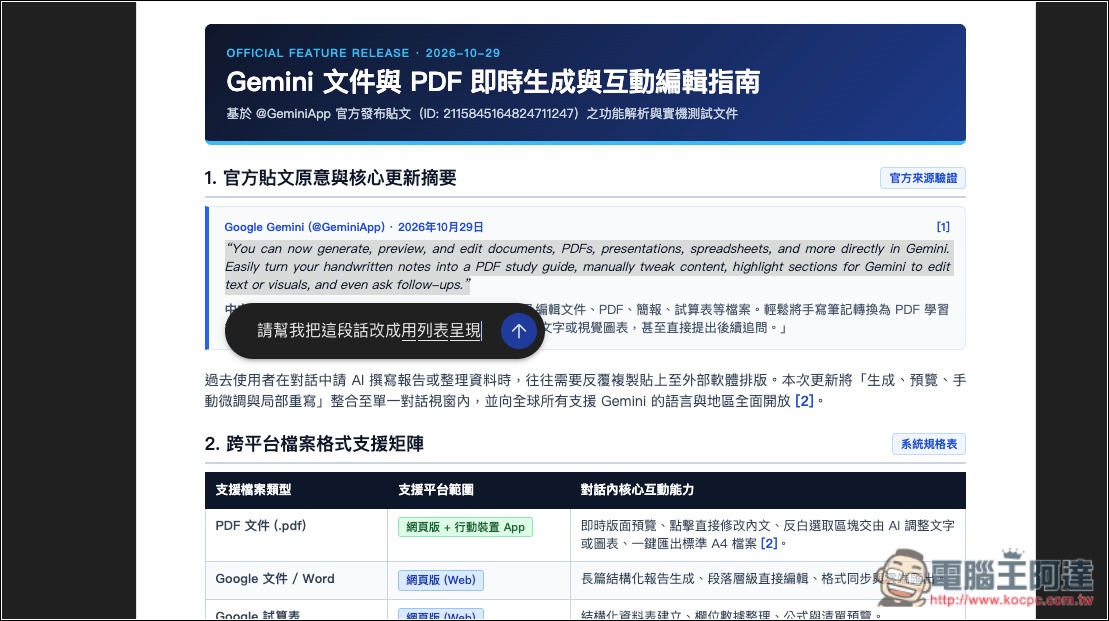
Gemini will only make adjustments to this section:
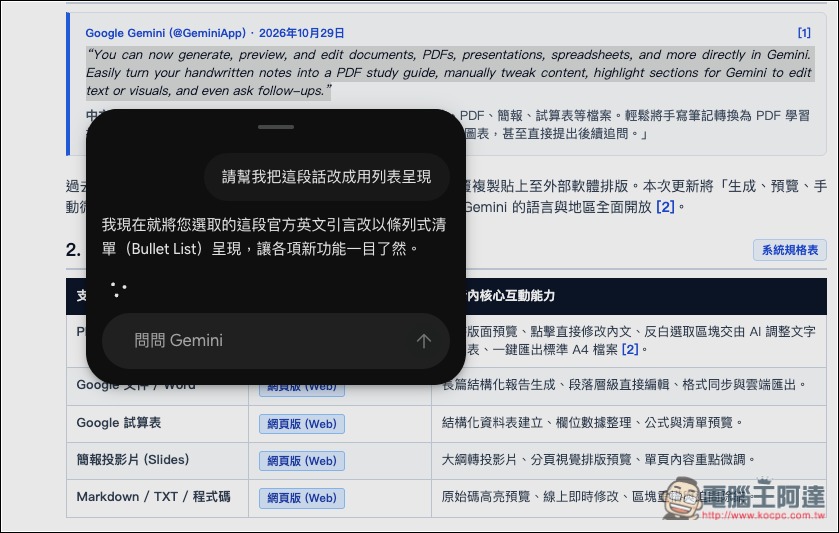
After waiting 1–2 seconds, Gemini turns that large block of text from earlier into a list:
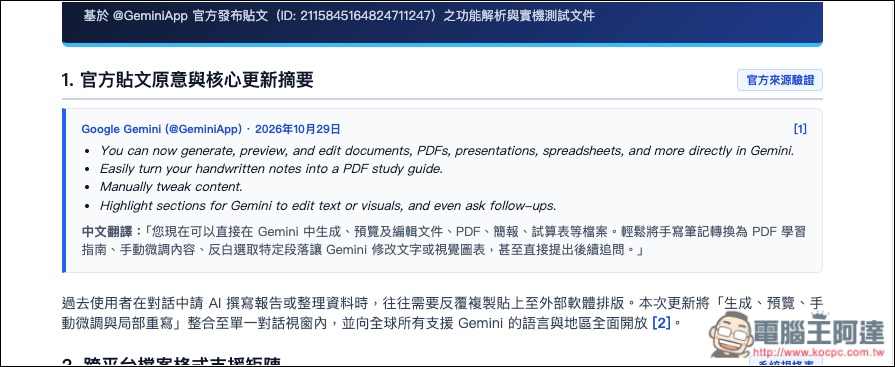
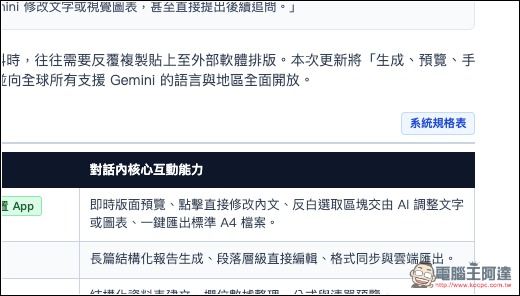
Also, adding or deleting things in a PDF can be done too, for example when I ask to delete the [2] at the end:
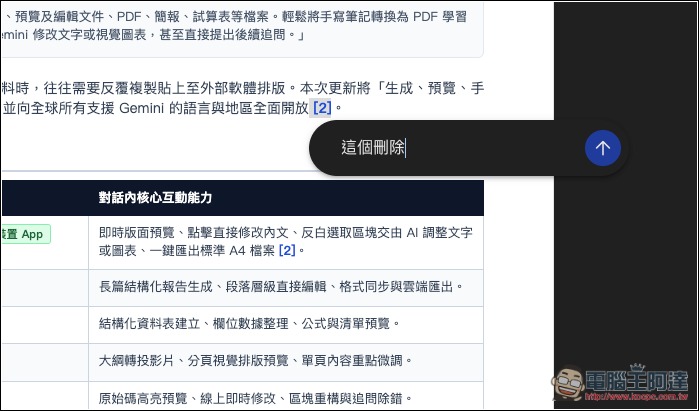
Gemini successfully helped me delete:
The following are the supported file formats and what they can mainly do:
| file format | Main features officially announced |
|---|---|
| Generate, preview, manually edit, ask Gemini to modify specified content, and upload to cloud drive. | |
| Google Docs | Create documents, edit them manually or by issuing commands, and upload them to cloud drive. |
| Presentation | Generate an outline or slide content, preview the layout in chat, edit it directly or ask Gemini to adjust the tone and structure (web version only), and open it in Google Slides or download it as PPTX or PDF. |
| Spreadsheet | Generate tracking sheets, data tables, and data models that can be previewed and edited in Gemini (web version only), and can also be opened directly in Google Sheets. |
| LaTeX、Markdown、TXT | Generate, preview, edit manually or by command, and upload to cloud storage. |
| Code | Generate, preview, and edit |
These new features are available to all Gemini users, but platform support varies. The mobile version can currently only preview and edit PDFs; all other formats require the desktop web version:
| Function | Desktop web version | Mobile version |
|---|---|---|
| PDF Preview and Editing | Support | Support |
| Google Docs | Support | Not supported |
| Presentations and spreadsheets | Support | Not supported |
| Markdown, TXT, code | Support | Not supported |
Source: KOCPC Chinese