


Nowadays, when iPhone users use ChatGPT, a large portion of usage scenarios probably start with taking a photo and then asking a question — like not being able to read a menu while traveling abroad, wanting to check the ingredients of health supplements, or encountering an error message on a computer that you don’t understand. So the photo that needs to be attached is, in most cases, one that was just taken. In the past, uploading required tapping the “+” on the left side of ChatGPT, then going to “Photos” in the menu, waiting for the system photo album to appear, and then selecting the one you just took from all the thumbnails. That process was actually quite tedious. The good news is that recently OpenAI quietly made the process much simpler — now you can quickly attach a recent photo with just a single gesture. Here’s how to do it.
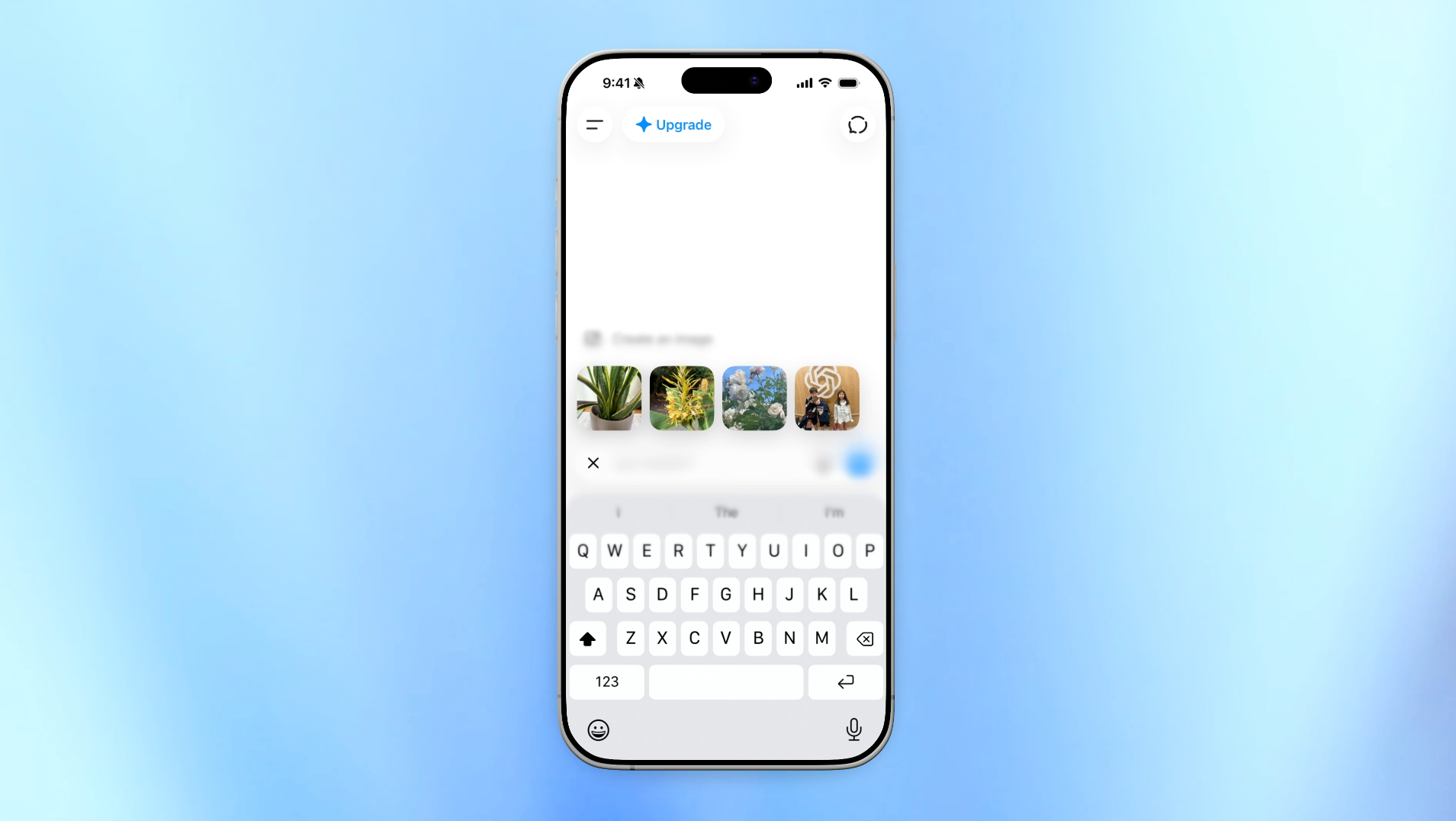
Long-press the “+” button in ChatGPT and the last 4 photos will pop up, letting you attach them in a second without having to go into your photo library.
A few days ago, Adam Fry, the head of consumer products, shared several new features added to ChatGPT in a community post, one of which was the ability to quickly attach recent photos. He wrote: “Recent photos: Long press on + menu to quickly attach recents on iOS – this is a fun, power user feature,” which in Chinese reads: “Recent photos: On iOS, long press the plus menu to quickly attach recent photos—this is a fun advanced feature.”
There are only two key points for the operation. Open the ChatGPT app and go into any conversation. When you see the plus sign on the left side of the input box, press and hold it with your finger—don’t let go—and the screen will show the four most recent photos from your album. Be sure to hold it down. If you just tap it lightly like you used to, the old menu will still pop up; you need to press and hold to trigger the new shortcut. Then, from the thumbnails of the four most recent photos that appear, tap the one you want, and the photo will be attached to the input box. After that, you can ask your question.
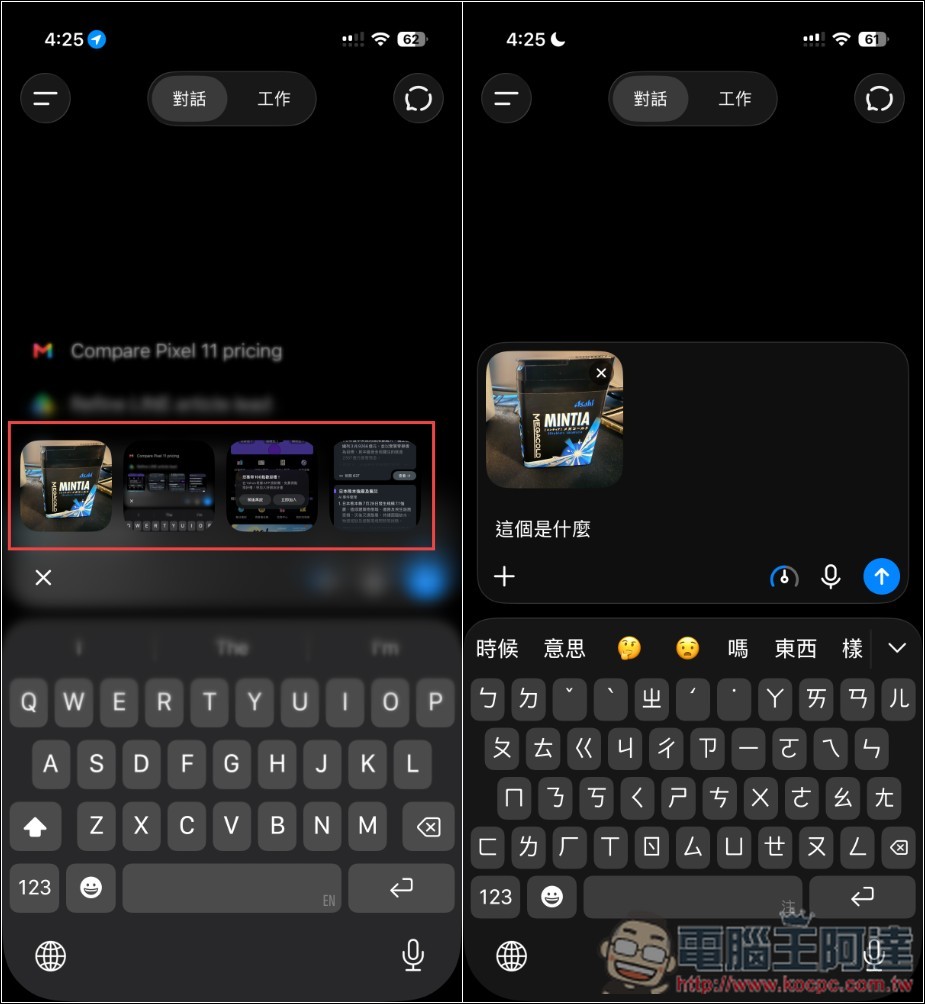
Also note: this trick requires ChatGPT to have access to your photo library. If nothing happens when you press and hold the plus sign, go to Settings on your iPhone, find ChatGPT, turn on photo permissions, and try again. If you previously selected “Selected Photos” for access, that will also be affected — the app can only see the photos you checked off at the time, so any recent photos you’ve taken won’t show up there.
| Process | Operating steps | Action count |
|---|---|---|
| Old practice | Tap “+” → choose “Photos” → wait for the system photo library to open → scroll to find the image → tap it → confirm | 4~5 |
| New approach | Long press “+” → tap the thumbnail. | 2 |
The time saved is about three seconds per use, which sounds like very little, but for people who frequently take photos and ask ChatGPT, it really adds up over multiple times and saves a lot of time, so you should definitely learn it.
Besides quickly attaching recent photos, Adam Fry also announced three other new updates to ChatGPT.
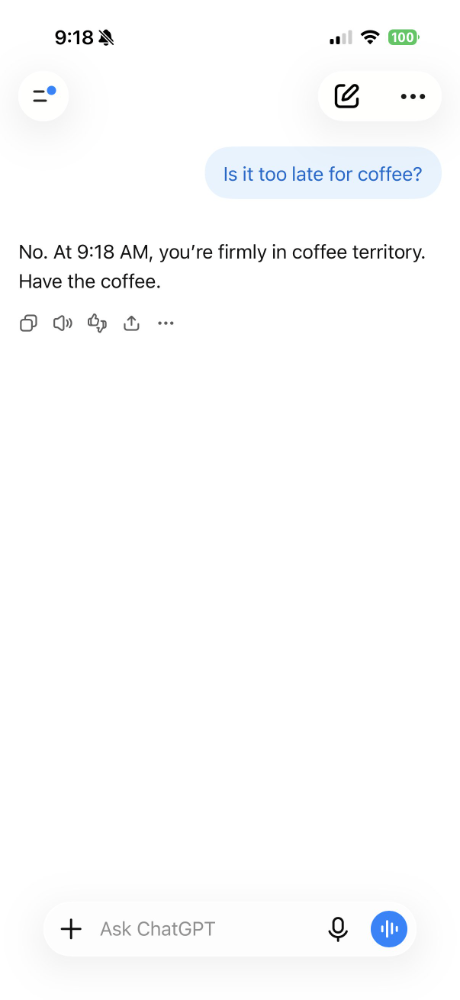
First, there’s time awareness. OpenAI admits that ChatGPT has been surprisingly bad at “what time is it now” in the past. After this change, ChatGPT will make better use of your local time, and its answers will align with the time of day you’re currently in. For example, when you ask “what’s there to eat nearby,” it can tell whether you’re looking for lunch or a late-night snack.
Next is that long conversations on the web version load faster now. Previously, opening a long conversation with two or three hundred messages would spin for several seconds before showing anything, because it had to read through the entire message chain first before displaying. Now it’s changed to segmented fetching, loading in small chunks, so you can start reading without waiting for everything to load.
The third item is the offline notification. Previously, when the network was down, ChatGPT would just show you an error with no clear cause, or it would keep spinning indefinitely, leaving you completely unable to tell whether your own connection was broken or OpenAI’s servers were down again. Now it clearly tells you “Waiting for network connection,” so you know to go check your own network.
Source: KOCPC Chinese