


Remote connections failing again? When your computer crashes, shows a blue screen, or simply won’t power on, most remote desktop tools are completely helpless! Today I’m introducing an amazing remote tool, AweSun, along with the pocket-sized hardware AweSun Q1 Smart KVM that pairs with its excellent remote desktop software. Even when your PC has completely crashed, has no monitor attached, or needs BIOS access, you can still power it on and control it remotely — it’s truly a lifesaver for engineers!
Whether you left home without uploading a file or simply forgot to bring it along, as long as the computer is still on, you can use the AweSun mobile app to remotely connect back to your workstation, transfer files, or edit documents. If your computer shut down due to a power outage, or a software conflict caused a blue screen, you don’t need to worry — just connect the AweSun Q1 Smart KVM to your main computer, and you can power it on remotely through the app. It’s incredibly powerful! Let’s take a look at what the AweSun remote desktop software and the remote-power-on AweSun Q1 Smart KVM can do to solve our remote work nightmares!
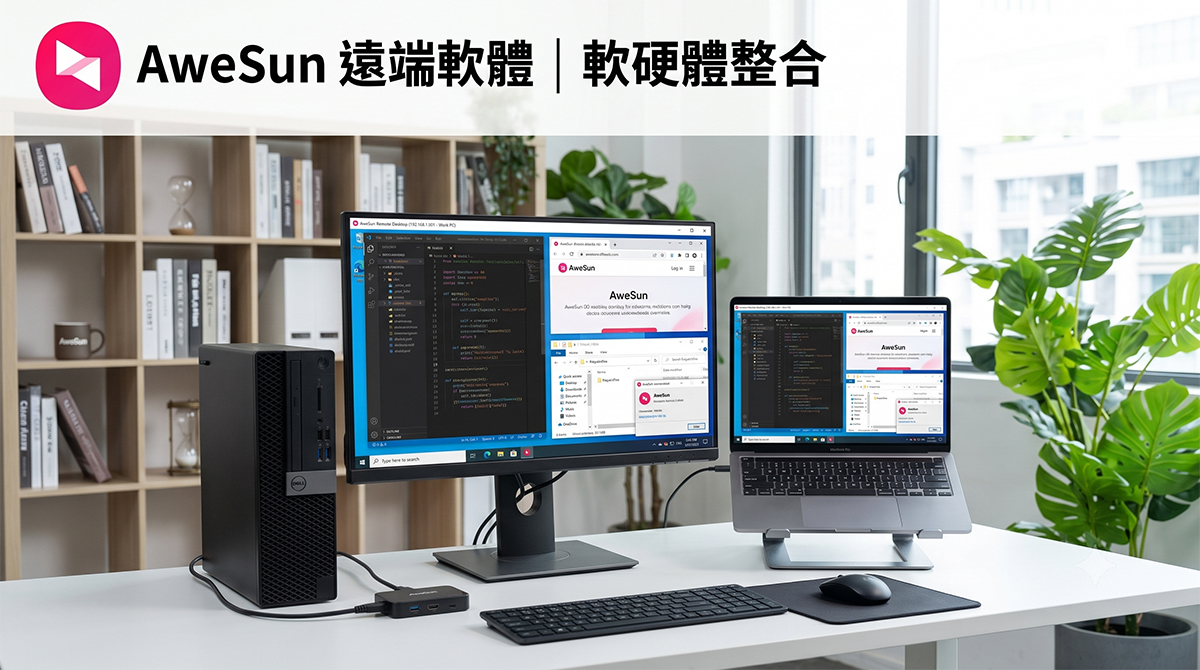
High-Performance Remote Desktop Software – AweSun
AweSun Basic Remote Connection Features
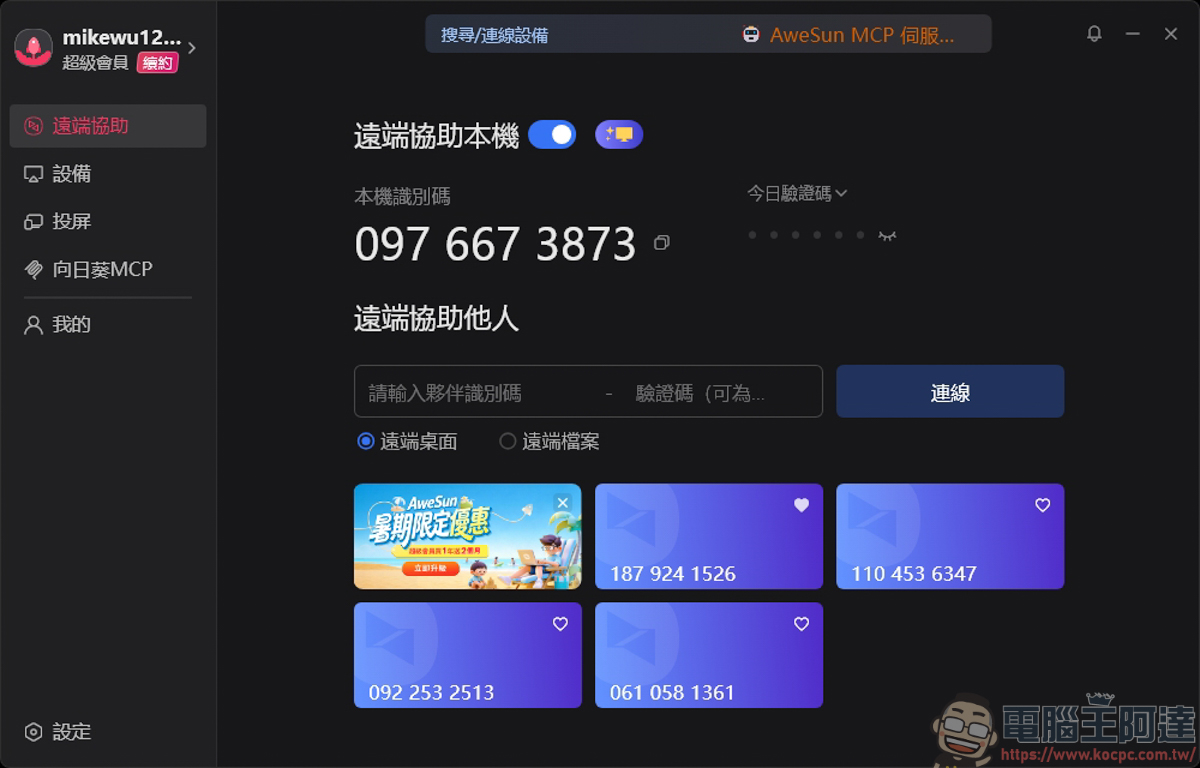
First, let me introduce the AweSun remote desktop software. On the app’s home screen, like most remote programs, each computer has its own ID and password:
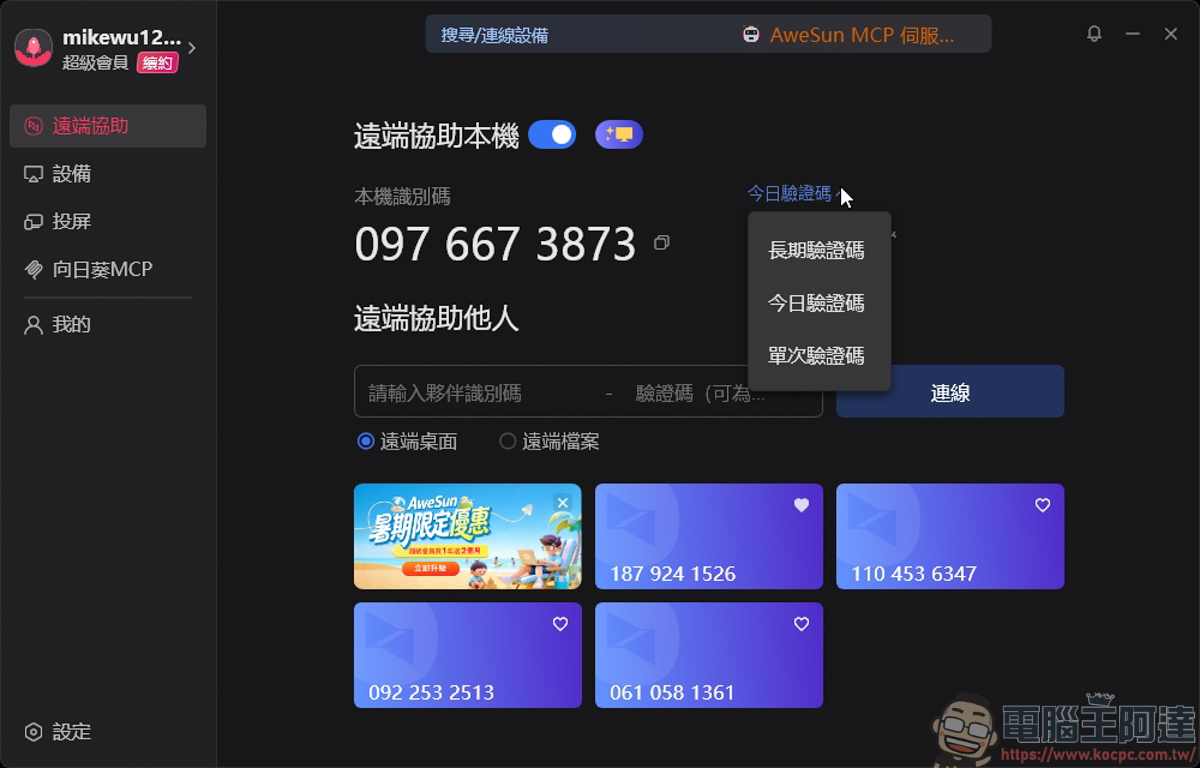
If you only connect to your own devices, you can set the verification code to a permanent one, so this AweSun remote session always uses the same code.
If you just want to briefly let someone else connect remotely, it’s recommended to use a one-day or one-time verification code for better security. Connecting to another computer is also simple — just enter the other party’s ID and verification code, and you’re connected. This works the same way in most remote desktop tools:
AweSun Password-Free Remote Access
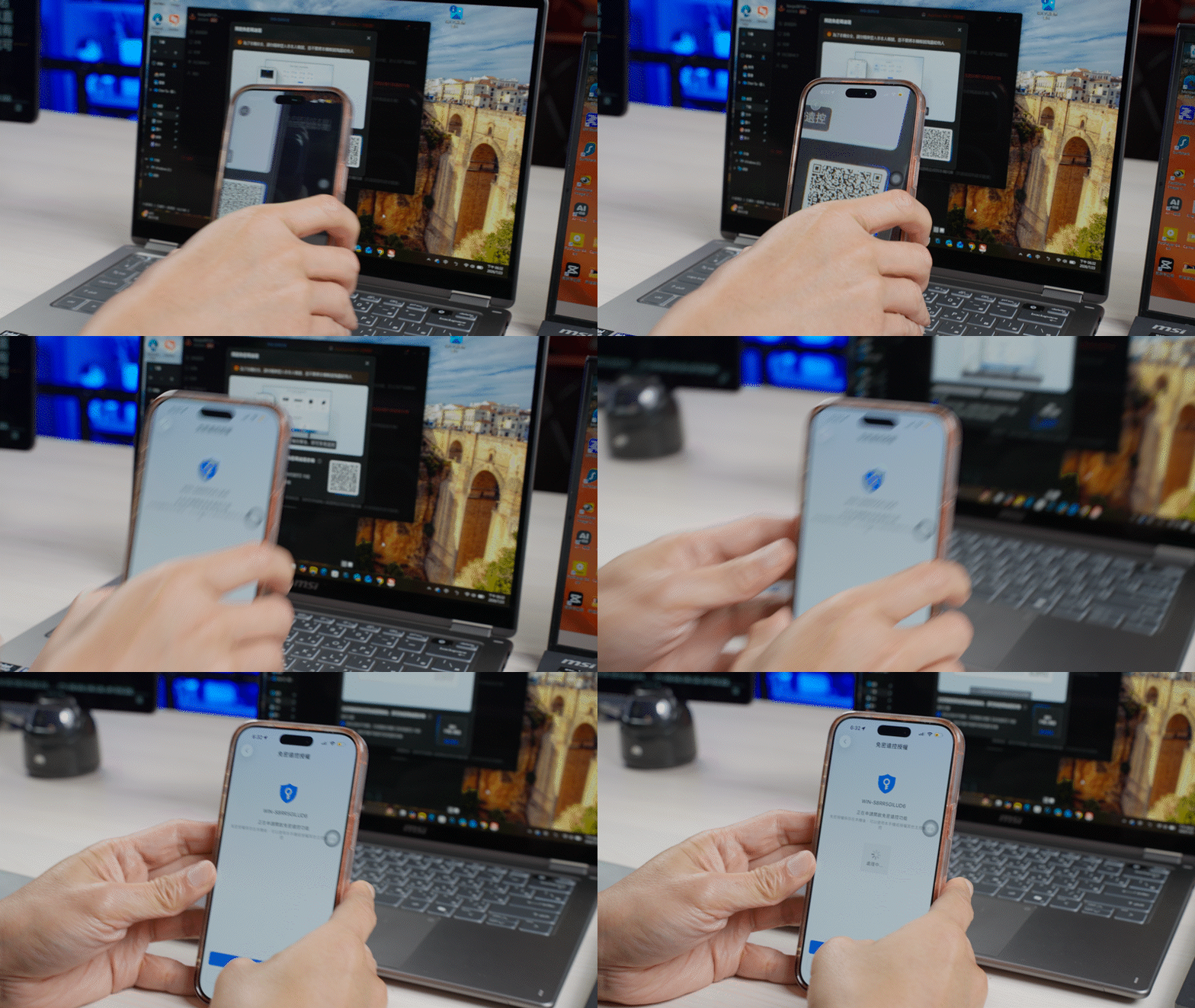
Of course, if you’re tired of entering a verification code every time, you can enable AweSun’s password-free remote feature and set it up without a password using the AweSun mobile app. Once enabled, you can quickly connect to all devices under your account without entering a verification code or password:
AweSun itself supports a free trial. If you only need remote desktop and small file transfers, the free version is genuinely good enough — and it won’t nag you to upgrade to continue using it. However, you do need to create an account to use the free version. If you need high-speed file transfer and multi-monitor control, I’d recommend upgrading to the GuaZi membership. For even more advanced needs, such as high-quality video and game mode, the Super membership is the way to go — at less than NT$200 per month, it’s actually quite affordable. Everything I’ll introduce below is based on the Super membership plan:
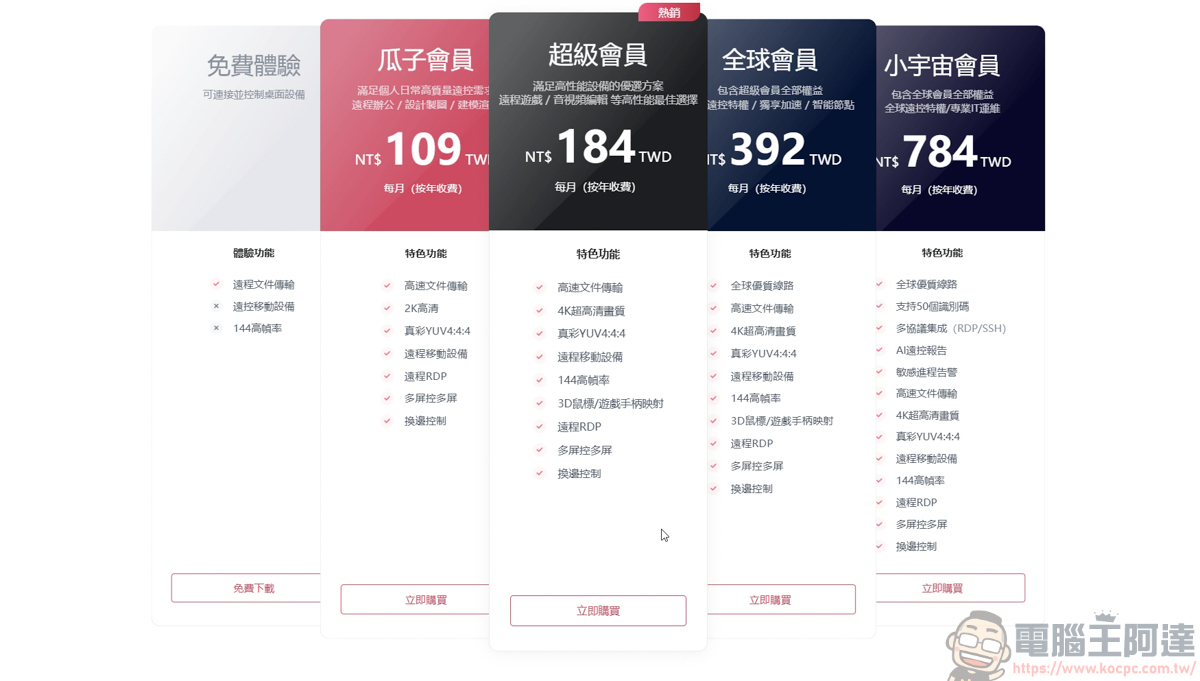
Exclusive 20% off promo code for AweSun readers: KOCPC
Click here to download AweSun for free
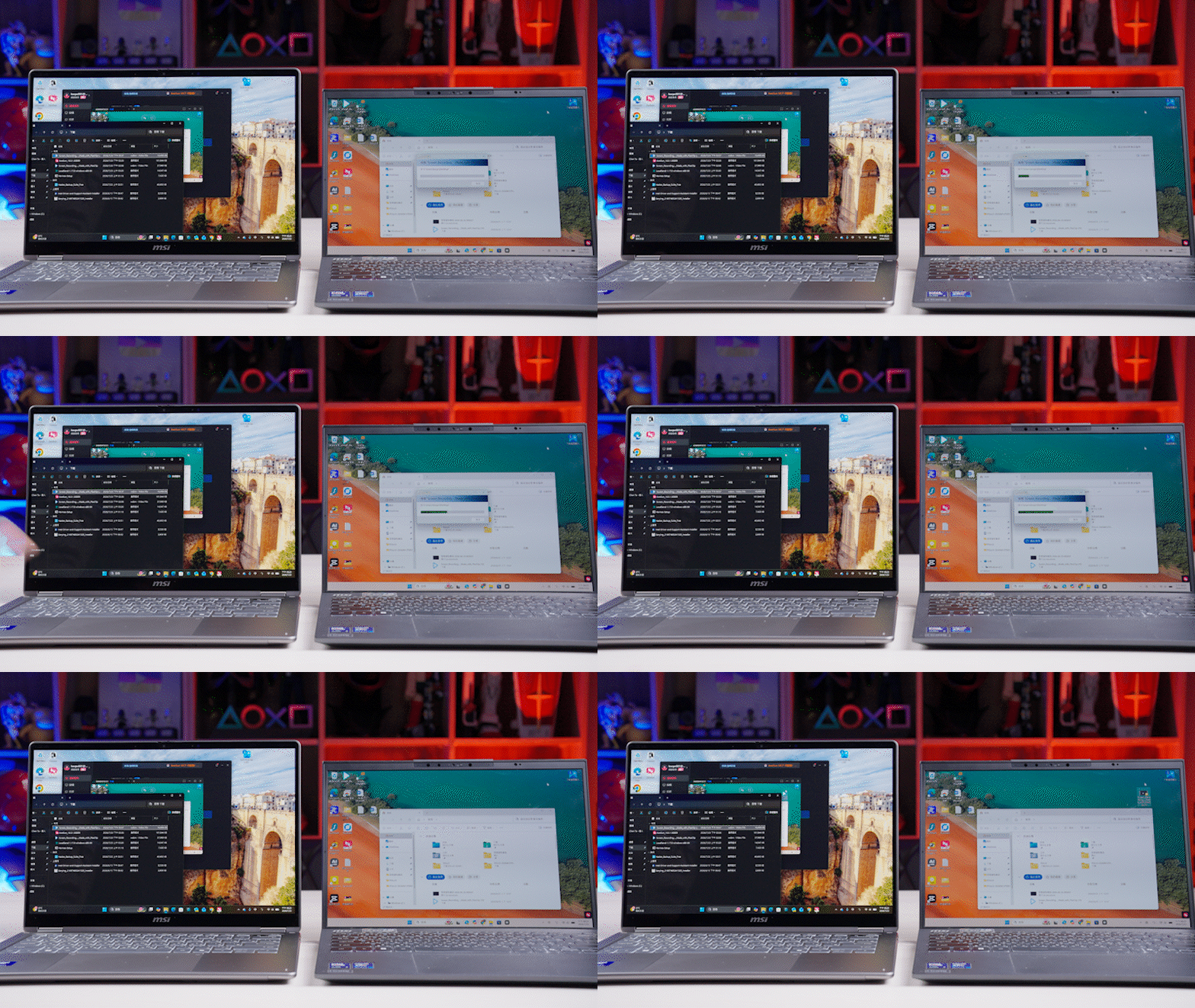
AweSun File Transfer & Flash TransferOnce upgraded, you get high-speed file transfer, which is faster than the free tier — around 10~12MB per second, so a 2GB file takes about five minutes to transfer (tested on a 100Mbps connection; the faster your network, the quicker it goes). It also supports flash transfer: just drag a file from the main window into the remote window to send it, without having to hunt through the file transfer menu:
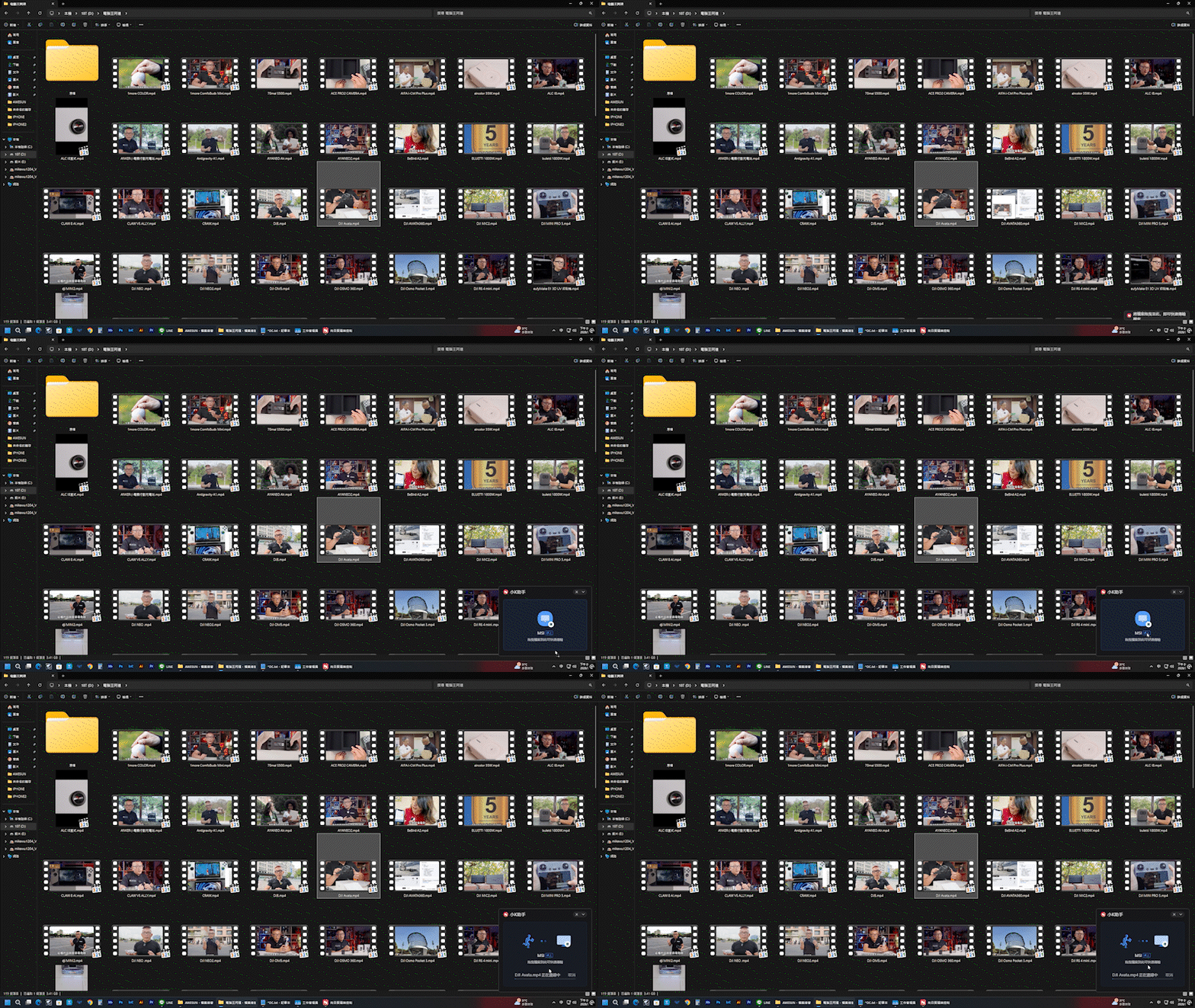
Also, when you close the AweSun window and let it sit in the system tray at the bottom right, you can still drag files for instant remote flash transfer. As long as your remote device is online and password-free verification is enabled, you can quickly transfer files this way:
AweSun Remote Control Settings
Next, I’ll highlight a few of the more practical features — honestly, covering every single one in detail wouldn’t be very meaningful.
First, in the toolbar at the top of the remote screen, you can bring up settings and zoom options (already zoomed in here):
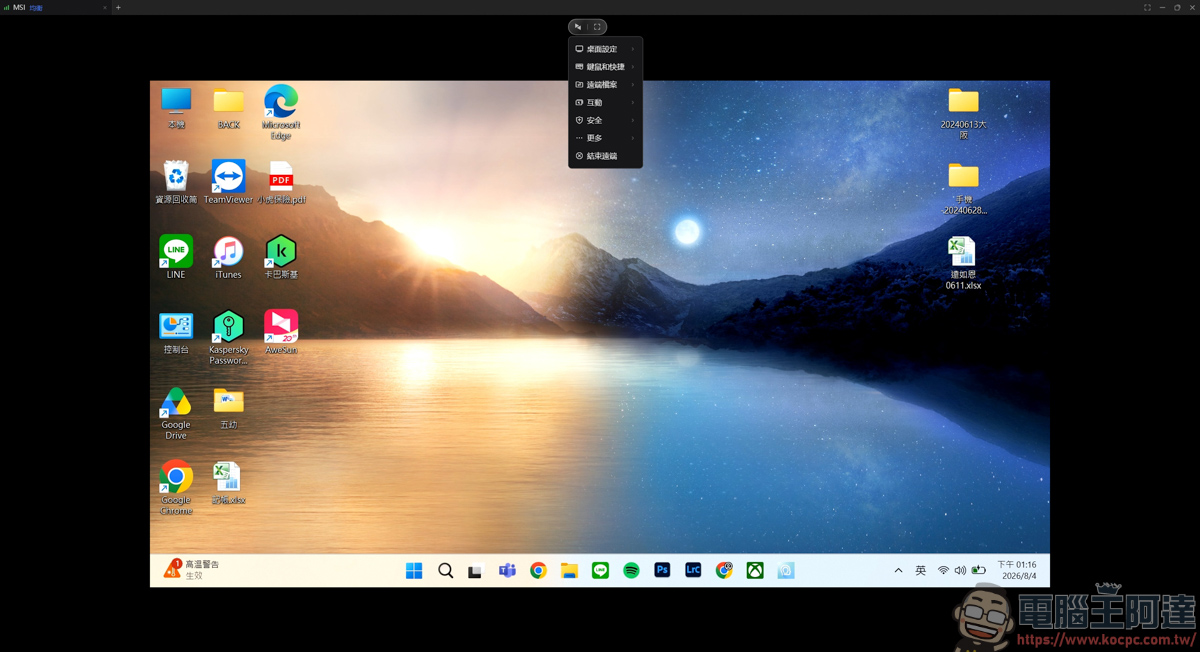
The first is desktop settings, where you can create virtual monitors, adjust the screen aspect ratio, set the display performance mode, switch resolution, and more. If you frequently connect across borders, upgrading to the Global membership gives you access to premium global routes with dedicated acceleration and intelligent dynamic routing — extremely helpful for cross-country remote control:
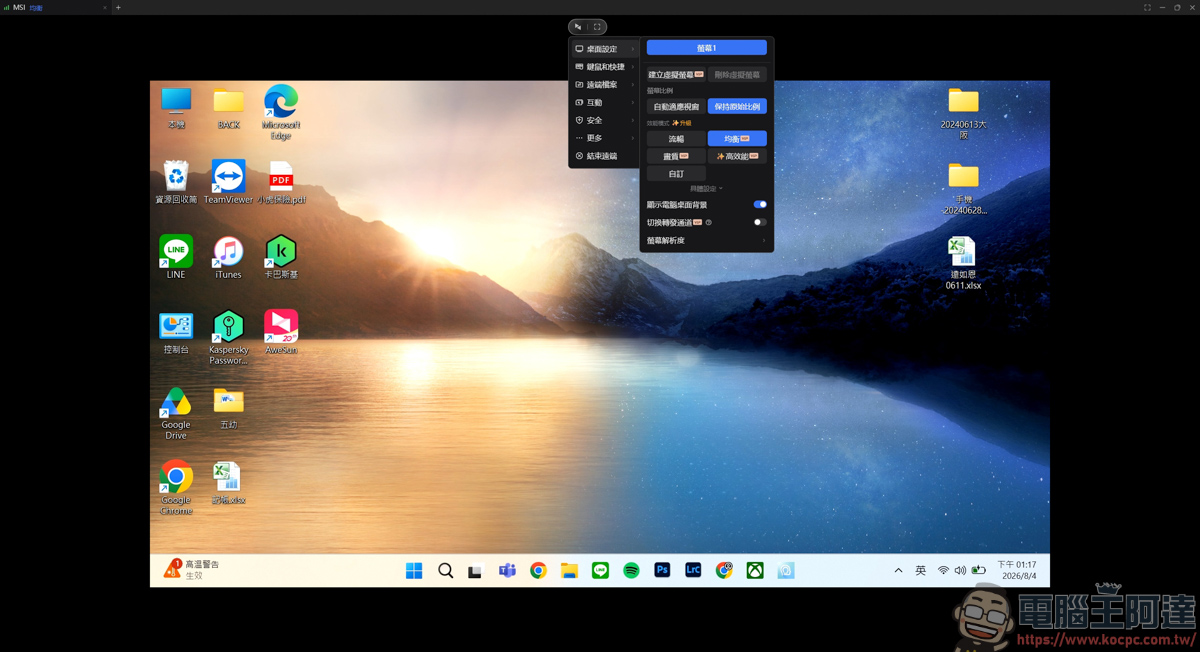
AweSun Virtual Monitor
If you need to perform sensitive operations while remote, you can enable a virtual monitor (up to three virtual screens), which switches the device’s display to a separate screen for your use. You can then work on the virtual monitor while the physical screen doesn’t need to be blacked out or locked.
This not only protects your privacy and prevents prying eyes from seeing confidential information, but also avoids accidentally touching the main screen — making remote operation safer with no blind spots:
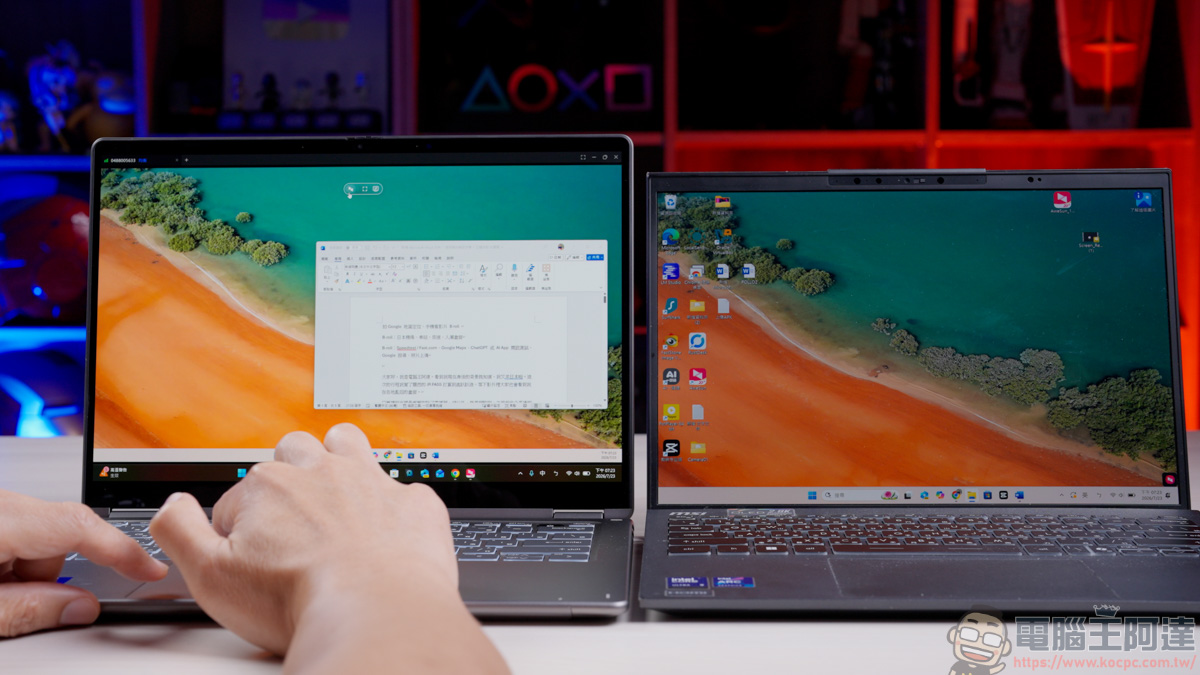
If switching one by one is too tedious, you can also click Split Screen, and the system will separate the main screen and the virtual screen, letting you work across multiple displays at once:
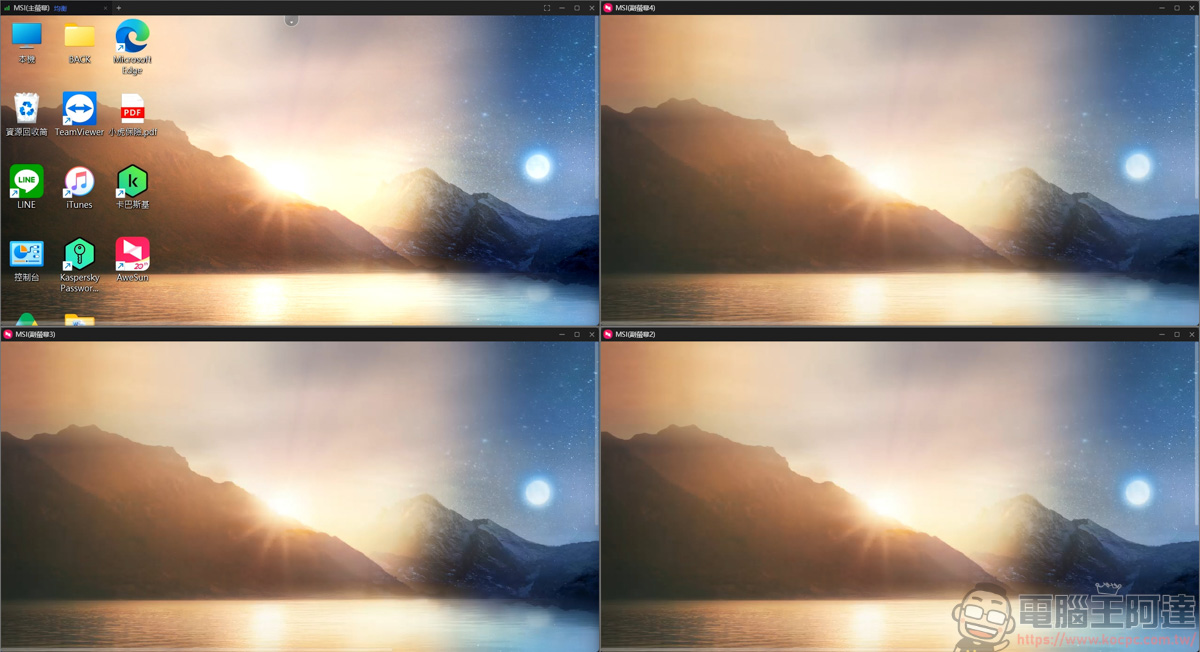
AweSun Multi-Device Remote Control
It also supports connecting to multiple devices at the same time. Just click the + in the window to connect another device from the main program — a feature that IT staff and engineers will certainly find very useful:
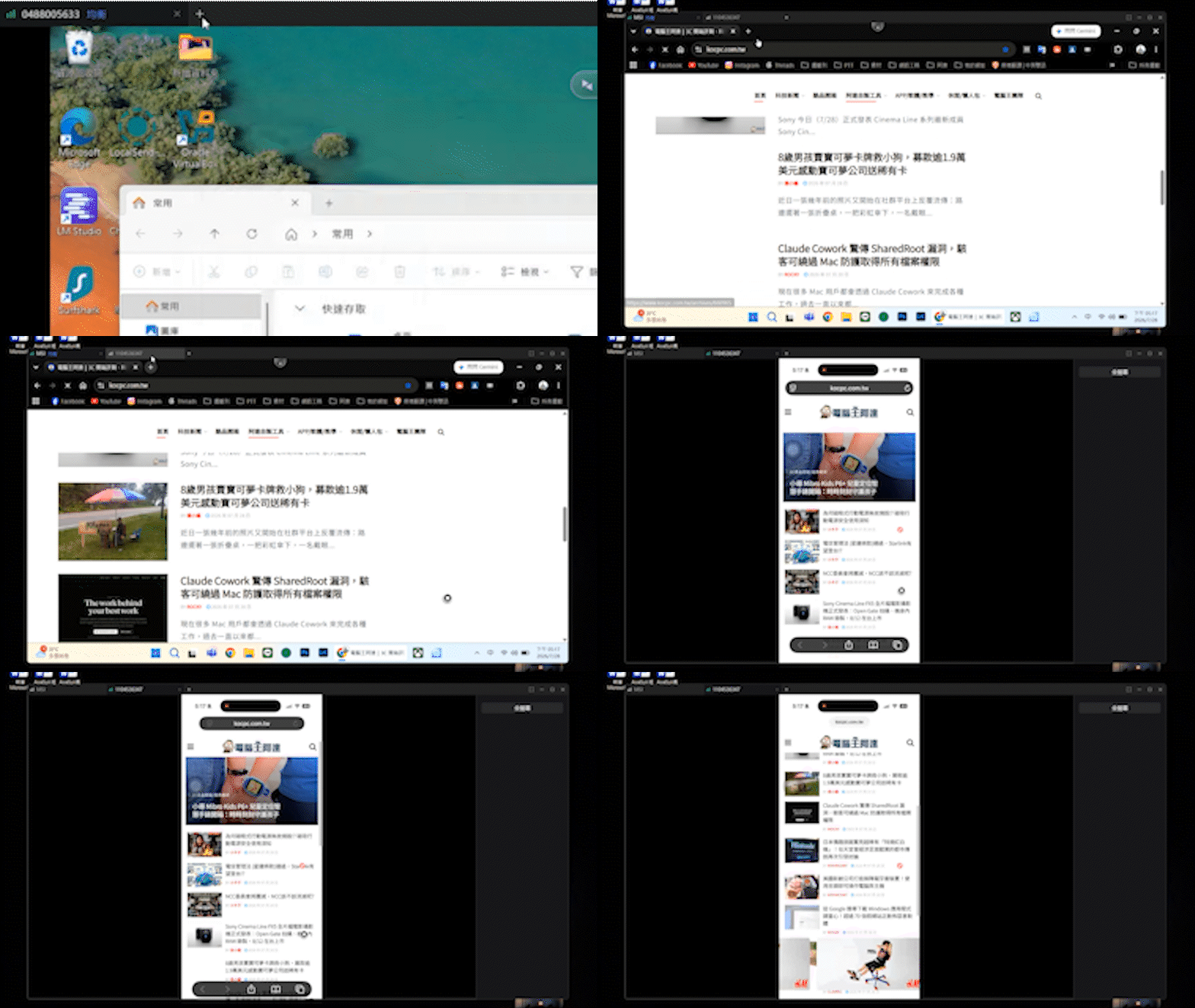
AweSun Keyboard, Mouse & Shortcut Features
Next up are the keyboard, mouse, and shortcut features:
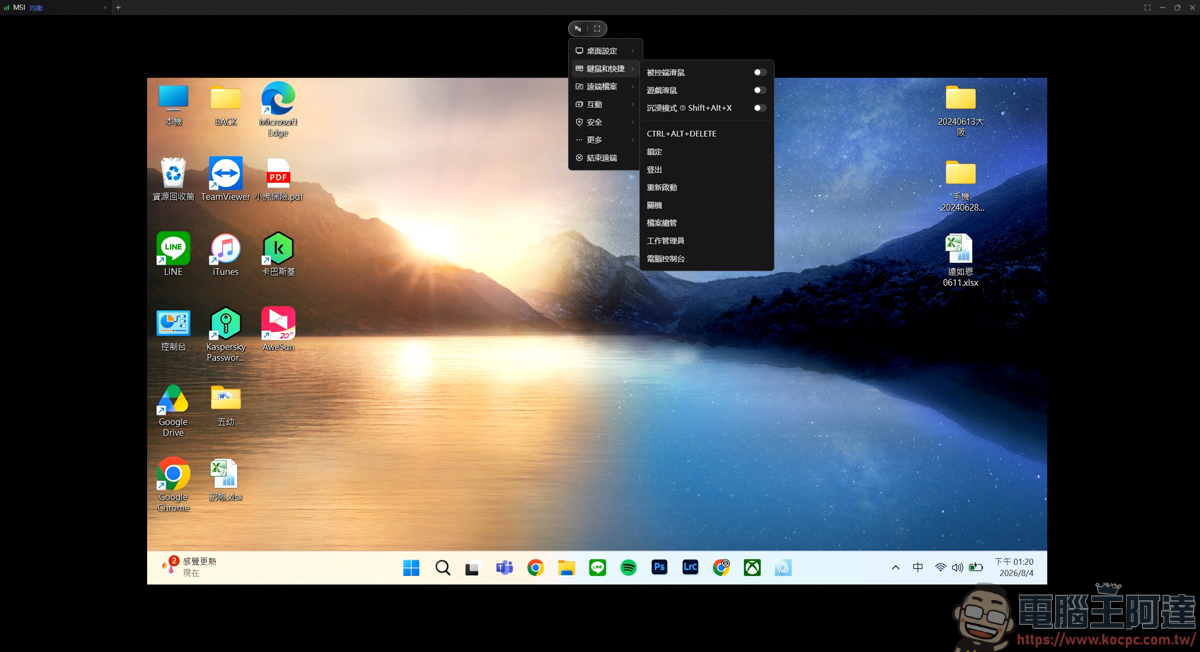
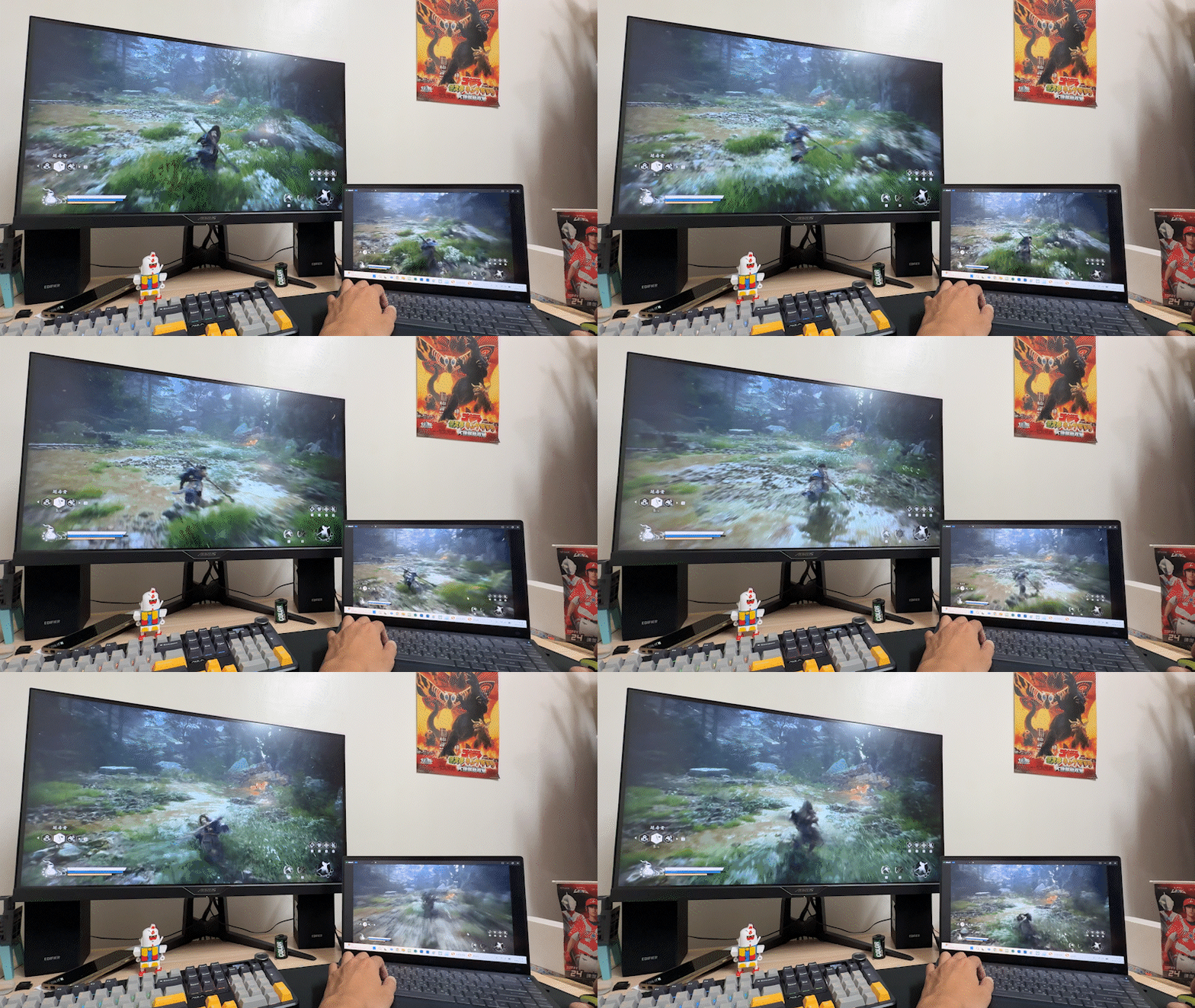
If you play games remotely, enable Game Mouse and the cursor locks to the center of the screen, following your character’s movement:
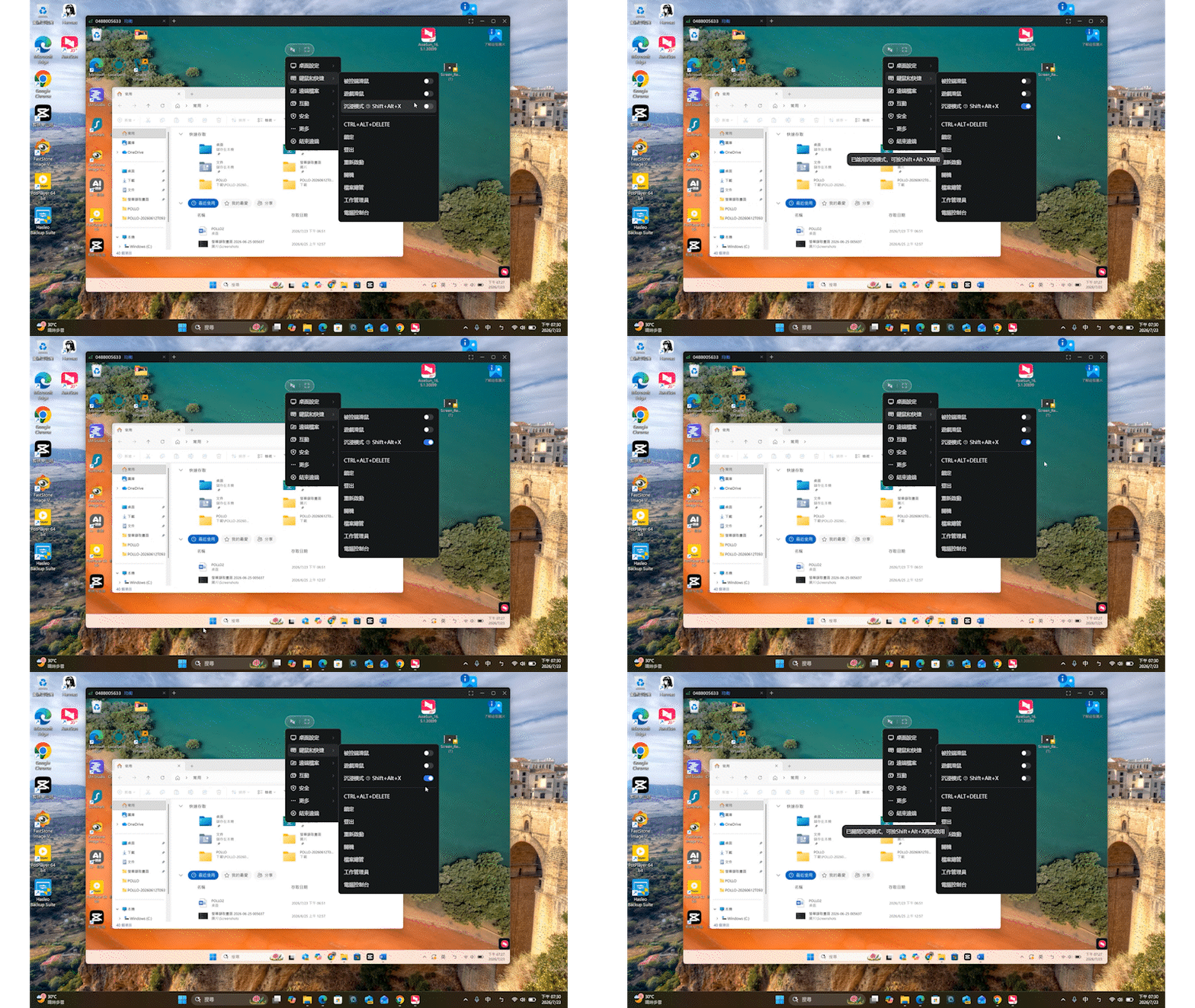
If you want the cursor to stay within the remote window at all times, turn on Immersive Mode to confine the mouse to the remote screen:
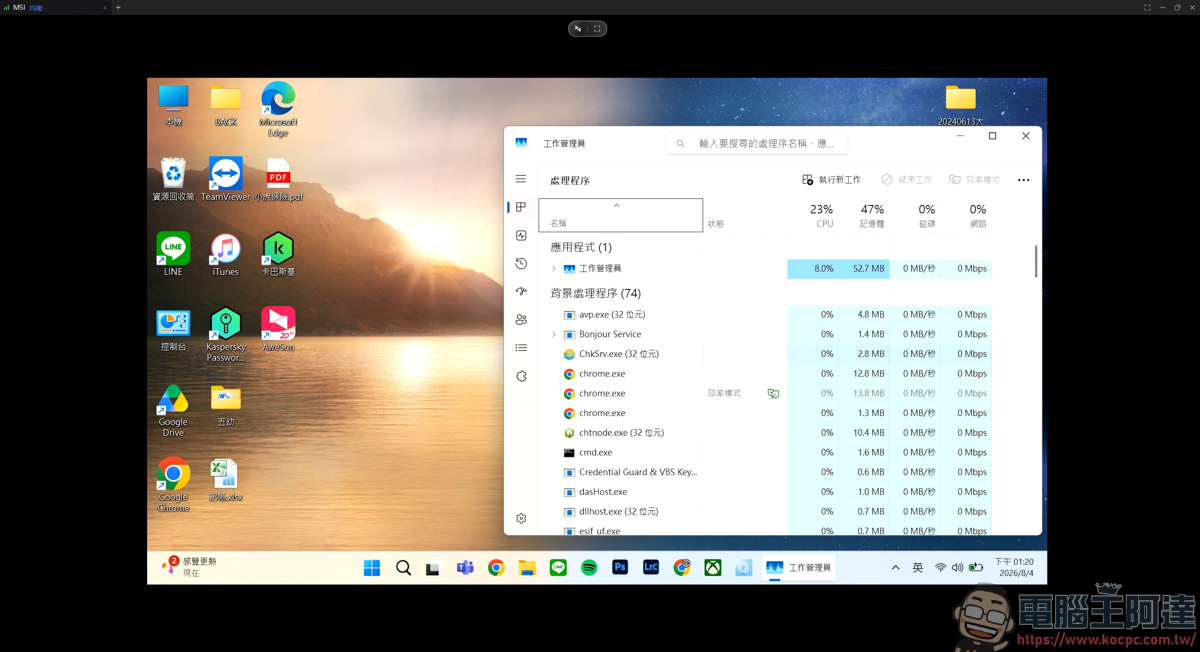
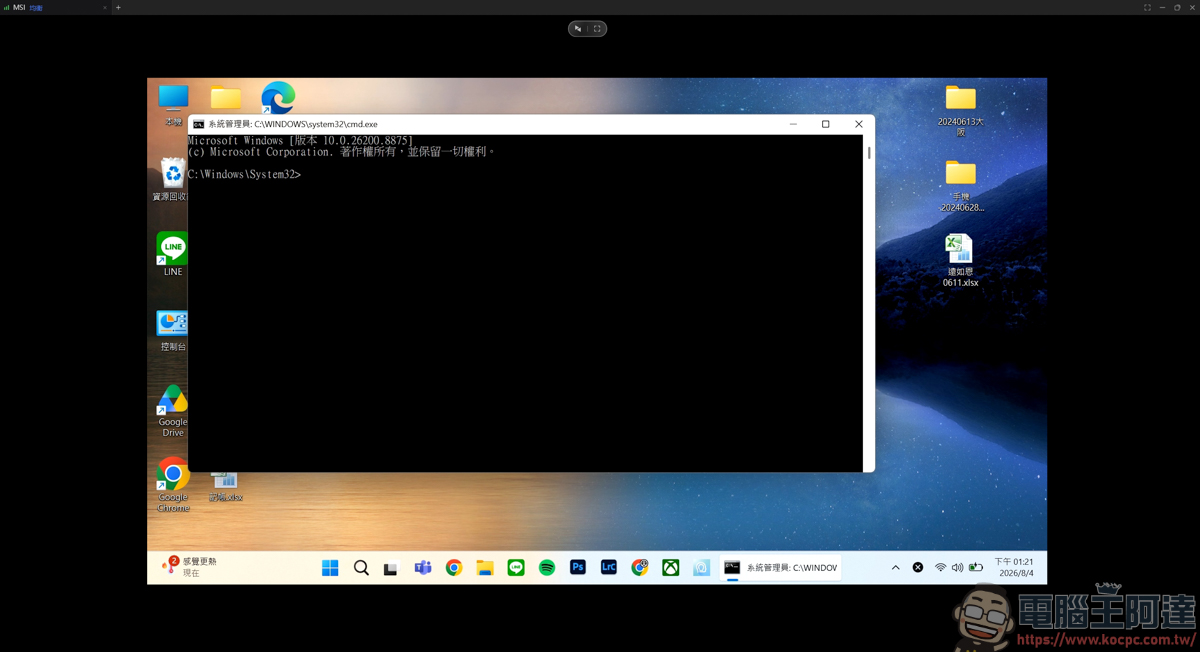
Other operations that require elevated system privileges — like Task Manager, Lock, Restart, and so on — can also be executed quickly right from here. This is something many free remote tools can’t do:
Exclusive 20% off promo code for AweSun readers: KOCPC
Click here to download AweSun for free
AweSun Remote Interaction Features
Next are the interaction features: voice calls, whiteboard, and text chat:
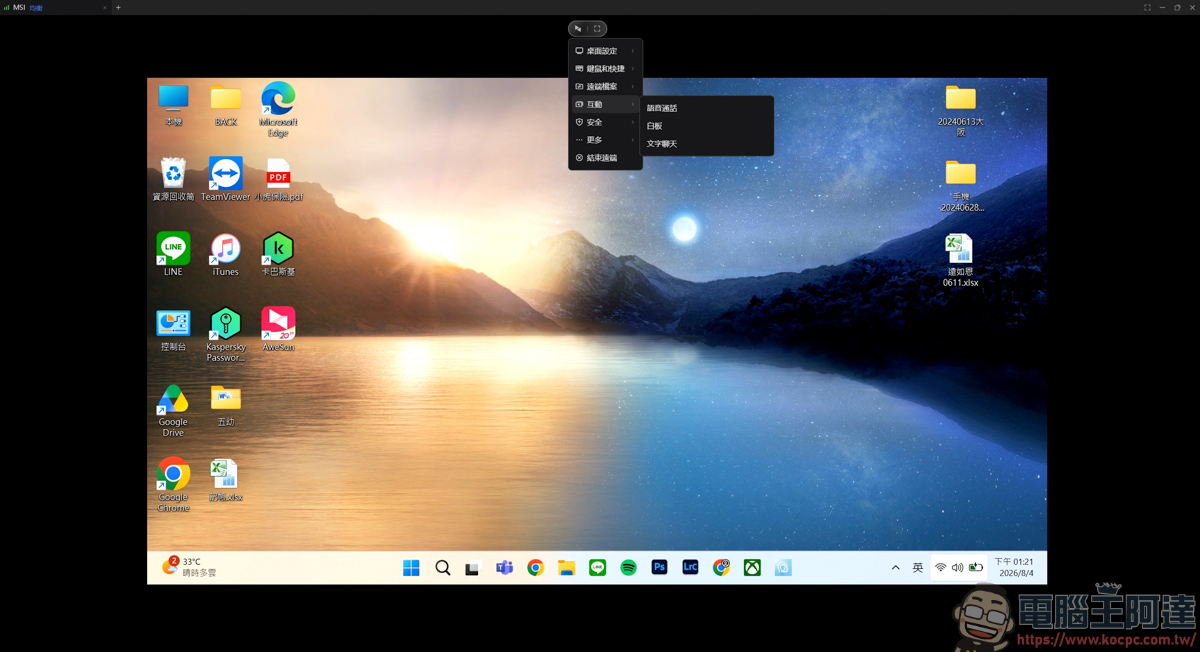
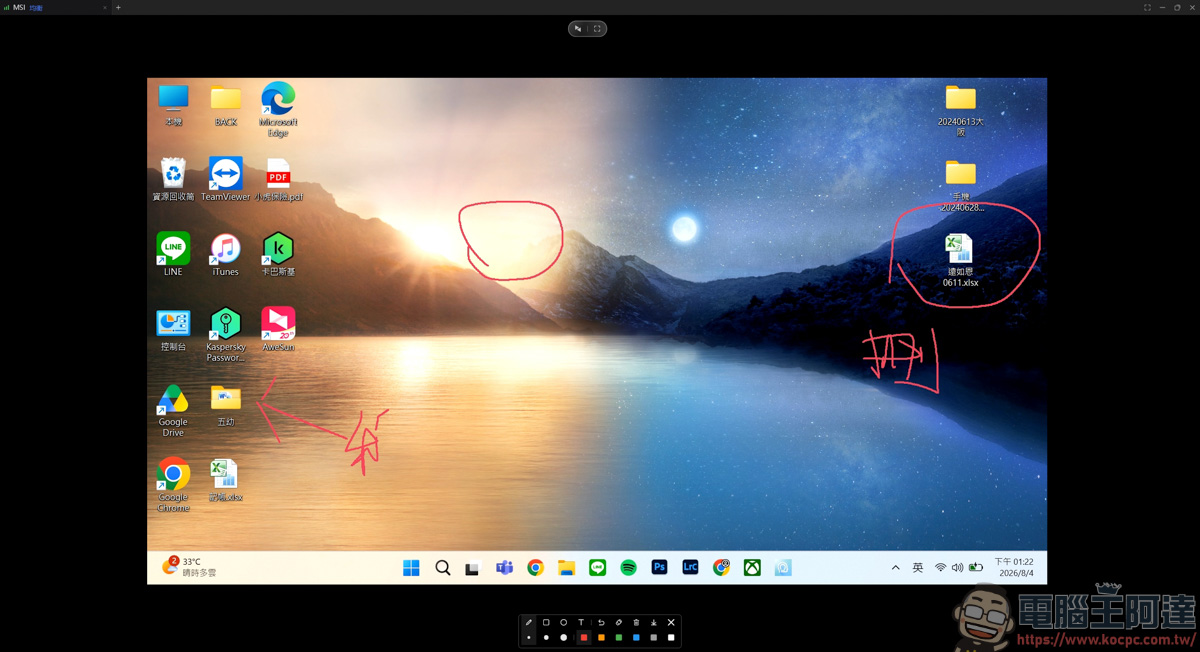
I won’t go into detail on voice calls — in short, you can have real-time calls with the remote computer. The whiteboard feature lets you draw to clearly show the remote side what you’re doing. When you can’t communicate with the person on the other end, marking and drawing make everything instantly clear:
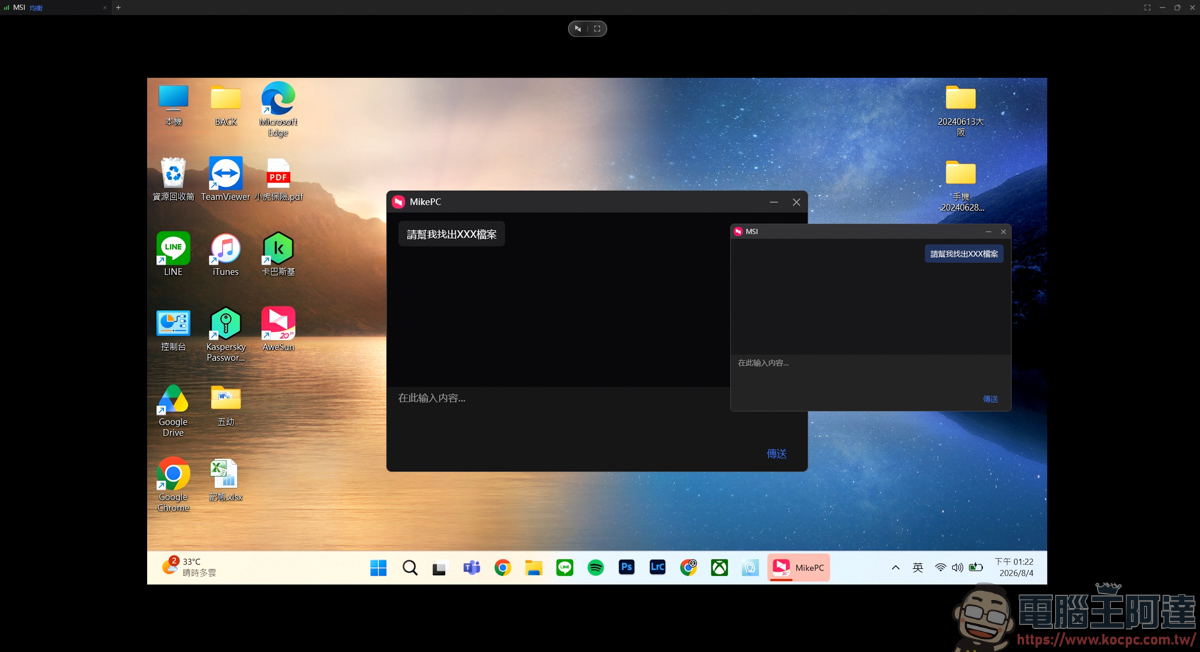
You can also use the text chat feature to quickly convey your thoughts to the other party:
AweSun Privacy Screen
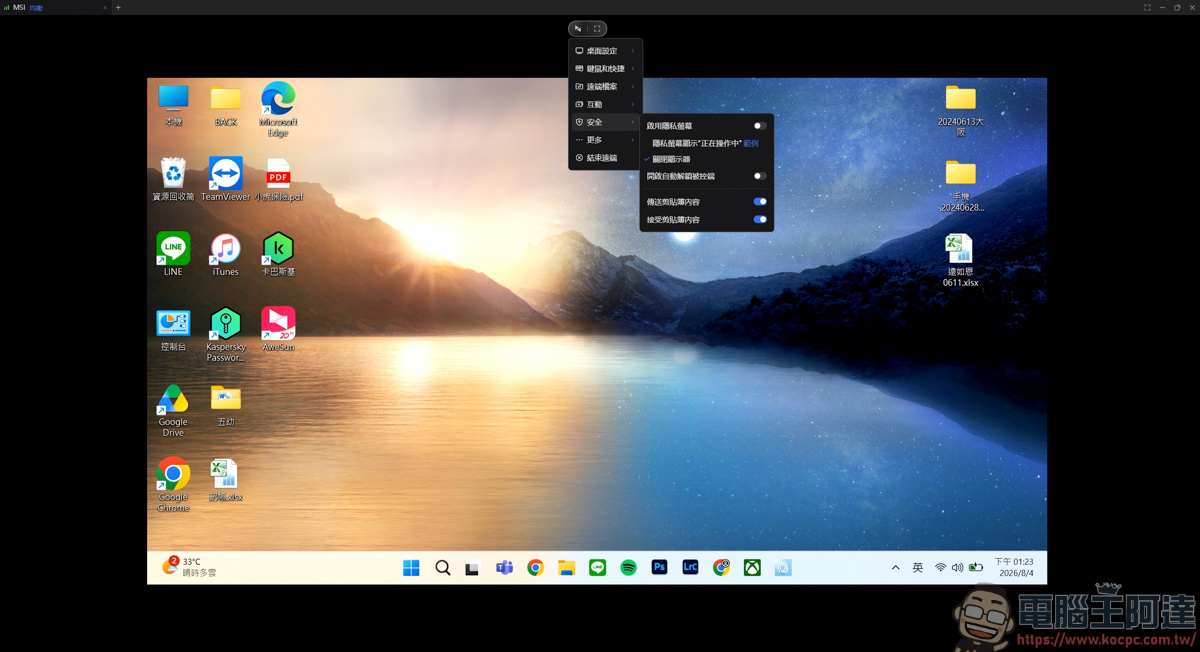
In the security settings, you can enable Privacy Screen, which turns off the other party’s display during remote sessions so no bystanders can see it. It also supports copy-and-paste: text copied on either computer can be pasted on the other, and you can even type remotely:
AweSun USB/IP Mapping
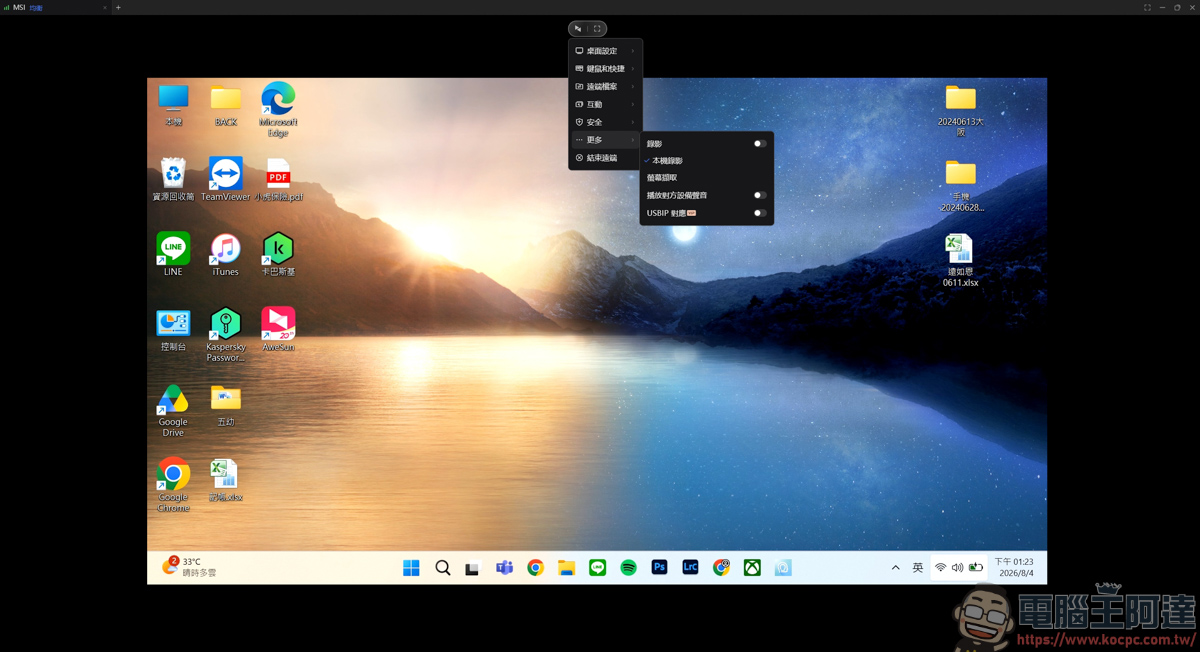
Finally, under More Options, you can also record the remote desktop session and play audio from the remote device. But the most important feature is USB/IP mapping at the very bottom — one of the paid-tier-only features:
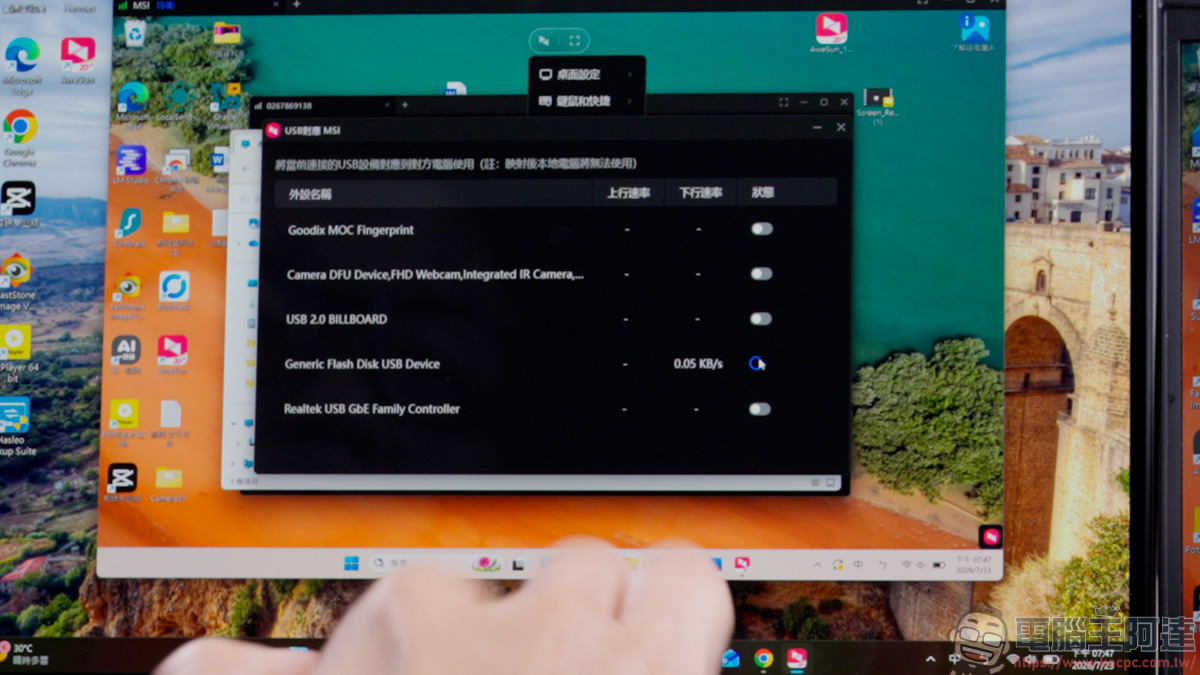
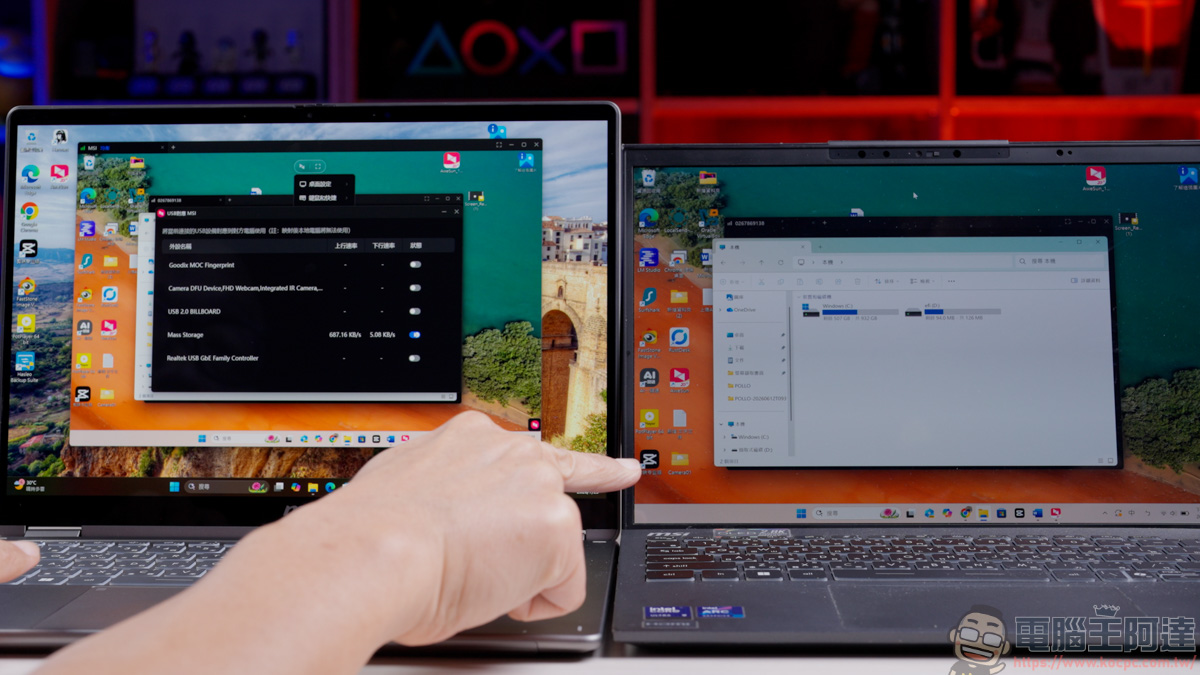
Once enabled, plug a USB device into the computer initiating the remote session, and the software packages the USB device’s low-level data and sends it over the network to the remote computer. Flash drives, ATM card readers, printers — all of them can be read remotely. It’s extremely powerful:
Besides streaming flash drive signals remotely, it can even transmit wired game controller signals, letting you play games remotely this way:
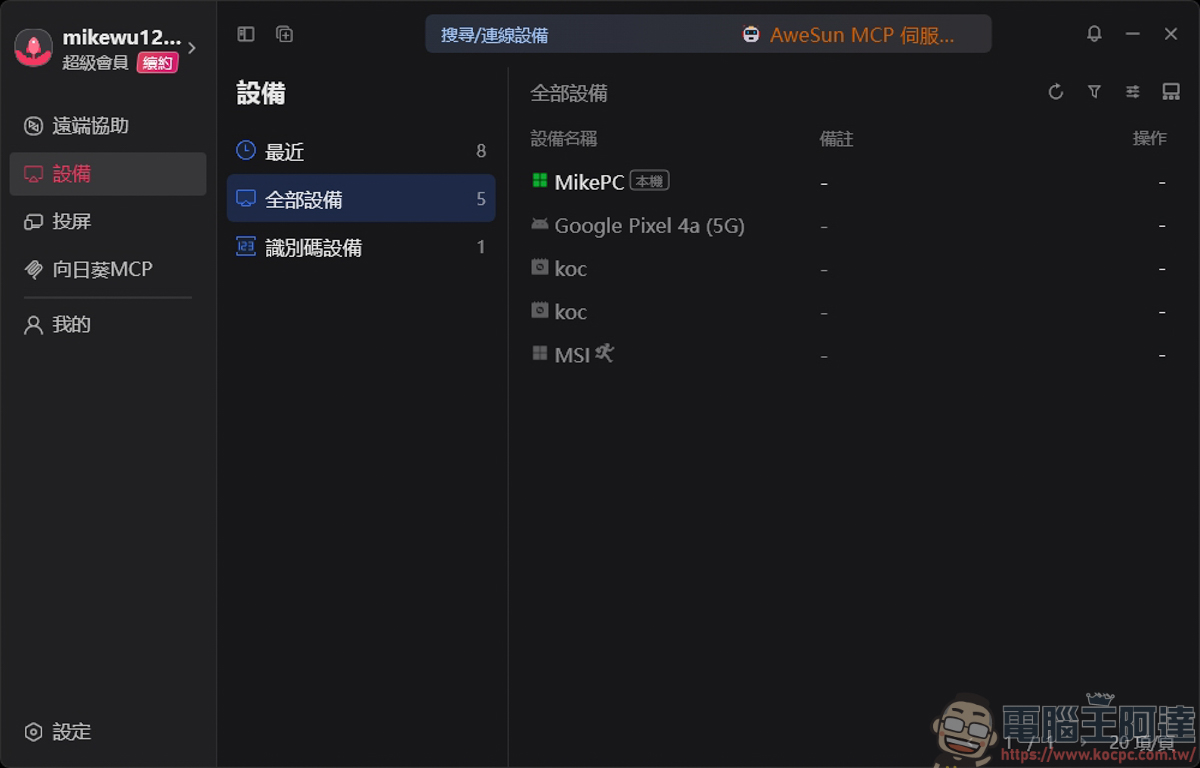
After covering AweSun’s features, let’s look at its other functions. In the Devices section, all devices under your account are listed here, with online devices shown with a green indicator:
AweSun Extended Monitor
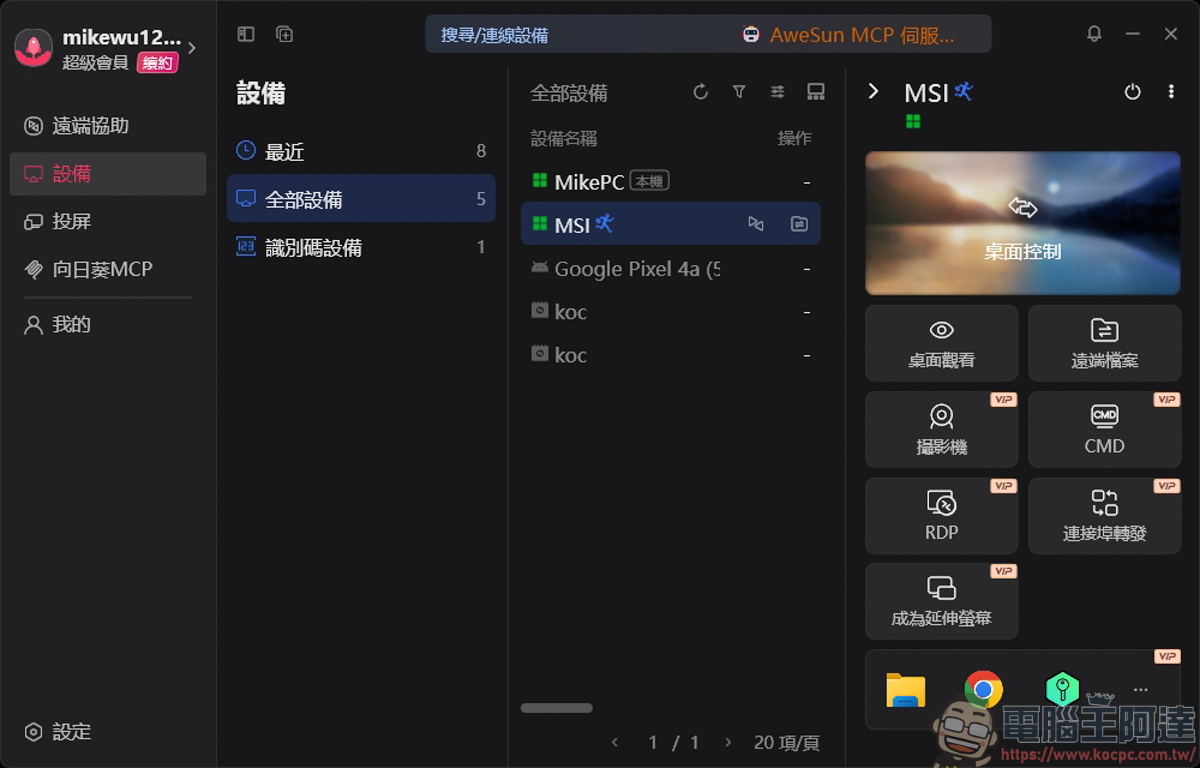
Once a device is online, you can quickly use it for desktop viewing, remote file transfer, camera access, CMD, RDP, port forwarding, extended monitor, and more:
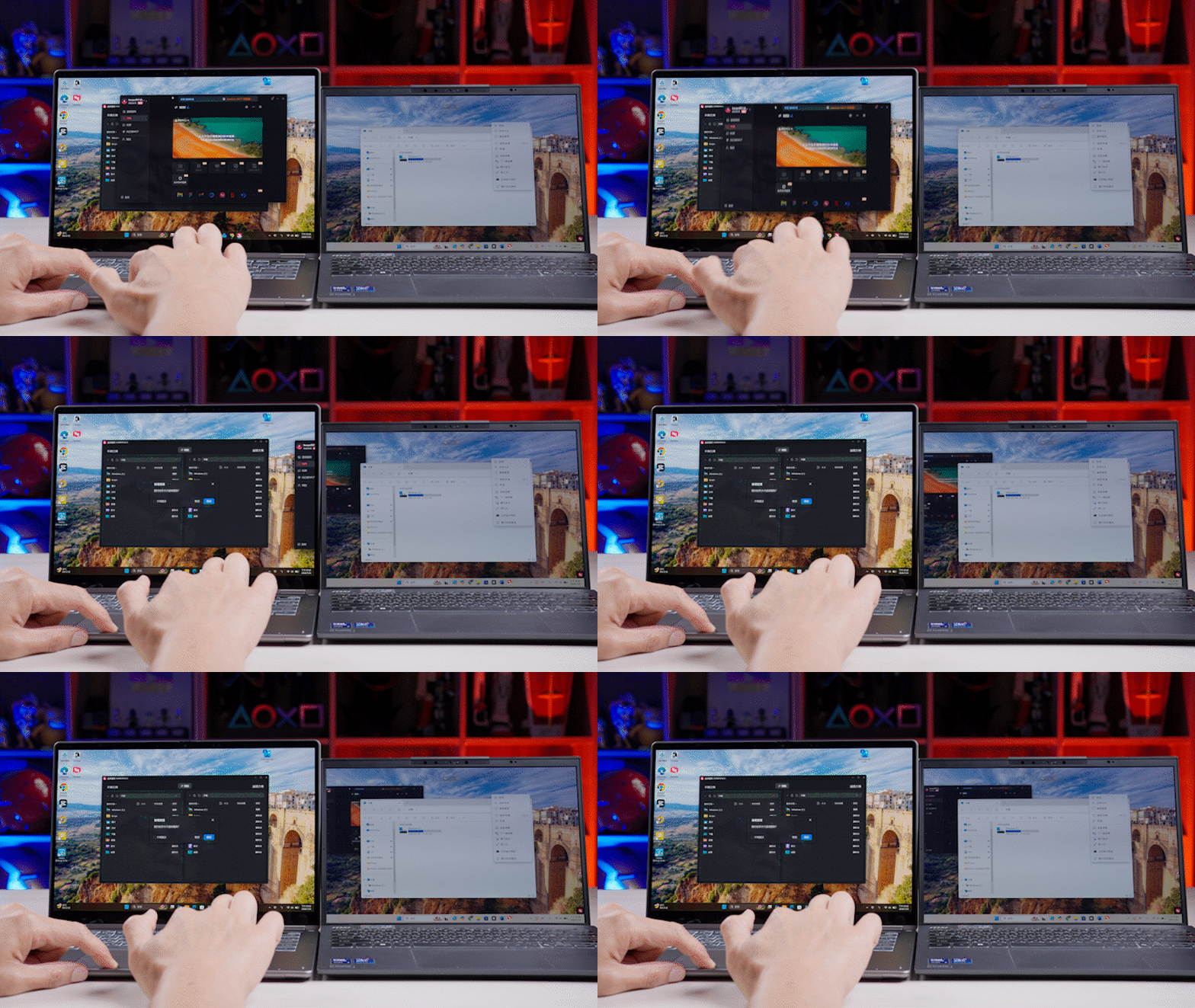
Choose Extended Monitor to use the remote controlled device as your second screen. It’s not quite as smooth as a direct monitor cable connection, but if you don’t have a spare monitor or cable on hand, this lets you enjoy dual-screen functionality anyway:
AweSun Super Desktop
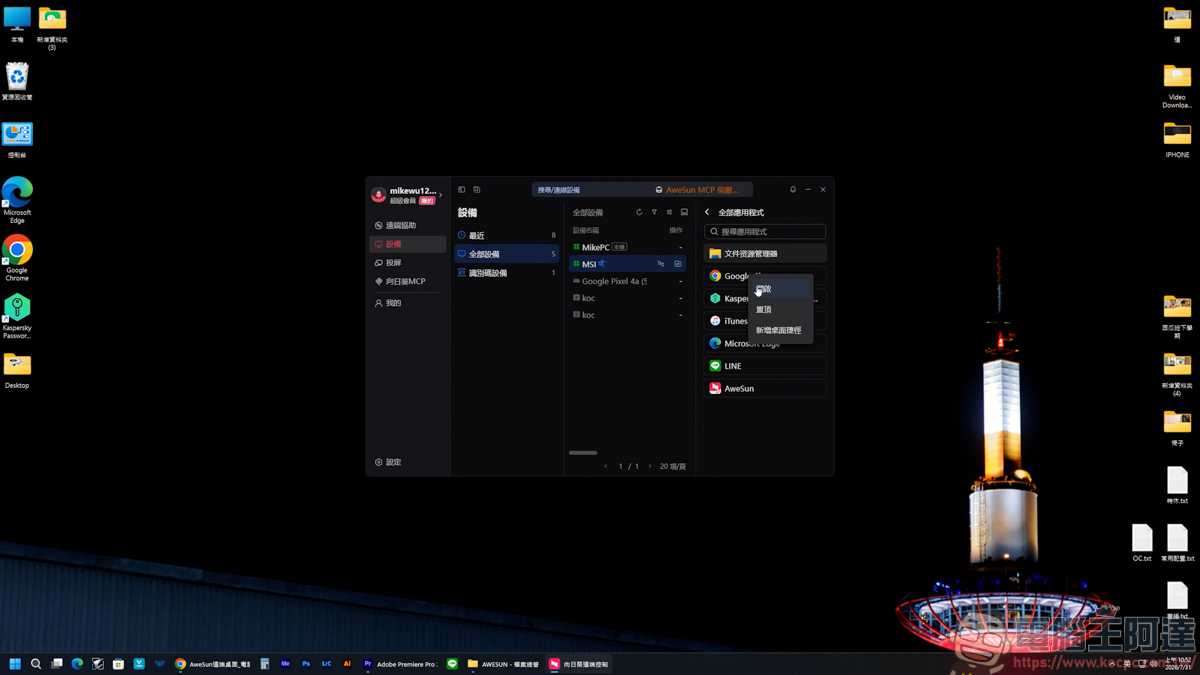
The Super Desktop feature lets you quickly launch apps available on that device, such as Chrome, CapCut, Photoshop, and more. With this feature, you can launch programs in a flash without hunting for the application manually — a huge boost in convenience:
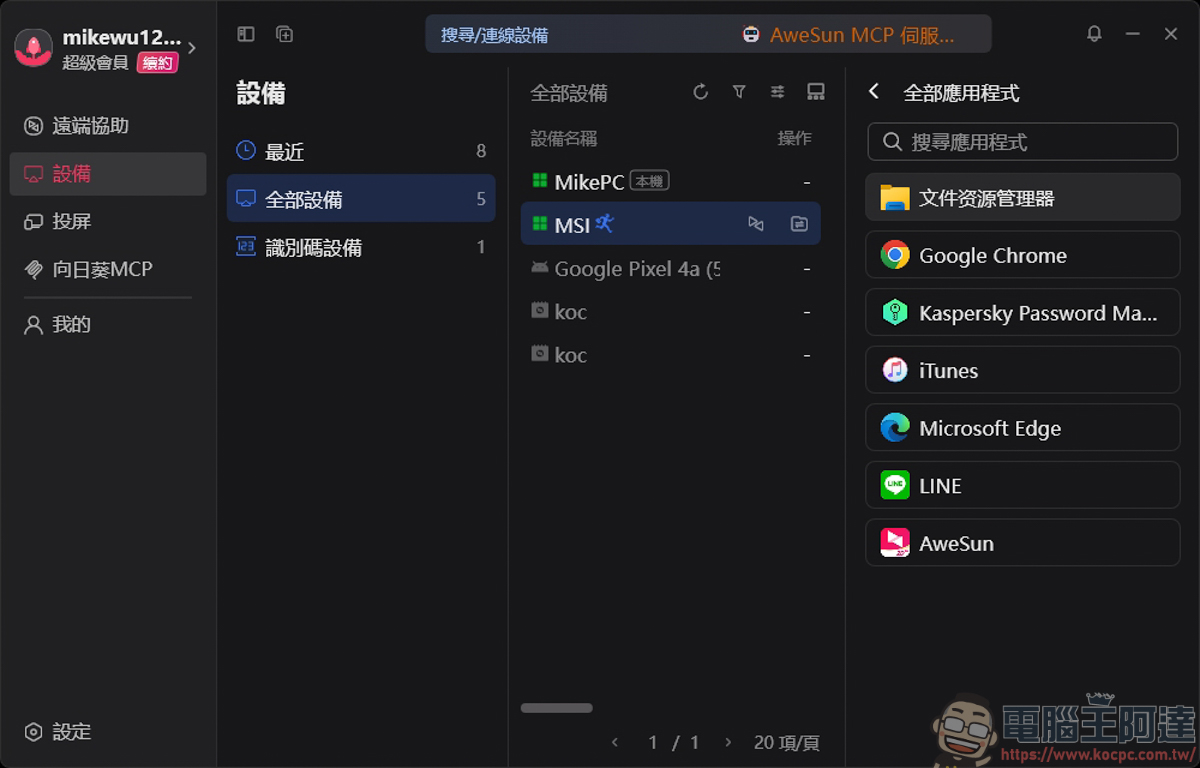
Right-click the app you want quick access to → Add Desktop Shortcut:
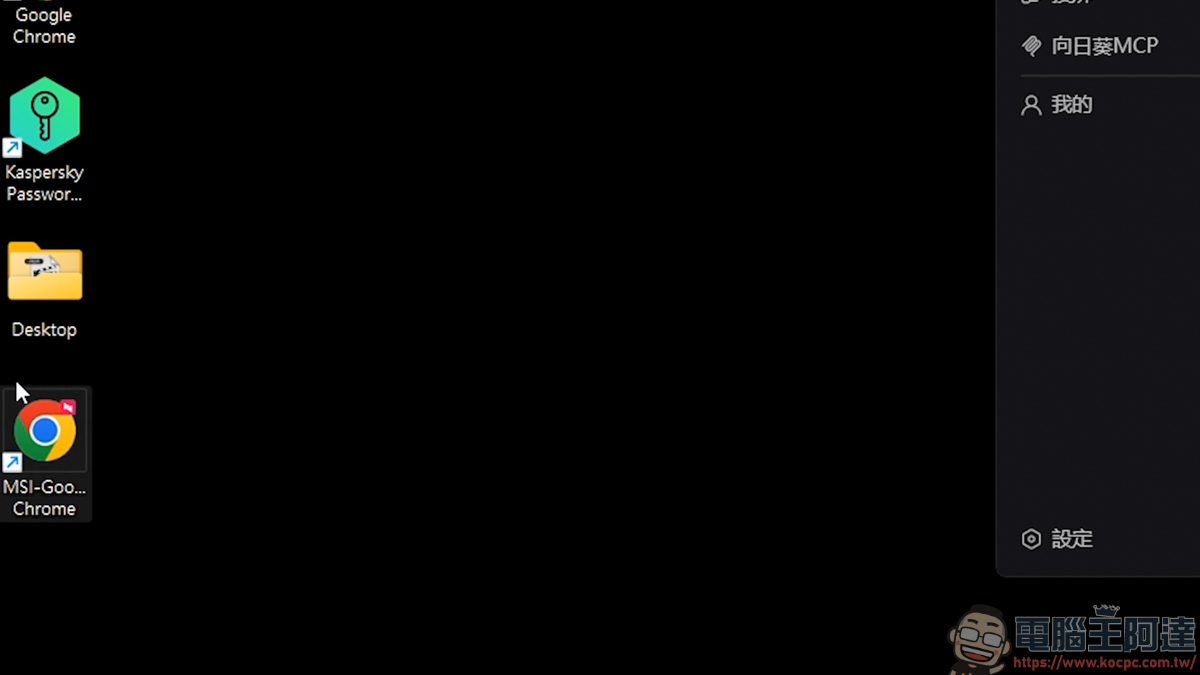
The app from the remote machine is then added to your desktop:
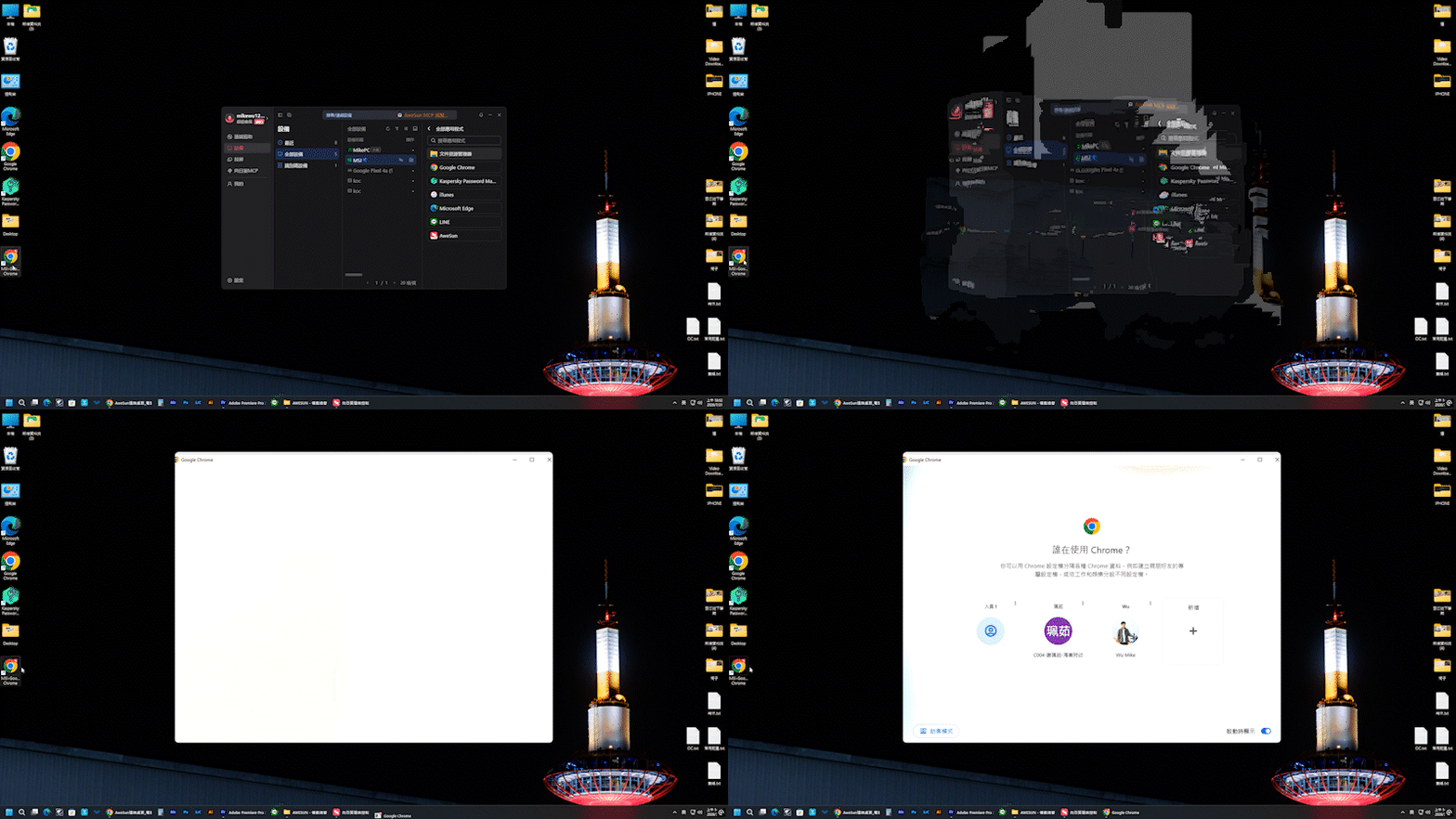
When you want to quickly remote into a specific program on that device, just open your desktop app and you can directly control that application remotely — not the whole desktop:
Remote Control From Your Phone, Effortlessly
AweSun Mobile Remote Control
The AweSun remote desktop software also supports remote control via the mobile app:
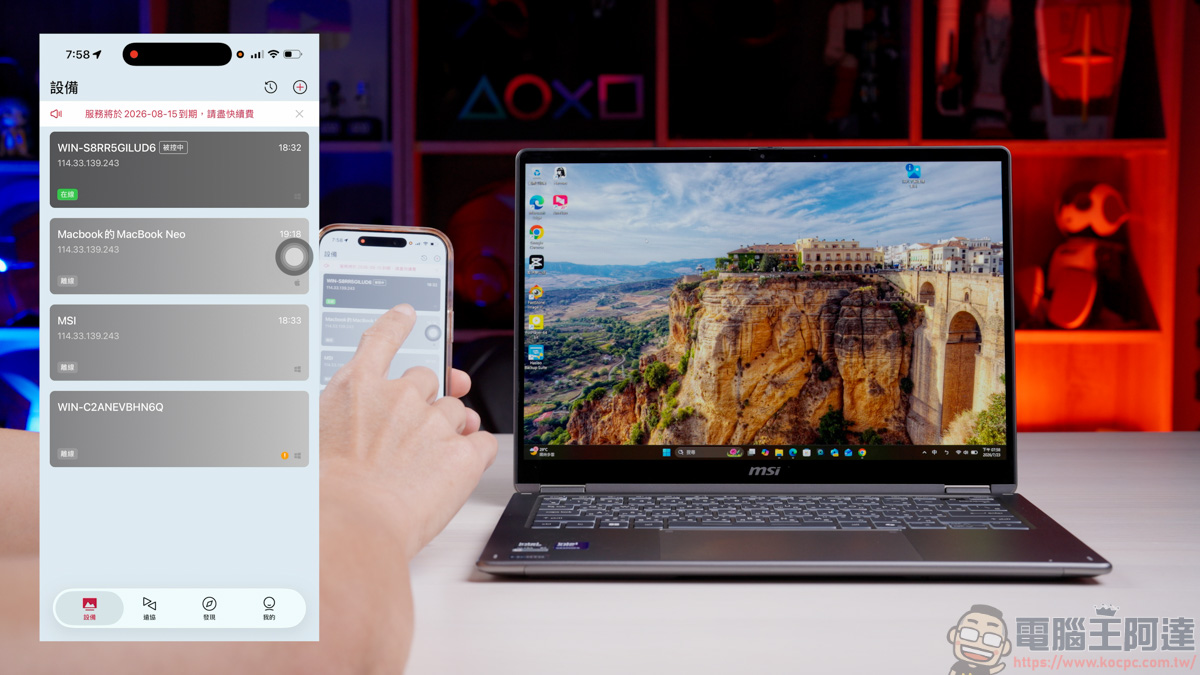
The controls work just like controlling a computer from another computer — it’s just that the phone screen is smaller, so operations aren’t quite as precise:
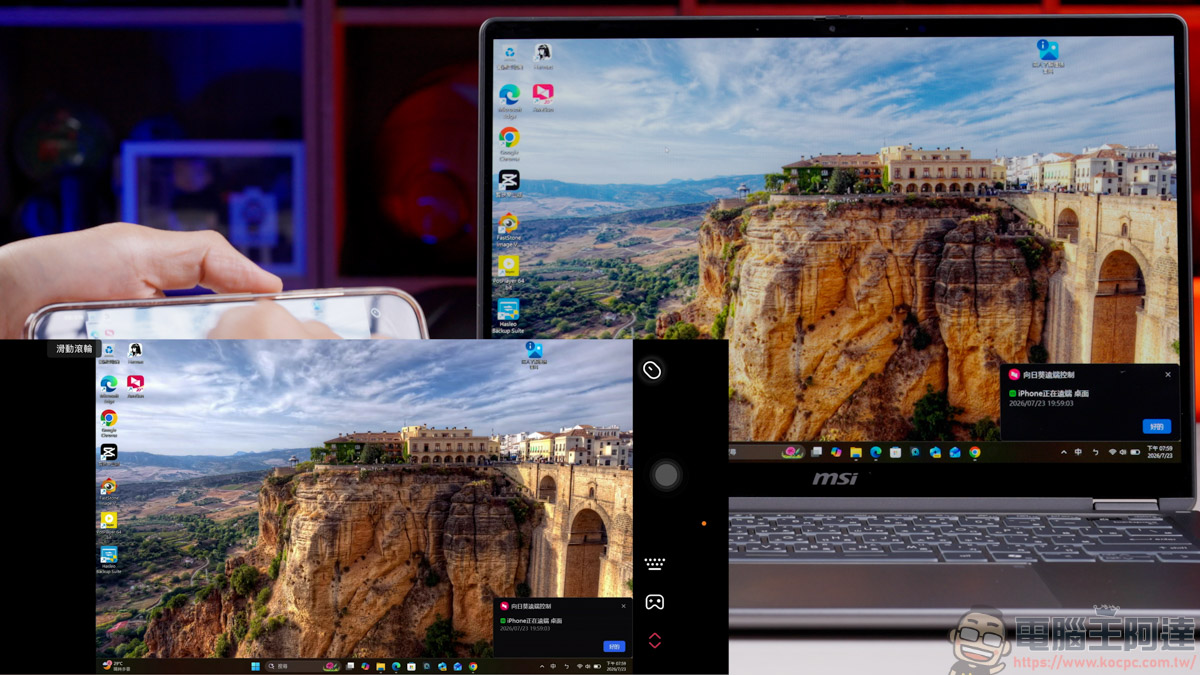
After connecting, the default cursor is controlled via touch, just like everyday phone interactions — launching apps or opening folders is easy to pick up:
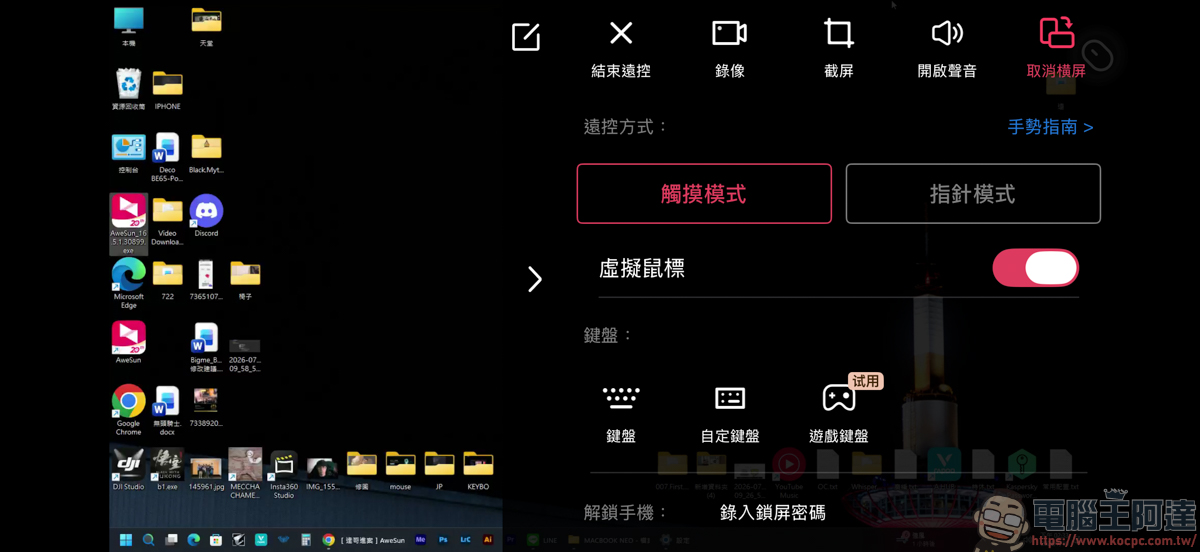
If you’re not used to that, you can switch to Pointer Mode in the settings at the bottom right, letting you control the mouse by dragging on the phone screen — many people find this more comfortable:
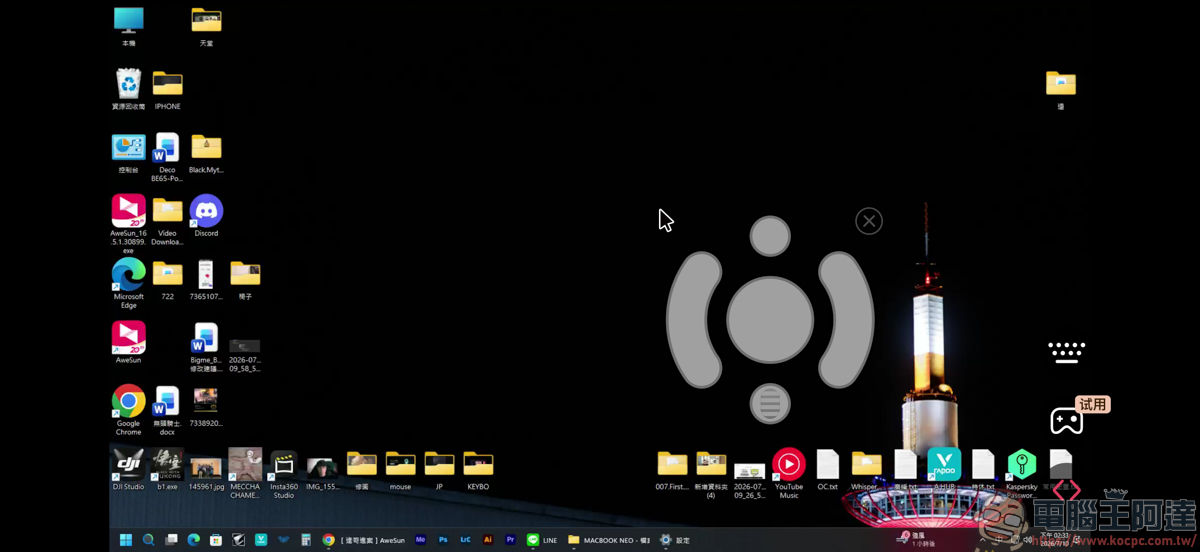
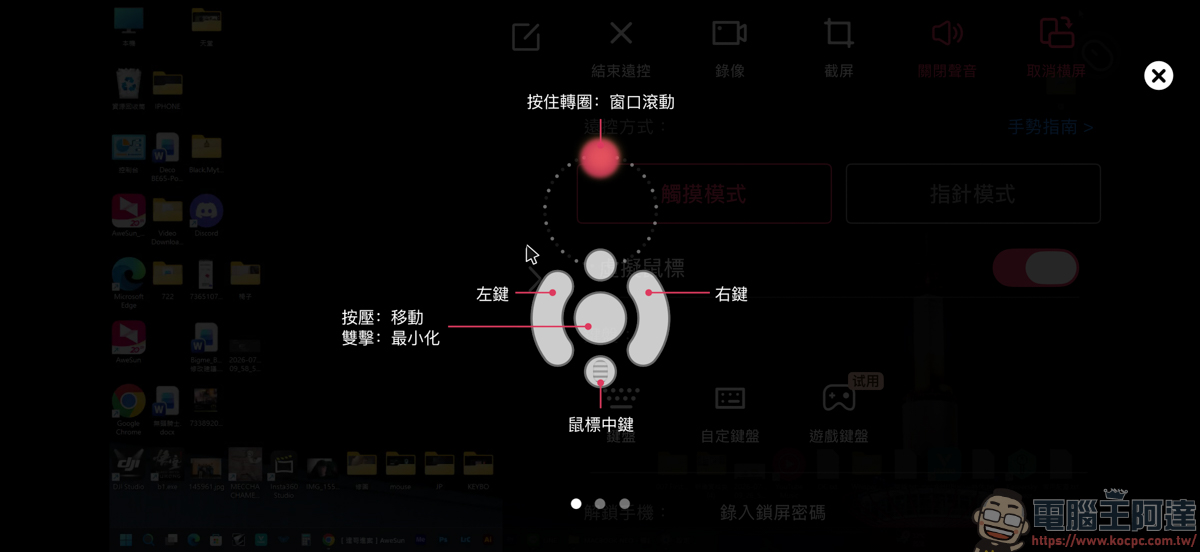
But you can still do plenty of things, like typing on your phone and sending the text to the computer:
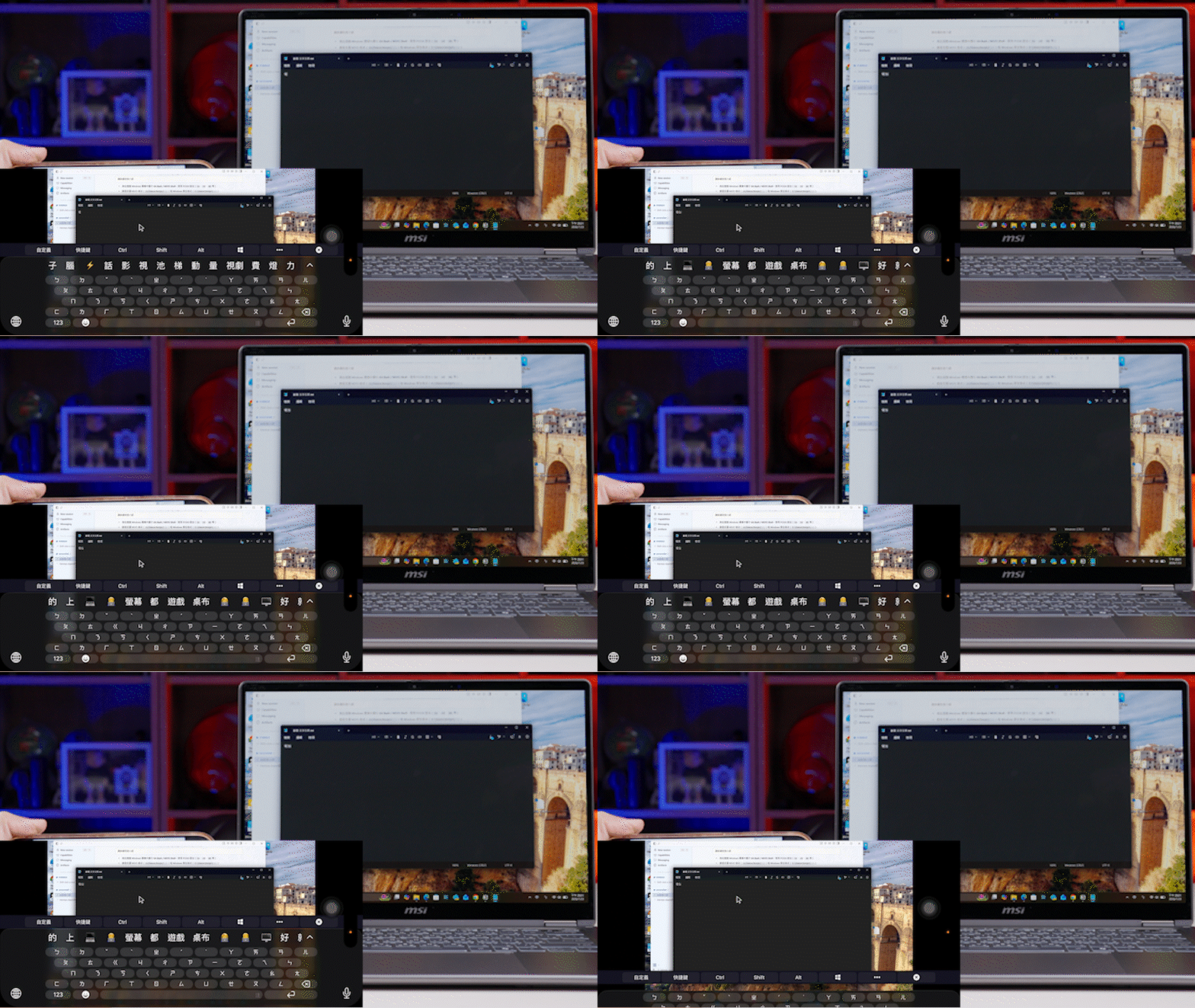
AweSun Custom Keyboard
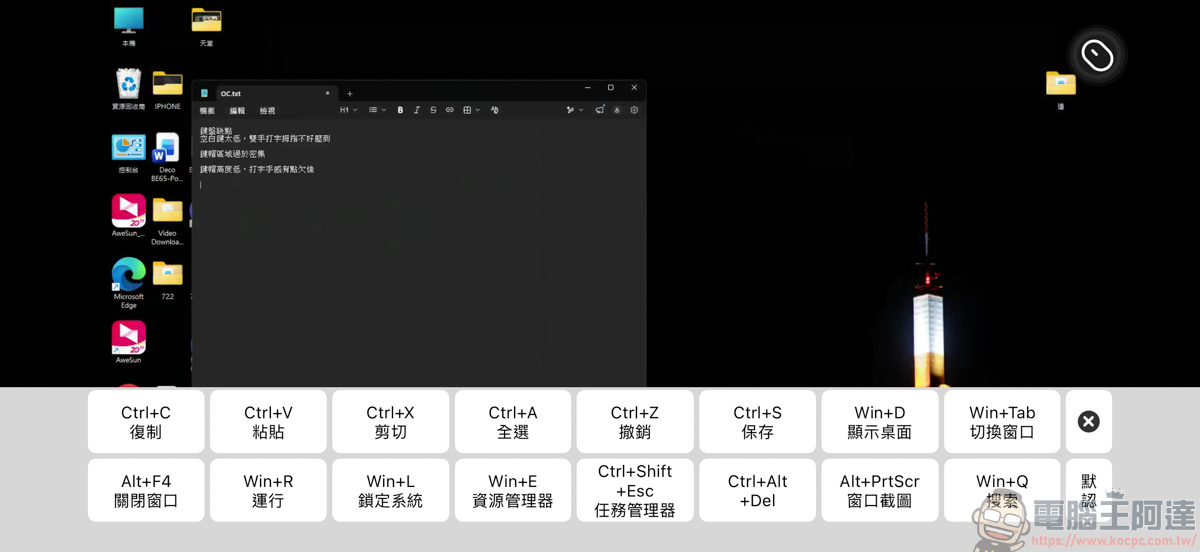
One handy thing about its keyboard design is that it comes with preset shortcuts for quick access — copy, paste, save, and other common shortcut functions can all be executed quickly here:
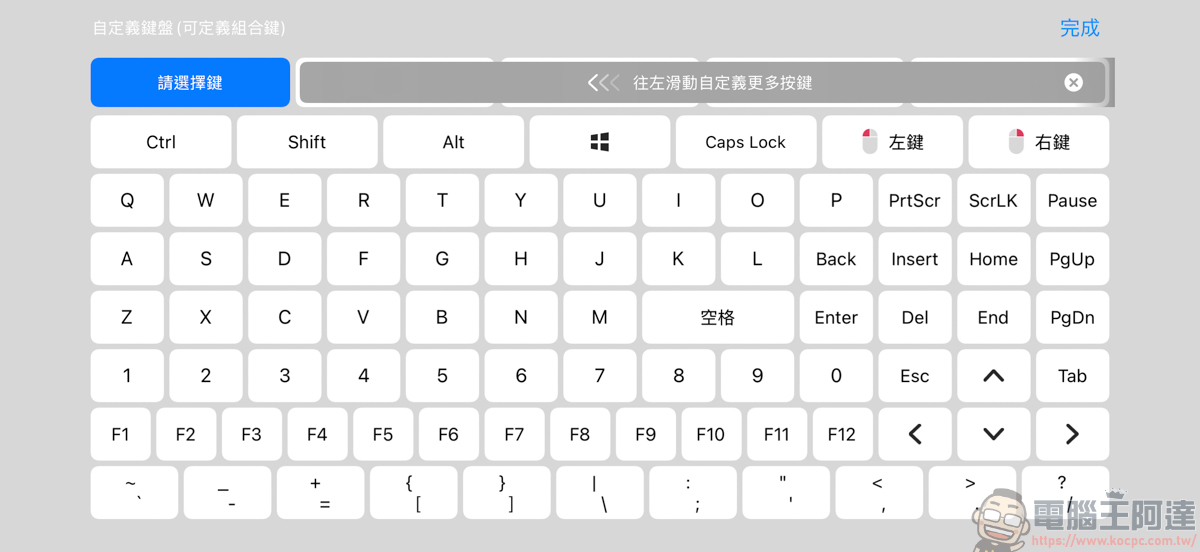
If none of the preset shortcuts fit your needs, you can also customize and edit your own shortcuts — I found this very user-friendly:
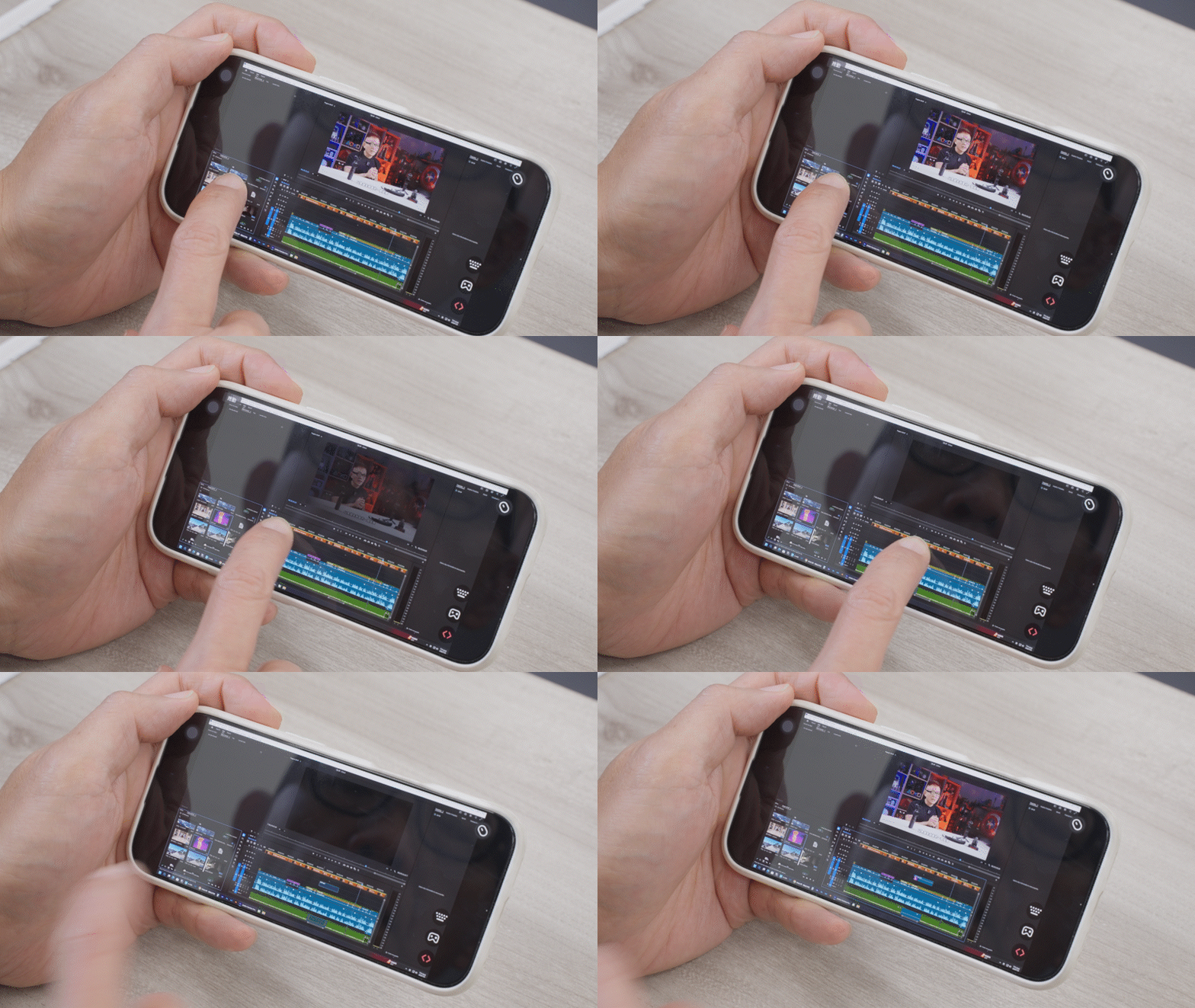
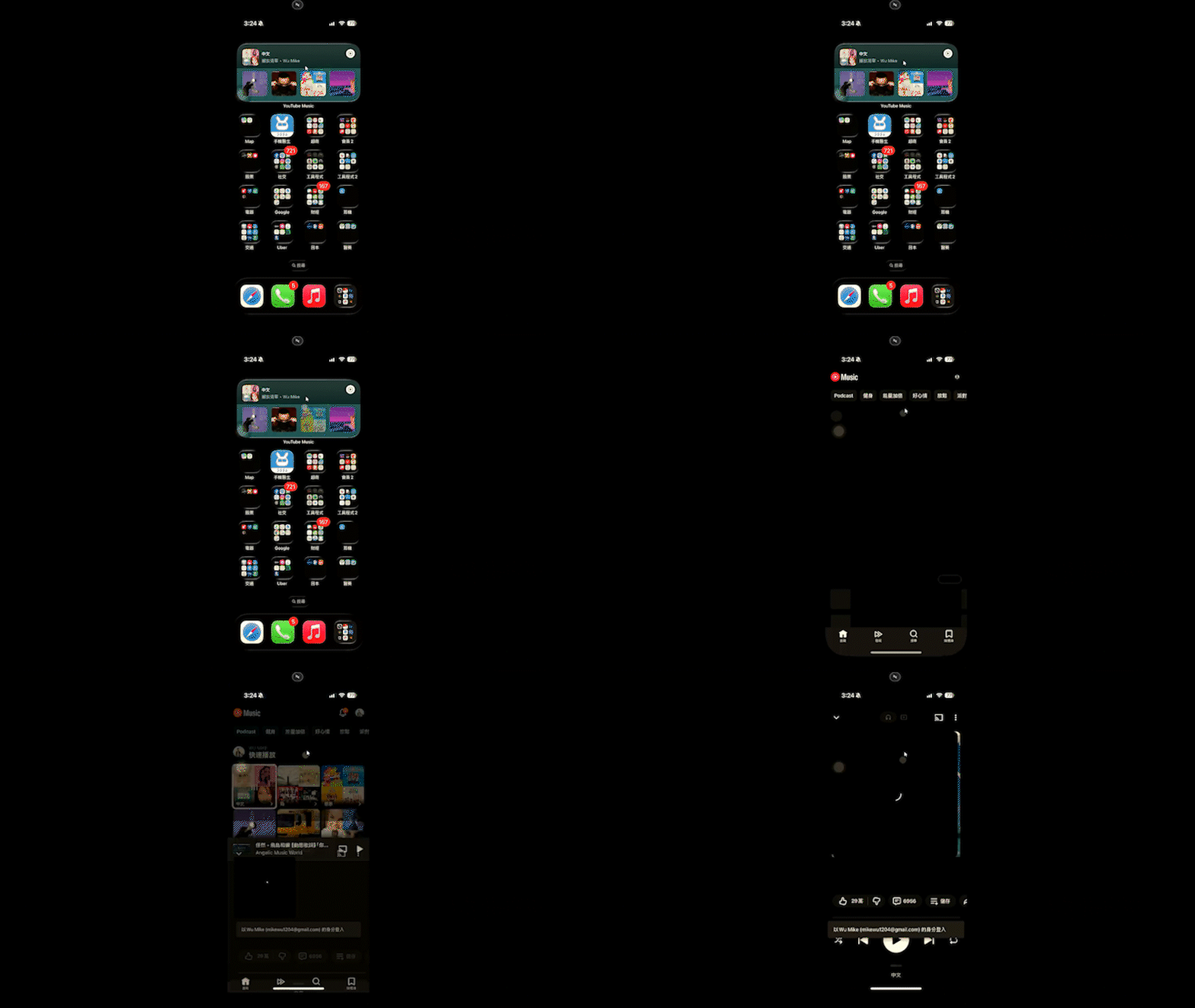
With mobile remote control and custom shortcut programming, you can even edit videos remotely this way:
AweSun Remote Gaming
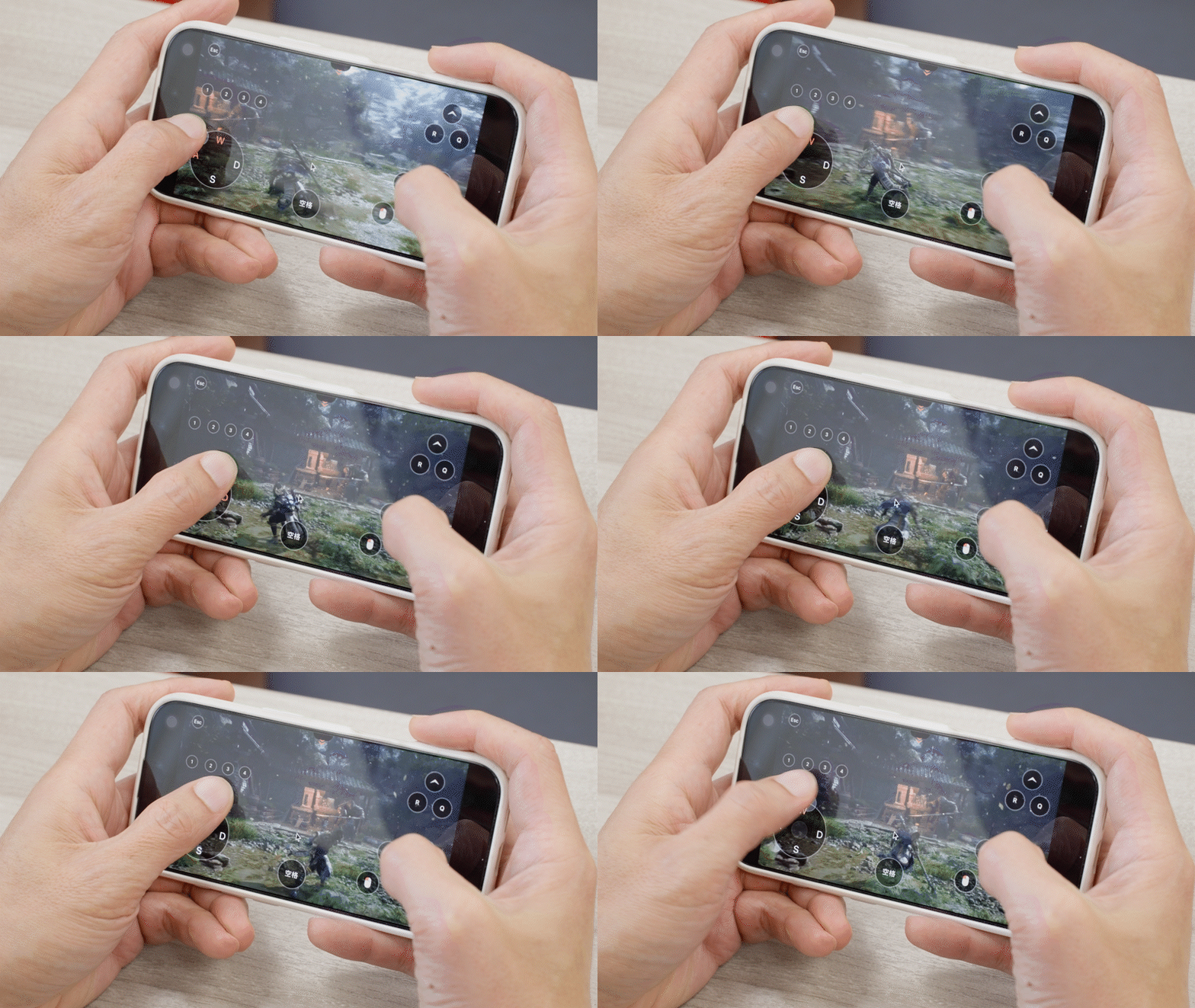
Now for the main event — playing games remotely from your phone. Before you start, you need to set up the on-screen button positions on your phone screen. Using Black Myth: Wukong as an example, I placed the buttons I need on the screen, and I can play the game using these virtual keys:
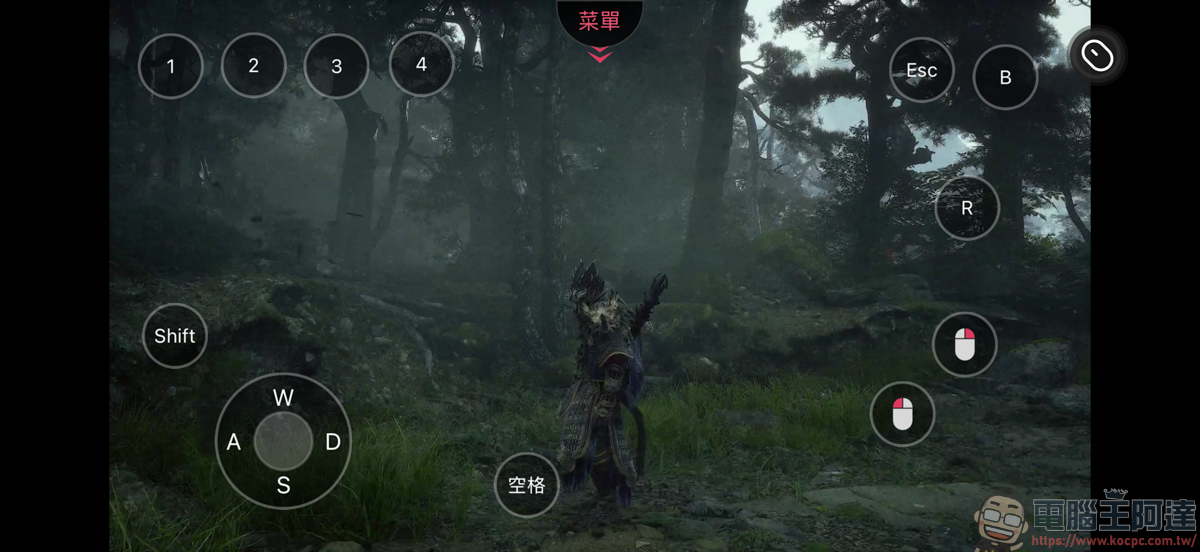
AweSun’s mobile app offers Game Mode with up to 60 FPS. If you don’t have the budget for GeForce NOW, using AweSun for remote gaming is a solid alternative:
Can Remote Software Be AI-Controlled? AweSun MCP Feature Introduction
AI is all the rage these days, and even remote control software like AweSun now offers AI integration. The AweSun MCP feature is currently free to try — if you’re into AI, I’d recommend giving it a shot (click here for the free trial link):
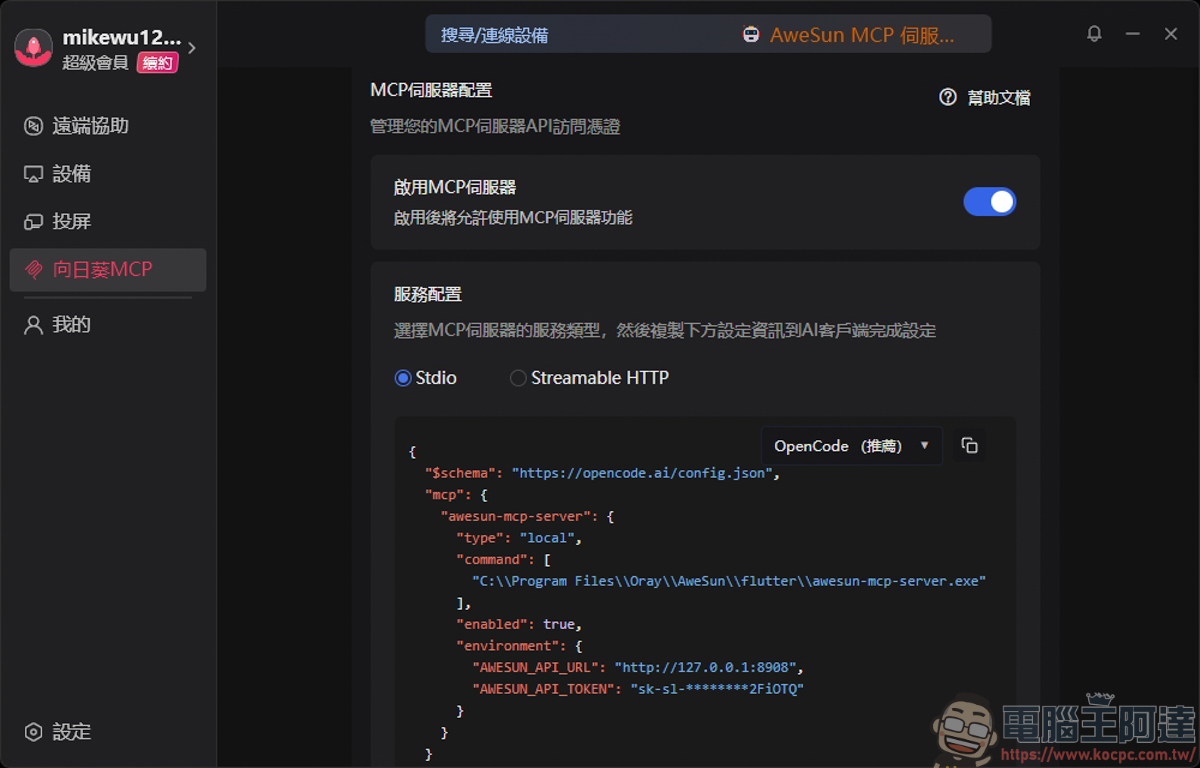
All you need to do is install AI coding tools like Claude Code, Cursor, Trae, OpenCode, and connect the AweSun MCP configuration to them. After that, you can quickly execute AweSun functions right from those AI coding tools. For example, you can ask the AI to remotely connect to a device you specify:
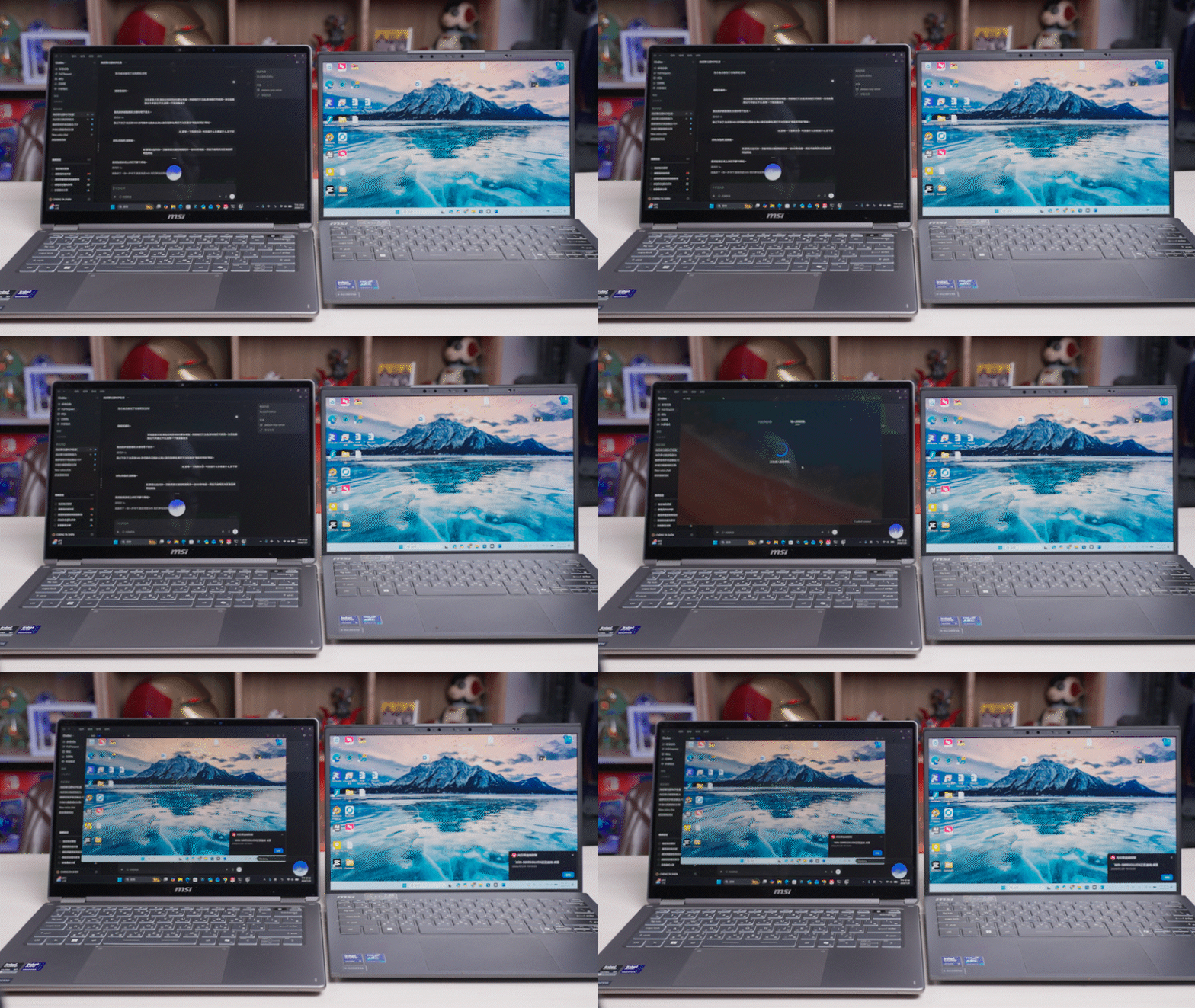
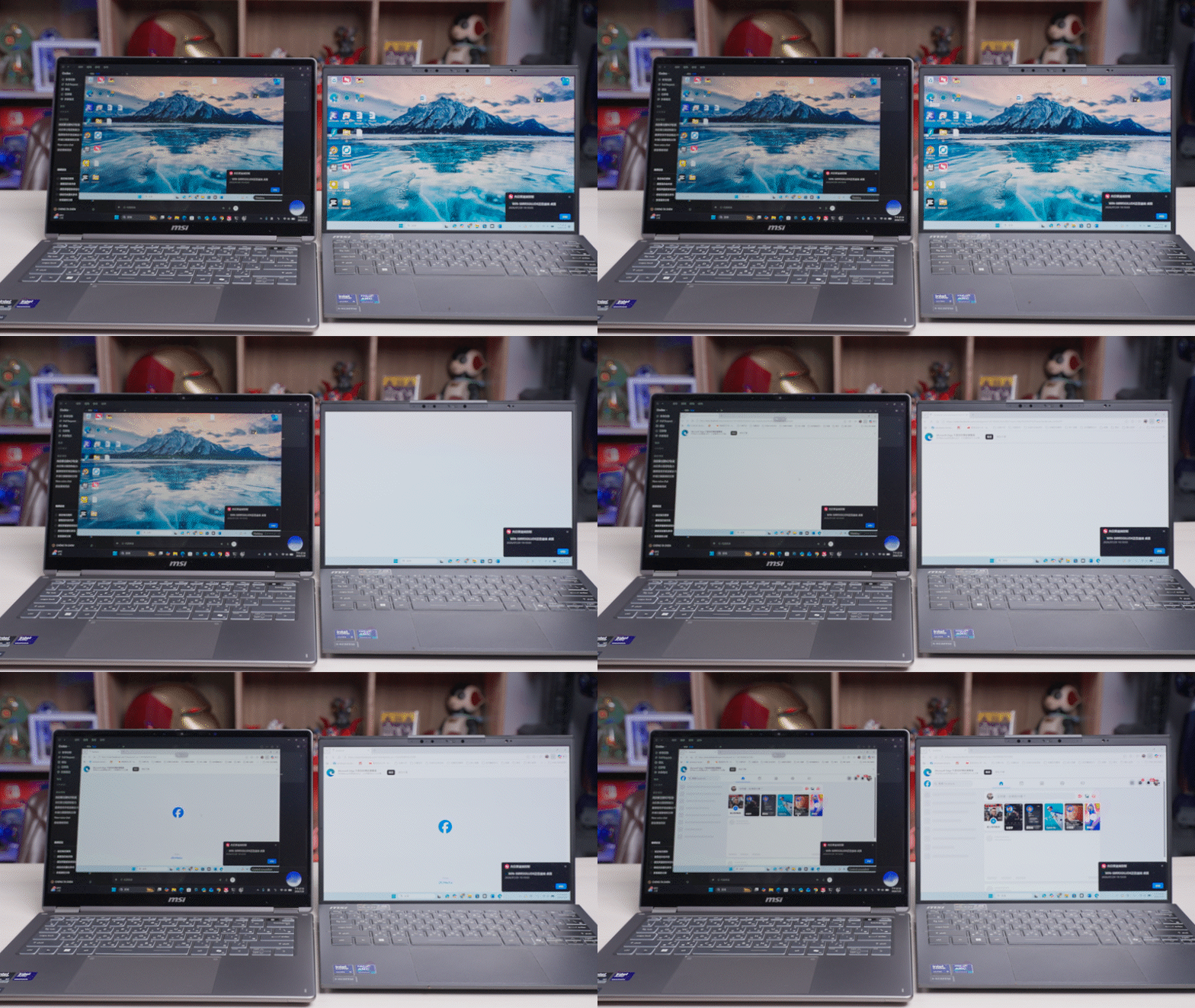
You can even ask the AI to remotely open a specific application on your behalf, like opening Facebook in the image below. So if you’re someone like Ada who needs to control multiple devices, you can use the AI assistant to remotely check what’s wrong with a device, or remotely execute tasks on a specific device:
AweSun Free Version Experience — Try It First
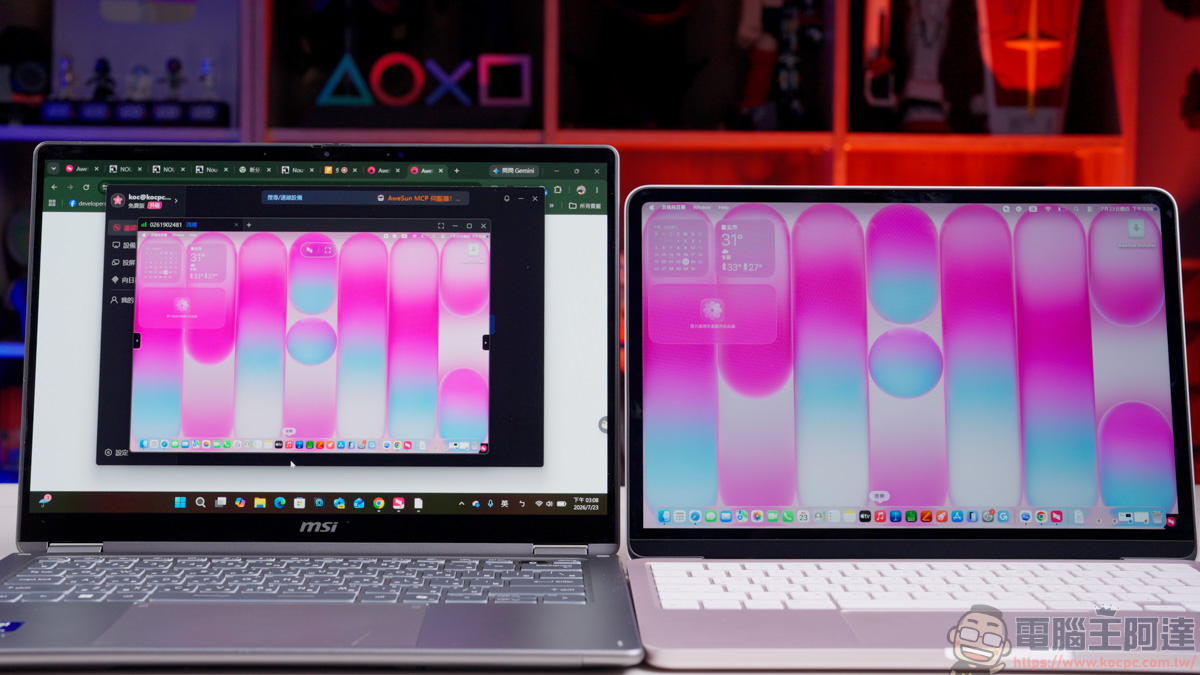
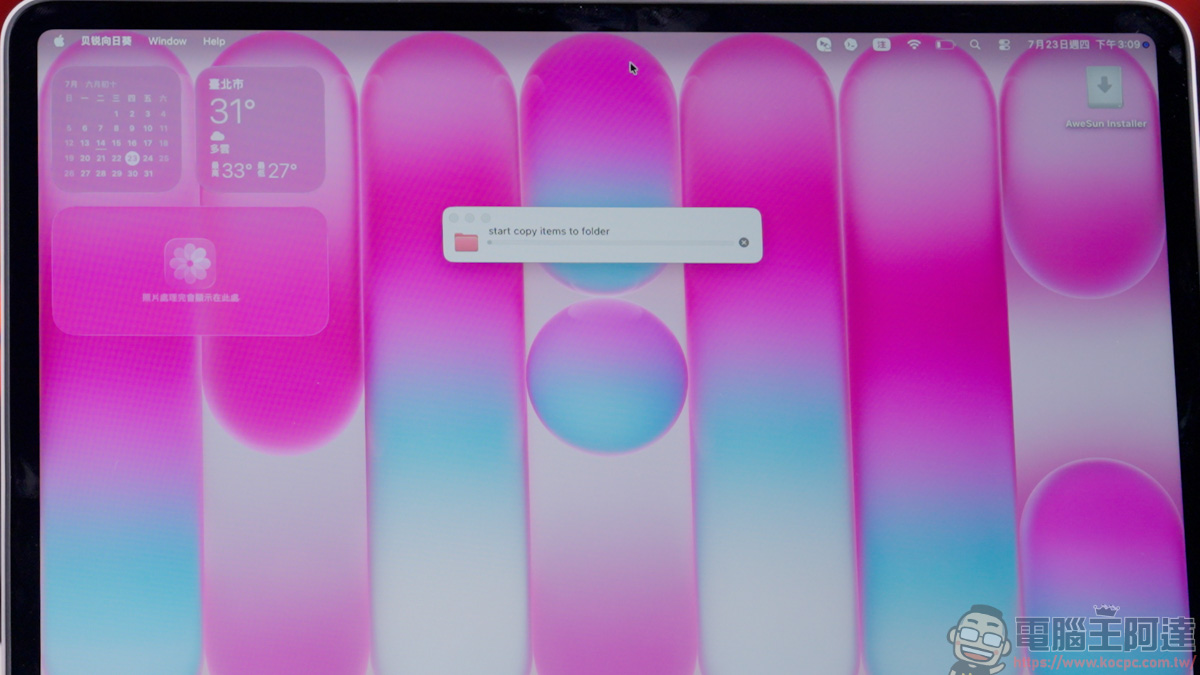
The free version is already quite practical. Unlike some software that claims to be free but keeps popping up “commercial use detected” warnings and then disconnects you automatically — which is a bit shady — AweSun doesn’t do that. Remote-controlling a Mac from a Windows laptop is a breeze:
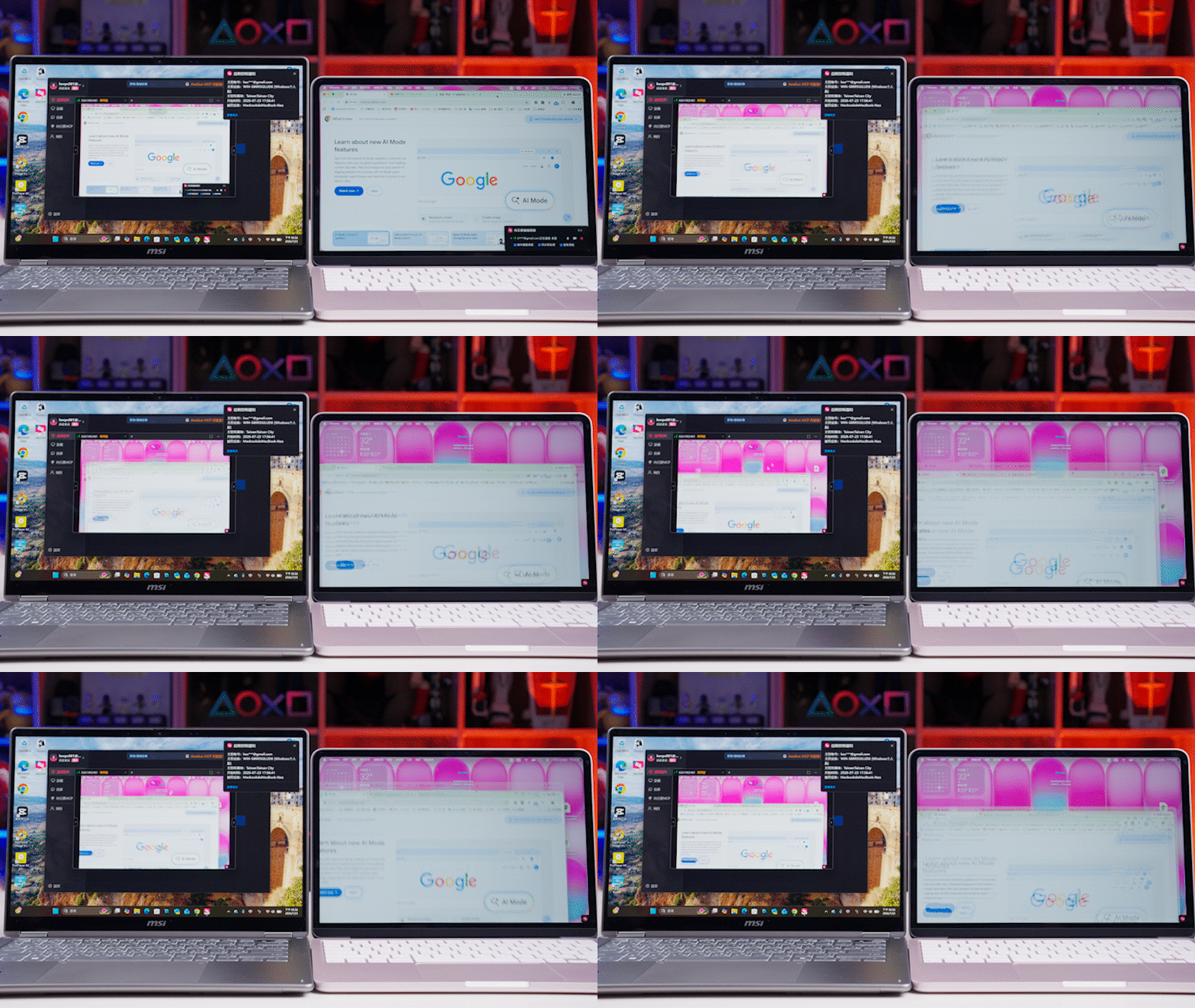
The free version can remote in, but the picture smoothness is a bit worse than the paid tiers:
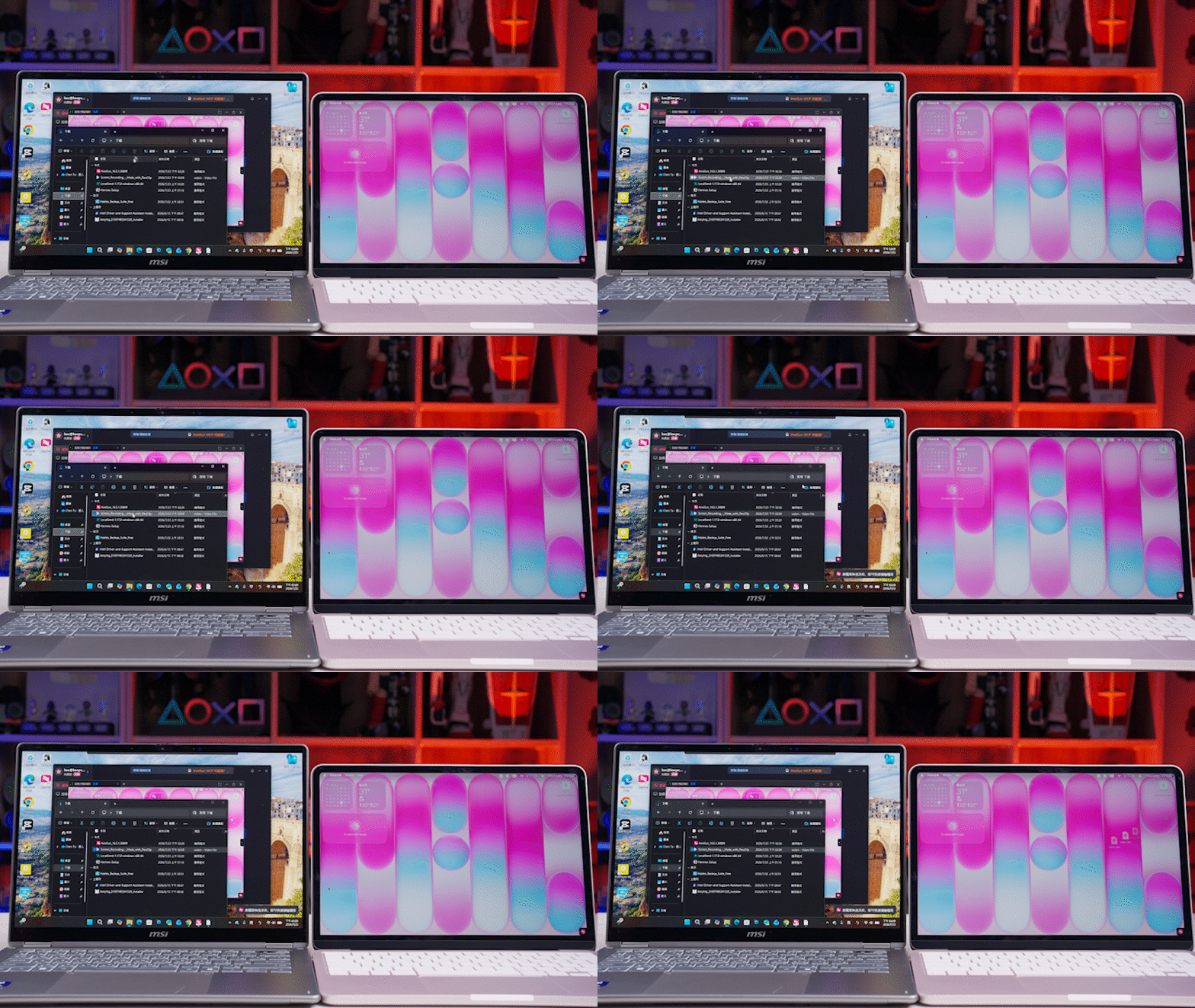
The free version also lets you transfer files and data — the speed is a bit slower, but it’s honestly quite generous of them:
An Essential Remote Device for Corporate IT: AweSun Q1 Smart KVM
Finally, let’s talk about the AweSun Q1 Smart KVM I mentioned at the start. Its main use case is IT maintenance in corporate server rooms and remote workstation management — something the average person rarely needs. In simple terms, the AweSun Q1 Smart KVM is a device that acts as a monitor plus keyboard and mouse, with plug-and-play, no-software-installation required. If your company has many devices, just connect one to each device that often needs maintenance. When something goes wrong, you can quickly check the device’s status from your phone, perfectly bypassing security software installation restrictions while achieving remote management:
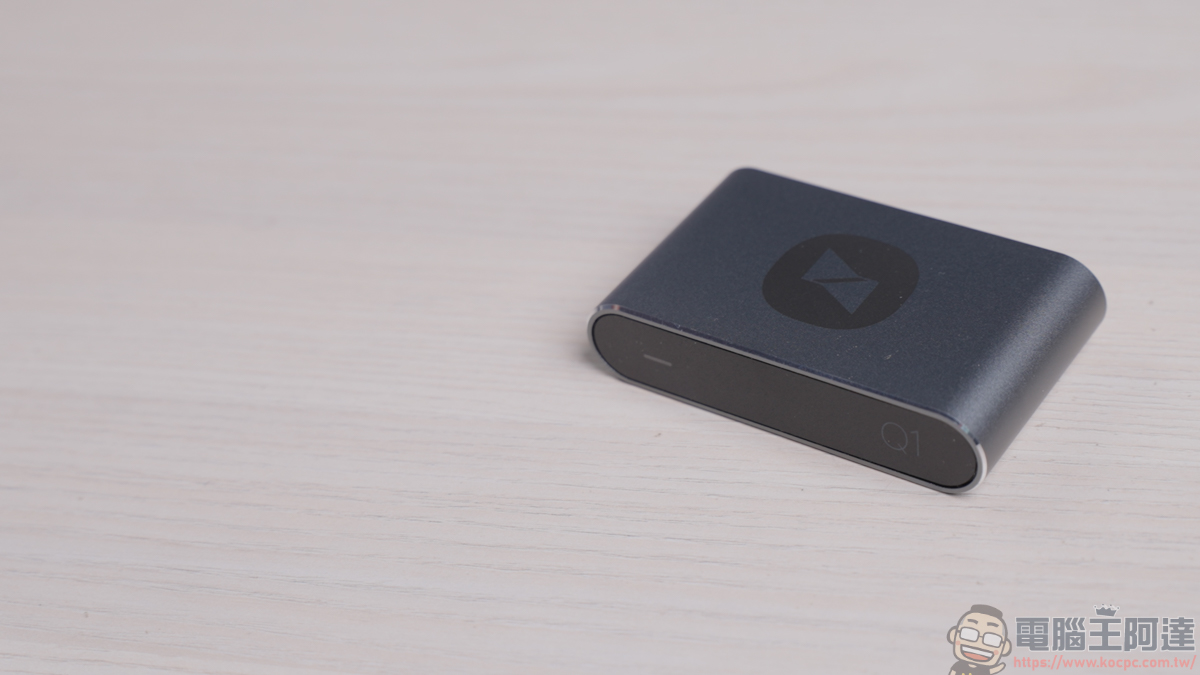
AweSun Q1 Smart KVM Purchase Link
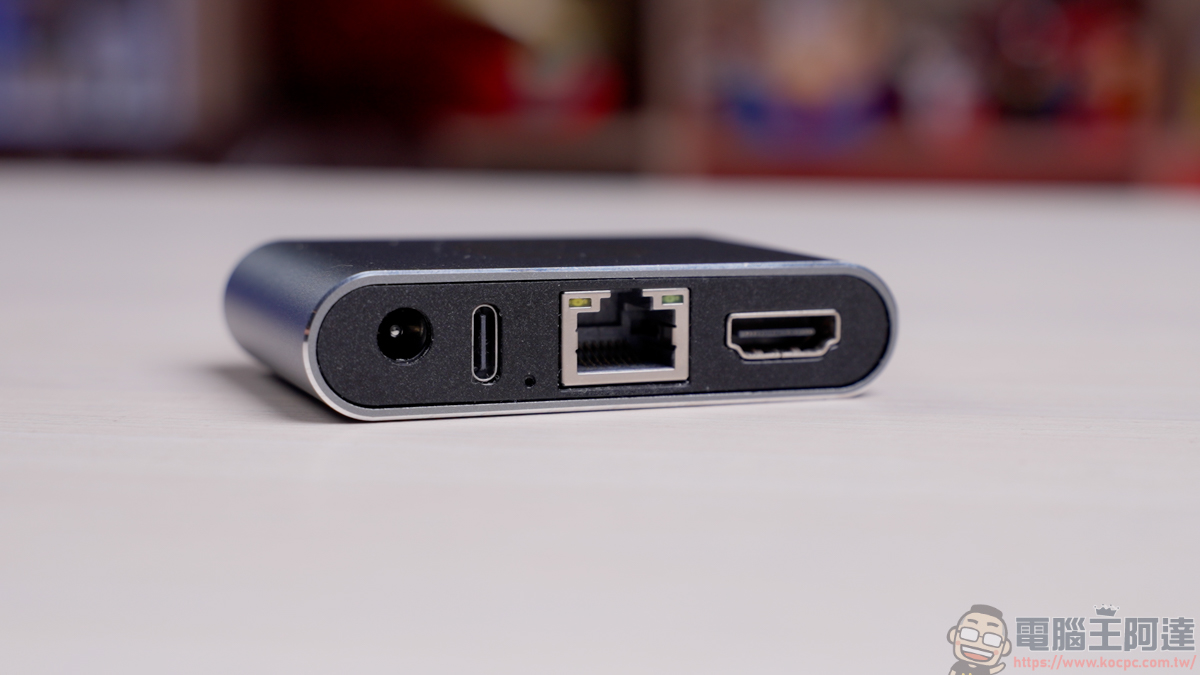
Using it is also very simple: connect the power, connect HDMI to the remote device, connect Type-C to the remote device, plug in an RJ45 network cable, then enable Wake-on-LAN on the computer (the computer must support Wake-on-LAN; BIOS settings vary by motherboard manufacturer, so it’s best to consult the manual):
Once everything is set up, even if the controlled machine doesn’t have AweSun remote software installed, you can still use the AweSun software or app to remotely power on a computer that’s turned off:
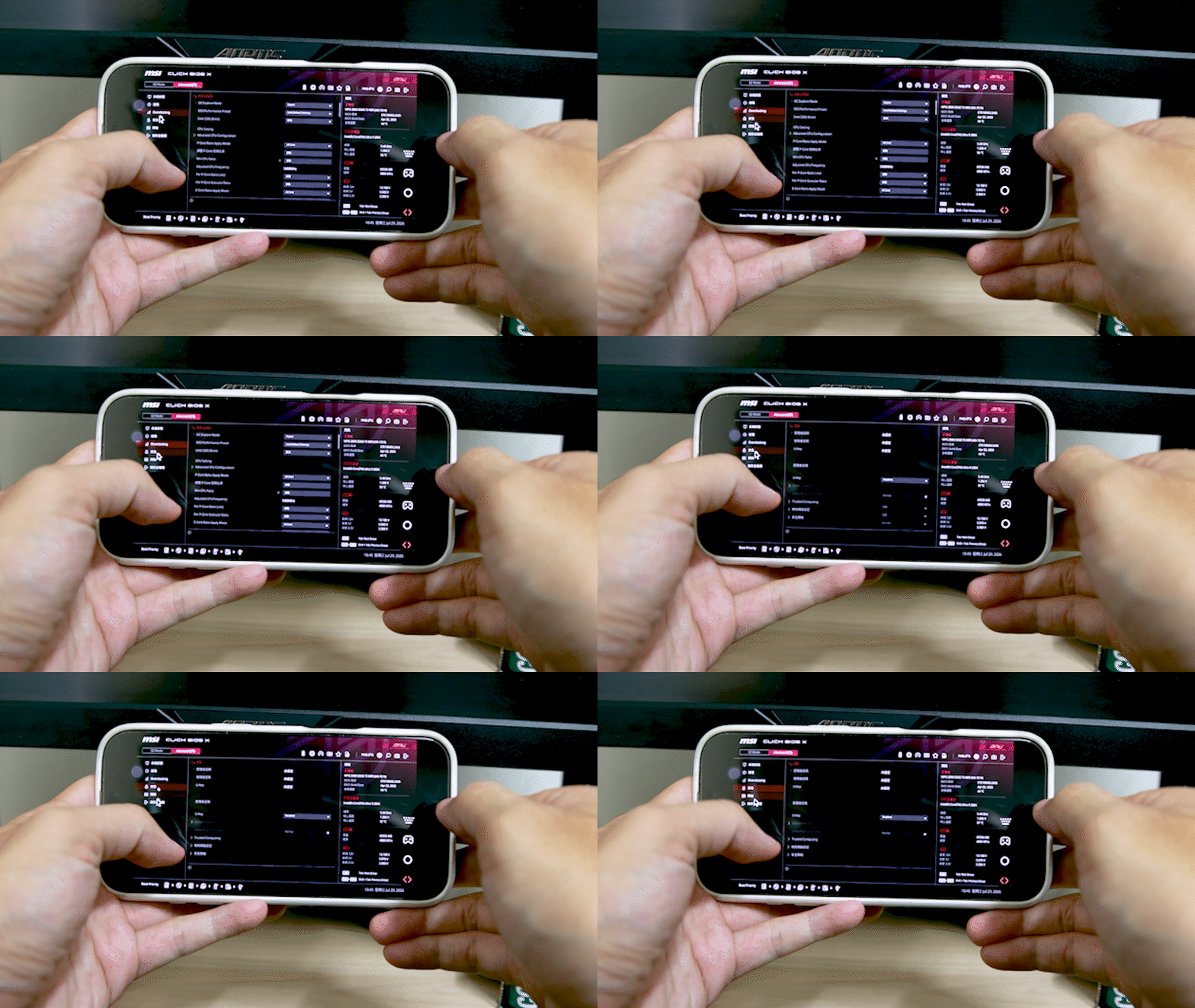
It can even enter the BIOS for you, letting you complete remote OS reinstalls or troubleshooting. For corporate IT staff, this is incredibly useful! Some companies strictly prohibit installing any external remote software due to confidentiality concerns. But once you connect a device like the AweSun Q1 Smart KVM, you can completely bypass software installation restrictions, balancing security with remote maintenance needs — and easily handle all kinds of system-level headaches, greatly improving IT flexibility and efficiency:
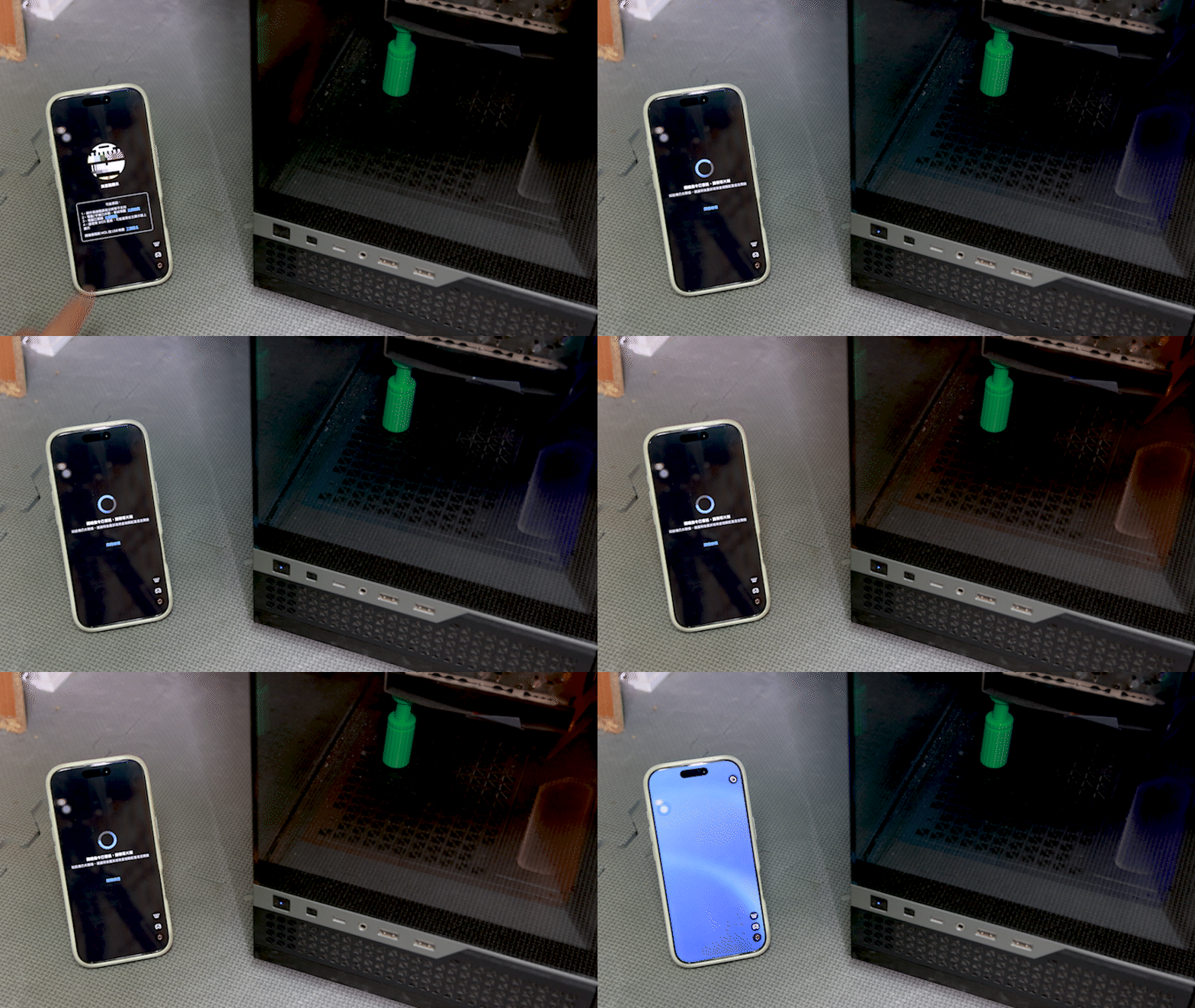
I mentioned earlier that it can also connect to an iPhone for remote operation, but you’ll need an additional HUB with HDMI and RJ45 ports. Connect all the cables to the HUB and the iPhone, and you can remotely control the iPhone through the AweSun software:
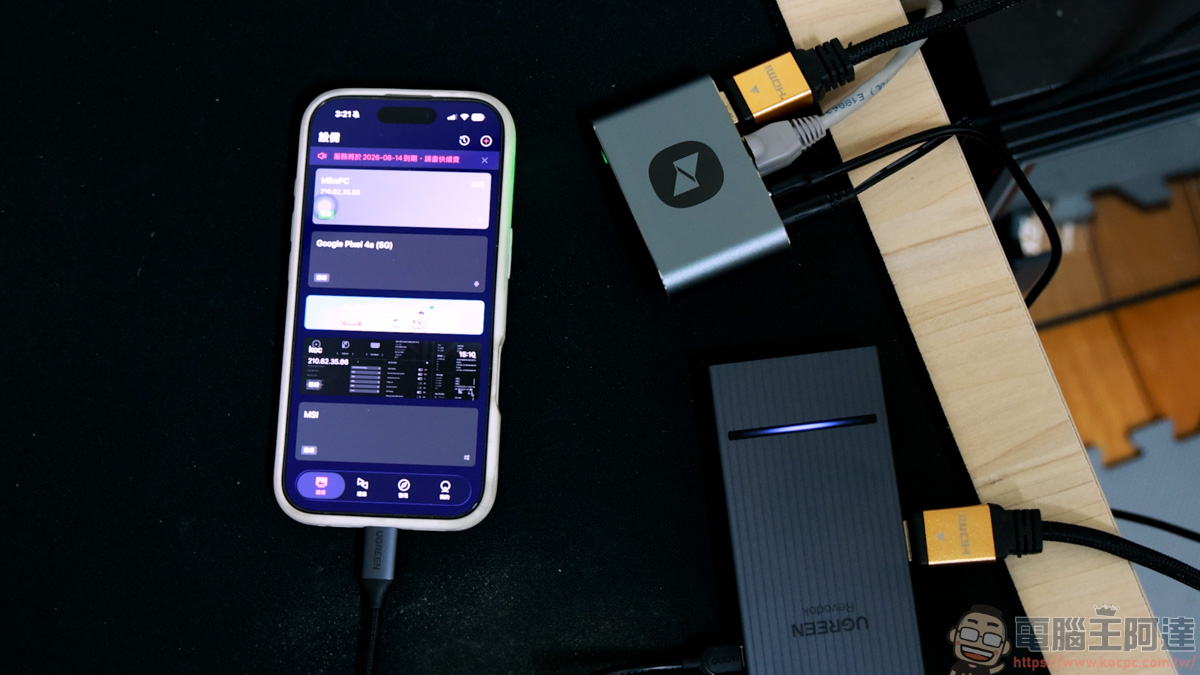
That said, I think this hardware is much more practical when connected to a computer. Some people might use it to control an iPhone this way, but for the average user, this use case is extremely rare:
Hands-On Impressions
This AweSun software-plus-hardware solution thoroughly addresses the pain points of remote work, like crashes and connection failures. On the software side, the free version of AweSun is already very practical, while the Super membership at under NT$200 per month adds powerful features like 144Hz low-latency, high-speed file transfer, and multiple virtual monitors. Its cross-platform support is also excellent — through the mobile app, you can smoothly handle office work, and with the dedicated virtual buttons, your phone instantly becomes a handheld gaming console. Advanced USB/IP mapping and the latest AI-assisted command features further expand the breadth and convenience of remote operations.
On the hardware side, the AweSun Q1 Smart KVM is a must-have remote control tool for IT staff. With its plug-and-play, no-software-installation design, it perfectly avoids strict corporate security restrictions. The most impressive part: even if the target computer faces a blue screen crash or needs BIOS reconfiguration and a full reinstall, it lets users perform hardware-level remote power-on and troubleshooting.
In conclusion, the AweSun integrated hardware-software solution — whether for everyday remote office work, cross-platform gaming and entertainment, or professional server-room hardware maintenance — is an extremely cost-effective, highly recommended all-around remote control solution: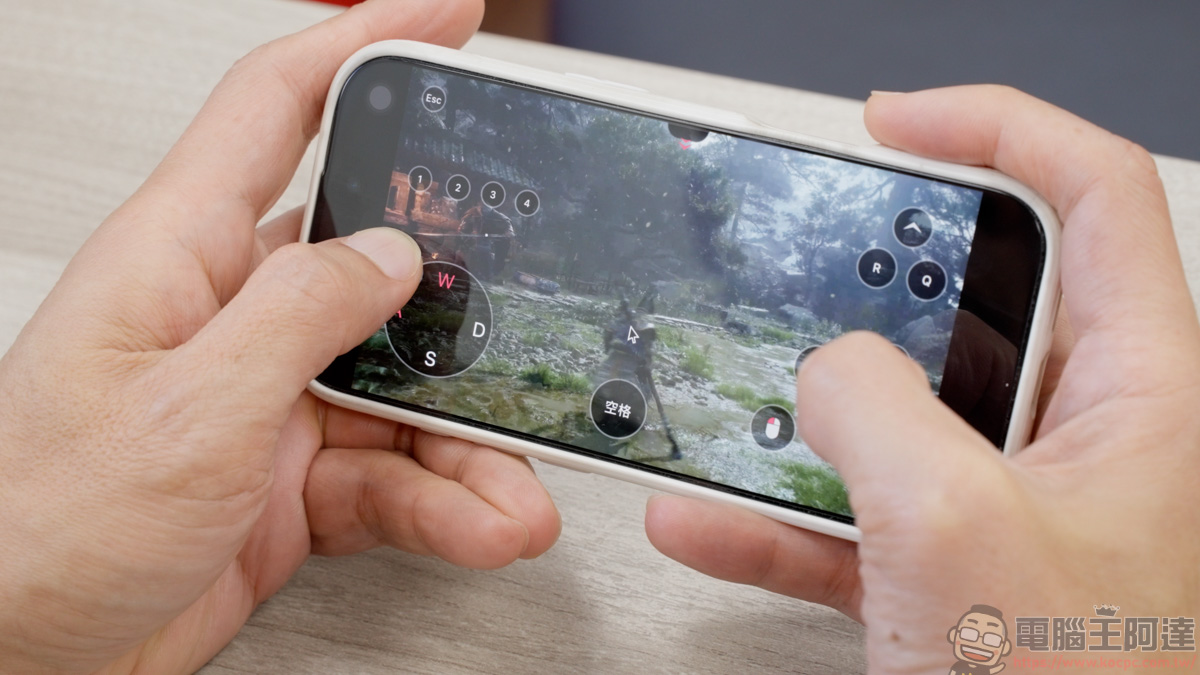
Exclusive 20% off promo code for AweSun readers: KOCPC
Click here to download AweSun for free
Source: KOCPC Chinese