


Everyone has more or less important data on their Mac computers. Although macOS has a built-in “File Vault” function, there is no way to specify a folder, so it is not very convenient to use. Recently, I found a very useful Folder Lock App on the App Store. It has a simple interface and is easy to use. It can also create multiple encrypted folders and also provides a recovery key function to avoid accidentally forgetting the unlock password. It is worth trying for those who need it.
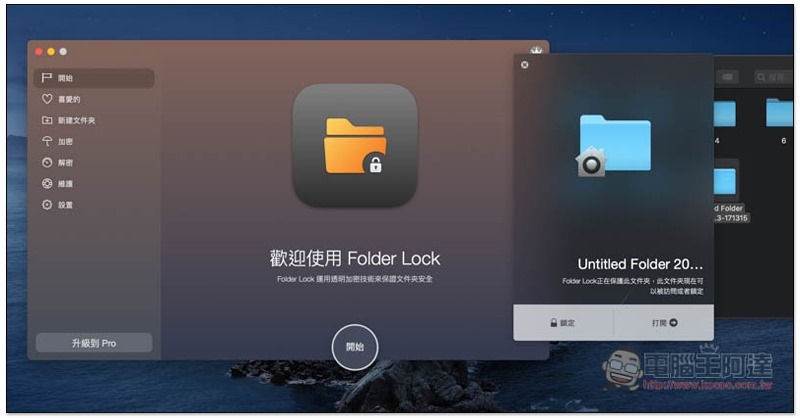
Folder Lock Create Mac Encrypted Folder App Introduction
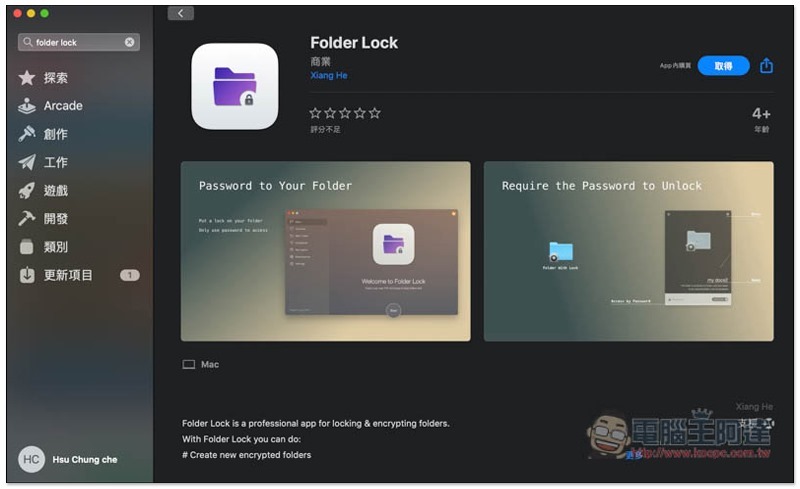
Click me to go to the App Store installation page, click “Get” on the right to install:
After installation, there will be a brief introduction, click “Start” to continue:
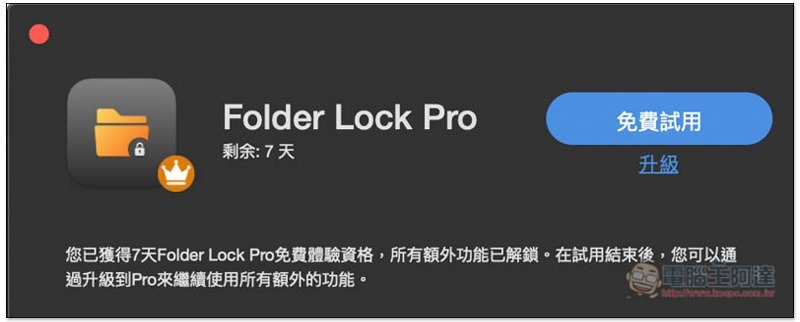
However, this app is not completely free. It provides a 7-day free trial at the beginning, during which all functions can be used. After that, there will be some restrictions:
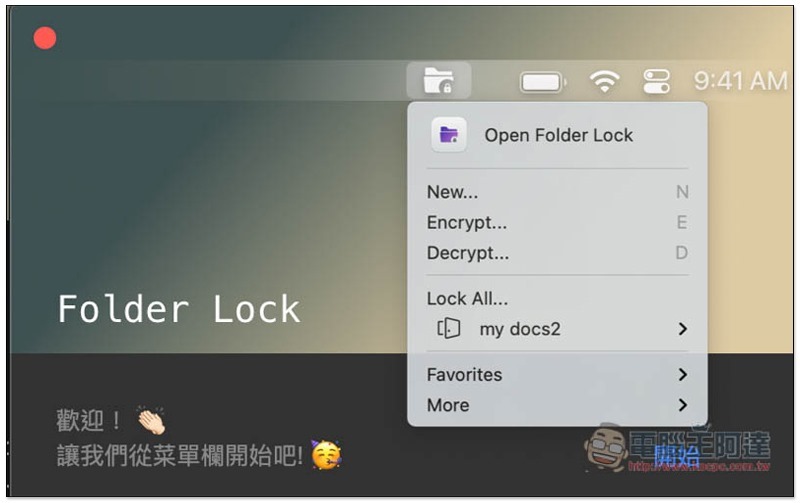
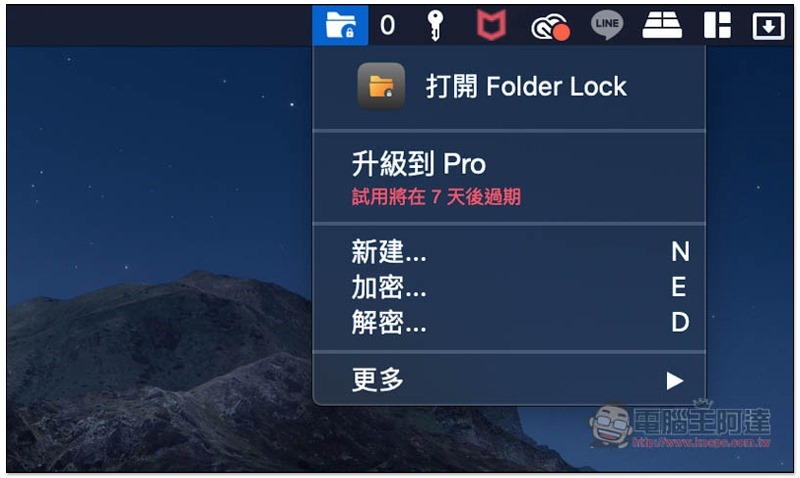
Then you will see a small icon of this App in the Menu Bar in the upper right corner. Click to open. You can create an encrypted folder directly from this menu, or click “Open Folder Lock” to enable the tool interface:
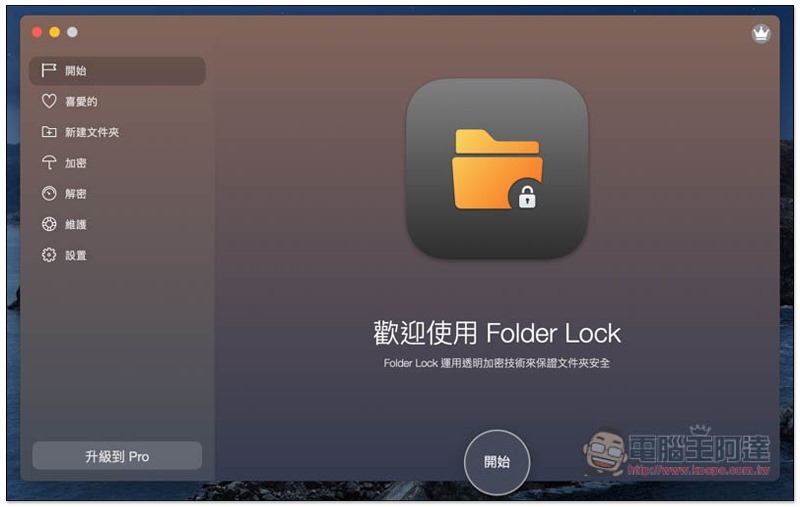
As shown in the picture below, the tool interface will be easier to use for beginners or people who are not familiar with computers. After opening, click “Start” in the lower right corner to create the first encrypted folder:
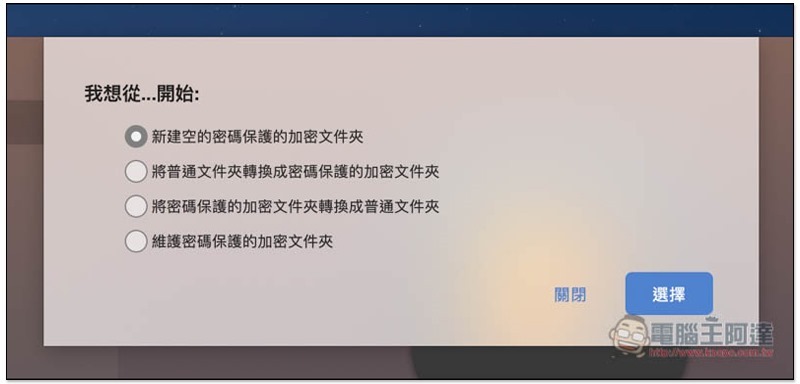
There are four options, “Create a new encrypted folder”, “Convert a normal folder to encrypted protection”, “Convert an existing password-protected folder to a normal one” (which means decryption), and “Maintain an encrypted folder” (only used if you forget or change the password, etc.). It depends on whether you want to create a new one or convert a folder that already stores a large number of important files to encryption:
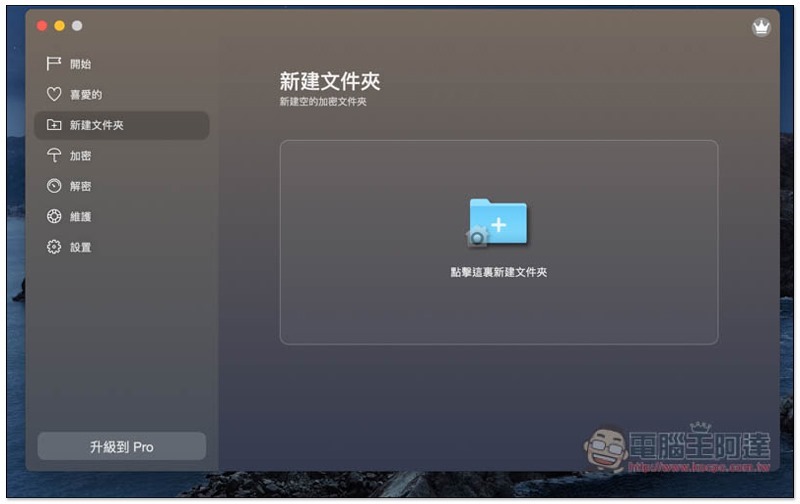
I’ll take New as an example and click New Folder:
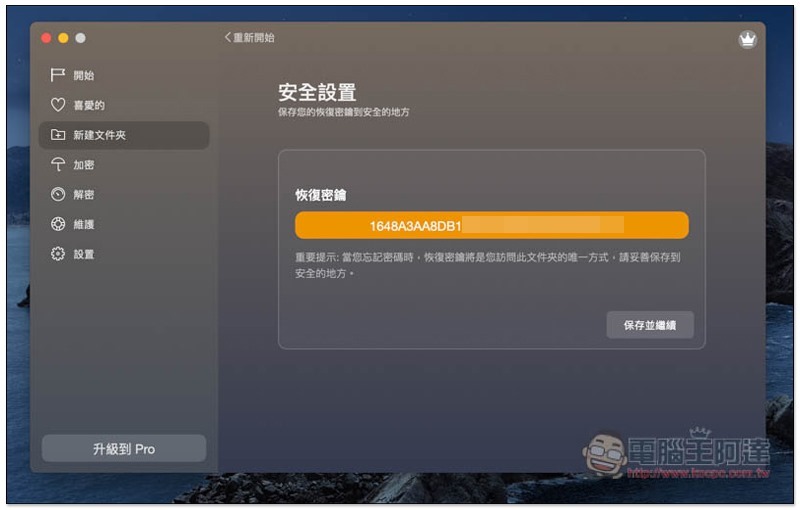
You will be given a recovery key first. When you forget your password, you can use this recovery key to access the folder. Click Save and Continue:
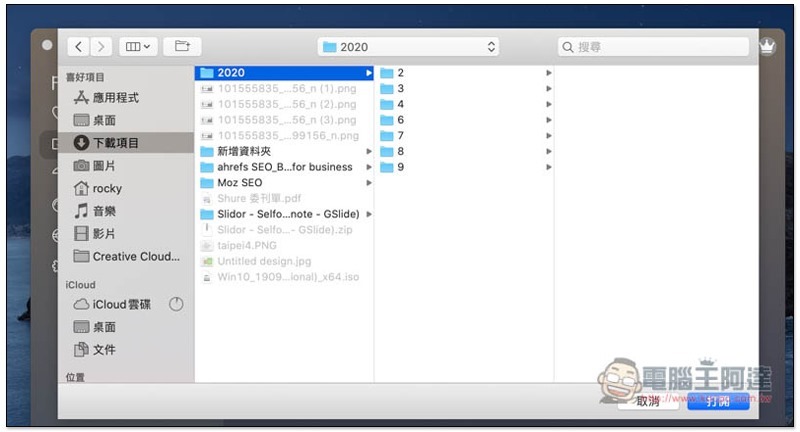
Choose where you want to save it, and remember to put it in a safe place:
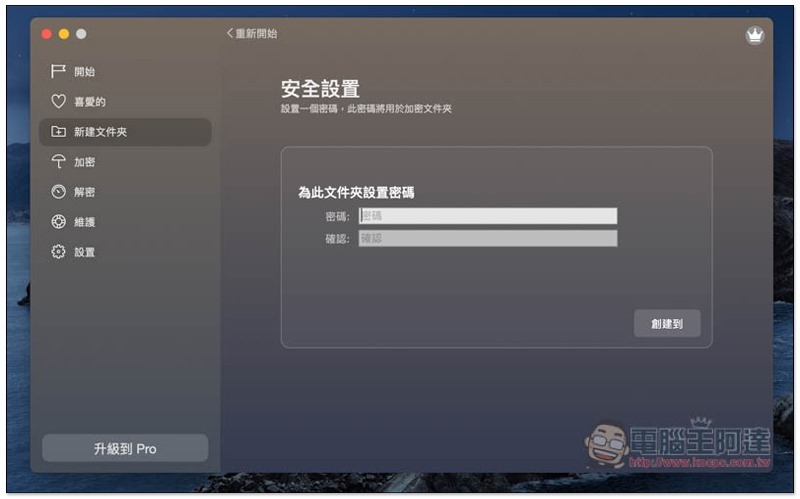
Then you can set the password for the folder:
This completes the creation of the encrypted folder:
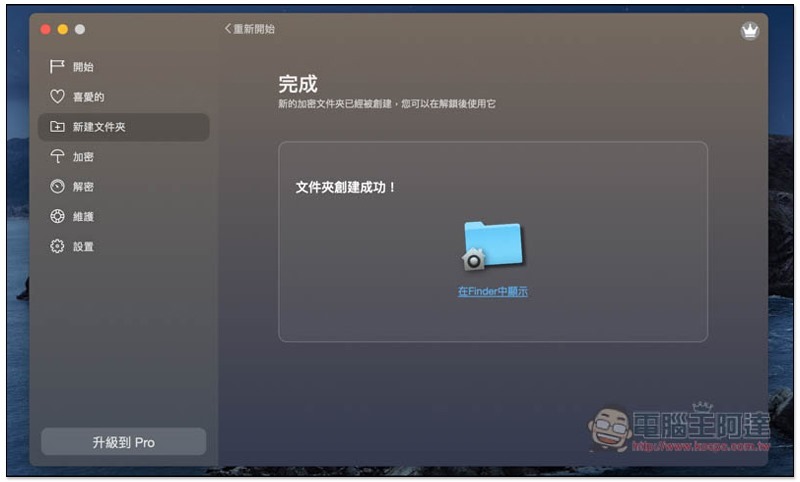
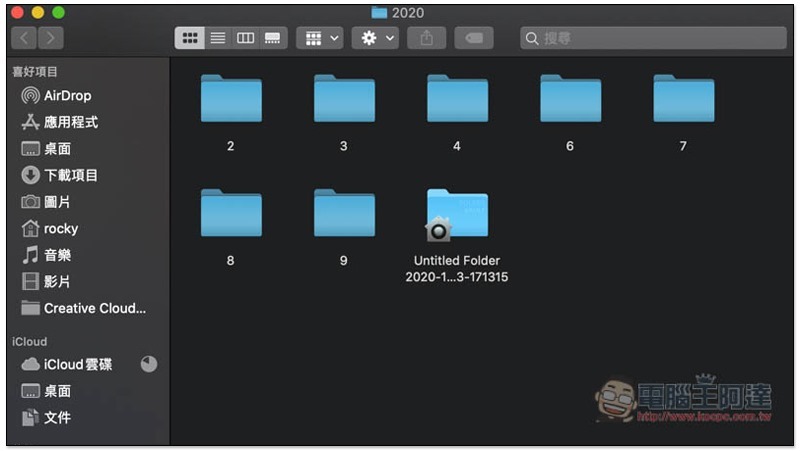
Go to the location you just specified to create, and you will see a new folder with a lock:
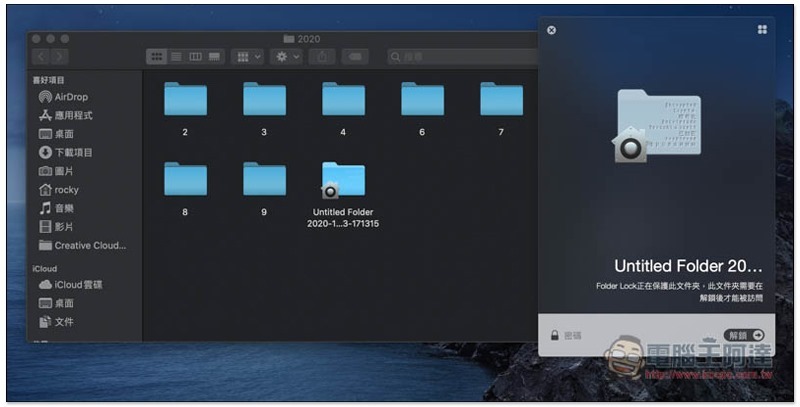
After clicking, you need to decrypt to access the files inside:
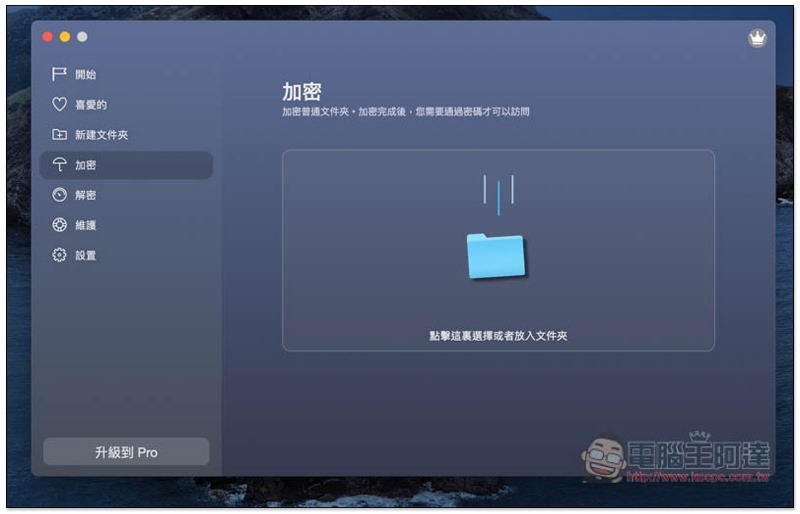
If you want to directly convert the created folder to encryption, you can also go to the “Encryption” function on the left and drop the folder directly into the window:
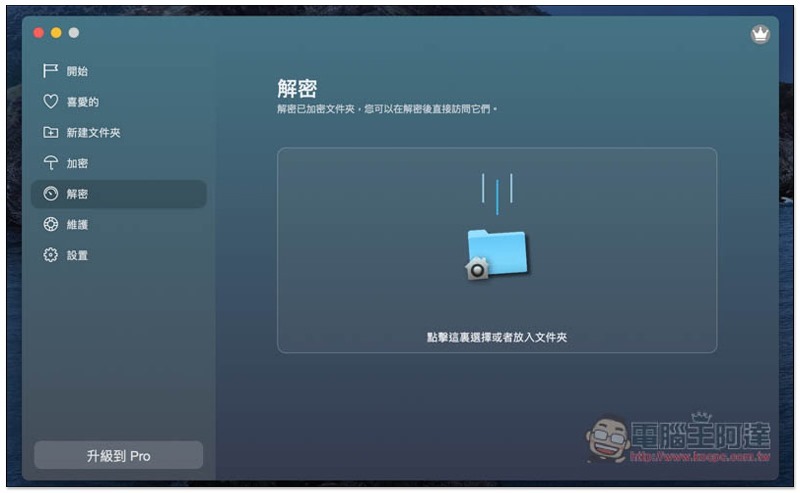
I don’t think it’s useful to decrypt it. After all, you can just click the folder twice:
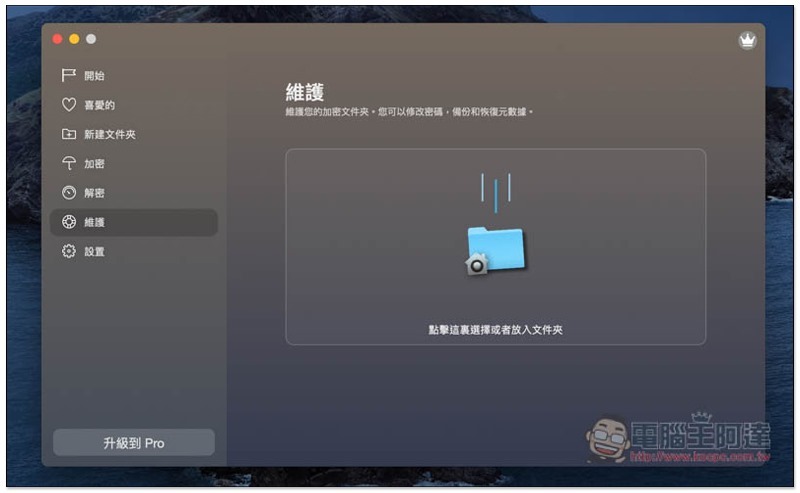
When you want to change passwords, back up and restore original data, you can use the maintenance function:
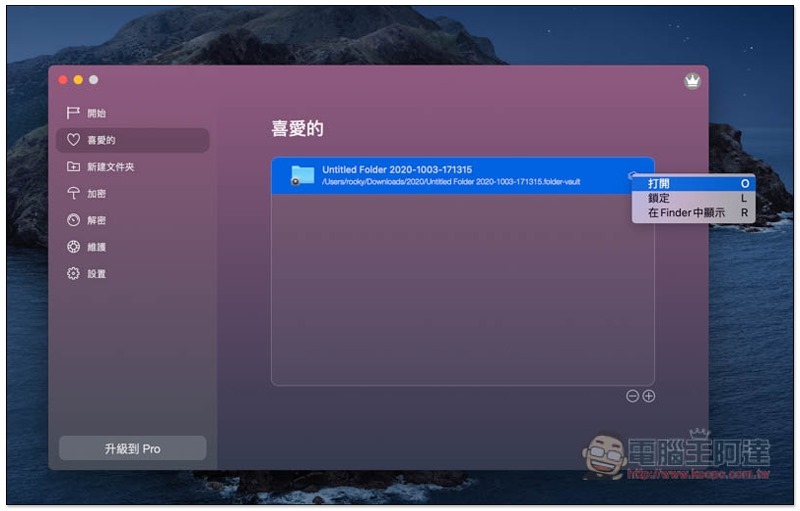
If you have created multiple encrypted folders, I also recommend adding them to “Favorites” so that they can be quickly opened directly through this menu in the future:
Supplementary information
- App name: Folder Lock
- Nature: free, paid
- App Store installation page:Click here to go
Source: KOCPC Chinese