


Many people often use the verbatim transcription function in their lives, whether at work or in school. If you don’t have a useful verbatim transcription app for your iPhone, and you want more practical AI functions, you can’t miss “Transcribe AI”. It supports multiple languages and can not only convert recordings into verbatim transcripts, but also provides AI summary, AI highlights, and AI translation functions.
Transcribe AI is called Audio to Text Converter App in the Taiwan App Store, which is the same App. There is no Android version yet.
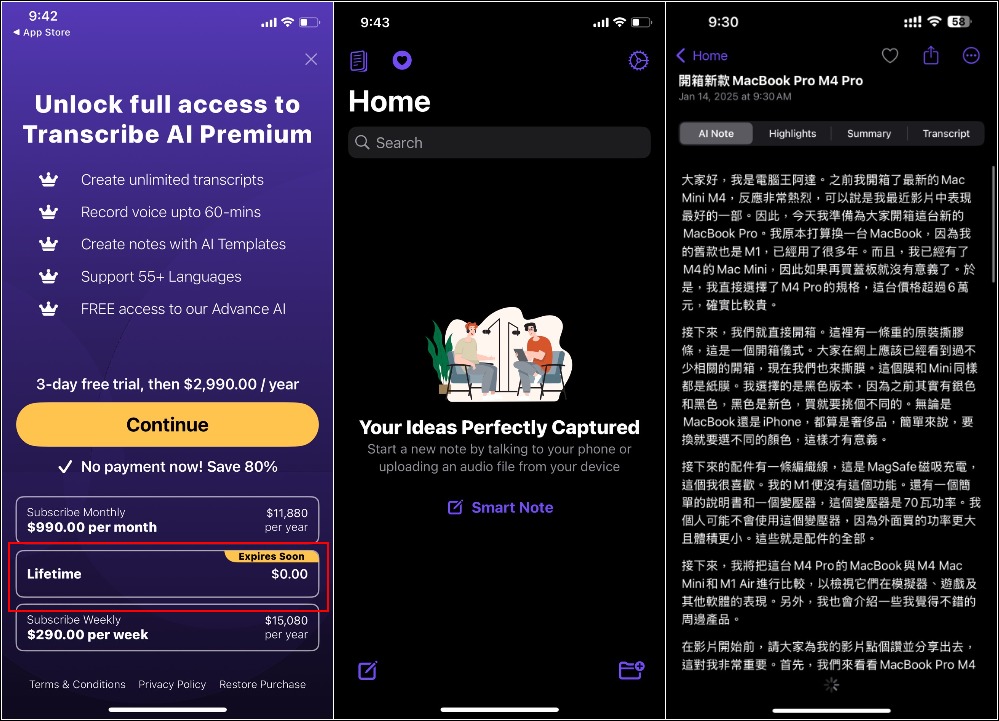
Introduction to Transcribe AI
Although the Transcribe AI user interface is only in English, the operation is very simple. The following will tell you step by step how to use it.
The AI translation function can convert recordings in foreign languages into Chinese and provide Chinese AI key summaries. However, the translated Chinese will be simplified and it does not seem to support traditional Chinese. However, AI transcription is no problem and there is traditional Chinese.
Transcribe AI will ask a lot of questions when you first open it. You can choose whatever you want. Although it says that it will customize the app homepage according to your needs, there is no difference in my experience:
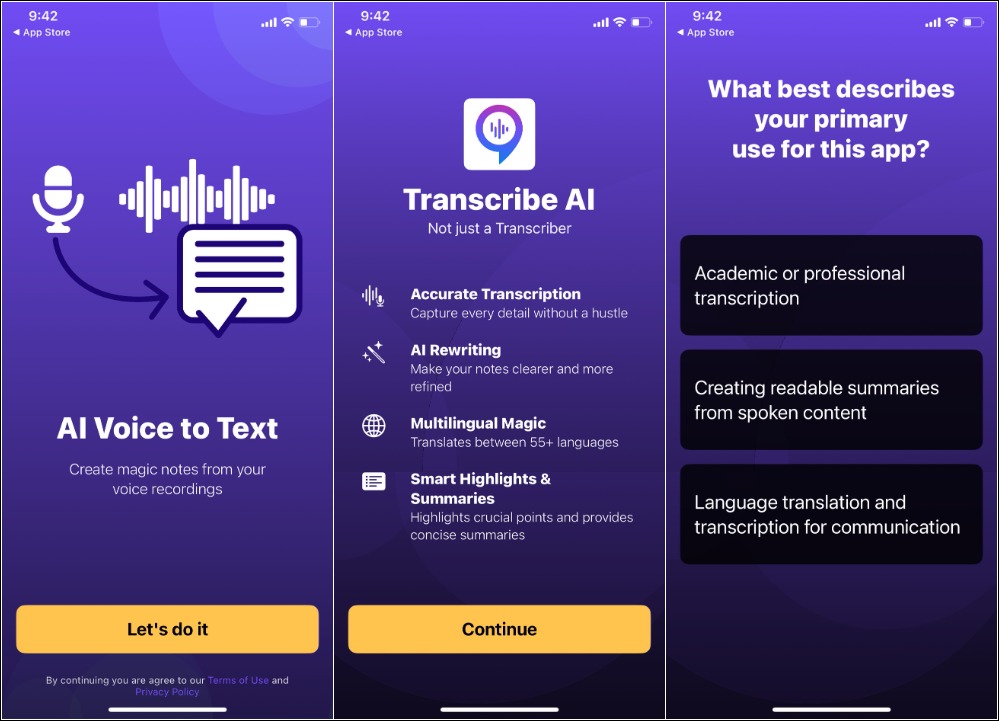
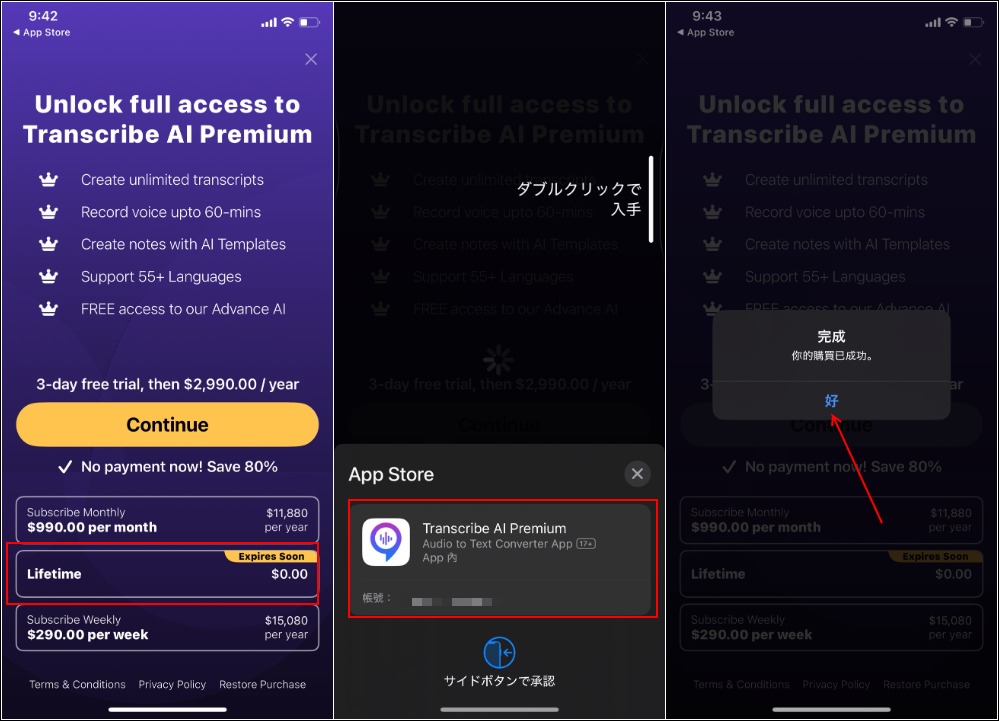
After entering the payment page, you will see that the Lifetime version is currently free for a limited time, and there is no need to pay any fees. When you get the confirmation, remember to check if there are no fees on the screen. Once you get it, it will show that the purchase has been successful:
When you return to the homepage, you will see a very clean screen, and you can also go into the settings to check whether it is the lifetime version. If there is an upgraded crown icon at the top when you enter the homepage, please reopen the app. It will disappear after reopening.
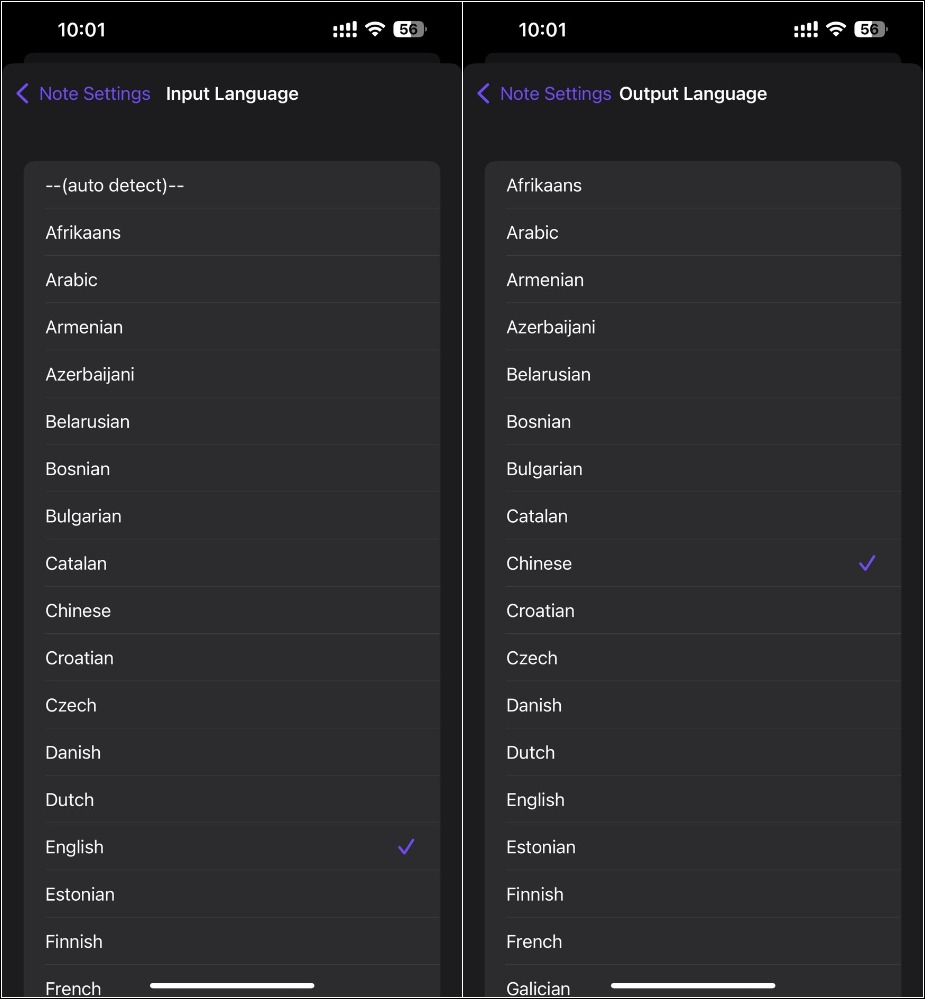
The method of use is very simple. Press Smart Note on the homepage or the icon function on the lower left to open a new smart note. There are two ways to upload recordings or audio files, and to record directly. Before starting, remember to go to Configure Note Settings to adjust the settings you need, such as layout, summary length, style, input/output language, etc.:
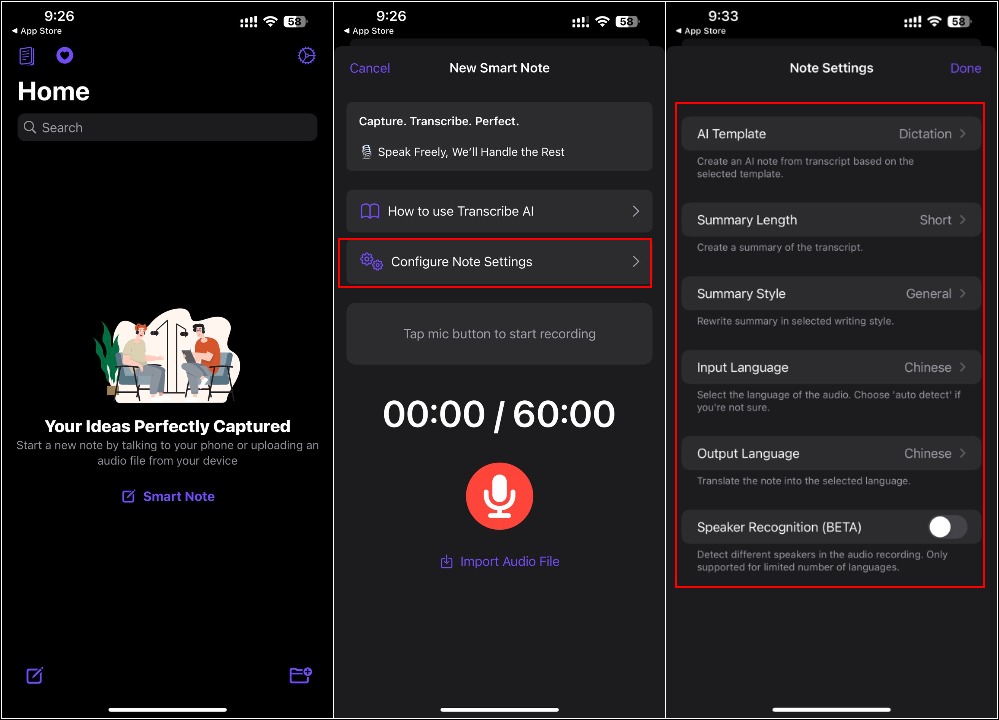
The input language supports automatic detection. If you are afraid of inaccurate detection, you can also set it manually:
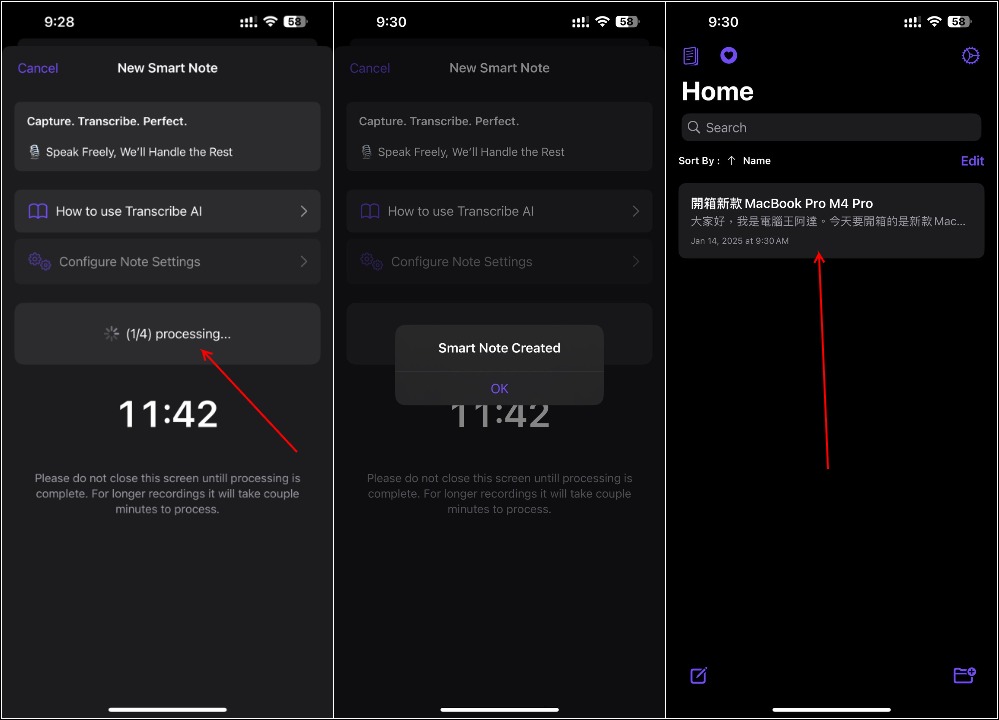
During the execution process, the App must remain open and avoid the phone screen from going dark. I tested an 8~10 minute audio file and it was completed in about 1 minute, which is very fast:
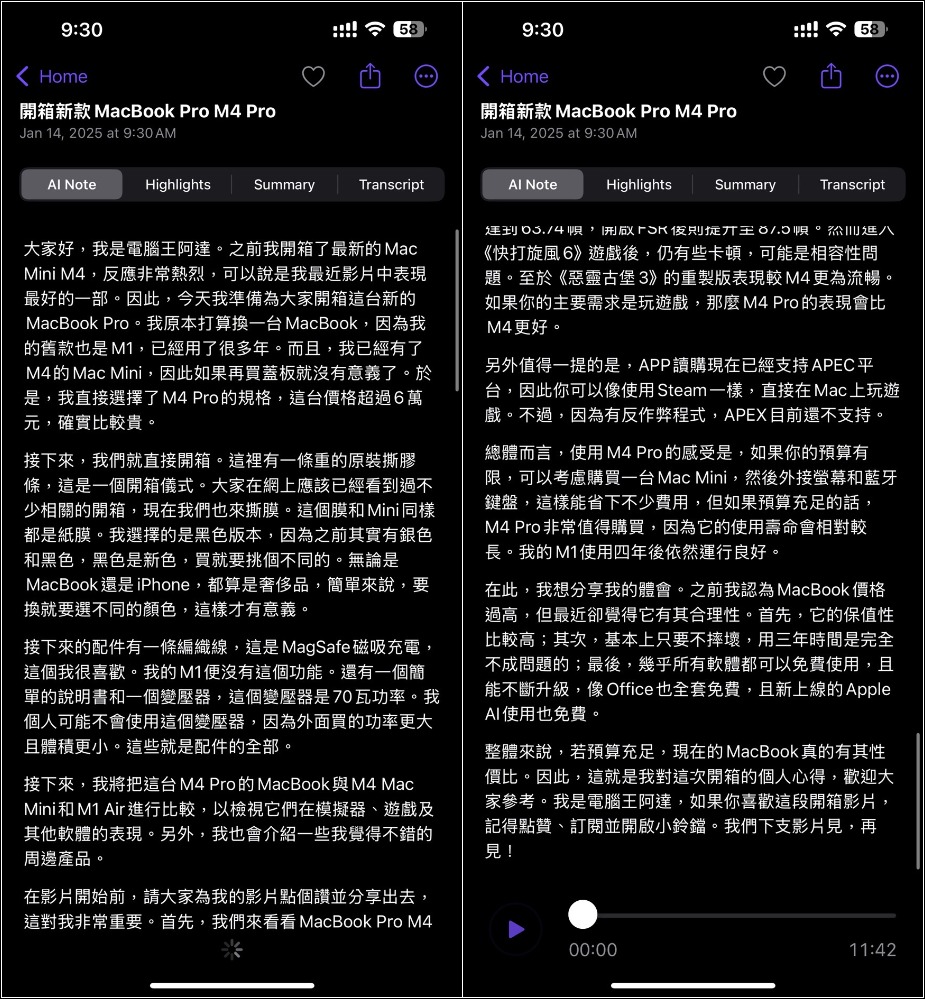
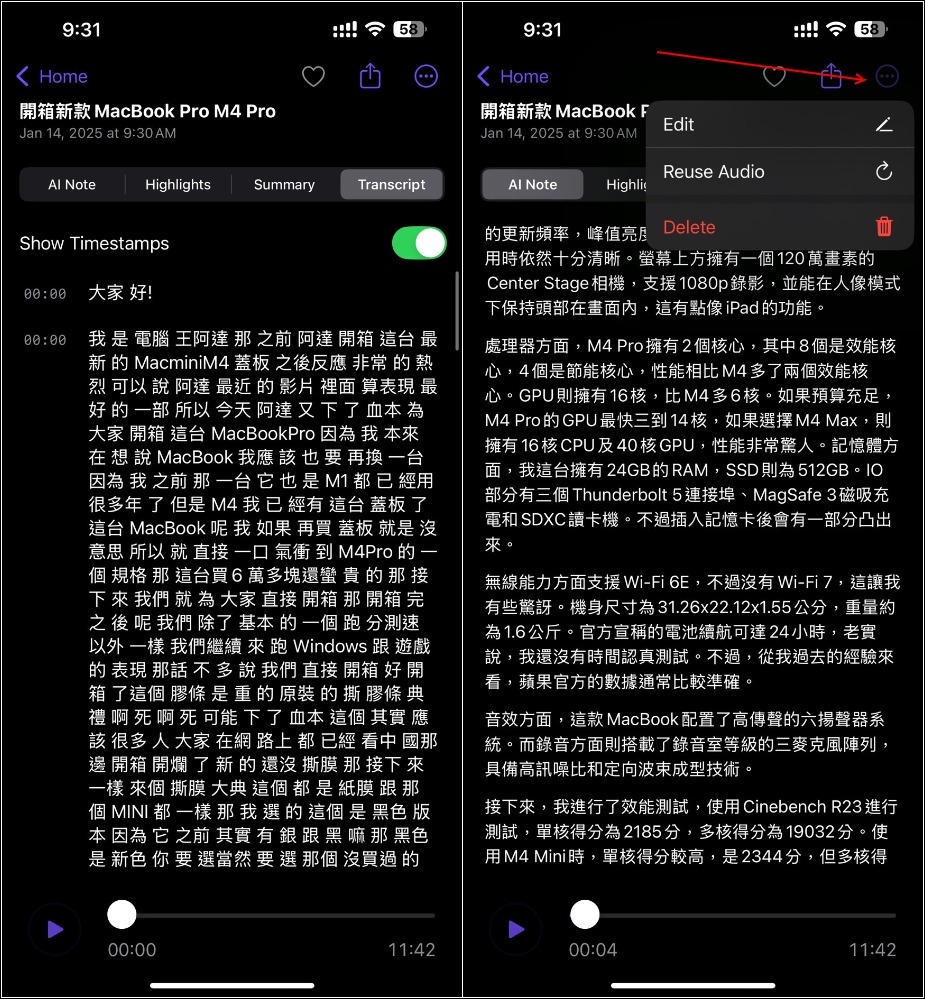
I first tested Ada’s latest MacBook Pro unboxing video. In AI Note, the text content of all audios will be displayed:
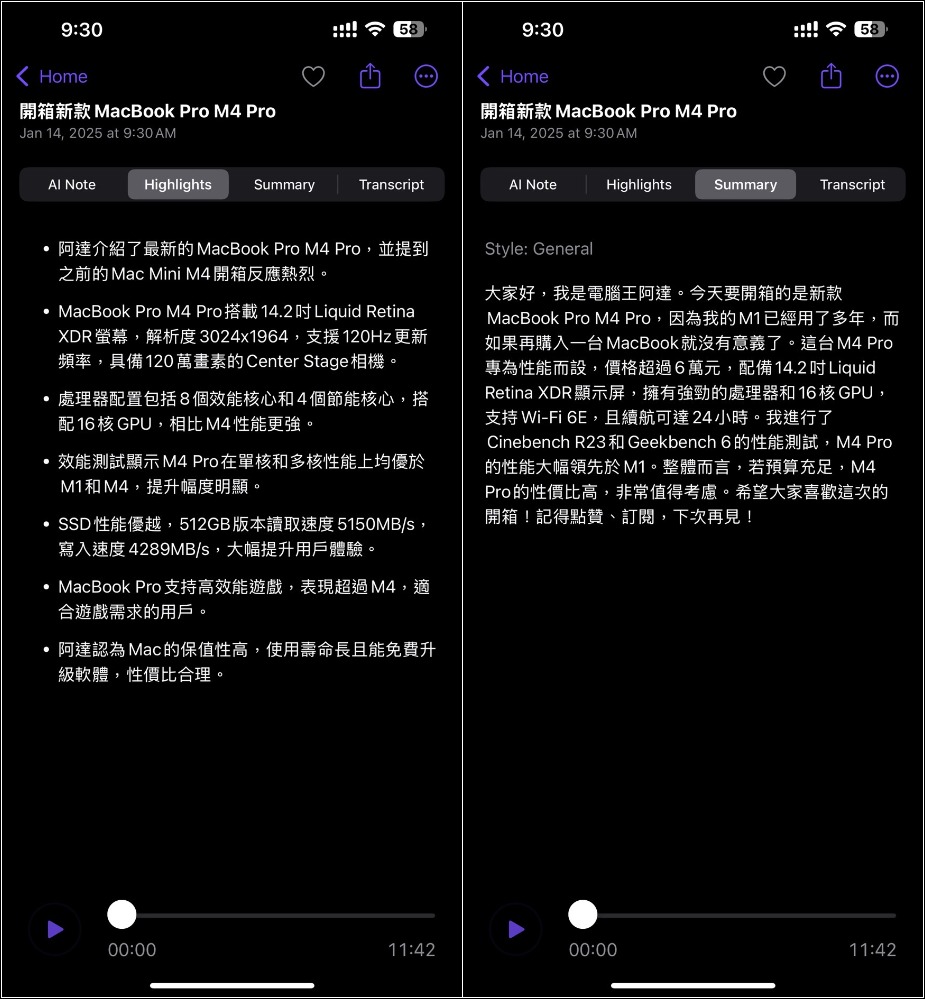
Hightlights are the key points, and Summary is the summary:
Transcript will display timestamp + text, but after testing, I feel that the time is not accurate. If necessary, you can also edit text. Open the upper right menu to find the Edit function:
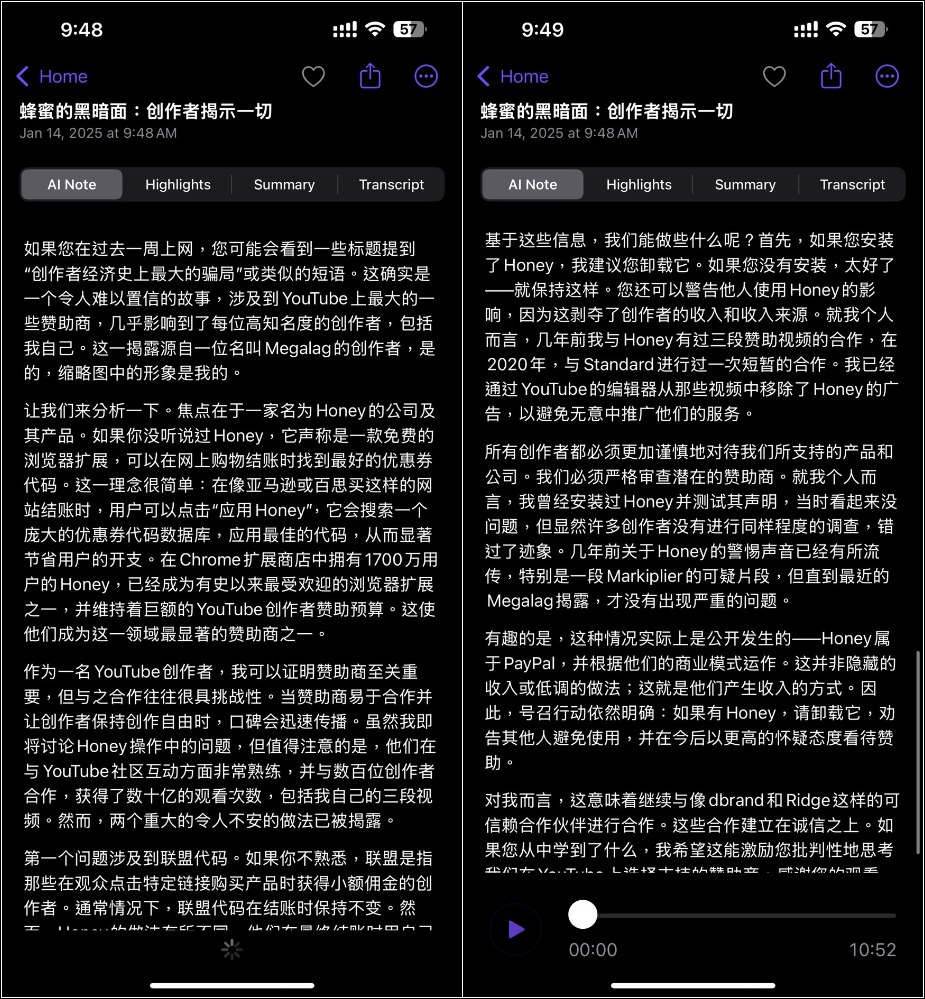
Next, I tested MKBHD’s The Honey Scam: Explained. The input language was set to English, and the output language was set to Chinese. Sure enough, after the transcription, the content became Chinese:
Source: KOCPC Chinese