


Damage to hearing caused by noise and excessive volume occurs over time and unknowingly. In the past, it mostly happened to people who have been in specific places and industries for a long time. Due to the popularity of earphones, the problem of long-term use of earphones affecting hearing has begun to attract consumer attention, prompting various mobile phone brands to launch hearing protection mechanisms for users. iOS 18.2, which Apple just released this week, also adds a new feature that allows you to customize speaker volume limits to reduce potential hearing damage.
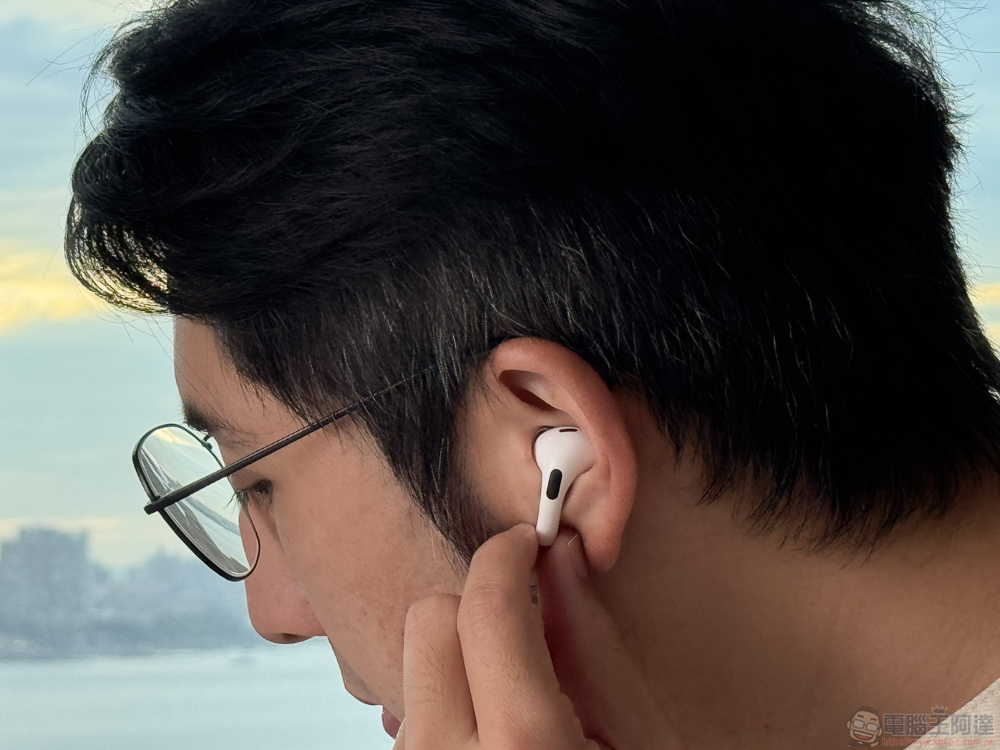
How to limit iPhone speaker volume in iOS 18.2?
Like the existence of the “Headphone Security” function, the “Volume Limit” function newly added by Apple to iOS 18.2 is to allow users to automatically set the maximum volume when using the iPhone’s built-in speakers to play songs, movies and other audio-visual media. The naming is quite intuitive. The new volume limiting feature only affects media volume and does not affect other system volumes such as calls, FaceTime, emergency calls, alerts, ringtones, alarm clocks, and search devices.
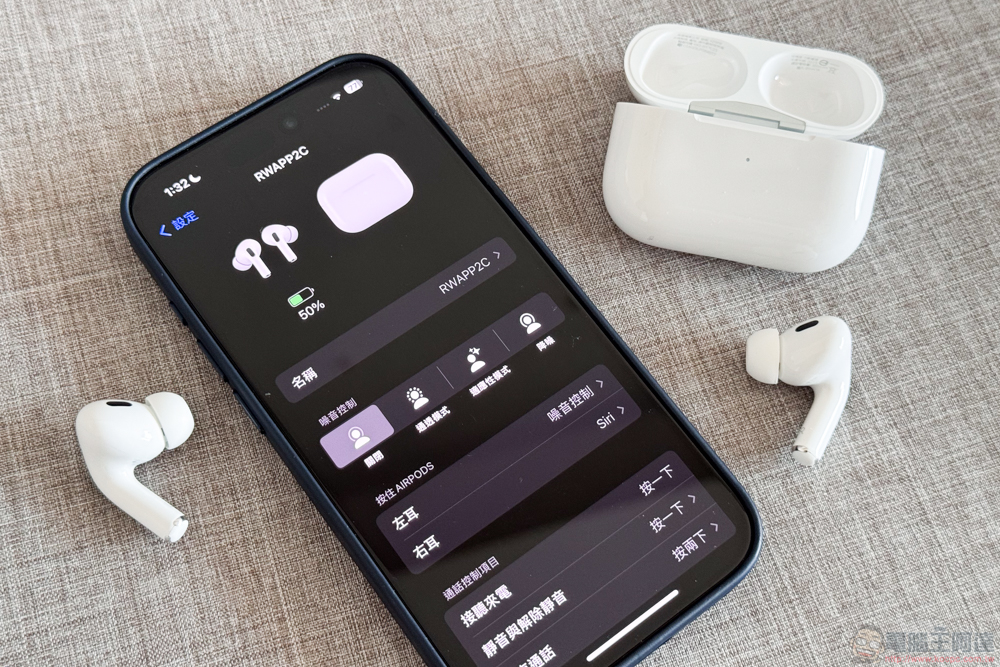
Volume limiting, if used properly, can help protect hearing and prevent the shock of suddenly turning up the volume when switching between videos (which is common when playing a YouTube playlist), and is also great for kids. How to enable and set a new speaker volume limit, you can follow the steps below:
- Open the Settings app, scroll down and click “Sound & Haptic Feedback”.
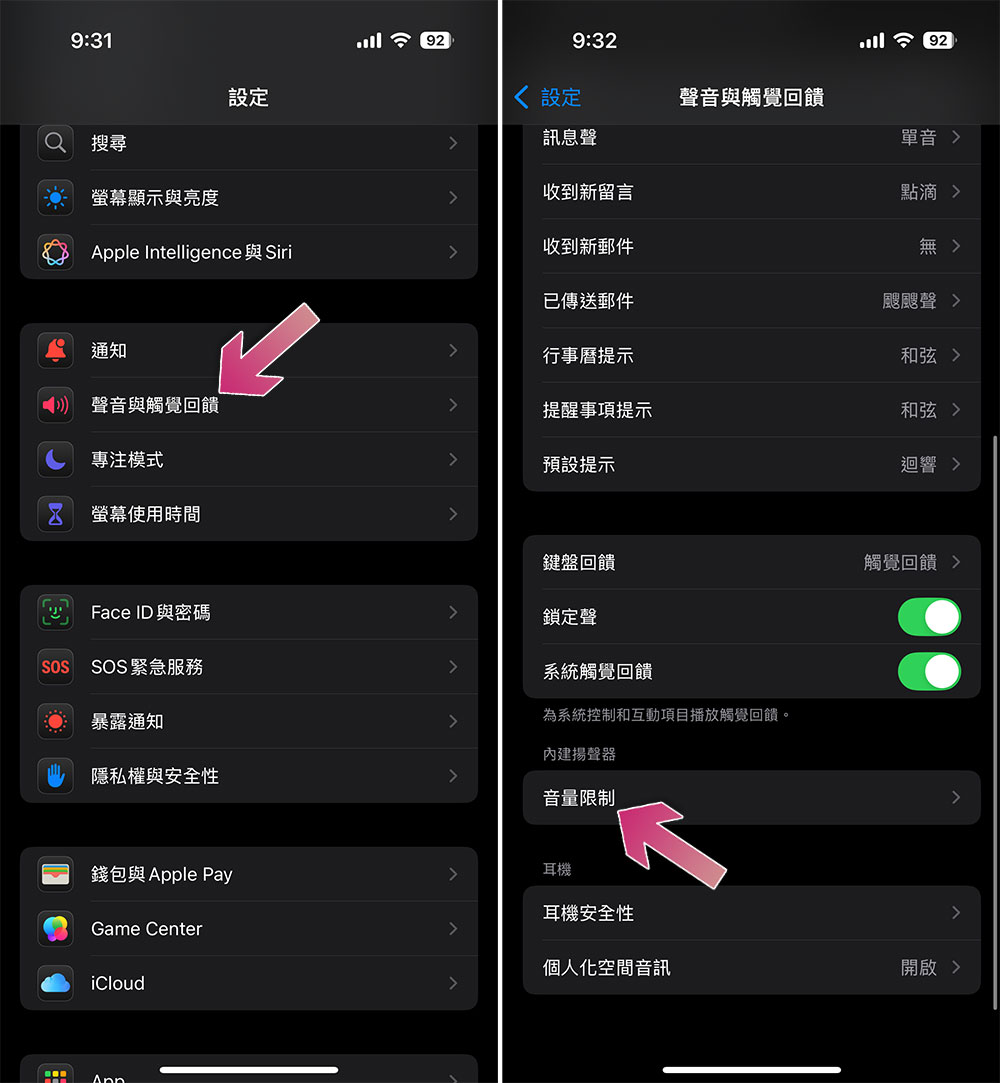
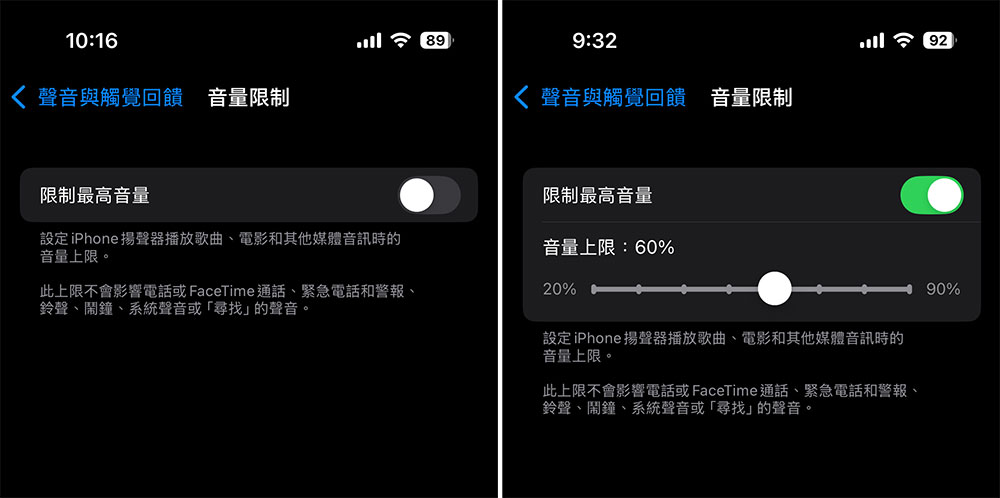
- After entering, you will directly see a “limit maximum volume” switch. This function is turned off by default. When you turn on the switch, you can see the volume upper limit adjustment slider below. You can adjust it from 20% to 90%, with each step increasing or decreasing by 10%.
Also featured: Headphone security settings
If you often wear headphones, in addition to setting the volume limit, it is also recommended that you can easily set the safety settings of the headphones. Compared with speakers, headphones transmit sound more directly, and at the same time, it is easy to ignore the damage to hearing. Next you can make these settings to improve hearing safety:
- Open the Settings app, scroll down and click “Sound & Haptic Feedback”.
- Click “Headphone Security”.
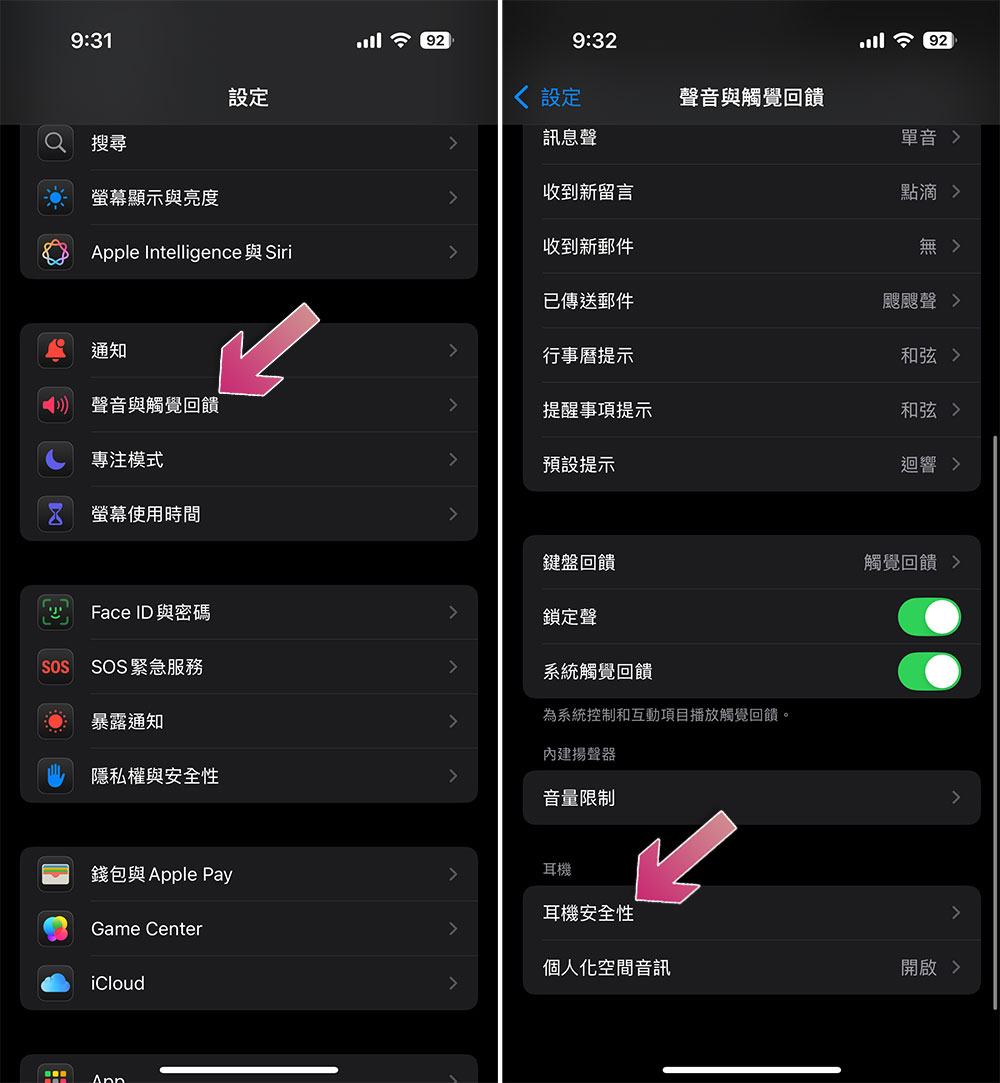
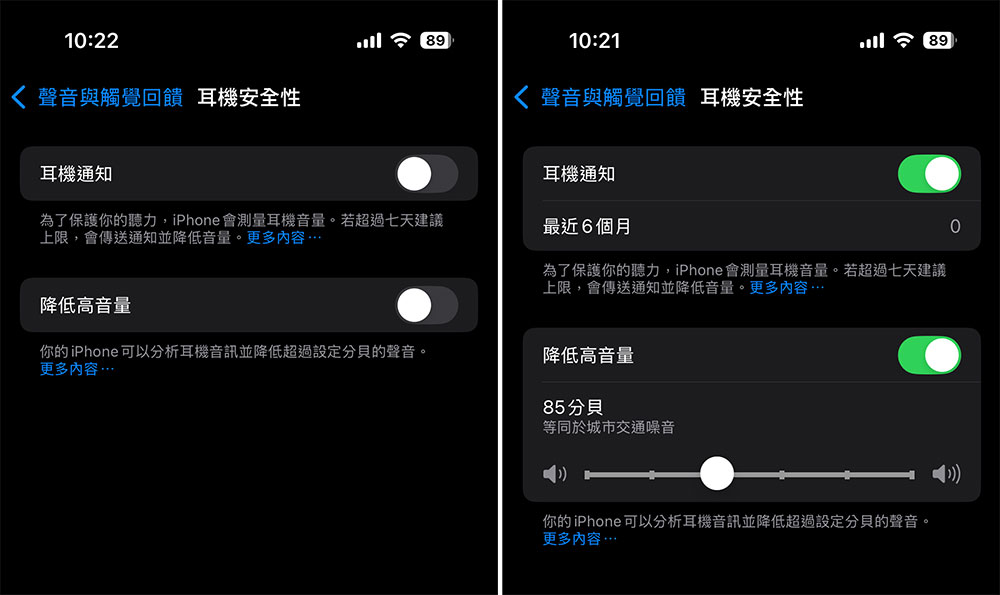
- There are two setting items you can see inside:
- Headphone notifications – If you exceed the recommended 7-day limit, the system will send you a notification and automatically lower the volume for you.
- Reduce high volume – iPhone analyzes the audio and reduces sounds that exceed 1 decibel. After turning it on, you can also use the pull rod to adjust the decibel level.
Noise-induced hearing loss is a serious matter. This type of hearing loss is usually caused by prolonged exposure to high-volume environments. Hearing loss is an irreversible injury. While using Apple’s headphone safety and volume limit controls are just a few precautions, you can also use noise-canceling headphones to reduce the need to listen at higher volumes, or over-ear headphones to reduce direct pressure on your eardrums from earbuds. In addition, don’t forget to give your ears a rest from time to time when listening for a long time. If you have persistent tinnitus or hearing loss, please consult a professional doctor as soon as possible.
Source: KOCPC Chinese