


Coming to the latest version of the iOS 18.2 Beta 2 test system, Apple Find My has ushered in the new “Share Item Location” function to share the location of lost items. It is different from the previous general sharing function for items. This time the Share Item Location is classified in the lost items menu. It will allow you to activate the function of sharing AirTag location with three parties within a certain period of time. The Computer King Ada team also tested this new function for the first time. Read on to share the location of your lost luggage with the airline! Apple’s Find My function to share the location of lost items with others appears in iOS 18.2 Beta (see this article for how to enable it).
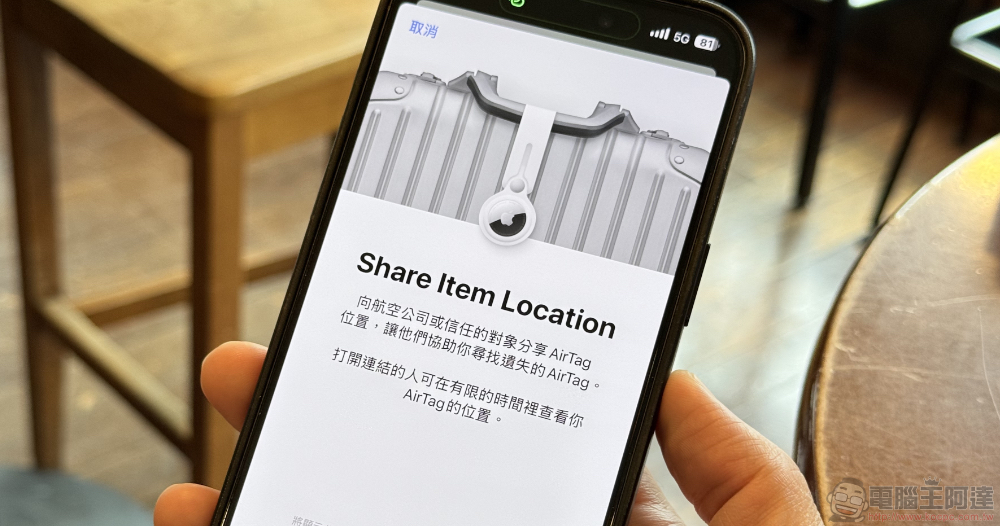
▲Picture source:
Share the location of your lost luggage with the airline! Apple Find My function to share the location of lost items with others is now available in iOS 18.2 Beta (see this article for how to enable it)
Even Apple ecosystem devices equipped with the “Find My” App can basically support it.Share AirTags with othersfunction.
However, if you want to share the Find My location information of a lost item with other strangers, such as airline personnel who assist in finding luggage, the current function will be a bit troublesome – you may need to take screenshots, etc., but this is obviously not very efficient for items that may be constantly moving.
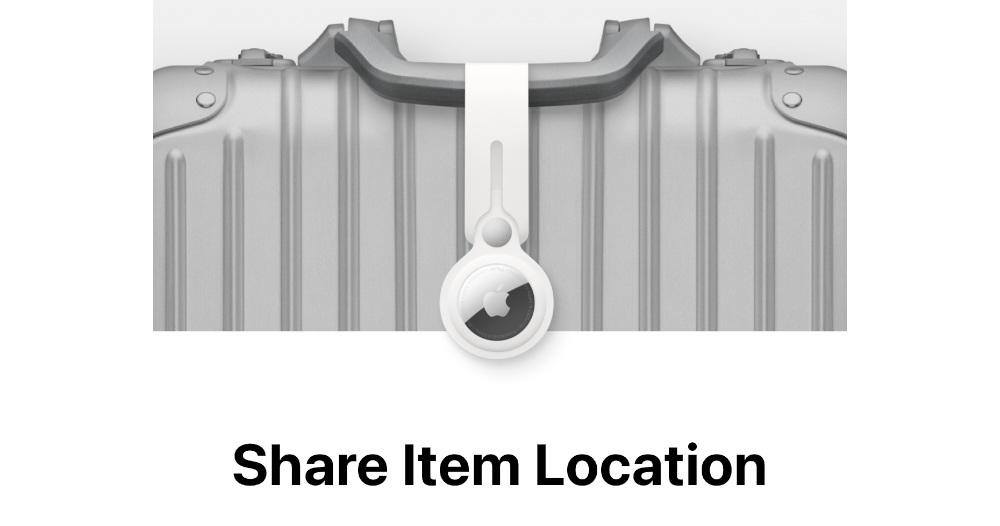
Coming to the latest version of the iOS 18.2 Beta 2 test system, Apple Find My has ushered in the new “Share Item Location” function to share the location of lost items.
It is different from the previous general sharing function for items. This time the Share Item Location is classified in the lost items menu. It will allow you to activate the function of sharing AirTag location with three parties within a certain period of time. The Computer King Ada team also tested this new function for the first time.
Apple Find My tutorial on sharing the location of lost items
This feature will be available in the Find app on iOS and other systems. Simply click on the lost item in the Items list and you will see the “Lost AirTag” item renamed from Lost Mode. Now, in addition to the original functions related to displaying contact information, there is also an additional “Share Item Location” function 👈 which is the protagonist of the new function to be introduced in this article.
PS: We are currently only testing through AirTag (because I don’t have other Find My devices), but there should be opportunities to open it to third-party Find My devices in the future.
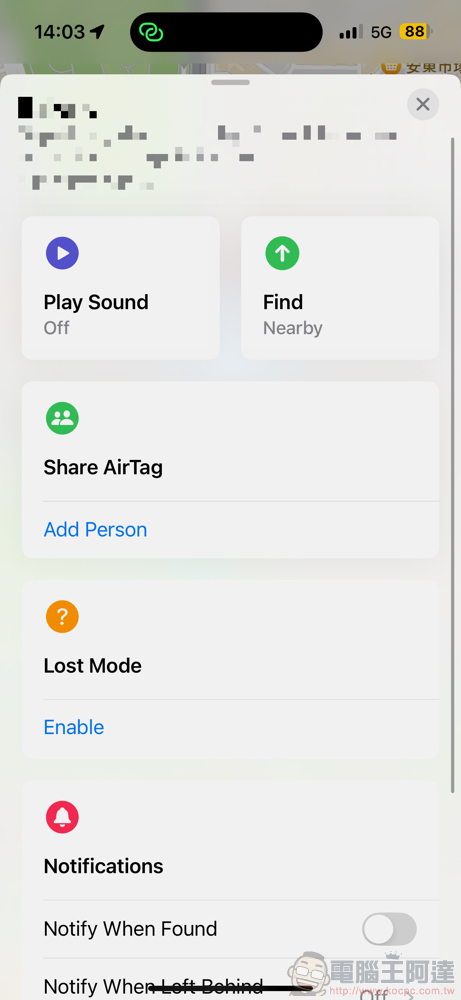
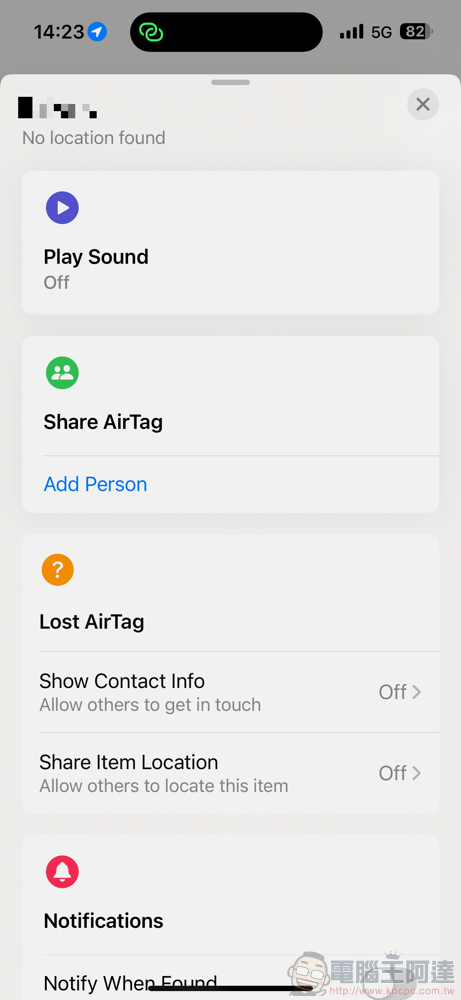
▲Picture: Comparison of lost property option settings for finding items in iOS versions before and after.
Click “Share Item Location” to enter the new setting options. Just click “Continue” on this page to share the AirTag location with the airline or a trusted person and let them help you find the lost AirTag.
After entering the next page, you will see the function of copying the link of the object location information display page – allowing others to see the location of the object for a limited time. The item’s serial number and the owner’s Apple Account email or phone number are also displayed.
This page also includes the number of people who viewed the link and the expiration date – in our test, for example, the system’s default expiration date was about a week. And you can select “Turn Off Item Location” on this page to end sharing.
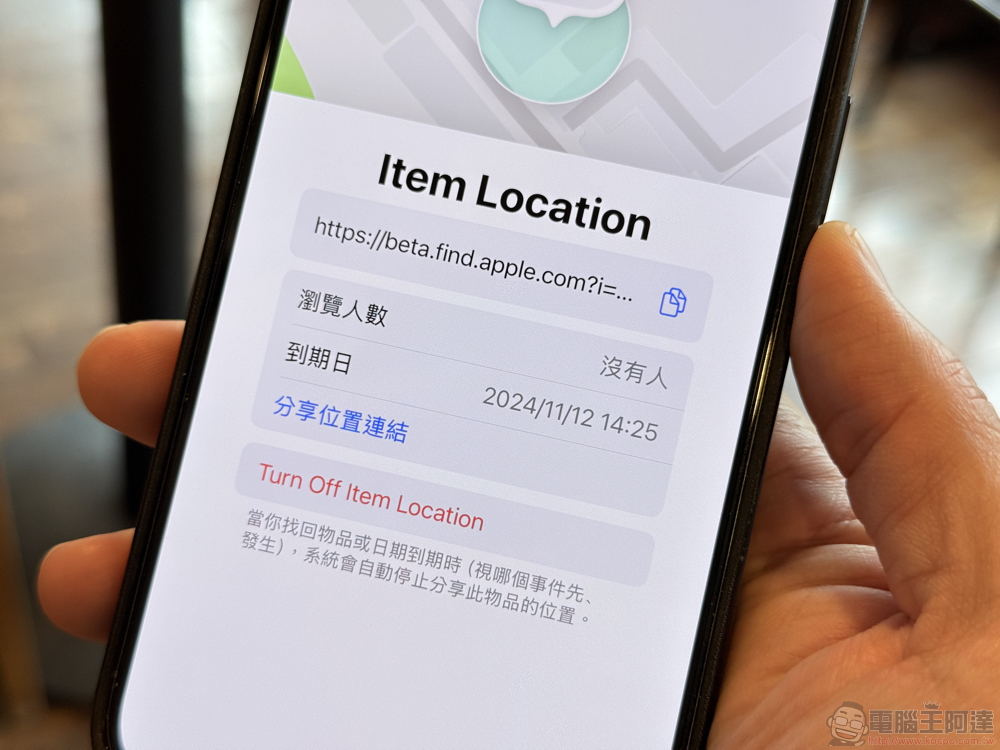
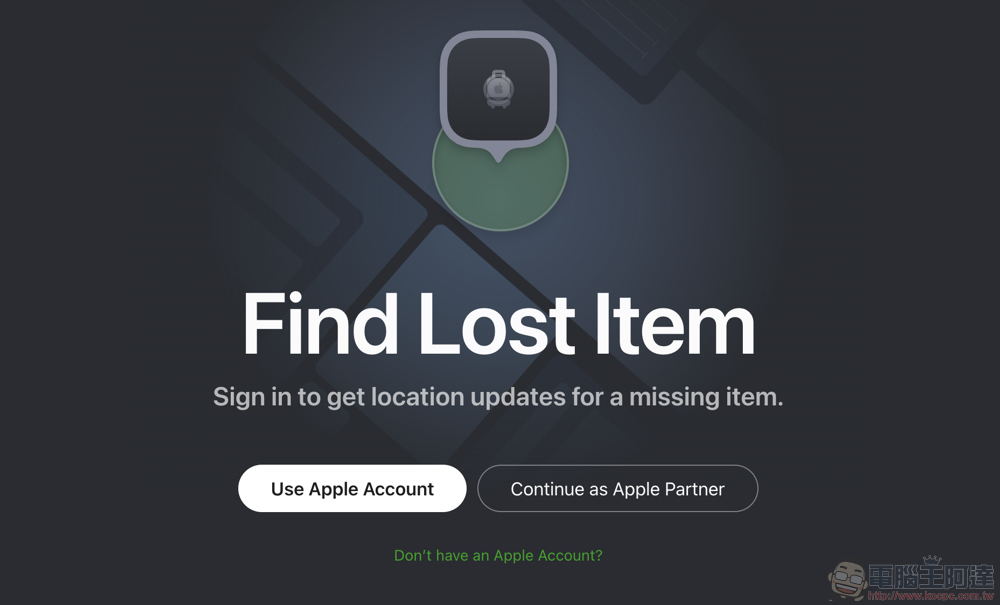
That is to say, according to Apple’s official description, you would think that as long as you get this link, you can directly see the location of the lost item and other information through the web page. However, based on our actual testing, this feature still requires logging in to an Apple ID before it can be used – so there is still a considerable degree of privacy protection.
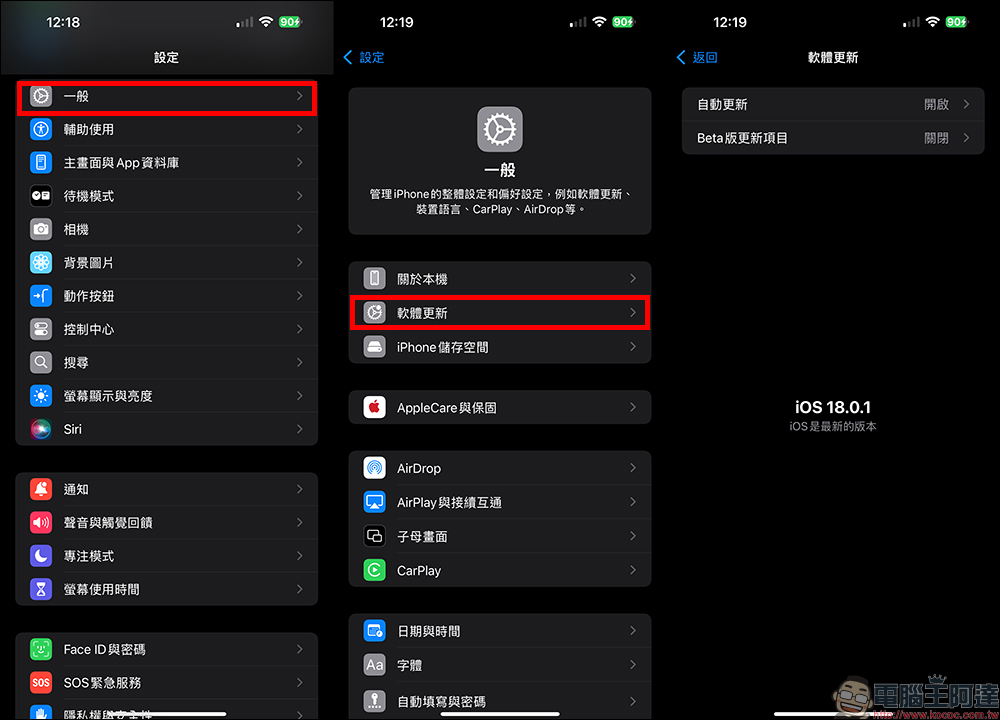
Upgrading to iOS 18.2 via beta version process
Friends who want to upgrade can open the iPhone’s “Settings” and select “General > Software Update”, and then select and download and install the iOS 18.2 Bet version in the “Beta Update Item”.
Note ⚠️The test version has a considerable degree of risk of unexpected system errors. Please pay attention to possible crash issues during the installation experience. It is recommended to install it with a spare mobile phone to ensure that it does not affect daily use!
via:MacRumors|
Further reading:

Source: KOCPC Chinese