


The new iPhone feature “Personal Voice” allows you to generate a voice that is “very similar to your own voice” by simply speaking random text in 15 minutes. You don’t have to wait for Apple Intelligence in iOS 18, you can even play it in iOS 17! Continue reading How to use the iPhone’s latest AI to learn your “personal voice” function? Read the text of this learning (teaching) report.

How to use the iPhone’s latest AI to learn your “personal voice” function? Read this and learn (teaching)
The new iPhone feature “Personal Voice” allows you to generate a voice that is “very similar to your own voice” by simply speaking random text in 15 minutes. You don’t have to wait for Apple Intelligence in iOS 18, you can even play it in iOS 17! And not only iPhone also supports Mac and iPad. Let’s take a look with the Computer King Ada team to see how to use this function and what its effects are!
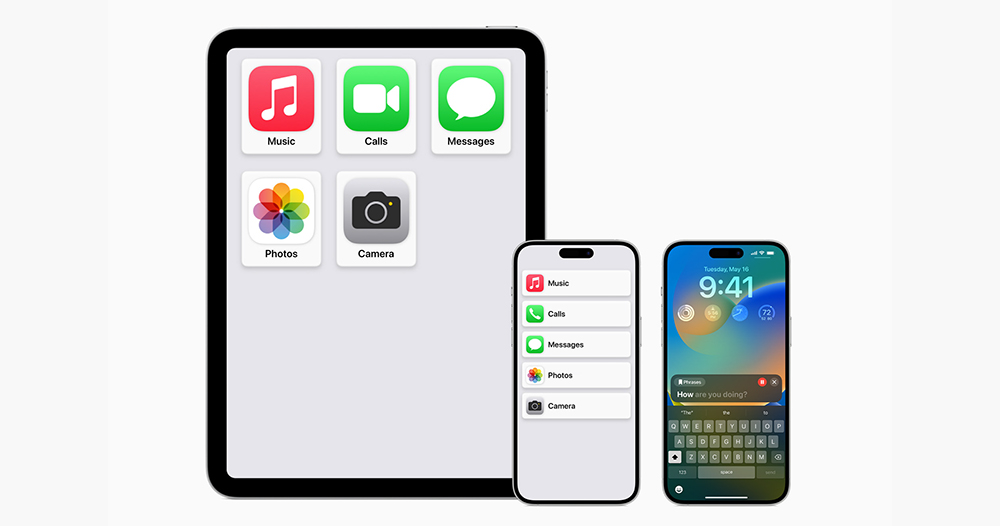
▲Image source: Apple
“Personal Voice” support system equipment
- iOS 17, iPadOS 17 or macOS Sonoma or above
- iPhone 12 or later
- iPad Air (5th generation)
- iPad Pro (11-inch, 3rd generation) or later
- iPad Pro (12.9-inch, 5th generation) or later
- Macs with Apple chips
Use teaching
Although it actually takes more than 15 minutes for the system to be able to help pronounce your own voice (we will mention this later). But you can simply spend about 15 minutes saying random sentences, and you can let the iPhone help “mouth” the function of saying the specified text with a simulated voice similar to your personal voice. Not surprisingly, it has something to do with accessibility features that assist people with disabilities.

According to the official statement, “Personal Voice” is mainly created for patients with amyotrophic lateral sclerosis (ALS) or other diseases that may gradually erode the ability to speak. It is a good function that benefits mankind with good intentions (but also demonstrates Apple’s AI capabilities).
However, because it feels very similar to the AI voice simulation function of various imitation singers that are currently being sung on the Internet, and the subsequent iOS 18 update also supports Chinese (although it is written in mainland China…), it is full of imagination for extended applications.

Click all the way from “Settings > Accessibility > Personal Voice” to start learning the voice of iPhone / iPad / Mac through “Create Personal Voice”. On this page, you can choose whether you want the learned sounds to be shared between devices – I would choose yes! After all, it takes a long time to build one device after another.

It is recommended to read the precautions before recording. During this period, 150 words will be read aloud. It means that it is mentioned that this may take about 15 minutes, but in fact, I personally think it takes quite a long time. But don’t worry about recording all the way, because you can continue recording at any time even if it is interrupted.

After pressing Continue you can select the language. Currently, in addition to English, “Personal Voice” has added support for Chinese (Mainland China) on iOS 18. If you continue to select below, you can customize the name of this set of sounds.

There is actually quite a lot of preparation before recording. The most difficult thing is probably “finding a quiet place”.

As you continue to follow the steps, the system will first guide you to record to confirm the sound quality.

I tried this part myself. If there is white noise such as a fan or air conditioner nearby, it will basically prompt that a quieter place is needed to record a relatively high-quality “personal voice” performance.
Important points for system guidance include recording in a room with minimal echo and background noise, and also maintaining a natural speaking style – speaking at a consistent volume, as if you were having a conversation with someone else. Then keep the device at a distance of about 15 to 30 centimeters for best recording.

When recording, a sentence will be proposed for you to read as shown above – you can choose the length of the sentence at the beginning.

During the process, you can choose through the options at the bottom at any time whether you want it to automatically detect and continue recording, or whether you want to manually select each word to continue. If you read it incorrectly, you can press pause and read it again.
If you encounter a word that you can’t pronounce well, you can use “Audio Listening” for phonetic reference – the editor deliberately used English for the test. If it is Chinese, there should be very few words that cannot be pronounced. Because the examples are basically quite life-like.

Since there are a total of 150 sentences for you to read, it really does take a while. However, in personal testing, if the interface is always open, even if the screen is locked and then returned, it will not be canceled and the recording can be quickly resumed. The description of the interface mentioned that you can actually save and close the stage at any time without any problem – but the author did not jump out and turned off the screen during occasional breaks, basically finishing it in one go.

After completing the recording, you will enter the iPhone and have to calculate the time crazily – after all, you cannot rely on external services, you have to rely on the “on-device” with the best privacy (in theory) for calculations.
Such a program in iOS will be preset to need to be plugged in and charged before it can be run. After completion, you will receive a notification. In the personal sound settings, you can keep track of the current processing progress of your iPhone at any time.

The entire process will basically take at least several hours – as mentioned earlier in this article, I originally thought it would be 15 minutes, but I didn’t expect that it was just the “recording” time. If it is processed, it may even take overnight to complete the use.
The next morning I saw the completion notification.

You can then use your “personal voice” to pronounce the text on the screen through the system interface – interested friends can check out the video on the social platformWonderful demonstration。
Then the reason why I asked it to learn the English version was because I wanted to realize the dream of “I can finally speak English so fluently” (Canxiao).

Basically, “Personal Voice” will become a new “Voice” option in the “Real-time Voice” function among accessibility functions. After activating the real-time voice function in the settings, you can activate the interface by pressing the side button three times (as shown above). Basically, you can type and select “Send/Send” to let the system communicate by voice through the device speaker.
Through the “Personal Voice” settings, you can choose to output your own recording or delete this voice function. Basically, as Apple has always advocated, privacy is basically in your hands. If you have the chance, you can actually play it and watch it. I personally think it’s quite interesting and it’s really similar!
Further reading:

Source: KOCPC Chinese