


Now through the simple Siri shortcut function setting and the “device orientation” condition expanded through the Actions App, you will be able to retain the silent switching function and gain the flexibility to quickly launch various functions and applications! Continue reading iPhone “action button” combined with mobile phone direction shortcut operation: no longer need to give up the mute function, it has different functions when held horizontally and vertically (instructions for use) report content.
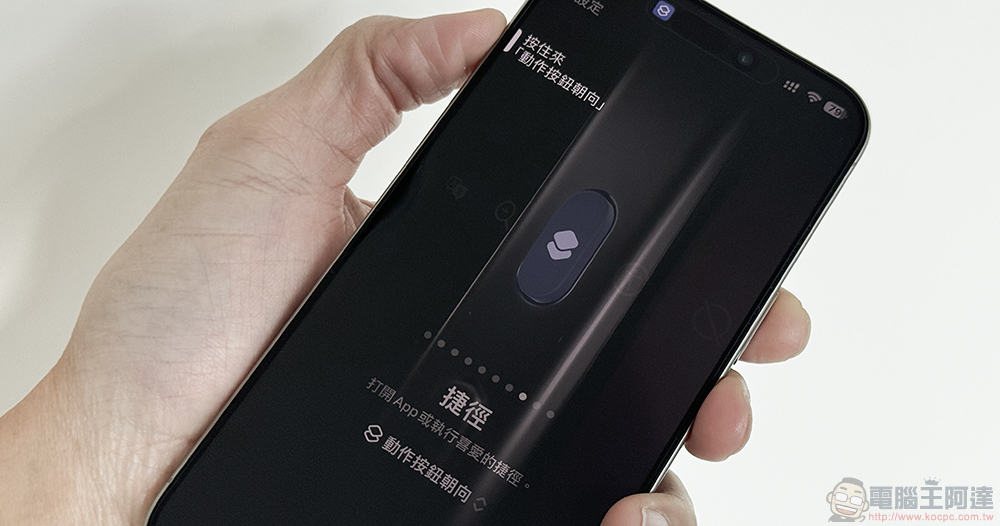
iPhone “Action Button” combines mobile phone direction shortcut operation: no longer need to give up the mute function, it has different functions when held horizontally and vertically (instructions for use)
The latest iPhone 15 Pro / iPhone 15 Pro Max, which can be combined with unlimited functions including taking pictures/videos, audio recordings, and even Siri shortcuts, has changed the silent mode switch button into a simple button “Action Button”.
Although many people seem to think that even with the possibility of more functions, they actually use it as a simple mute switch. The reason is not difficult to imagine because after setting it to other functions, it will become difficult to confirm and quickly switch to silent mode.
Now, through simple Siri shortcut function settings and the “device orientation” condition expanded through Actions App, you will be able to retain the silent switching function and gain the flexibility to quickly launch various functions and applications!
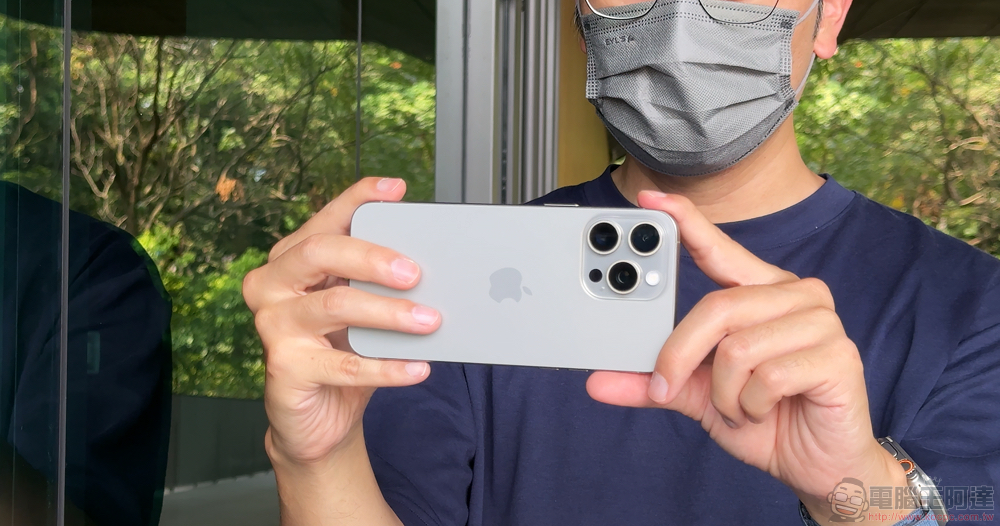
Simply put, you will be able to set the functions that can be performed by pressing the action button when the phone is placed horizontally, vertically, or even upside down/screen up/screen down!
The simplest application example of this method of use is to allow you to set the quick launch camera function and the silent switching function in different directions in horizontal and vertical directions. It originally only supported a single function, but now it can specify at least six applications to launch in different directions!
“Action button” combined with mobile phone directions for quick operation teaching
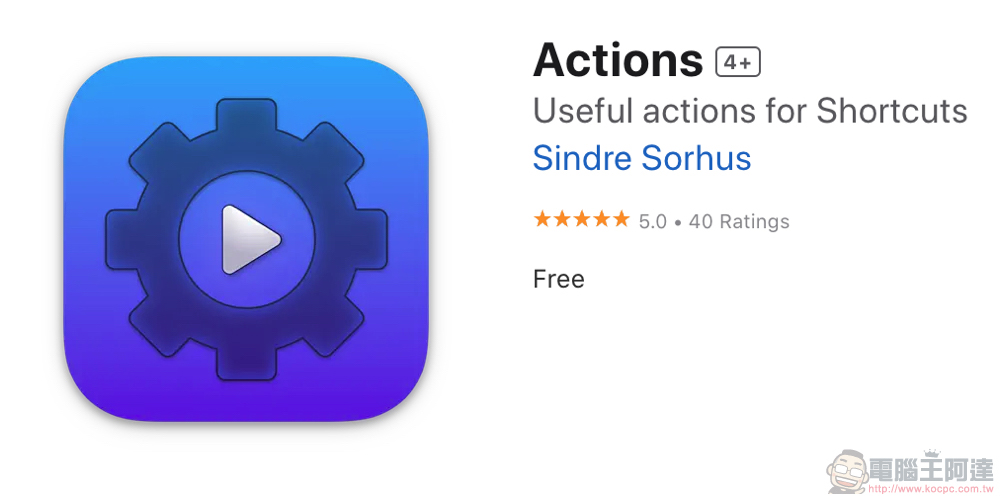
First, in order to allow Siri shortcuts to access information about the phone’s orientation as conditions for action button settings. You will need to install a free third-party application Actions App (click me to install)– Based on our actual testing, you can see the conditions for the device orientation that need to be used this time in the Siri shortcut without starting the app after installation:
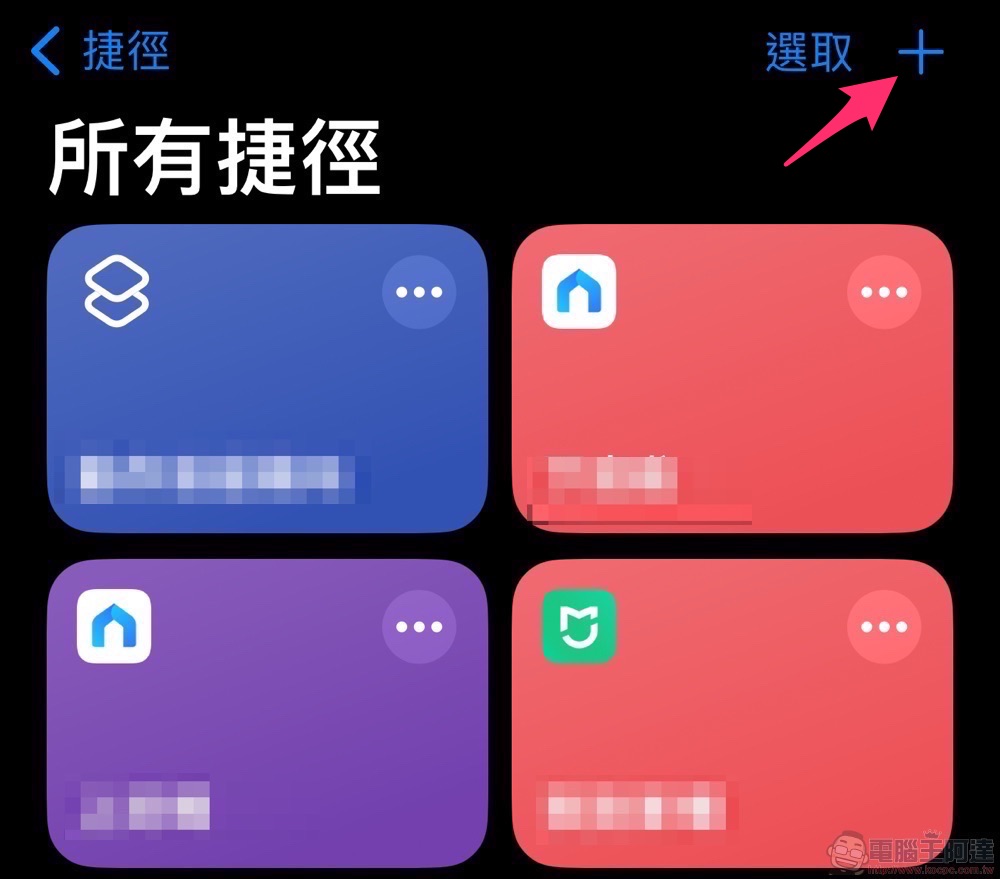
So after the installation is complete, just launch the built-in “Shortcuts App” of iOS and click the “+” in the upper right corner to create a new Siri shortcut action:
It is recommended that you click the new shortcut button at the top to rename it first, and then it will be better to specify the search in the shortcut settings of the action button:
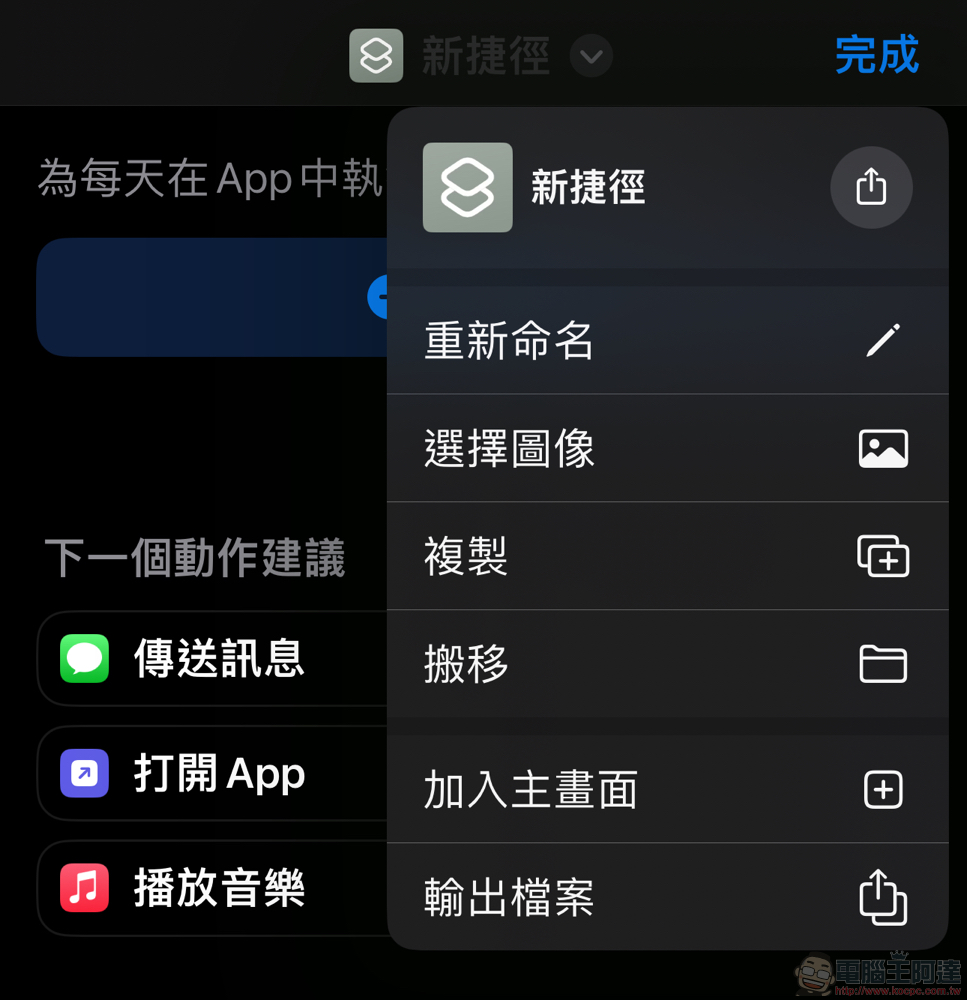
Next select “+Add action”: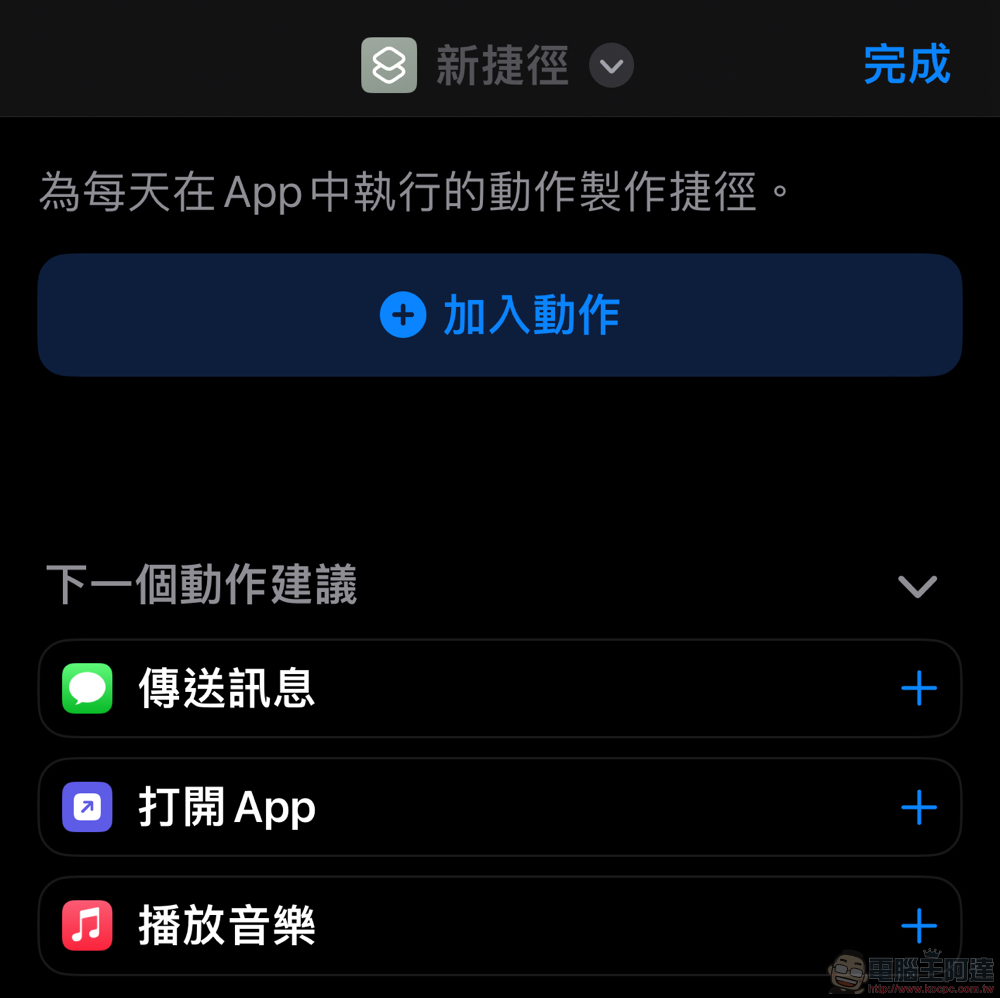
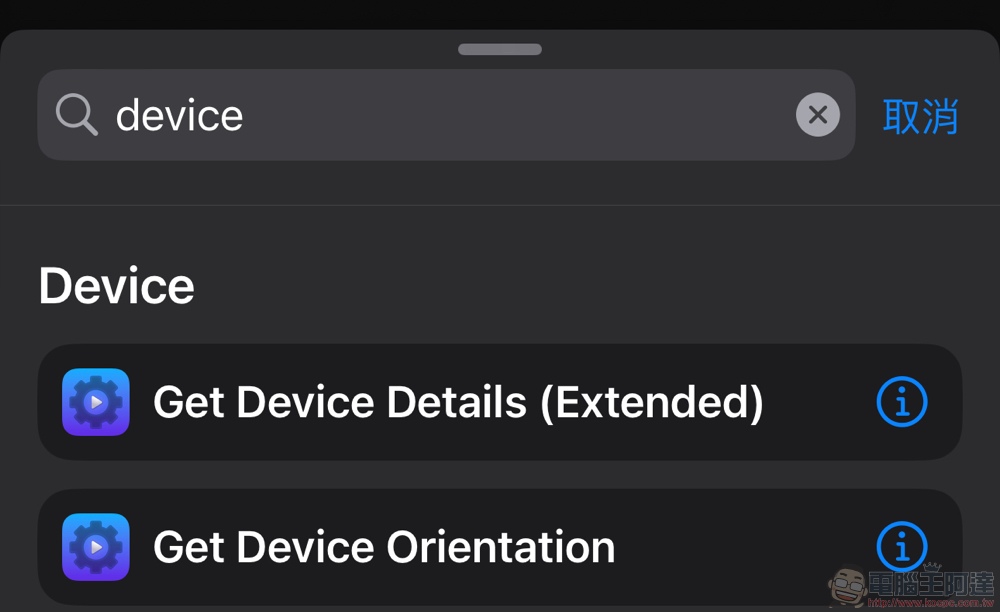
Just enter “device” in the search bar to find the “Get Device Orientation” item obtained from the Actions App this time:
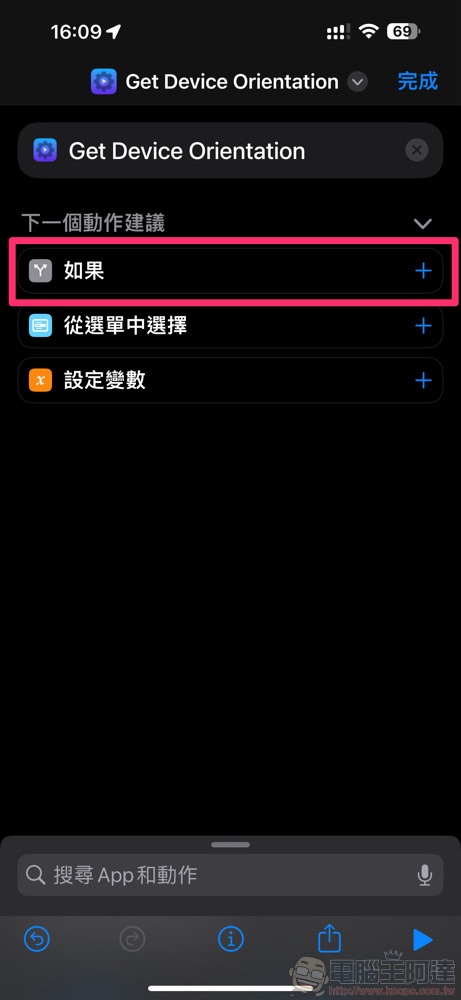
Next, let’s bring out the conditions of Device Orientation and select “if”:
Select “Status” after “Device Orientation” (the “Other” below can be deleted by pressing “X”):
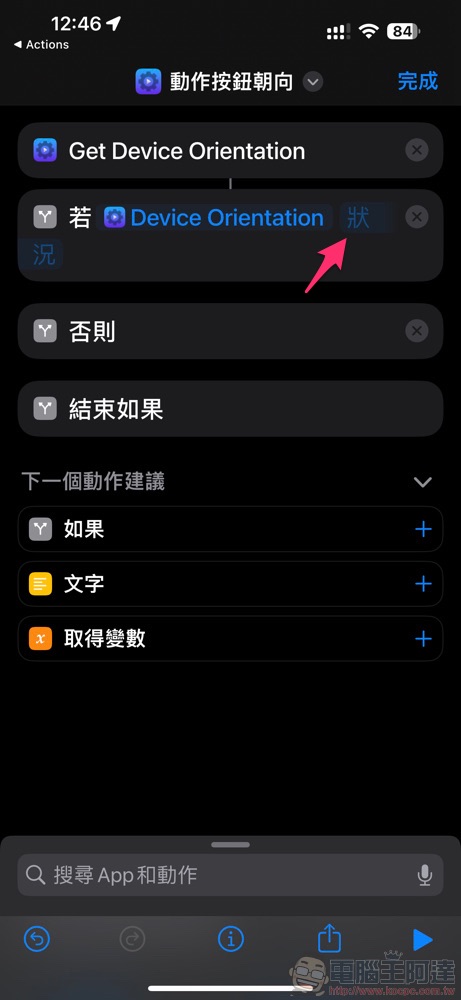
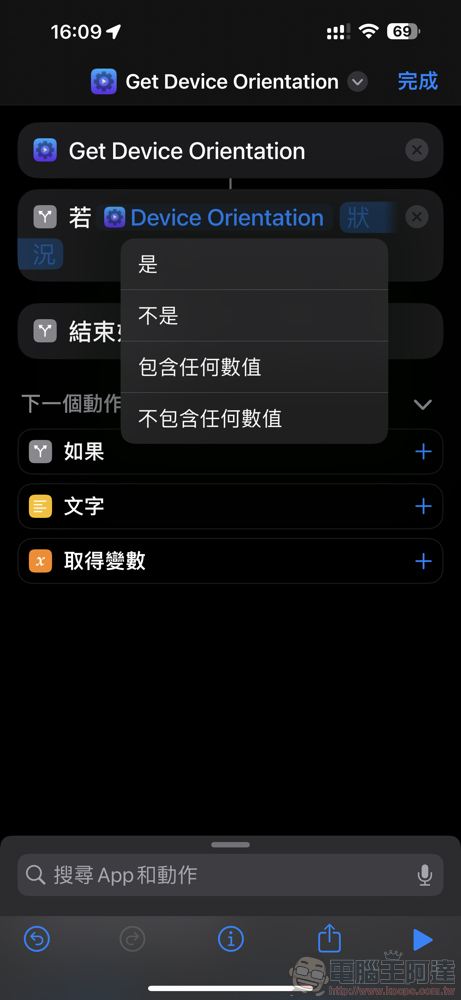
After selection, four variables will be brought out. Select “Yes” here:
A total of seven variables will be brought out:
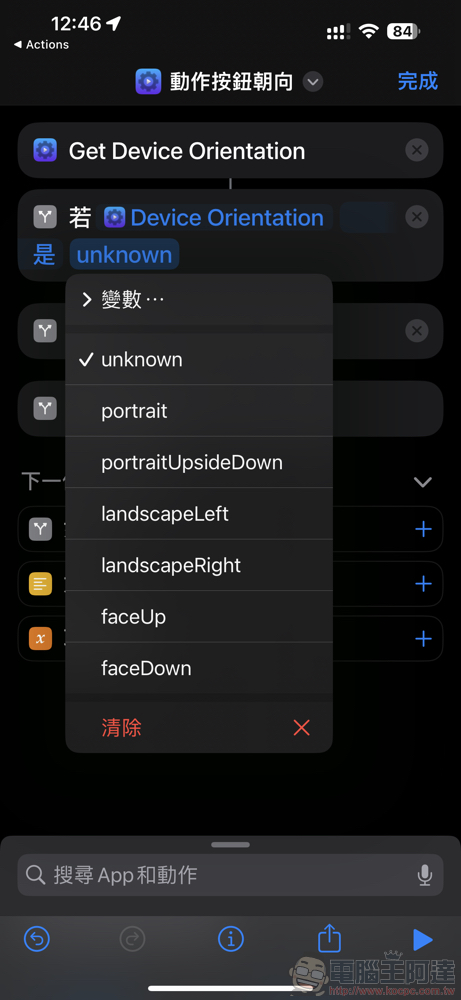
The meanings represented by the six recommended variables are:
- portrait (phone upright)
- portraitUpsideDown (mobile phone upside down)
- landscapeLeft (phone tilted to the left)
- landscapeRight (mobile phone turned to the right)
- faceUp (screen up)
- faceDown (screen down)
From this list you can specify the function to be performed based on the orientation of the phone when the action button is pressed. After selecting, search for the function you want to perform from the “Search Apps and Actions” at the bottom of the page:
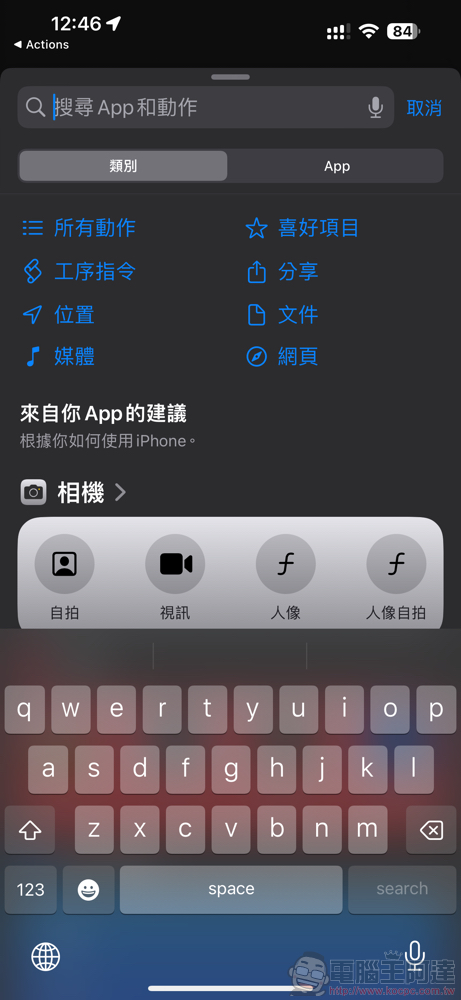
Now that the functions of the “Camera App” can be seen in the default function bar, let’s open it and try it out!
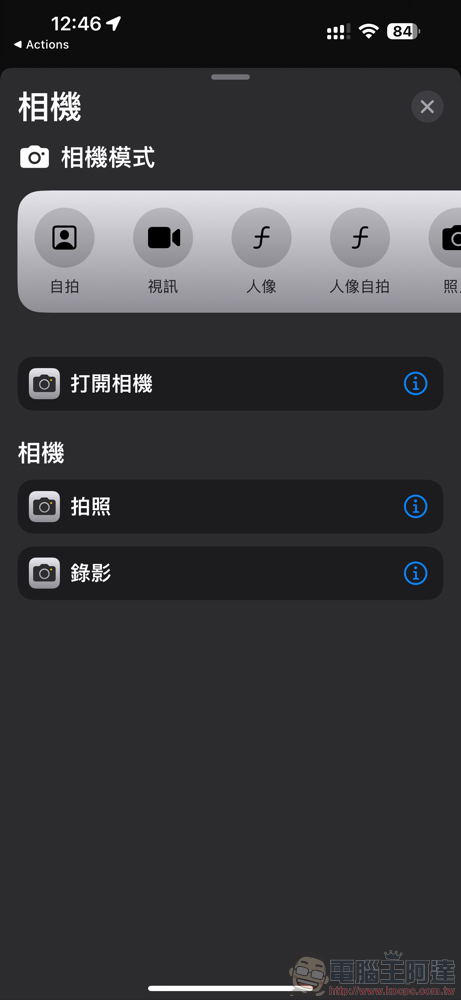
As you can see here, in addition to quickly opening the camera, you can also start a quick photo or video mode – if you want to shoot with one click faster, you can directly select this mode:
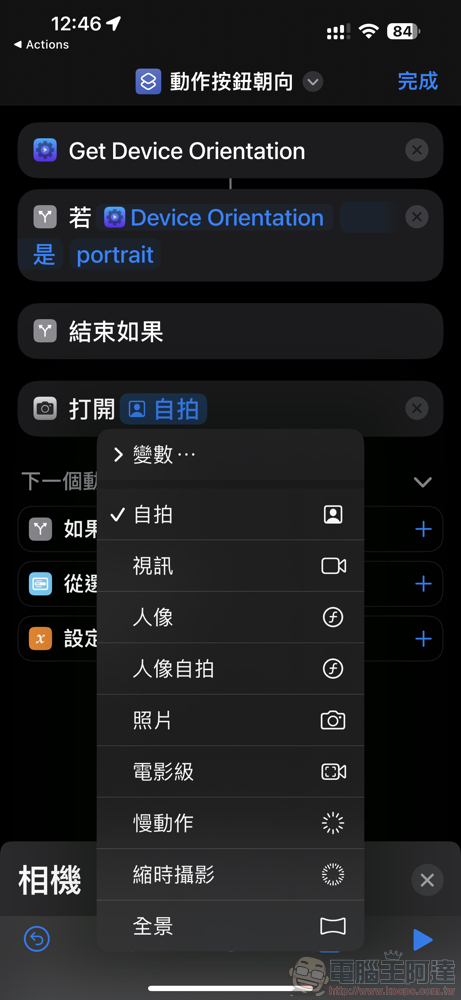
Take the “open camera” action as an example. Through the variables on the back, you can also specify the shooting of “Selfie/video (video)/portrait/portrait Selfie/photo/movie level/slow motion/time-lapse photography/panorama” just like the original settings of the action button (oh no, this seems to be more items than specified in the original settings!).
To put it simply, if you can really remember which function is set in the six directions, you can assign each direction as a quick function to make the iPhone a super powerful shooting device:
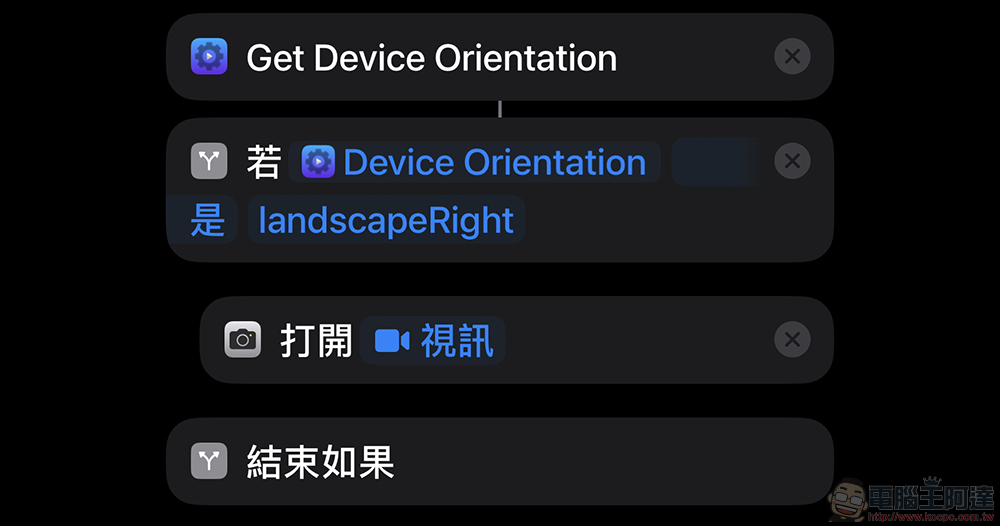
Finally, remember to drag the action item above “End If” and wrap it within the “Get Device Orientation” item:
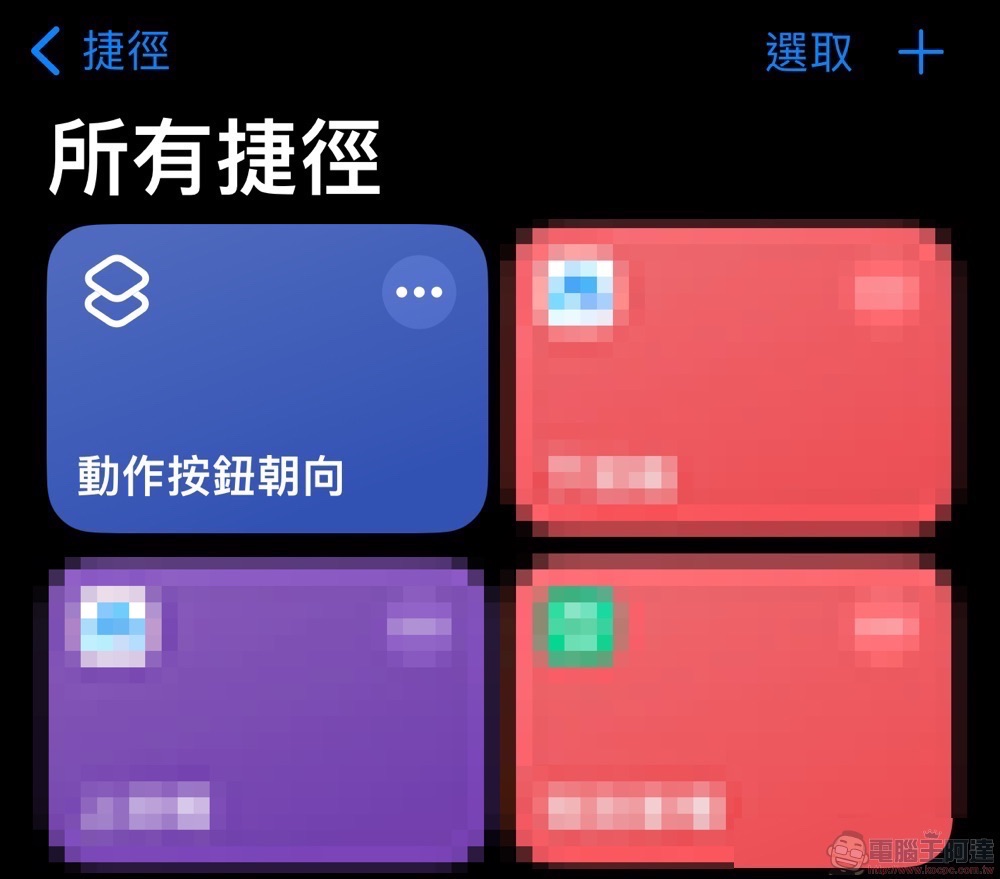
After clicking to complete, you can see your newly created shortcuts on the “All Shortcuts” page:
Then we go to the factory setting function of the new “Action Button” on iPhone 15 Pro / iPhone 15 Pro Max, change the original option to “Shortcut” and select the shortcut function of the “Device Orientation” you just created:
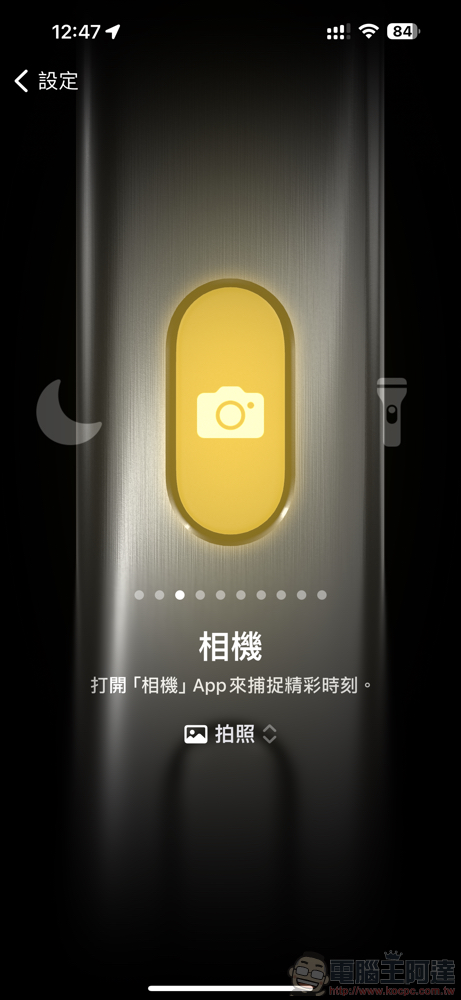
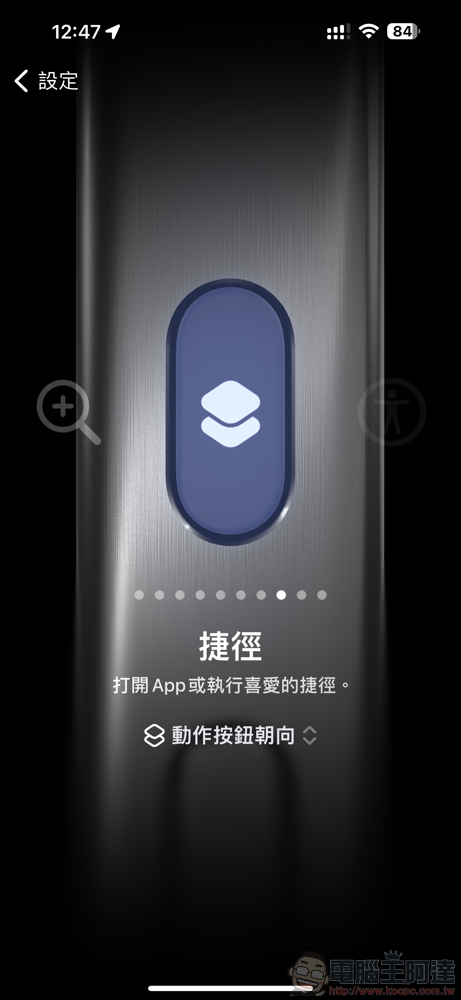
Basically, you just need to press and hold the action button and match the different directions of the phone to activate the separately set buttons:
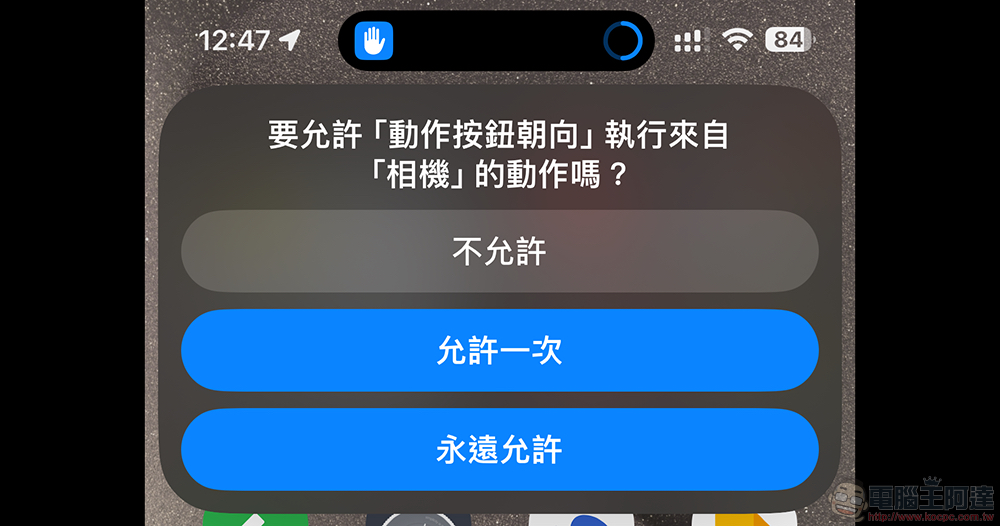
When you choose to enable it for the first time, you will need to confirm the permissions – I personally choose to always allow it, and then I can quickly start it every time:
More “accurate” silent mode settings
As mentioned earlier, by tilting the phone in different directions, you can set the various quick launch functions of the action button to coexist with the silent mode. Here we also teach you how to set the silent mode – the point is, you can also achieve a better and more precise silent or ring setting method than the original one. Here we also search to find the silent mode function:
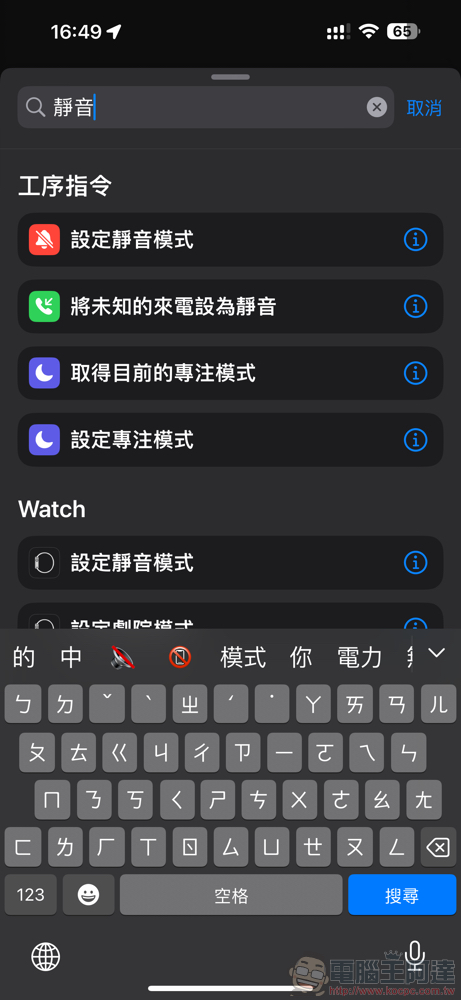
In addition to “turning on” and “turning off” the silent mode, you can also use the menu button on the back to “switch” to achieve the same function as setting the action button to silent mode previously, switching between silent and ringing:
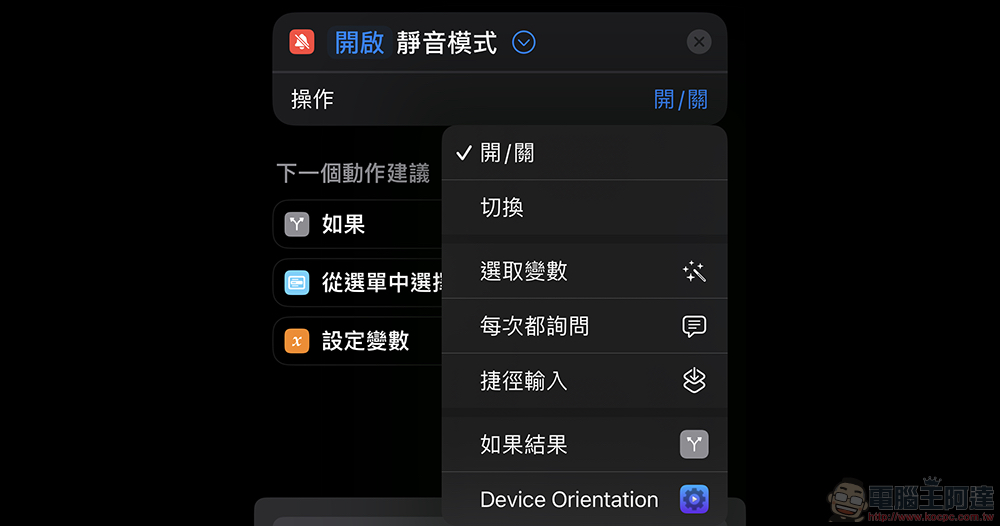
If you follow our previous teaching and set different “Device Orientation” settings one by one, the iPhone can activate different designated functions based on the direction of the phone when you press the action button:
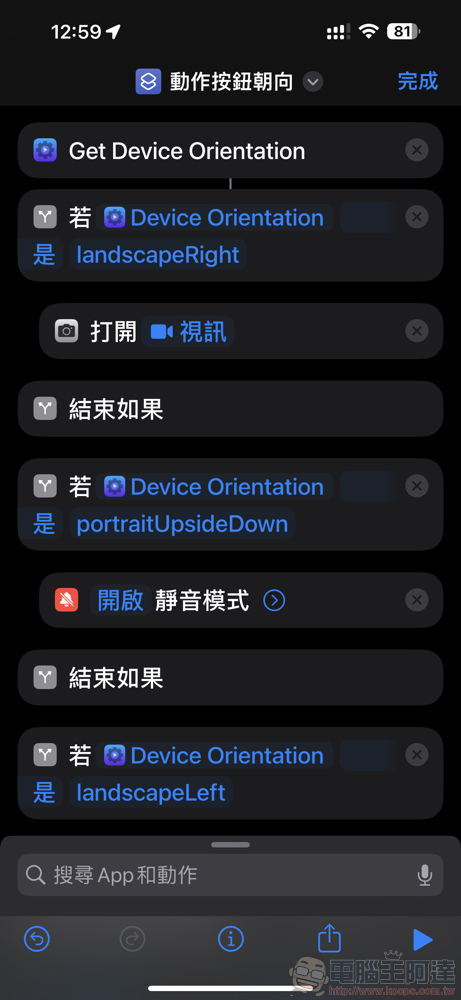
With the “Set Silent Mode” variable item, you can clearly specify that a long press of the action button will “turn on” the silent mode, or turn off the silent mode, which is the ring mode – which is somewhat close to the clear control method of switching the silent dial in the past. OK! I know it’s different from the clear switching feeling in the past! :
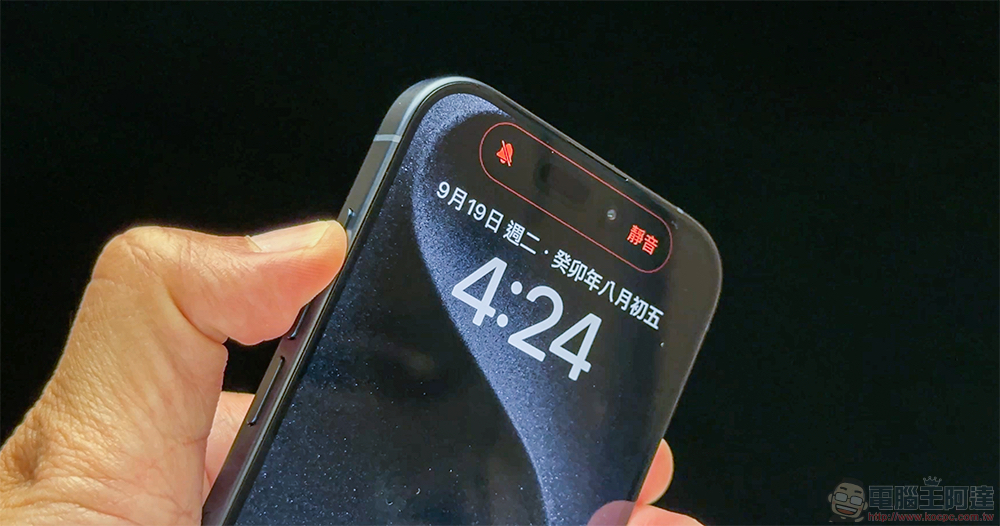
But I would actually recommend it. Even friends who only have “just want the mute button” requirement for the action button can set this function up. For example, I set it so that only when the phone is held horizontally, it will be the camera function button. The rest of the directions are related to mute functions. I also share it here for your reference!
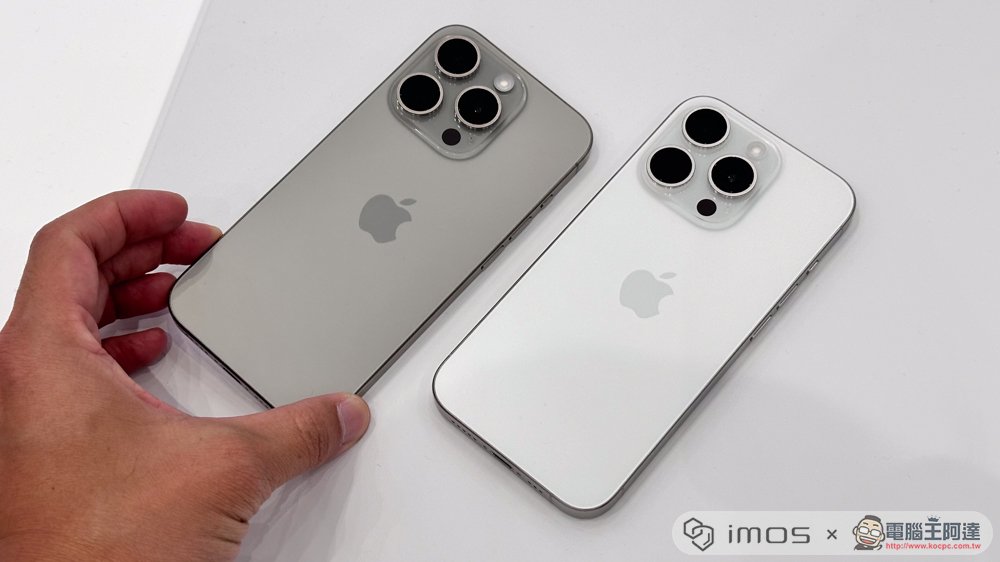
Basically, when I hold the phone directly, I will choose to “switch” to silent mode. But if the iPhone screen is facing down, or when the iPhone is turned upside down, I set it to “turn on” the silent mode. That is, in these orientations, long pressing the action button will “confirm” the silent setting.
The benefit here is that when the phone is in your pocket or placed with the screen down on a table, you don’t have to check the screen or feel the tactile vibration to determine whether to switch to silent or ring. Basically, as long as it is in this state, pressing the action button will activate the silent mode; when the screen is laid flat and facing up, the ring mode will be activated – such a sense of clarity is awesome!
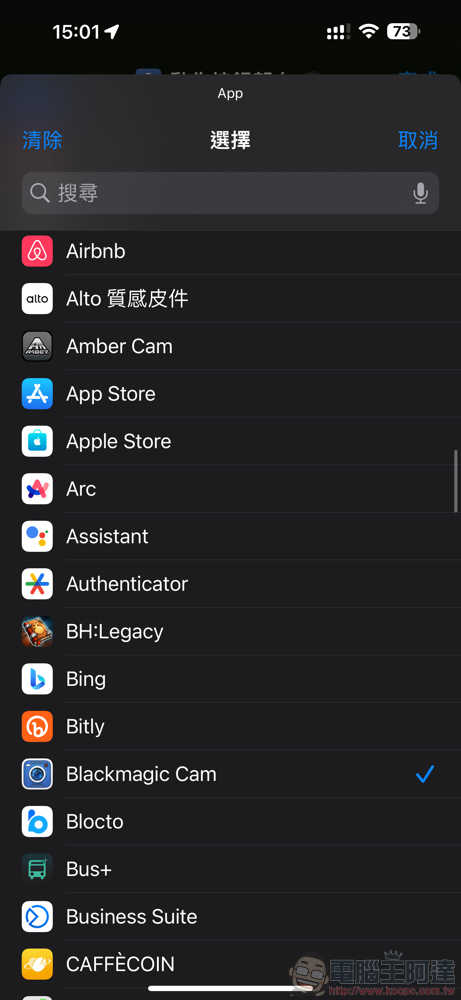
Finally, I also recommend that you can assign the Blackmagic Cam App, which was also used by Apple to record the Scary Fast conference, for quick startup. I set it so that if it is horizontally on the left, it will be the original camera app, and if it is horizontally on the right, it will be the Blackmagic Cam App. In this way, you can choose to launch the most suitable recording app according to the situation.
Further reading:

Source: KOCPC Chinese