


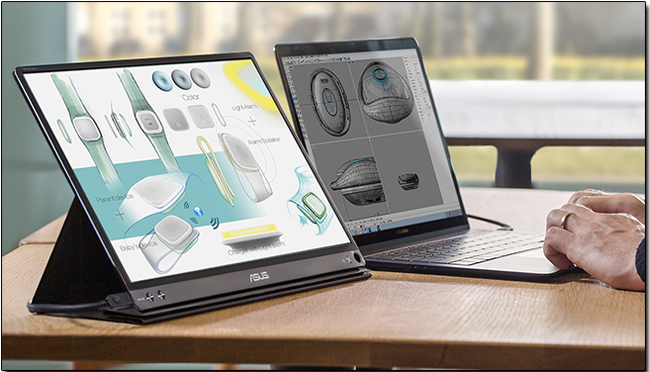
Adding a second screen is the most common way for Windows users to improve productivity, but sometimes the computer may not be able to sense the additional monitor for some reason. This problem is not uncommon, but it is easy to fix. We have compiled 8 simple fixes that you can easily do yourself. Try them out and get your second screen moving as soon as possible.
Can’t detect the second screen? 8 simple fixes you can do yourself
Manually detect monitor
While auto-detection works fine most of the time, you can also explicitly tell Windows to look for a new external screen, which is especially helpful with some of the older connection standards (such as VGA, DVI). To manually detect in Windows 11, you can follow the steps below:
- Right-click on the desktop and select “Display Settings” from the menu.

- In the display settings window, you can see which monitors are currently connected to the computer. If the second screen is not detected, it will not appear here. If your second screen is not displayed here, you can click the down arrow behind “Multiple Monitors” and then press the detect button. Once the detection is complete, any available monitors will be displayed.

- If you are using Windows 10, the process is exactly the same as above, please follow the instructions. If the second screen still doesn’t appear, continue with the troubleshooting below.
Check whether the power supply is normal
You should make sure that all equipment is properly connected to the power supply and switched on. If the display or any relay device (such as an HDMI docking station) is not receiving power, Windows will not detect the display. Speaking of which, if you have complicated settings for a relay device, try connecting your computer directly to the screen, bypassing the relay device, to see if it works. This can help you narrow down the problem and learn whether the problem is with the screen, Windows, or the relay device.
All the wires should be inserted into the correct holes.
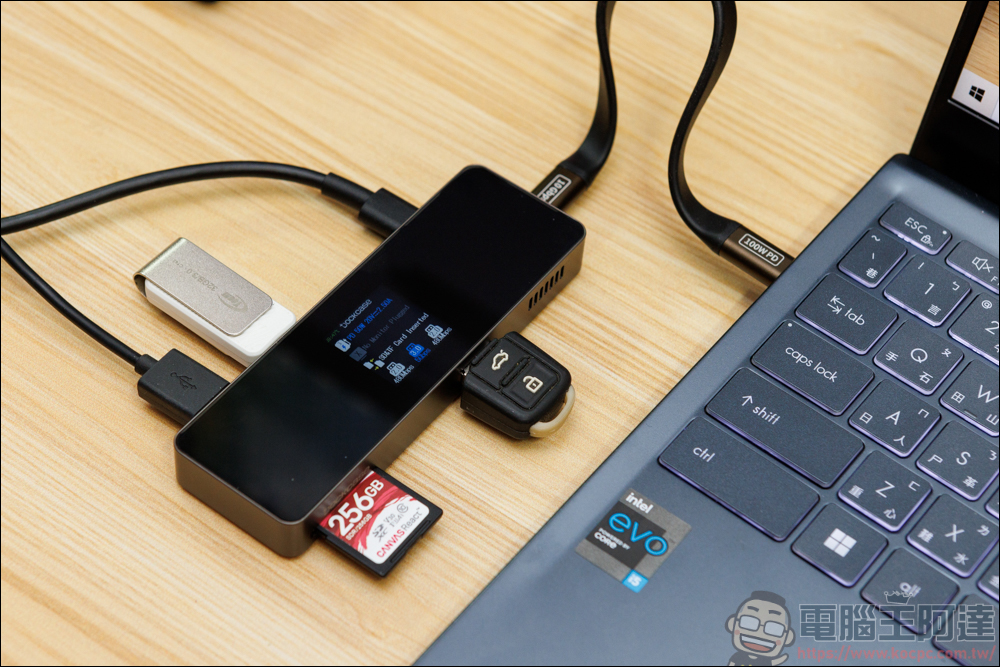
The most common reason why the second screen cannot be detected is that the monitor cable is plugged into the wrong hole. Please carefully check whether all cables are plugged into the correct port. Most computer motherboards have HDMI or other display outputs, but if you are using a discrete graphics card, you need to plug the monitor into the image output hole of the graphics card rather than the motherboard. If you’re not sure whether to use a graphics card, try every port you see.
Make sure the display is set to the correct input source
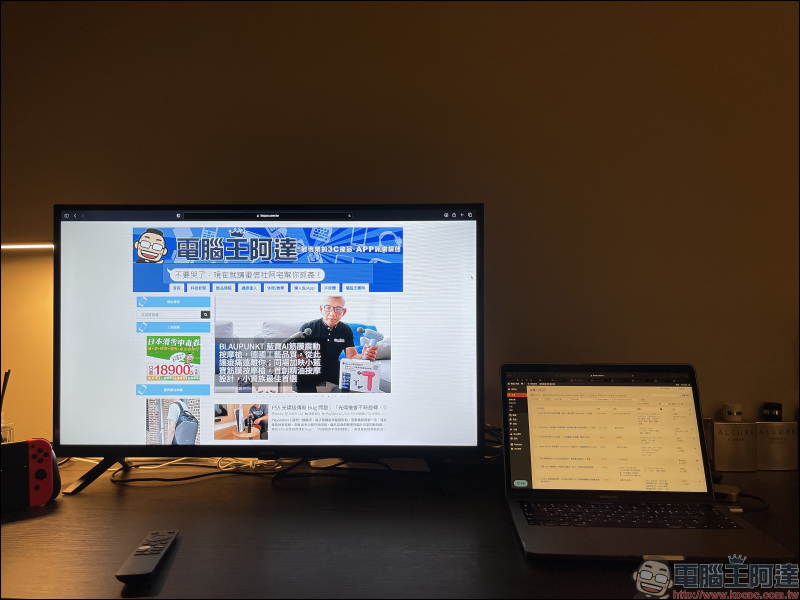
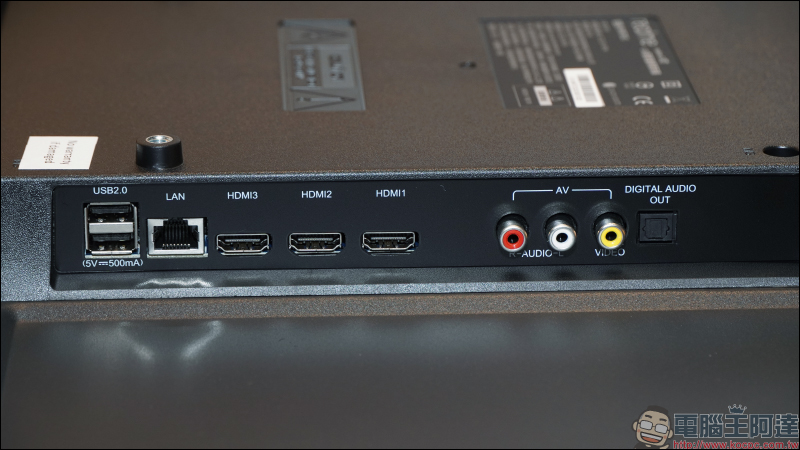
Most modern computer monitors and almost all TVs come with multiple input options. For example, if your computer is connected to HDMI 1 but your screen is set to HDMI 2, you won’t see anything on the screen. See your monitor’s manual for information on changing the source, then switch to the input source your computer is actually connected to, or you can manually move the cable to a different input or remove a connection other than the power source.
Restart the computer
If all connections are correct, the power is turned on properly, and everything has been checked, please restart the computer when everything is connected. While most computers will work directly when a second screen is connected, some may require a reboot to grab the display, so a simple reboot will get it working.
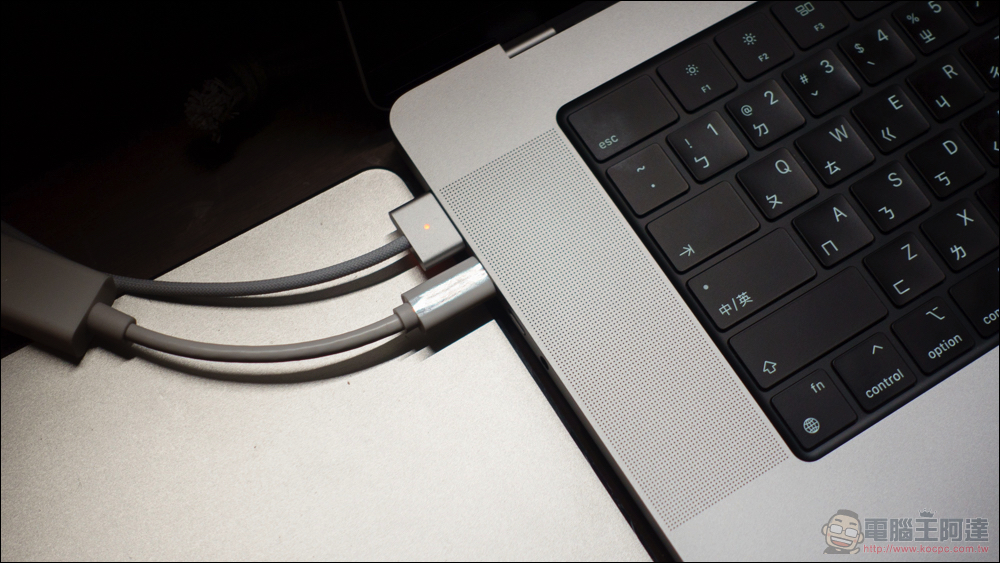
Use a different port, cable, or connection type
If your graphics card and monitor provide more than one display type (such as HDMI, DVI, DisplayPort), you can try switching to other display types; if you insist on using the same display type, you can try changing the port or changing the cable. Unplugging the cable and plugging it back into the same port may trigger the detection. Sometimes, without any clear situation, trying multiple methods can help solve the problem, so please give it a try.
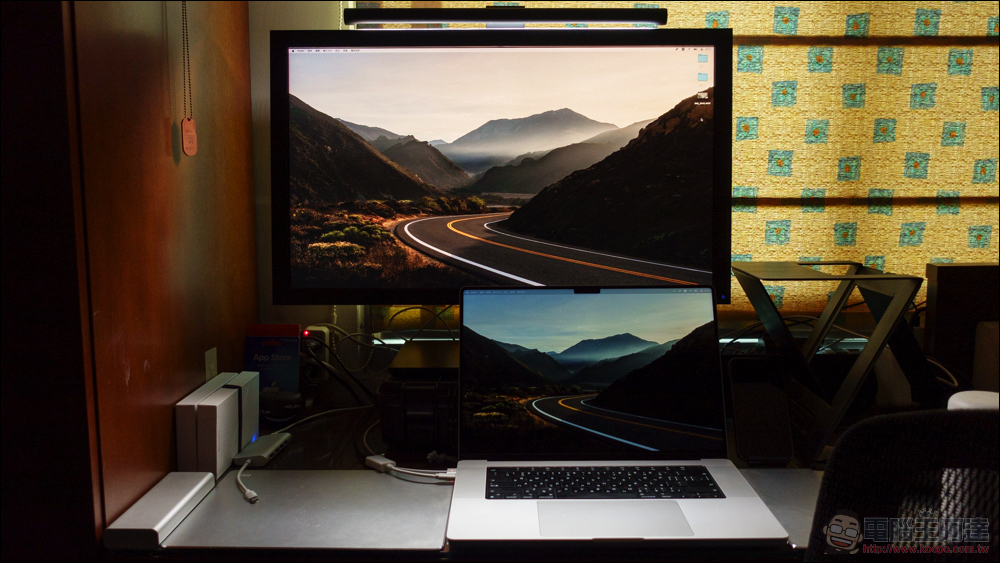
Using a USB relay device
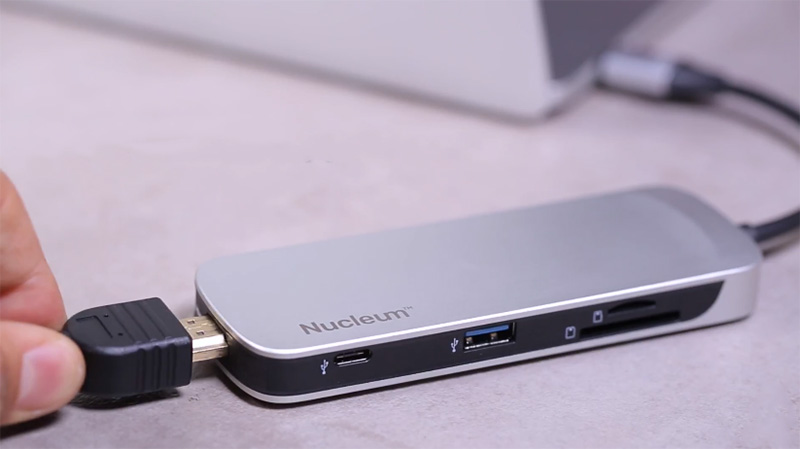
You can also try using an HDMI or DisplayPort port on a USB dongle to completely bypass the output from the graphics card. This may not fully meet high-end needs such as ultra-high resolution or high frame rate games, because you will encounter some latency issues, but if you just need a second screen for multitasking or presentation output, using a USB relay device will be as good as plugging it directly into the graphics card.
Update graphics card driver and operating system
Defective graphics card drivers may cause problems with basic functions including multi-screen support, so graphics card manufacturers often launch fixes or updates to improve existing problems. Therefore, please go to the graphics card manufacturer’s website to download and install the latest graphics card driver. You can also check to see if there are any updates pending in Windows at the same time. Keeping all your software up to date can fix some software bugs that you can’t fix no matter how hard you tinker with your hardware, so when you’re sure there’s nothing wrong with your hardware, be sure to check whether your graphics card and operating system need to be updated.
Source: KOCPC Chinese