


Starting from the iPhone 12, Apple’s smartphones have fully joined the 5G lineup. For most users, upgrading to 5G is equivalent to obtaining faster speeds and more reliable network connections. Although it allows you to watch online streaming videos and play games more smoothly, overall needs and conditions must also be considered. There is a phenomenon that you should have noticed. After upgrading to 5G, the power consumption of mobile phones increases. So this time we will teach you about 5G settings on iPhone.
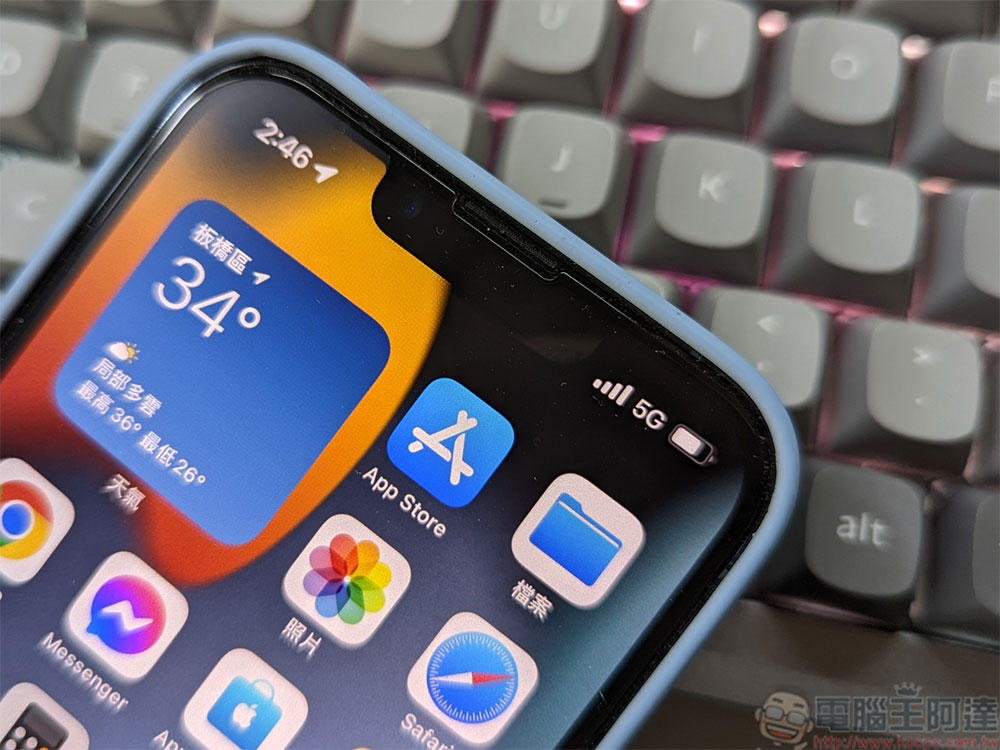
Take advantage of 5G settings on your iPhone for longer battery life
First of all, you must realize that 5G networks are not everywhere. Even in the same city, 5G base stations are not evenly installed. If you are not aware of this, it will affect your iPhone experience. Below, I will explain and explain why you should use 5G settings on your iPhone.
Why might you want to turn off 5G on your iPhone? How to turn off 5G on iPhone?
Although the major telecom operators have made great progress in 5G coverage, it is undeniable that the coverage in major cities and city centers is still relatively good, but even in areas with good coverage, there will be varying degrees of signal access. Like most phones, the iPhone 12 and iPhone 13 can automatically switch between 4G and 5G based on coverage, which will come at the expense of the iPhone’s battery life due to the constant scanning of networks. If what you want is smart network switching, this function is very convenient for you; if you are out for a long time today and have no place to charge, and the demand for power is greater than 5G, the author recommends that you can force your iPhone to stay on the 4G LTE network:
- Open the Settings app.
- Go to “Mobile Services >> Mobile Data Options”.
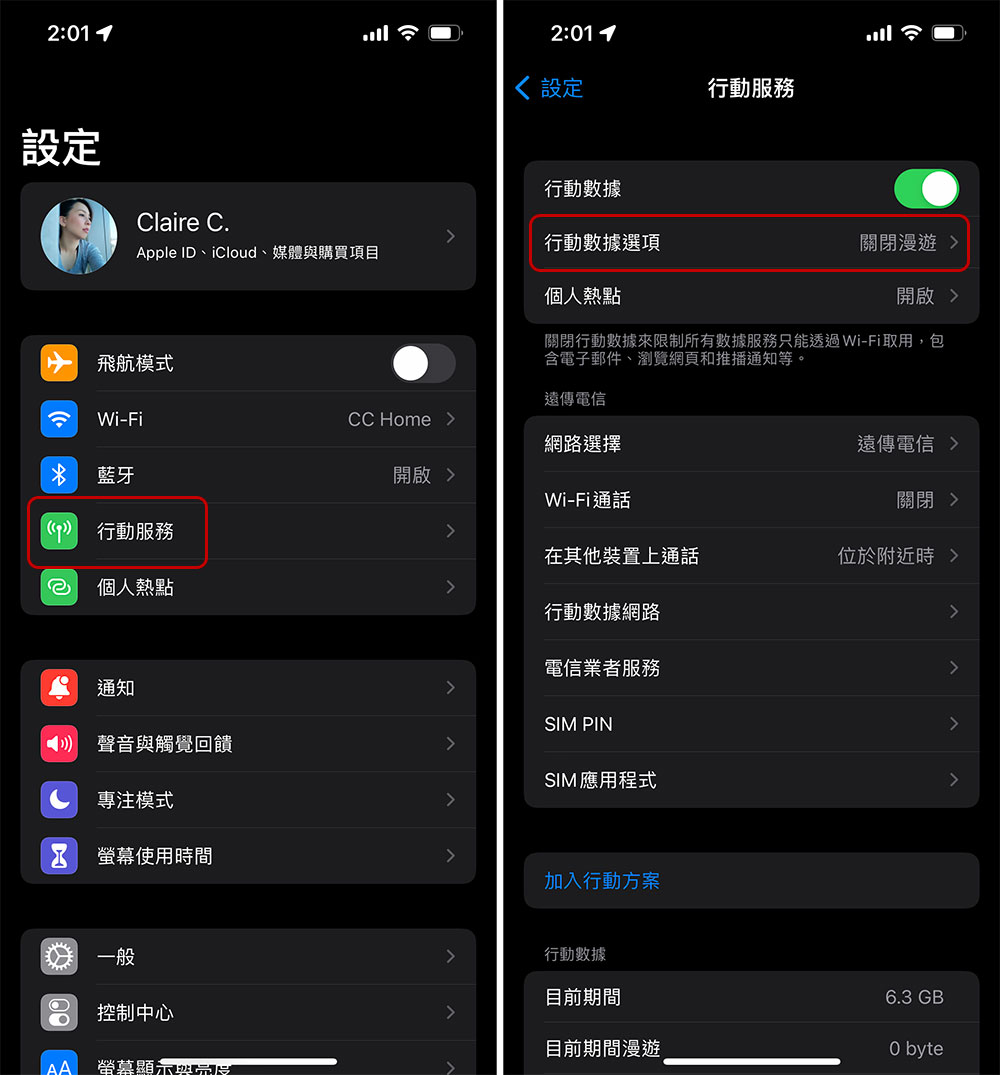
- After clicking “Voice & Data”, check “4G”.
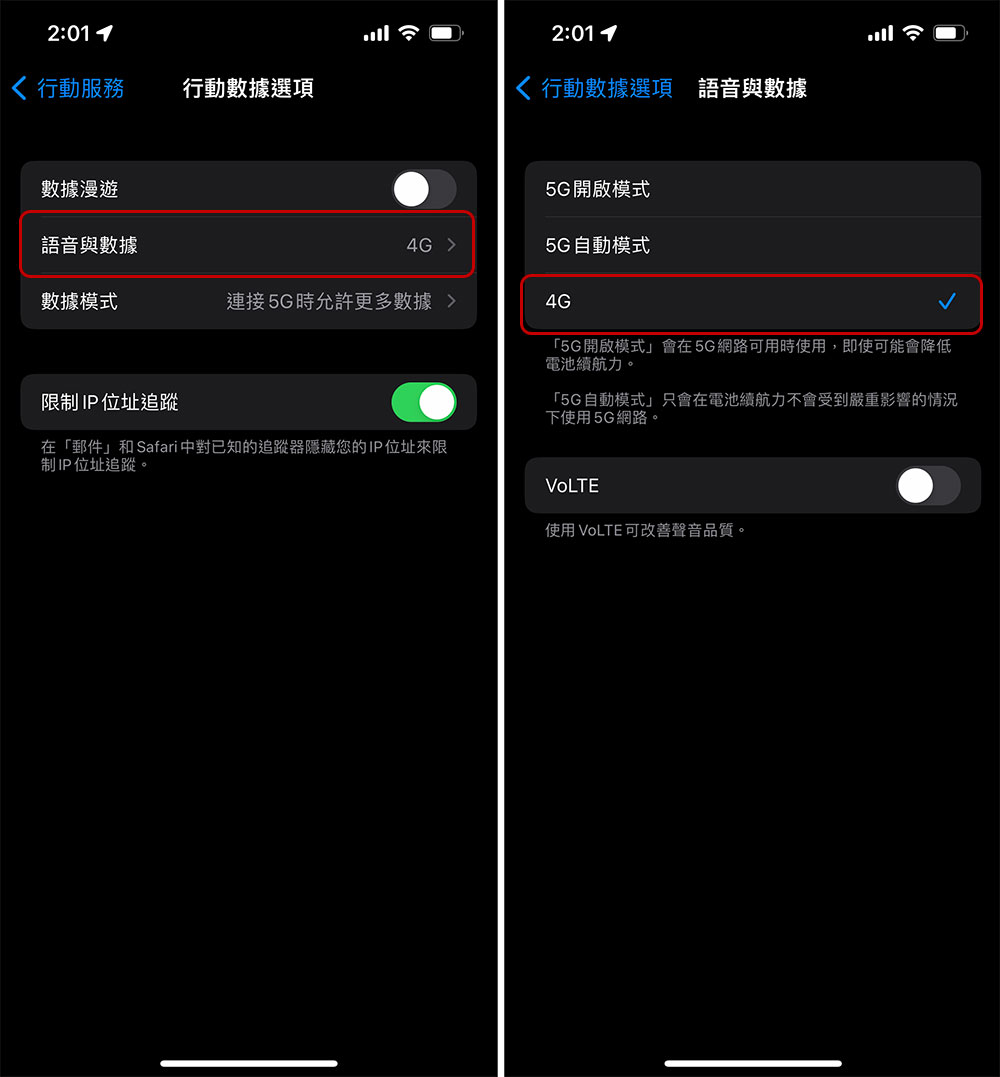
As a side note, if you switch to “5G Auto Mode”, this option will allow the iPhone to connect when a 5G signal is detected without seriously affecting battery life. As for “5G On Mode”, it will force the phone to connect to the best 5G connection as much as possible. These two modes are not very friendly when the power demand is high, so if you want to extend the battery life as much as possible, it is safest to switch to the 4G network.
How to manage 5G data usage on iPhone?
Even if you are an all-you-can-eat user, I still hope you can develop the habit of paying attention to your mobile data usage. When the network is too congested or the 5G quota has been exceeded, you will be affected by slowdowns. Fortunately, you can use some built-in functions to check your high-speed network usage. If you frequently experience high traffic and do not want to increase your budget expansion limit, be sure to confirm the settings:
- Open the Settings app.
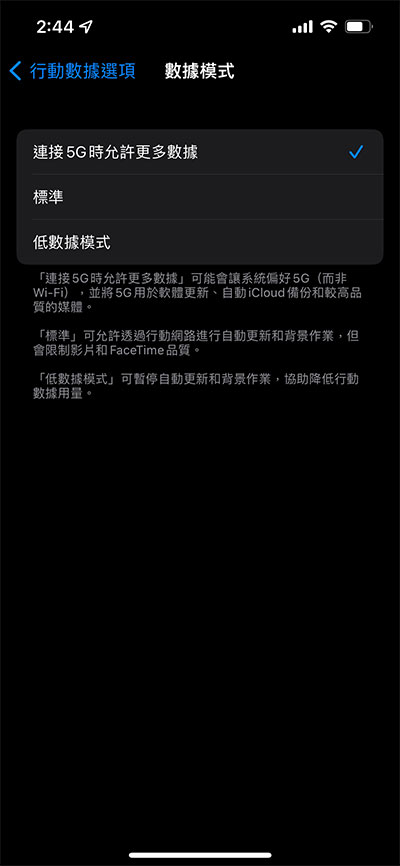
- Go to “Mobile Services >> Mobile Data Options” and select “Data Mode”.
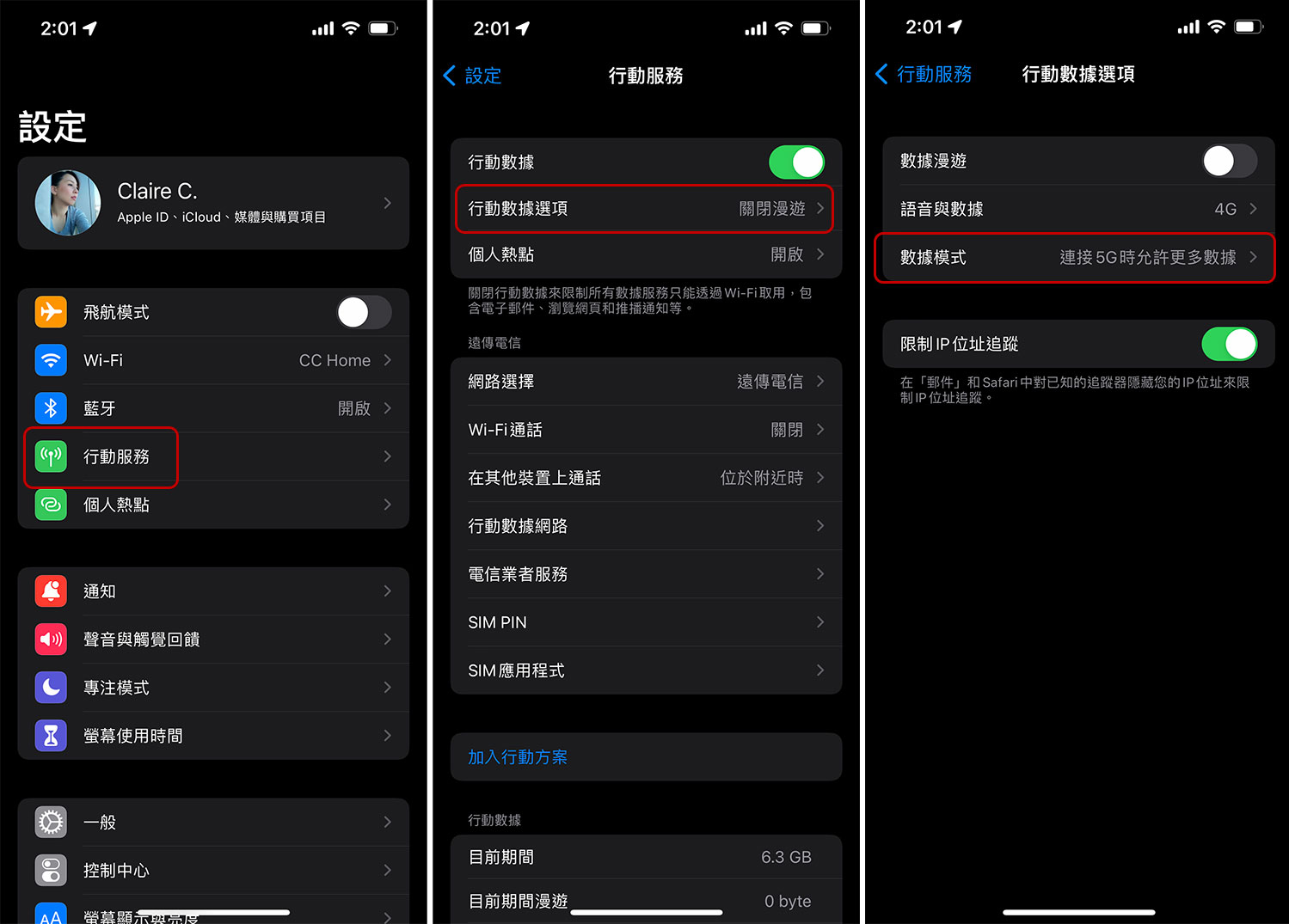
- There are three options in data mode:
1. Allow more data when connected to 5G
This option allows the mobile phone connection to be biased toward 5G, and use the 5G network for software updates, automatic iCloud backup, and higher-quality multimedia.
2. Standard
Automatic updates and background operations using the mobile network can be allowed, but image quality will be limited to save data when watching videos and conducting FaceTime communications.
3. Low data mode
This one pauses automatic updates and background operations to reduce mobile data usage when you’re out and about.
Source: KOCPC Chinese