


Settings for small taskbar buttons were provided on earlier versions of Windows 11, but this option disappeared after the official version of Windows 11 was launched. Now, Microsoft has re-enabled this feature, but its behavior has changed significantly compared to the past. In this tutorial, I will explain how this feature works and how to enable it.
How to make the Windows 11 taskbar icon smaller?
In the past, when you made the taskbar icon smaller, the height of the taskbar also decreased, but in Windows 11, the height of the taskbar is fixed. This Microsoft update isn’t about freeing up vertical screen space. Instead, it helps you squeeze in more app icons before apps crowd the taskbar. Smaller icons allow the taskbar to display more pinned or running applications, which is particularly useful for systems with limited screen width, or for users who frequently open multiple applications.
In the following steps, I will tell you a new and simple method to resize the taskbar icon. Please follow the steps below.
- Open the Settings app.
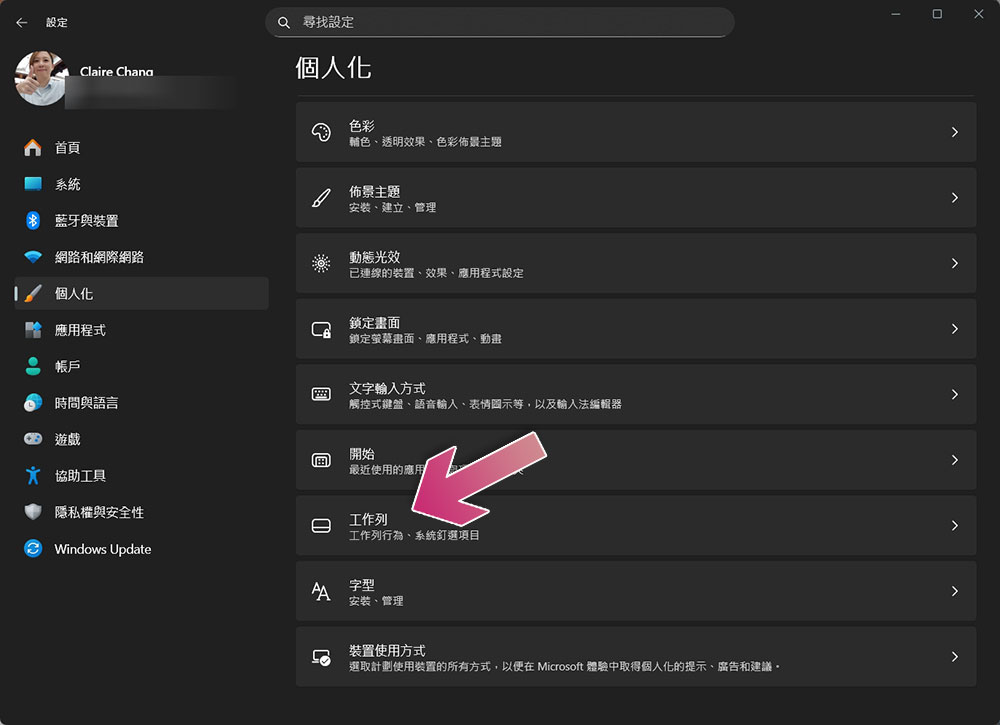
- Click “Personalization” in the left sidebar.
- Select “Task Bar”.
- Expand the “Task Bar Behavior” collapse menu, and the “Show smaller task bar button” at the bottom is our goal this time:
- The “Always” option means to display a smaller icon no matter what the circumstances.
- “When the work column is full”, the original size will continue to be used, but the icon will be reduced when the work column space is full.
- The “Never” option displays the normal-sized icon no matter what.
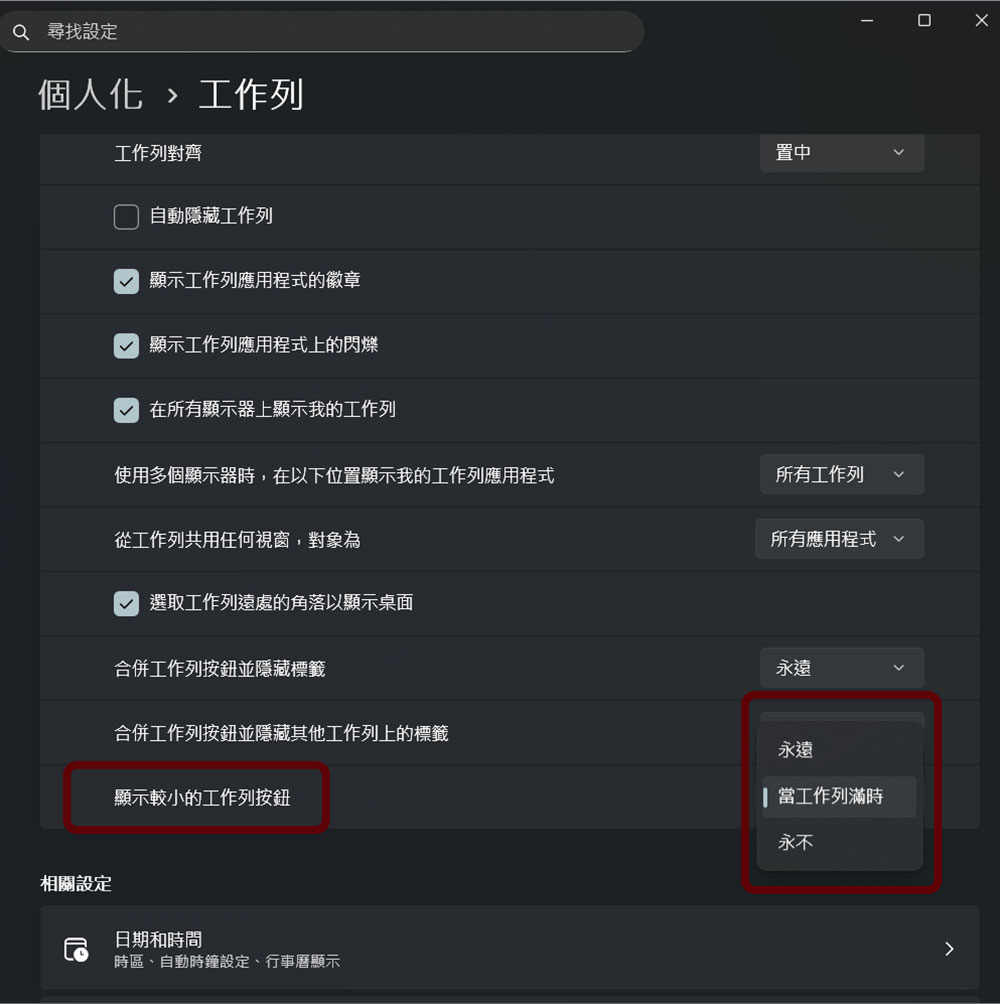
- After completing the steps, the taskbar will display smaller application icons based on your settings.
FAQ
- Will enabling smaller icons make the taskbar narrower?
No, unlike older operating systems, the height of the taskbar in Windows 11 remains unchanged, only the icon size will change. - Why should I use a smaller work column icon?
Smaller icons allow you to fit more pinned or open applications into the available space on the taskbar, which is helpful on smaller screens or when working with multiple applications simultaneously. - Will this feature improve screen space?
The height of the taskbar remains unchanged. The advantage is that it improves horizontal efficiency by accommodating more applications, so it does not help in the vertical direction. - Can I switch back to the normal icon at any time?
Yes, just follow the steps above to change the “Show smaller taskbar button” candidate to “Never”.
Source: KOCPC Chinese