


After a Windows system is used for a long time, hidden junk files and old drivers will gradually accumulate over time, causing the computer to slow down and even lead to security vulnerabilities. It’s a good idea to do a general cleaning of your computer from time to time. Removing old junk files will not only speed up your computer, but also free up space on your computer’s disk. We’ll tell you how to do it below.
How to smartly clean up old drives and files in Windows?
How to clean hidden junk files?
If you don’t want to install a third-party application, you can use the “Disk Cleanup” tool built into Windows, which is available in every version of Windows.
- Search for “disk cleanup”.
- Next select the drive you want to clean.
- After a few moments, the optional cleanup page will appear.
- Click “Clean System Files” below and wait for the system to calculate.
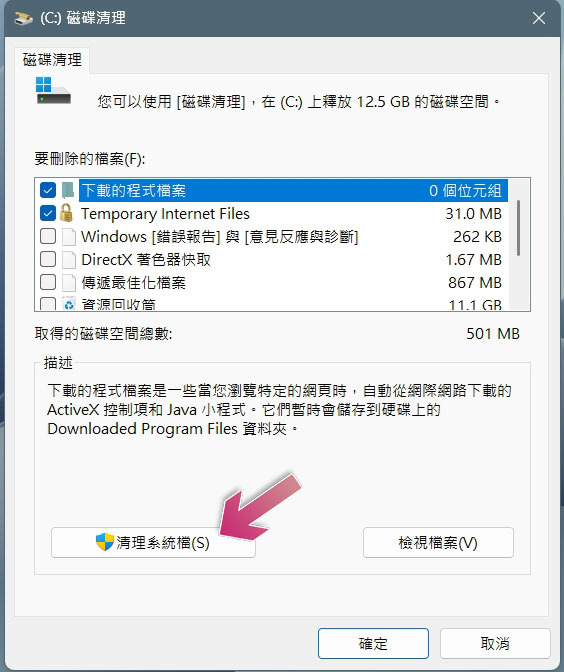
- Next select the files you want to clean. You can clean up Windows Update, downloaded program files, temporary files, and any other files you no longer need.
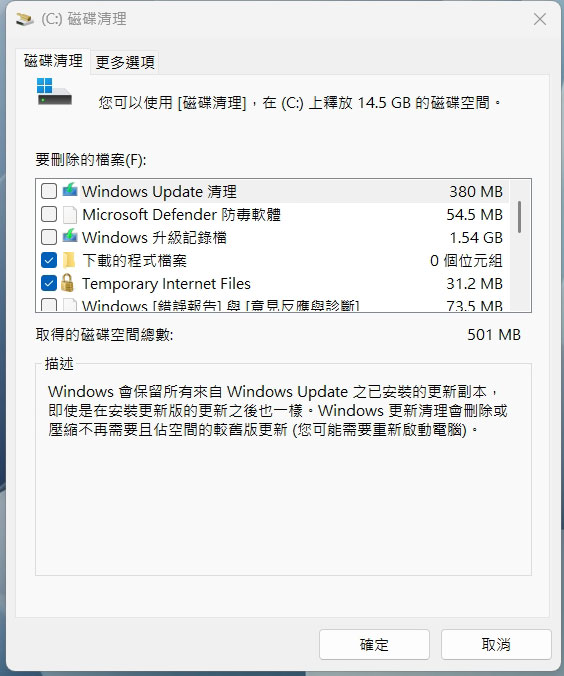
- You can perform this operation on each disk to clear out the occupied space.
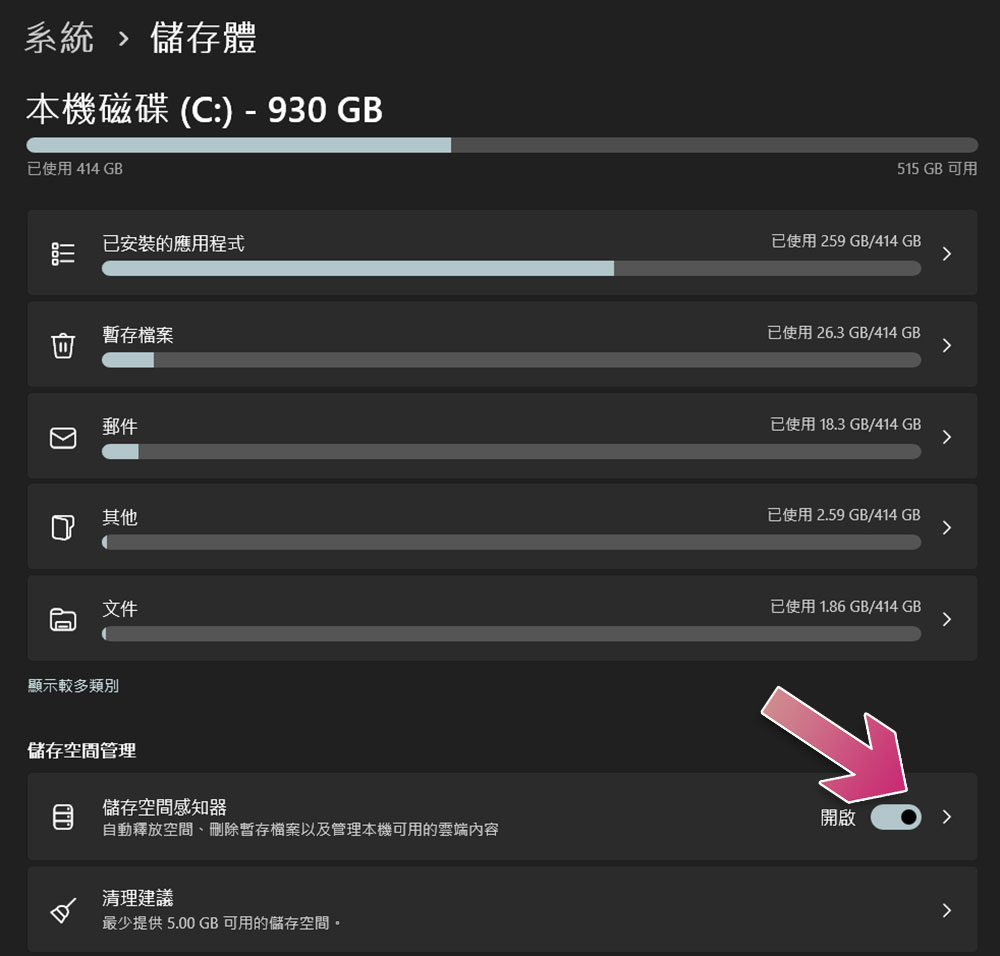
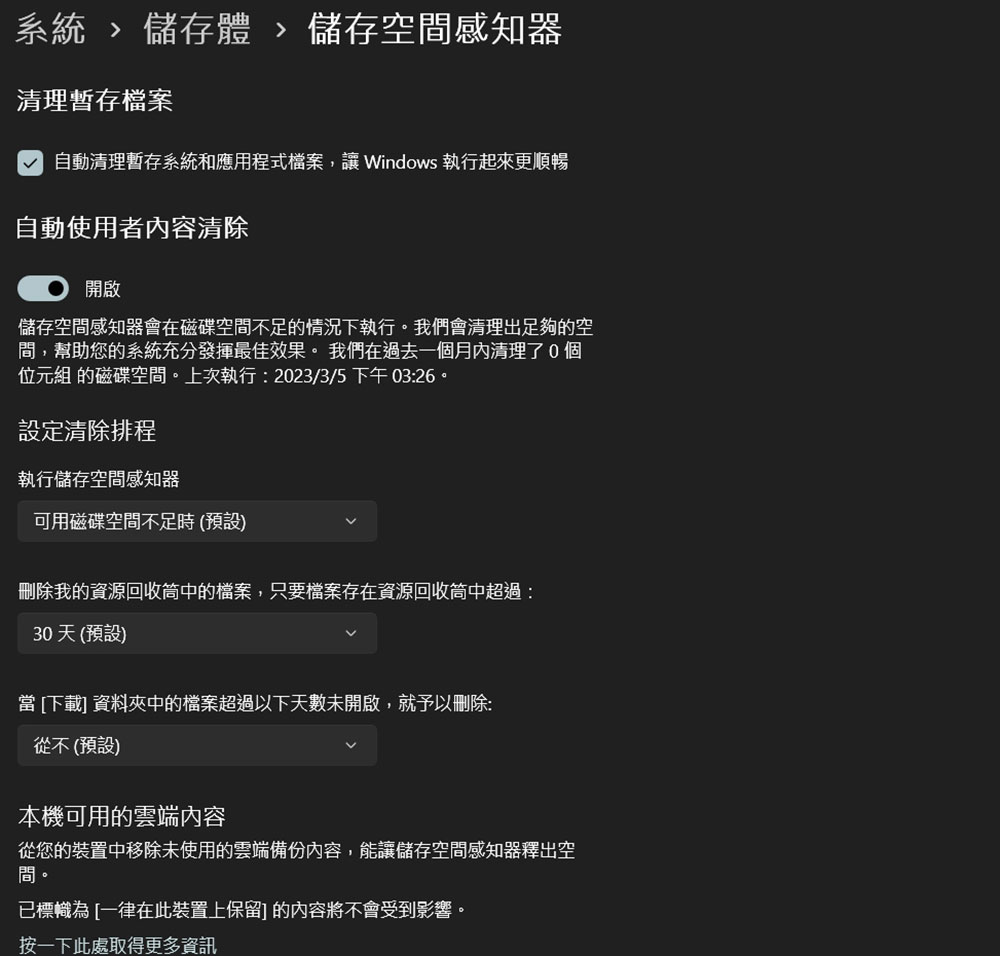
Windows 10 and Windows 11 also have an additional storage cleaning feature called “Storage Space Sensor”. Storage Sensor can automatically clean up junk files and hidden temporary files according to the time you set. You can schedule it to run every day, every week, or every month. You can also set Windows to automatically remove unopened files in the download folder and automatically clean out the Recycle Bin within a specified time.
- Open the Settings app.
- After clicking “System”, select “Storage”.
- Click the “Storage Space Sensor” option to open it, and click the arrow behind it to make detailed settings.
How to clean old drivers?
Old drivers will still take up storage space after they are no longer used, so it is best to remove them after a while. And sometimes the accumulation of old drivers, especially for graphics cards, will affect the new installation and update of the driver. If you encounter problems with the graphics card driver, you can clean the previous installation and then reinstall the driver. It is also recommended to clean the old drivers before installing a new graphics card.
- Search for “Device Administrator” and open the app.
- Click “View” at the top and click “Show Hidden Devices” to view non-enabled rescued device drivers.
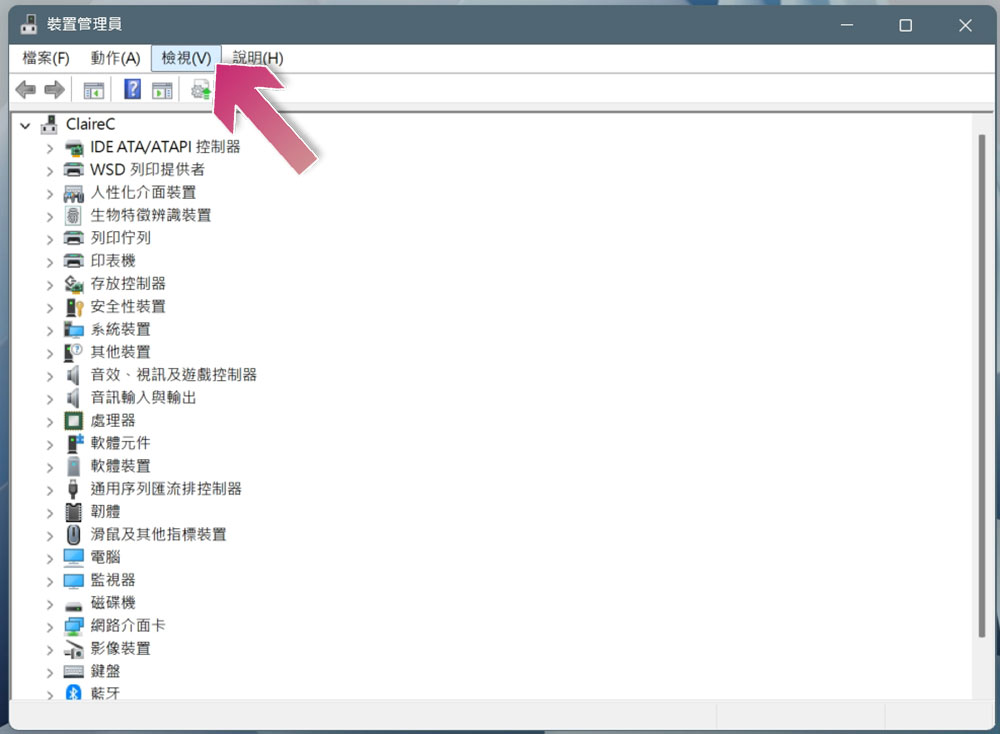
- You may need to expand each category to see the faded old driver image, right-click on the device and click “Uninstall Device”. Do not remove all device drivers as your system may require some of them, so be careful with this step.
Both NVIDIA and AMD have dedicated installation tools available. They are designed to be simple and can be used with just one click (no installation settings required). As for AMD Utility, you may have to enter safe mode first. If the official tool doesn’t work, there is a third-party tool that can remove old GPU drivers from any manufacturer, called “Display Driver Uninstaller” (DDU), which can remove driver packages from AMD, NVIDIA, and Intel.
Source: KOCPC Chinese