


When I was halfway through swiping my phone, a full page popped up.advertise, do you often get almost dropped on your phone? actually iPhoneStarting from iOS 18, Safari on iPad and Mac has a built-in ultra-low-key but ultra-useful tool—”Hide distractionsproject”. It does not require additional downloading of ad-blocking plug-ins, nor does it slow down browsing speed. In just three steps, it can hide all ads, floating blocks or strange small boxes that hurt your eyes, making the screen instantly clearer. This time I will give you a complete understanding of how to use this function, what it can do, and how it differs from plug-ins, so that you will no longer be disturbed when reading articles on your phone.
iPhone can also block ads manually! Hide distracting items in Safari is super easy to use, refreshing the screen in just one second
If you are often swiping on your phone to read news, look up information, look for food notes, or read unboxings, and are suddenly interrupted by full-page pop-ups, flashing ads, or strange floating squares, then you will definitely fall in love with it. Safari The newly added “hide distracting items” function. The spirit of this feature is actually very simple: Don’t be frustrated by visual garbage anymore.
And more importantly, there is no need to install plug-ins or jailbreak, and it will not cause security risks. As long as you update to iOS 18, iPadOS 18 or macOS 15, you can use it immediately.
What exactly is Safari’s hidden “manual ad blocker”?
In the past, if we wanted to block ads, most of us would install plug-ins or use third-party apps. Although it is effective, there are some concerns about privacy issues. In addition, plug-ins sometimes slow down the loading speed, and not everyone wants to install a bunch of things.
Apple directly helps you solve this trouble in iOS 18 and launches the “Hidden Interference Project”. Its concept is very similar to a combination of “manual selection” + “temporary blocking of ads”. You can use your fingers to click on any element on the page that you find distracting, including:
- advertising banner
- Pop-up window
- Weird little floating frame with welt
- The LINE share button that keeps floating on the screen
- Subscription reminder, small prompt box
- Unwanted blind spots on your website
- Even common web page elements can be hidden, with no restrictions on types at all.
In short, if you think it is an eyesore, you can hide it.
One-click refreshment: 3 steps to teach you how to quickly hide distracting items
The actual operation is very intuitive. Let’s use the most common example: when you are reading an article, an “advertising banner” suddenly pops up below.
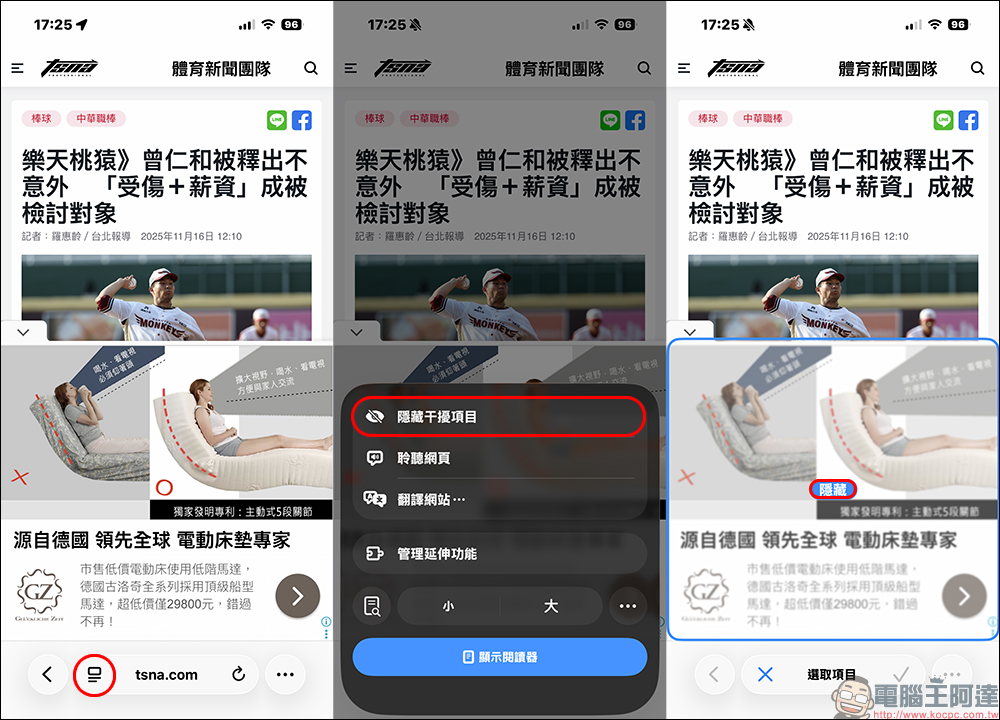
Step 1. Open more functions:
After entering the webpage you want to browse, click the small “jigsaw puzzle” icon next to the address bar—that is Safari’s “More Features” button.
Step 2. Select “Hide distracting items”:
After the menu pops up, you will soon see “Hide distracting items”.
Step 3: Click on the block you hate → Hide:
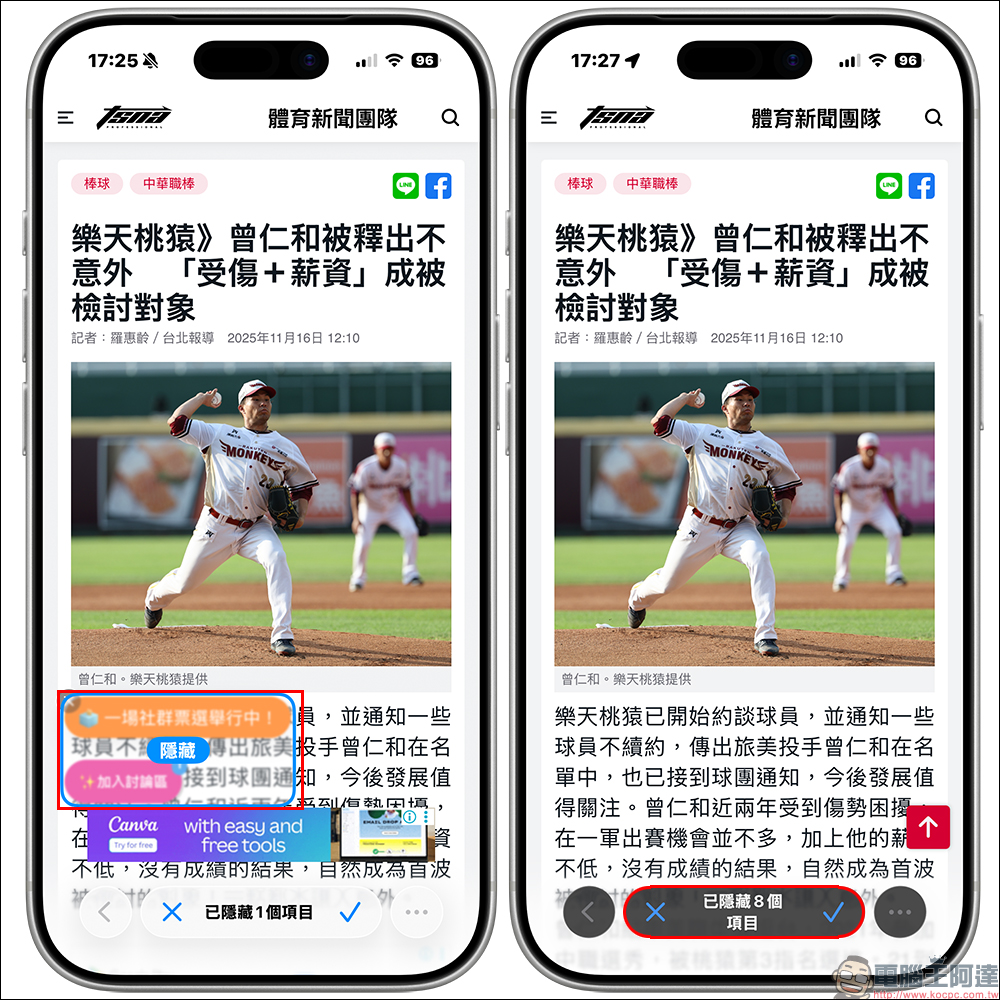
The “selectable area” will begin to appear on the screen, and the system will mark the content you are selecting with a blue frame.
you can:
- Click one
- Order two
- Even the whole row together
- All can be hidden.
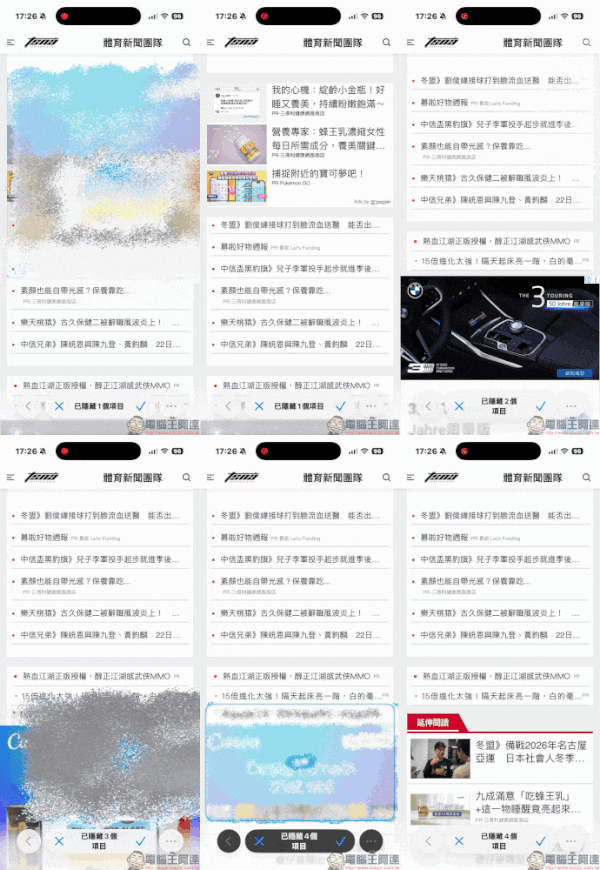
After selecting everything, click the check mark below, and Safari will play a special effect like “wind blowing away”, and then the annoying thing will really disappear, and it will be so clean that you will be a little touched.
What is the difference from general ad-blocking plug-ins?
Many people initially thought that this was the built-in version of AdBlock in Safari. In fact, it was not. The difference between the two is huge:
Difference 1: Safari is a “manual transmission”, not an automatic transmission
- Block advertising plug-ins:
→ Automatically detect and block most ads for you - Safari hides distracting items:
→ You choose what you want to hide
In other words, it is more like “scissors that make the picture clean” rather than a machine that operates automatically.
Difference 2: Safari is “temporarily hidden”, not permanently blocked
As long as you refresh the page or load the new ad content, previously hidden parts may reappear. But you can also hide it manually again, and the overall operation is very fast.
Difference three: higher security than plug-ins
Because this is a native function provided by Apple, you will not be required to allow strange permissions, and there are no privacy risks or tracking issues that plug-ins may bring. If you’re only occasionally annoyed by ads, Safari’s approach is just right.
Difference 4: Not only advertisements, but any element can be hidden
Plug-ins generally only block specific ad types, but Safari’s approach is completely free. If you don’t like it, hide it, whether it’s an advertisement or not.
Which type of user is it best for?
Safari Hide Distractors is great for:
- People who don’t want to install plug-ins and are afraid of security issues
- People who are not usually bothered by many ads, but occasionally are annoyed by certain pages
- People who are very sensitive to typography and like clean images
- People who need to take clean screenshots and avoid ugly ads
- People who want to concentrate on reading on their mobile phones
It is not a professional-level ad blocking tool, but it is definitely a “daily savior” for ordinary users.
Conclusion
Nowadays, everyone may open Safari more times than making phone calls every day, and it is inevitable to feel frustrated when seeing a bunch of ads. Although advertisements are also part of supporting website operations, some designs really interfere with reading. No wonder Safari wants to help users find a comfortable browsing experience.
“Hide Interference Items” is such a thoughtful little tool:
- No plug-ins required
- Easy to operate
Any element can be hidden - Suitable for people who want to make the screen clean instantly
Next time you encounter small floating boxes, pop-up windows, or super disturbing ads, you might as well try this secret feature that Apple quietly inserted into Safari to enjoy the feeling of “clean reading” again.
Further reading:
Source: KOCPC Chinese