


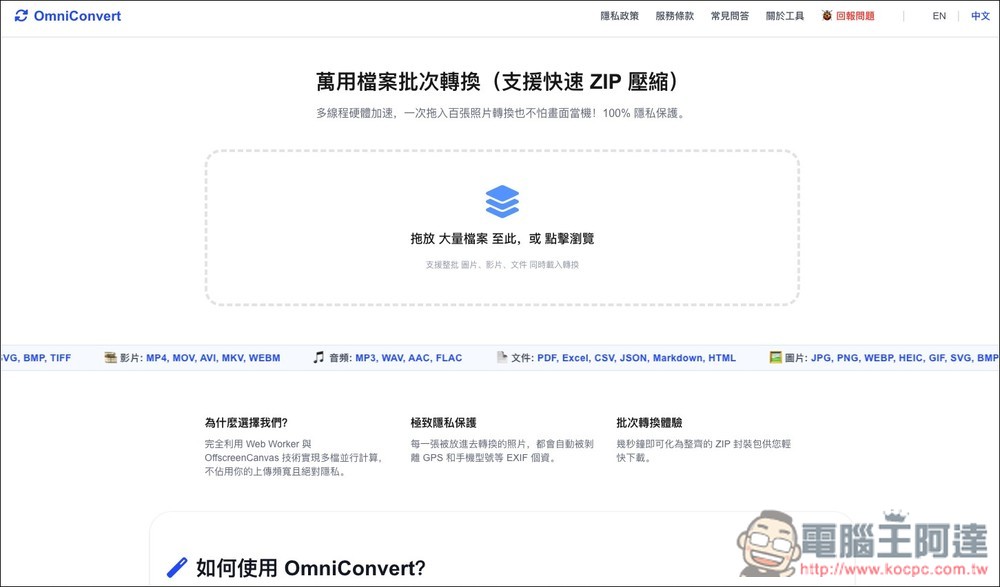
In life, we will more or less encounter situations where files need to be converted. However, for most people, conversion is only used occasionally. It seems a bit redundant to specially install conversion software on computers and mobile phones. At this time, “OmniConvert” is a free universal file batch conversion tool. This tool is a very good option. It supports most common file formats and is easy to operate. Just drop the file in and then select the format you want to convert. It can be used by opening the browser. There is no need to install any software. Moreover, all conversion processes are completed locally and will not be uploaded to the server. It is very safe.
OmniConvert universal file batch conversion free tool introduction and operation tutorial
OmniConvert is a universal file conversion tool that focuses on privacy protection and batch processing. During the conversion process, there is no need to upload files to the cloud server, but the conversion is completed directly in the user’s browser. This is quite good for people who often need to process photos, videos, audios, and files, especially if they need to transfer personal photos, work reports, screenshots, or files containing personal information, which can reduce the risk of leakage.
Supports various types of images, videos, audios and documents, such as JPG, PNG, WEBP, HEIC, GIF, MP4, MOV, MP3, WAV, PDF, Excel, CSV, JSON, Markdown, HTML and other formats.
OmniConvert also emphasizes the batch conversion experience. Users can drag in a large number of files at one time, and the system will use browser technologies such as Web Worker, OffscreenCanvas, and WebAssembly to perform multiple parallel operations locally to reduce the chance of screen freezes. After the conversion is completed, multiple files can be quickly packaged into ZIP for easy downloading and organization at one time. For users who frequently convert pictures, it also has a very considerate feature, which is that it will automatically remove EXIF information from photos, such as GPS location, mobile phone model and other private information, to avoid accidentally exposing personal information when sharing pictures.
Featured List
- Supports conversion of multiple types of images, videos, audios, documents, etc.
- A large number of files can be dragged in at one time for batch processing
- Supports fast ZIP package download
- Files are processed locally in the browser, no need to upload to the cloud
- Emphasize 100% privacy protection and reduce the risk of file leakage
- EXIF personal data can be automatically removed when converting images
- Supports common formats such as JPG, PNG, WEBP, HEIC, MP4, PDF, Excel, CSV, etc.
- Use Web Worker, OffscreenCanvas, WebAssembly and other technologies to improve conversion efficiency
- Suitable for processing personal photos, work documents, reports and large amounts of materials
- No need to install software, just open the webpage and use it
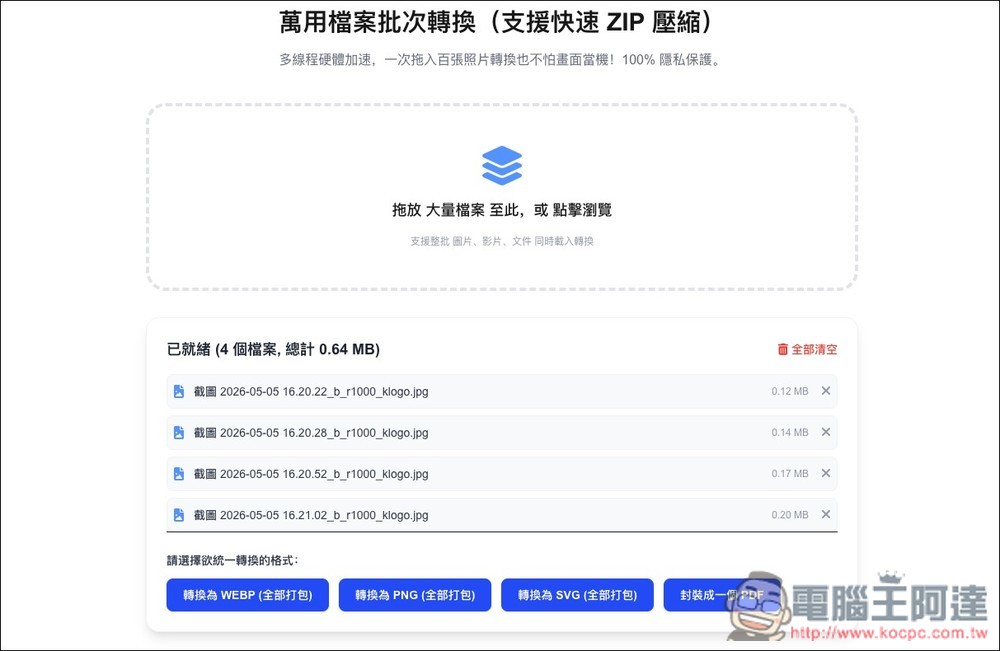
OmniConvert is very simple to use. After clicking the link above to enter the website, you can import the files you want to convert. It supports batch processing and can import multiple files at one time. Like I lost 4 JPG images at once, and then the conversion format options will appear below. In addition to converting to WEBP, PNG and SVG, these images can also be encapsulated into a PDF, which means that if you have images or files that you want to turn into a PDF file, you can also use this tool to do it:
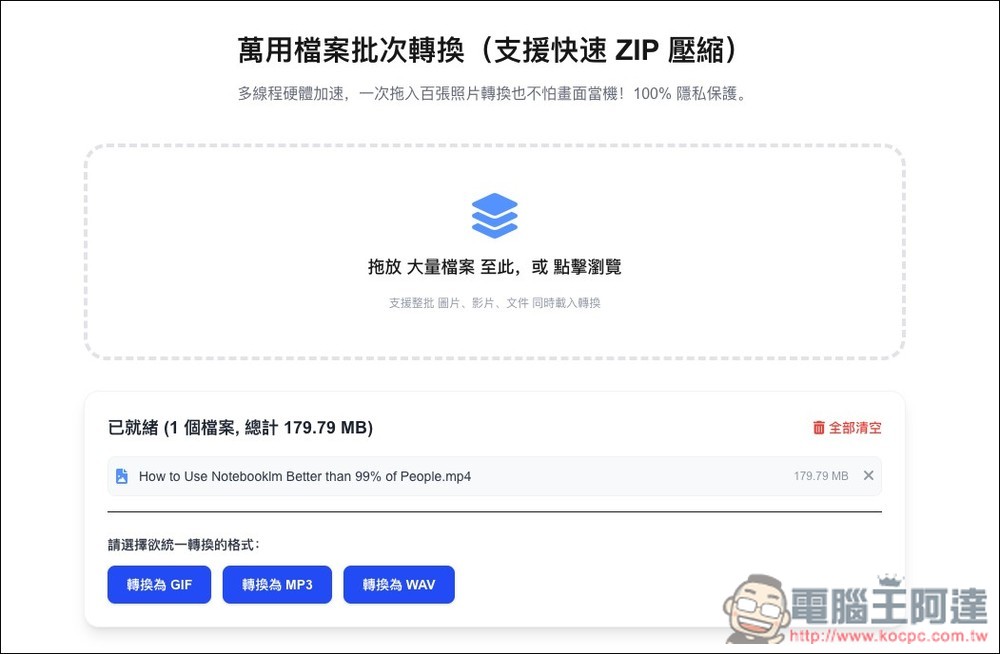
If I input an MP4 video file instead, the options below will automatically change to supported formats, such as MP3, GIF, and WAV:
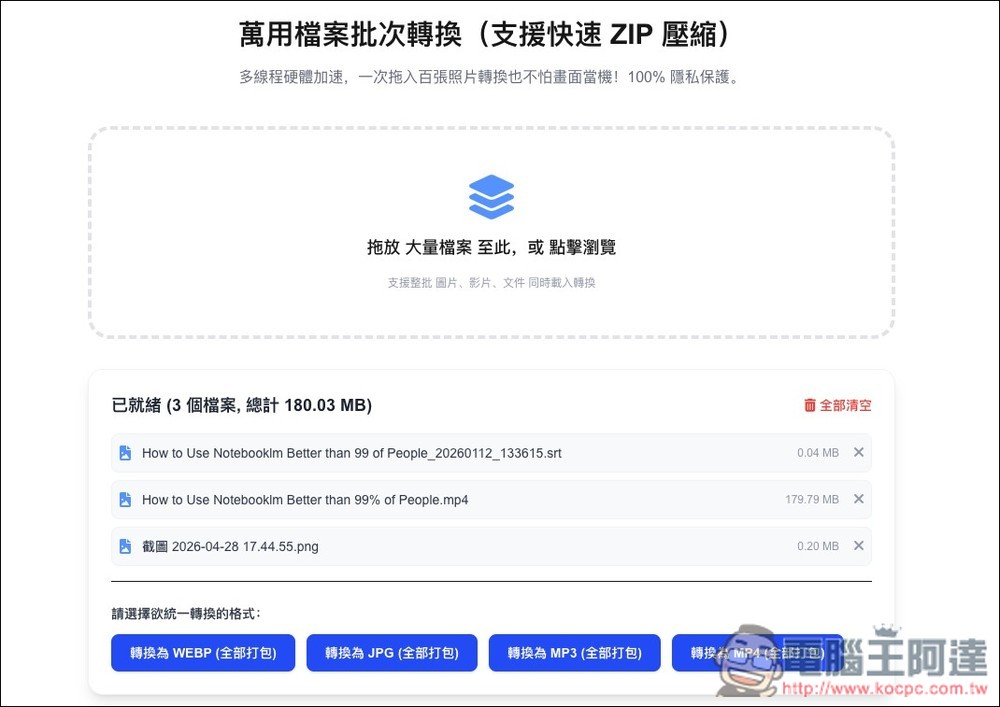
I also tried mixing it up. I can still choose the format to be converted, but I can only choose a single one, such as WEBP, MP3, etc., and there is no way to specify the format of the file to be converted:
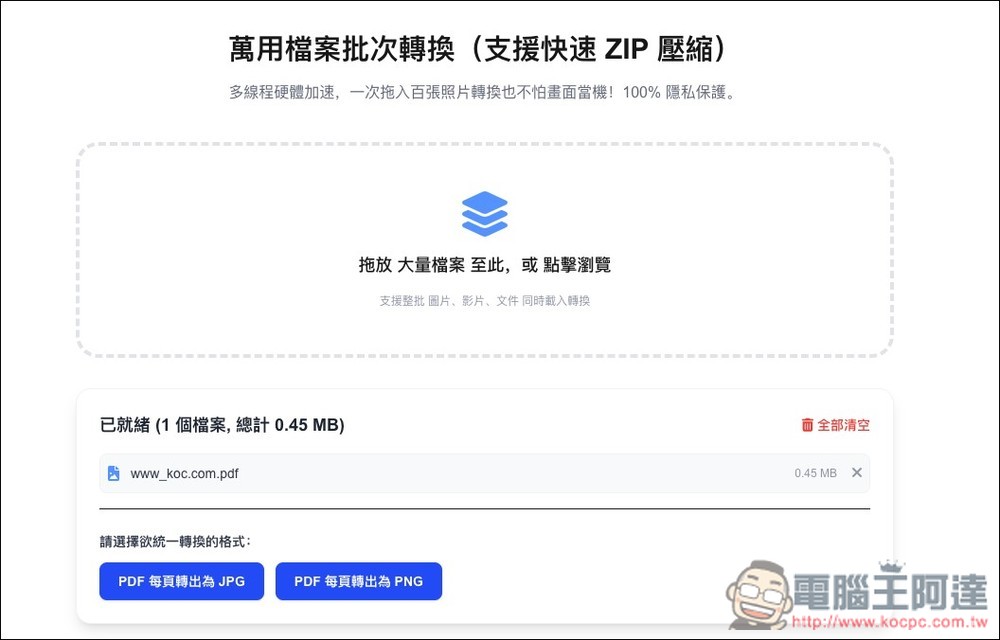
PDF can convert each page to JPG or PNG:
Source: KOCPC Chinese