


Smartphone plusmobile network, is an indispensable combination for modern people’s daily life. Although all-you-can-eat mobile Internet plans are very common in Taiwan, there are still a large group of people who choose limited plans because of low Internet usage. In this case, how to save your data usage is something you must understand. Saving data in the Chrome browser does not mean you have to spend every penny, but it means understanding what things will consume data and taking some measures accordingly. This time we will tell you which settings can be adjusted to help you save data.
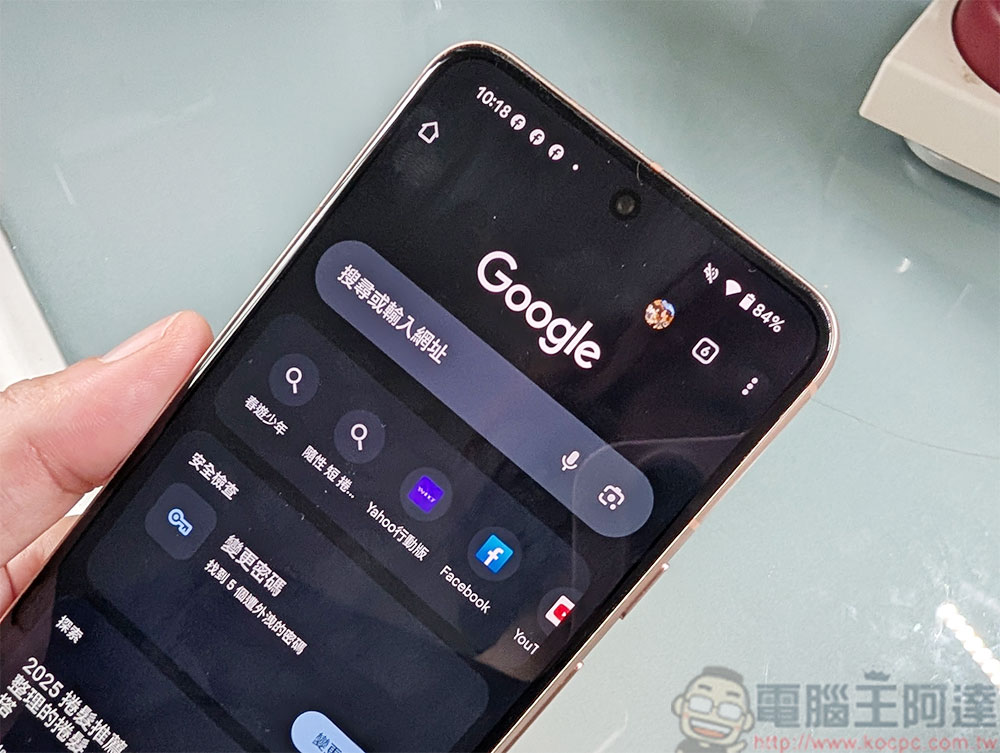
Change these Chrome settings to help you save more data usage
Stop video from playing automatically
Autoplay is not a necessary function on your mobile phone, because when you see the video you want to watch, you can manually press play. This setting is mainly to allow advertisers to be more proactive in interacting with users, rather than to provide convenience to users. When a video starts to be automatically streamed, it will be recorded as one of the views regardless of whether you watch it or not. This allows advertisers to better negotiate with manufacturers, and at the same time, it also uses up your data traffic in ways that are not your own active clicks.
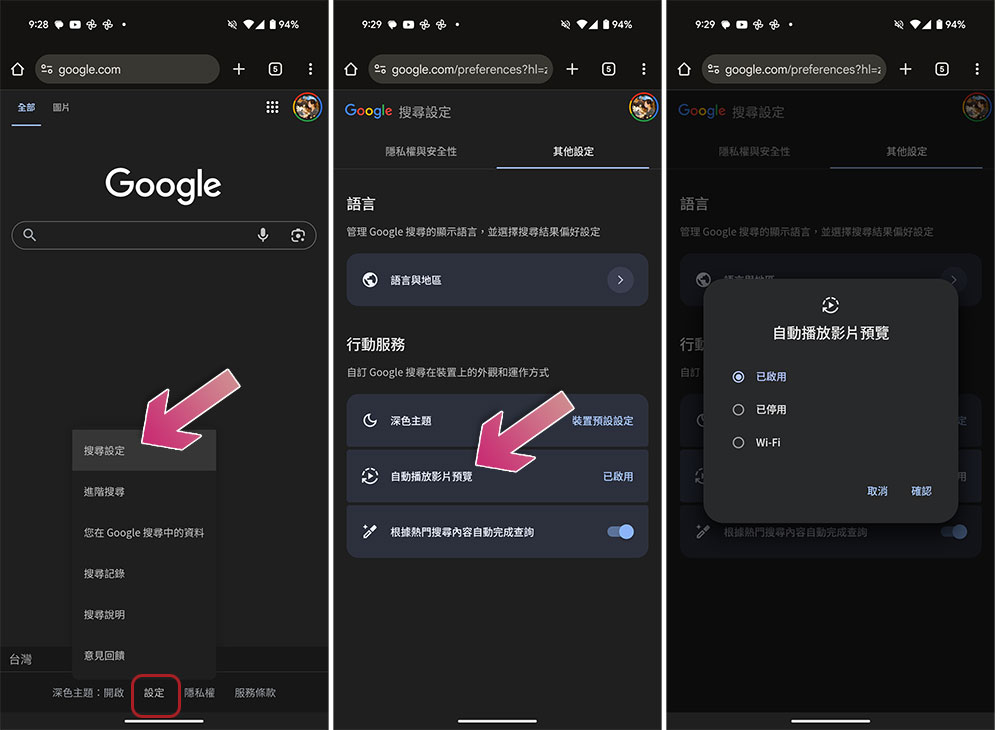
To turn off automatic video playback, use the following settings:
- Open the Google Chrome browser.
- exist Google homepageScroll up to the bottom and click “Settings.”
- Select “Search Settings.”
- Switch to “Additional settings” and select “Autoplay video preview.”
- Switch the option to “Disabled” or “Wi-Fi.”
Cancel cross-device sync
By default, Chrome syncs your browsing activity across devices. When you visit a website and bookmark it on your phone, the app uploads the bookmarks to your Google Account. When you open the Chrome app on your laptop, you’ll see the same bookmarks, as well as your history, pagination, and saved passwords. Although each synchronization request is small, it may occur dozens or even hundreds of times per day, adding up to a significant increase in total tool usage.
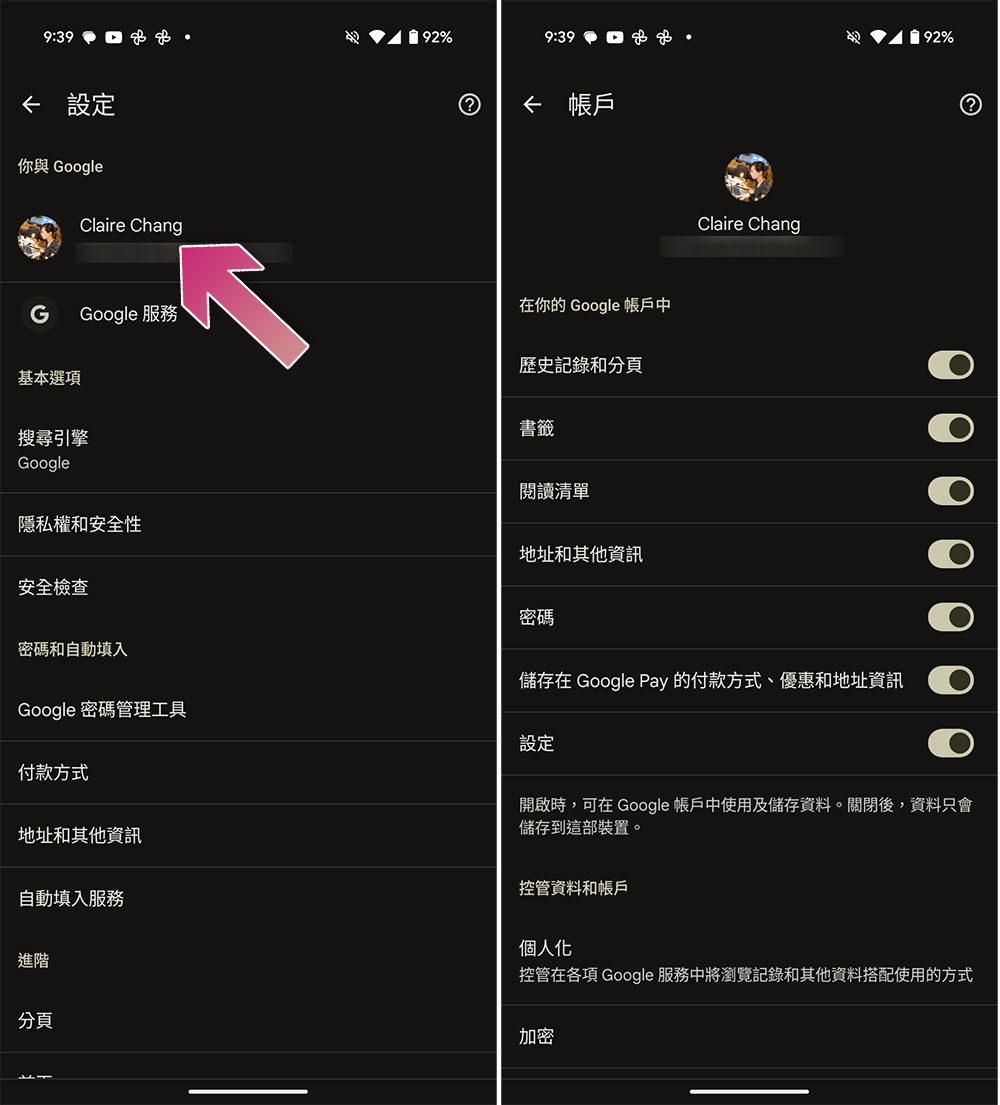
If you want to manage synchronization, follow these steps:
- Open the Google Chrome browser.
- Click the three-dot menu in the upper right corner and select “Settings” from it.
- Click your account name.
- Turn off the toggle switches that you don’t want to sync across devices.
Turn off web page preloading
Page preloading is Chrome’s way of guessing what you’re going to do next and taking action before you take action, a feature that fetches a web page or part of it in advance based on what it thinks you’re going to click on. Preloads are triggered when you search on Google or pause near a link on your phone. The concept is primarily about speed. When you click on a link, the page is already ready in the browser’s memory, which also means you’re potentially wasting data on something you won’t open.
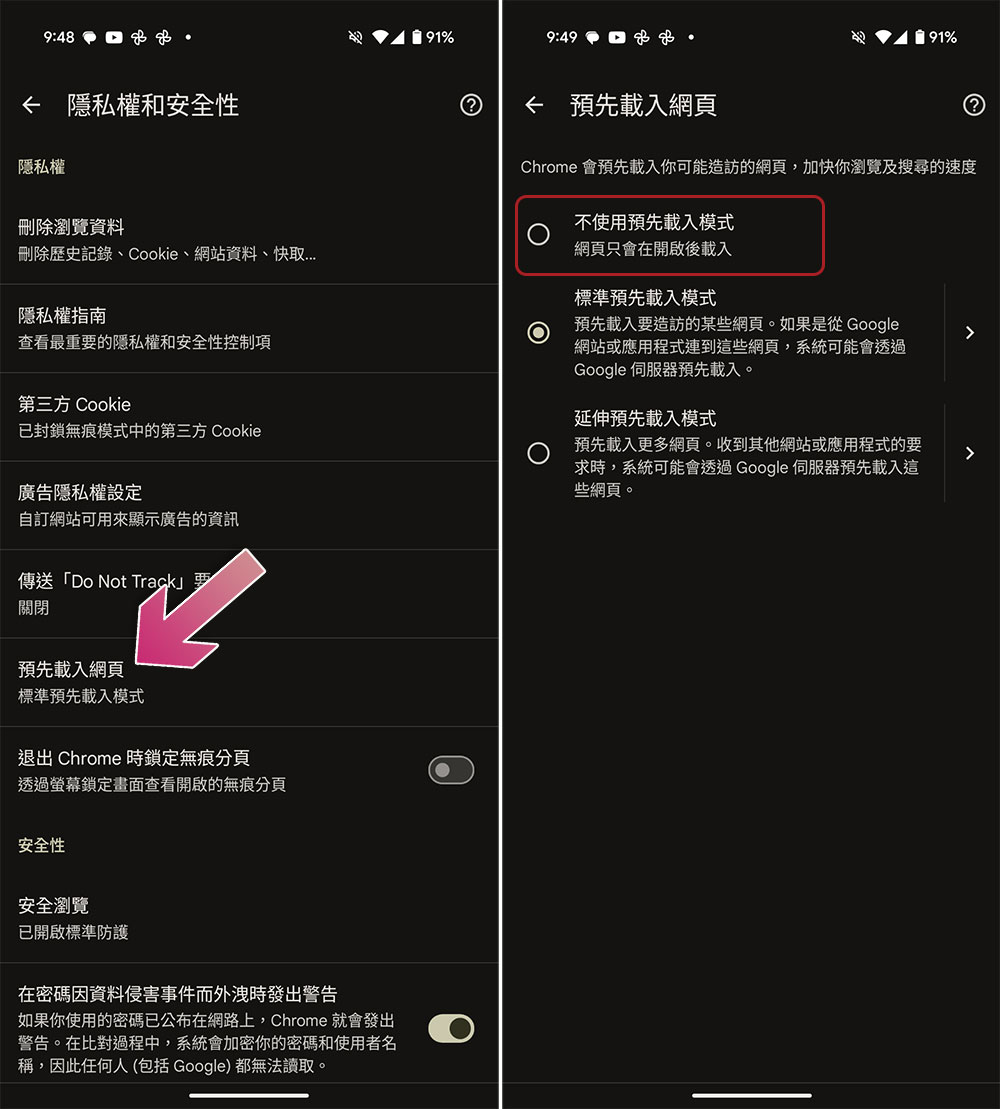
If you want to turn off web page preloading, follow these steps:
- Open Google Chrome.
- Click the three-dot menu in the upper right corner and select “Settings.”
- Go to “Privacy & Security”.
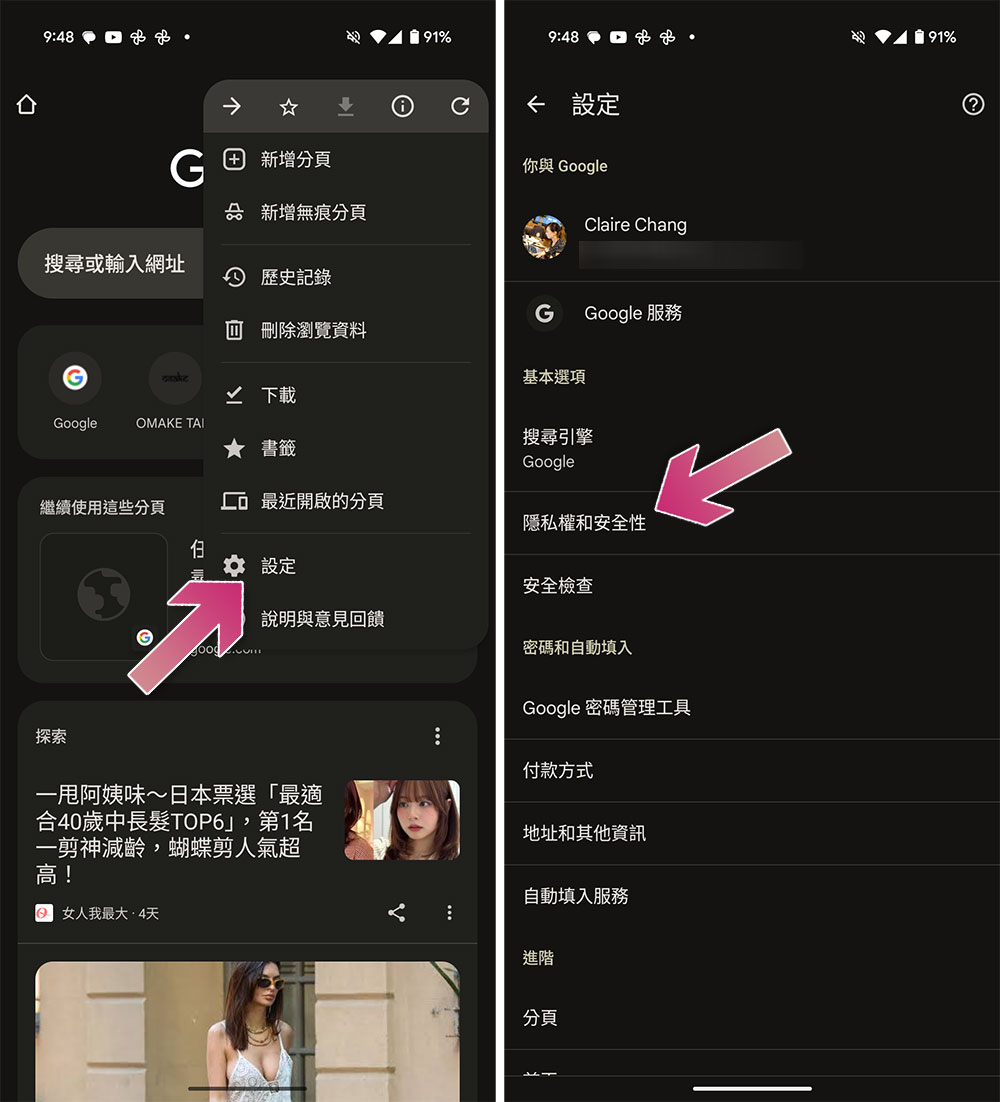
- Click “Preload page” and switch it to “Don’t use preloading.”
Disable Google search suggestions
When you start typing in Chrome’s address bar or search bar, you’ll see a list of suggested keywords below the text that are generated on the fly based on your input, popular queries, past activity, and trending topics. This is useful, but the app sends every letter you type to Google’s servers.
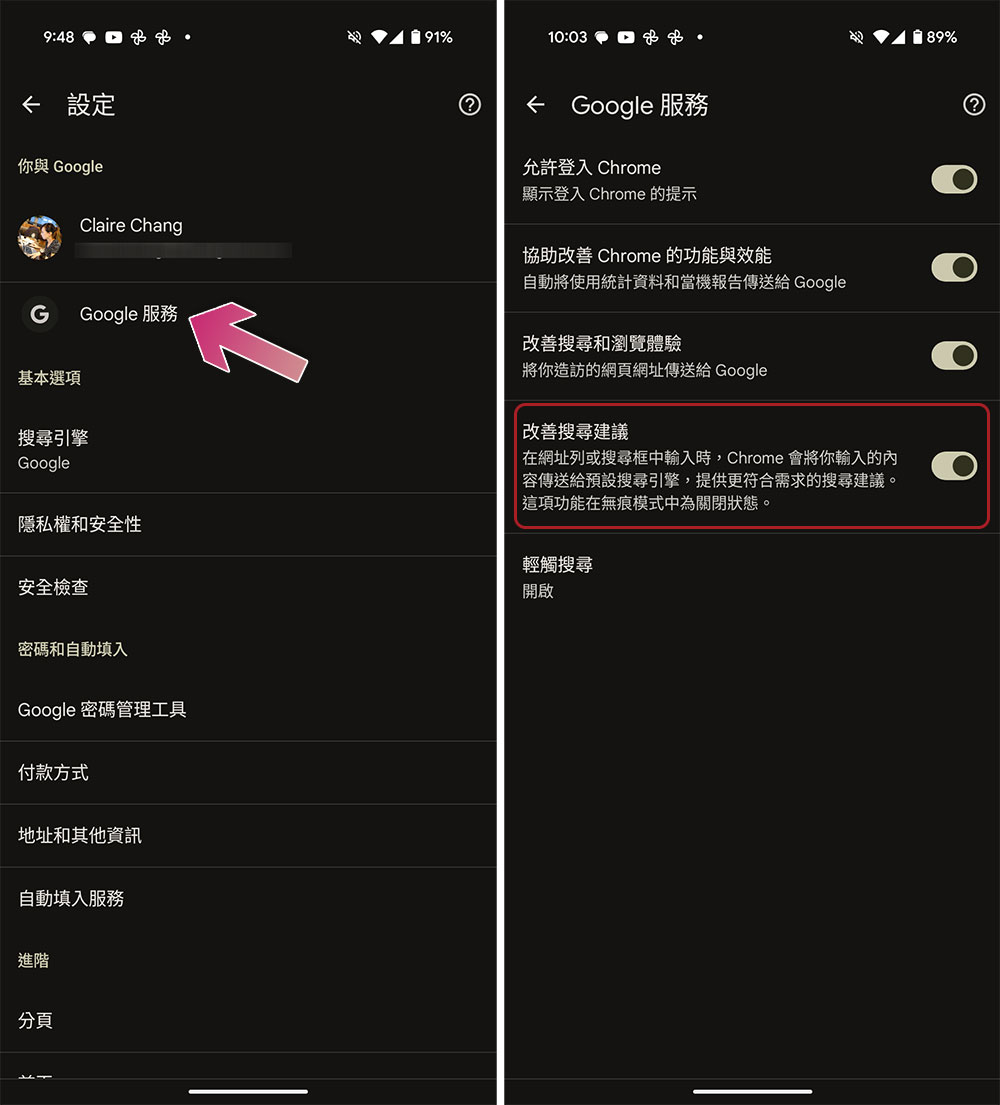
Disabling suggestions will prevent them from being uploaded, and you will not use the suggested content one by one. You can enter it manually. The steps are as follows:
- Open Google Chrome.
- Click the three-dot menu in the upper right corner and select “Settings.”
- Click “Google Services”.
- Turn off “Improve search suggestions”.
Limit background data usage
Chrome is one of the most powerful browsers on mobile devices, but its rich features come with drawbacks. The app will reload tabs you keep open even when you’re not actively using them, and dynamic content will load as soon as you’re connected to the network and become active.
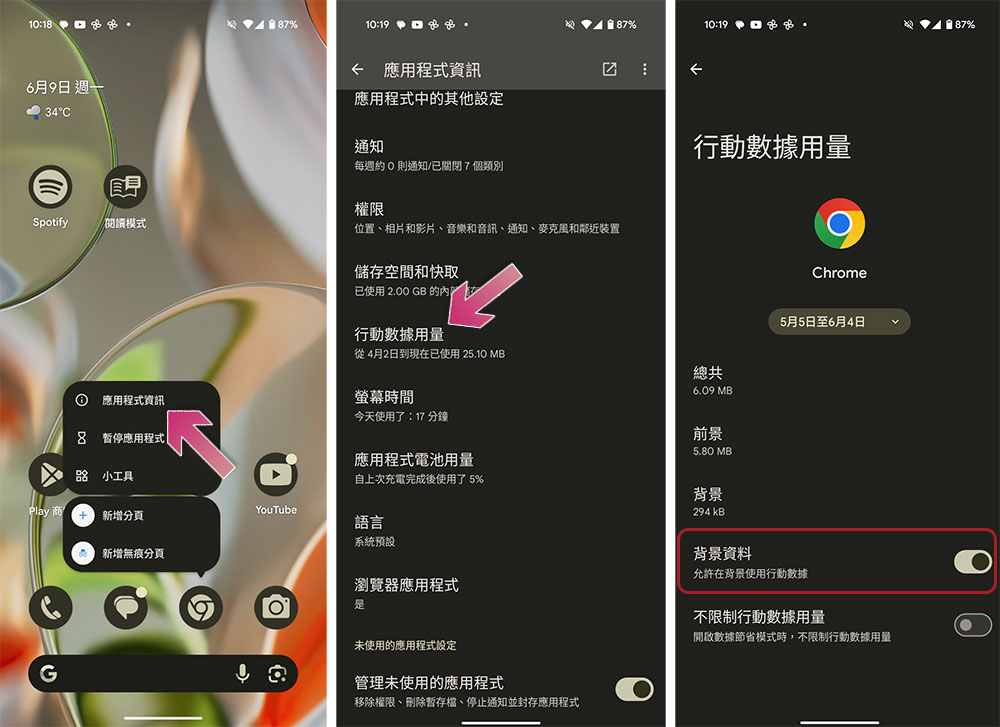
If you’d like to limit access to data when you’re not viewing the page, follow these steps:
- Press and hold the Chrome browser app icon on your phone.
- Click “Application Information”.
- Click “Mobile Data Usage”.
- Turn off “Background Information”.
Disable popular searches
When you open the Chrome homepage or a new tab, popular searches load automatically without you having to enter anything. The browser sends a request to Google’s servers and gets the latest topics. The new topic will appear below the search bar, with additional icons, links, and tracker links that will be used when you open a new tab.
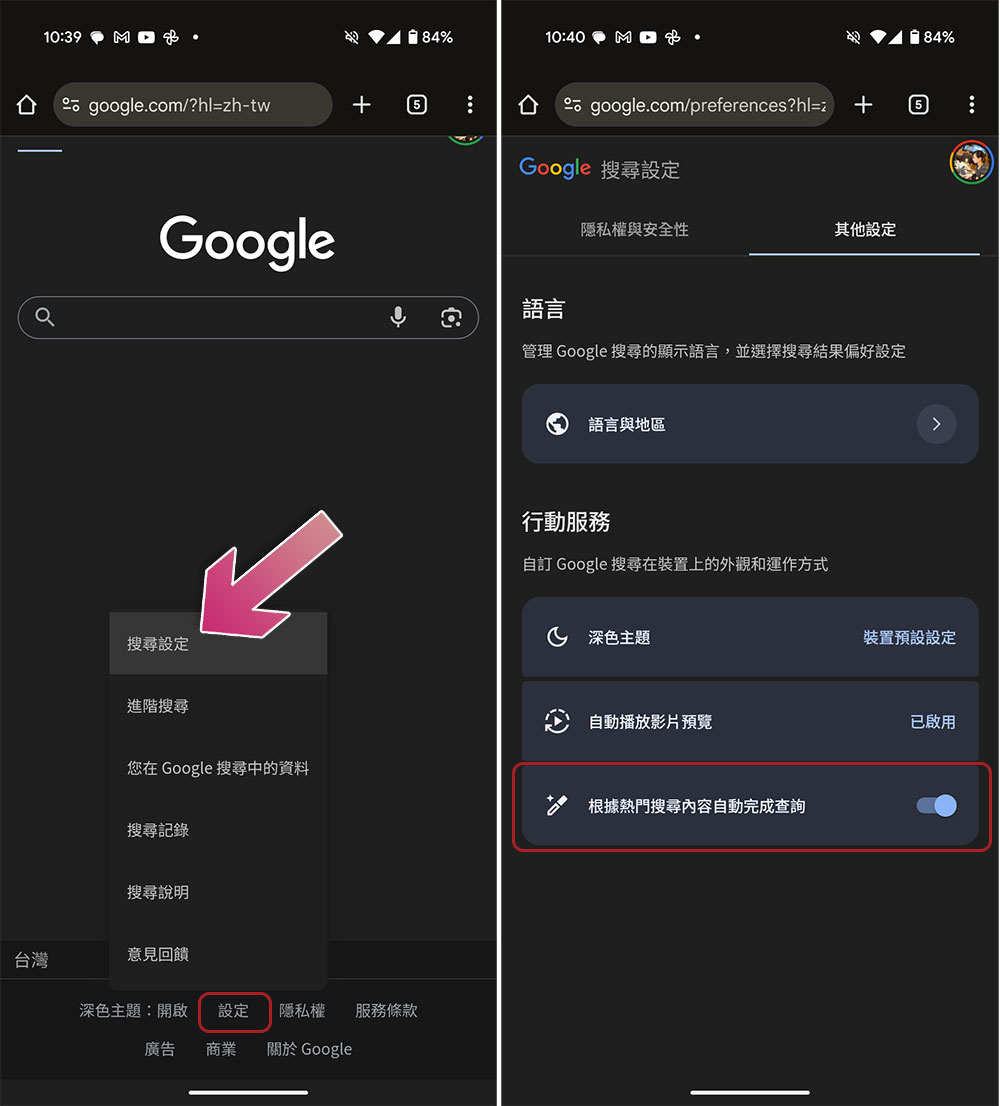
You can disable popular searches by following these steps:
- Open the Google Chrome browser.
- exist Google homepageScroll up to the bottom and click “Settings.”
- Select “Search Settings.”
- Switch to the “Other Settings” tab.
- Turn off “Autocomplete based on popular searches.”
Disable web notifications
Some websites like to pop up notifications while you are browsing, which can often be annoying. Notifications in Chrome use data because they rely on a background connection between your phone and the website you allow to send notifications. Sometimes you grant permission to questionable websites without knowing it.
If you want to manage web notifications, you can do this:
- Open the Google Chrome browser.
- Click the three-dot menu in the upper right corner and click “Settings.”
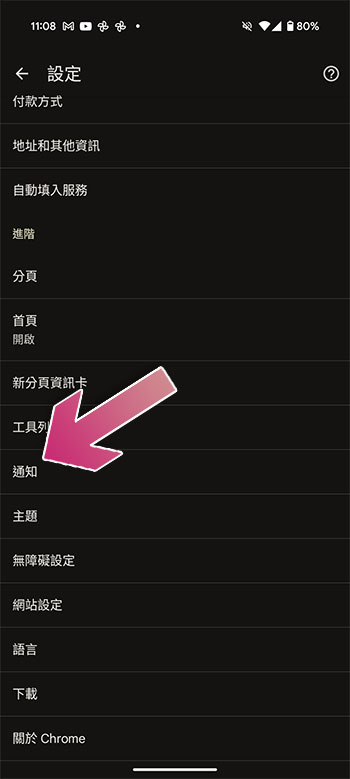
- Scroll down to enter “Notifications”.
- In the notification page, just close the websites that you don’t want to display notifications.
Block third-party cookies
A cookie is a small file created by a website and stored in your browser. First-party cookies save useful settings, such as your login name, preferred language, etc. Third-party cookies from external advertising or tracking services allow businesses to track you across the web. When a page loads, your browser connects to a third-party server, sends cookies, and downloads ads as well as tracking links and scripts.
Don’t forget to delete cookies regularly using the following steps:
- Open the Google Chrome browser.
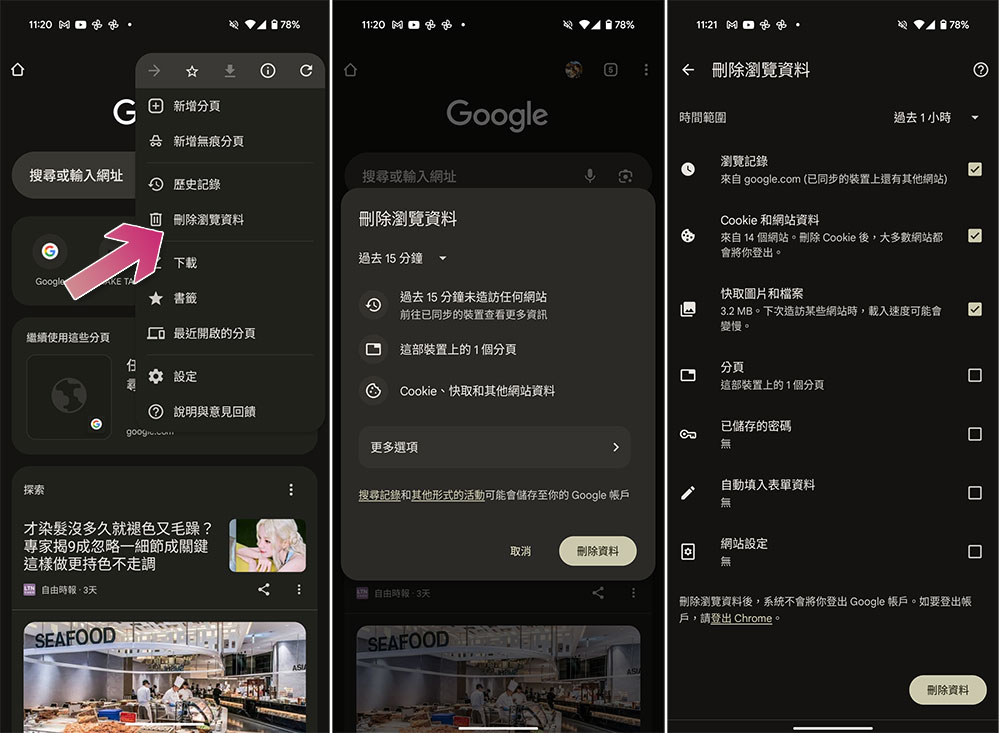
- Click the three-dot menu in the upper right corner and select “Delete Browsing Data”.
- Select the time range you want to delete and it will control the application to delete browsing data according to the specified time.
- Or you can select “More options” for more cleaning.
- On the next page, you can check “Cookies and Site Data” and finally select “Delete Data”.
Google Chrome is a data-centric browser, so everything related to your browsing habits is tied to Google’s servers, which allows for lightning-fast speeds and seamless synchronization across devices, but it also means that much of your activity is monitored. In-depth browser users can accept this trade-off for convenience, but Chrome is not for those who are not good at adjusting a lot of settings. If you want tighter control over your data, you can choose other privacy-focused browsers.
Source: KOCPC Chinese