


The Windows system provides a large number of keyboard shortcuts, not only to make your work more efficient, but also to make your entire computer experience simpler and easier. It’s true that Windows doesn’t have the most intuitive user interface, with many important settings buried deep in numerous submenus, but fortunately, it provides endless shortcuts for almost every action you perform. You can save some time by using shortcut keys, but you may not remember them all. This time we have listed 13 of the most practical Windows shortcut keys that you must write down, which can help you get twice the result with half the effort.

13 Windows shortcut keys you should learn
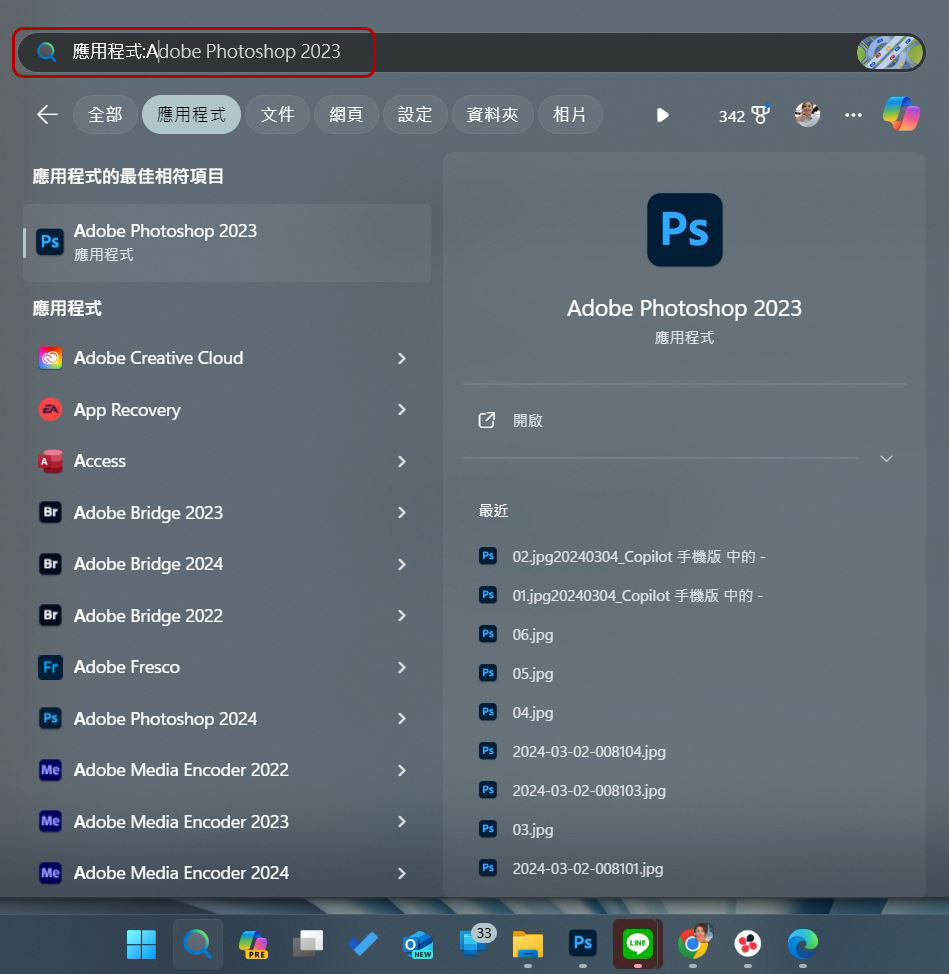
1. Search: Windows + S
The search function is one of the most critical features of any operating system, allowing you to quickly find applications, important files, settings, and almost everything on your computer without having to search through your hard drive. Searching in Windows is fast and straightforward. Press Windows + S or even just the Windows key to see the search field.
If a file or application is unavailable or does not exist on your computer, Windows will automatically search online using Bing through Microsoft Edge, which is a great little productivity tool.
2. Move to the URL field: Ctrl + L
You probably spend a lot of time looking at content in your browser every day, so shortcuts in your web browser can also help speed things up. One of the most useful shortcuts is Ctrl + L, which instantly selects a link in the URL field. You can perform various operations from here, such as copying the link to share with others, pasting the link, or entering new search keywords.
In the past you would have done this with a mouse, but since the URL field is smaller, it’s easy to accidentally click or open a favorites site. In addition, you can save the time of moving your mouse to click on the link bar every time you use it, and technically speaking, it is not only applicable to Windows, but also ChromeOS and Mac. The good news is that this shortcut is applicable to most major browsers.

3. Switch between applications: Alt + Tab
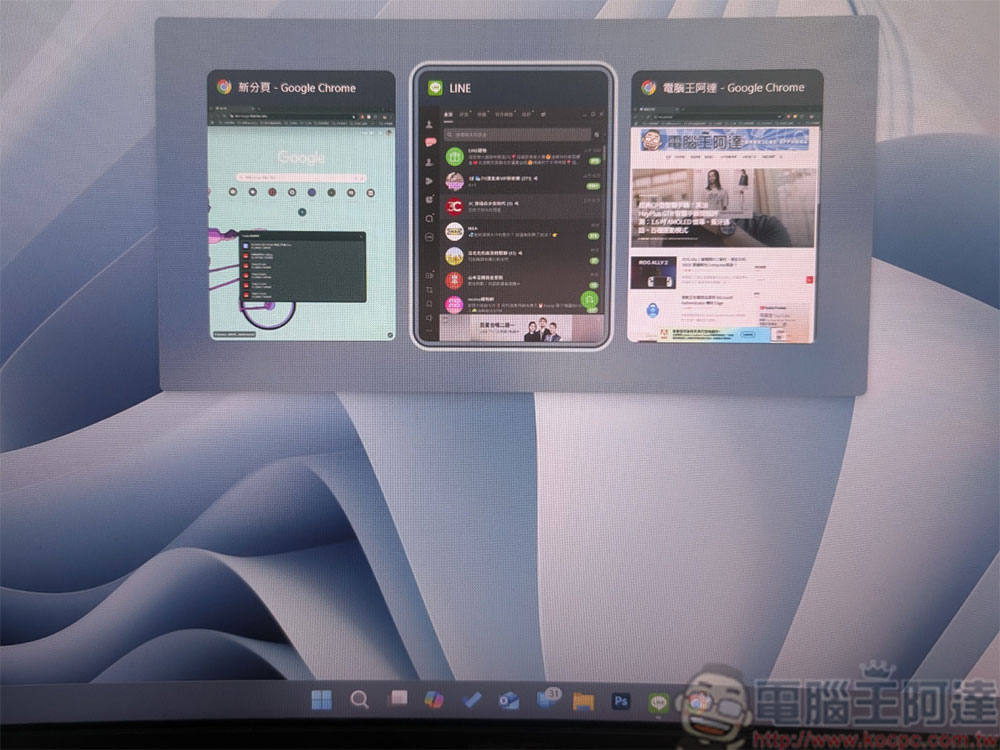
Gamers in particular will know this shortcut because it’s one of the ways you can access Windows without shutting down full-screen gaming. Pressing Alt + Tab and then holding down Alt will call up a simplified version of the window switching interface, where you can see the small thumbnails of all open windows. From here you can jump between open windows by holding down Alt and clicking Tab. To move the selector backward, press Shift + Alt + Tab. You can also press Alt + Tab to switch between the two most recently used windows.
Windows also has a more sophisticated full-screen version of the switcher, which can be accessed by pressing “Windows + Tab”. This is one of the most important shortcuts in the multitasking process. If you often jump between windows, be sure to remember this function.
4. Permanently delete files: Shift + Delete
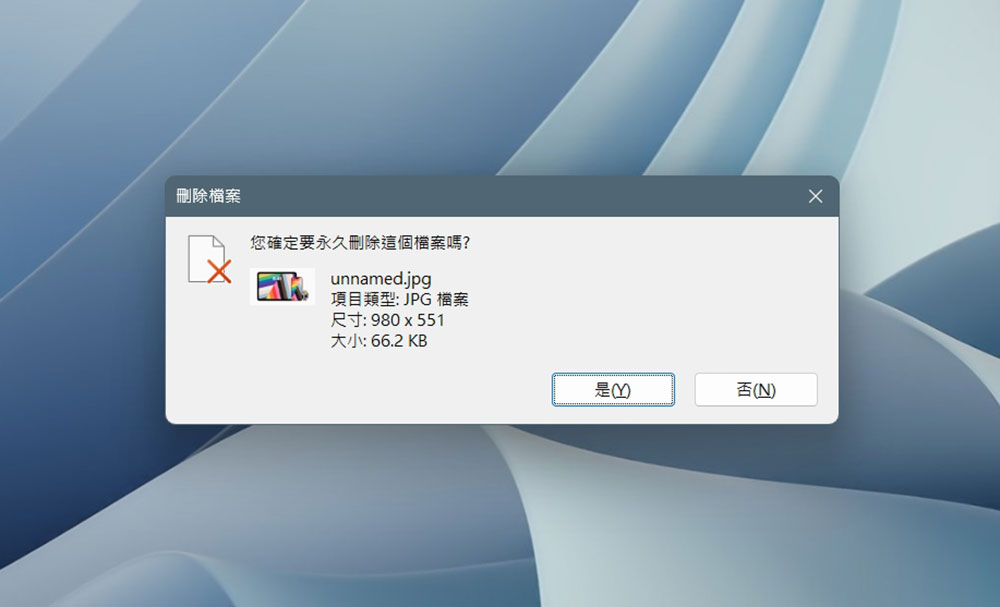
Usually when you delete files in Windows 11, your files will be put into the Recycle Bin first, and then you can clear them in the Recycle Bin to completely delete them. The Recycle Bin exists to make it easy for you to recover accidentally deleted files, but if you’re working with a file that’s several gigabytes in size, you probably don’t want it still taking up space in the Recycle Bin. Although you can empty the entire recycle bin or manually delete them one by one, there is a faster option. When you are sure that a file is no longer needed, you can use Shift + Delete to delete it permanently at once without having to deal with the recycle bin again.
5. Remove format paste: Ctrl + Shift + V
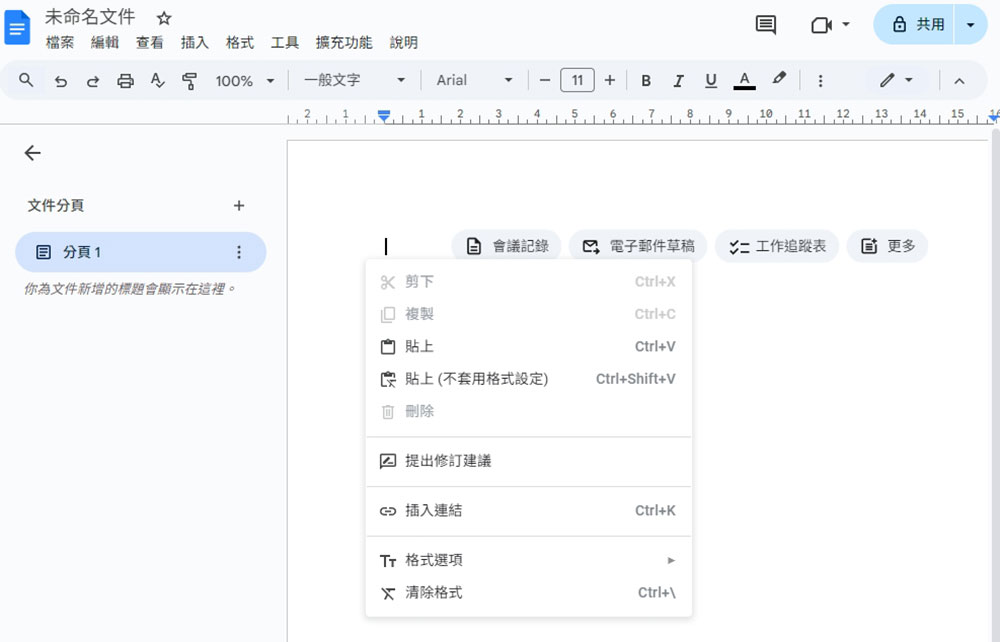
This is a non-Windows-specific shortcut for word processors and text editors. Usually, when you copy a piece of text, the system will also copy its format, such as font type, size, color, bold, italics, etc. This is an essential feature if you want to paste text from Microsoft Word to Google Docs and hope that it will conform to the format of the new file when you paste it. Using Ctrl + Shift + V when pasting text can remove all original formatting and paste only plain text. This is very suitable for copying and pasting between different applications (even different files in the same application are useful).
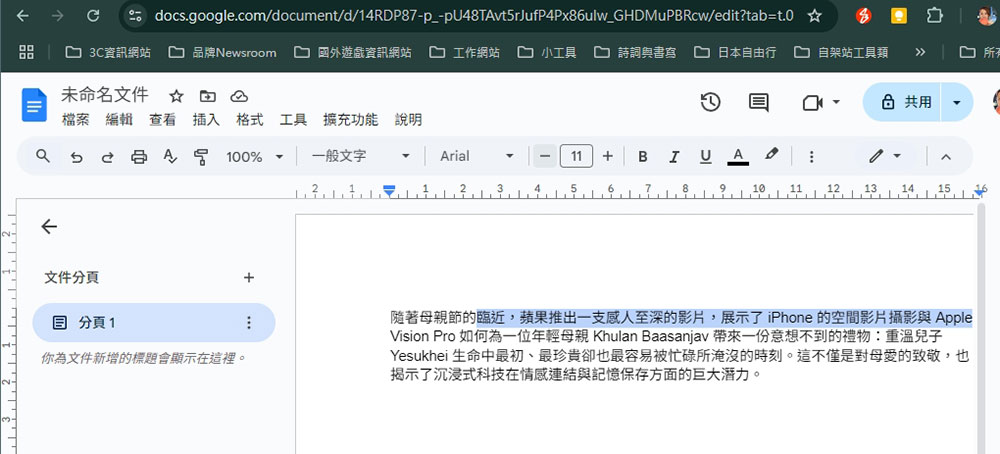
6. Highlight selected text: Shift + Arrow, Ctrl + Shift + Arrow, Shift + End / Home
If you spend most of your working time working on documents or emails, mastering these text selection shortcuts is an absolute must because they’re faster, you don’t have to take your hands off the keyboard, and the selections are more precise.
The most basic text selection shortcut is Shift + Arrow, with the left or right arrow keys selecting one character at a time, and the up and down arrow keys selecting an entire line. Shift + Ctrl + Arrow to select the entire word. At the same time, Shift+End / Home can highlight the current cursor position to the end or beginning of the line, and Shift+Ctrl+End / Home can highlight all text from the current cursor position to the end or beginning of the file.
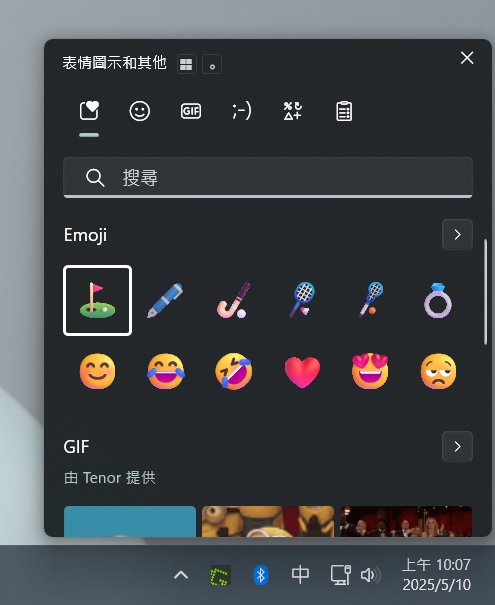
7. Open the emoji picker: Windows + .
In fact, I often forget this shortcut, because I usually use the built-in emoticons or stickers in the chat application. This is the built-in emoji picker in Windows, originally introduced in Windows 10 and improved and expanded in Windows 11. You can open it with “Windows + .” and choose from a range of emojis, GIFs, Kaomoji and symbols. If your keyboard is missing certain characters, such as em dashes, degree symbols, etc., you can also choose from here.
8. Select all: Ctrl + A
Select All Ctrl + A is one of the most commonly used shortcuts in Windows. It can instantly select all text, files, or items in the active window. You may have already used this shortcut in File Explorer, but don’t underestimate its usefulness, it can be used in a variety of applications. You can use it to select recent email lists, batch edit photos, copy all content on a web page, etc. You might as well try it in a few more places.
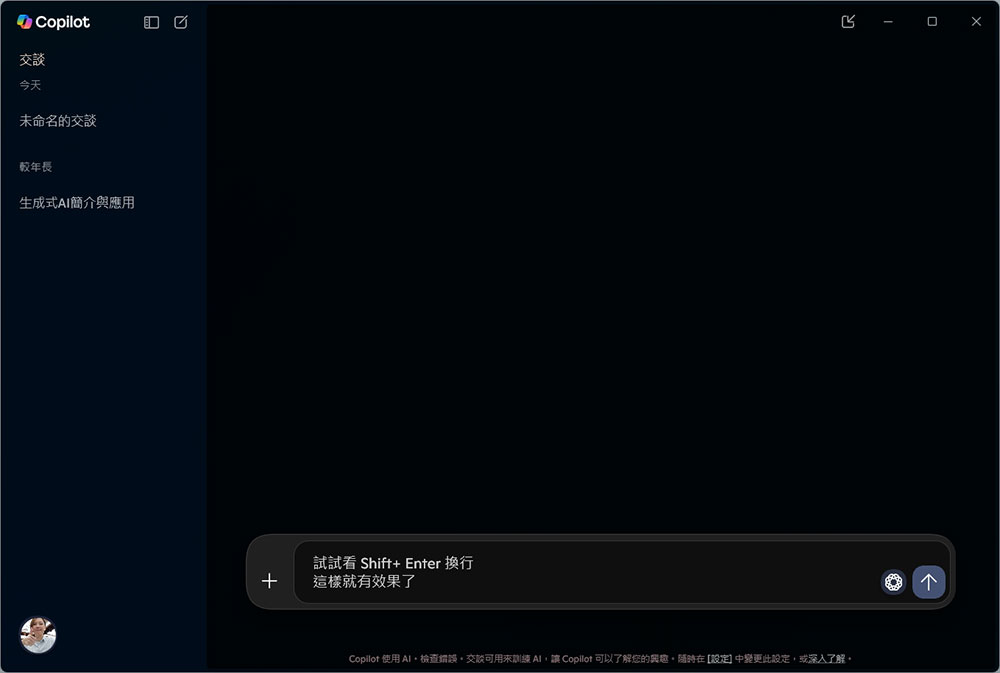
9. Line break: Shift + Enter
General applications and web applications handle the “Enter” key differently. Some applications can wrap lines, and some can send them directly. So this time I will teach you to use a more secure and convenient line wrapping shortcut: “Shift + Enter” and use it to replace Enter.
This shortcut is more reliable because it will always command a line break no matter which application you use, making it easier to write longer messages and emails and allow you to edit it before sending it.
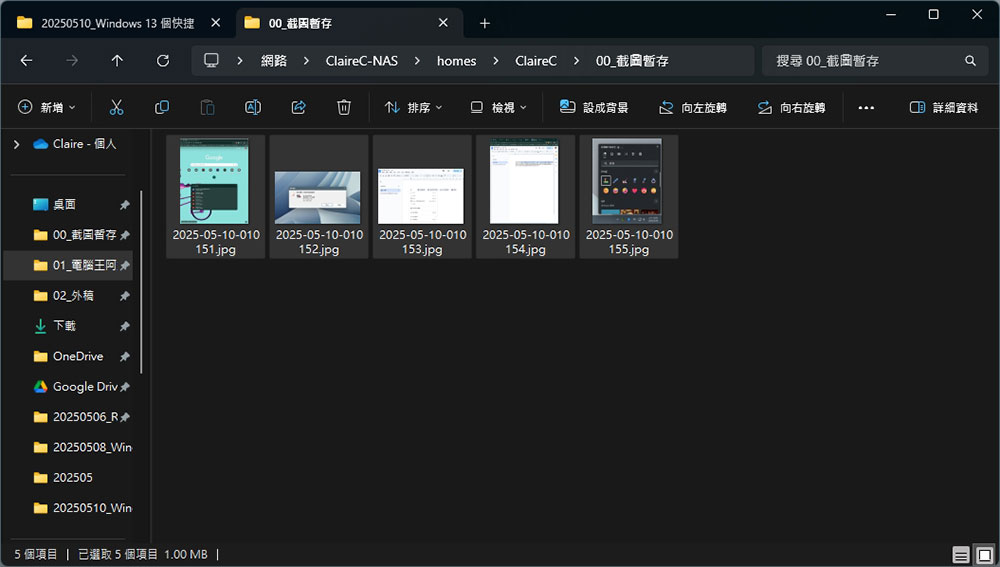
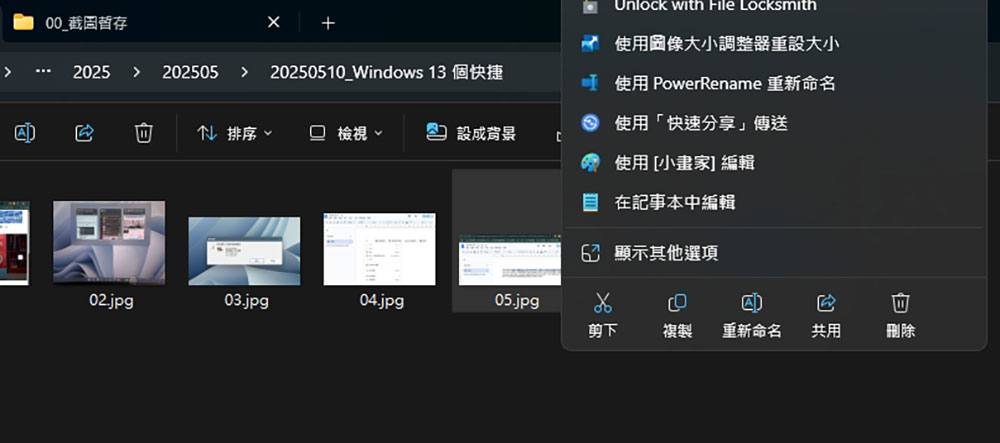
10. Cut and paste to move files: Ctrl + X, then Ctrl + V
While you may be familiar with the shortcut keys for copy and paste (Ctrl+C and Ctrl+V), you may not know that there is also a shortcut for cut—Ctrl+X, which works in many applications. This shortcut is great for moving archives and files from one place to another.
Select the archive or file you want to move, press Ctrl +
11. Switch audio output device: Windows + Ctrl + V
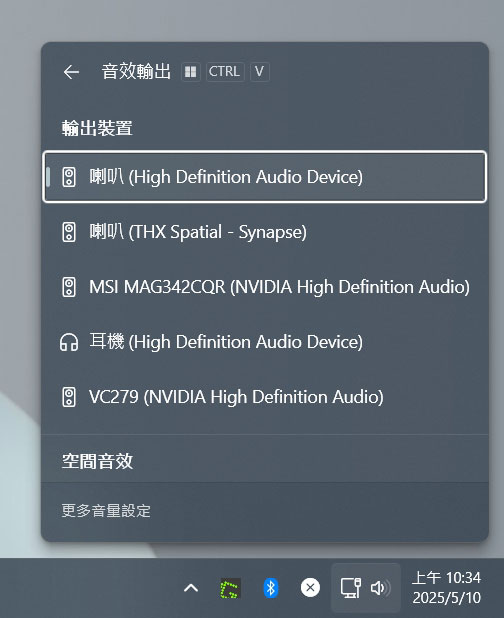
You may have more than one set of audio output devices, which may include speakers, headphones, TVs, monitors with speakers, etc., all of which are connected to the computer. If you have to manually plug and unplug each audio device every time, it will waste a lot of time.
Windows 11 makes it easy to switch audio devices through a simple audio output menu hidden in the taskbar. In addition to clicking the icon to access it manually, you can also use “Windows + Ctrl + V” to quickly open the audio device selector.
12. Turn on/off HDR: Windows + Alt + B
HDR (High Dynamic Range) is a great feature on modern TVs and monitors that increases the display’s dynamic range to deliver more vivid, lifelike images. Unfortunately, Windows has trouble handling SDR (non-HDR) content when the monitor is in HDR mode. For the best experience, you need to disable HDR when you’re not watching HDR content and vice versa.
While you can pore over your display settings every time you want to turn HDR on and off, you don’t have to. Windows 11 has a shortcut to toggle HDR by simply pressing Windows+Alt+B. Your screen will dim for a few seconds, and a Game Bar notification will appear confirming that HDR is on or off.

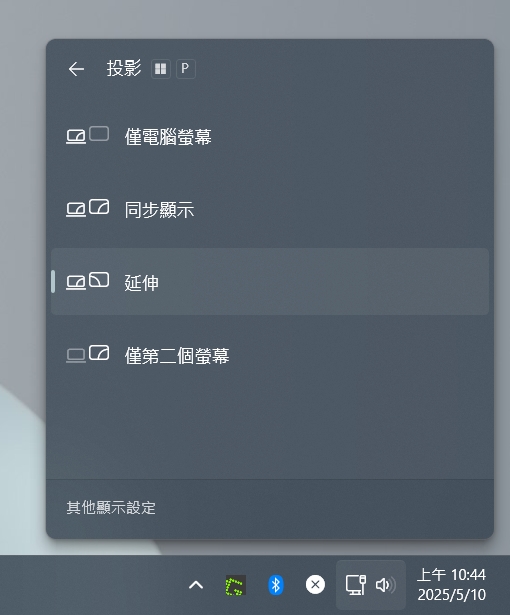
13. Switch display mode: Windows + P
This shortcut is definitely helpful if you have multiple screens or output methods connected to your computer. You can use Windows + P to quickly bring up the projection menu and choose how the screen is displayed. For example, if you have a projector connected to your computer, but it only turns on when playing videos, you can switch to a second-screen-only display mode and turn off the main screen to avoid affecting the viewing experience.
Over the years, Windows shortcut keys have continued to develop and change in response to system improvements and functions. Some of them were imported in Windows 10 and further improved in Windows 11. The 13 super practical shortcut keys selected for you this time must be learned!
Source: KOCPC Chinese