


There is no way to upgrade the storage space of a Mac. After using it for a period of time, there must be a lot of useless junk files or unused software. For example, on my MacBook, the hard disk space is getting less and less without realizing it. I have no idea where it takes up such a large space. Recently, I used BuhoCleaner to check it. In just a few seconds, I could easily find it and safely delete it. I instantly gained nearly 200GB of extra space. It can be said that every Mac user should have a hard drive cleaning and optimization tool. I sincerely recommend it.
There is a free version and a paid version. BuhoCleaner specially provides an exclusive discount code for Computer King Ada readers, which is limited to 100 readers.
Get BuhoCleaner(Ada discount code: TWKC56898P)
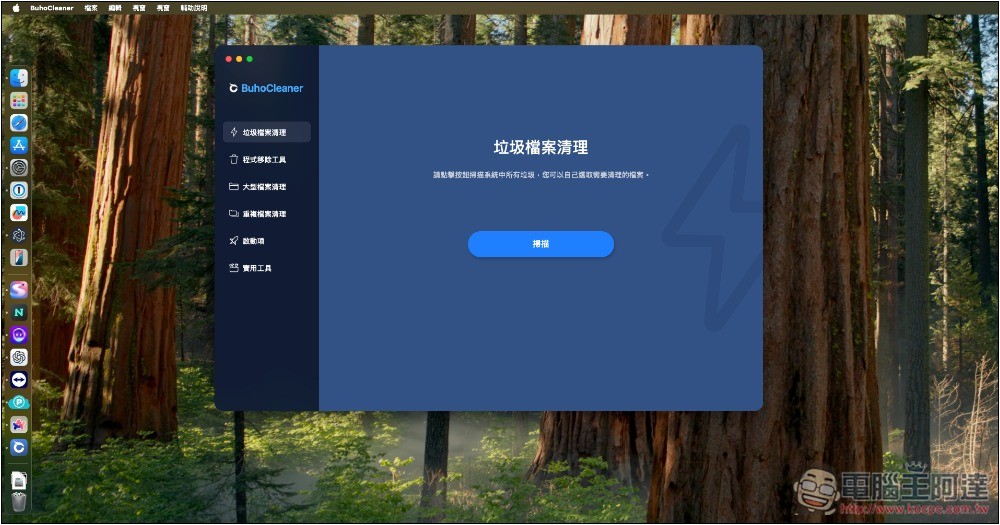
BuhoCleaner Introduction
BuhoCleaner is a hard disk cleaning and optimization tool with a simple interface but powerful functions. It has always been very well received. It has also received a high 4.7-star rating from Trustpilot abroad. We have recommended it in 2021, and now it has richer functions and supports the latest macOS Sequoia and Apple M3/M4 computers.
Almost all matters related to Mac system and hard disk capacity can be solved with this software, such as cleaning junk files, removing programs, finding large files that are unknown where they are hidden, deleting duplicate files, managing startup items, freeing up memory, safer file deletion functions, etc.
More importantly, in this era when many Mac tools have changed to subscription systems, the paid version of BuhoCleaner is still a one-time purchase, and it has a lifetime license + free upgrades, and the price is super cheap, which is really amazing.
Get BuhoCleaner(Ada discount code: TWKC56898P)
The operation interface of BuhoCleaner is in Traditional Chinese, so you don’t have to worry about not understanding it:
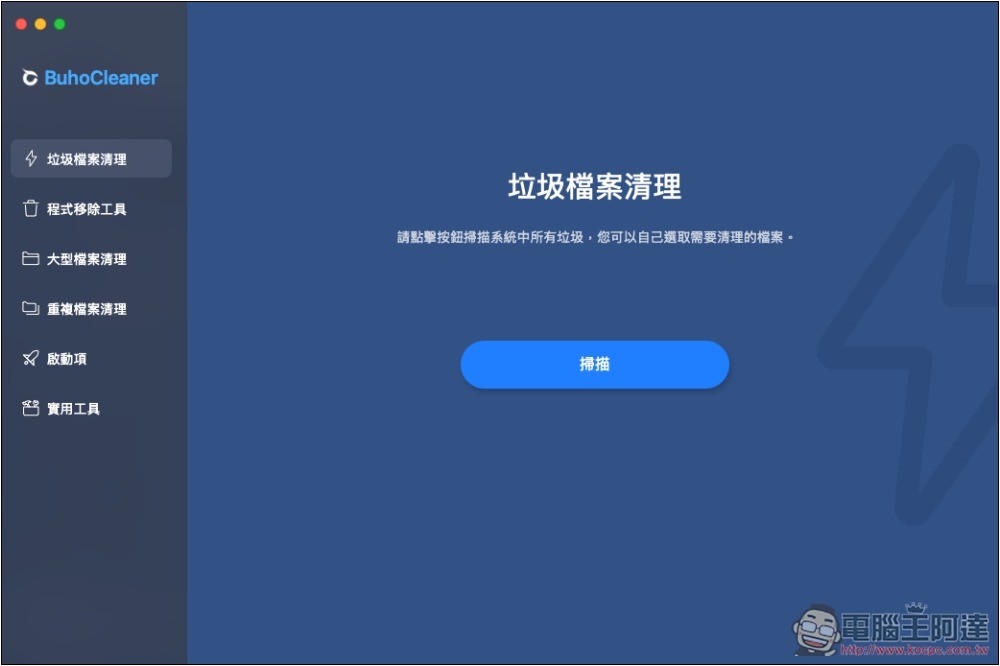
7 Features of BuhoCleaner
1. Easily clean up Mac junk files with one click
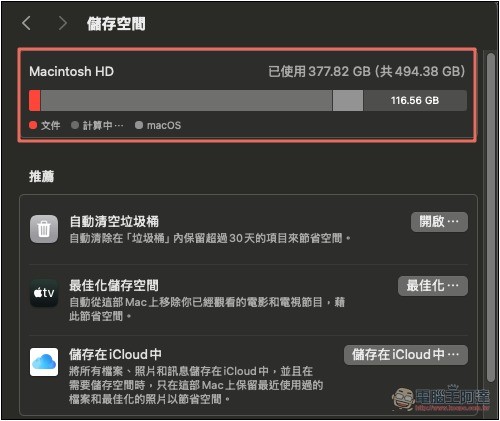
My MacBook Pro has not been organized for a long time, and there is only about 116GB of free space left. I don’t remember installing large software, and I don’t often download things or store large files. However, I noticed that “System information” takes up a large part of the space, but I can’t directly check the specific system content, so I don’t know where to start. I have tried deleting some useless files before, but the space released was very limited:
So after installing BuhoCleaner, I wanted to know how many useless files I could clean out. Unexpectedly, I was really surprised. Not only is it easy to find, but I can also clearly know which files they are, so I don’t have to worry about accidentally deleting them.
The found junk files will be sorted, and how much space can be cleared for each category will be displayed:
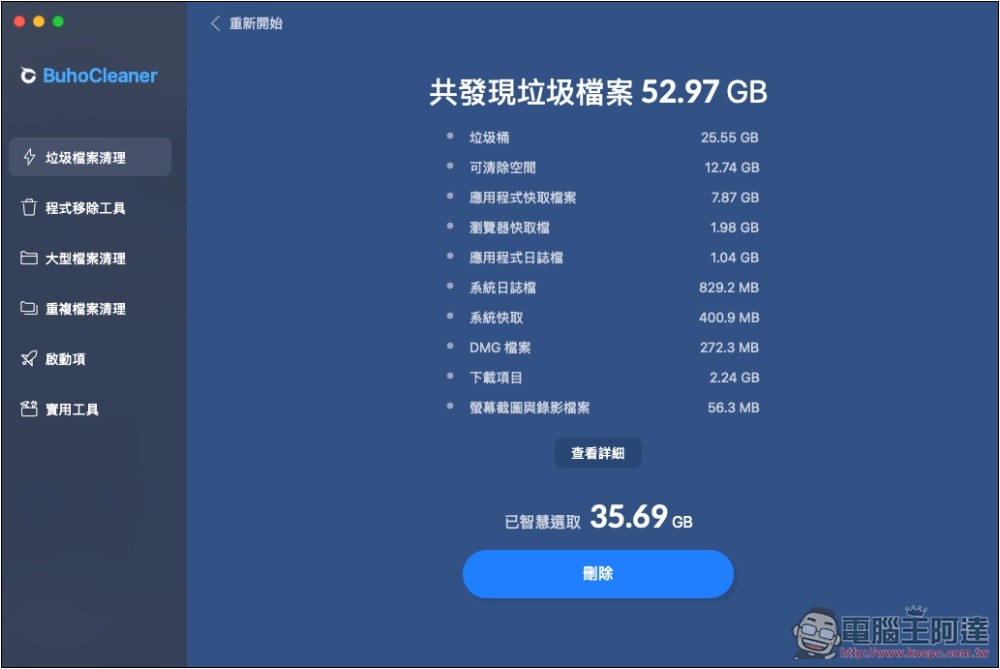
Before deleting, I will be asked to browse the trash files of each category. By default, only those junk files that are truly useless will be checked. For example, not everyone wants to delete browser cache files, so they are not checked. This is quite good:
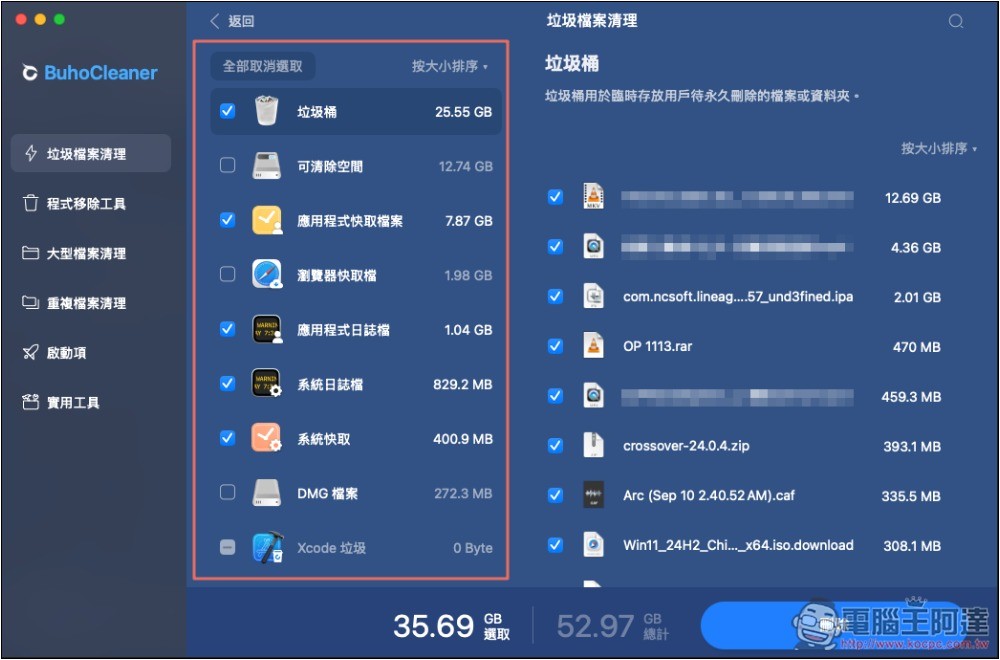
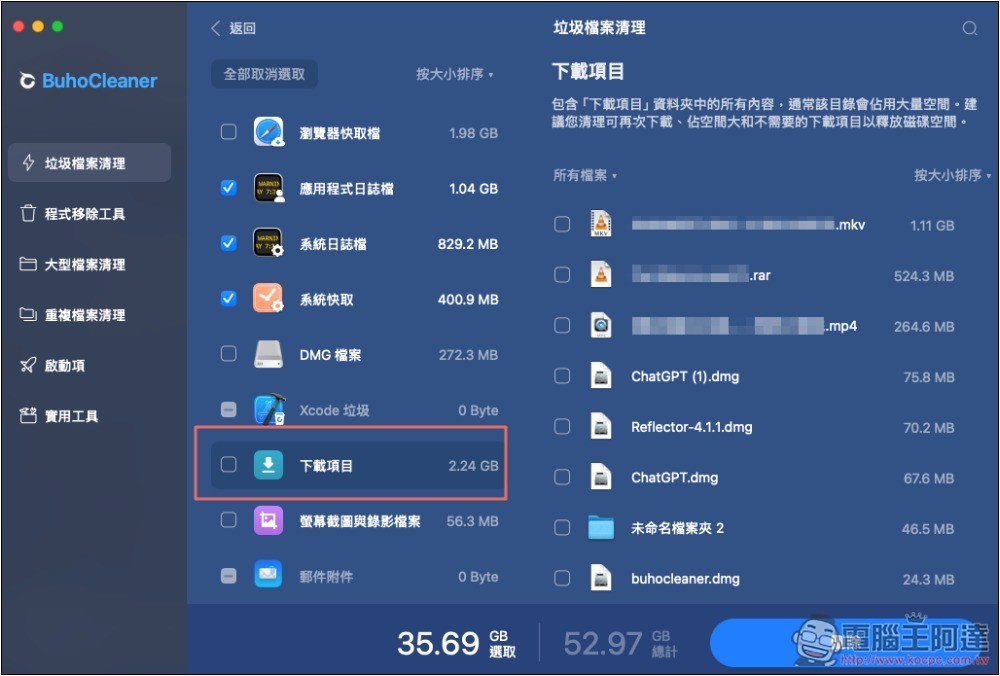
The download item is not checked either. Then I browsed through them one by one, checking the files I wanted to delete, and making sure the defaults didn’t check the ones I wanted to keep. At the bottom, there will be statistics on how much space can be deleted for the selected files:
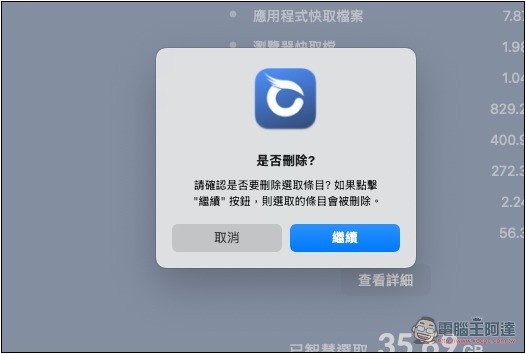
I will also be asked to confirm again before deleting it officially to avoid accidentally pressing:
Wait a few seconds and all these useless junk files will be deleted. There is no need to open the folders and manually delete them one by one. It is super easy:
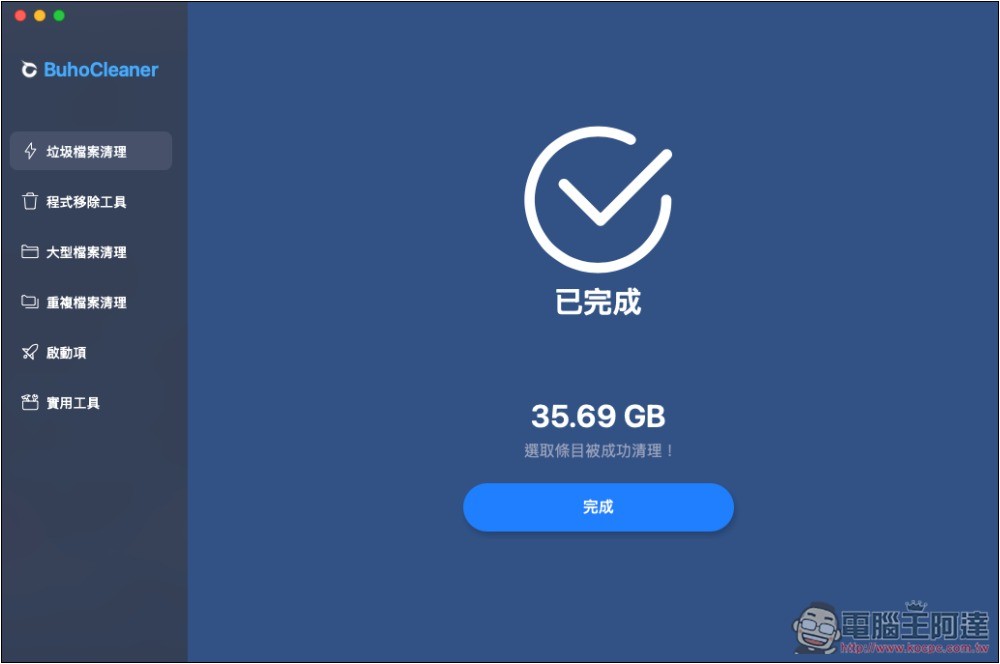
The junk file cleanup only removed 35.69GB, so I knew that this was not what really occupied my capacity, but other reasons. Then I switched to a program removal tool.
2. A program removal tool that is easier to use than the built-in one
Mac’s built-in removal method is to long press and delete the app from the App Store in the launcher. This is very easy, but if you download it from the Internet, it is a bit troublesome and you need to use Finder.
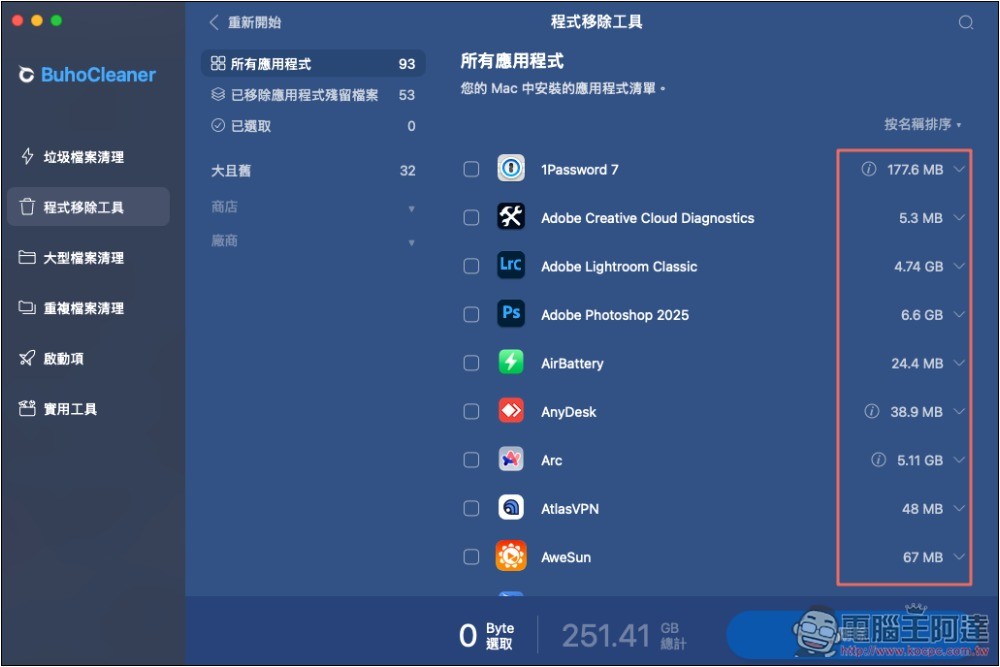
The BuhoCleaner program removal tool is really easy to use. It not only displays all installed apps in a list, but also uses it to remove them whether they are downloaded from the App Store or the Internet.
The amount of capacity occupied by each installed app is displayed on the right:
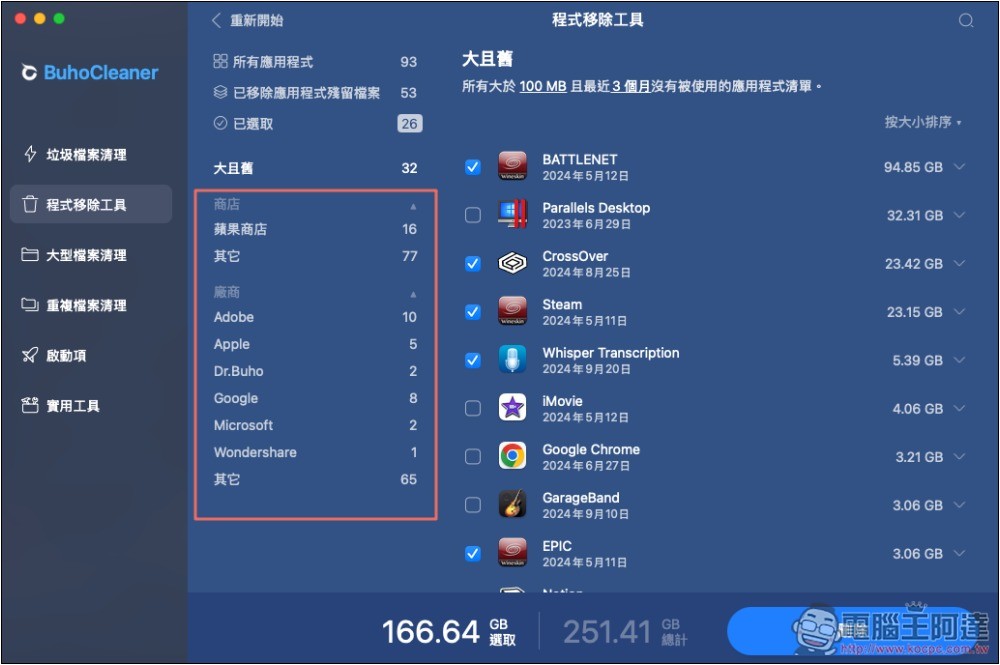
It also provides category menus for App Store, others, and manufacturers to facilitate our browsing:
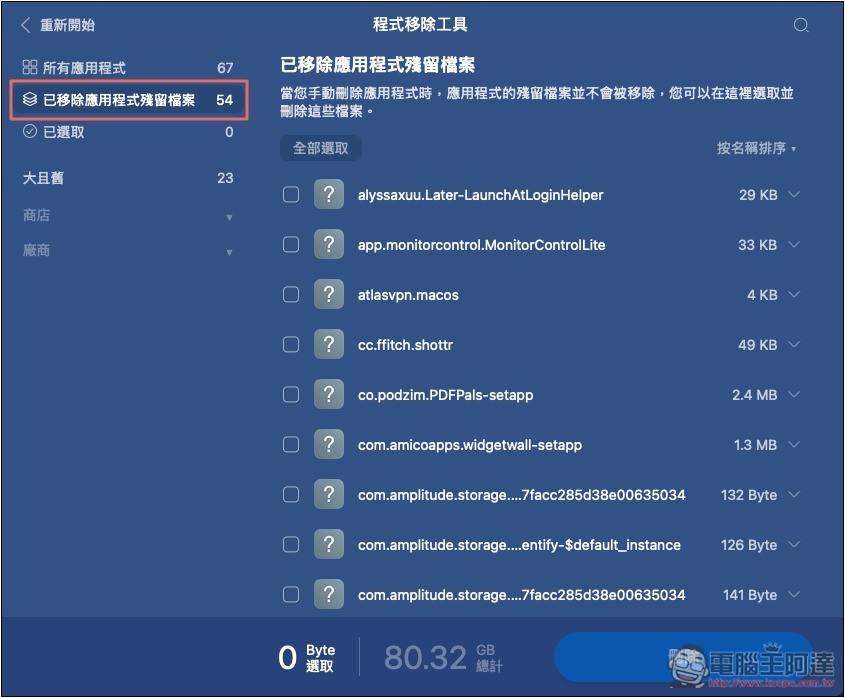
There is also a menu for “Removed Application Remaining Files”. Without BuhoCleaner, I would never have known that there were so many useless residual files on my Mac:
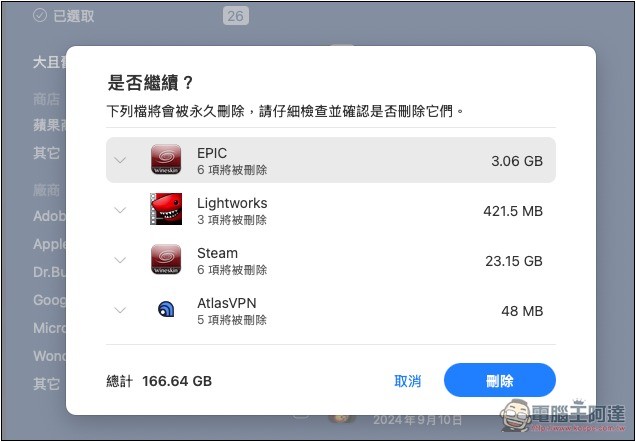
I will confirm again before deleting, and the lower left corner will also display the total amount of space that can be freed. Here I finally discovered the main reason. It turns out that there are too many unused apps, up to 166.64GB:
It took me less than a few minutes to operate the above two functions, and my Mac immediately gained nearly 200GB.
If you slowly find and delete them by yourself, it will definitely take a lot of time, and maybe you won’t be able to get so much available space.
3. Find and delete large files on Mac with one click
If you just want to find large files on your Mac, you can use this function directly. It will list all the files on the hard drive and arrange them according to type and size, allowing you to see at a glance whether there are any useless large files, and you can also delete them directly here:
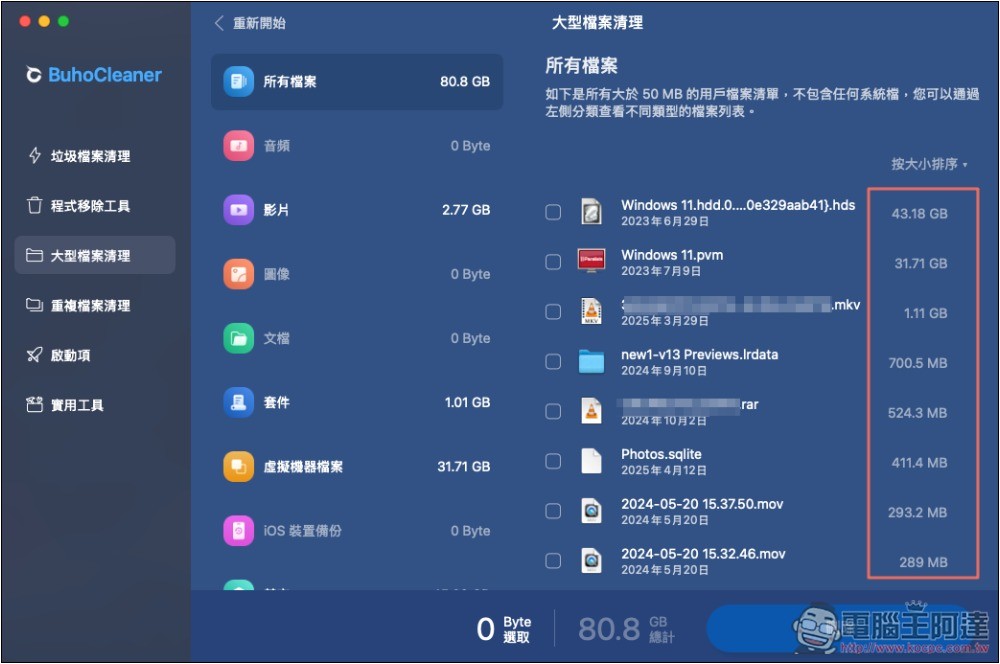
After clearing junk files and removing programs, you can usually use this function to quickly find and delete useless files immediately, which is very practical.
4. Prevent duplicate and similar images from appearing on your Mac
After using a Mac for a long time, in addition to useless files, there will definitely be a lot of duplicate pictures, especially for Mac workers, or people like me who back up important photos and pictures to the Mac.
BuhoCleaner also provides one-click scanning for duplicate or similar images on Mac:
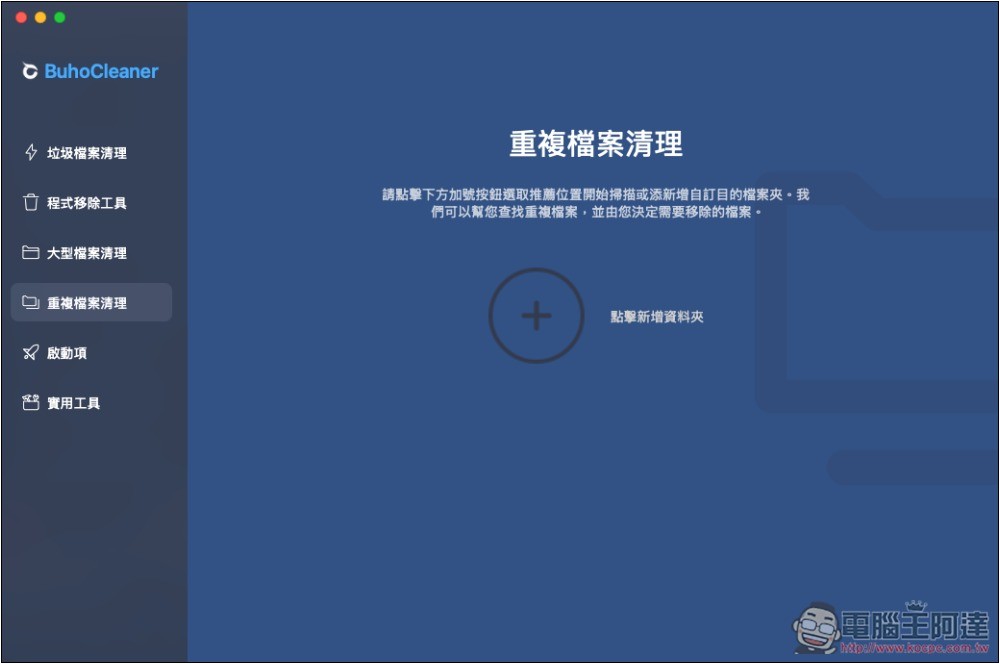
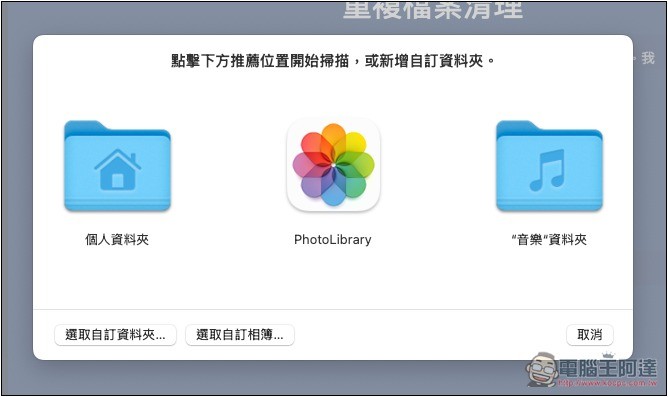
Not just folders, but also PhotoLibrary supports:
In just a few seconds, duplicate and similar pictures will appear immediately. They will also be put together and provide a preview function to facilitate us to check which one we want to delete:
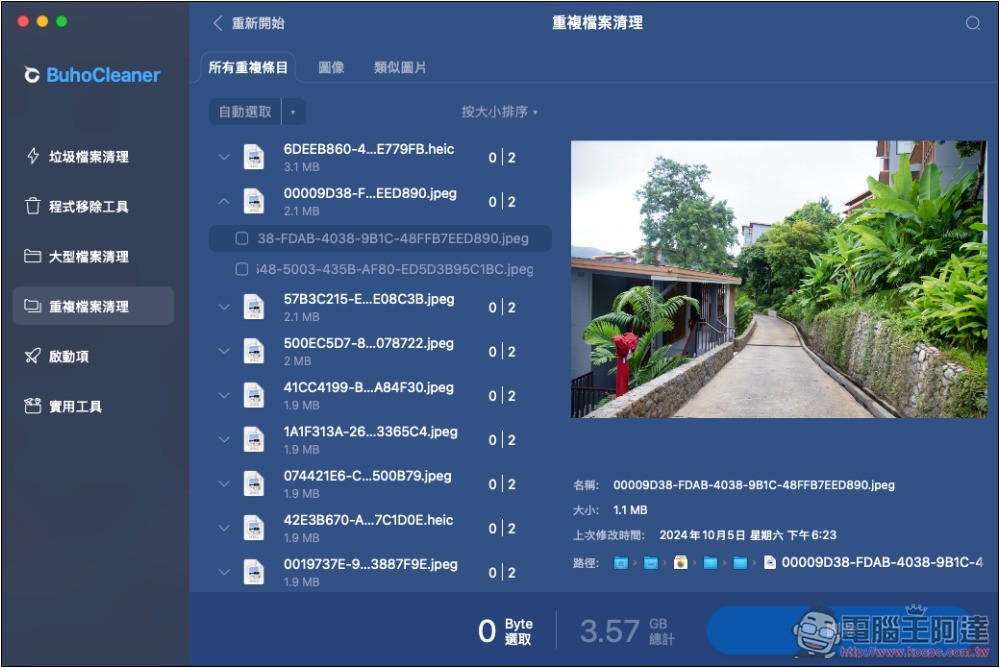
This function is really easy to use. I have more than a thousand pictures stored. It is impossible to search there by myself. My eyes are absolutely blind. With BuhoCleaner, I can finish organizing them in just a few minutes. It is super simple.
5. Painlessly manage which items start when your Mac starts up
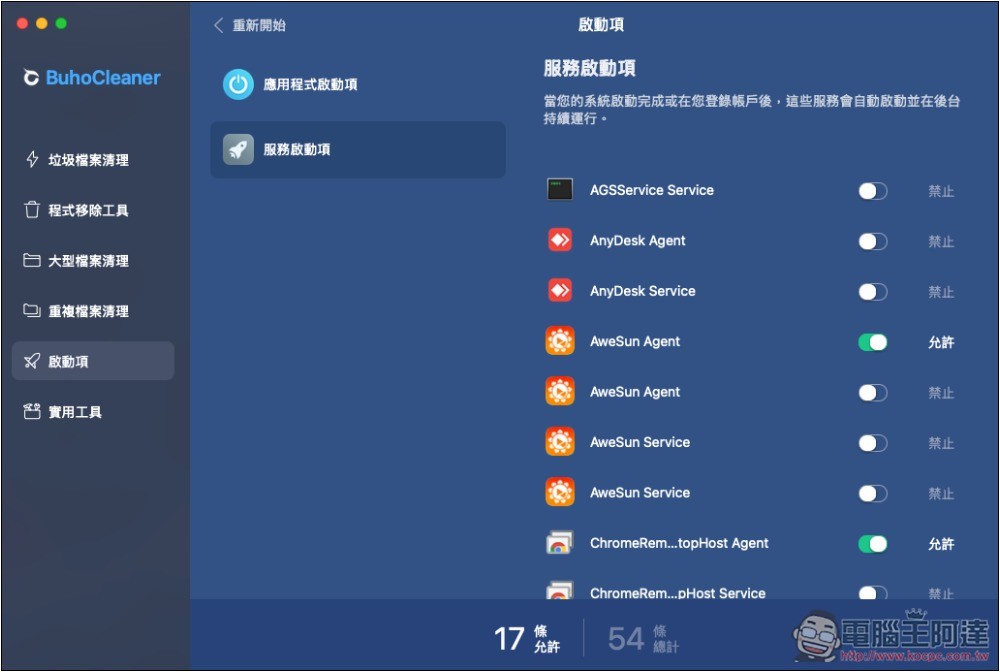
There are more and more apps installed on Mac. When starting or restarting, many apps and services will be automatically enabled, causing the startup speed to slow down. I believe many people feel this way, and many services may not be used most of the time, so there is no need to enable them. BuhoCleaner’s built-in “Startup Items” function can help us manage it easily.
If you don’t want to start the project at startup, just turn off the switch. It will no longer need to be automatically enabled after startup in the future. Of course, if you regret it in the future, just come back here and open it again:
6. Quickly understand the real-time status of Mac hardware through the BuhoCleaner gadget and free up memory with one click
BuhoCleaner also provides small tools. Once opened, you can immediately know the real-time status of various hardware, such as CPU load and temperature, fan speed, network upload and download speed, and even memory usage. More importantly, just click the small icon on the right to release memory immediately and speed up your Mac instantly:
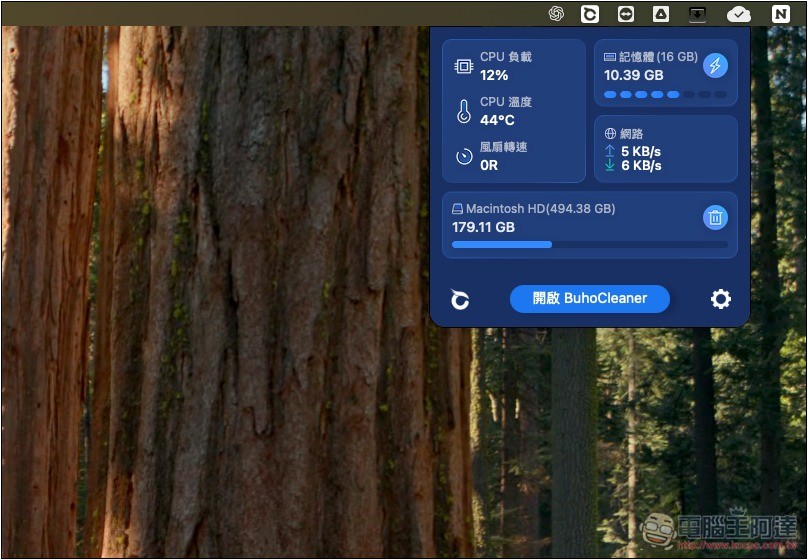
This function is quite good. Even if there is no need to clean files, BuhoCleaner can be used as a tool to check the system status.
7. Other practical tools
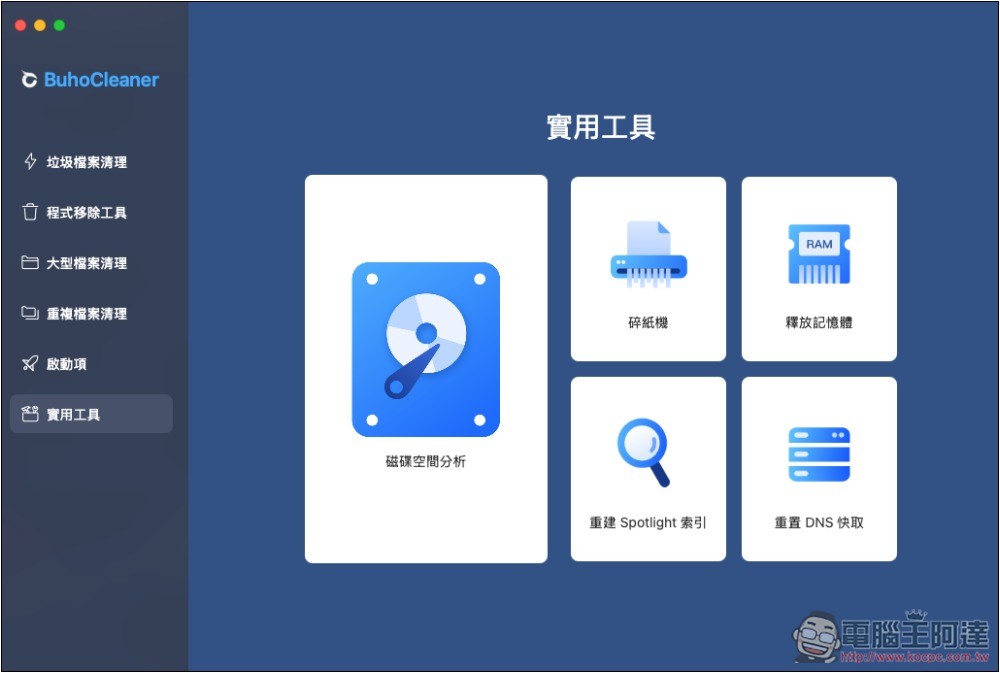
There are also some useful functions in BuhoCleaner’s utility menu, including hard drive space analysis, shredder, rebuilding Spotlight index, freeing up memory, and resetting DNS cache:
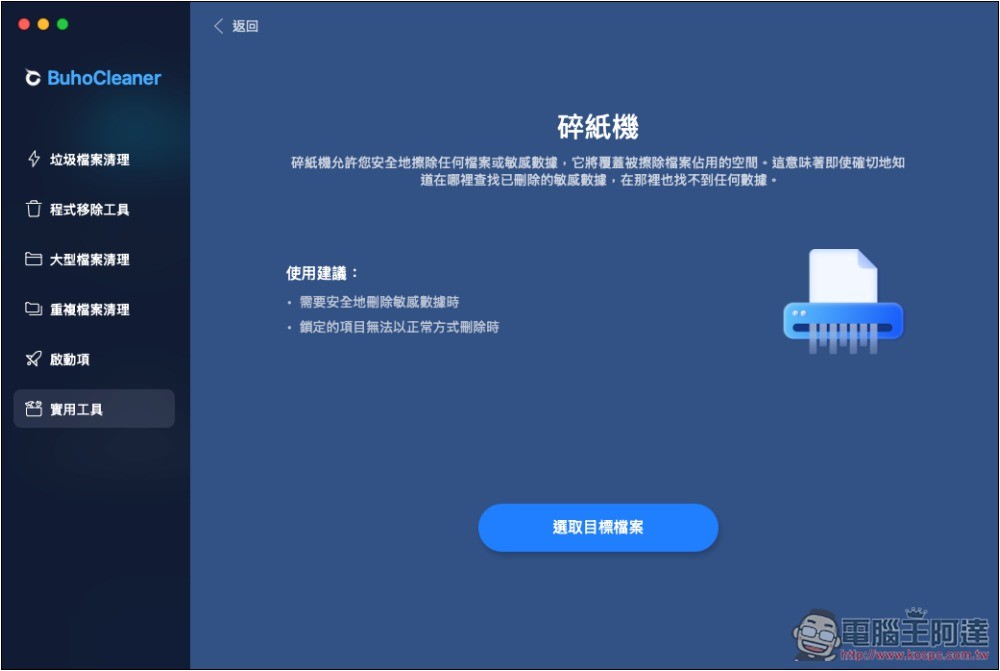
When deleting important files, it is highly recommended to use the shredder function. It will completely remove the files and cannot be restored by any method. In addition, files that are locked and cannot be deleted can also be removed through this function:
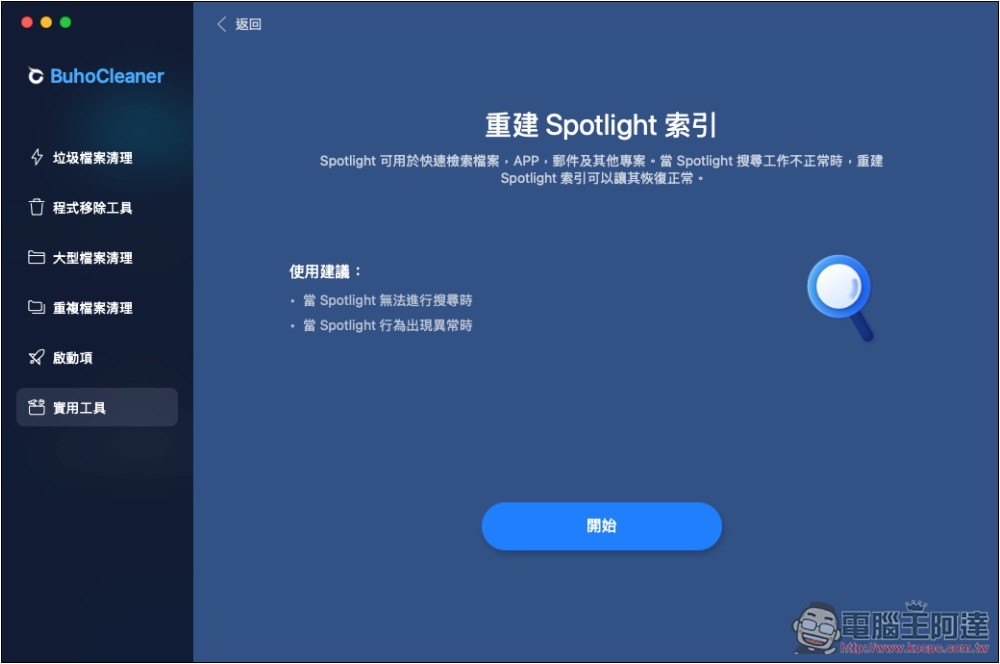
Spotlight is a function that every Mac user uses extensively every day. If there is a problem, it can basically be solved immediately by rebuilding the Spotlight index:
Why you need Mac hard drive cleaning and optimization tools
The main reason is as mentioned at the beginning of the article. You must decide the capacity when purchasing a Mac. There is no way to upgrade it later. After long-term use, the hard disk space will definitely become less and less.
If you don’t have a useful hard disk cleaning and optimization tool, cleaning it by yourself will definitely take a lot of time, and maybe not much space will be cleared at all in the end. Like I have done many times in the past, and the capacity is not enough soon after cleaning.
In addition, the following points are also the advantages of Mac hard drive cleaning and optimization tools:
- Improve system operating efficiency:As the number of junk files or temporary files increases, the performance of your Mac is likely to be affected, especially when system resources are insufficient, and you are more likely to experience lag or slow response. The hard disk cleaning and optimization tool can quickly find and clean these useless files, thereby improving system performance.
- To avoid accidentally deleting important system files:Many people may want to try to clean the hard drive manually, but you may not know the purpose of some files and accidentally delete important system files, causing system instability. You can avoid this situation by using a Mac hard drive cleaning tool.
- Extend hard drive life and stability:If a large amount of garbage and fragmented files accumulate in the hard disk, it will increase the reading and writing load and may shorten the service life of the hard disk in the long run. Regular cleaning and optimization can effectively reduce this problem.
Any recommended BuhoCleaner paid plans? (Attached is Computer King Ada’s exclusive discount code)
Highly recommended, BuhoCleaner is not only very cheap, but also a one-time purchase, not a subscription system, which is quite good.
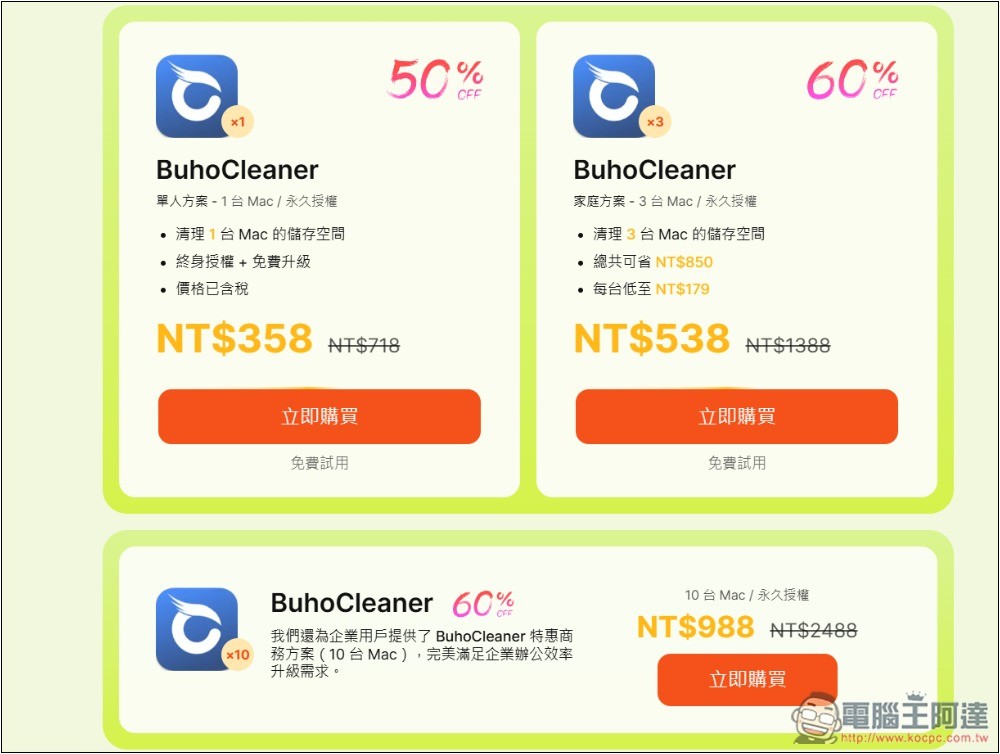
The spring promotion is now launched, with a maximum 40% discount, starting from NT$358, which is already very cheap, but Computer King Ada readers can enjoy an additional 20% discount, starting from NT$288.
There are three payment plans for BuhoCleaner. Enter Computer King Ada’s exclusive discount code “TWKC56898P” Get an additional 20% off, only for the first 100 readers:
- Single-person plan (permanent license for 1 Mac): original price NT$718, current price NT$358, exclusive discount price of NT$288 for Computer King Ada readers
- Family plan (permanent license for 3 Macs): original price NT$1,388, current price NT$538, exclusive discount price of NT$433 for Computer King Ada readers
- Business plan (permanent license for 10 Macs): original price NT$2,488, current price NT$988, exclusive discount price of NT$795 for Computer King Ada readers
Get BuhoCleaner(Ada discount code: TWKC56898P)
The single-player plan priced at NT$288 can be upgraded for free. This means that even if macOS releases a new system version in the future, BuhoCleaner will be able to upgrade to the latest supported version for free.
Both the free and paid versions of BuhoCleaner can use full functions, but the free version can only delete files up to 3GB. If you exceed it, you can only delete it manually, or upgrade to the paid version.
In addition to BuhoCleaner, the Spring Sale Mac essential package (including BuhoCleaner and BuhoNTFS) also enjoys this discount. Readers in need can save more at one time.
Summarize
For Mac users, BuhoCleaner is really an application worth investing in. Even if your Mac hard drive is too small, you can easily clear more hard drive space, remove unused apps, and optimize system performance at any time. The operation interface is simple and anyone can get started quickly.
Get BuhoCleaner(Ada discount code: TWKC56898P)
Source: KOCPC Chinese