


Regarding the built-in anti-virus in Windows, everyone should know that it is Microsoft Defender. In fact, it is not the only one. Windows also provides malware removal tools, but they are hidden and will not scan the computer for malware regularly or in real time. Manual operation is required.
As malicious virus attacks have become more and more rampant in recent years, if you have not installed third-party professional anti-virus software, it is highly recommended to scan it regularly with the Windows Malware Removal Tool to ensure that there is no malicious software on your computer. Let me teach you how to use it.
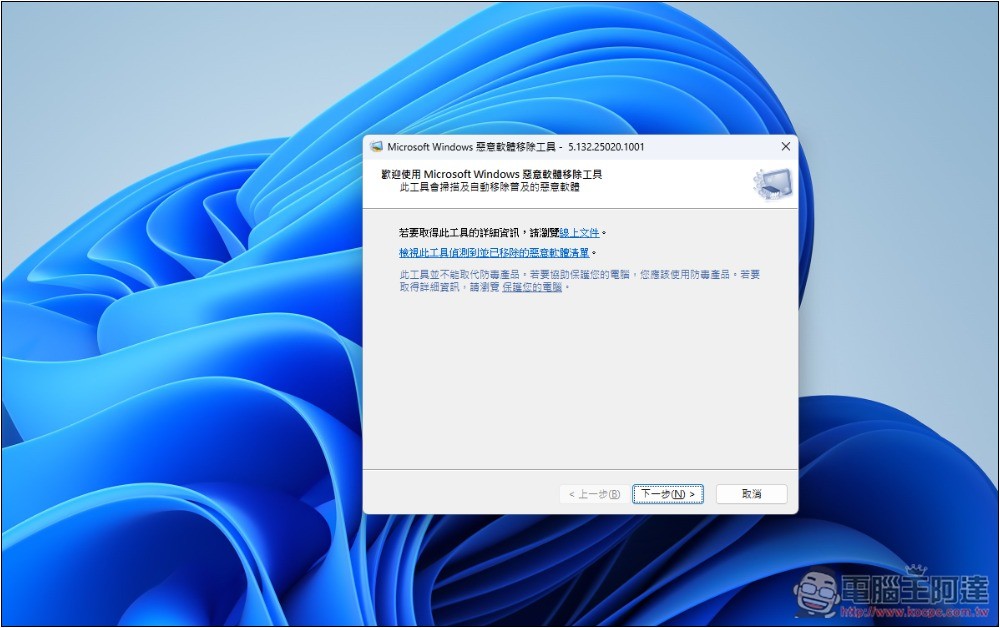
How to use Windows’ built-in malware removal tools?
Malware removal tools have been built into Windows for a long time, so you don’t need to install anything to use them.
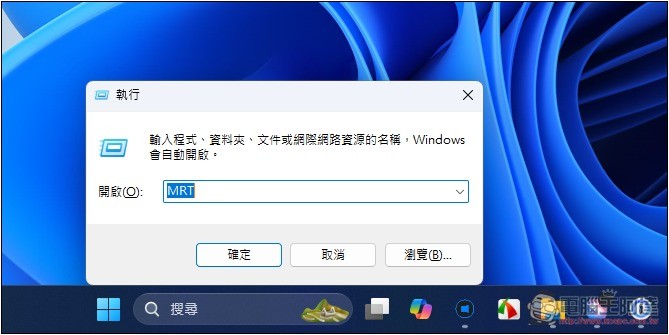
- Open Windows Exec
- Enter MRT to start using malware removal tools
Detailed operations are shown below.
After using the Windows + R shortcut, enter the word MRT and press OK:
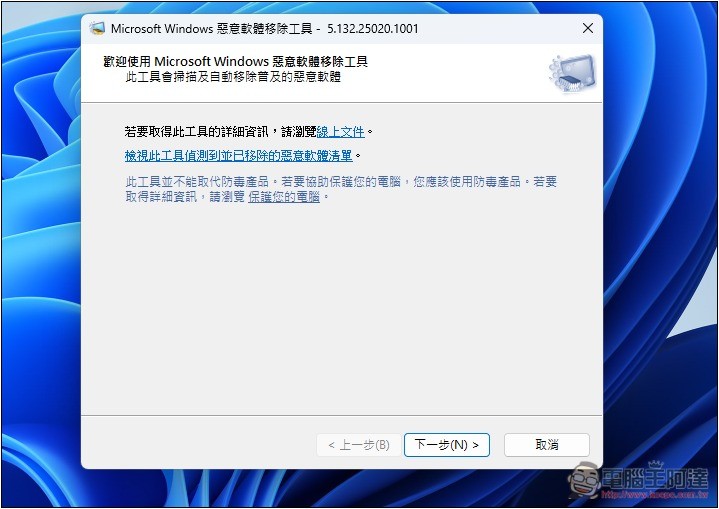
The Microsoft Windows Malware Removal Tool will be opened. This tool will be updated with Windows updates, which means that the database will also be updated. Of course, compared with third-party anti-virus software, the real-time performance is definitely not as high:
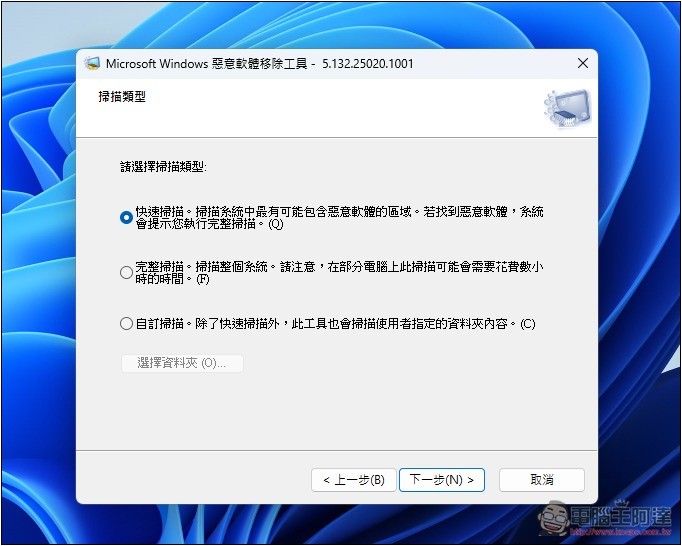
Three scan types are provided, including quick scan, full scan, and customized scan. If you are using it for the first time and there is nothing important to do on the current computer, it is recommended to run a full scan to ensure that there is no malware in every block of the computer. For subsequent minor maintenance, just use quick scan:
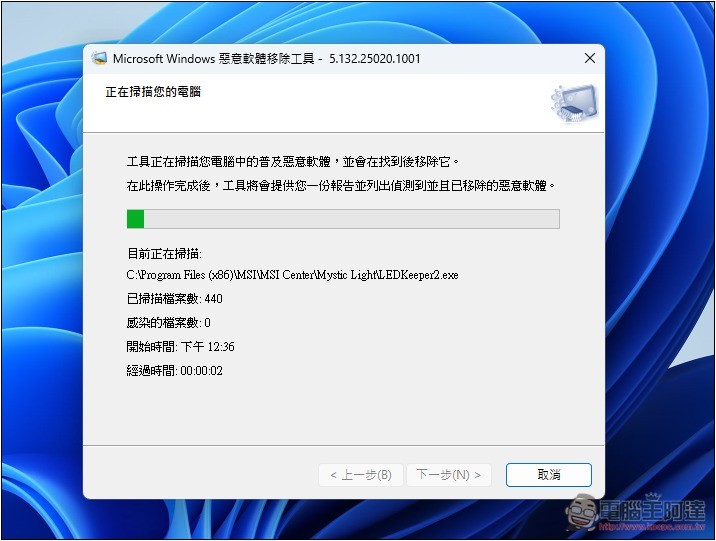
The scanning time will vary depending on the size of your hard drive. A quick scan will be completed in about 5 to 10 minutes, and the process will not take up too much computer resources:
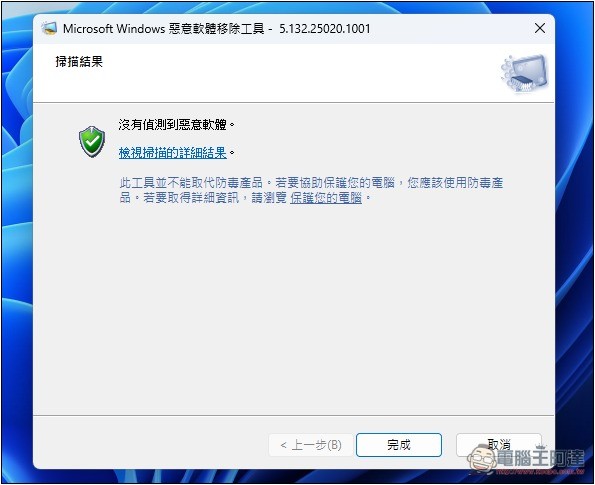
After the scan is completed, you will be informed whether any malware has been detected:
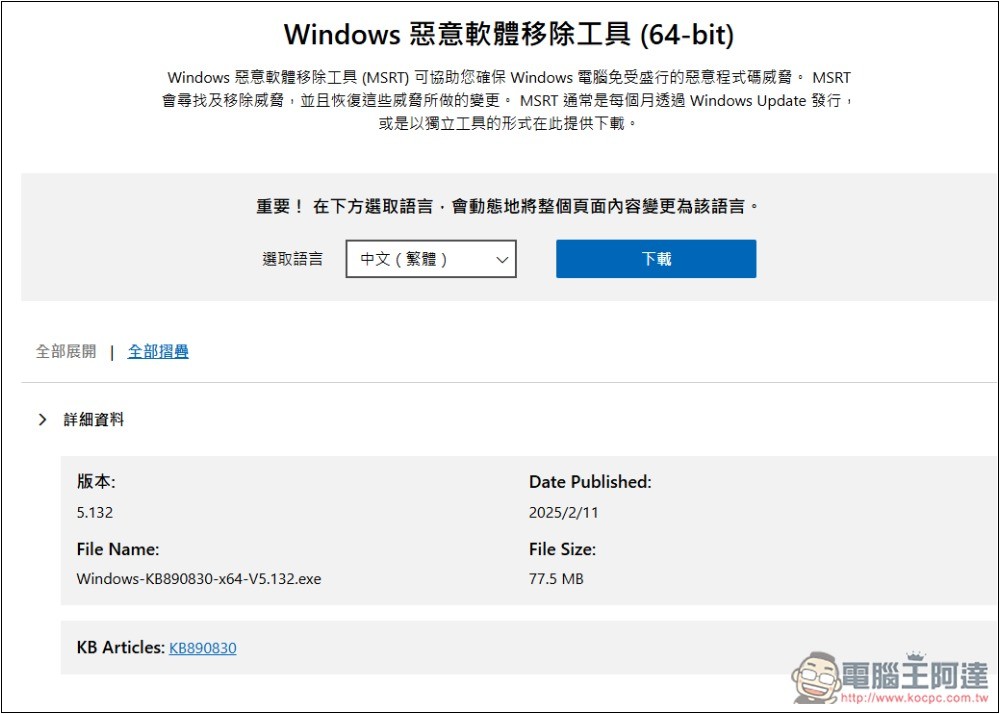
If you have trouble opening the Windows Malware Removal Tool, you can also go toMicrosoft official website download, the latest version is 5.132, launched on 2025/2/11. After downloading and opening, the Windows malware removal tool will be directly enabled:
Why is it important to use malware scanning tools regularly?
We have always recommended that you use anti-virus protection software to scan regularly, because even if you use it very carefully, sometimes when you are busy, you will still overlook some small details, allowing computer viruses and malware to quietly invade and hide in your computer.
With regular scans, the risk can be minimized.
1. Instantly detect hidden threats
Malware often hides on your computer so you don’t notice it, and then activates at some point to infect your computer. Through regular scanning, you can detect and remove viruses, Trojans, spyware or ransomware hidden in your system early.
2. Protection of personal and sensitive data
This is a continuation of the previous one. When malware begins to infect your computer, it is likely to steal your personal information, such as bank accounts, credit card information, passwords, identity information, etc. Regular scanning can prevent it in advance, thereby avoiding the leakage of sensitive information, major financial losses, or personal privacy leaks.
3. Maintain system performance and stability
Most malware will occupy a large amount of system resources, reduce computer performance, and even often crash. Regular scanning and removal can ensure the speed and stability of your computer.
4. Prevent the spread of malware
Some malware also has the ability to spread. If not handled in time, it is likely to spread to other devices through email, USB or network sharing devices.
5. Prevent ransomware attacks
Ransomware attacks have been increasing in recent years. Once infected, data is likely to be locked or encrypted, causing huge losses. Regular scans can detect and eliminate hidden ransomware early.
Source: KOCPC Chinese