


In the past two days, LINE users should have seen news reports mentioning that two Android phones/tablets can finally log into a LINE account at the same time, and this LINE 15.3.0 version update has also been pushed to users one after another. But how exactly does this new feature work? In fact, not only can two Android devices log in to the same account, but they can also complete “cross-system and cross-device” login with an iPhone. Next, continue reading this article to show you how to play!
LINE finally supports dual Android devices and iOS/Android dual system login. Is this the birth of a new trick to catch your partner stealing food? (teaching)
Earlier, LINE Android released version 15.3.0 update one after another, this time it brings a major feature update! After the update, users can set their Android device as an “additional device” and use the same LINE account on multiple devices. That means they can use an Android phone or tablet as another LINE device to log in to their LINE device!
In fact, this time it can support the cross-device “dual-open” function of Android login. The same concept has been used by everyone in the past. For example, iPhone or Android mobile phones can use iPad or Windows or Mac computers as a second device to log in at the same time. This time, Android devices are finally enabled as second devices, which brings a lot of convenience.
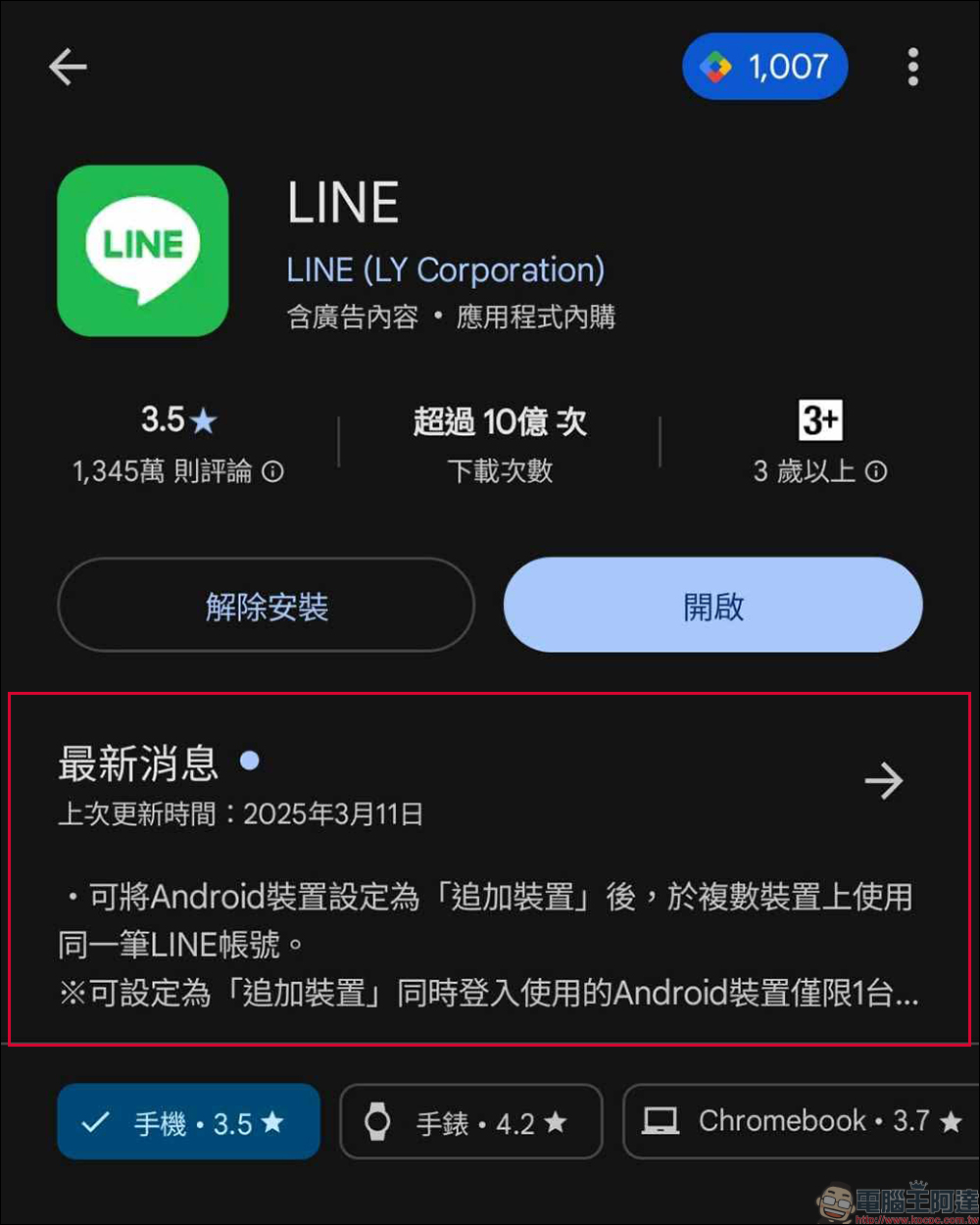
What are LINE’s “main devices” and “additional devices”?
The main device, as the name suggests, is the device that LINE users originally used when registering. Most people use smartphones. On the main device, users can manage phone numbers, email account passwords, purchase stickers, use wallets and other functions. As for “additional device”, if you want to understand it quickly, just like we used to log in to our LINE account on the computer version of LINE App, some people would choose iPad as the second device to log in, and this is the so-called “additional device”.
What devices qualify as “primary devices”? What devices can be used as “additional devices”?
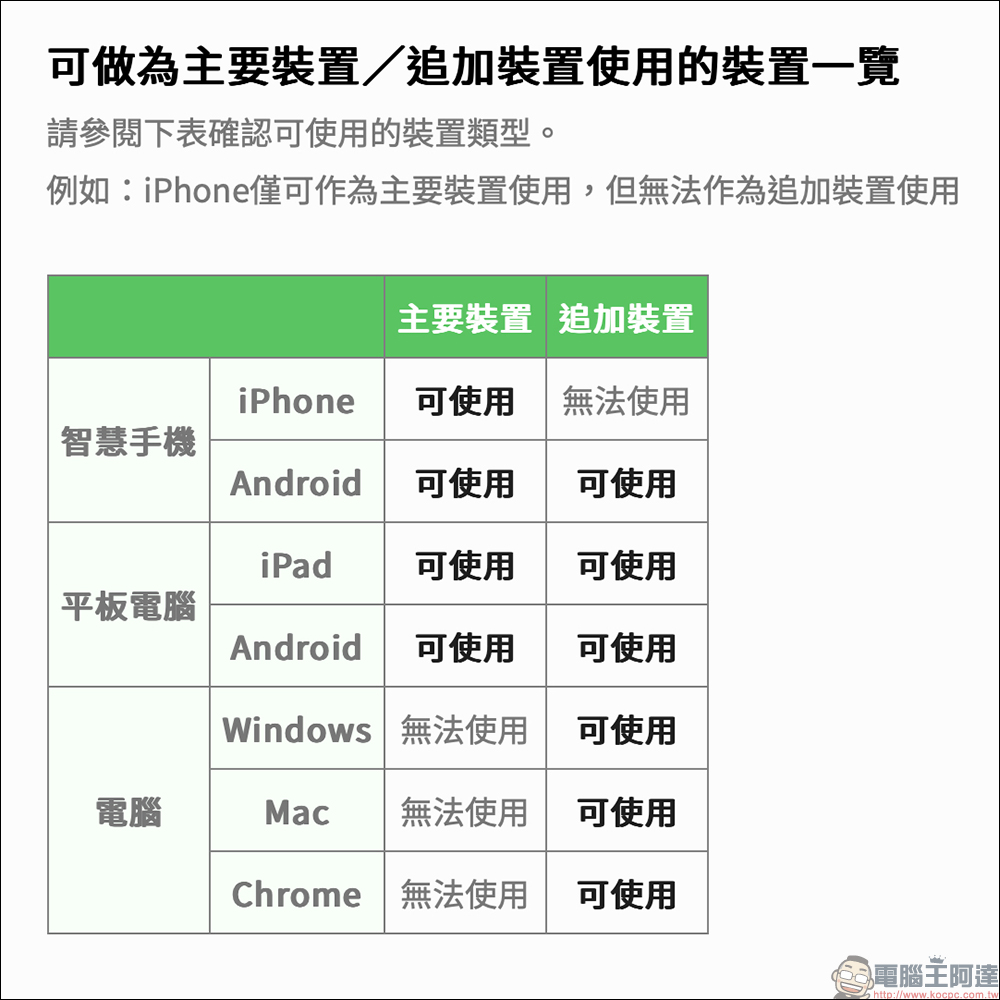
The following LINE official has also compiled a table to help everyone quickly understand what device types each system device can serve as. To put it simply, the computer version can only be used as an “additional device” as in the past. Users must log in to the account on a mobile phone or tablet as the “main device” before they can use it on the computer.
It is important to note that although users can use two Android phones or tablets as the “main device” and “additional device” respectively, if one of the devices is an iPhone, the iPhone can only be used as the main device!
The following will also help you demonstrate two login methods that users may frequently use in the future. This time it is mainly for smartphones.
Case 1 | Main device iPhone, additional device Android phone/tablet
For example, if I originally used an iPhone to log in to my LINE account, and later bought an Android phone as a backup phone, then after the LINE 15.3.0 update, this Android phone can also log in to the same LINE account simultaneously! This should often happen to users who work in the business. The business jets issued by the company often use Android phones, but now it is finally no longer necessary to prepare two LINE accounts for this. With only one LINE account, you can choose one of the two phones to receive and reply to messages. Even if you only take one of these mobile phones with you when you go out today, you won’t be afraid of missing important messages!
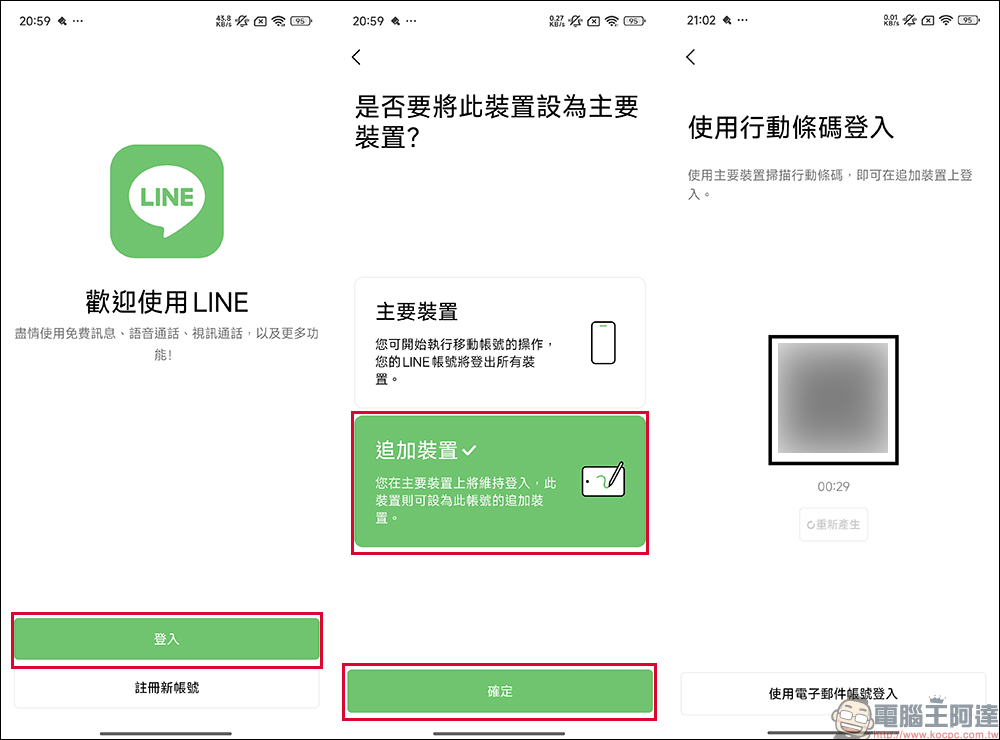
First, download the LINE App on the second device (Android phone) (please go to the Google Play Store to download, it is not recommended to download APKs from unknown sources). Then open the LINE App and click “Login”. You will see two options: “Main Device” and “Additional Device”. Since the main LINE account is on an iPhone, you need to select “Add Device” here. After clicking and confirming, the QR Code for mobile barcode login will be displayed. At this time, you need to take out the iPhone camera to scan this set of mobile barcodes to log in:
The user then needs to enter the verification code on the iPhone (primary device), and the verification code will be displayed on the Android phone (additional device):
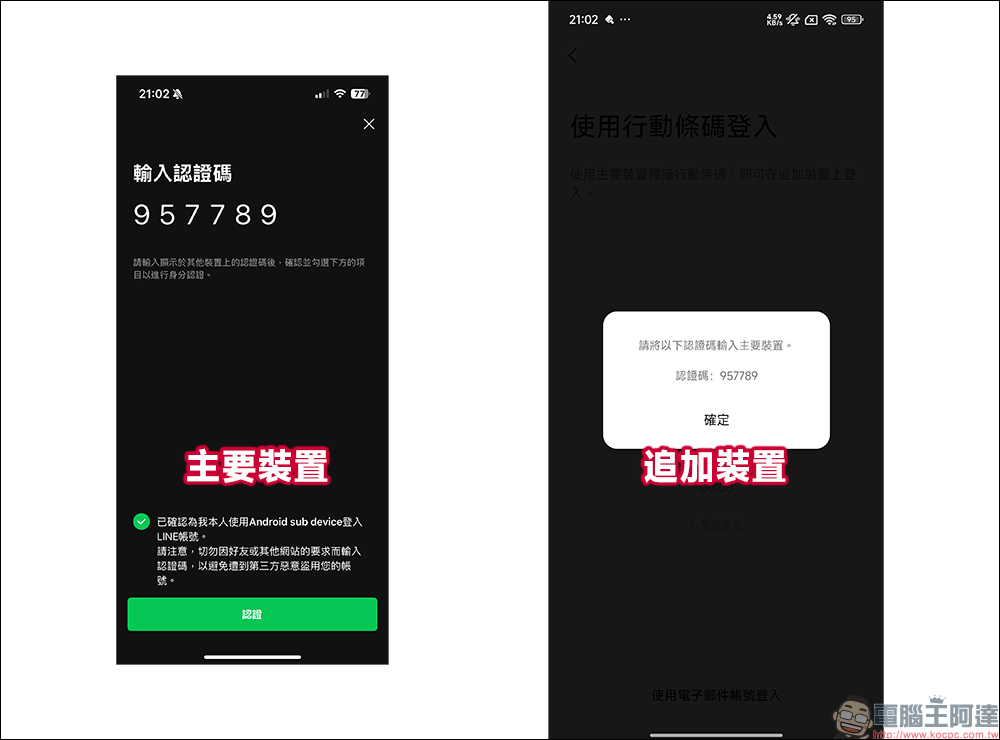
After the verification is completed, the Android phone (additional device) can successfully log in to the same LINE account as the iPhone (main device)! New information will be updated simultaneously on both devices.
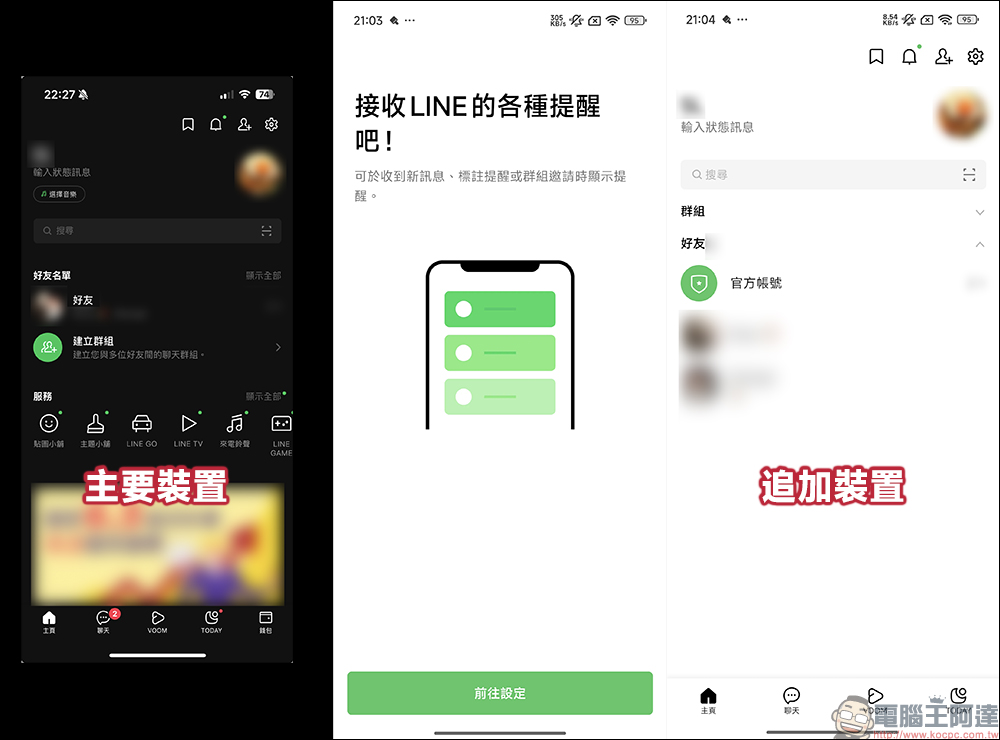
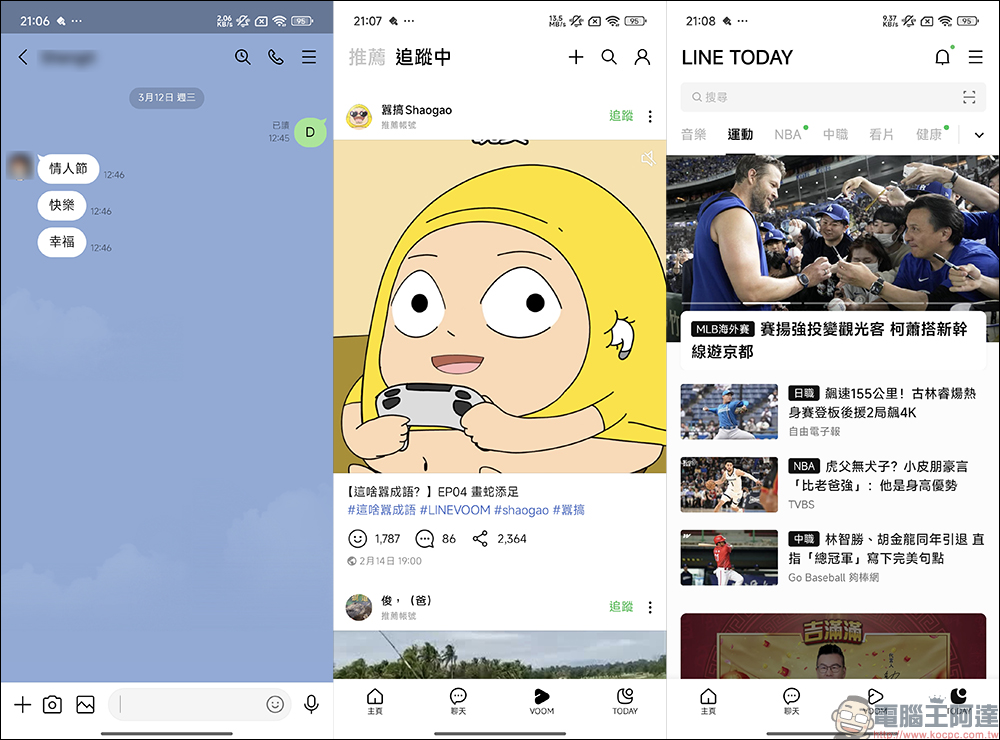
Although you can still use LINE chat in the “Additional Device”, you can also use functions including VOOM and LINE TODAY, but those with a keen eye may have noticed that the “Wallet” is missing at the bottom of the screen. This is because additional devices cannot use paid products such as stickers or emoticons. In addition, many functions related to LINE account management can only be used on the “main device”.
Case 2 | Main device Android phone/tablet, main device Android phone/tablet
Next, let’s take a look at what if you are a “pure Android” user and want to use it on two Android phones/tablets?
If you want to move the previous phone to a new Android phone as the “primary device”, you must select the “primary device” when logging in to the LINE App. Then enter the verification code to log in to your LINE account. As the main device, LINE can also use the complete LINE service, manage the settings in the LINE account, operate the mobile LINE account, change the settings related to the Letter Sealing function, back up chat history, and purchase paid products such as stickers or emoticons.
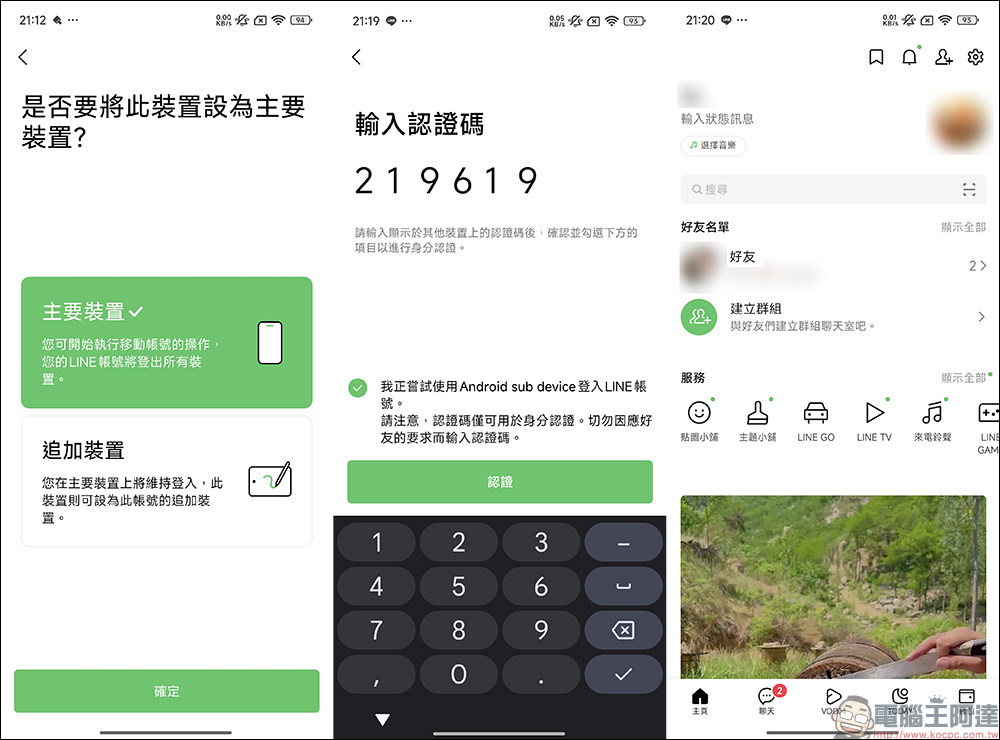
After confirming that you have an Android phone/tablet as the primary device, then open the LINE App on the second Android phone/tablet and select “Add Device”. The login mobile barcode will also be displayed. You need to use the main Android device to scan the QR code to log in:
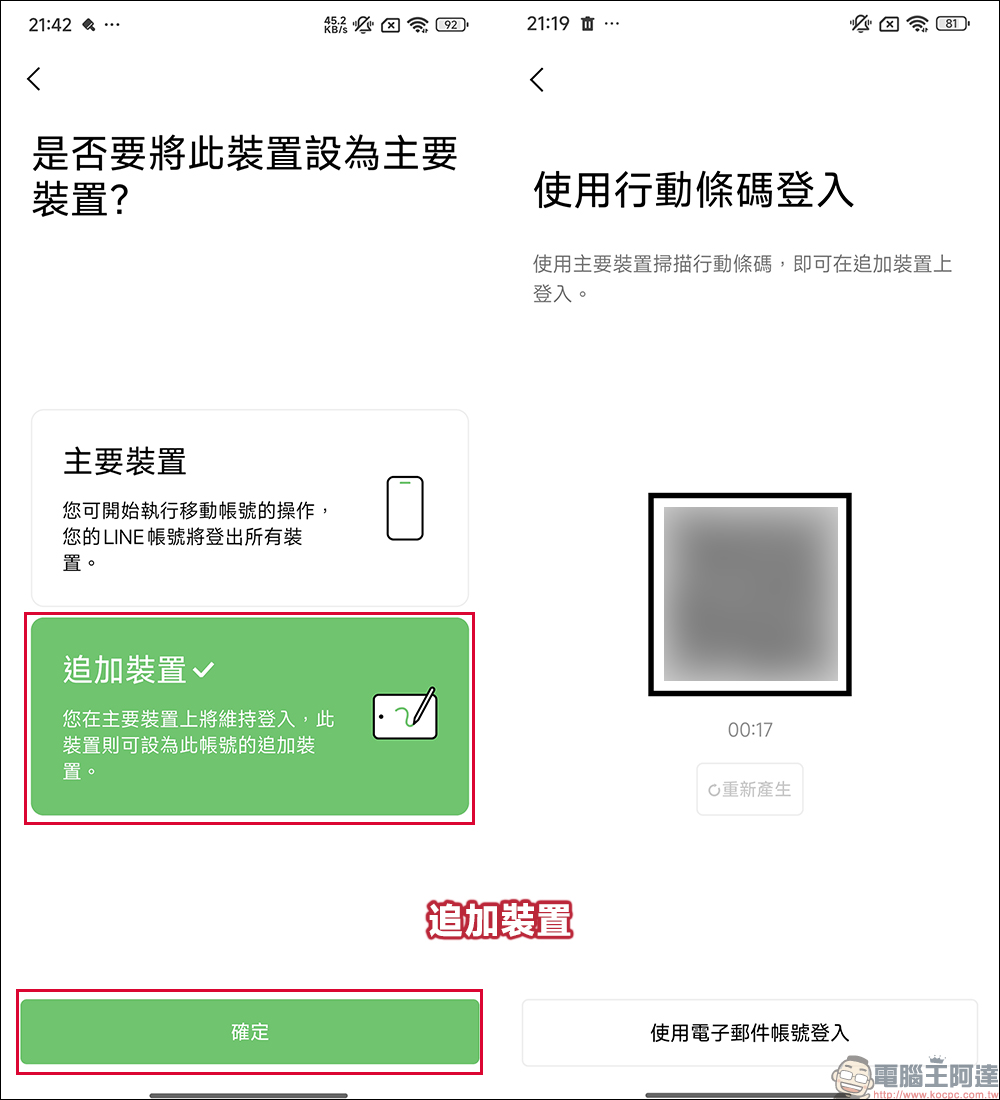
After the primary Android device scans the code, the second Android device will display the verification code. Next, you need to enter the verification code on the primary device and check the following items for identity verification:
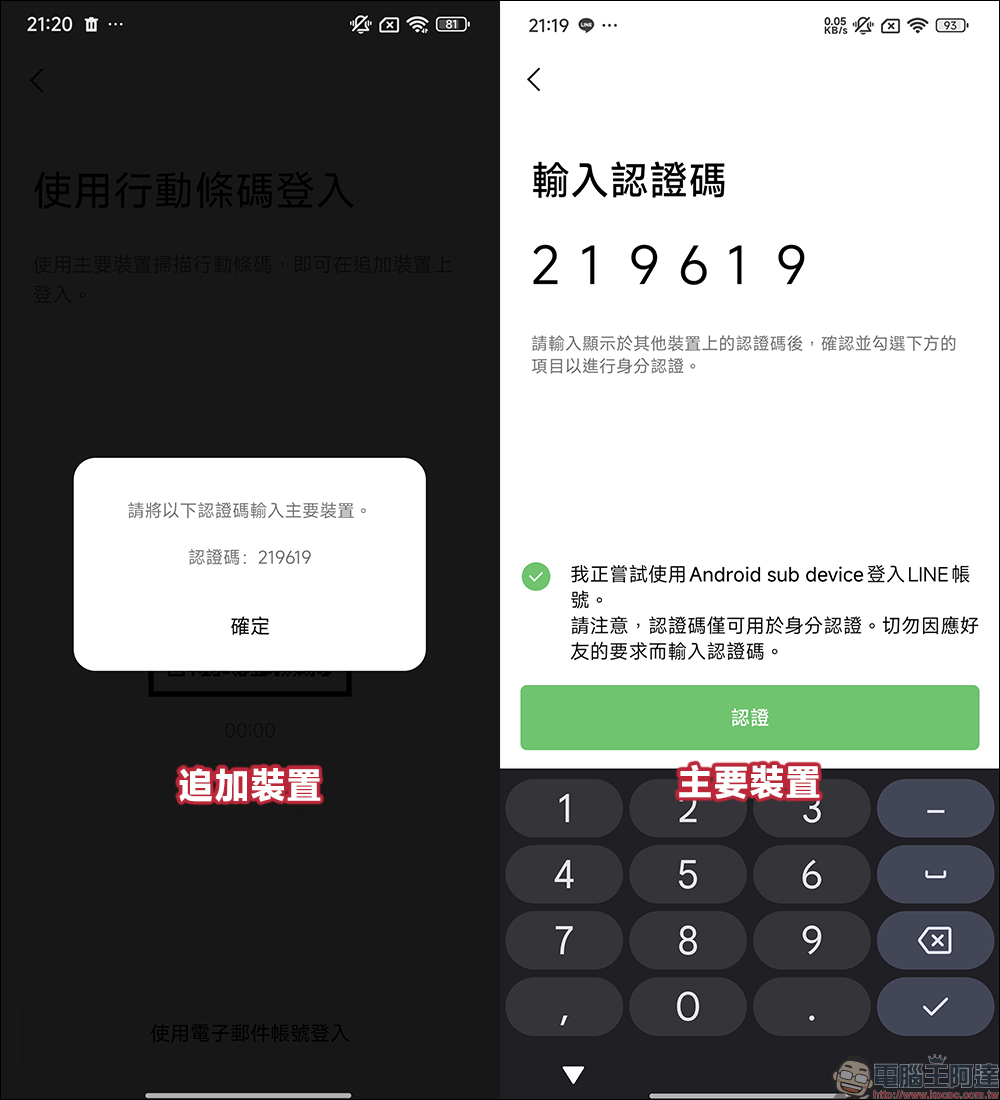
In this way, two Android accounts can log in to the same LINE account!
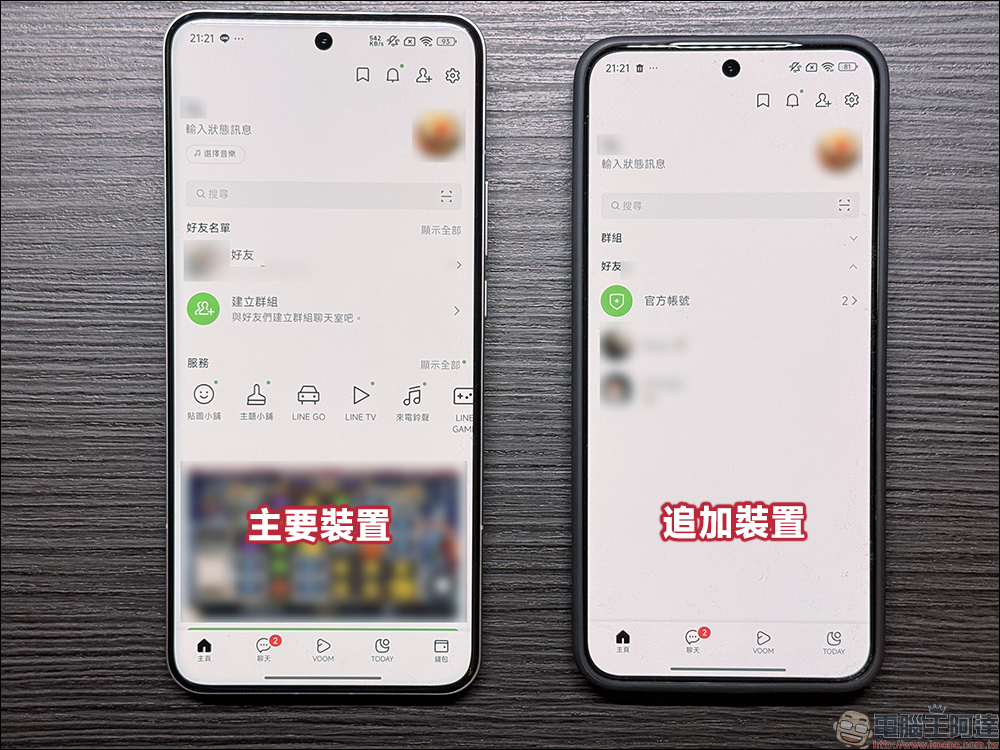
After LINE supports “additional devices”, may it become a new way to catch your partner stealing food?
Since it was impossible to log in to the same LINE account on two mobile phones in the past, the only way to catch the other person’s LINE chat conversations was by looking at the other person’s phone, or the other person had logged in to LINE on the computer but forgot to log out. However, as Android phones/tablets can also be used as “additional devices”, if you silently hand over an Android phone as an “additional device” to the other half of the LINE account, all chat content will be updated simultaneously.
How to check whether my LINE has been logged into other “additional devices”? How to log out of other devices remotely?
Everyone is introducing how to set up an Android device as an “additional device” to log in, but in fact, you may want to know more about how to log out of the “additional device”? After all, if your LINE account is silently used by others to log in to other Android phones/tablets as additional devices, all privacy will be leaked.
“LINE” on the LINE chat room page will display the records of all logged-in devices, including device, IP location, login location and other information. If you find any suspicious login records, you should pay special attention.
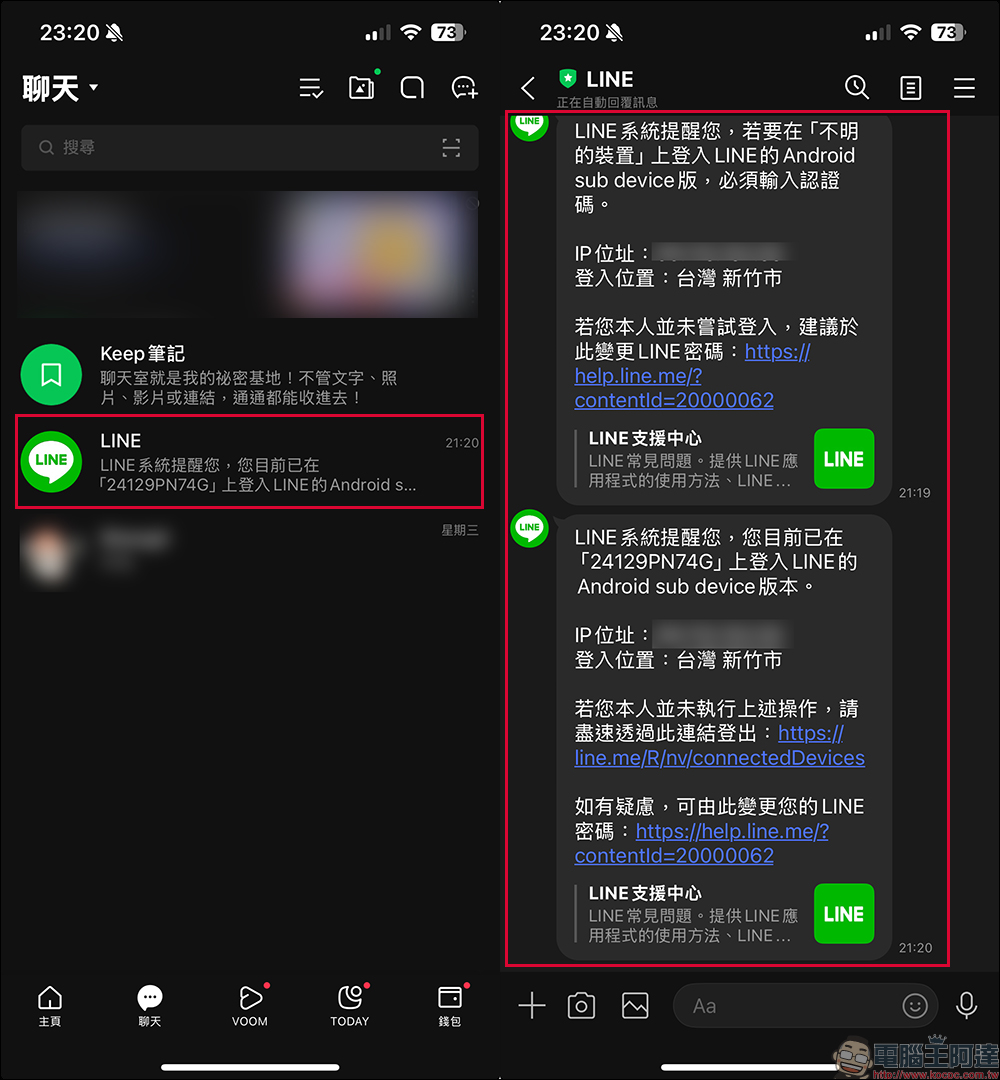
To log out of “Additional Devices”, you need to use the “Master Device” of your LINE account to go to “Settings” and click “My Account” under personal information, then click “Logged in Devices”:
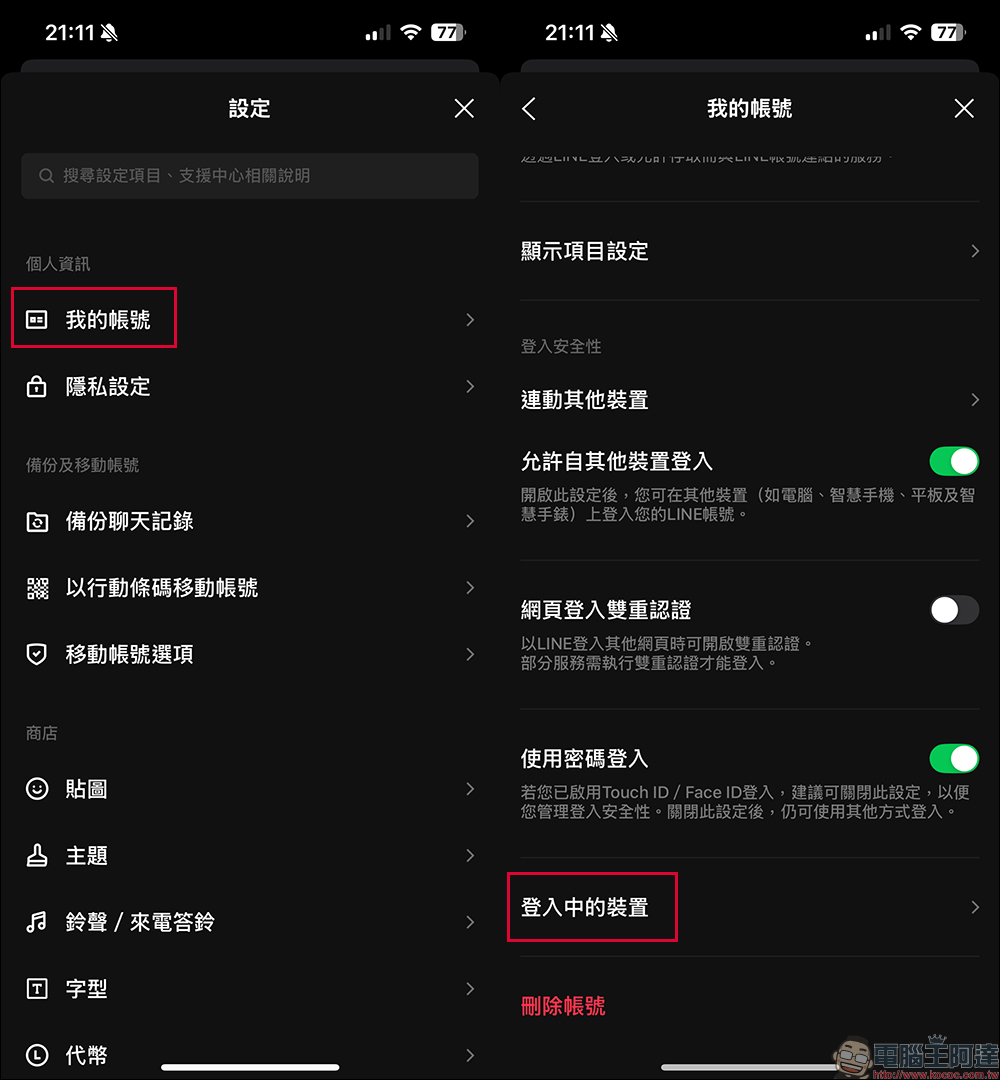
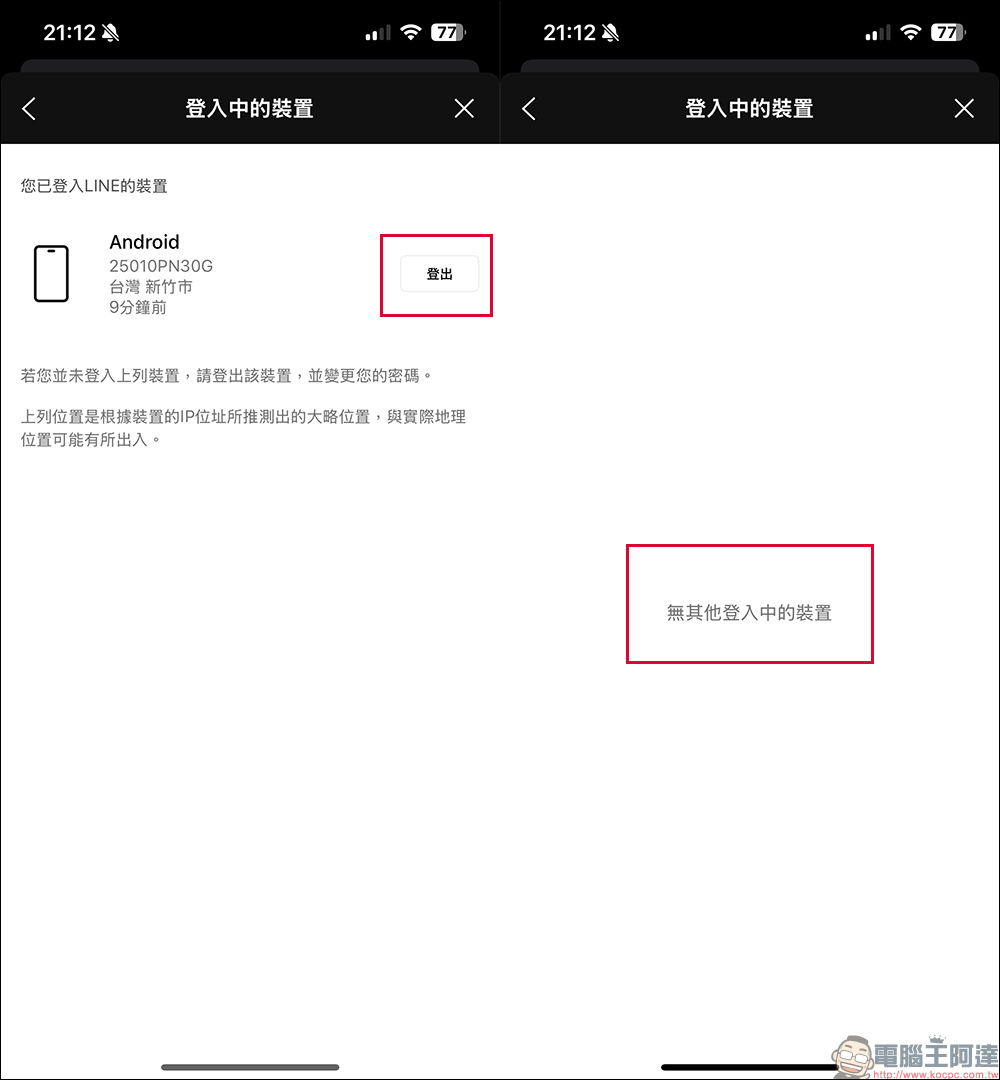
If the current LINE account is used as an “additional device” on other devices, you will see that the device logged into LINE has “Android” or “Mac/Windows/iPad”. If the device being logged in in the list is not logged in by you, you can directly click “Log Out” to log out the device remotely. Moreover, if you are worried that your account has been stolen, change your password immediately after logging out of the device.
Currently, LINE’s new feature of using Android devices as “additional devices” is gradually being released to Android phones/tablets. If you go to the Google Play Store after reading this article and haven’t seen LINE 15.3.0 or newer versions, you might as well wait a little longer! Remember not to download APKs from unknown sources to prevent the risk of poisoning or data leakage.
Source: KOCPC Chinese