


For people with multi-platform devices, sometimes they will need to share text, pictures, links and other content on different devices. Many people probably use communication software such as LINE to copy and paste. Although it is quite easy, this method is still a bit inconvenient if it is used frequently.
This article will introduce a useful free tool called Clipboard Remote, which is supported by iOS, Android, Mac and Windows operating systems. After installing the App, you can easily copy and paste content across platforms, including text, pictures, and photos. It can also be shared with multiple devices, such as sharing iPhone content to Android and Windows with one click.
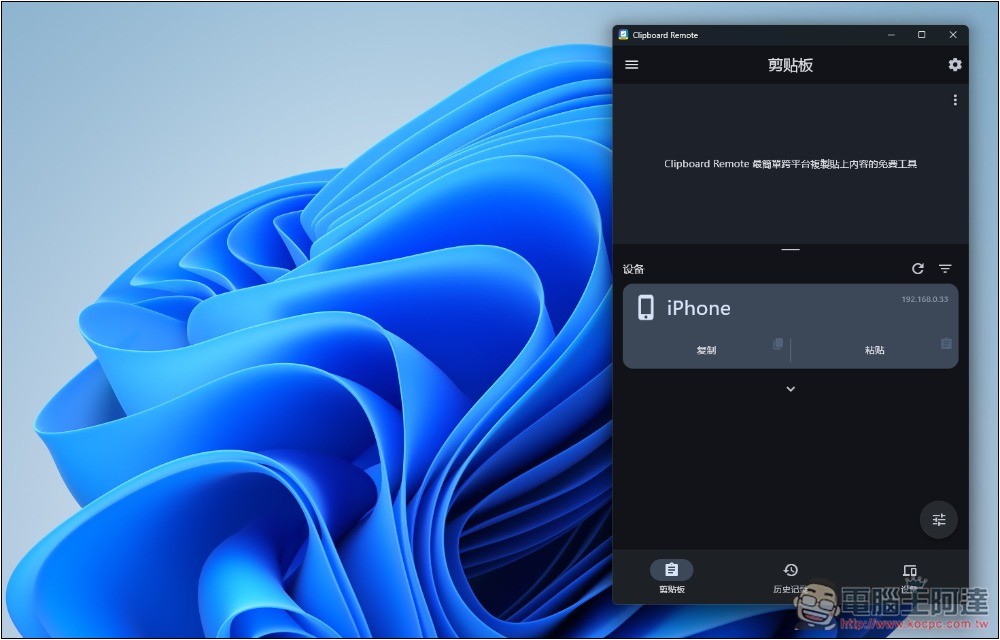
Clipboard Remote introduction and operation tutorial
Clipboard Remote is a free cross-platform copy and paste content tool. Just click Copy on the screen to read the remote device into the local clipboard. You can also click Paste to transfer local content to the clipboard of another device.
The content that supports transmission includes: plain text, links, email addresses, pictures (can be edited before and after transmission), and photos.
There is also a history record function, which means that a certain number of copied records in the past will be saved to facilitate your reuse.
What’s even better is that this tool operates based on LAN or Wi-Fi. The representative said that it must be under the same network. The transmission process will not be stored in any cloud, but locally, and the security is very high.
One thing to note when using it is that when sharing clipboard content on Android and iOS, the App needs to be kept open.
Below I demonstrate the operation of Windows + iOS.
The Windows installation process is the same as other software, supporting Chinese:
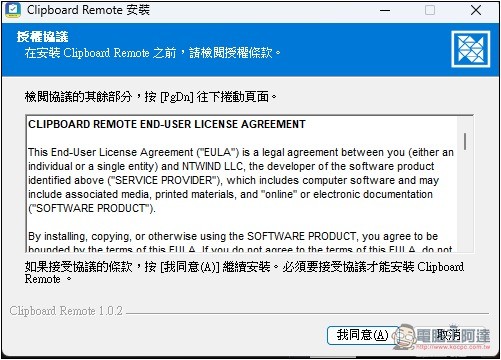
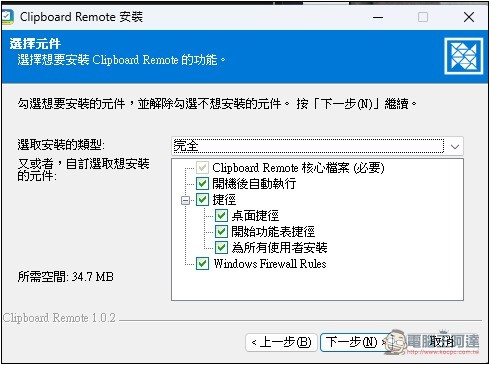
Automatically execute after booting, create shortcuts, install for all users, etc. are all checked by default. If you don’t want anything, remember to cancel it manually:
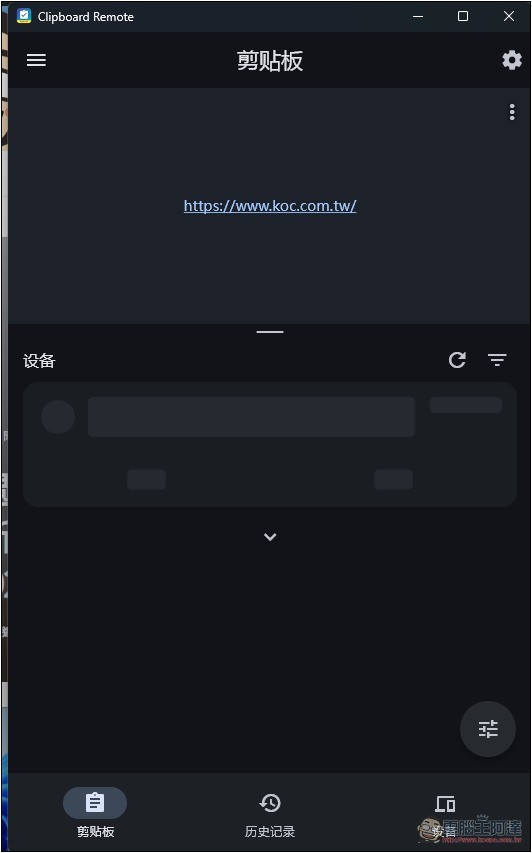
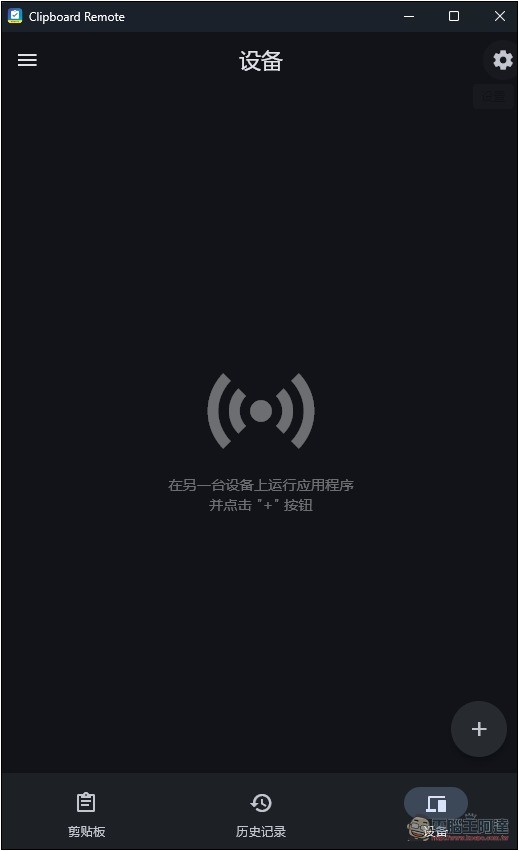
This is the operation interface. Next, you need to add a device. Please click the device menu on the lower right. The adding step only needs to be done once:
Then press the + sign:
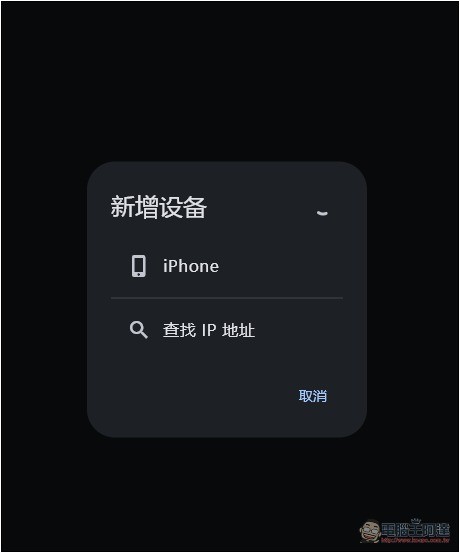
I’ve installed the app on my iPhone and opened it, so I found and clicked on the device:
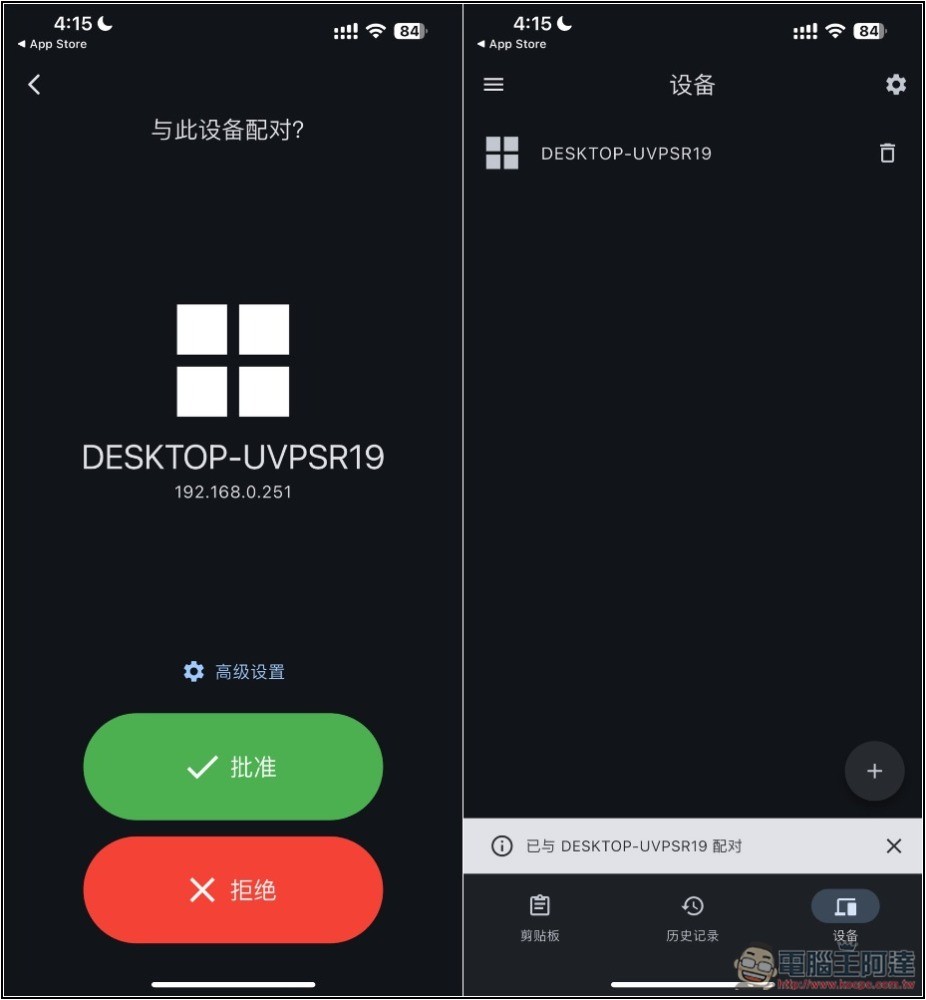
The iPhone will pop up a screen asking whether you want to pair it. Click OK, and the pairing is completed. It can be equipped with multiple devices, allowing you to share scrapbook content on different devices at any time:
Then I copied a piece of content on my iPhone, and then returned to the Clipboard Remote App. A message asking whether to allow pasting will pop up. Please click Allow to paste, and then the content just copied will be displayed on the screen:
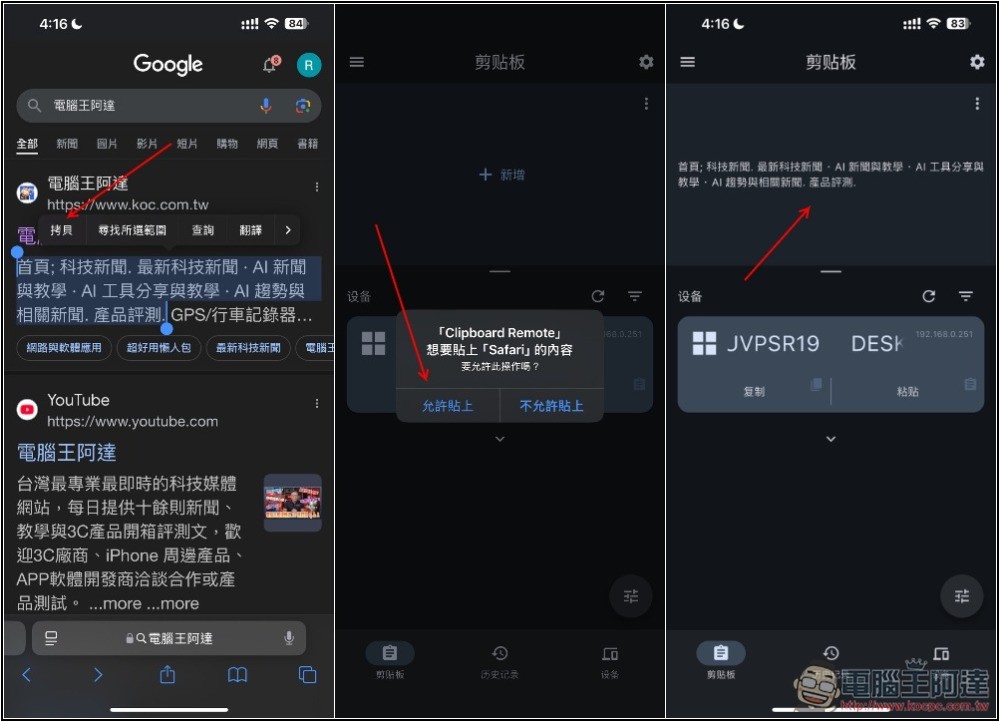
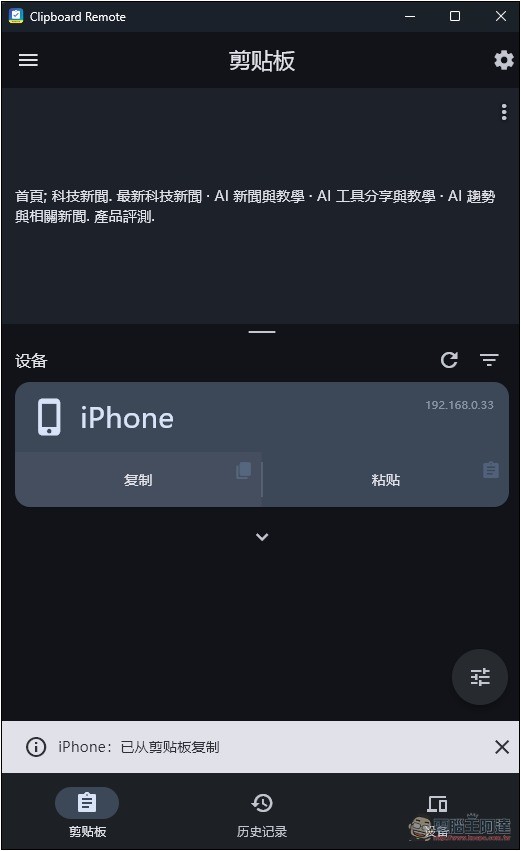
At this time, I return to Windows and press Copy under the iPhone, and the contents of the iPhone clipboard will be copied over. In addition, you can also press Paste on the Windows device in the iPhone App, and it will be automatically transferred to the Windows clipboard:
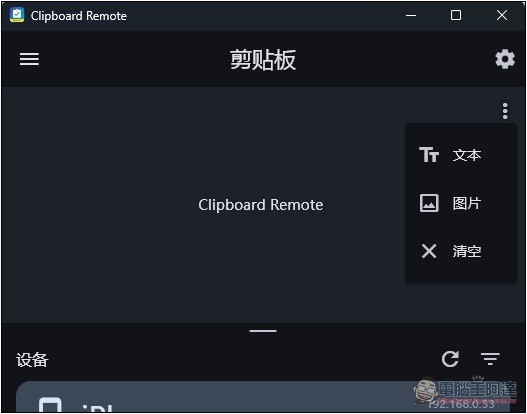
If you want to send pictures, open the… menu on the upper right and you will find the picture options. The mobile phone part also has a camera function:
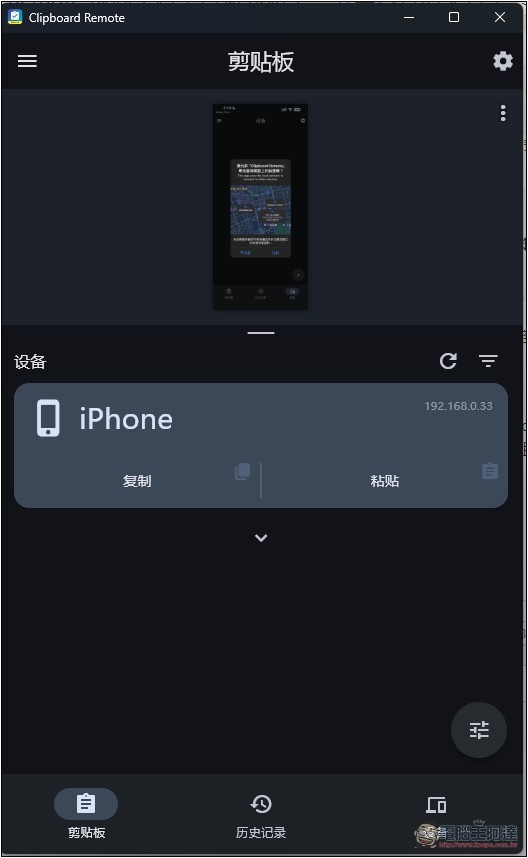
Once selected, the image will be copied to the clipboard, where it can be copied and used on other devices:
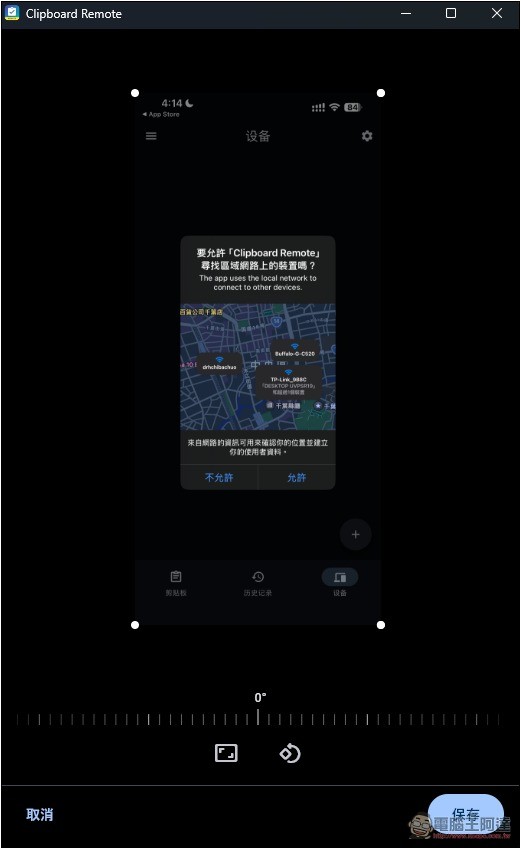
Images can be edited before and after transmission, including rotation angle and cropping:
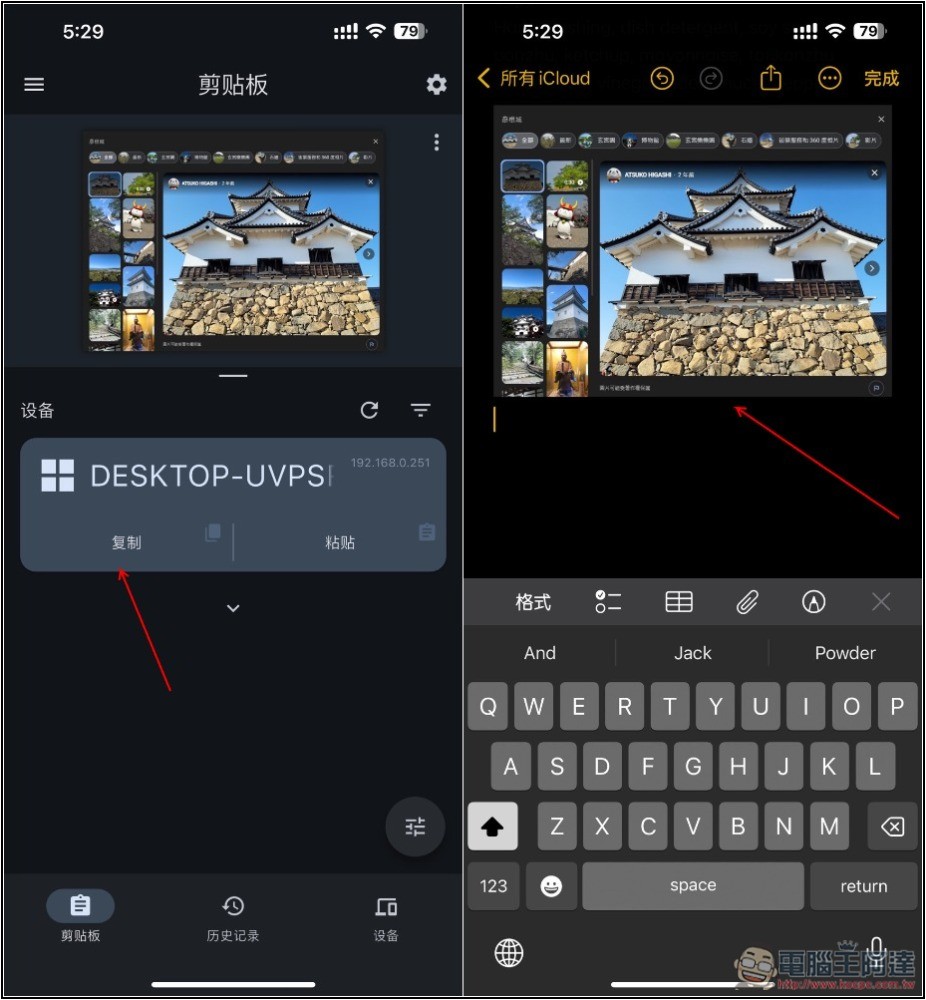
I transferred a picture from Windows to the iPhone clipboard, then opened Notes, pressed Paste, and the picture came in:
Also note that this app transfers content through the clipboard, so it does not support file transfer.
Source: KOCPC Chinese