


Anyone who needs to record online courses, instructional videos, games, or even work will definitely want to find a useful screen recording software. So which ones are the most recommended? How to choose? I believe many people have this question. Below we test and compare a variety of screen recording software, and finally compile this list of 15 super easy-to-use recommendations.
Recommended list of 15 super useful screen recording software
1. Movavi Screen Recorder
- Supported operating systems: Windows, Mac
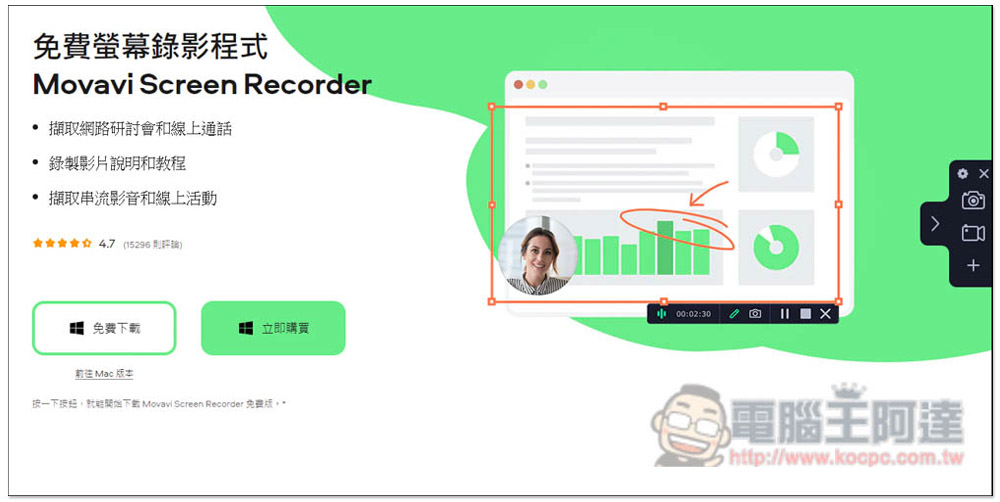
Movavi Screen Recorder can be said to be the easiest-to-use, feature-rich, high-quality screen recording software that I have ever used, and it does not occupy resources. It is also the most recommended one in this article, and it is available in Traditional Chinese.
After opening this device, the function list is located in a small area on the right side of the screen, which does not take up much space. You can also put the list away when not in use and open it again when needed, which is quite good. It has screen recording and screenshot functions, and can also record web cameras and audio. The representative said that recording music is no problem. It supports Intel, NVIDIA and AMD hardware acceleration and has exclusive SuperSpeed conversion technology. After I tested the recording, the output speed was very fast.
Even better, this model also has built-in “scheduled recording” and “video drawing” functions:
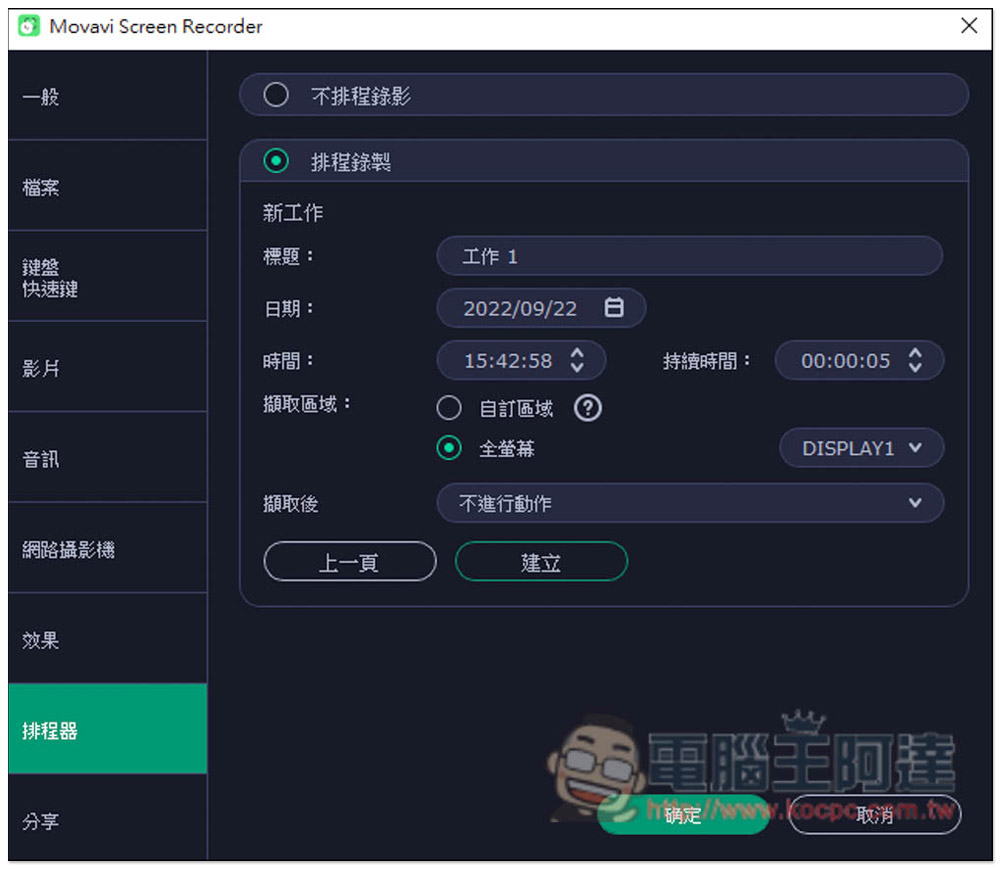
After setting the schedule, the video will automatically start recording when the time is up. It doesn’t matter if you are not in front of the computer. A few screen recording software have this function, which is very practical for me. Sometimes online presentations may conflict with my other work and I can’t watch them on time. I can use the scheduled recording function to record it automatically and make time to watch it when I come back.
For friends who are making teaching videos, video drawing is very useful. You can draw and mark on it while recording, so that the viewer can know more clearly what you are talking about. After recording, in addition to the local machine, it can also be directly uploaded to YouTube, Google Cloud and other platforms. This can also be used with its own Movavi Video Editor Plus editing software, which can output videos into MP4, AVI, MOV, WMV, MKV formats, etc.
Movavi Screen Recorder official website
2.VideoProc Converter
- Supported operating systems: Windows, Mac
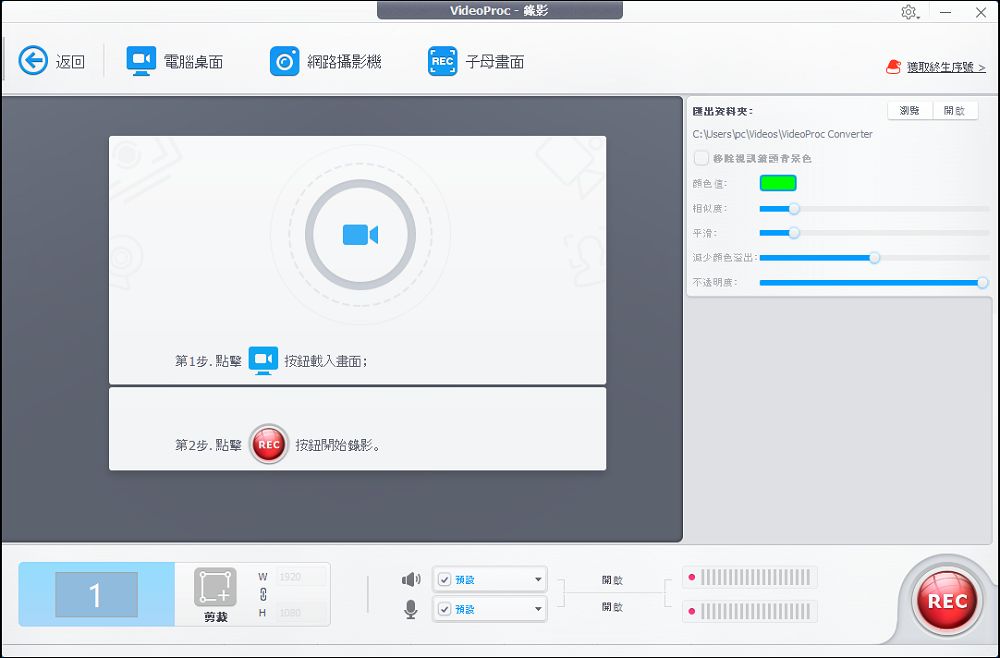
VideoProc Converter provides 3 screen recording modes: computer desktop, web camera, and picture-in-picture (recording the computer desktop and web camera simultaneously). The Mac version additionally provides iPhone screen recording. After selecting the recording mode, press Crop to set the size of the recording area. You can also set the recording quality, format, and microphone. Desktop sounds and voice-overs can also be recorded. The recording formats include MP4, FLV, MOV, and MKV, and mouse cursor, click, and other effects are displayed while recording.
What’s even better is that you can record green screen videos/backup videos through VideoProc Converter. If you want to create some cool and creative background videos, don’t miss it.
After the screen recording is completed, it is very convenient to use VideoProc Converter to quickly cut, convert, and compress the video. Its exclusive Level-3 hardware acceleration function makes the work very efficient.
VideoProc Converter official website
3. Bandicam
- Supported operating system: Windows
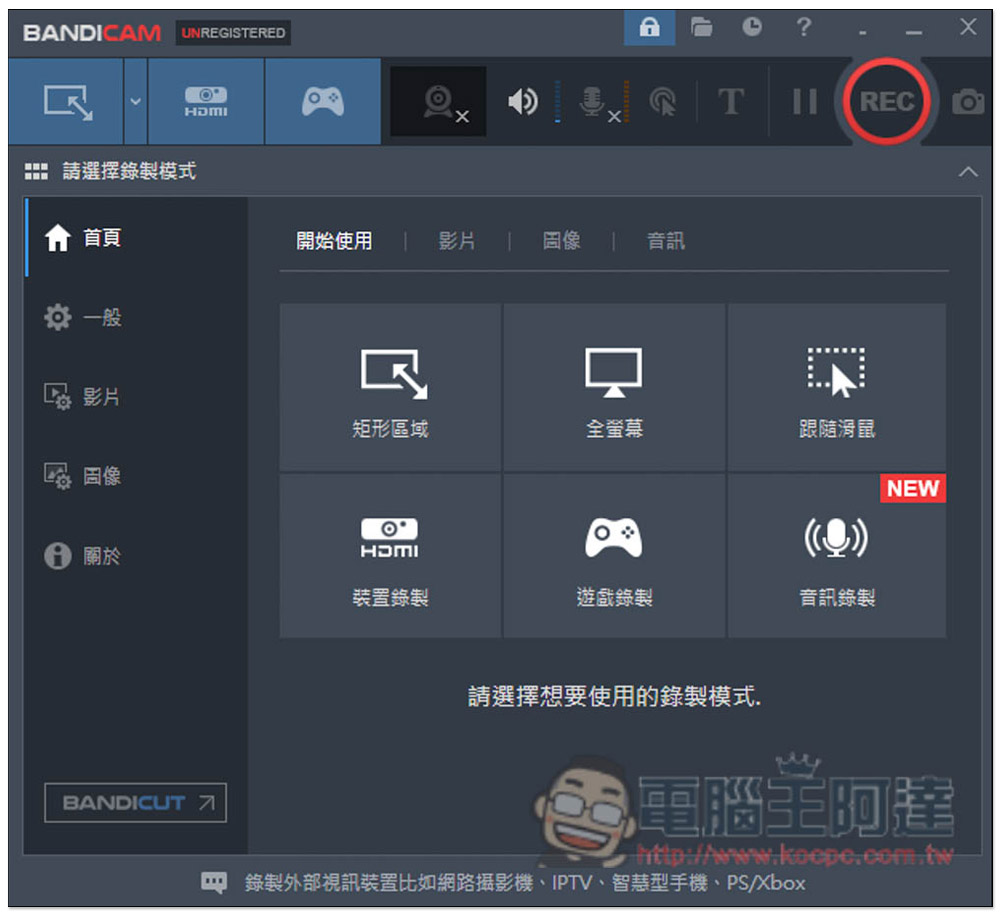
Bandicam is a lightweight version of screen recording software with rich functions. It can record screens, web cameras, and designated devices. It also provides a special game recording mode. It provides three modes: rectangular, full screen, and mouse follow, and also has a scheduled recording function. However, taking screenshots is troublesome. You must enable recording before you can take pictures. This means that if you usually need to take screenshots a lot, then this product is not recommended. The operation interface is also a bit complicated.
4. OBS
- Supported operating systems: Windows, Mac, Linux
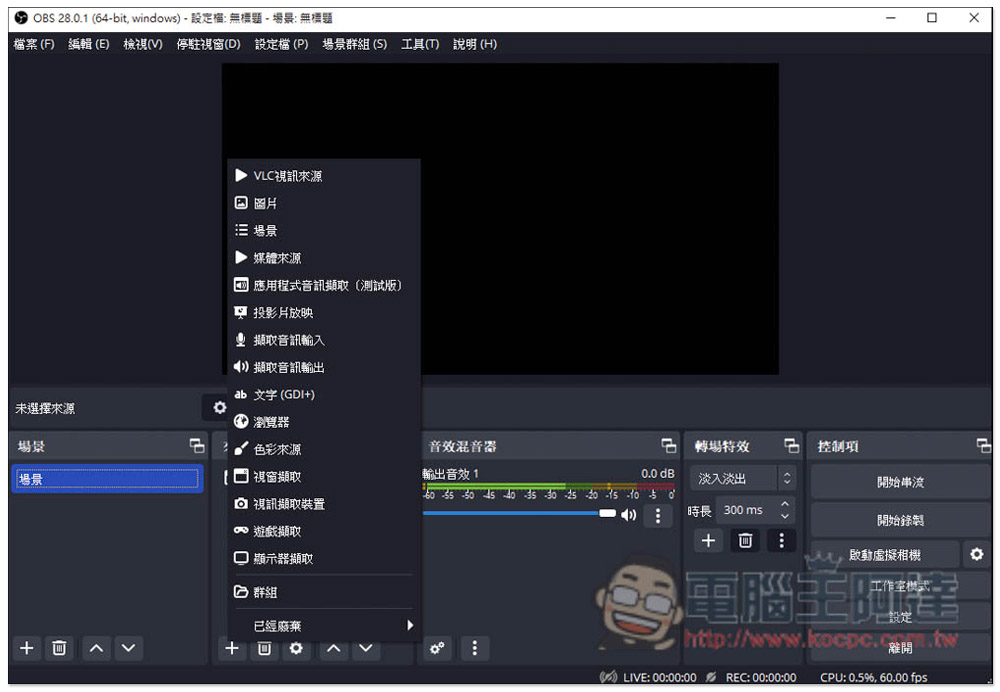
Many people must have heard of OBS. It is an open source live broadcast and side-recording software. Although it is open source, it has a lot of function settings. It is not recommended for novices because the operation of recording video is not that simple. It is by creating a source device. It does not manually frame the recording range or select the window. You need to operate multiple settings, which may be confusing for novices. If you don’t need too many functions, it is recommended to choose another model.
Strictly speaking, this device is used by many people for its live streaming function. It can also record images and music while live broadcasting, and it supports most mainstream platforms, such as YouTube, Twitch, etc.
5. Screencast-o-Matic
- Supported operating systems: Windows, Mac
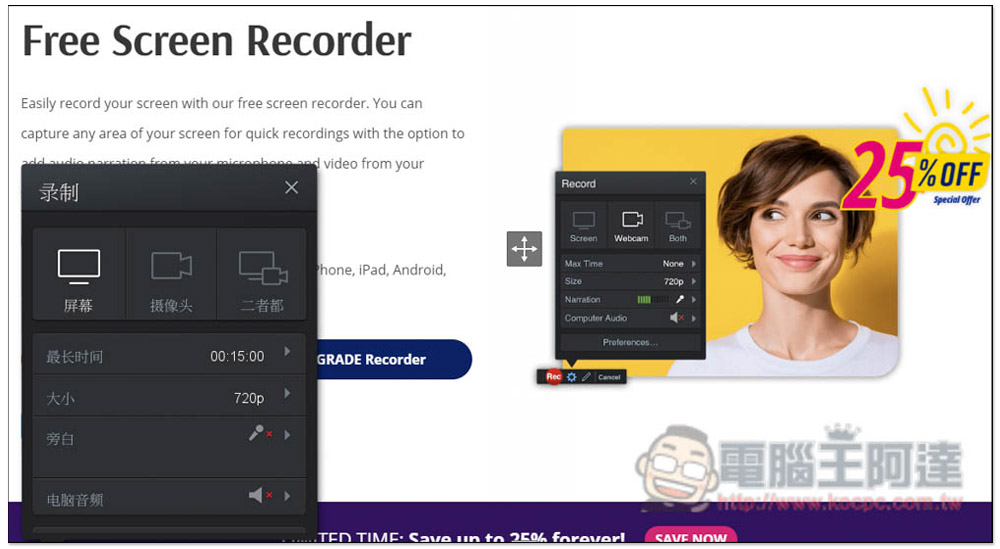
Different from other screen software, Screencast-o-Matic only focuses on the screen recording part (Desktop recording, video footage is acceptable), it does not provide screenshots or other recording functions. The operation interface is simple. After opening it, move the area you want to record and press the REC button to start. It also provides a drawing pencil, allowing you to mark on the screen while recording.
After recording, you can choose to store it on your computer or upload it to cloud spaces such as YouTube and Google. In addition, this product also provides a simple editing function, you can trim directly, and you can also import subtitle files. The only thing I find difficult to use is that the screen recording tool must be enabled through the Screencast-o-Matic official website. The representative said that it must have an Internet connection to use it, and it is only available in Simplified Chinese now.
Screencast-o-Matic official website
6. oCam
- Supported operating system: Windows
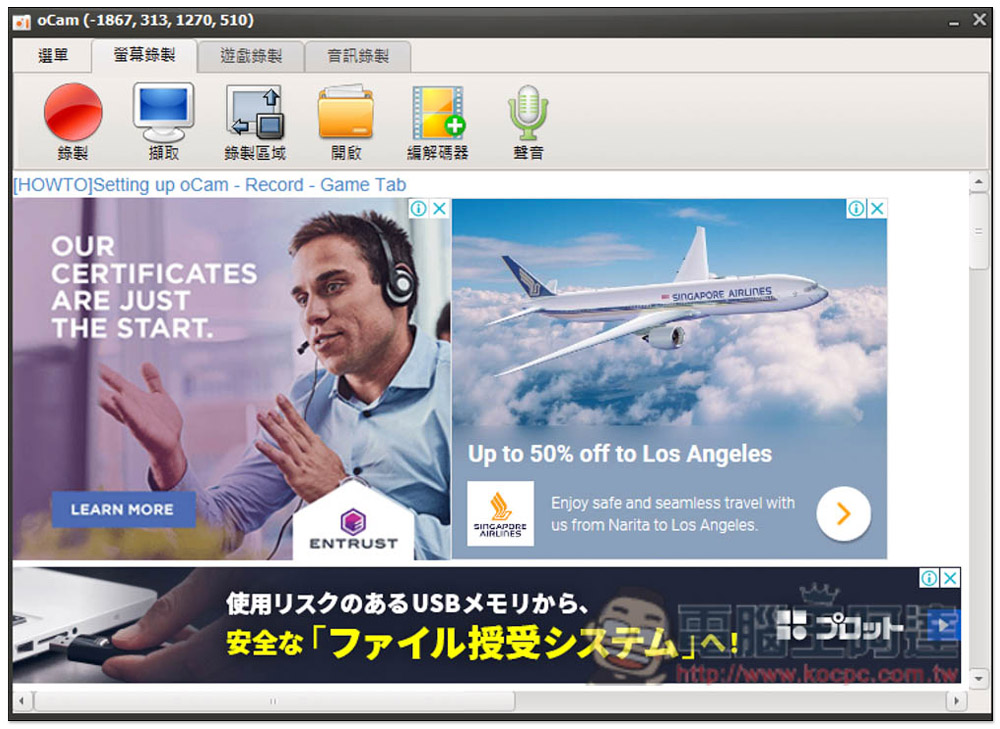
oCam is a free screenvideo recording program,Desktop recording, screenshot function, and also supports Traditional Chinese. Although it’s free, the interface design is a bit youthful, and it feels like a product from decades ago, and there seems to be a problem with the display of some function menus. I encountered many options in the settings that I couldn’t see clearly, and I didn’t know how to change them. I often paused during operations. More importantly, it cannot be pinned to the top of all windows, making it not very convenient to use.
7. Screencastify
- Supported browsers: Chrome, Edge
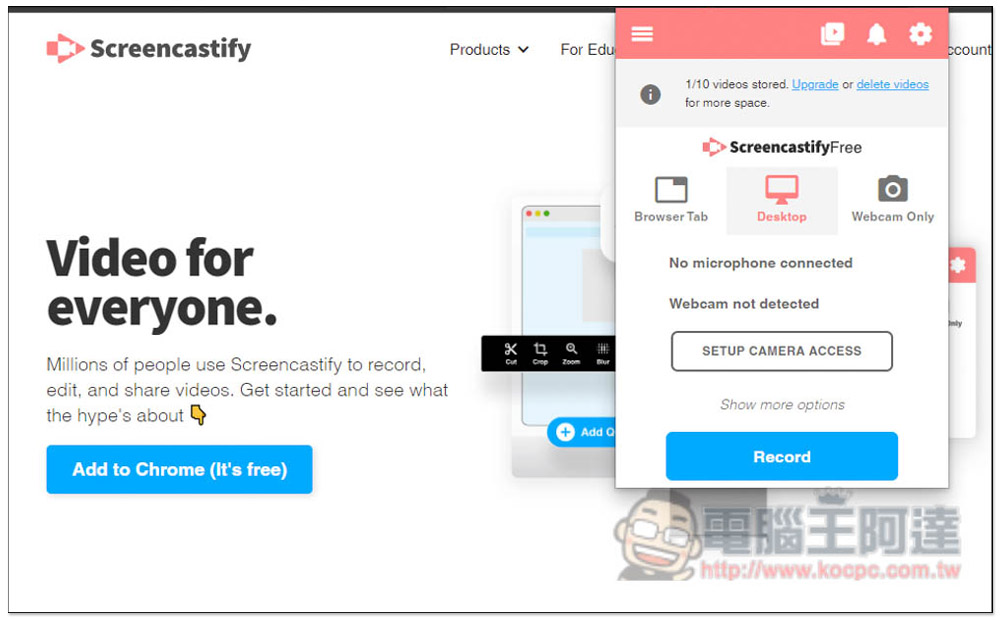
Screencastify is different from the others. This is a Chrome extension, which means you need to use a browser to enable it. The advantage is that you don’t need to install software in your computer, but the disadvantage is that it is a little more troublesome to use. You must open the browser and log in to your Google account to use it. Chinese is not currently available, so friends who are not good at English will need a little more time to get familiar with it.
Supports screen recording, browser pagination and video footage, but does not have a screenshot function. Marking tools such as pencils are provided when recording, so it is very suitable for teaching videos and the like. After completion, you will directly enter the simple post-production interface and store it in the cloud space of this tool (up to 10 videos in the free version). It can also be exported to YouTube or downloaded to your computer.
Screencastify official website
8. ShareX
- Supported operating systems: Windows / Windows 10
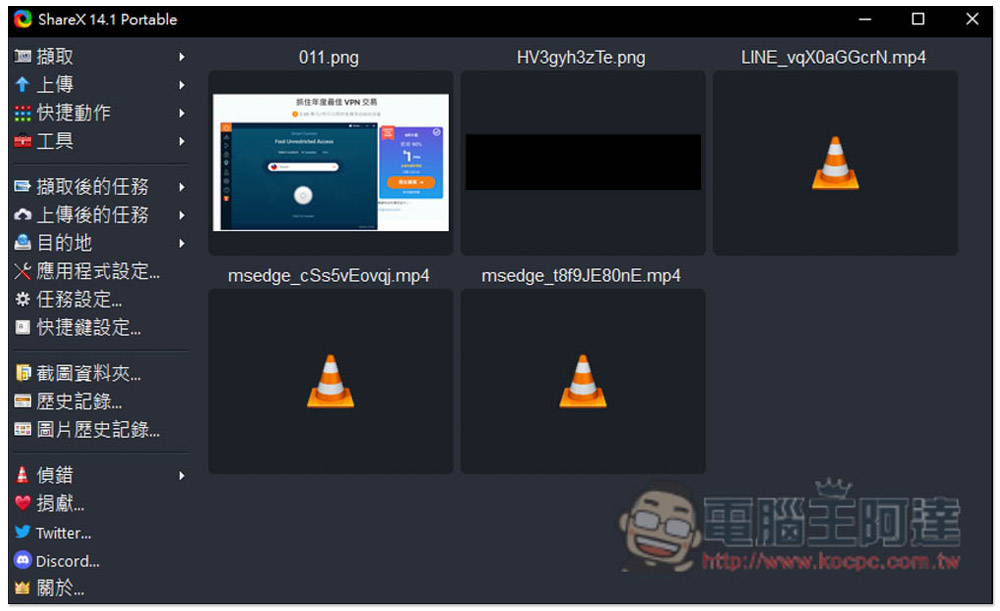
ShareX is a super powerful screenshot software with built-invideo recording programFunction, but it needs to be paired with ffmpeg, so you will be asked to download it for the first time. Video recording only provides screen recording and does not support video lenses. In addition, you can only manually circle the range to be recorded. The recorded videos and pictures can be directly uploaded to cloud spaces such as imgur, Flickr, Google Photos, etc., which is pretty good.
However, because there are too many functions, it is not recommended for novices. You may not know how to start using it.
9. Camtasia
- Supported operating systems: Windows, Mac
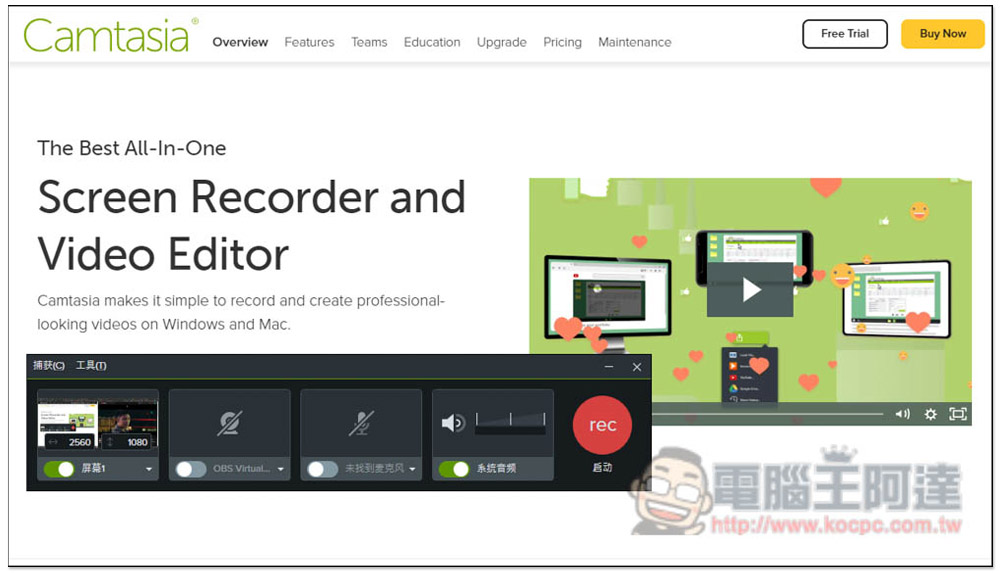
If you don’t need the screenshot function, then you can consider Camtasia. This product only provides desktop recording function. It is simple to operate and does not have many complicated functions. It can record videos up to 60FPS and supports OBS virtual camera. It also provides post-production functions, which can add animation, narration, sound effects, visual effects, etc. to the video, but the free version will have a watermark after recording.
10. Monosnap
- Supported operating systems: Windows, Mac
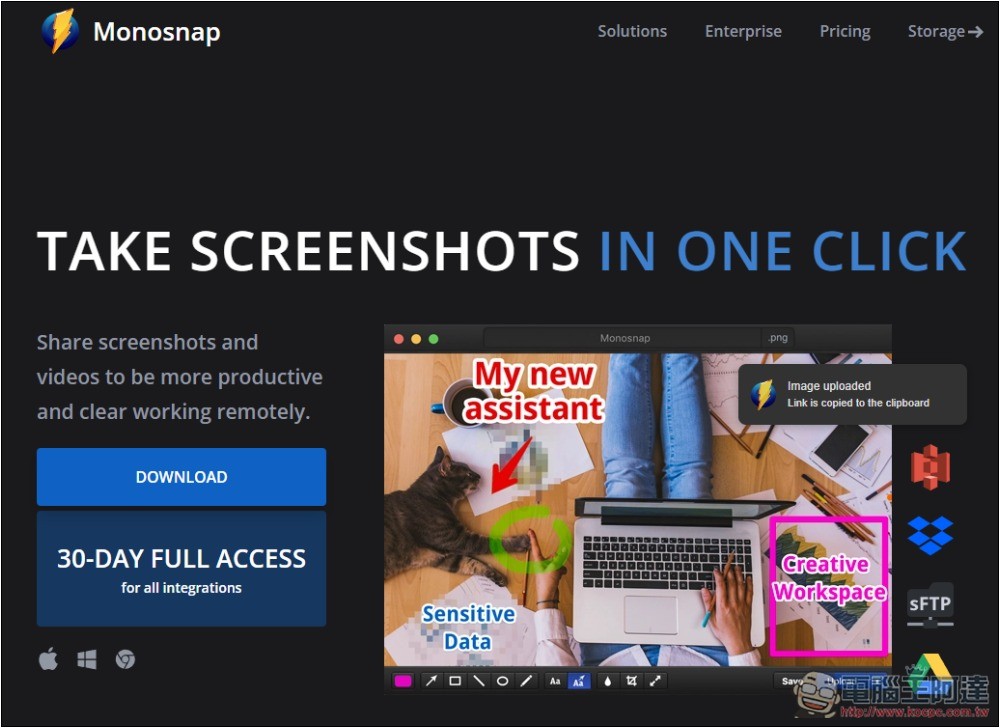
Monosnap is a professional screen recording and capture software. It has a free version, but it is only for non-commercial use. The maximum recording time is only 5 minutes, so if you want to record for a longer time, you will need additional post-production editing.
During the recording process, functions such as adding arrows and frames to the screen are provided, which is quite convenient for recording teaching videos. But there is an obvious shortcoming: it does not support Chinese.
If you are not good at English, it may be difficult to use it. I think its interface is a bit complicated.
The paid version is divided into commercial and non-commercial licenses. Although the price is not expensive, it is only a subscription system without a one-time buyout, which will cost a lot of money in the long run.
11. Filmora Screen Recorder
- Supported operating systems: Windows, Mac
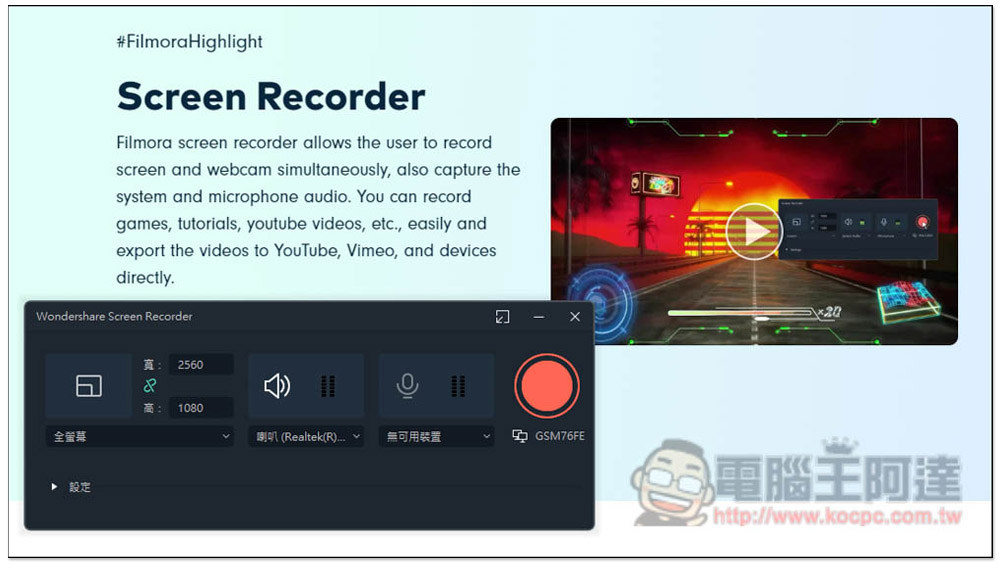
Filmora Screen Recorder is a screen recording function built into the Wondershare Filmora software. It can record desktop videos and video footage (no screenshot function). The biggest feature of this feature is that after recording, it will be directly imported into the Wondershare Filmora project, allowing you to edit videos directly. The interface is somewhat similar to Premiere, with many built-in materials. However, the operation is relatively complicated. If you just want to record videos, other software will be more recommended.
Filmora Screen Recorder official website
12. My Screen Recorder Pro
- Supported operating systems: Windows / Windows 10
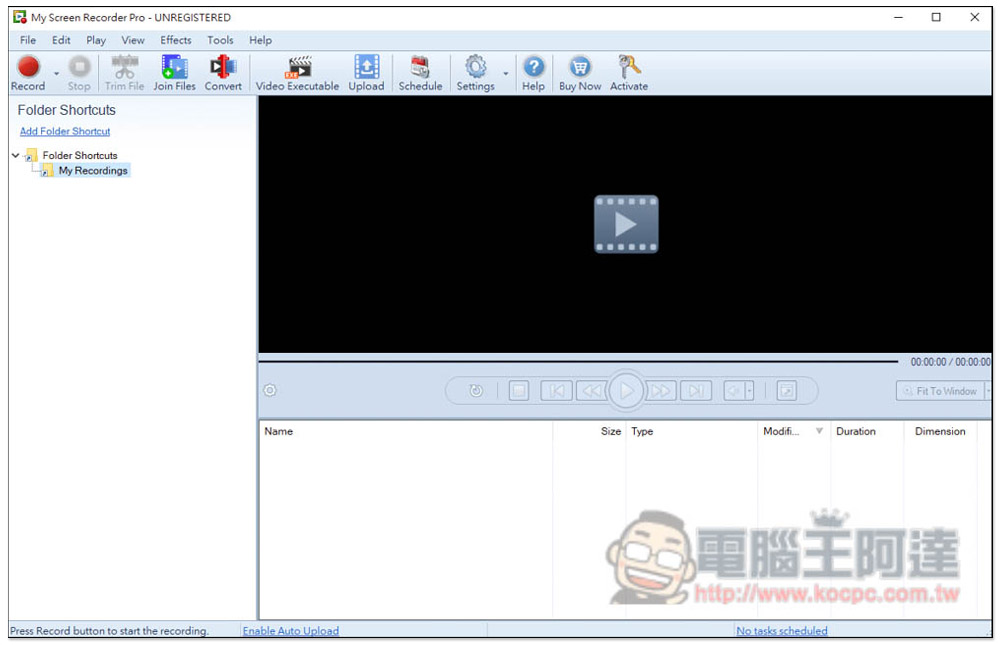
My Screen Recorder Pro is a screen recording software with built-in conversion function (can be converted to AVI, WMV, Webm or EXE formats). It does not currently support Chinese. It has quite rich functions. In addition to the function of highlighting mouse movements and clicks during recording, it can also draw the picture, and use zooming in and out, so that the viewer can better understand where you are explaining. In addition, there are practical functions such as scheduled automatic recording, editing and post-production, and uploading. The operation is a bit complicated, especially if you don’t speak Chinese, so it will take you a little more time to get familiar with it.
My Screen Recorder Pro official website
13. NCH Debut Video Capture
- Supported operating systems: Windows, Mac
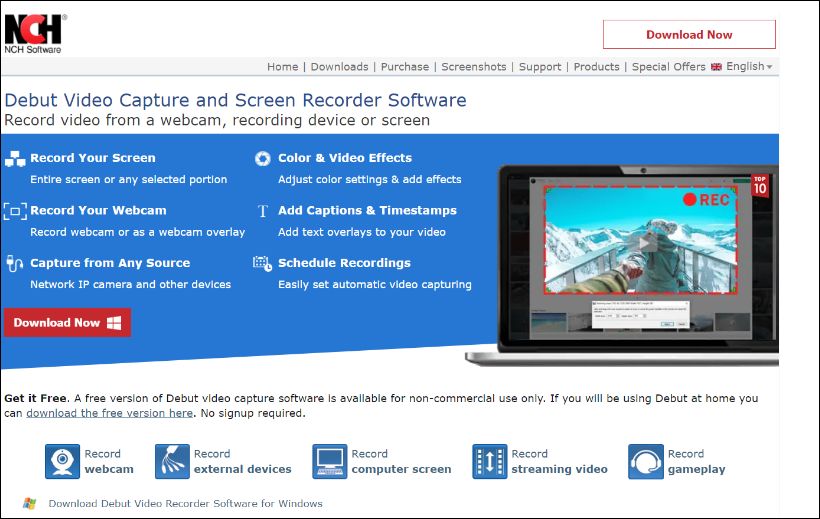
NCH Debut Video Capture and Screen Recorder Software is a screen recording tool (referred to as NCH Debut), available for both Mac and Windows. The Home version is free, but the Pro version requires a fee. Basically, NCH Debut is easy to use and quite reliable. It can record full-screen/single-window/manual range operation videos, and can also capture streaming images from network cameras.
What’s more special is that it supports scheduled recording and provides flexible output options, which are usually only seen on advanced software. Video files can support a variety of formats, including: MP4, AVI, MPG, MOV and FLV, etc. Screenshots can be saved as JPG or PNG. If you are looking for a free screen recording software to create or backup videos, this would be a good choice.
One drawback of NCH Debut is that it does not include a video editor. Users need to find other tools from NCH or other sources.
NCH Debut Video Capture official website
14. Ezvid
- Supported operating system: Windows
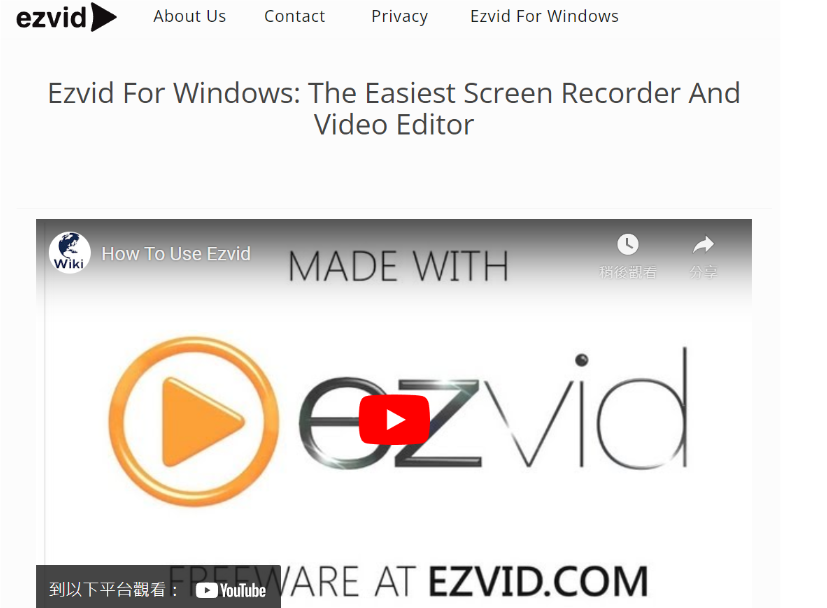
Ezvid is a popular screen recording and video editing tool. With the rise of social media and streaming platforms, every video creator should have at least a set of professional video editing and screen recording software to ensure that videos are produced well and quickly. Ezvid has a friendly UI that allows users to capture anything displayed on the screen, such as desktop activities, browsers, games, etc.
It supports simultaneous recording of web cameras. This function displays the screen image and the creator’s face in the same video, and can add narration. This app also has a recording speed control function. You can record at a slow speed at critical moments, while you can speed up the less important parts.
In terms of minor disadvantages, Ezvid’s recording time is limited to 45 minutes, and it can only upload videos to YouTube but cannot save videos to the computer.
15. Flashback Express
- Supported operating system: Windows
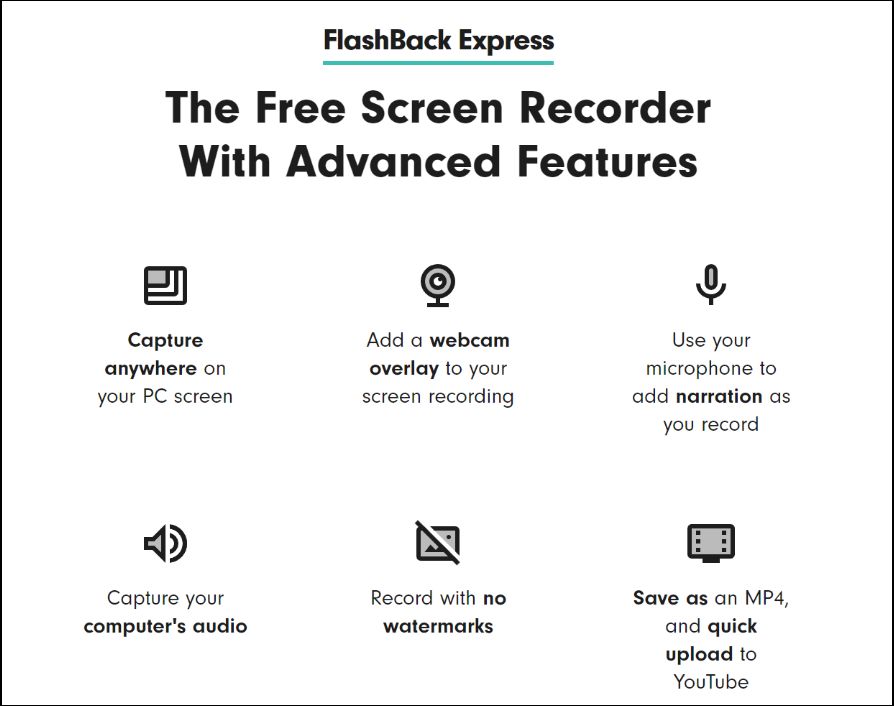
FlashBack Express is a free screen recording tool from Blueberry Software. It is an excellent tool for recording footage from your computer and sharing it online. FlashBack Express is ideal for creating web-oriented streaming videos, such as YouTube. This app supports one-click uploading to YouTube. It does not add watermarks to videos and has no recording time limit.
The easy-to-use UI allows for microphone commentary and recording while recording the screen. Users can select any area of the screen to record, including: the entire desktop, a specified range, or a window. At the same time, the network camera can also be recorded into picture-in-picture video.
This app has a media player-style playback plug-in and can fully control the quality of exported audio and video. Because FlashBack Express only records screen changes, it can produce high-quality videos with relatively small file sizes.
In terms of small disadvantages, you must register to use it, and many practical functions are only available in the paid version.
Flashback Express official website
Summarize
The above are the best screen recording software currently available. As for how to use it, each one is different. You can download and try it out. We recommend Movavi Screen Recorder the most.
Source: KOCPC Chinese