


When you travel to a country or region whose language you don’t know well, although you can sometimes communicate with simple words or body language, you will often misunderstand each other’s meanings, so you may rely on a translation app on your phone or carry an additional instant interpreter. If you’re an Apple Watch user and don’t want to be scrambling to get your phone out in time or take multiple devices abroad, there’s another solution available.
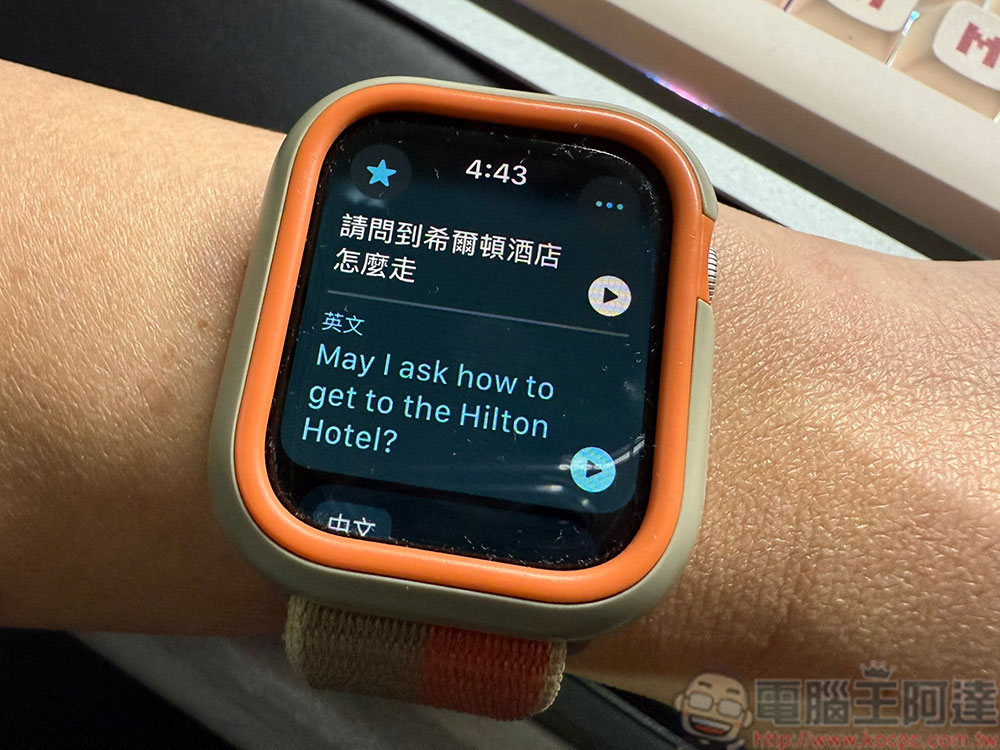
How to use Apple Watch as an instant interpreter while traveling?
Apple Watch is equipped with Apple’s own translation application, which can be used as long as your watch is running watchOS 11 or above. With multiple built-in languages, you can freely switch between two languages at any time and translate and play them instantly. You can also modify the playback speed to make it faster or slower according to your personal preferences, so you can have an easy conversation wherever you go.
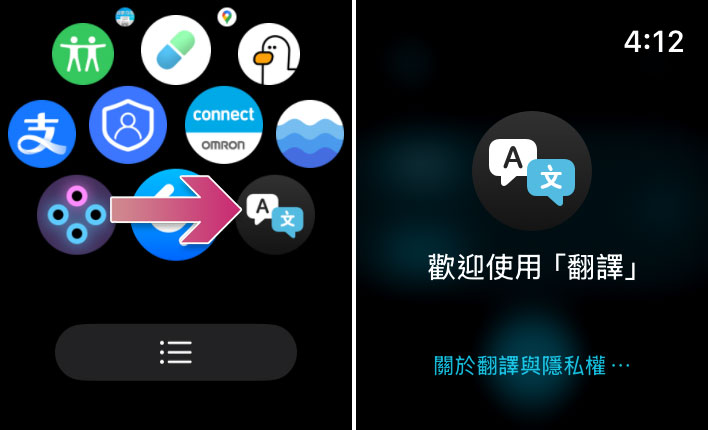
- Click “Translate” from the application menu.
- After entering, scroll down a little and click “Continue”.
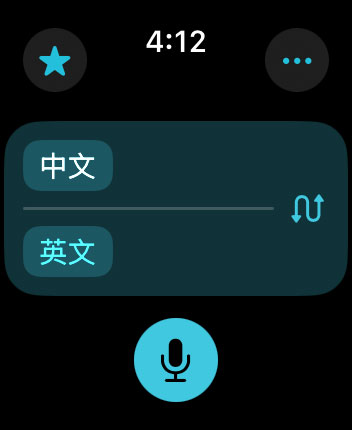
- First, select the language you want to translate. White (the option above) is the language you want to use, and blue (English) is the language you want to convert. You can always click on the curved arrow at the back to reverse it, so that Apple Watch can actually listen to the words when the other party speaks and convert them into your language.
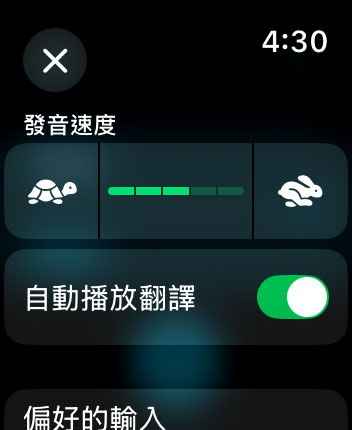
- Click the “…” in the upper right corner to call up the speech speed setting. Adjust it in the direction of the rabbit to speed up, and in the direction of the turtle to slow down, and turn on the “Auto-Play Translation” switch. You can also set your preferred input options below, including language and keyboard, but on such a small screen, you probably won’t want to use the keyboard for input.
- Next, just click on the microphone icon on the screen and you can start speaking. You’ll see the language you typed translated appear below the original language and play automatically. When speaking to the other party, you can scroll to the bottom and click Language Exchange. Likewise, the conversation dictated by the other party will be transcribed and translated into your language and displayed below. If the other party or you did not hear clearly, you can click the play button at the back to replay the voice.
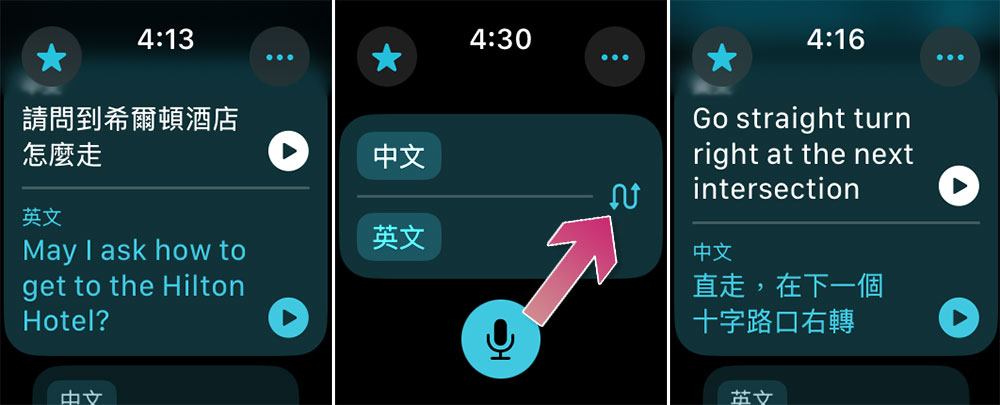
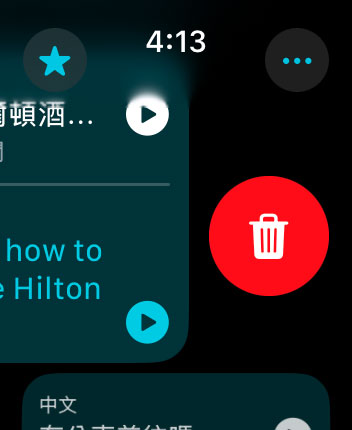
- Some conversations are very commonly used and you don’t want to enter them every time. You can swipe right on the screen to add them to your favorites. If you want to remove some conversations, just swipe the conversation left to delete it.
Since the volume of Apple Watch is not as loud as that of a mobile phone, be sure to hold the watch close to the person speaking so that the other person can clearly hear the voice translation played by the watch. When inputting speech in a noisy place, you should also consider that the Apple Watch itself is not as good as a mobile phone in terms of radio reception. Holding the device closer can reduce interference and record and translate more clearly and accurately.
Source: KOCPC Chinese