


NotebookLM GeneratedbriefingAlthough the content quality is very good, when there is a lot of content, some of the text on the slides may appear blurry, unclear, or even contain character errors. Even though it is still understandable, many people would still want to fix it, especially when it needs to be used in formal settings. At this stage, NotebookLM has not yet opened slide editing features. The good news is that this problem can be solved through Gemini to fix it, and it only takes “one prompt” — here’s how to do it.
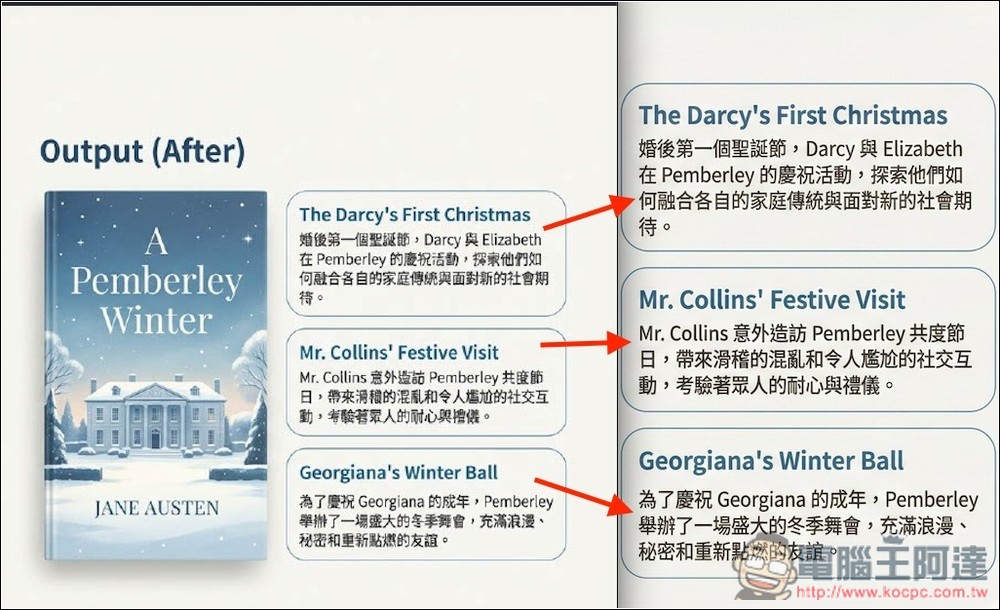
With just “one prompt,” you can easily use Gemini to fix Chinese text errors and blurriness in NotebookLM presentations.
First of all, it should be explained that this repair method works by using Gemini’s Nano Banana Pro to regenerate the images. This also means that to begin, you need to convert the presentation downloaded from NotebookLM into image files (there are many free tools online). Then, feed the images to Gemini in order and use specific prompts to regenerate them. Download the newly generated images, and then use a free online tool to convert them into a presentation or PDF.
The steps are roughly as follows; for details, please refer to the illustrated tutorial below:
- Convert NotebookLM presentation PDF files to images
- Send each image to Gemini in sequence to regenerate (using the specified prompt).
- Download each generated high-quality image.
- Use a tool to convert all images into a presentation file or PDF file.
After downloading the presentation file generated by NotebookLM, you can use ILovePDF free tool,Convert it to a JPG image:
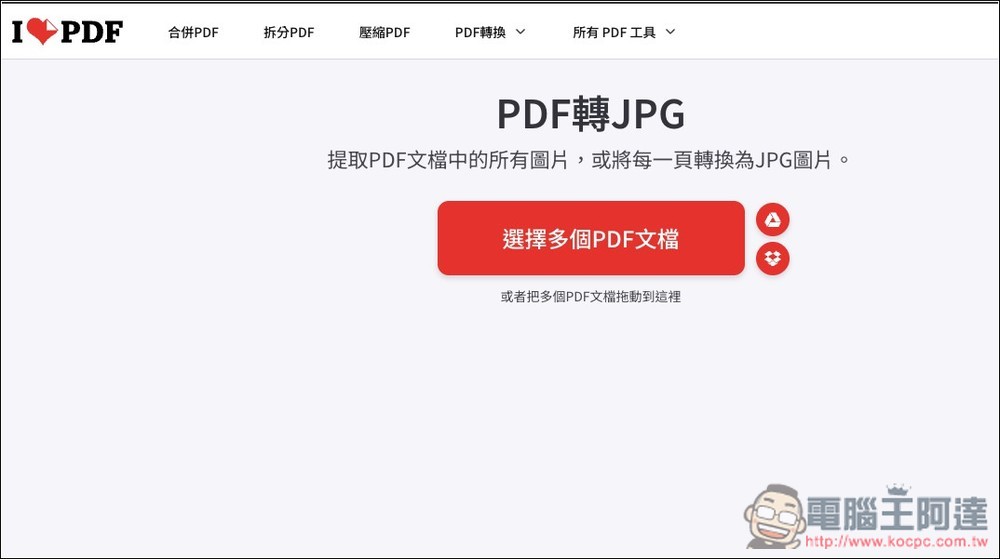
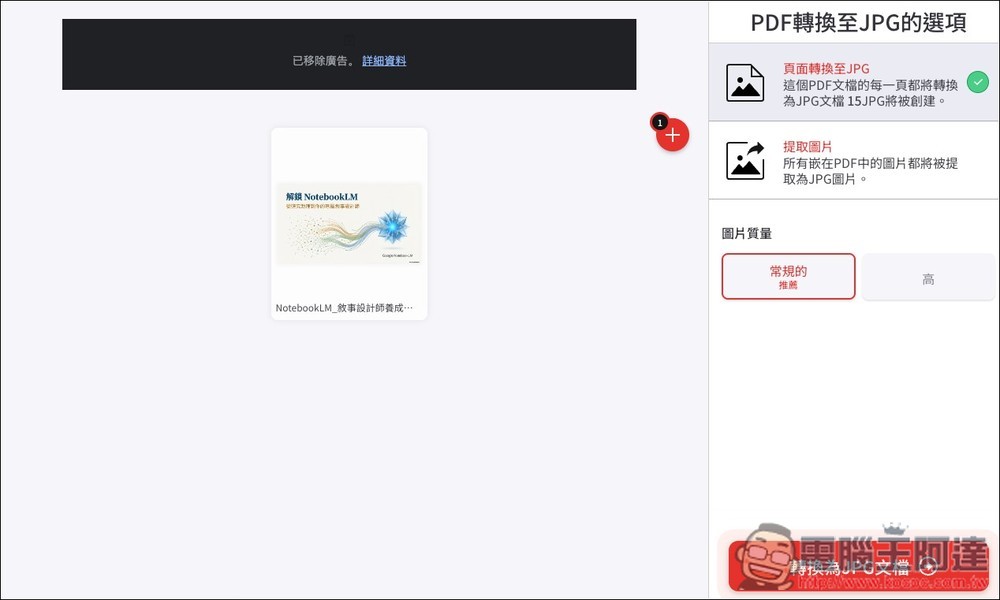
Then just click “Convert to JPG document” in the bottom right corner:
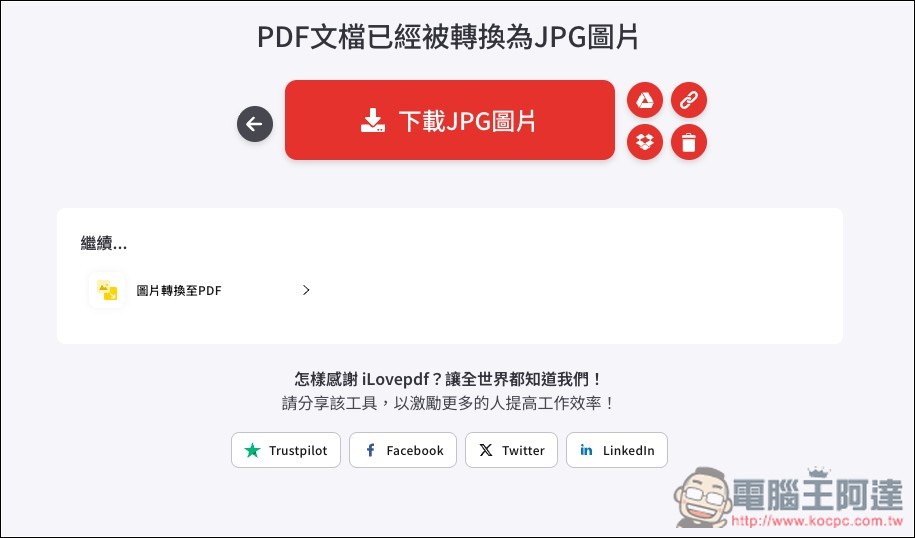
Once the conversion is complete, click “Download JPG Image”:
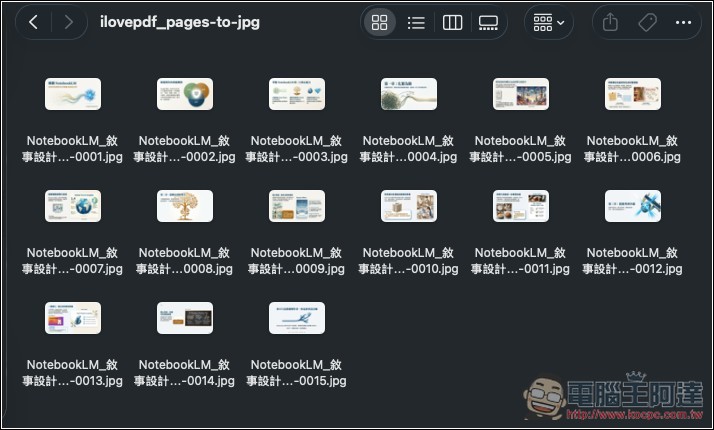
After decompressing the file you just downloaded, you will see that the slides in the presentation have all become image files:
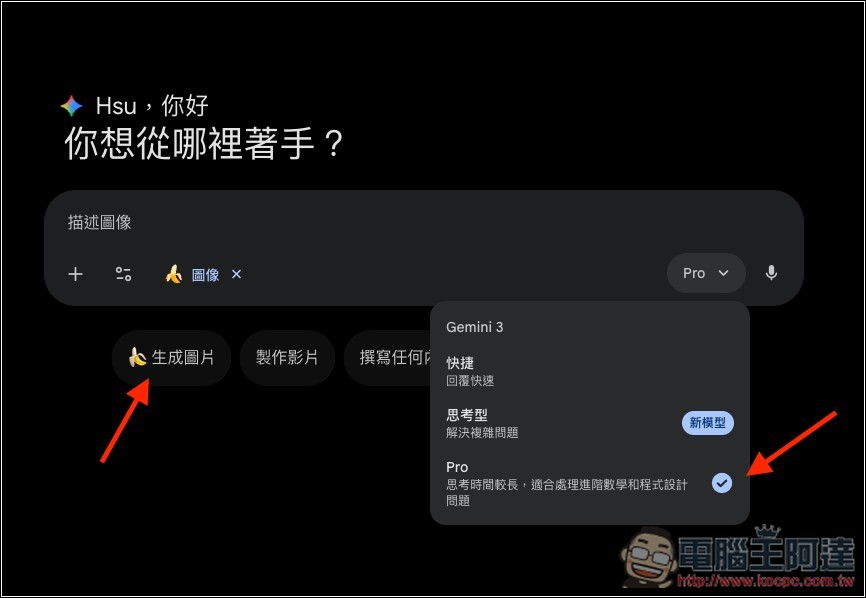
Now open Gemini, make sure to select “Pro” as the model so it uses Nano Banana Pro, then enable “Generate images”:
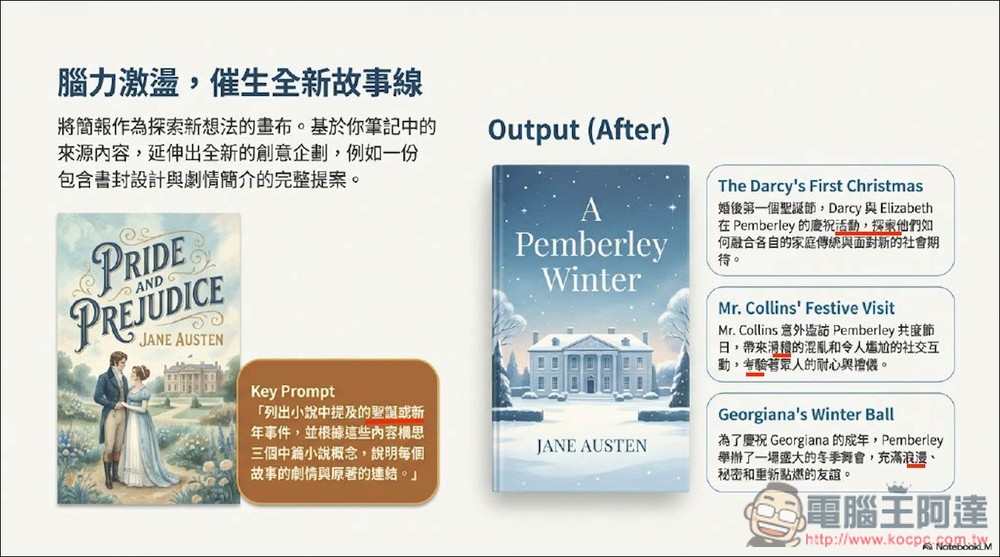
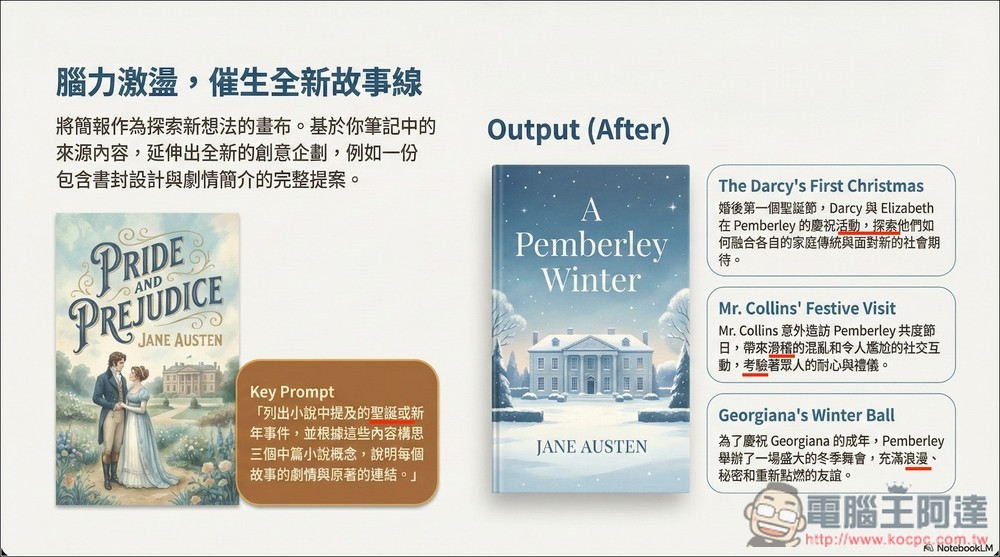
This is my presentation file. From the image below, you can clearly see the places where I marked with red lines; many of the characters are blurry, and there are even generation errors, such as “Christmas” on the left, and “activity, exploration”, “funny”, “challenge”, and “romance” on the right. Strictly speaking, when you zoom in on the image, even if the characters are correct, the whole thing still looks blurry:
At this point, upload the image to Gemini, then give it this prompt:
Please regenerate the image at the highest resolution and fix the traditional Chinese text errors.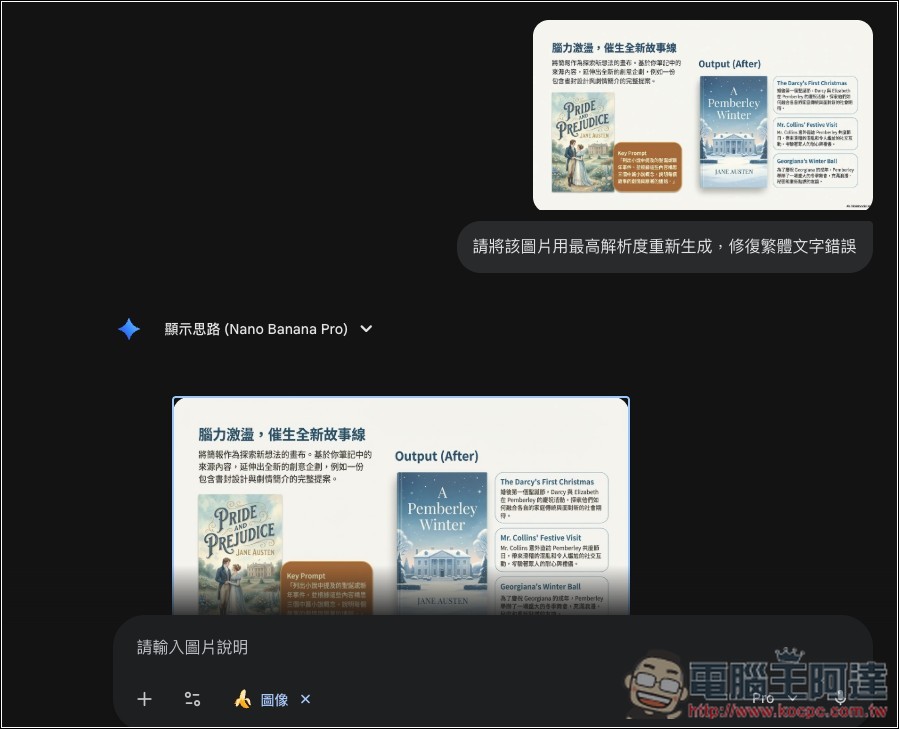
After Nano Banana Pro finishes generating, when you open it, you’ll notice the error is still in the preview image—just ignore that and click the download original image button in the top right corner.
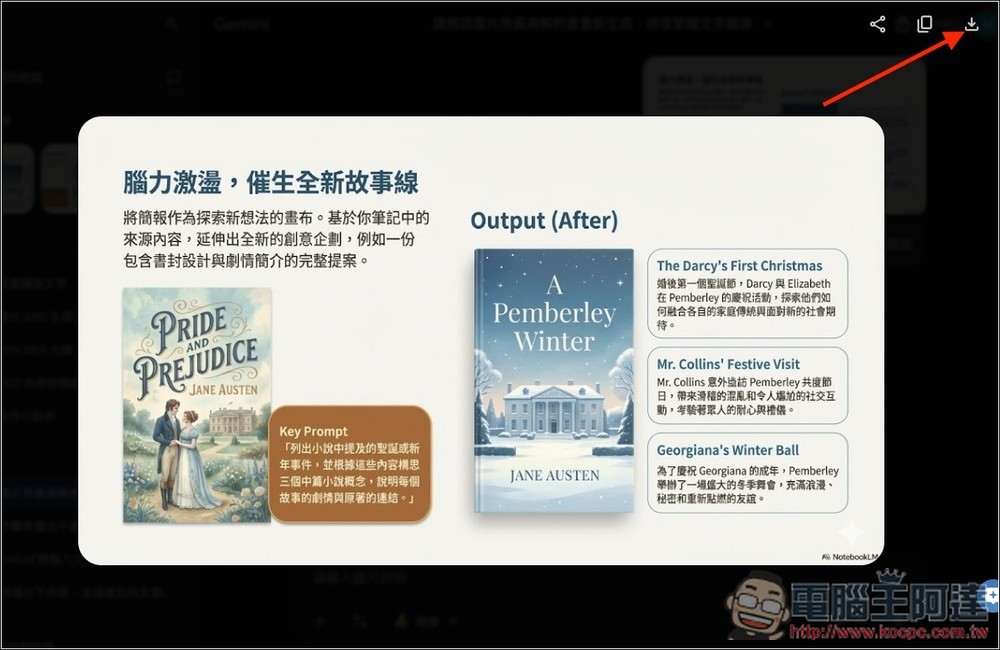
After downloading, open the image and you will see that all the fonts have become clearer, there are no blurred characters, and the erroneous characters have been fixed:
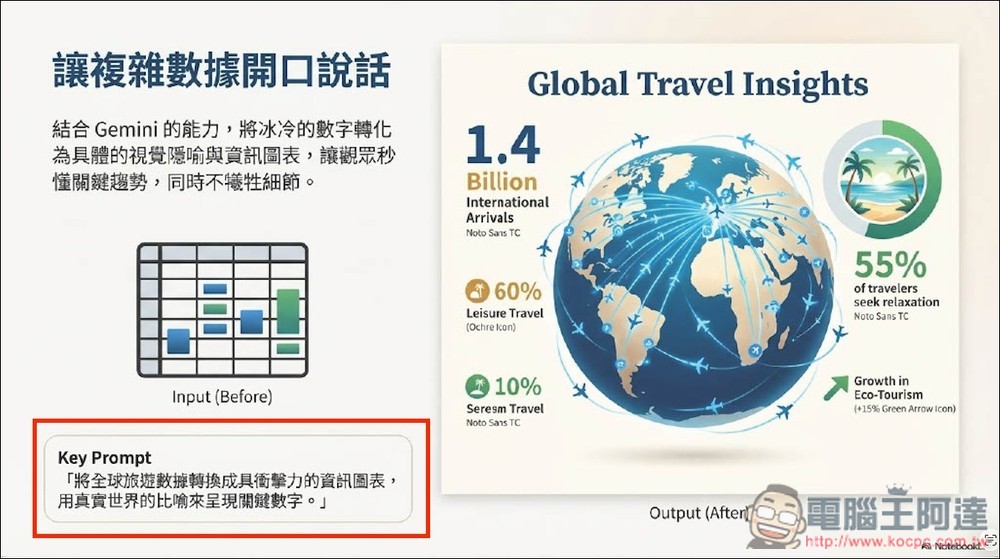
The demo image above may have text that’s too small to see clearly, so let’s look at a larger view instead. In the image below, you can clearly see that the Chinese characters in Key Prompt are a bit blurry and not very clear:
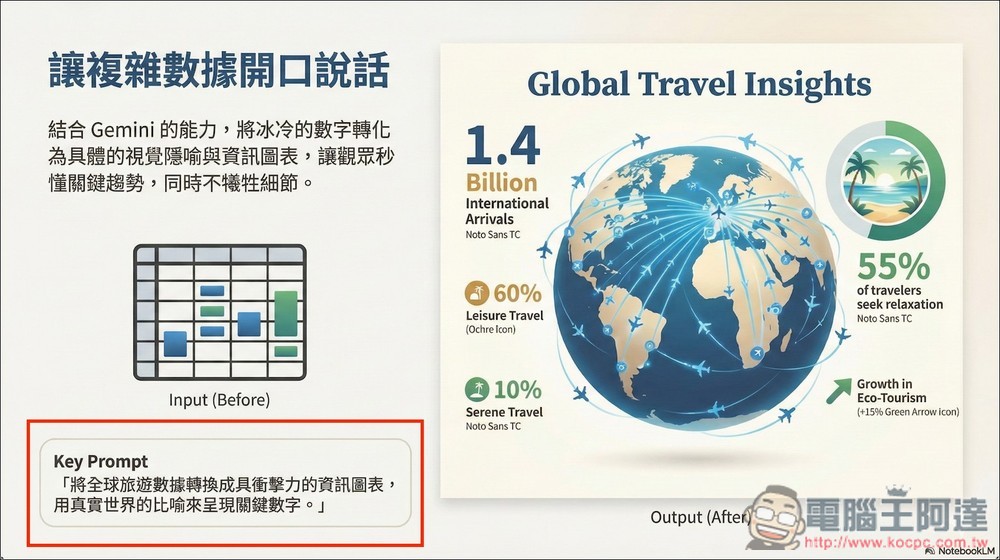
After I regenerated with the specified prompt, the Chinese characters in Key Prompt all became super clear:
I suggest regenerating every slide image so you can get truly high-resolution slides. Once that’s all done, run them through the PDF converter again to turn the images into a PDF or something like that.
Note: This prompt was shared by X user sundyme.
Source: KOCPC Chinese