


NotebookLM ‘s Nano Banana Pro The presentation quality is very high, which is why many people now use it to generate AI BriefingTo help users better grasp how NotebookLM presentations can be used, recently Google The official team published 8 best use cases in their blog, covering a variety of categories, all well worth learning for every NotebookLM user.
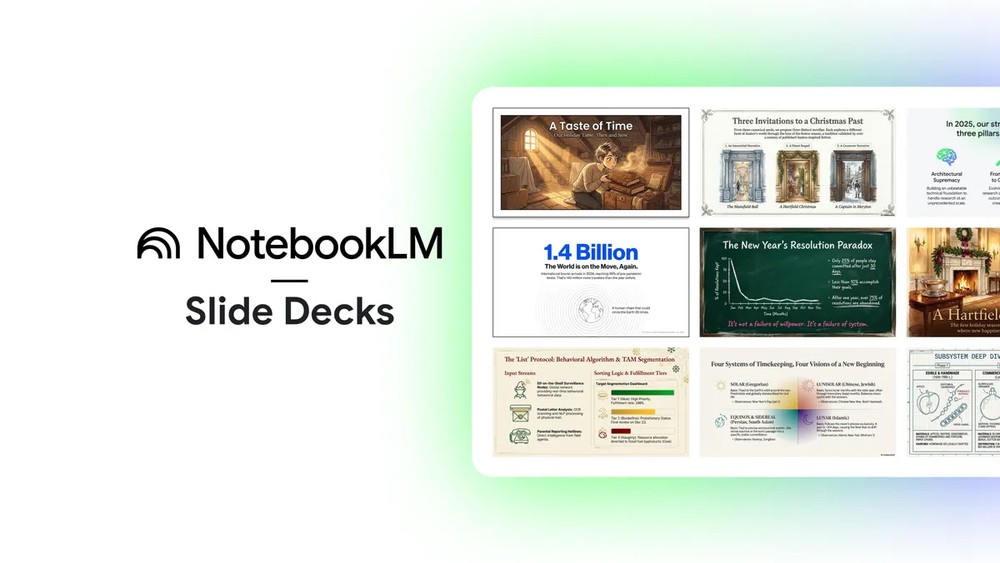 Image source: Google
Google officially provides 8 best practices for NotebookLM presentations
Google says NotebookLM is no longer just a research assistant—it now integrates the three stages of “research, organization, and design,” allowing everyday users to quickly produce visual content that previously required a design team. Whether it’s research reports, brainstorming notes, or even handwritten content, everything can be directly converted into slides with complete structure and consistent styling.
And the following 8 ways are the ones they like the most.
1. Turn in-depth research into slides
Many people can use Deep Research to generate extensive research reports, but digesting all that information can be quite overwhelming, especially for visual learners. Converting it into a customized presentation can help you uncover metaphors and connections you might have otherwise missed.
Google: You only need to ask questions, conduct in-depth research, and request slide generation in any format.
Below is an official sample, featuring content themed around “New Year celebrations around the world.”
Prompt: “New Year celebrations around the world. Blend elements filled with a sense of magic and fantasy with lively festive scenes, while respecting the local architectural characteristics and cultural styles of each region.” (One slide from the presentation):
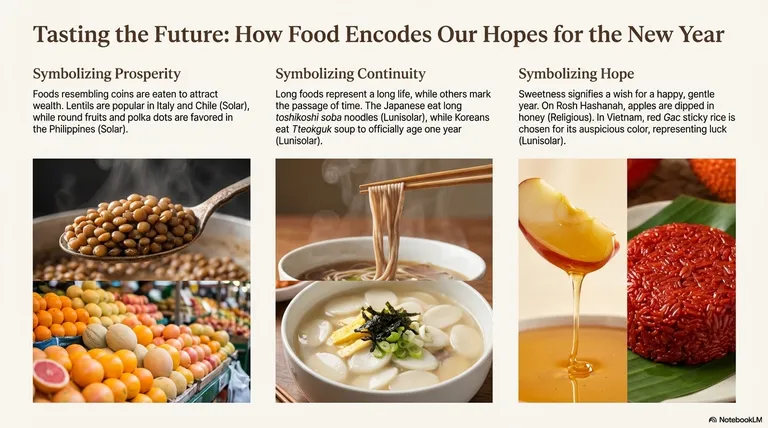
Image source: Google.
2. Quickly generate slides from scattered notes
In the past, having to put together a presentation at the last minute was incredibly stressful. Now with NotebookLM, you can save a huge amount of time on creating and formatting — you just need to:
- Create notes in NotebookLM and add them as sources
- Upload the Google Slides draft
- Enter key points in bullet form, simple outlines, or even stream-of-consciousness brainstorming content.
- Upload handwritten notes
Then tell NotebookLM to use these sources, and it will immediately generate a complete presentation.
The following is an example, with the left side as the input source and the right side as the generated image. Prompt: “Make the slides more beautiful, more interesting, and adopt a Christmas theme”
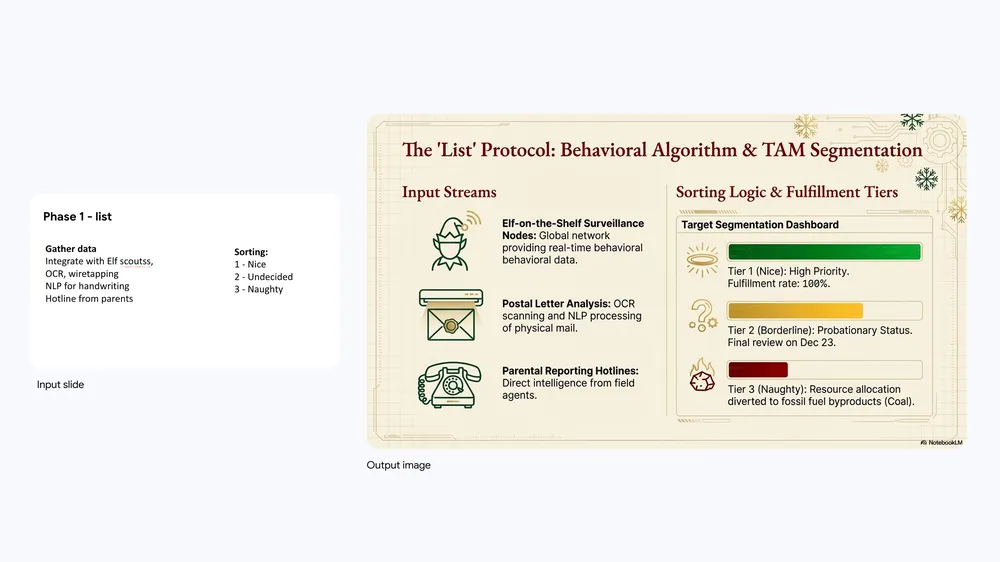
Image source: Google
3. Brainstorm new ideas
Presentations can also become a tool for exploring new ideas or concepts, extending from the source content in your notes.
Google then through NotebookLM’sJane AustenSelect a notebook, and generate a festival-themed fan fiction project presentation that includes cover design and plot synopsis.
Prompt: “List the Christmas or New Year events mentioned in the novel, and based on this content, conceive three novella concepts, explaining each story’s plot and connection to the original work.” (Below is one of the slides)
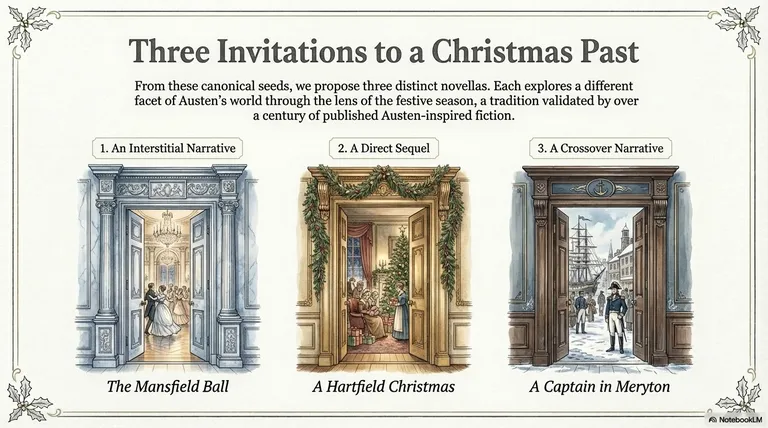
Image source: Google
4. Beautify your existing presentation
Not just for generating presentations from notes, NotebookLM can also help polish presentations you’ve already made—just upload the slides.
You can ask it:
- Enhance the overall visual aesthetics.
- Apply brand colors.
- Add visual assets from the source content
NotebookLM will follow brand guidelines in its design and ensure the final output meets your standards.
By uploading the brand manual, generate a 2025 NotebookLM product launch overview presentation that aligns with the corporate identity. (one of the slides in the presentation)
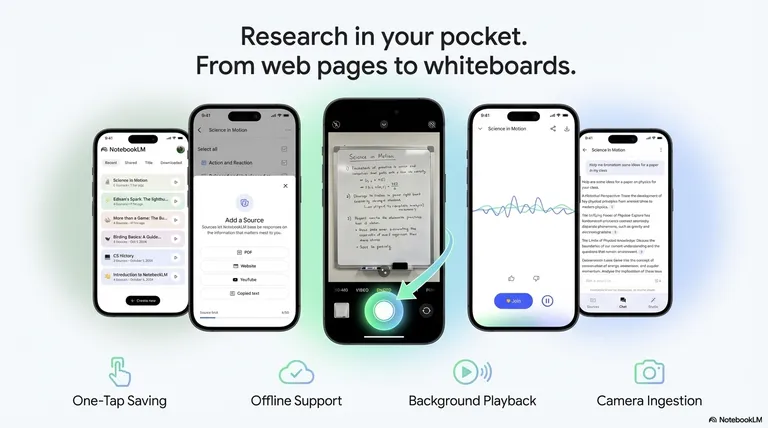
Image source: Google
5. Use illustrations to help you understand complex topics faster
NotebookLM has integrated with Gemini, so it can convert data into concrete visual metaphors and charts.
For example, if you have a large amount of numerical data but aren’t sure where the key points are, NotebookLM’s ability to generate presentations can make complex content easier to understand without sacrificing detail.
Prompt: Transform global tourism data into impactful infographics, using real-world analogies to present key figures. (One slide from the presentation):
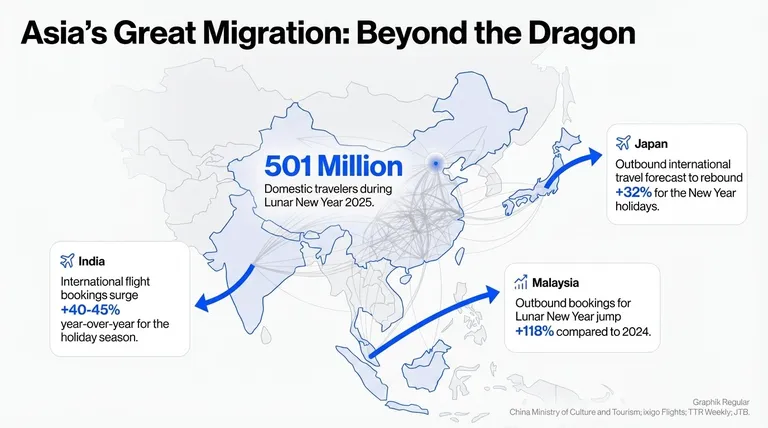
Image source: Google
6. Turn long content into a beautiful storybook.
NotebookLM excels at handling large volumes of content—whether it’s lengthy documents, integrated multi-article sources, or even entire books—effortlessly transforming them into presentations with a compelling visual narrative.
Compare holiday recipes from the 19th and 21st centuries, and create a cross-generational food story using a modern Japanese manga style. (One slide from the presentation)
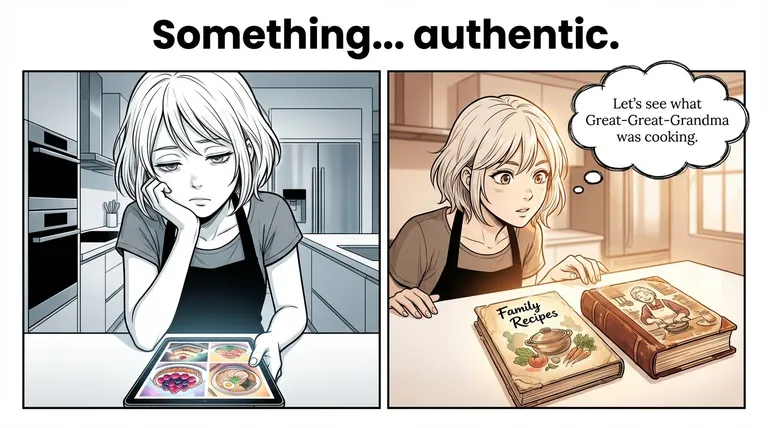
Image source: Google
7. Turn Photos into a Recipe Book
Just take photos of your baking or cooking process, and NotebookLM can turn them into a complete and appealing recipe book. Here’s how you can use it:
- Directly use Gemini to get cooking content.
- Upload your cooking notes and let NotebookLM automatically organize them.
“Organize photos of festive desserts into a professional holiday recipe guide.” (One slide in the presentation)
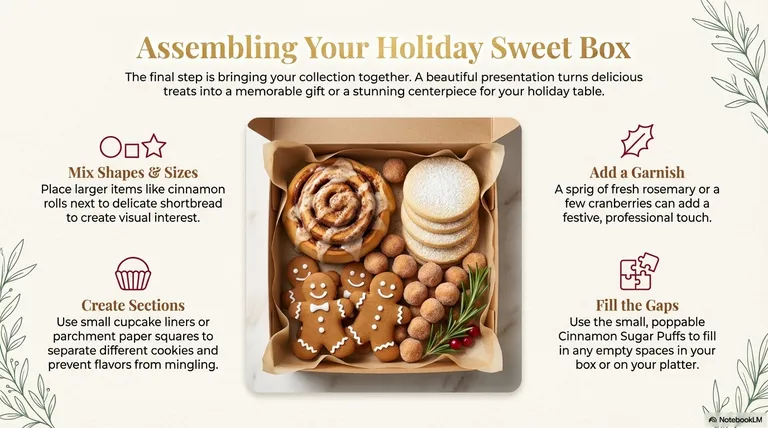
Image source: Google
8. Make a presentation in your preferred style.
NotebookLM doesn’t restrict creative style. Before generating a presentation, you can define any visual or design style by entering the relevant prompts in the settings.
Prompt: “Create a step-by-step plan for executing your New Year’s goals in a presentation with a blackboard-style design, as if it were a classroom lecture.” (One of the slides in the presentation)
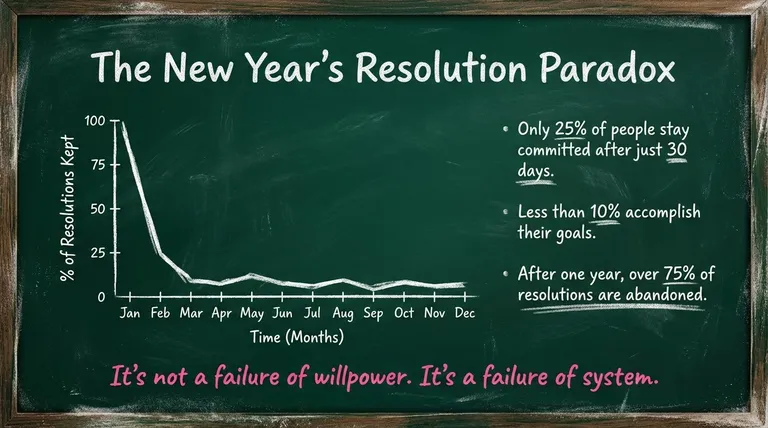
Image source: Google
If you want to browse more slides from Google Slides templates, you can go to Google Official BlogRead the original text.
Source: KOCPC Chinese