


For many people, their mobile phones store a lot of photos, videos, social chat history and other important information. If they are unfortunately lost, it may be even more serious than losing their wallet. However, in order to find your iPhone more smoothly after it is lost, daily settings are also very important. If you are worried about accidentally losing your iPhone one day, you must first prepare it to enter anti-theft mode! It only takes these two days to learn how to retrieve your phone!

iPhone anti-theft mode is on! Learn these 2 tricks and you will no longer be afraid of losing your phone and not being able to find it again.
If you accidentally lose your wallet, you may not be able to get the money back, have your documents reissued, or report the loss of your credit card. The loss is relatively controllable. But if the iPhone is lost, in addition to the original cost of purchasing the phone, if there is no cloud backup of the data stored in it, the loss will be considerable. In order to avoid heavy losses caused by the unfortunate loss of your iPhone, the tips introduced today will help you prevent it in advance.
1. Turn on settings such as Find My iPhone
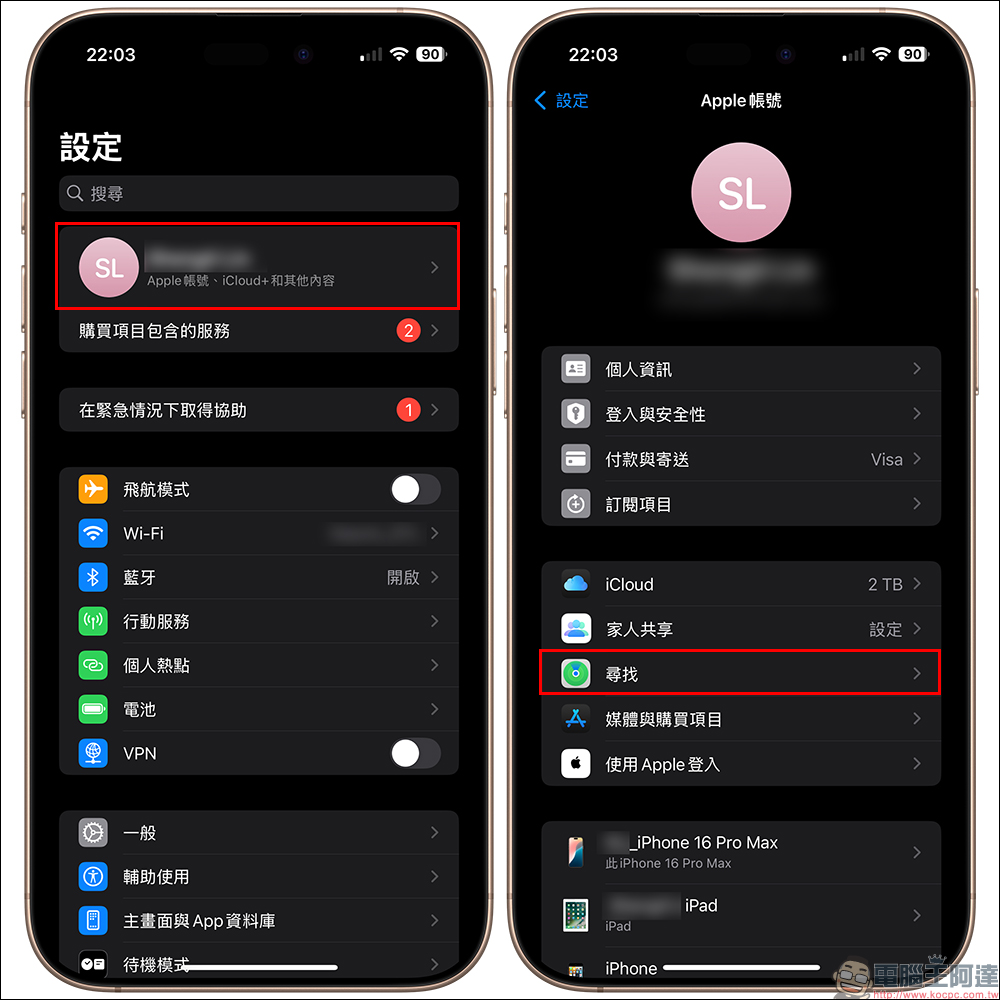
First, click “Apple Account” in the iPhone’s “Settings” to enter, and then click “Search”:
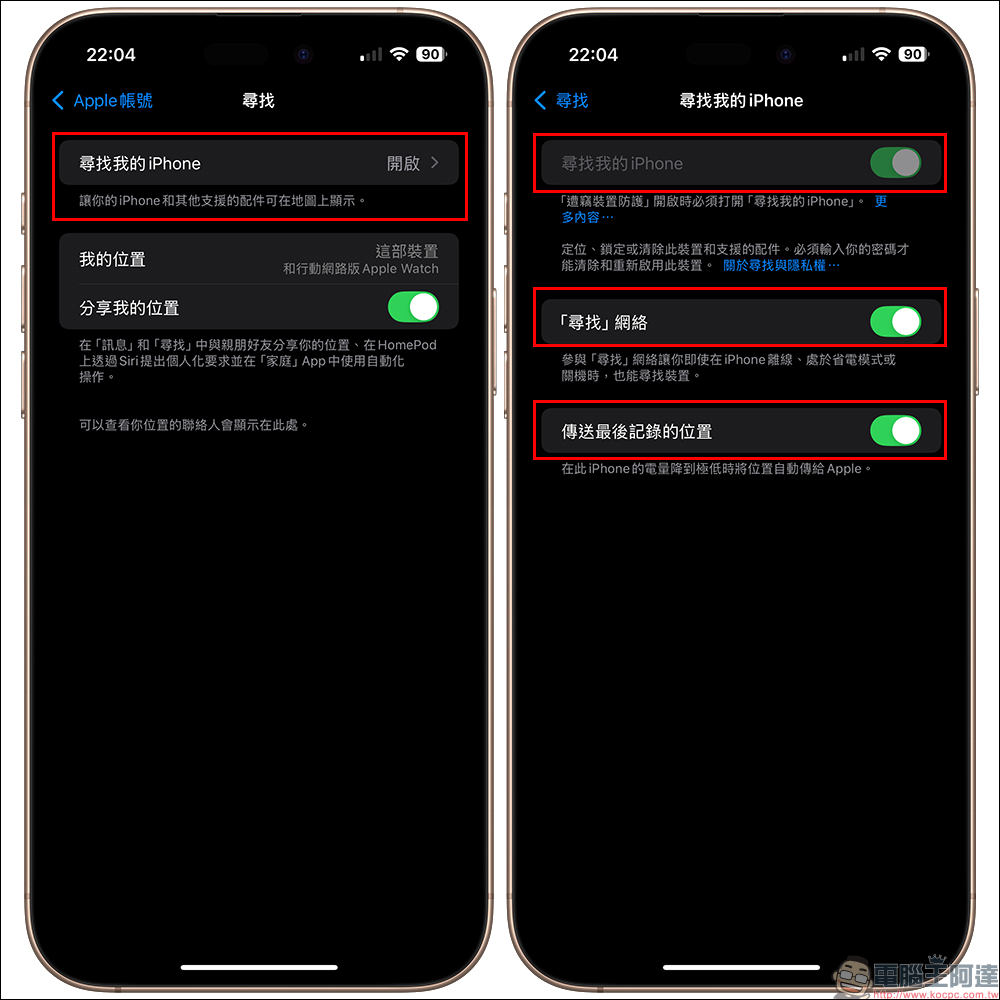
On the “Find” page, turn on the “Find My iPhone” function, and also turn on the “Find” network and “Send last recorded location”. After doing this, the location can be updated instantly even if the iPhone is offline, has no network, is in power saving mode, is powered off, or has the SIM card removed.
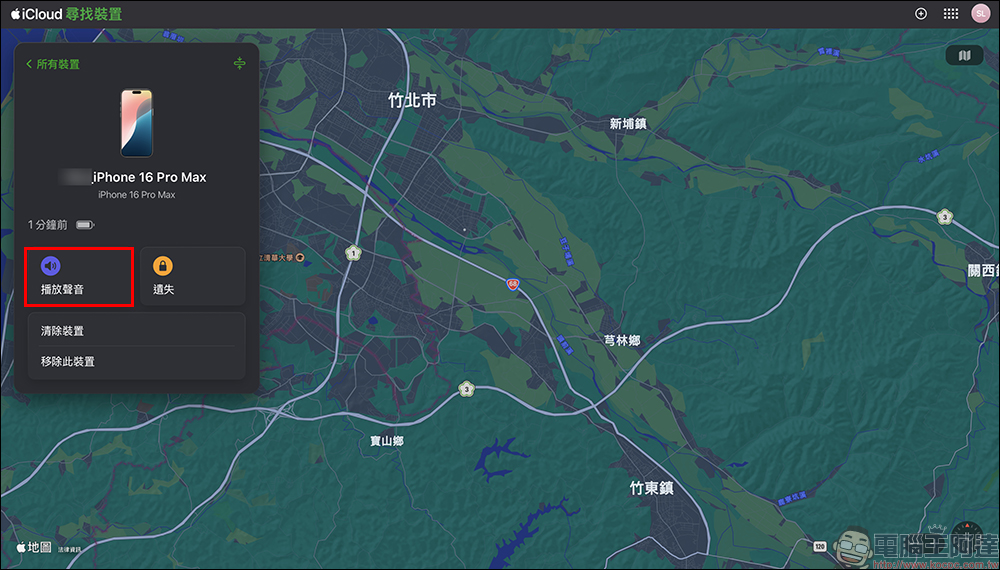
Just click “Search” on other devices with the same Apple ID, or log in to iCloud on a computer to find the latest location of the device in the device information of this iPhone. You can also click “Play Sound” to let the iPhone make a sound for easy searching.
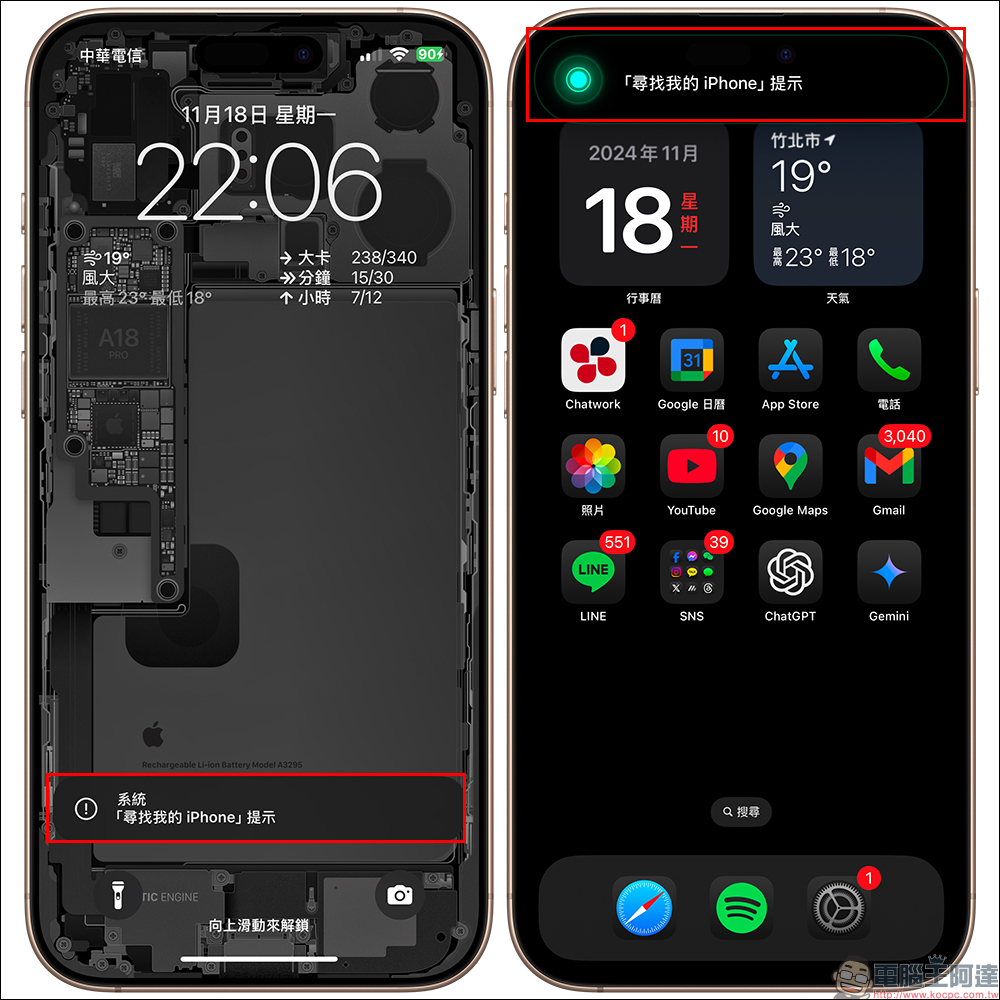
It is recommended to play the sound when you arrive near the location. At this time, the iPhone will ring a ringtone and prompt:
2. Turn on “Stolen Device Protection”
If the other party already knows the password of this phone, they can log in in the “Facei ID and Password” settings:
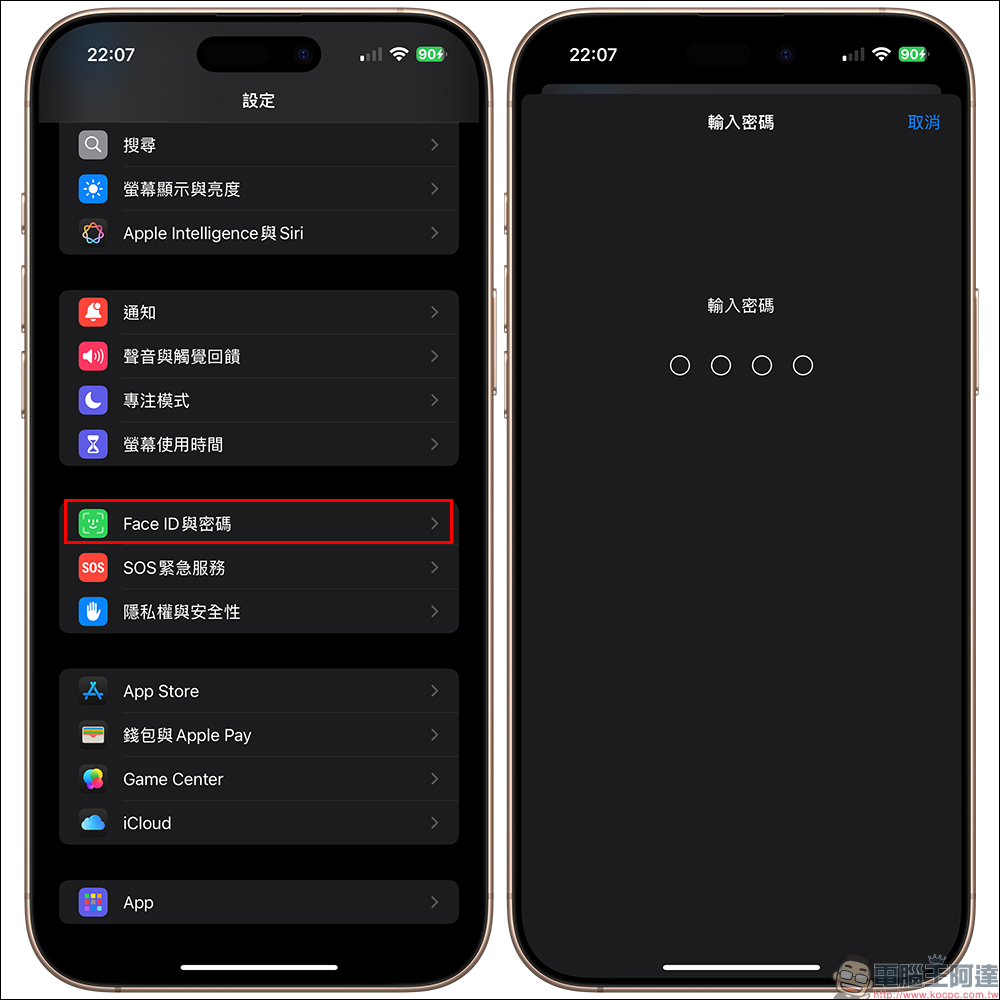
Then turn on the “Stolen Device Protection” function and select “Not in a Familiar Location” in the Security Delay section. If the phone is not in a familiar location, it must be unlocked through Face ID and confirmed again before other operations with higher privacy requirements can be performed.
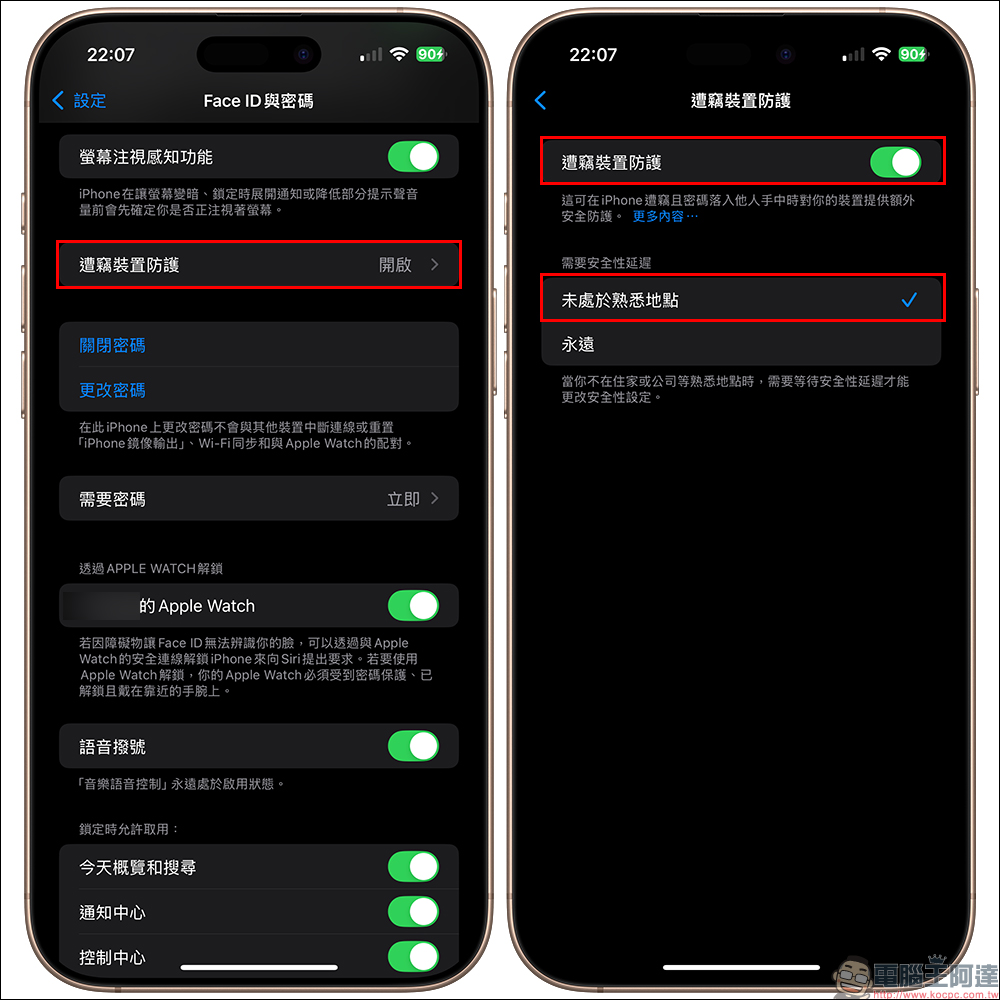
According to Apple’s official instructions, after turning on “Stolen Device Protection”, certain functions and actions will have additional security requirements when your iPhone is away from a familiar location such as home or office. These requirements prevent someone who steals your device and knows your password from making significant changes to your account or device.
Face ID or Touch ID biometric authentication: Certain actions, such as accessing saved passwords and credit cards, require a single biometric authentication through Face ID or Touch ID (without an alternative or backup password), so only you can access these features.
“Security delay” means that certain security actions (such as changing the Apple account password) also need to wait for one hour before performing the second Face ID or Touch ID authentication.
If Stolen Device Protection is turned on, certain actions will have additional security requirements when your iPhone is away from a familiar location such as home or office. To further protect important security settings, there are additional security requirements when performing certain actions on the web or on other Apple devices.
Further reading:
The 4 worst charging habits for your iPhone that hurt your battery, have you done them too?
Source: KOCPC Chinese