


Although the increasingly beautiful graphical interface of Windows looks pleasing to the eye and intuitive, sometimes you may not be able to find certain tools because the directory is too deep. In this case, executing commands is the best choice. Executing commands allows you to directly enter the Windows tools or settings you need. This time let us learn the 10 basic things you need to know!
10 Execution Commands Every Windows User Should Know
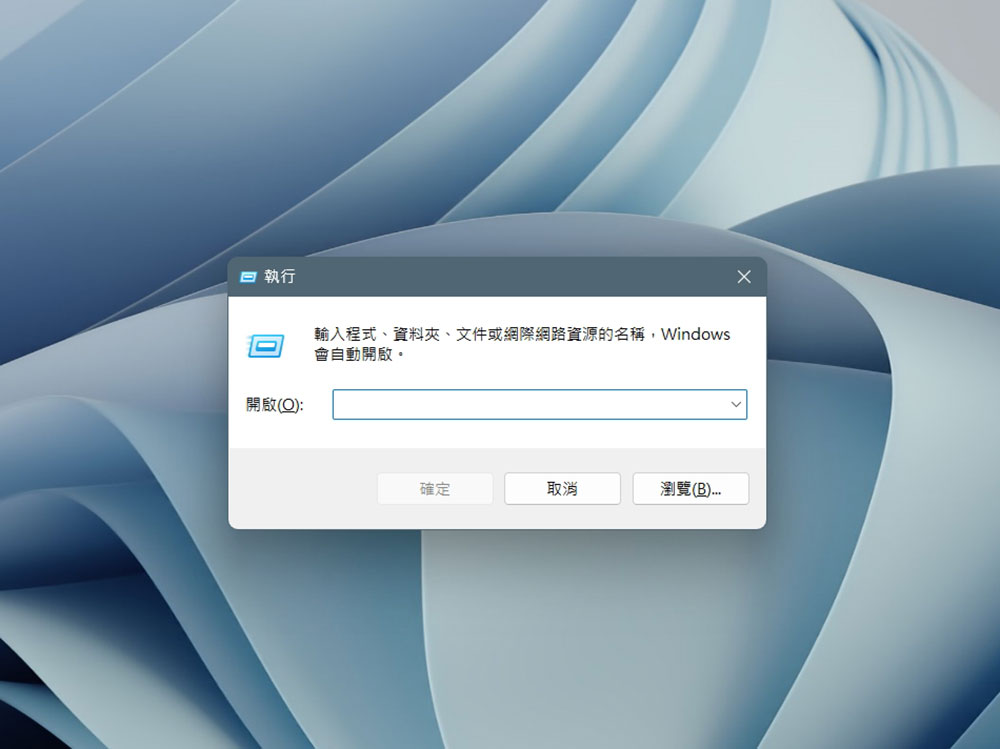
You may be wondering why you bother learning to execute commands when you can make so many adjustments from the Start Menu or Settings app. The answer is simple: efficiency. Executing commands is the fastest and most direct way to use Windows settings, tools, and features. You don’t need to click through multi-layered menus (often in the wrong place), just type “Win + R“The shortcut key combination calls up the execution command window. Enter the command and press Enter to accurately call out functions you didn’t even know existed.
msconfig: Microsoft system settings
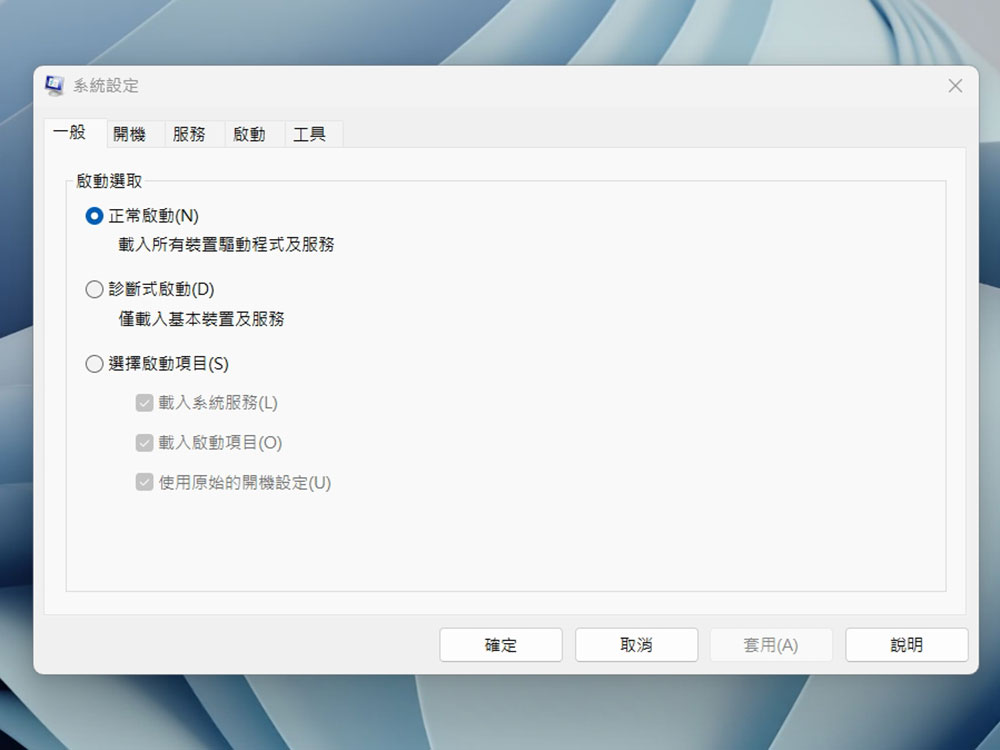
The first is “msconfig”, which is the system’s control center that allows you to handle boot programs, services, and system configuration options from a single interface. Using msconfig, you can disable unnecessary boot programs and significantly speed up boot time. You can also use msconfig to start your computer in safe mode or select different boot options to solve the problem. Additionally, you can enable or disable different services.
msinfo32: system information
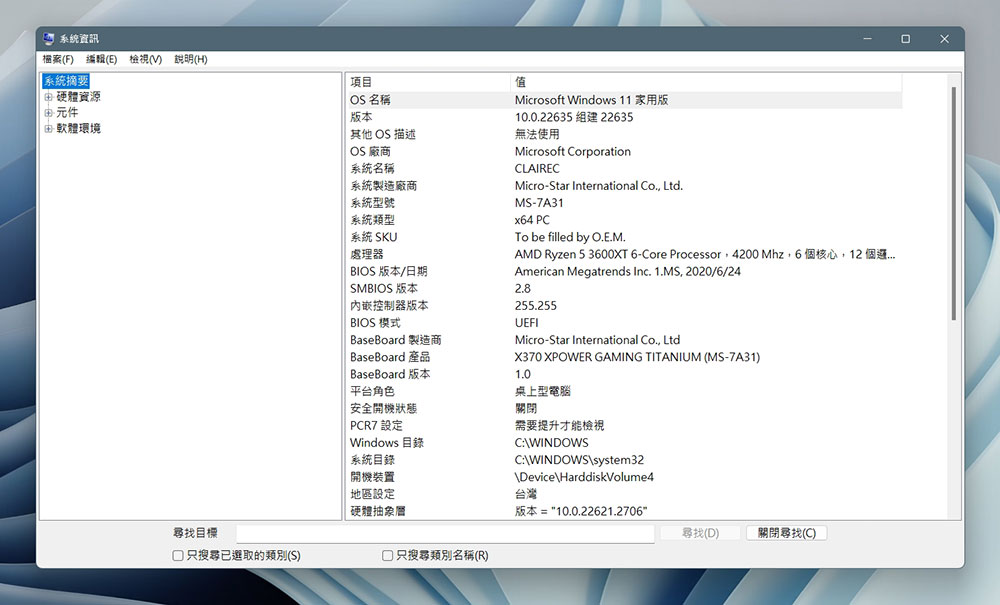
Want to know your computer’s system specifications? Just enter “msinfo32” in the execution command dialog box, and you can see a variety of information from the processor, the amount of RAM, and even the system version. You can view a detailed system summary, including hardware resources, software environment and components. This information is invaluable when you’re troubleshooting, hardware upgrades, or generating technical support reports. You can even use it to check BIOS versions or verify system specifications.
appwiz.cpl: Manage your installed applications
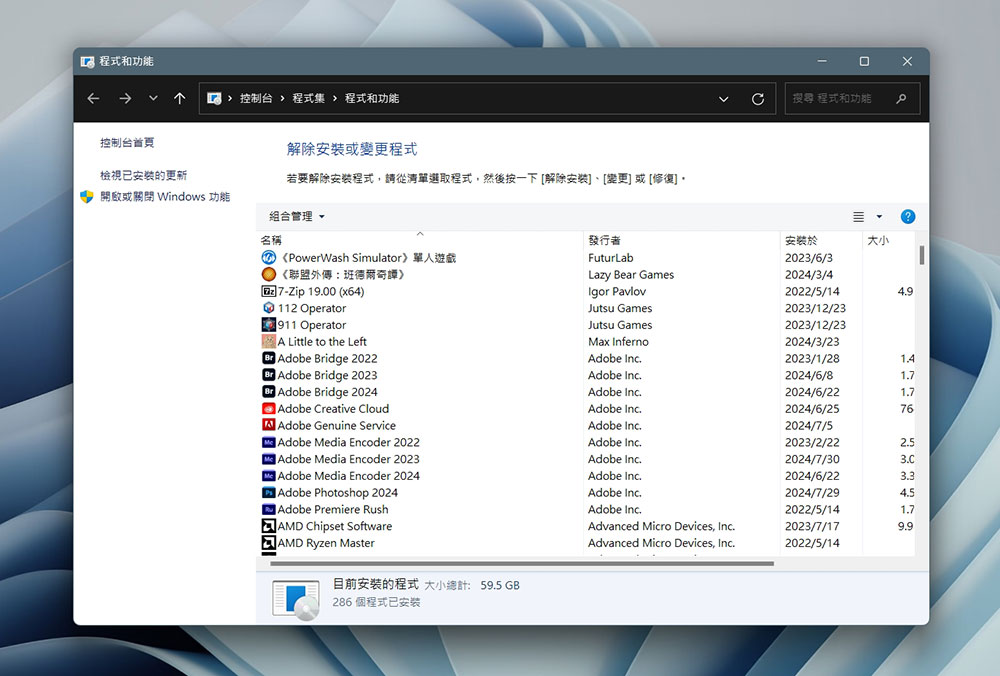
If you want to manage installed applications on your computer, appwiz.cpl is the best command for you. This command will open the Programs and Features window, giving you a complete list of applications installed on your PC. Quickly uninstall, change installed programs, or fix programs that aren’t working properly with just a few clicks.
desk.cpl: Customized display
Whether you need to change screen resolution, orientation, or manage multiple monitors, the desk.cpl command puts all display-related settings at your fingertips. From the direct-access display adjustments window, you can adjust screen brightness, refresh rate, and the display size of apps, text, or any other item.
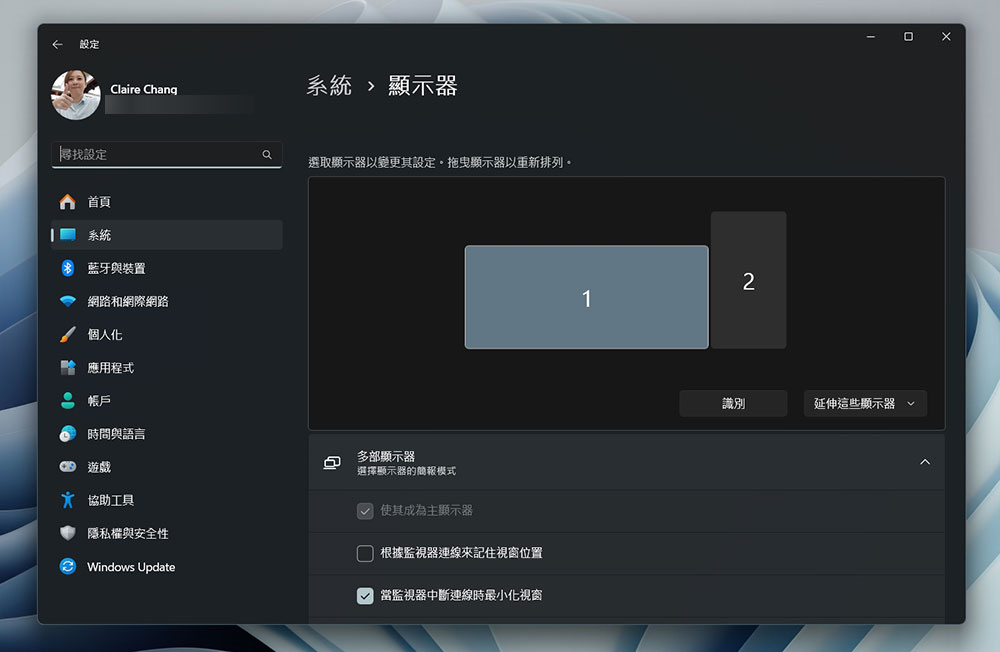
main.cpl: Adjust mouse settings
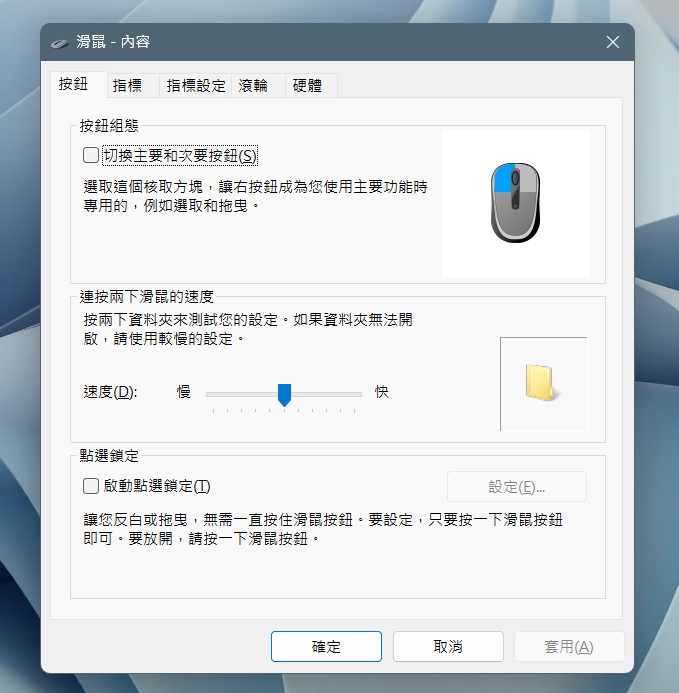
Using the main.cpl command in the Execute dialog window will launch the Mouse Contents window, where you can adjust mouse settings such as cursor speed, sensitivity, and button configuration. You can also set the mouse’s double-click behavior, scroll wheel, click and trackpad settings, and more.
mstsc: Establish a remote connection
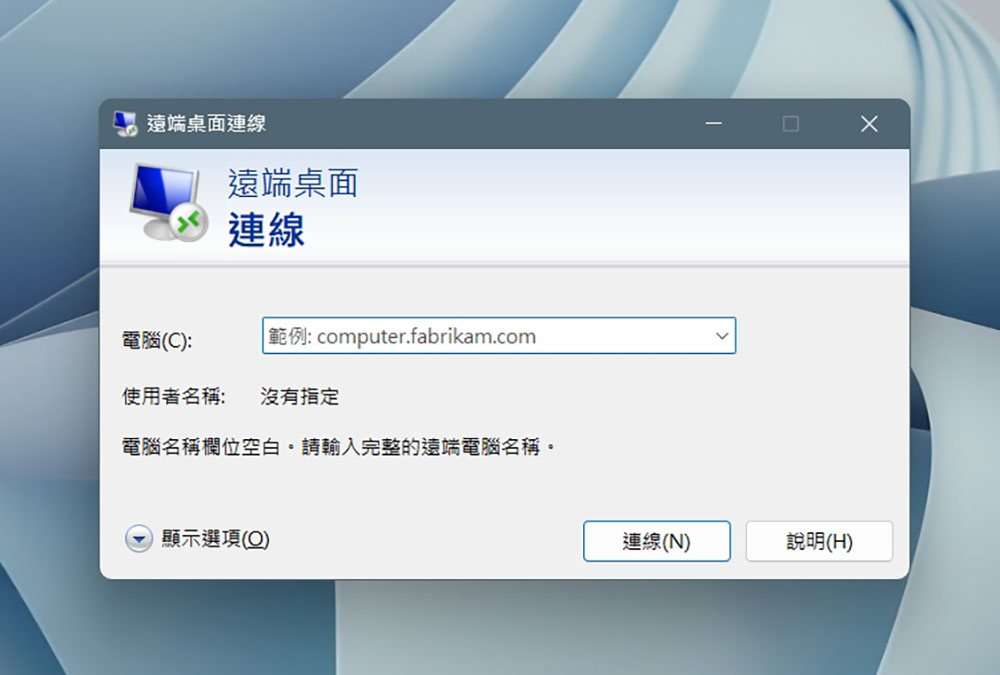
mstsc refers to Microsoft’s built-in remote desktop connection service. You can also customize remote desktop settings by changing the size, color, audio, etc. of the remote desktop. This command is ideal for remote work, technical support, or accessing files on another computer. For example, you can connect to your work computer from home or help a friend solve a problem with their computer.
dccw: calibrate screen
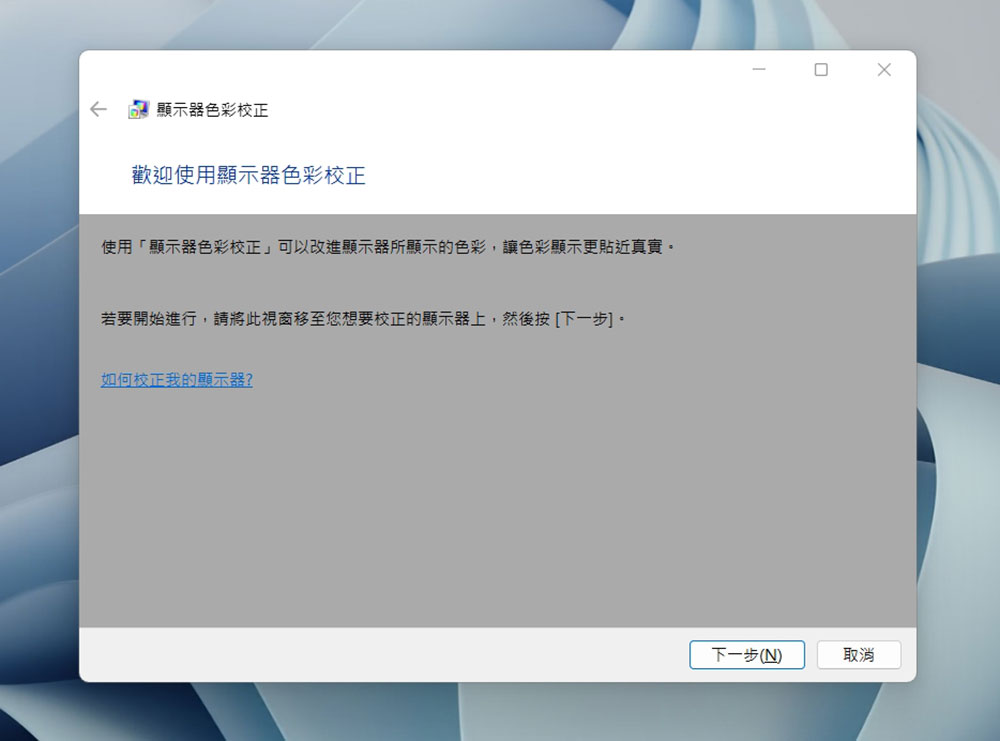
Poor color accuracy can be frustrating, especially for graphic designers or photographers. Want to calibrate your monitor for more accurate colors? Try DCCW. Executing this command will open the display color correction tool, which will guide you to adjust the color settings of your monitor. To ensure that colors are displayed correctly during calibration, follow the step-by-step guidance in the dccw calibration window, which also walks you through adjusting Gamma, brightness, contrast, and color balance.
cleanmgr: remove junk and old files
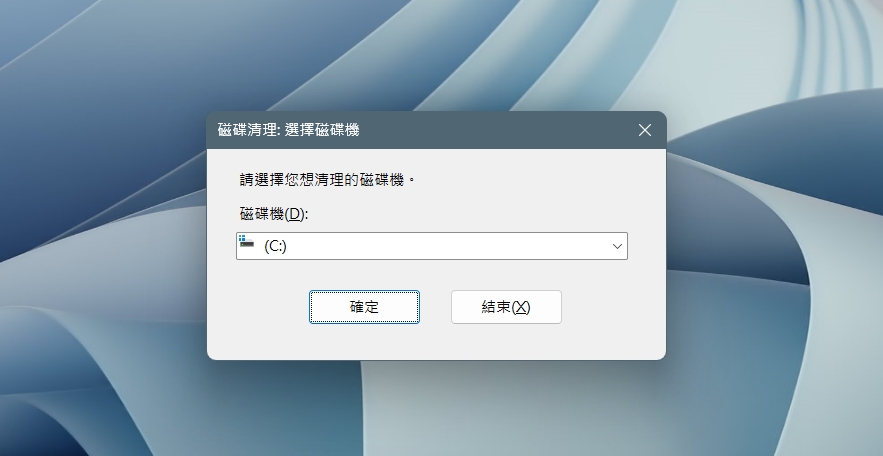
As you use it for a longer time, your computer will accumulate many unnecessary files. In order for your computer to run smoothly, you need to clean up these useless files. You can do this in a few steps using the cleanmgr command. In cleanmgr, you can scan a specific drive and delete temporary files, system cache, recycled items and other unnecessary data. This is also a quick way to free up disk space and improve system performance.
resmon: monitor computer performance
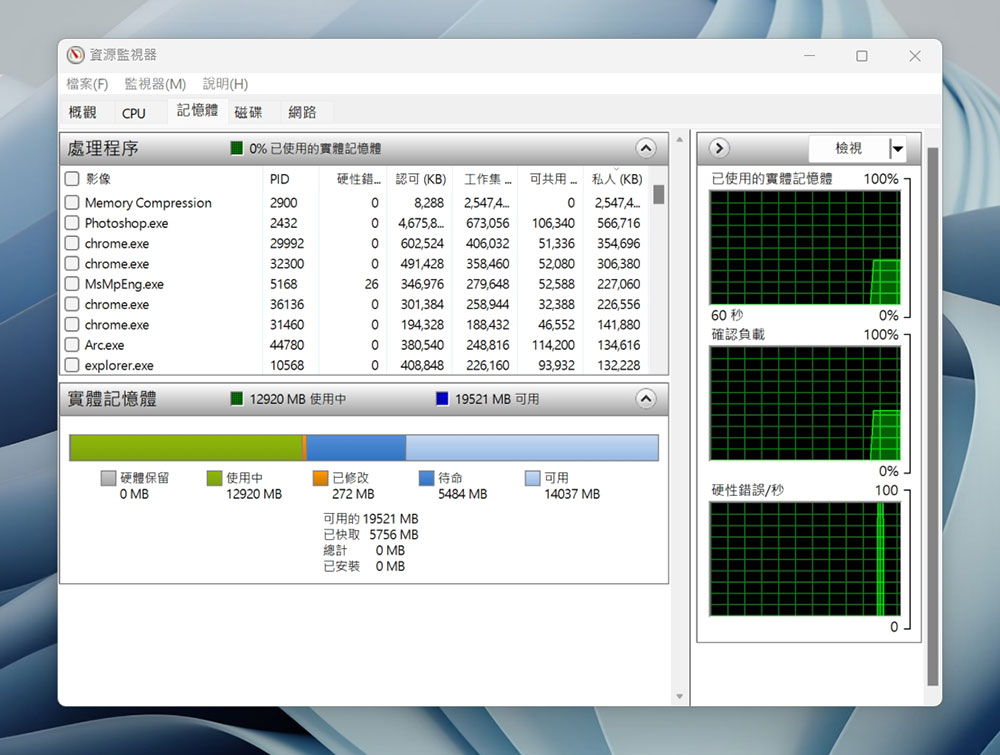
Want to keep tabs on your computer’s performance? Try the resmon command to open Resource Monitor, which displays real-time data on system resources such as memory, disk, CPU, and network usage. If your computer is running slowly, resmon can help identify which processes are hogging resources. It’s like running a health check on your computer, identifying problems and taking action before they become more serious.
. or ..: efficient navigation
Finally, what you might use is . or .. . “.” can quickly open the current user’s folder directory, while “..” selects starting from the user. These two commands seem very simple but are very helpful for browsing the file system in Windows.
These execution instructions are just one way to enhance your Windows experience. Additionally, you can enhance your search experience on Windows to find content quickly and efficiently, and there are many Windows shortcuts and key combinations you can use to get things done quickly. This time we only share the 10 most commonly used commands. Of course, there are more that you can try, but be careful. If you operate them randomly and crazily, you may ruin the system, especially if you don’t know how to restore it. It will be very troublesome.
Source: KOCPC Chinese