


The taskbar in Windows 11 is a great way to keep your apps organized, but people who prefer a cleaner desktop may set it to auto-hide, leaving the taskbar off the screen and sliding back into view when the mouse cursor is near the edge of the screen. The above is the expected ideal behavior, but what if it no longer works smoothly? This problem can occur unexpectedly even on the latest AI computers, and you can try these basic troubleshooting tips.
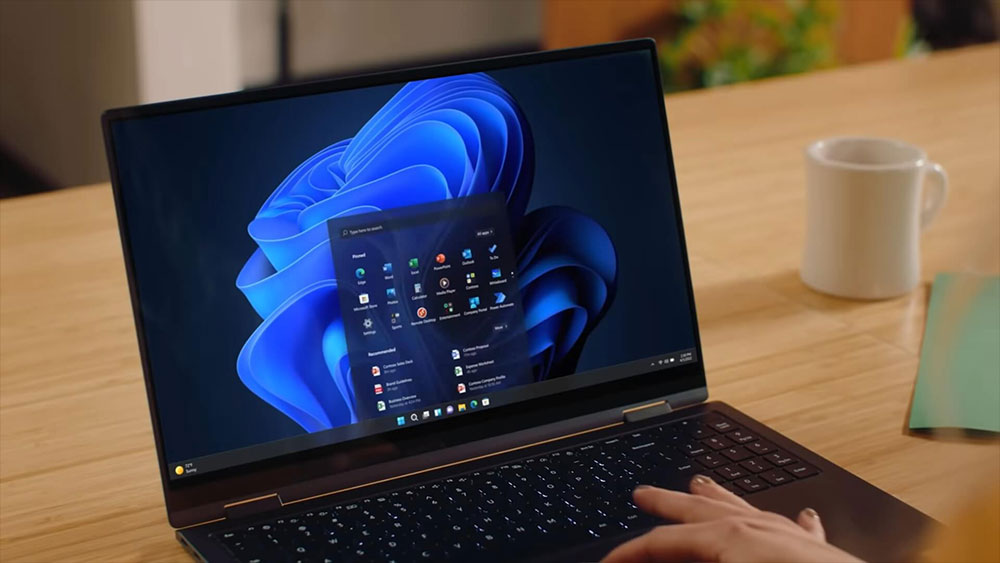
Like your desktop cleaner? How to fix the problem that the Windows taskbar cannot be automatically hidden
How to solve the problem of automatic hiding of task columns
If you’ve set the Windows taskbar to automatically hide, but it doesn’t follow your settings, at least it doesn’t display as it should when you hover the mouse over the edge of the screen, that’s confusing. after all. The taskbar is one of the most important parts of the Windows UI, allowing you to access the Start Menu, execute programs, and perform other operations with a minimum of clicks. Usually, restarting the task manager can solve the problem, or resetting the option to automatically hide the taskbar.
- Press Ctrl + Shift + Esc or right-click the Windows icon on the taskbar to open the task manager.

- Find File Explorer in the program list and right-click it. Select Restart from the menu and wait for Windows File Explorer to restart.

- Sometimes restarting doesn’t work, try ending the job, then click “Run new job” above, enter “explorer.exe” and click OK.

Make sure taskbar auto-hide setting is enabled
If the taskbar still doesn’t auto-hide, you need to make sure it’s set up correctly. Even if you’ve set auto-hide before, try turning it off and on again.
- Open Settings and click “Taskbar” in Personalization.
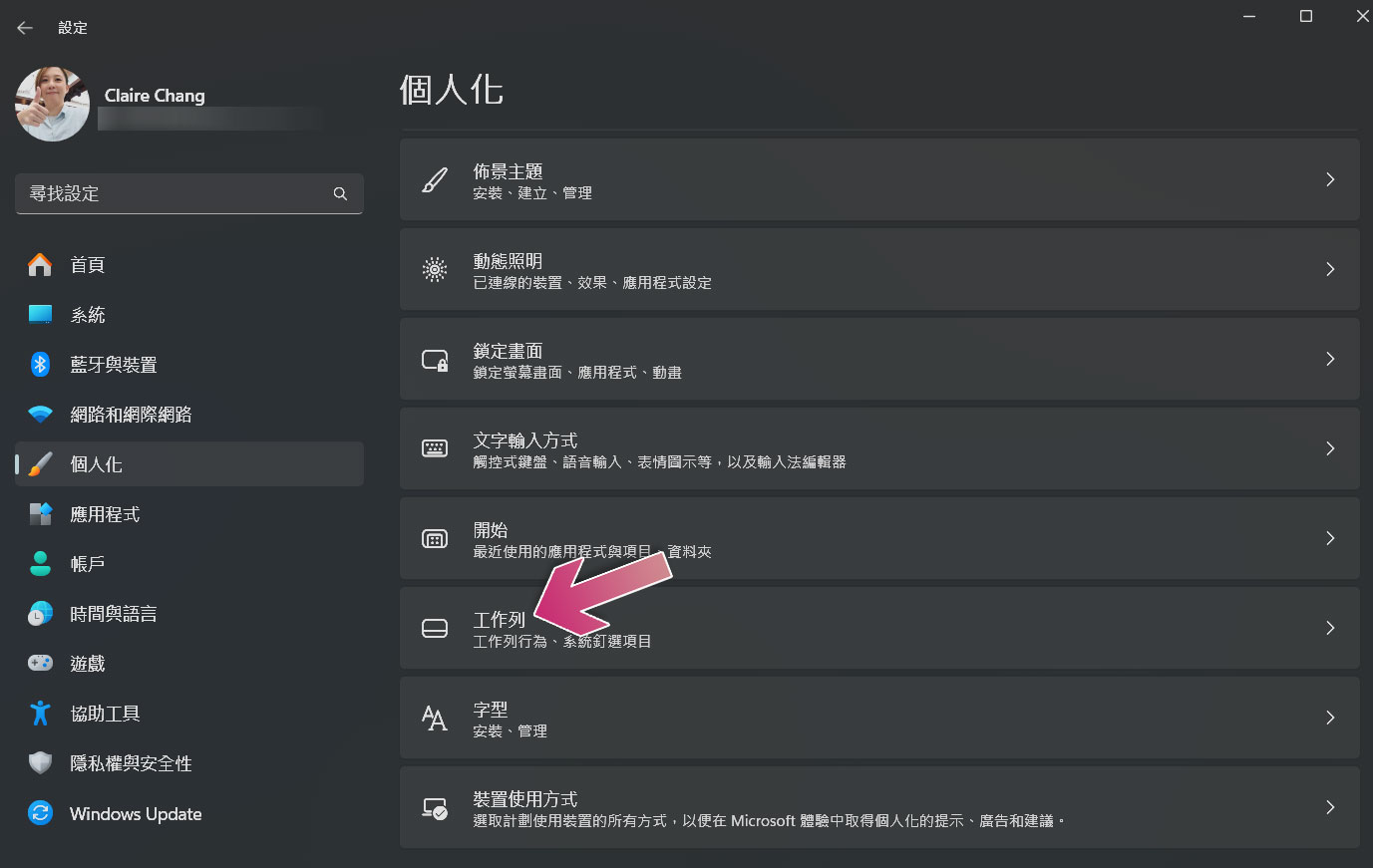
- Click to expand “Task Bar Behavior” and check the box to automatically hide the task bar. If you have already checked it, uncheck it, close the settings window, then reopen the settings, and then check Auto-hide the taskbar again.

It’s time to do some in-depth troubleshooting on your work columns
If the usual steps don’t resolve the taskbar issues you’re experiencing, there are a few other methods you can try to make it automatically hide according to your preference. The first thing to do is to re-register the taskbar with Windows, which should restore it to its newly installed state and identify anything preventing the auto-hide behavior.
- Open the Start menu, search for and execute “Windows PowerShell” as an administrator.
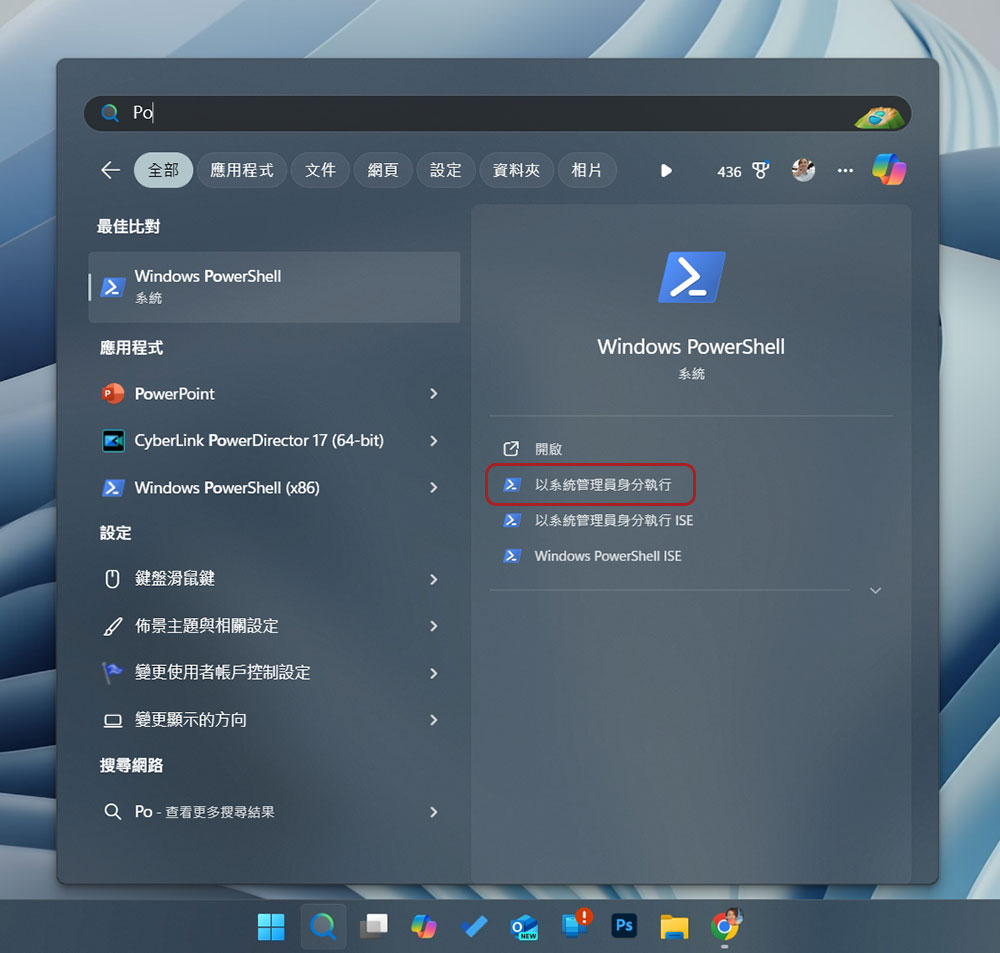
- Paste the following sequence of commands into the PowerShell window and press Enter.
Get-AppXPackage -AllUsers | Foreach {Add-AppxPackage -DisableDevelopmentMode -Register “$($_.InstallLocation)AppXManifest.xml”}
- Once the command has run, you can close the PowerShell window.
Check if there are any apps that require attention
The Windows taskbar may remain visible when one of the applications or pieces of software that is performing requires your attention, which is easy to check because the application icon on the taskbar lights up. Click the glowing app icon, then handle the notification or other task it wants you to complete. Once completed, the taskbar should automatically return to its hidden state.
If one of your apps frequently sends notifications, it might also be preventing the taskbar from being hidden. If so, you’ll need to find out which app and restrict its notification settings. So once you know which app is placing notifications in the lower right corner of the taskbar, open that app and see if you can disable unwanted notifications in its settings. If not, you must prevent it from using notifications in Windows Settings. In this case, open Settings and turn notification permissions on or off from the system items.

Run DISM and SFC to fix any remaining issues
Taskbars not functioning as expected may indicate corrupted or missing system files. There are two tools in Windows that can solve this problem: System Profile Check (SFC) and Deployment Image Servicing and Management (DISM), which can be found from the search. Executing these tools will check your system for any problematic files and then download new copies of any files found to not be functioning properly. After running both tools, restart your computer and see if the taskbar automatically hides as you expected.
The taskbar is not only used to display the currently used programs, or to easily access the “Start” menu. Although I prefer to always see the taskbar, because each display and recycling will take some time, but when the taskbar is automatically hidden, you can enjoy a tidy desktop. Now, if the expected behavior stops for any reason, you should be able to get things running again.
Source: KOCPC Chinese