


When it comes to remote software, the first thing that comes to mind is Teamviewer, Chrome, Anydesk, DeskIn, etc. Recently, I discovered that GlideX developed by ASUS is even easier to use. Not only can it be remotely controlled, it also supports screen extension and mirroring, file transfer, and mouse and keyboard collaborative control. It is available in Windows, Mac, Android, and iOS versions. Let’s quickly introduce it to you.
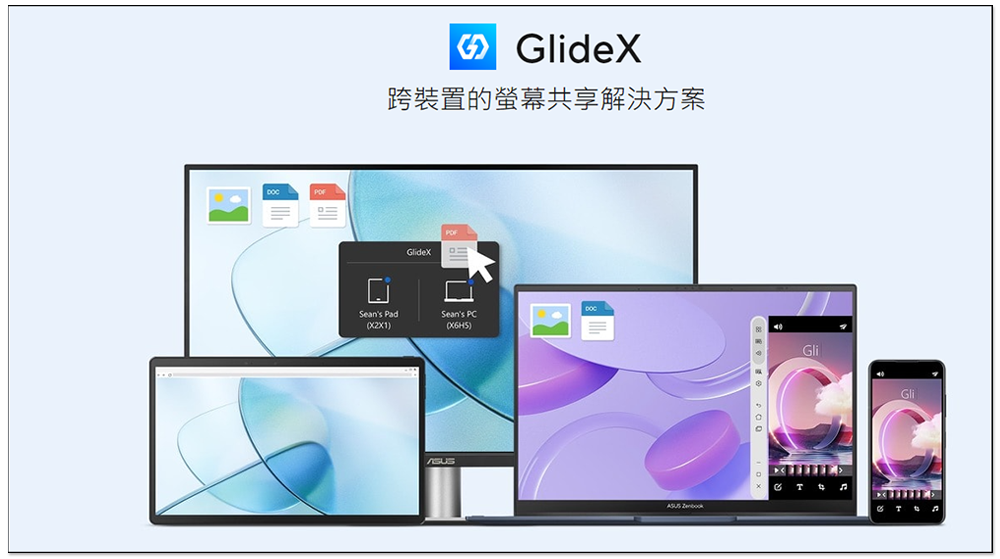
GlideX is a super easy-to-use free cross-device collaboration software that supports remote connection, screen mirroring, file transfer, and keyboard and mouse sharing.
Although GlideX is developed by ASUS, it is not limited to ASUS devices, which means it can be used no matter which company you use.
There is a free version and an ASUS exclusive version. Some functions are only available in the ASUS exclusive version, such as mobile phone remote desktop, communication, and shared camera. However, if you want to remotely control the mobile phone from the desktop, screen mirroring, file transfer, collaborative control, etc., the free version can be used.
- obtain GlideX
I’m using Windows and iPhone for the quick demonstration below.
After installing the GlideX software on each platform, a popup will pop up asking you to choose Chinese service or global service. If you are not in China, remember to select global service:

There are six major functions, including “cross-device collaboration”, “file transfer”, “communication”, “shared camera”, “remote access”, and “application streaming”. Application streaming is only available on ASUS:

First, let’s look at cross-device collaboration, which supports wireless network connections or via USB. My Windows computer and iPhone are both connected to the same wireless network, so they can be found directly in the list:
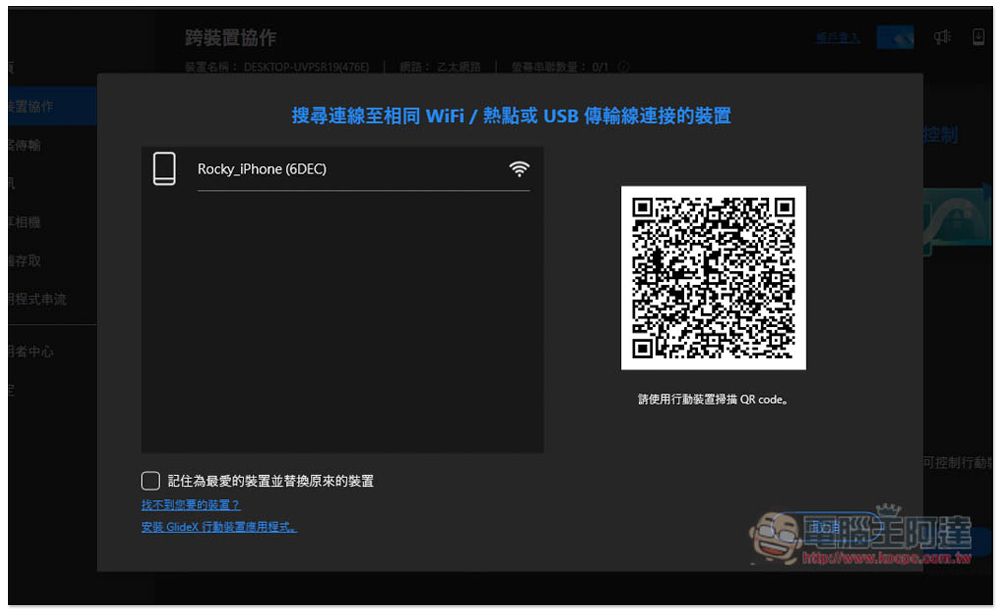
After clicking, the pairing code will be displayed:
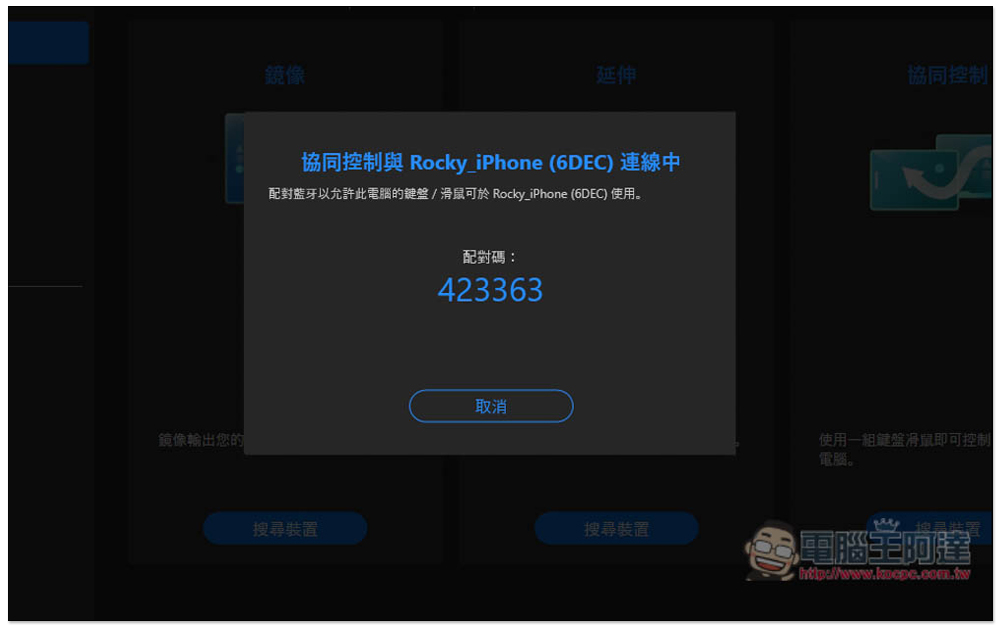
Remember to open the GlideX App on the other device, and you will see the remote collaborative control requirements:
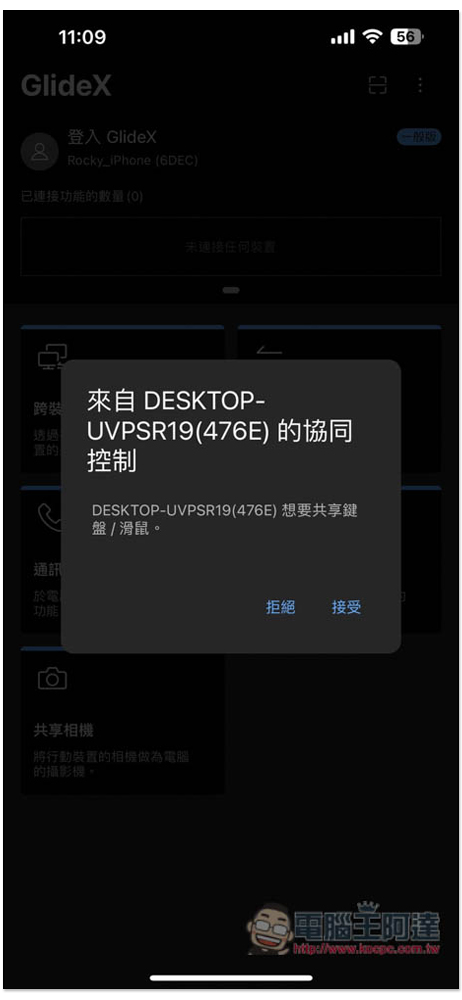
After the iPhone accepts it, as long as my Windows mouse slides to the other side of the screen, it will go to the iPhone. I can use the mouse to control the iPhone screen. If I need to type, I can also type using the Windows keyboard:

However, I think this collaborative control is more suitable between computers. If you want to use a computer to control your phone, mirroring is better.
As shown in the picture below, you can mirror the iPhone screen to a Windows computer and directly control the screen with the mouse:
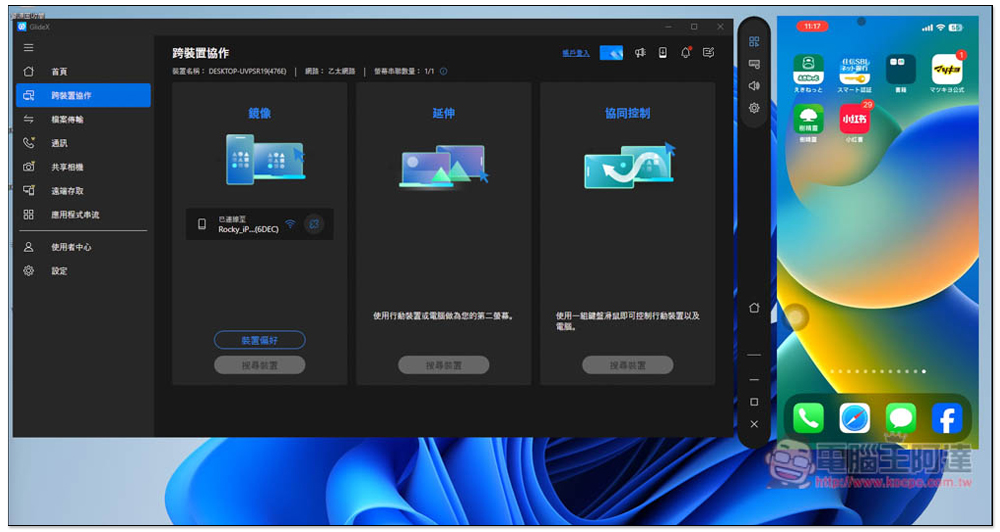
The typing part is no problem in the actual test, but Chinese character selection is a little more troublesome, so you need to get familiar with it:
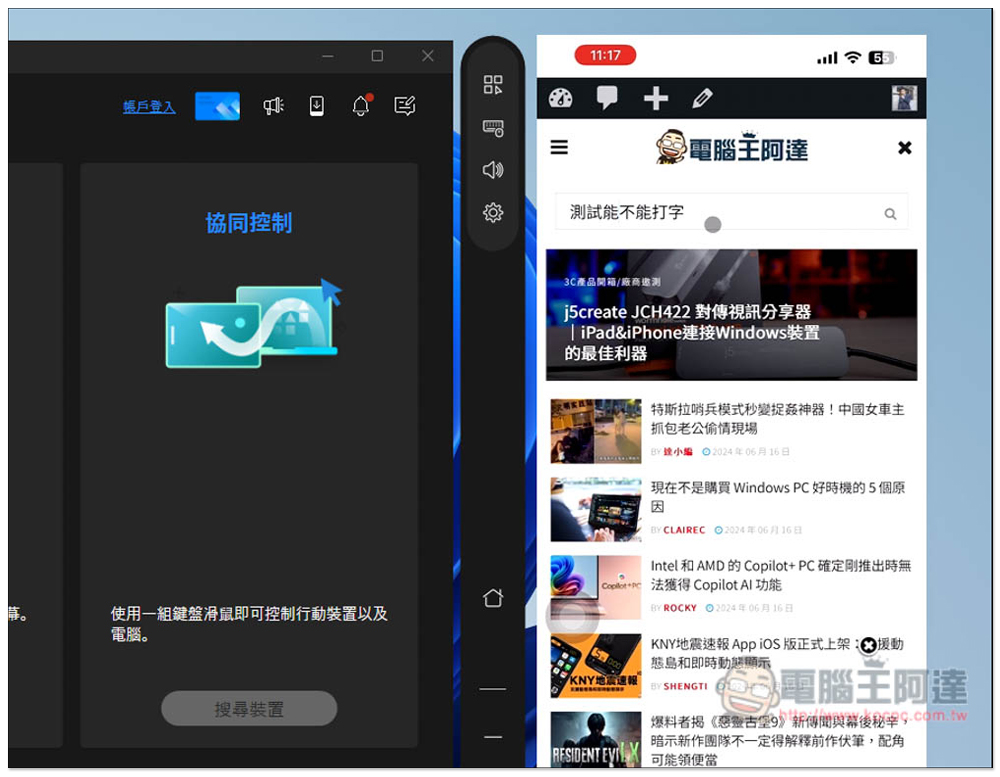
The extension function is also very useful. You can use your other mobile phone, tablet, or even laptop as an extended screen of the current device. Like I turned my iPhone into an extended screen of my Windows computer:
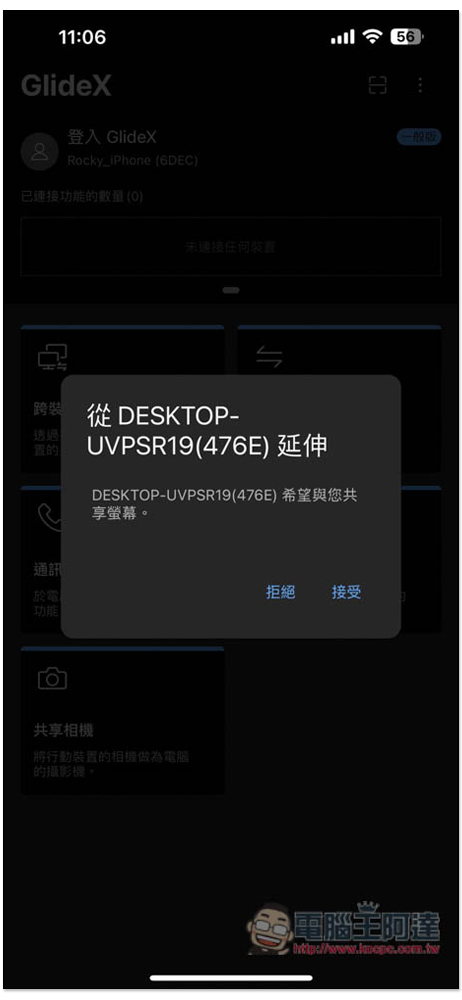
My computer originally had dual screens, but now I have a mobile phone, which makes it three screens. The connection speed is very fast and the picture is quite stable:

You can also quickly transfer computer files to another device through GlideX:

However, compared with other remote desktop software, one disadvantage of GlideX is that it cannot bind the device to your ASUS account, which means you need to manually allow the connection every time.
If you have a screen extension, computer-controlled mobile phone, or cross-device collaboration, it is highly recommended to try GlideX, it is really easy to use.
Source: KOCPC Chinese