


When Google launched the convenient circle search feature on Samsung and Pixel phones, many iPhone users were envious. While Apple’s limitations make it challenging for Google to offer the same functionality on iOS, it has now found a way to bring circle search to iPhone, and it works!
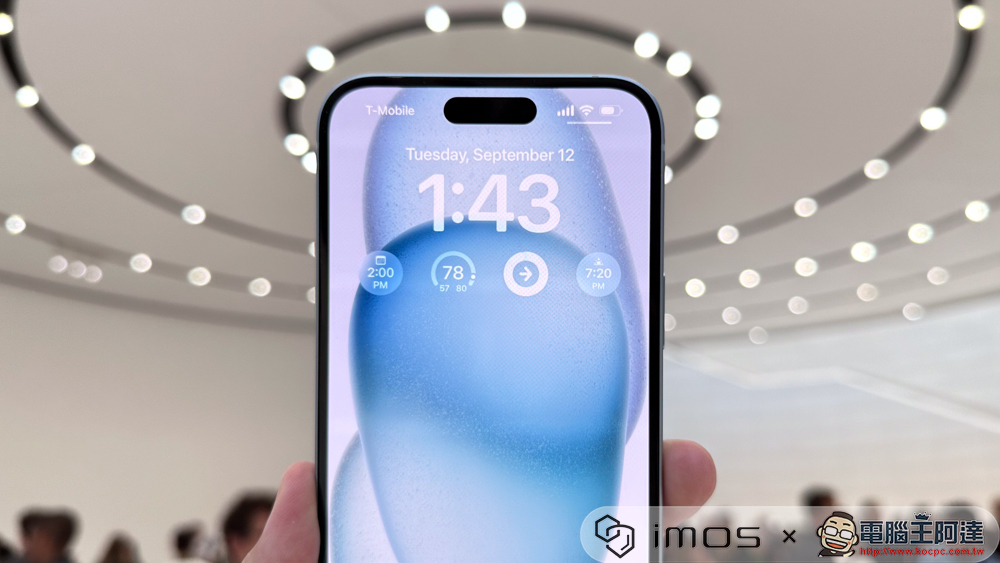
Want to use Circle Search on your iPhone? This super simple shortcut gives you a similar experience
Although it is said to be a similar experience, it is actually somewhat different from the original circle search on Android. This solution achieved through shortcuts does not support circle, click or graffiti gestures, so it is not possible to obtain exactly the same user experience, but the results obtained at the end of the search are very similar.
How to Make Circle Search Search on iPhone
As of this writing, the Google app on iPhone offers an action for the Shortcuts app called “Search for images with Lens,” which allows you to perform a visual search on Google Lens. Setting it up is simple, and we’ll tell you how below. Before doing this, please make sure that Google apps are installed on your iPhone.
Phase 1: Establish shortcuts
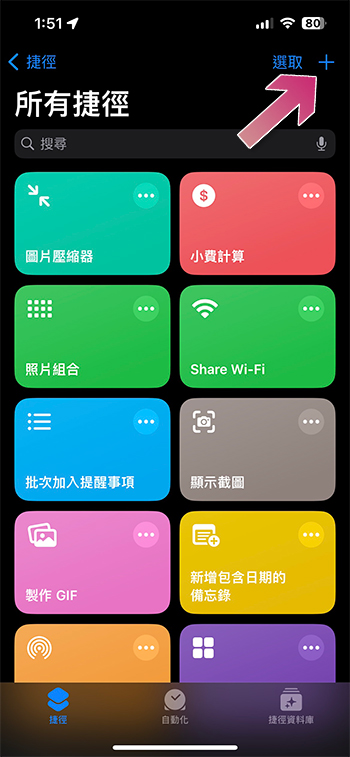
- Open the Shortcuts app and click the “+” sign in the upper right corner to create a new shortcut.
- Click the big “Add Action” button on the page.
- Search for “Screenshot” and click the “Take Screenshot” action to add it to the shortcut.
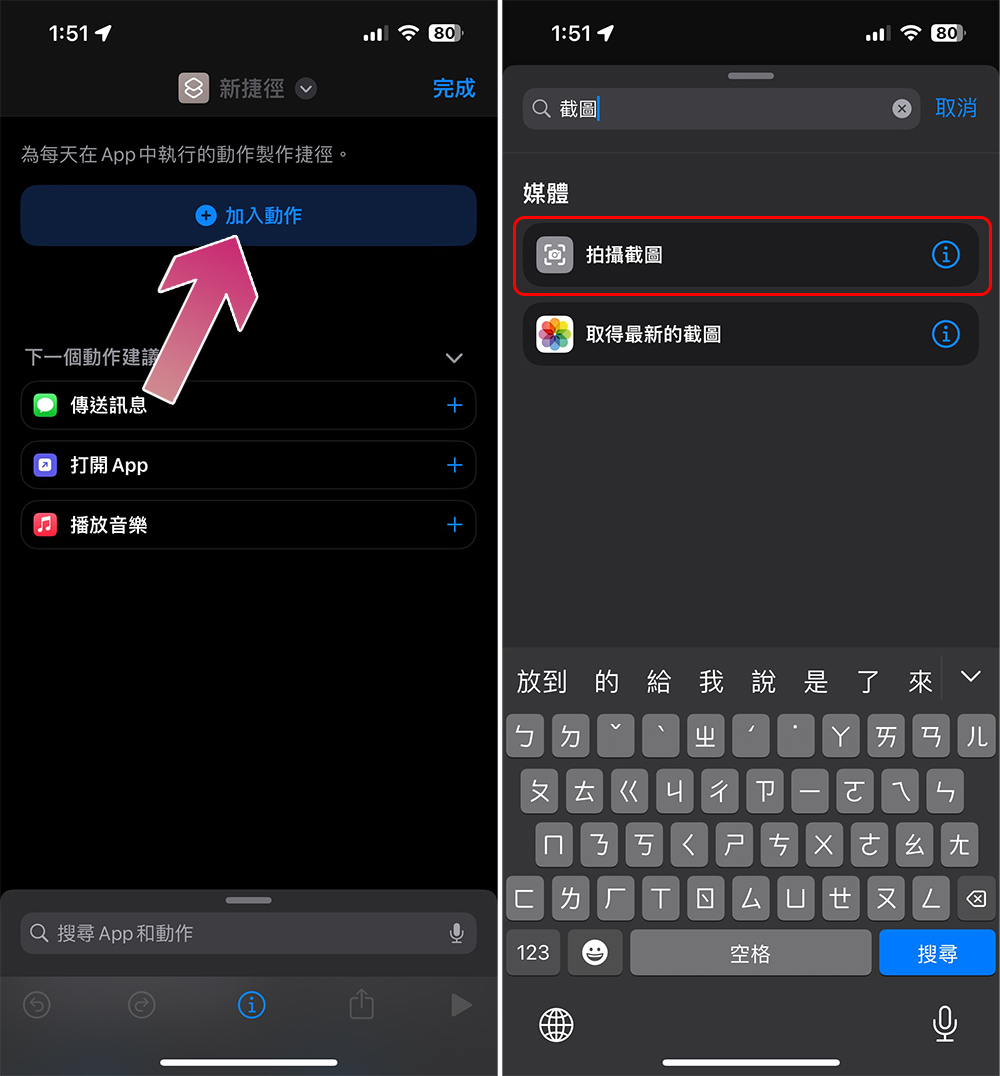
- Next, enter “smart lens” in the search box at the bottom.
- Click “Search pictures using smart lens” to add it to the action, and make sure it is connected to the previous screenshot action (there will be a short line connecting it).
- Then click “Finish”.
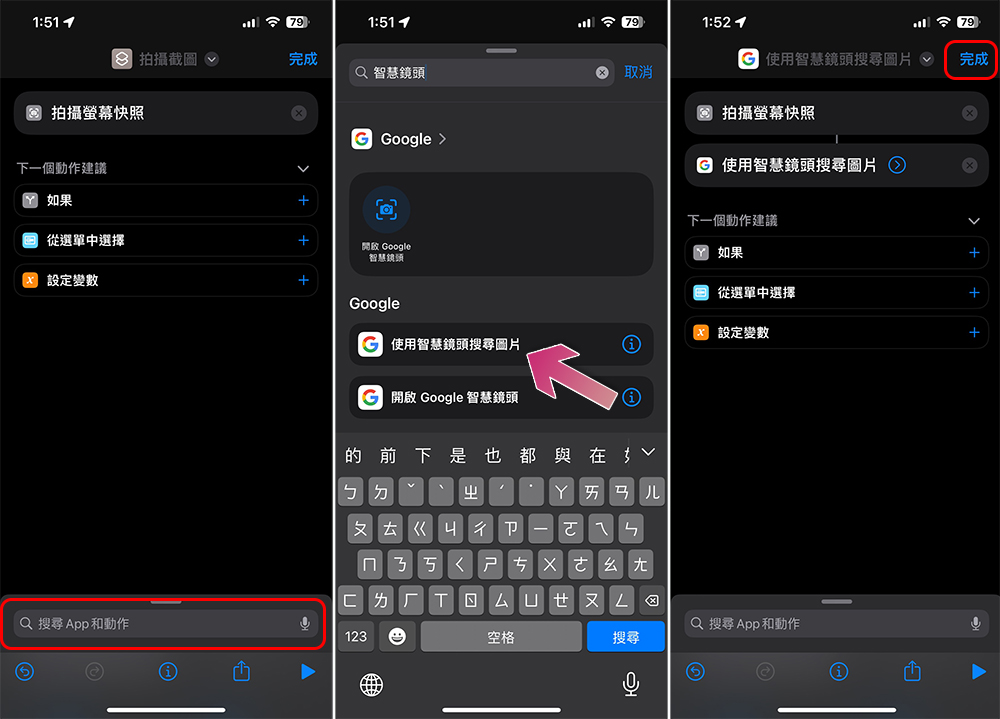
Basically the new shortcut will be automatically named, or you can rename it yourself, as long as you recognize it.
Stage 2: Trigger shortcuts
After setting up the shortcut, the next step is to set up the trigger, which is how to enable it from anywhere on the device. Depending on your iPhone model, you can trigger it using the action button or a tap on the back.
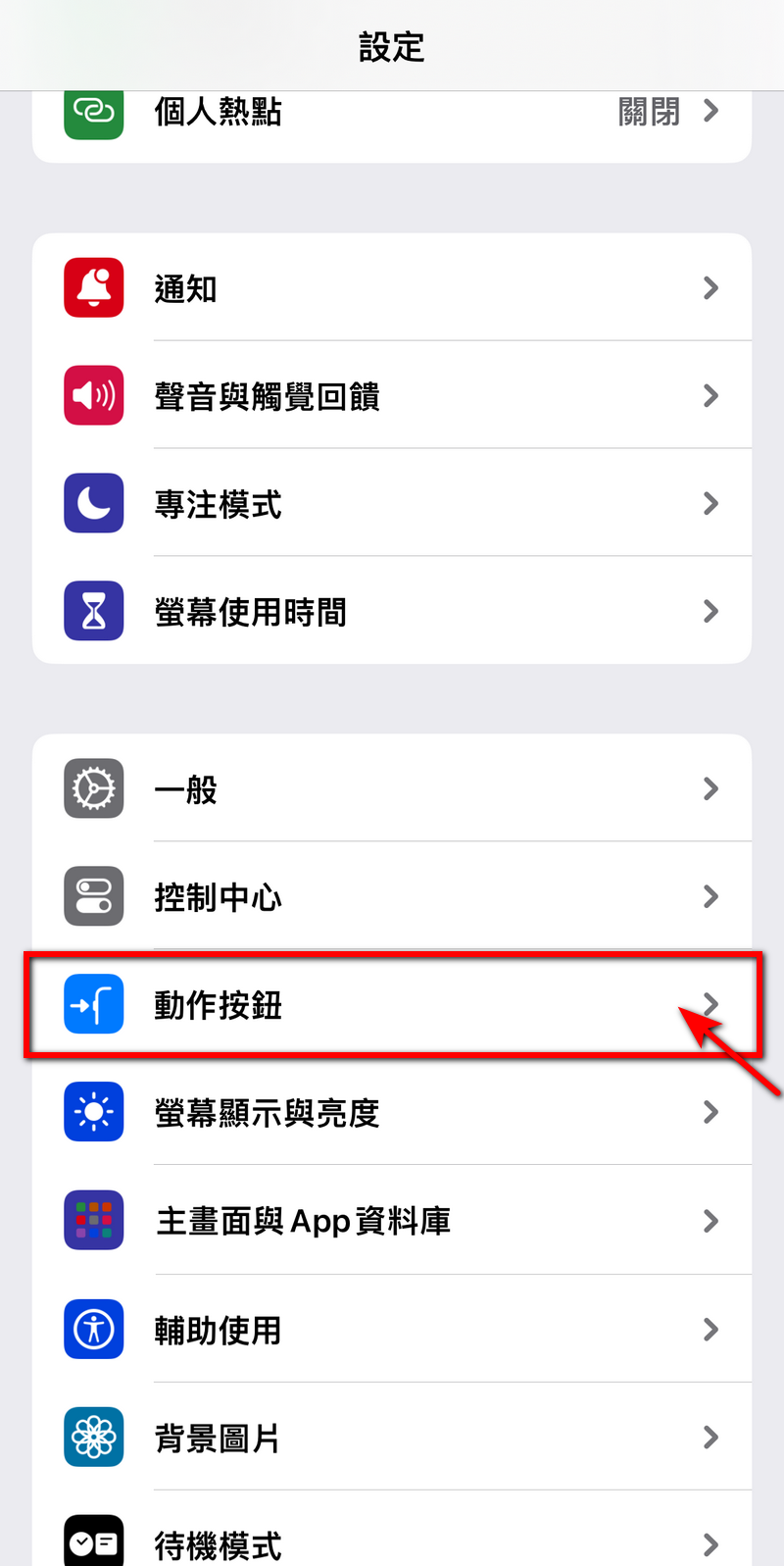
If you are using iPhone 15 Pro or iPhone 15 Pro Max, you can set the action button as a shortcut trigger:
- Open the Settings app.
- Select “Action Button”.
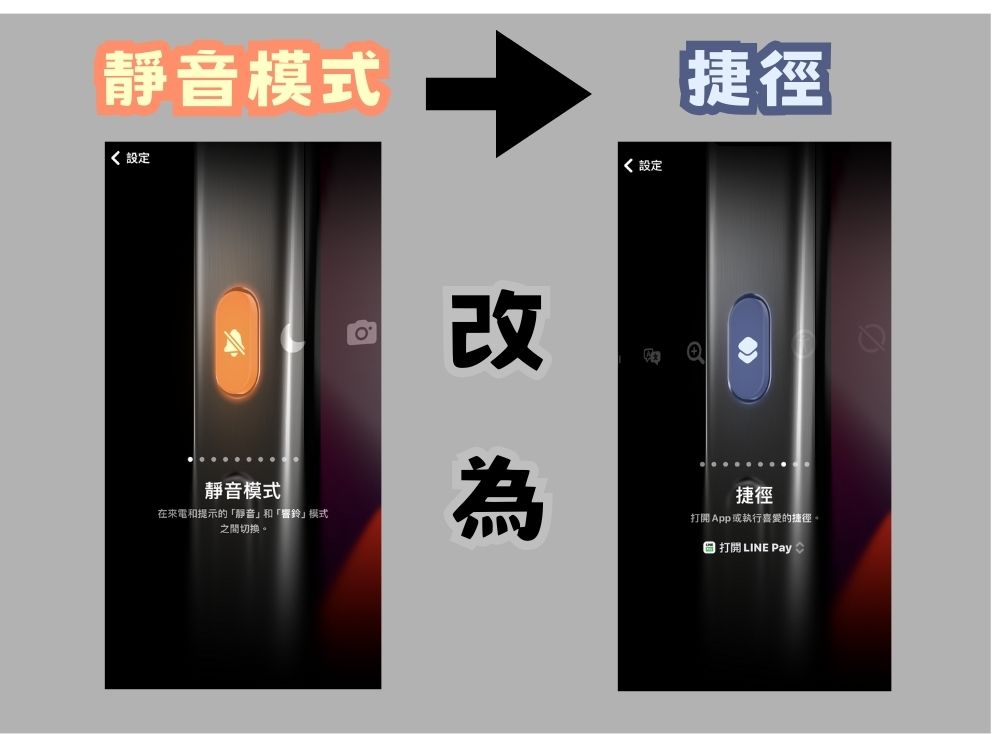
- Change the default “Silent Mode” to “Shortcut”, and then select the new shortcut we set above to use the smart lens to search for.
If you have an older iPhone, or prefer to reserve the action button for other actions, you can trigger it using the iPhone’s built-in back tap gesture.
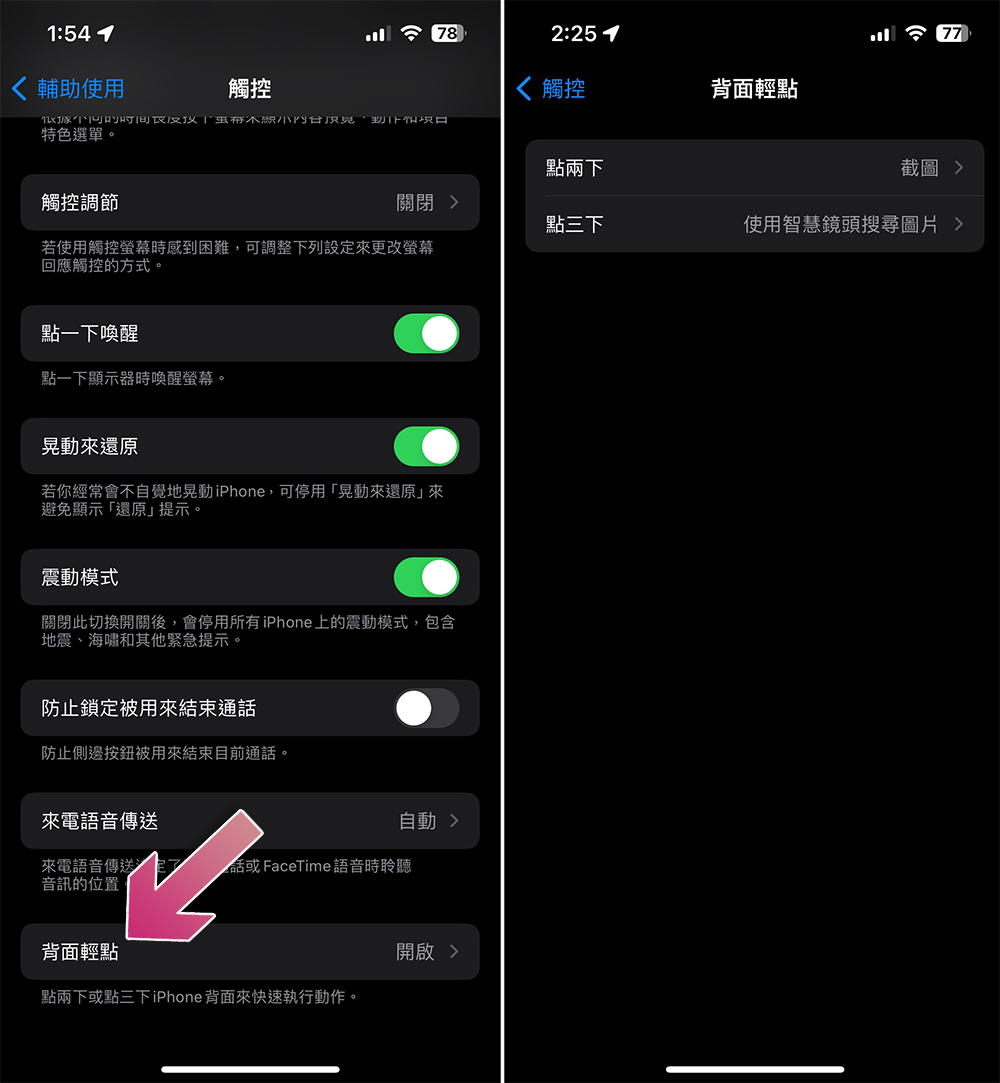
- Open the Settings app and click “Accessibility”.
- Click “Touch”.
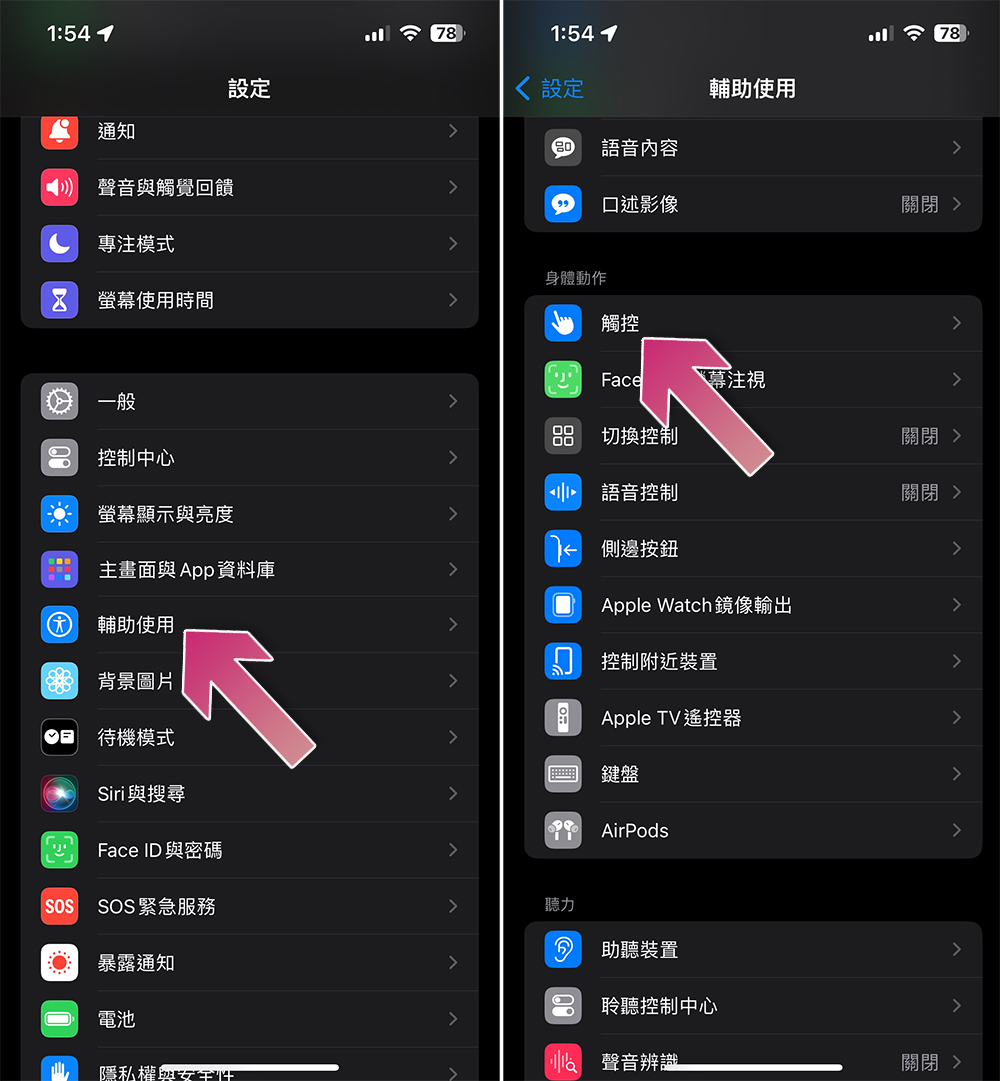
- Scroll to the bottom of the page and click “Back Tap”.
- Among them, you can see that there are two options: “double-click” and “triple-click”. You can choose one according to your preference.
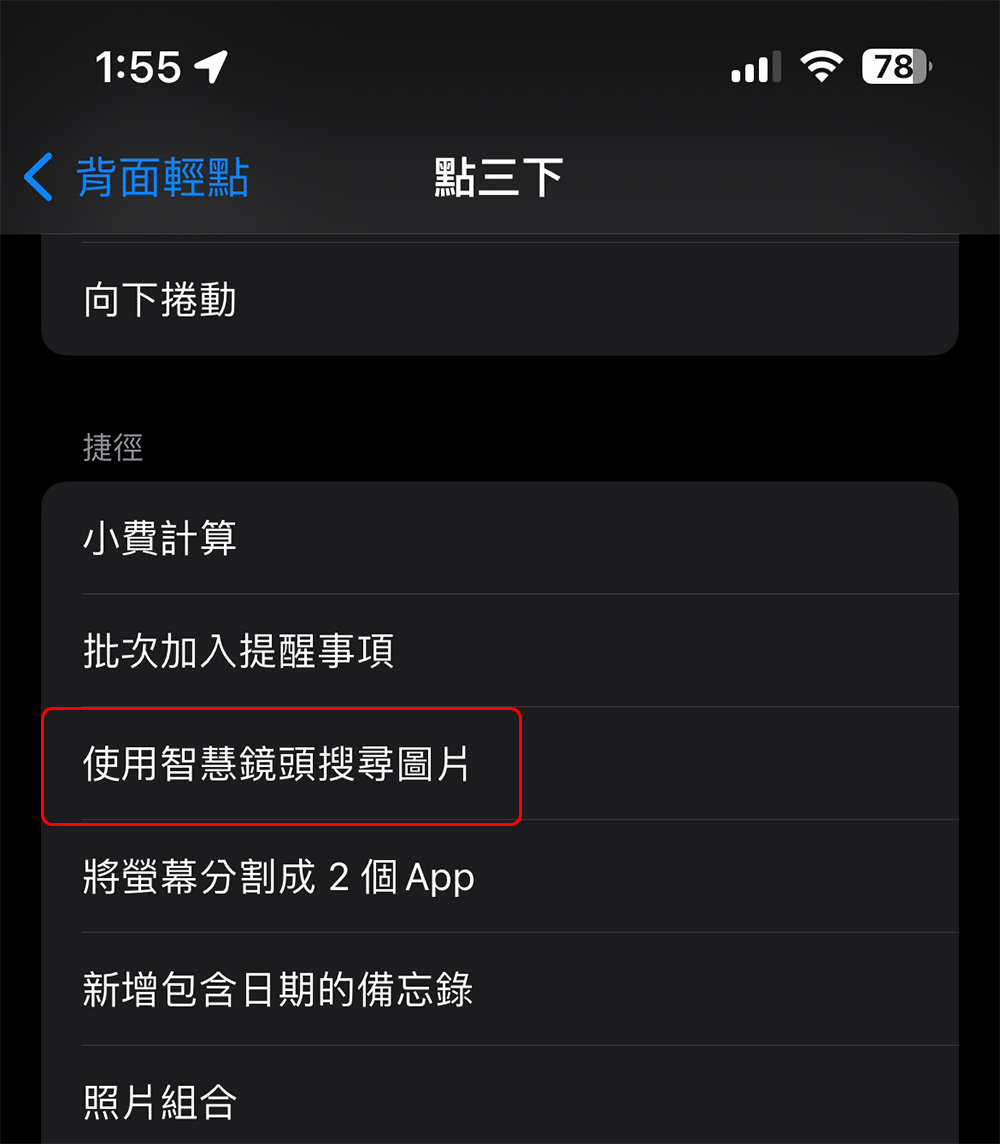
- Scroll down to the shortcuts section and select “Search for images using Smart Lens” that we set above.
Stage 3: Actual use
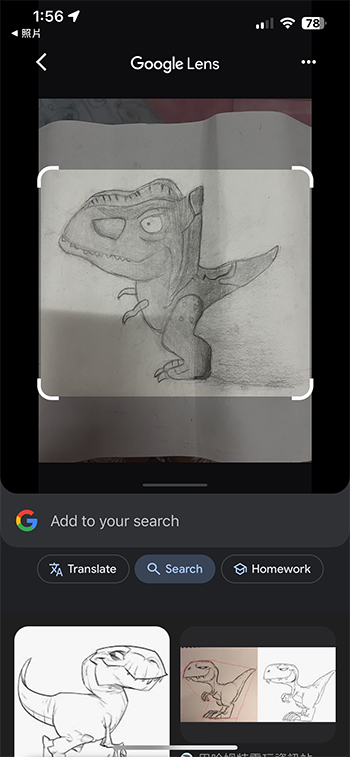
After preparing the shortcut and assigning the trigger method, the next step is to use it. No matter where you are on your iPhone, you can trigger this shortcut. The working principle of this shortcut is very simple, that is, let the iPhone first take a screenshot and then search for the specified object in the screenshot. The difference is that you cannot intuitively draw a circle or smear, but drag the marquee in the zoom screen to specify the search target.
Google is making everyday life easier for Android users with circle search, and while it’s hard to imagine it being fully integrated into iOS, rumors suggest that Apple may be developing its own circle search feature to launch as part of iOS 18. There is also speculation that Google may integrate the tool into the iOS version of the Google app, but the functionality will be limited. No matter which of the above implementation methods is used, using the simple shortcut settings we teach you this time should be the most convenient solution until the general situation is determined.
Source: KOCPC Chinese