


If your TV has a picture but no sound, the reason may be fairly simple, but chances are you just set it to mute. But what if the situation is just the opposite, and the TV has sound but no image? This is slightly concerning considering there’s no magic button on the remote that allows you to turn off the TV’s display without completely shutting it down or changing inputs.
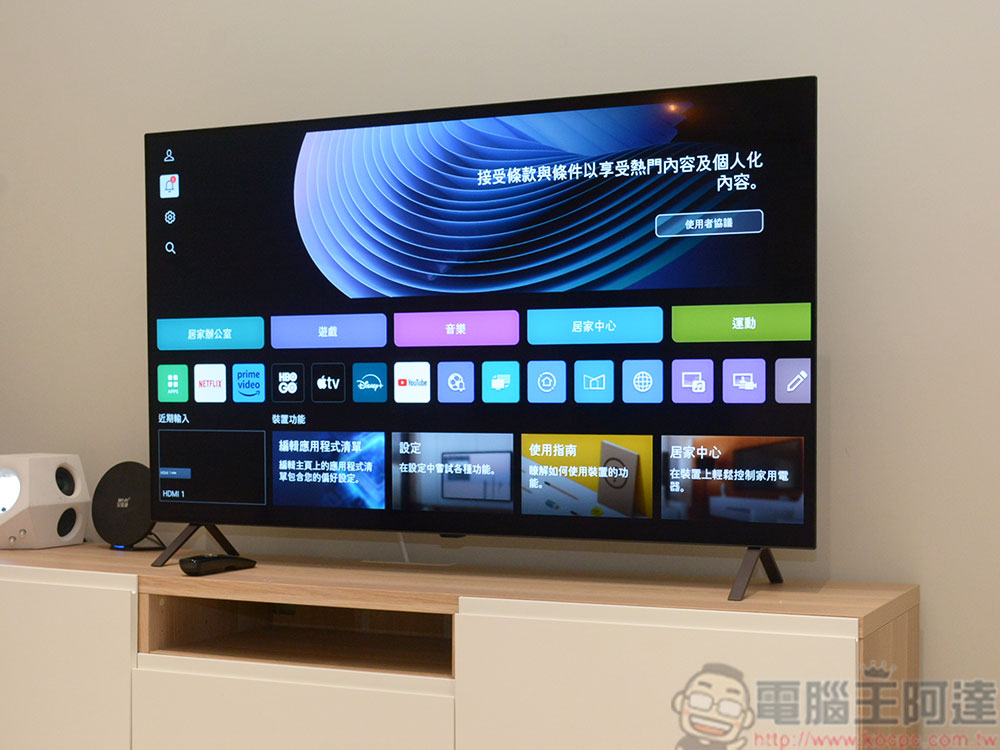
Why does your TV have sound but the screen is black?
There are many reasons why a TV screen may not display, ranging from simple fixes to physical fixes. When an electronic product breaks, your first reaction may be to go online and buy a new one. However, TVs can be expensive, and it’s good to at least know some of the possible causes of a no-show, as there may be simple solutions to the problem. Before you understand why your TV screen may be malfunctioning, don’t rush to call a repair technician if your device is still under warranty. Many troubleshooting tips are very simple and require little to no understanding of how your TV works. Why wait days or even weeks if you can fix it in a fraction of the time.
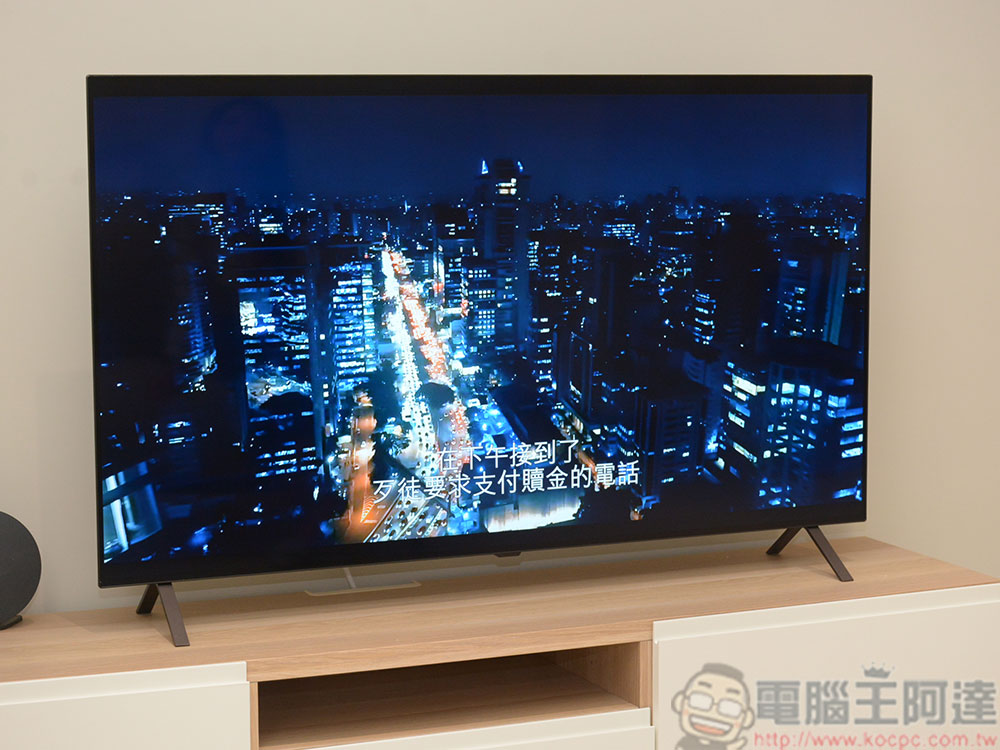
Your settings may be incorrect
While the lack of a screen might be a bit of a nuisance, there might be a harmless and easy-to-fix problem at hand. Simply put, your settings might be misconfigured. Even if you’ve never entered the setup menu, this is the quickest and easiest way to check. All you need is a remote control and a TV power cord.
Before diving into the settings, you’ll have to perform a soft reboot, which can also fix slow TV issues. Press and hold the power button for 5 seconds, then wait 60 seconds, then unplug and wait 2 minutes before plugging it back in. After completing the above steps and turning on the TV, there is still only audio but no image. You must check the brightness setting of the TV. This is usually in the image menu in settings. Depending on the TV brand and model, you can refer to the manual to find the respective functions. These options will also affect the color tone of the TV.
When you check the brightness setting, if you find that it is currently at the darkest value, please adjust the screen so that the content can be seen on the screen. If you’re lucky, the TV is simply malfunctioning and a slight brightness adjustment can restore the image. If a soft reset or adjusting the screen brightness doesn’t fix it, you’ll have to turn your attention to the other components of your TV, starting with the HDMI input.
Your input is defective
In current wiring, audio and video are compressed in the same bundle of cables, and only one line and one connection port are needed to transmit sound and video at the same time. This means that the lack of video is unlikely to be a user issue, in which case your audio will not work. The easiest way to resolve this issue is to test the other HDMI ports on your TV (if you have one). If changing the port works, then unfortunately the original TV input won’t work. You can choose to fix it or keep using it until other ports break or the TV stops working. If changing the port doesn’t resolve the issue, try using a different HDMI cable. If you don’t have another cable, try using your current cable on another device to see if it’s defective. Next, also determine if the problem is with your cable TV, set-top box, or the device you’re trying to use.
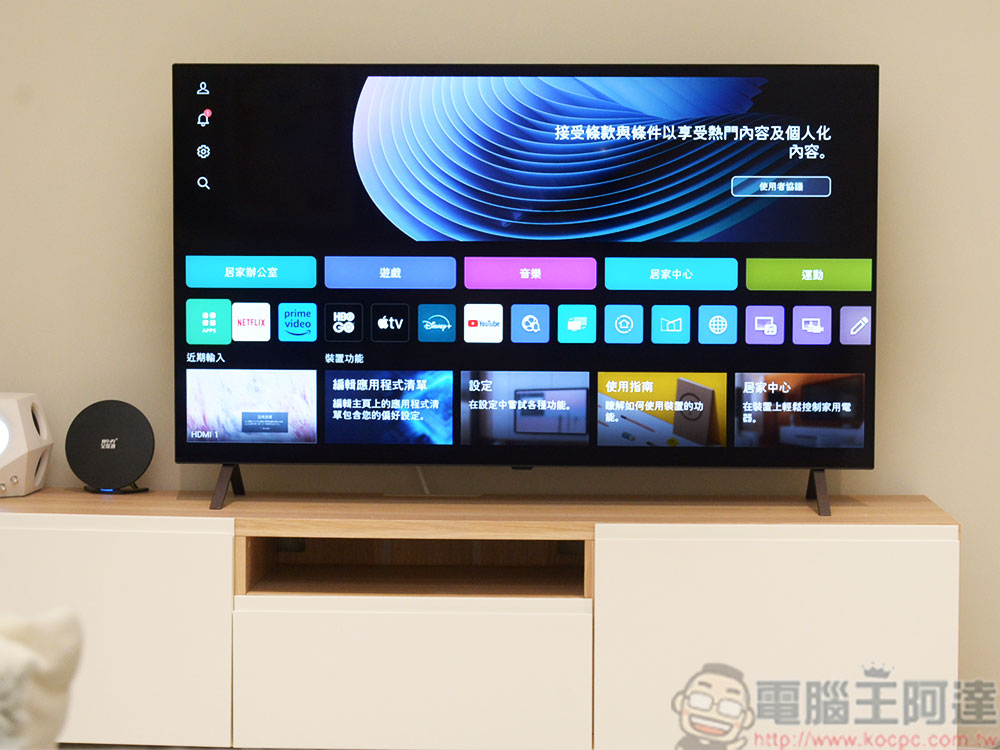
There are two things to note when it comes to smart TVs. First of all, have you seen the built-in interface of the TV? This looks like a menu with options for different apps, not much different from your phone’s home screen. If you see this screen but get nothing when trying to run an external device such as a TV box or game console, the problem may be with your HDMI cable, the input on your TV, or the output of your TV.
Software may need to be updated
A software update may fix the screen freeze. Different brands have different software update methods. Each TV update requires one constant condition: a stable wireless network connection. To update your TV, please follow the steps in the user manual, which is usually in the menu that supports paging. If your TV does not have a stable network connection, please first go to the brand’s download center according to the TV model, download the update driver to a USB flash drive, plug the flash drive into the TV’s USB port, and perform the update from the software update function on the TV.
Disable battery saver mode
You or someone in your home may accidentally set the TV to power saving mode. One of the telltale signs that the TV is in power saving mode is that the screen goes black after the TV has been running for a short period of time. This mode is suitable for users who don’t want their TV to consume too much power. Unfortunately, sometimes power saving mode has its own problems. Checking whether power saver mode is active requires going into the settings menu, and like anything else, where you find power saver mode depends on your TV. If your battery saver mode is enabled, even if it’s set to a low setting, turn it off completely. This setup process may require you to restart the TV, but when you do, it should be able to play audio and display images.
Your TV needs to be reset
If all else fails, you can always reset your TV to its factory settings. This is what you do when you’ve exhausted all options and can’t determine why your input isn’t producing an image, think of it as a last resort to possibly fix a system or mechanical error you can’t see. To perform a factory reset, you must be able to access your TV’s settings menu. If you don’t see this menu, the problem is with a component of your TV and may require a service technician. Before starting the factory reset process, please note that factory reset will delete all apps you downloaded, clear all user data, and restore all settings to default values. Restoring everything back to the way it was before can be a hassle, but it’s better than not having a TV at all. Here’s what you can do first:
- Make a note of any apps that need to be re-downloaded.
- Have account login details for all applications.
- Has the TV user’s login information.
- Have your Wi-Fi information ready.
Depending on the brand, the option to restore the original settings will be in different places. For details, please refer to the brand’s official website or user manual.
Source: KOCPC Chinese