


As Google officially released Android’s “Find My Device Network”, the official also updated its support page. We also had the opportunity to learn how to configure the function of the Object Finder Network according to our own needs. This article will teach you how to find this setting. Continue reading How to select Android “Find My Device Network” settings as needed? This article tells you the content of the report.
▲Image source: Google
How to select Android “Find My Device Network” settings as needed? This article tells you
Although for “items”, the object-finding network function that can be “co-searched” through other people’s devices even when offline is indeed good. However, for products that are already connected to the Internet, such as mobile phones, the need for such functions is obviously reduced a lot.
As Google officially releases Android’s “Find My Device Network”, they also updated their support page. We also had the opportunity to learn how to configure the object-finding network function on Android according to our own needs.
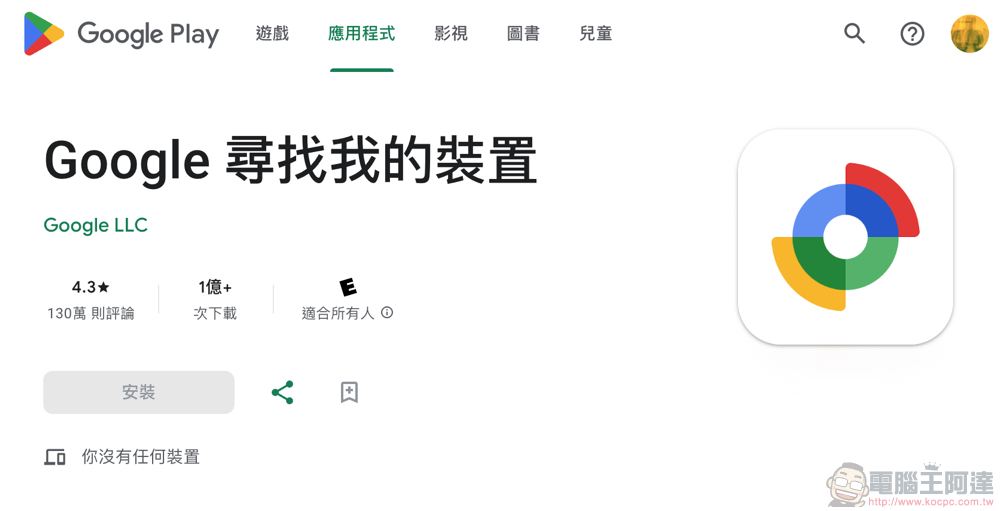
Detailed settings can be found in the “Google Find My Device” app page, click on the avatar and select “Find My Device Settings” to enter the page (as shown below).
According to the official support page, in addition to the previous single shutdown option on Android devices, there will now be new options including “Not using the Find My Device network」、「Only use Find My Device networks in high-traffic areas“and”Use the Find My Device network in all areas“Three options.
Basically, the difference between the three is the sensitivity of positioning data that can be used for offline search through devices with Bluetooth “quick pairing” function through encrypted connections.
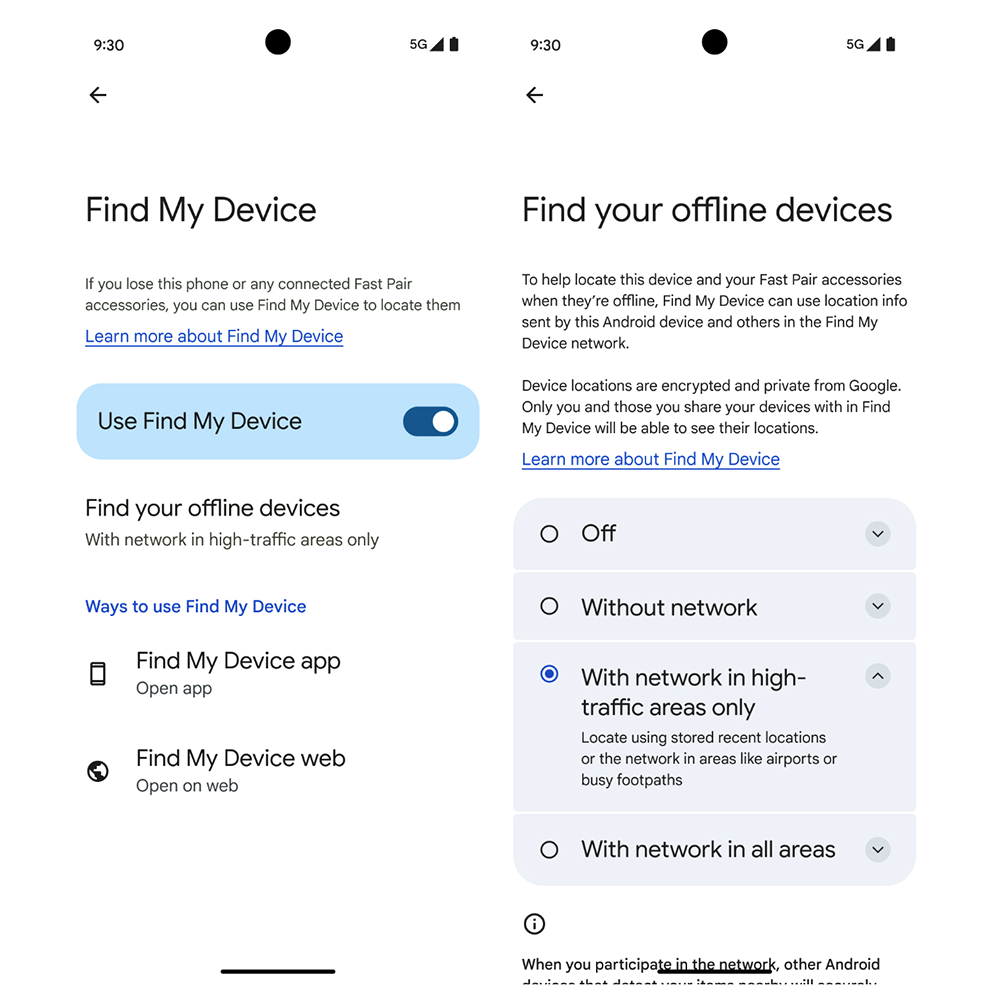
In short, if you don’t trust the so-called Google’s own offline finding network. You can choose “Do not use the “Find My Device” network” to avoid using the device in your hand to provide reference positioning when encountering these Bluetooth devices. Under this option, you can still search through previous searches, that is, by using the mobile network or connecting to other networks.
▲Image source: Google
As for the difference between “high-traffic areas” and “all areas”, it depends on whether you still provide reference positioning information to others even when you are in a sparsely populated area. The scenarios that the editor can think of here are not only the network being cracked for reverse tracking (which should be unlikely), but the other possibility is that a thoughtful person may use the tracker for detection purposes. It can be known when someone enters a less populated area – a bit like the concept of geofencing?
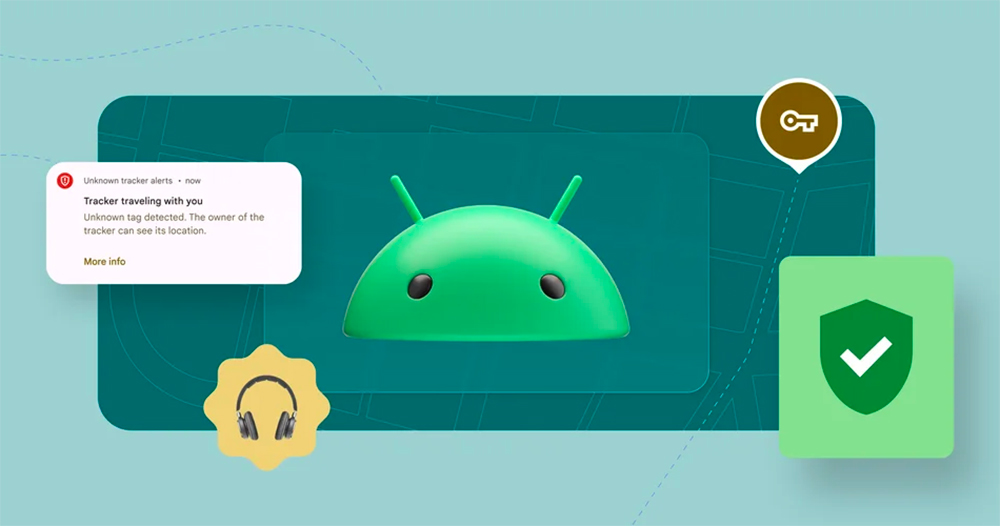
▲Image source: Google
All in all, compared to Apple Find My. Google 的这边虽然提供了蛮详细的设定方式,对于会对这样功能的隐私资安有所怀疑的人,也许可以透过限制区域来获得离线寻物网路的寻机好处(虽然别人可能就不太能透过你来找到郊区的失物了)。
I mean, I personally think the “quick pairing” device part in the official description is more interesting. I don’t know if this means that as long as a device supports Fast Pair, it is equivalent to supporting the Google Find My Device Network?
Further reading:

Source: KOCPC Chinese